
How to create a data form
in Epidata Manager
Dr. Nitin Dhupdale
Lecturer
Dept of PSM
Goa Medical College
Bambolim Goa
Objectives
• How to create a data Form in Epidata Manager?
• How to generate various variables?
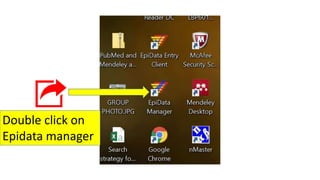
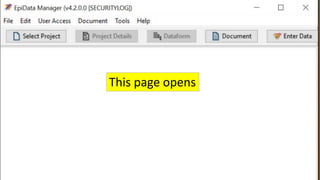
Double click on
Epidata manager
This page opens
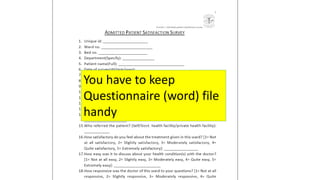
You have to keep
Questionnaire (word) file
handy
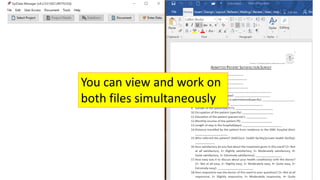
You can view and work on
both files simultaneously
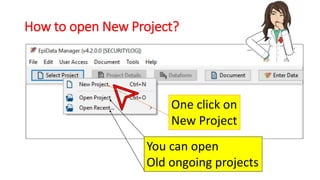
How to open New Project?
One click on
New Project
You can open
Old ongoing projects
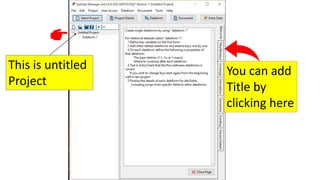
This is untitled
Project
You can add
Title by
clicking here
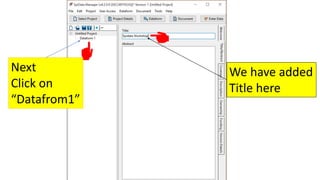
We have added
Title here
Next
Click on
“Datafrom1”
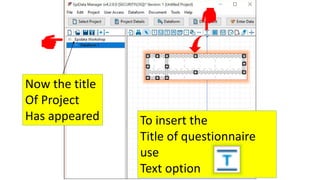
Now the title
Of Project
Has appeared To insert the
Title of questionnaire
use
Text option
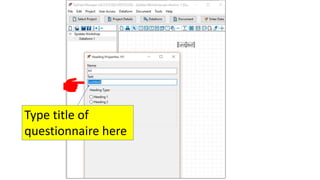
Type title of
questionnaire here
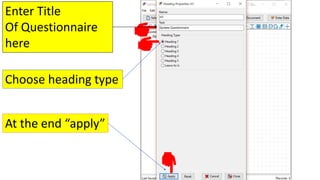
Enter Title
Of Questionnaire
here
Choose heading type
At the end “apply”
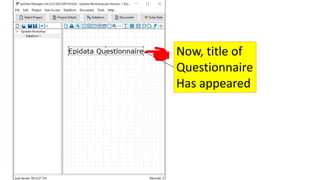
Now, title of
Questionnaire
Has appeared
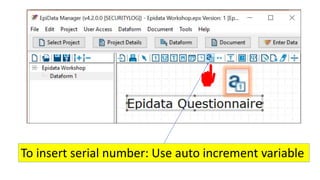
To insert serial number: Use auto increment variable
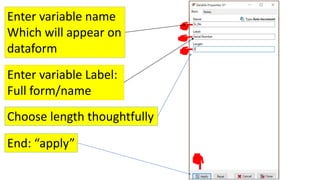
Enter variable name
Which will appear on
dataform
Enter variable Label:
Full form/name
Choose length thoughtfully
End: “apply”
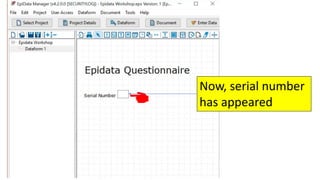
Now, serial number
has appeared
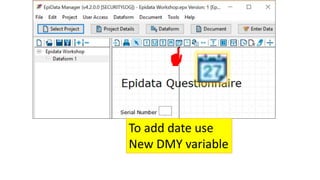
To add date use
New DMY variable
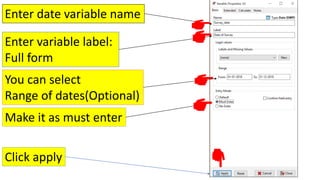
Enter date variable name
Enter variable label:
Full form
You can select
Range of dates(Optional)
Make it as must enter
Click apply
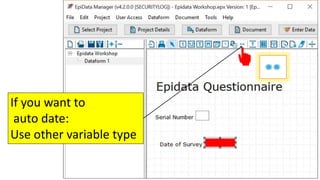
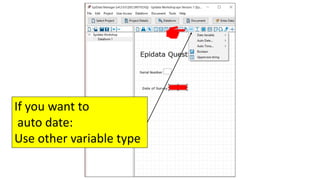
If you want to
auto date:
Use other variable type
If you want to
auto date:
Use other variable type
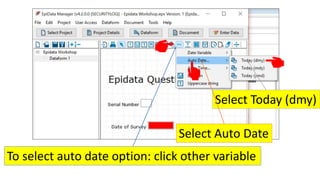
To select auto date option: click other variable
Select Auto Date
Select Today (dmy)
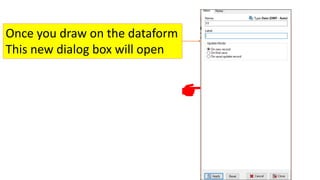
Once you draw on the dataform
This new dialog box will open
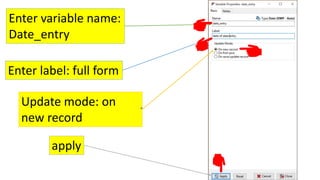
Enter variable name:
Date_entry
Update mode: on
new record
apply
Enter label: full form
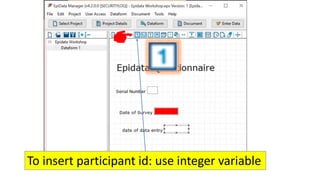
To insert participant id: use integer variable
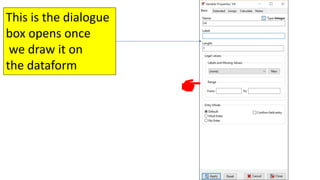
This is the dialogue
box opens once
we draw it on
the dataform
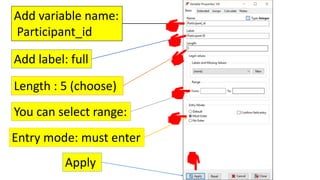
Add variable name:
Participant_id
Add label: full
Length : 5 (choose)
You can select range:
Entry mode: must enter
Apply
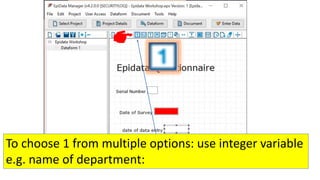
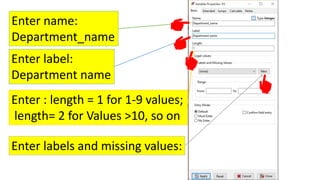
To choose 1 from multiple options: use integer variable
e.g. name of department:
Enter name:
Department_name
Enter label:
Department name
Enter : length = 1 for 1-9 values;
length= 2 for Values >10, so on
Enter labels and missing values:
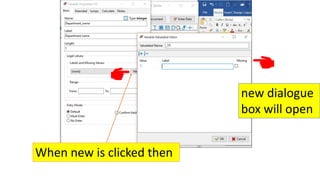
When new is clicked then
new dialogue
box will open
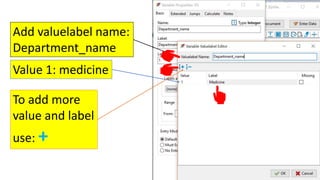
Add valuelabel name:
Department_name
Value 1: medicine
To add more
value and label
use: +
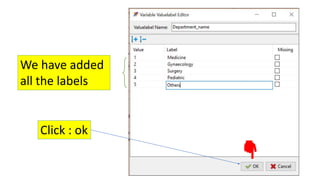
We have added
all the labels
Click : ok
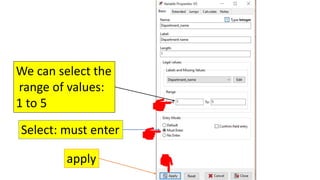
We can select the
range of values:
1 to 5
Select: must enter
apply
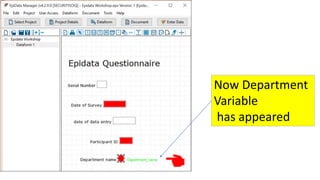
Now Department
Variable
has appeared
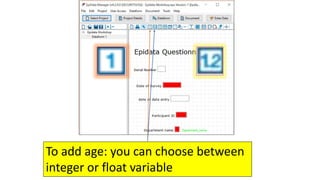
To add age: you can choose between
integer or float variable
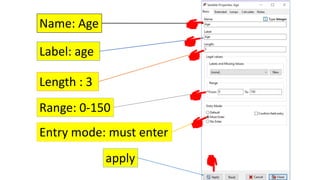
Name: Age
Label: age
Length : 3
Range: 0-150
Entry mode: must enter
apply
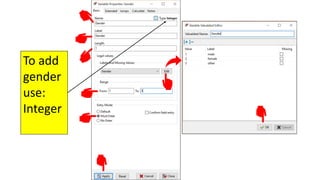
To add
gender
use:
Integer
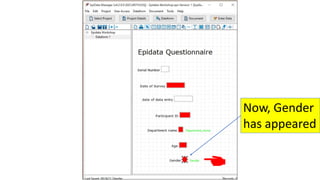
Now, Gender
has appeared
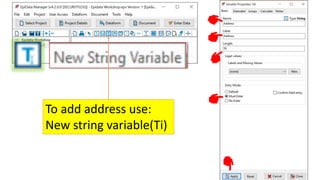
To add address use:
New string variable(Ti)
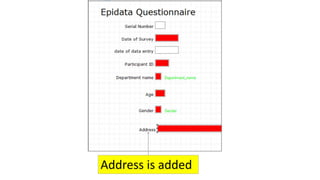
Address is added
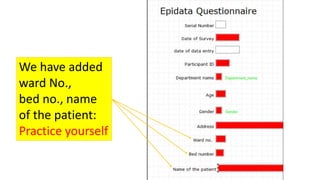
We have added
ward No.,
bed no., name
of the patient:
Practice yourself
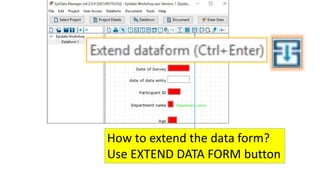
How to extend the data form?
Use EXTEND DATA FORM button
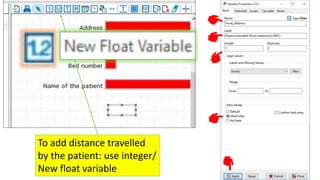
To add distance travelled
by the patient: use integer/
New float variable
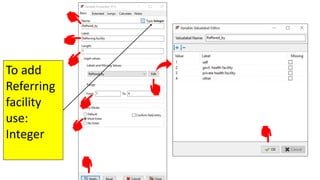
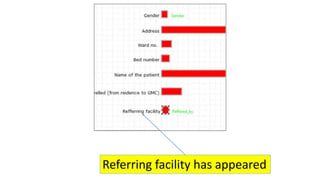
To add
Referring
facility
use:
Integer
Referring facility has appeared
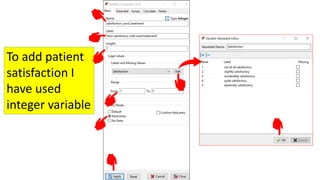
To add patient
satisfaction I
have used
integer variable
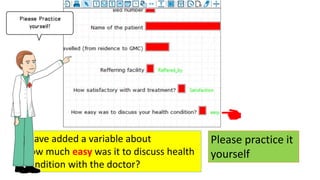
I have added a variable about
How much easy was it to discuss health
Condition with the doctor?
Please practice it
yourself
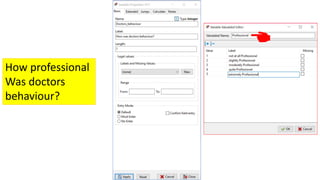
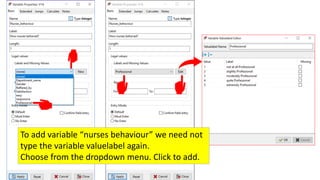
How professional
Was doctors
behaviour?
To add variable “nurses behaviour” we need not
type the variable valuelabel again.
Choose from the dropdown menu. Click to add.
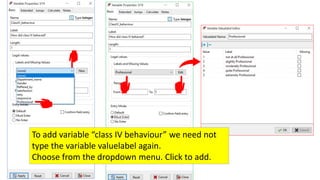
To add variable “class IV behaviour” we need not
type the variable valuelabel again.
Choose from the dropdown menu. Click to add.
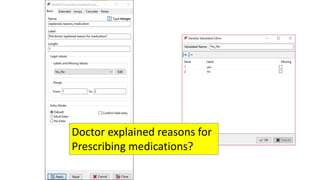
Doctor explained reasons for
Prescribing medications?
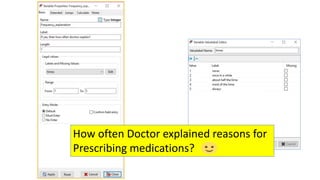
How often Doctor explained reasons for
Prescribing medications?
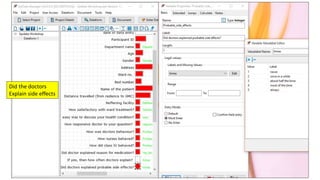
Did the doctors
Explain side effects
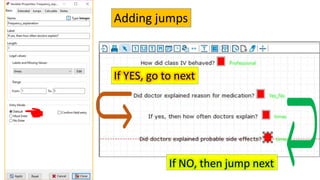
If YES, go to next
If NO, then jump next
Adding jumps
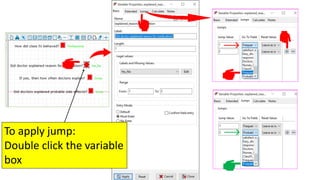
To apply jump:
Double click the variable
box
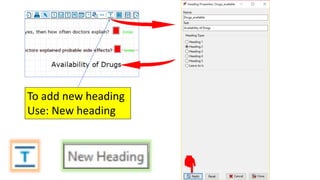
To add new heading
Use: New heading
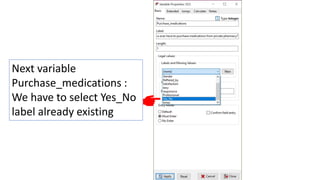
Next variable
Purchase_medications :
We have to select Yes_No
label already existing
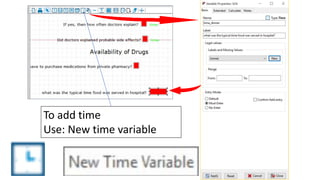
To add time
Use: New time variable
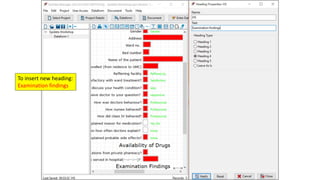
To insert new heading:
Examination findings
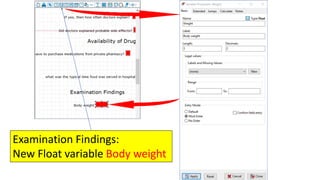
Examination Findings:
New Float variable Body weight
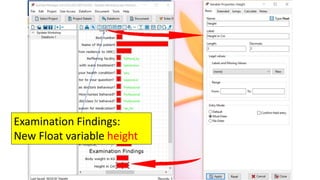
Examination Findings:
New Float variable height
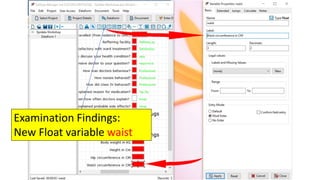
Examination Findings:
New Float variable waist
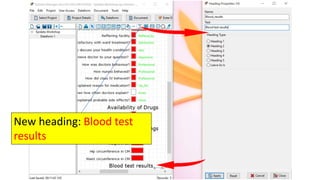
New heading: Blood test
results
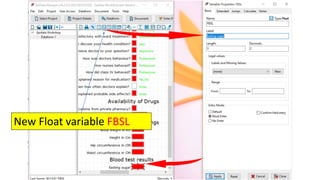
New Float variable FBSL
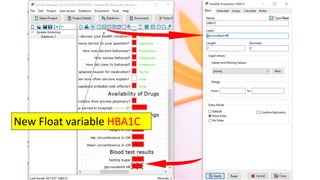
New Float variable HBA1C
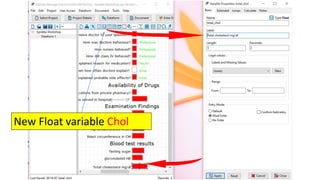
New Float variable Chol
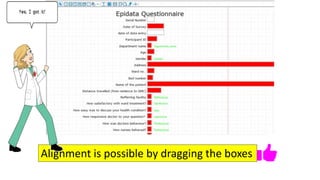
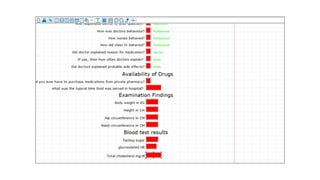
Alignment is possible by dragging the boxes
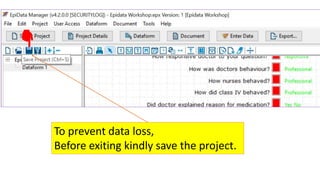
To prevent data loss,
Before exiting kindly save the project.
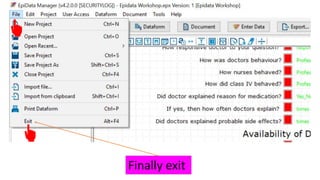
Finally exit
How to create a Dataform by using Epidata manager software

How to create a Dataform by using Epidata manager software