VISION
A premier institution
of learning in the
ASEAN region by 2040.
MISSION
Develop Competent and
Productive Professionals with
Positive Values for Sustainable
Development.
CORE
VALUES
E – EXCELLENCE
V – VALUE LADEN
S – SERVICE – DRIVEN
U - UNITY
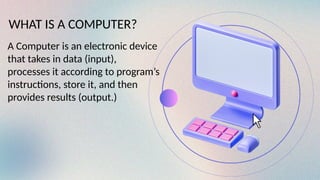
WHAT IS A COMPUTER?
A Computer is an electronic device
that takes in data (input),
processes it according to program’s
instructions, store it, and then
provides results (output.)
REVOLUTION
OF
COMPUTER
PRE- MECHANICAL ERA
Ancient Times: The abacus, a simple counting frame, was used for thousands of
years.
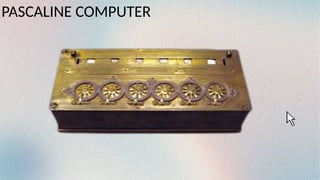
1600s-1800s: Mechanical calculators, like Pascal's calculator, used gears and
wheels to perform calculations.
First Generation Computers (1940-1950)
-Relied on Vacuum Tubes.
-Huge, Slow, used a lot of power, punched cards.
PASCALINE COMPUTER
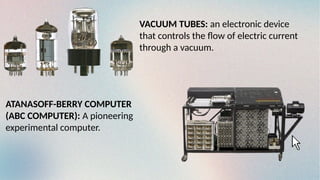
VACUUM TUBES: an electronic device
that controls the flow of electric current
through a vacuum.
ATANASOFF-BERRY COMPUTER
(ABC COMPUTER): A pioneering
experimental computer.
ENIAC COMPUTER (1946)
UNIVAC COMPUTER (1951)
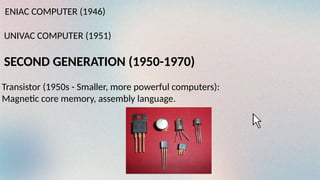
SECOND GENERATION (1950-1970)
Transistor (1950s - Smaller, more powerful computers):
Magnetic core memory, assembly language.
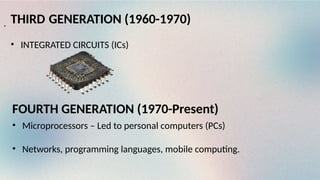
THIRD GENERATION (1960-1970)
• INTEGRATED CIRCUITS (ICs)
.
FOURTH GENERATION (1970-Present)
• Microprocessors – Led to personal computers (PCs)
• Networks, programming languages, mobile computing.
:
The Personal Computer Revolution
Apple II (1977)
IBM PC (1981)
Spread of Personal Computers (1980s - Impact on society, education,
business)
Graphical User Interfaces (1980s - Apple Macintosh, Windows)
.
FIFTH GENERATION (Present-Future)
• Artificial Intelligence (AI), Natural Language Processing.
• Quantom Computing – next big step in computing. Other Emerging
Technologies (e.g, Blockchain, VR/AR)
.
The Future of Computing
Artificial Intelligence (AI) (1950s - Present)
Quantum Computing (2000s - Present) Other Emerging
Technologies (e.g., Blockchain, VR/AR
.
BASI
C
COMPU
TER
STRUCT
URE
FUNCTIONAL UNIT
A computer consists of five functionally independent main parts input,
memory, arithmetic logic unit (ALU), output and control unit.
A. Input unit:
The source program/high level language program/coded
information/simply data is fed to a computer through input devices
keyboard is a most common type. Whenever a key is pressed, one
corresponding word or number is translated into its equivalent binary
code over a cable & fed either to memory or processor
B. Memory unit:
Its function into store programs and data. It is basically to two types:
1. Primary memory
2. Secondary memory
1. Primary memory:
Is the one exclusively associated with the processor and operates at the
electronics speed programs must be stored in this memory while they are
being executed. The memory contains a large number of semiconductors
storage cells. Each capable of storing one bit of information. These are
processed in a group of fixed site called word.
2. Secondary memory:
Is used where large amounts of data & programs have to be stored,
particularly information that is accessed infrequently.
C. Arithmetic logic unit (ALU):
Most of the computer operators are executed in ALU of the processor like
addition, subtraction, division, multiplication, etc. the operands are brought
into the ALU from memory and stored in highspeed storage elements called
register. Then according to the instructions the operation is performed in the
required sequence.
D. Output unit:
These actually are the counterparts of input unit. Its basic function is to
send the processed results to the outside world.
E. Control unit:
It effectively is the nerve center that sends signals to other units and
senses their states. The
actual timing signals that govern the transfer of data between input unit,
processor, memory and output
unit are generated by the control unit.
COMMON
TROUBLESHO
OTING
COMPUTER
PROBLEMS
What Is Troubleshooting?
-A systematic and methodical process of identifying, diagnosing, and
resolving errors or faults in a computer system or software.
Why is Troubleshooting important?
-Computers are essential in our daily lives, but they sometimes
encounter problems. Understanding basic troubleshooting helps solve
issues quickly and improves efficiency.
GENERAL TIPS TO KEEP IN
MIND
• Write down your steps: Once you start troubleshooting, you may
want to write down each step you take. This way, you'll be able to
remember exactly what you've done and can avoid repeating the
same mistakes. If you end up asking other people for help, it will
be much easier if they know exactly what you've tried already.
• Take notes about error messages: If your computer gives you
an error message, be sure to write down as much information as
possible. You may be able to use this information later to find out
if other people are having the same error.
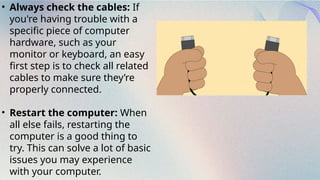
• Always check the cables: If
you're having trouble with a
specific piece of computer
hardware, such as your
monitor or keyboard, an easy
first step is to check all related
cables to make sure they’re
properly connected.
• Restart the computer: When
all else fails, restarting the
computer is a good thing to
try. This can solve a lot of basic
issues you may experience
with your computer.
SIMPLE SOLUTIONS TO
COMMON PROBLEMS
Most of the time, problems can be fixed using
simple troubleshooting techniques, like closing
and reopening the program. It's important to try
these simple solutions before resorting to more
extreme measures. If the problem still isn't fixed,
you can try other troubleshooting techniques.
a) Problem: Power
button will not start
computer
• Solution 1: If your computer does not start, begin by
checking the power cord to confirm that it is plugged
securely into the back of the computer case and the
power outlet.
• Solution 2: If it is plugged into an outlet, make sure it isa
working outlet. To check your outlet, you can plug in
another electrical device, such as a lamp.
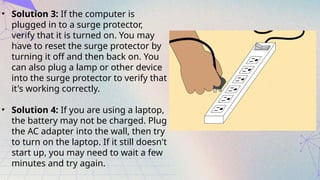
• Solution 3: If the computer is
plugged in to a surge protector,
verify that it is turned on. You may
have to reset the surge protector by
turning it off and then back on. You
can also plug a lamp or other device
into the surge protector to verify that
it's working correctly.
• Solution 4: If you are using a laptop,
the battery may not be charged. Plug
the AC adapter into the wall, then try
to turn on the laptop. If it still doesn't
start up, you may need to wait a few
minutes and try again.
b) Problem: An application is
running slowly
• Solution 1: Close and reopen the
application.
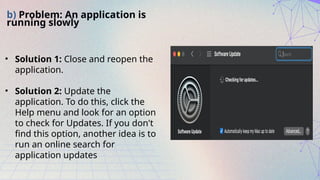
• Solution 2: Update the
application. To do this, click the
Help menu and look for an option
to check for Updates. If you don't
find this option, another idea is to
run an online search for
application updates
c) Problem: An application is frozen
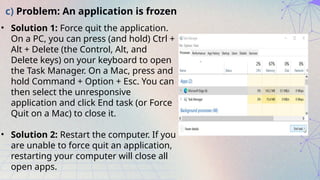
• Solution 1: Force quit the application.
On a PC, you can press (and hold) Ctrl +
Alt + Delete (the Control, Alt, and
Delete keys) on your keyboard to open
the Task Manager. On a Mac, press and
hold Command + Option + Esc. You can
then select the unresponsive
application and click End task (or Force
Quit on a Mac) to close it.
• Solution 2: Restart the computer. If you
are unable to force quit an application,
restarting your computer will close all
open apps.
d) Problem: All programs
on the computer run
slowly
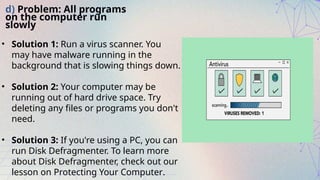
• Solution 1: Run a virus scanner. You
may have malware running in the
background that is slowing things down.
• Solution 2: Your computer may be
running out of hard drive space. Try
deleting any files or programs you don't
need.
• Solution 3: If you're using a PC, you can
run Disk Defragmenter. To learn more
about Disk Defragmenter, check out our
lesson on Protecting Your Computer.
e) Problem: The computer is frozen
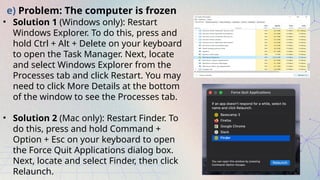
• Solution 1 (Windows only): Restart
Windows Explorer. To do this, press and
hold Ctrl + Alt + Delete on your keyboard
to open the Task Manager. Next, locate
and select Windows Explorer from the
Processes tab and click Restart. You may
need to click More Details at the bottom
of the window to see the Processes tab.
• Solution 2 (Mac only): Restart Finder. To
do this, press and hold Command +
Option + Esc on your keyboard to open
the Force Quit Applications dialog box.
Next, locate and select Finder, then click
Relaunch.
• Solution 3: Press and hold the Power button. The Power
button is usually located on the front or side of the
computer, typically indicated by the power symbol. Press
and hold the Power button for 5 to 10 seconds to force
the computer to shut down.
• Solution 4: If the computer still won't shut down, you can
unplug the power cable from the electrical outlet. If you're
using a laptop, you may be able to remove the battery to
force the computer to turn off. Note: This solution should
be your last resort after trying the other suggestions
above.
f) Problem: The mouse or
keyboard has stopped working
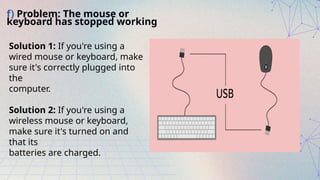
Solution 1: If you're using a
wired mouse or keyboard, make
sure it's correctly plugged into
the
computer.
Solution 2: If you're using a
wireless mouse or keyboard,
make sure it's turned on and
that its
batteries are charged.
g) Problem: The screen is
blank
• Solution 1: The computer may be in Sleep mode. Click
the mouse or press any key on the keyboard to wake it
• Solution 2: Make sure the monitor is plugged in and
turned on.
• Solution 3: Make sure the computer is plugged in and
turned on.
• Solution 4: If you're using a desktop, make sure the
monitor cable is properly connected to the computer
tower and the monitor.
THANK
YOU!

GROUP-1-INTRODUCTION.pptnigeegaggahagahx

  • 1.
    VISION A premier institution oflearning in the ASEAN region by 2040. MISSION Develop Competent and Productive Professionals with Positive Values for Sustainable Development. CORE VALUES E – EXCELLENCE V – VALUE LADEN S – SERVICE – DRIVEN U - UNITY
  • 2.
    WHAT IS ACOMPUTER? A Computer is an electronic device that takes in data (input), processes it according to program’s instructions, store it, and then provides results (output.)
  • 3.
  • 4.
    PRE- MECHANICAL ERA AncientTimes: The abacus, a simple counting frame, was used for thousands of years. 1600s-1800s: Mechanical calculators, like Pascal's calculator, used gears and wheels to perform calculations. First Generation Computers (1940-1950) -Relied on Vacuum Tubes. -Huge, Slow, used a lot of power, punched cards.
  • 5.
  • 6.
    VACUUM TUBES: anelectronic device that controls the flow of electric current through a vacuum. ATANASOFF-BERRY COMPUTER (ABC COMPUTER): A pioneering experimental computer.
  • 7.
    ENIAC COMPUTER (1946) UNIVACCOMPUTER (1951) SECOND GENERATION (1950-1970) Transistor (1950s - Smaller, more powerful computers): Magnetic core memory, assembly language.
  • 8.
    THIRD GENERATION (1960-1970) •INTEGRATED CIRCUITS (ICs) . FOURTH GENERATION (1970-Present) • Microprocessors – Led to personal computers (PCs) • Networks, programming languages, mobile computing.
  • 9.
    : The Personal ComputerRevolution Apple II (1977) IBM PC (1981) Spread of Personal Computers (1980s - Impact on society, education, business) Graphical User Interfaces (1980s - Apple Macintosh, Windows) .
  • 10.
    FIFTH GENERATION (Present-Future) •Artificial Intelligence (AI), Natural Language Processing. • Quantom Computing – next big step in computing. Other Emerging Technologies (e.g, Blockchain, VR/AR) .
  • 11.
    The Future ofComputing Artificial Intelligence (AI) (1950s - Present) Quantum Computing (2000s - Present) Other Emerging Technologies (e.g., Blockchain, VR/AR .
  • 12.
  • 13.
    FUNCTIONAL UNIT A computerconsists of five functionally independent main parts input, memory, arithmetic logic unit (ALU), output and control unit. A. Input unit: The source program/high level language program/coded information/simply data is fed to a computer through input devices keyboard is a most common type. Whenever a key is pressed, one corresponding word or number is translated into its equivalent binary code over a cable & fed either to memory or processor B. Memory unit: Its function into store programs and data. It is basically to two types: 1. Primary memory 2. Secondary memory
  • 14.
    1. Primary memory: Isthe one exclusively associated with the processor and operates at the electronics speed programs must be stored in this memory while they are being executed. The memory contains a large number of semiconductors storage cells. Each capable of storing one bit of information. These are processed in a group of fixed site called word. 2. Secondary memory: Is used where large amounts of data & programs have to be stored, particularly information that is accessed infrequently. C. Arithmetic logic unit (ALU): Most of the computer operators are executed in ALU of the processor like addition, subtraction, division, multiplication, etc. the operands are brought into the ALU from memory and stored in highspeed storage elements called register. Then according to the instructions the operation is performed in the required sequence.
  • 15.
    D. Output unit: Theseactually are the counterparts of input unit. Its basic function is to send the processed results to the outside world. E. Control unit: It effectively is the nerve center that sends signals to other units and senses their states. The actual timing signals that govern the transfer of data between input unit, processor, memory and output unit are generated by the control unit.
  • 16.
  • 17.
    What Is Troubleshooting? -Asystematic and methodical process of identifying, diagnosing, and resolving errors or faults in a computer system or software. Why is Troubleshooting important? -Computers are essential in our daily lives, but they sometimes encounter problems. Understanding basic troubleshooting helps solve issues quickly and improves efficiency.
  • 18.
    GENERAL TIPS TOKEEP IN MIND • Write down your steps: Once you start troubleshooting, you may want to write down each step you take. This way, you'll be able to remember exactly what you've done and can avoid repeating the same mistakes. If you end up asking other people for help, it will be much easier if they know exactly what you've tried already. • Take notes about error messages: If your computer gives you an error message, be sure to write down as much information as possible. You may be able to use this information later to find out if other people are having the same error.
  • 19.
    • Always checkthe cables: If you're having trouble with a specific piece of computer hardware, such as your monitor or keyboard, an easy first step is to check all related cables to make sure they’re properly connected. • Restart the computer: When all else fails, restarting the computer is a good thing to try. This can solve a lot of basic issues you may experience with your computer.
  • 20.
    SIMPLE SOLUTIONS TO COMMONPROBLEMS Most of the time, problems can be fixed using simple troubleshooting techniques, like closing and reopening the program. It's important to try these simple solutions before resorting to more extreme measures. If the problem still isn't fixed, you can try other troubleshooting techniques.
  • 21.
    a) Problem: Power buttonwill not start computer • Solution 1: If your computer does not start, begin by checking the power cord to confirm that it is plugged securely into the back of the computer case and the power outlet. • Solution 2: If it is plugged into an outlet, make sure it isa working outlet. To check your outlet, you can plug in another electrical device, such as a lamp.
  • 22.
    • Solution 3:If the computer is plugged in to a surge protector, verify that it is turned on. You may have to reset the surge protector by turning it off and then back on. You can also plug a lamp or other device into the surge protector to verify that it's working correctly. • Solution 4: If you are using a laptop, the battery may not be charged. Plug the AC adapter into the wall, then try to turn on the laptop. If it still doesn't start up, you may need to wait a few minutes and try again.
  • 23.
    b) Problem: Anapplication is running slowly • Solution 1: Close and reopen the application. • Solution 2: Update the application. To do this, click the Help menu and look for an option to check for Updates. If you don't find this option, another idea is to run an online search for application updates
  • 24.
    c) Problem: Anapplication is frozen • Solution 1: Force quit the application. On a PC, you can press (and hold) Ctrl + Alt + Delete (the Control, Alt, and Delete keys) on your keyboard to open the Task Manager. On a Mac, press and hold Command + Option + Esc. You can then select the unresponsive application and click End task (or Force Quit on a Mac) to close it. • Solution 2: Restart the computer. If you are unable to force quit an application, restarting your computer will close all open apps.
  • 25.
    d) Problem: Allprograms on the computer run slowly • Solution 1: Run a virus scanner. You may have malware running in the background that is slowing things down. • Solution 2: Your computer may be running out of hard drive space. Try deleting any files or programs you don't need. • Solution 3: If you're using a PC, you can run Disk Defragmenter. To learn more about Disk Defragmenter, check out our lesson on Protecting Your Computer.
  • 26.
    e) Problem: Thecomputer is frozen • Solution 1 (Windows only): Restart Windows Explorer. To do this, press and hold Ctrl + Alt + Delete on your keyboard to open the Task Manager. Next, locate and select Windows Explorer from the Processes tab and click Restart. You may need to click More Details at the bottom of the window to see the Processes tab. • Solution 2 (Mac only): Restart Finder. To do this, press and hold Command + Option + Esc on your keyboard to open the Force Quit Applications dialog box. Next, locate and select Finder, then click Relaunch.
  • 27.
    • Solution 3:Press and hold the Power button. The Power button is usually located on the front or side of the computer, typically indicated by the power symbol. Press and hold the Power button for 5 to 10 seconds to force the computer to shut down. • Solution 4: If the computer still won't shut down, you can unplug the power cable from the electrical outlet. If you're using a laptop, you may be able to remove the battery to force the computer to turn off. Note: This solution should be your last resort after trying the other suggestions above.
  • 28.
    f) Problem: Themouse or keyboard has stopped working Solution 1: If you're using a wired mouse or keyboard, make sure it's correctly plugged into the computer. Solution 2: If you're using a wireless mouse or keyboard, make sure it's turned on and that its batteries are charged.
  • 29.
    g) Problem: Thescreen is blank • Solution 1: The computer may be in Sleep mode. Click the mouse or press any key on the keyboard to wake it • Solution 2: Make sure the monitor is plugged in and turned on. • Solution 3: Make sure the computer is plugged in and turned on. • Solution 4: If you're using a desktop, make sure the monitor cable is properly connected to the computer tower and the monitor.

  • 30.