The COMMAND
   MS-DOS uses a text-based command-line
    user interface.
   A text-based interface requires no drivers
    because display functions are built in.
   COMMAND.COM provides the user interface.
Working with the Prompt
   Typing PROMPT /? or HELP PROMPT
    provides help information.
   DOS HELP returns information on
    customizing the prompt and the information
    that appears.
What Do You mean By Dos
Command???
   DOS Commands are instructions to
    perform tasks on files and directories. They
    are case insensitive. And as you already
    know, file is the area where we store group of
    information or data, and collection of group of
    files is called a directory. 


                                                 4
Types Of Dos Command
   DOS Commands are divided into 2 types:
   Internal Commands
   These are for performing basic operations on
    files and directories and they do not need any
    external file support.
   External Commands
   These external commands are for performing
    advanced tasks and they do need some
    external file support as they are not stored in 
    COMMAND.COM                                   5
Internal and External Commands
   External commands exist as separate files.
   Windows has its own set of system utilities.
   Internal commands are contained within
    COMMAND.COM.
   Command mode requires typing a command
    instead of clicking an icon.
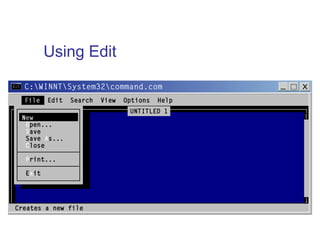
Using Edit
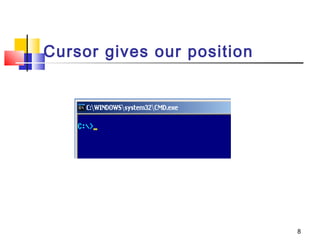
Cursor gives our position


                            8
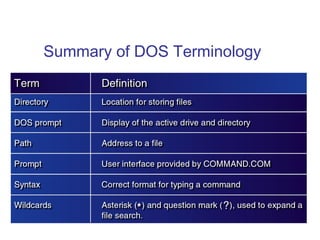
Summary of DOS Terminology
Keyboard Shortcut In Dos.
   In MS-DOS, keyboard shortcuts involving handy ones like
    Functional keys, arrows along with ESC are of great help
    for recalling to searching to clearing command line etc.,
    Here are few of them:
   UP (↑) and DOWN (↓) arrows recall previously entered
    commands.
   ESC clears the present command line.
   F7 key displays command history and ALT+F7/ESC hides
    it.
   F9 is used to selects a command by number. Just enter
    the command number and it fetches the command line for
    you.                                                    10
Most Commonly Used Internal
DOS Commands
   DATE
   This command is used to display the system
    current date setting and prompt you to enter a
    new date. The syntax is: DATE  [/T | date]


                                               11
   If you type DATE without parameters then it
    displays current date and prompts to enter
    new date. We should give new date in mm-
    dd-yy format. If you want to keep the same
    date just Press ENTER. DATE command with
    /T switch tells the command to just output the
    current system date, without prompting for a
    new date.


                                              12
   TIME
   This command is used to displays or set the
    system time. 
    The syntax is: TIME   [/T | time]


                                            13
   Same as DATE command, typing TIME with
    no parameters displays the current time and
    a prompt for a new one. Press ENTER to
    keep the same time. TIME command used
    with /T switch tells the command to just
    output the current system time, without
    prompting for a new time.


                                            14
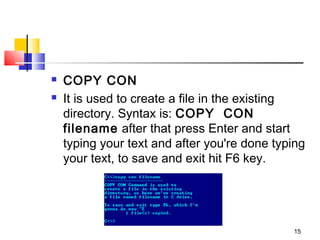
   COPY CON
   It is used to create a file in the existing
    directory. Syntax is: COPY  CON
    filename after that press Enter and start
    typing your text and after you're done typing
    your text, to save and exit hit F6 key.


                                              15
   TYPE
   This command is used to display the contents
    of a text file or files. The syntax is: TYPE  
    [drive:][path]filename
    Now, lets try to display the contents of the file
    named filename we've created earlier using
    COPY CON command. 


                                                16
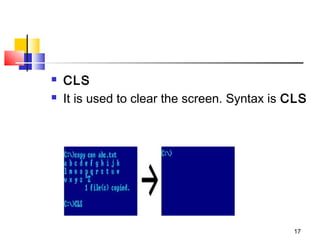
   CLS
   It is used to clear the screen. Syntax is CLS


                                              17
   REN
   This command is used to change/modify the name of
    a file or files. 
    Syntax is: REN   [drive:] [path] filename1  
    filename2.

    Here, filename1 is source file for which you wanted to
    change the name, and filename2 will obviously
    becomes your new file name. Also note that you
    cannot specify a new drive or path for your
    destination file.
                                                     18
   DIR
   This command displays a list of files and
    subdirectories in a directory. Syntax is: DIR  
    [drive:]  [path]  [filename]
    [/A[[:]attributes]]  [/B]  [/C]  [/D]  [/L]  
    [/N]  [/O[[:]sortorder]]  [/P]  [/Q]
    [/S]  [/T[[:]timefield]]  [/W]  [/X]  [/4]


                                               19
   PATH
   This command displays the path that how we have come to the present
    position or sets a search path for executable files. 
    Its Syntax is PATH  [[drive:]path[;...][;%PATH%]]

    Typing PATH without any parameters displays the current path under
    current directory. Typing PATH ; clears all search-path settings and
    direct cmd.exe to search only in the current directory. And including
    %PATH% in the new path setting causes the old path to be appended
    to the new setting.


                                                                      20
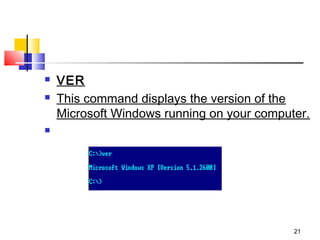
   VER
   This command displays the version of the
    Microsoft Windows running on your computer.



                                            21
   VOL
   It displays the disk volume label and serial
    number, if they exist for the drive specified. If
    no drive is specified it displays for the active
    drive.
    Syntax is VOL  [drive:]


                                                 22
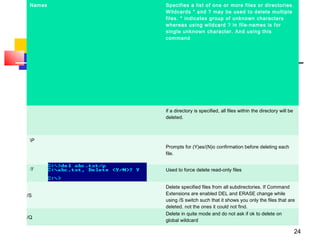
   DEL/ERASE
   Used to delete one or more files. 
    Syntax is DEL   [/P]   [/F]   [/S]   [/Q]  
    [/A[[:]attributes]] names
    Here,


                                              23
Names   Specifies a list of one or more files or directories.
         Wildcards * and ? may be used to delete multiple
         files. * indicates group of unknown characters
         whereas using wildcard ? in file-names is for
         single unknown character. And using this
         com mand


         if a directory is specified, all files within the directory will be
         deleted.


 P
         Prompts for (Y)es/(N)o confirmation before deleting each
         file.


 /F      Used to force delete read-only files


         Delete specified files from all subdirectories. If Command
/S       Extensions are enabled DEL and ERASE change while
         using /S switch such that it shows you only the files that are
         deleted, not the ones it could not find.
         Delete in quite mode and do not ask if ok to delete on
/Q
         global wildcard

                                                                               24
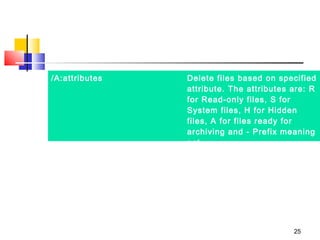
/A:attributes   Delete files based on specified
                attribute. The attributes are: R
                for Read-only files, S for
                System files, H for Hidden
                files, A for files ready for
                archiving and - Prefix meaning
                not.


                                          25
   COPY
   This command is useful in copying one or
    more files to another file or location. Syntax
    isCOPY   [/D]   [/V]   [/N]   [/Y | /-Y]  
    [/Z]   [/A | /B ]   source [/A | /B]   [+
    source [/A | /B] [+ ...]]   [destination
    [/A | /B]]
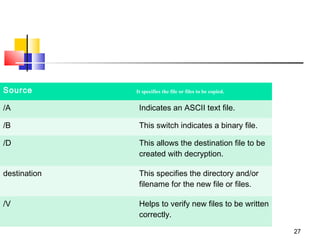
    The different switches that can be used with
    this command as follow along with their use.

                                               26
Source        It specifies the file or files to be copied.


/A             Indicates an ASCII text file.

/B             This switch indicates a binary file.

/D             This allows the destination file to be
               created with decryption.

destination    This specifies the directory and/or
               filename for the new file or files.

/V             Helps to verify new files to be written
               correctly.

                                                             27
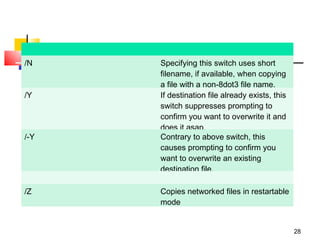
/N    Specifying this switch uses short
      filename, if available, when copying
      a file with a non-8dot3 file name.
/Y    If destination file already exists, this
      switch suppresses prompting to
      confirm you want to overwrite it and
      does it asap.
/-Y   Contrary to above switch, this
      causes prompting to confirm you
      want to overwrite an existing
      destination file.

/Z    Copies networked files in restartable
      mode


                                                 28
Most Commonly Used External
DOS Commands

     EDIT
     This command is used to modify or change the data of a file.
      Syntax is EDIT  [/B]  [/H]  [/R]  [/S]  [filename(s)]

      Using switch /B you can force the edit in monochrome mode. /H
      displays the maximum number of lines possible for your system
      hardware. Whereas using /R and /S one can load files in read-only
      mode and force the use of short filenames respectively. [filename(s)] is
      used to specify file(s) to go edit. You can use wildcards (* and ?) to
      specify multiple files.


                                                                          29
   XCOPY
   This command is used to copy files and
    directory trees from one disk to another disk. 
    Syntax is XCOPY   source   [destination]  
    [/A | /M]   [/D[:date]]   [/P]   [/S [/E]]  
    [/V]   [/W]   [/C]   [/I]   [/Q]   [/F]   [/L]  
    [/G]   [/H]   [/R]   [/T]   [/U]  [/K]  
    [/N]  [/O]   [/X]   [/Y]   [/-Y]  
    [/Z]  [/EXCLUDE:file1[+file2][+file3]...]

                                                       30
   LABEL
   It is used to create, change, or delete the volume label of a disk.
    Syntax is LABEL    [drive:]  [label]
    LABEL  [/MP]   [volume]   [label]

    Here, [drive:] is for secifying the drive letter of a drive to be
    labelled and [label] specifies the label of the volume disk. [/MP]
    is used to specify that the volume should be created as a mount
    point and [volume] is used to specify volume name, usually
    mentioned after drive letter followed by colon and then giving
    volume name required.


                                                                 31
   CHKDSK
   This command is used to check a disk and display a status report with
    properties of disk like serial number, volume label, memory and other
    properties along with errors on the disk if any. 
    Syntax is CHKDSK   [volume path]   [/F]   [/V]   [/R]   [/X]  
    [/I]   [/C]   [/L[:size]]

    [volume path] is where you specify the drive letter followed by a colon
    and volume name to be checked. using /F switch allows you to fix
    errors on the disk. /V display full path and/or cleanup message if
    any. /R is used in tandem with /F and used to locate bad sectors and
    recover readable information. If you wanted to perform a less vigorous
    check of index entries on the disk then the right option is to use /I or /C
    rather then /R as they skip checking of cycles on the volume and helps
    in reducing the amount of time required to run
                                                                             32
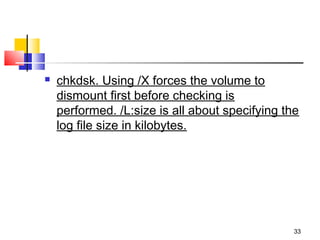
   chkdsk. Using /X forces the volume to
    dismount first before checking is
    performed. /L:size is all about specifying the
    log file size in kilobytes.


                                                 33
   TREE
   This command is very useful to view the list of
    directories and subdirectories present on the disk in
    graphical form. If you wanted to include files also with
    directories and subdirectories, then you'll have to give
    the command line as tree/f which presents the tree
    view of all the content on your disk. Here is the
    syntax for this command with allowed switches: 
    TREE   [drive:path]  [/F]  [/A]
    In case you wanted use ASCII instead of extended
    characters, then go ahead include /A in the command
    line.
                                                        34
   DELTREE
   This command is used to remove a directory
    along with its contents. 
    Syntax is deltree [drive:path]  
    here, [drive:path] specifies the directory name
    to be deleted. All the subdirectories and files
    in this directory will be deleted without prompt
    and there's not getting back. So, keep caution
    while using this command.

                                               35
   DOSKEY
   This command is generally used to edits command
    lines and recalls commands. 
    Syntax
    is DOSKEY  [/REINSTALL]  [/HISTORY] [text]

    Here, /REINSTALL installs new copy of doskey,
    /HISTORY is used to display all previously given
    commands stored in memory. And [text] specifies the
    commands you want to record.


                                                  36
   FIND
   This command searches for a specific text string in a file or files.
    Syntax is FIND   [/V]  [/C]  [/N]  [/I]  [/OFF]  "string"
    [[drive:][path]filename[ ...]]

    The basic essential elements in the command line for find are -
    the string enclosed in " " and [[drive:][path]filename(s)]. String
    specifies the text string to find in the file and [[drive:]
    [path]filename(s)] specifies the file or files where the text string
    search is to be done. If a path is not specified, FIND searches
    the text typed at the prompt or piped from another command.
    When you append /OFF in the command line, it searches and
    finds even those files with offline attribute set. Apart from
    searching the text string, this command is useful in:
                                                                     37
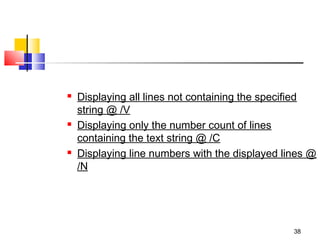
   Displaying all lines not containing the specified
    string @ /V
   Displaying only the number count of lines
    containing the text string @ /C
   Displaying line numbers with the displayed lines @
    /N


                                                 38
SORT


   This command is used to arrange the data of a file in
    alphabetical order (A-Z, 0-9) or reverse alphabetical order. 

    Syntax is SORT   [/R]   [[drive1:][path1]filename1]   [/T
    [drive2:][path2]]  [/O [drive3:][path3]filename3] 

    /R in command line reverses the sort order; that is, the data of
    the specified file sorts sorts Z to A, then 9 to 0. [drive1:]
    [path1]filename1 specifies the file to be sorted. /T [drive2:]
    [path2] is used in cases of data overflow in main memory and it
    specifies the path of the directory to hold the sort's working
    storage. And /O [drive3:][path3]filename3 specifies the file
    where the sorted input is to be stored.
                                                                      39
40
41

Dos commad. by ammar nawab ppt

  • 2.
    The COMMAND  MS-DOS uses a text-based command-line user interface.  A text-based interface requires no drivers because display functions are built in.  COMMAND.COM provides the user interface.
  • 3.
    Working with thePrompt  Typing PROMPT /? or HELP PROMPT provides help information.  DOS HELP returns information on customizing the prompt and the information that appears.
  • 4.
    What Do Youmean By Dos Command???  DOS Commands are instructions to perform tasks on files and directories. They are case insensitive. And as you already know, file is the area where we store group of information or data, and collection of group of files is called a directory.  4
  • 5.
    Types Of DosCommand  DOS Commands are divided into 2 types:  Internal Commands  These are for performing basic operations on files and directories and they do not need any external file support.  External Commands  These external commands are for performing advanced tasks and they do need some external file support as they are not stored in  COMMAND.COM 5
  • 6.
    Internal and ExternalCommands  External commands exist as separate files.  Windows has its own set of system utilities.  Internal commands are contained within COMMAND.COM.  Command mode requires typing a command instead of clicking an icon.
  • 7.
  • 8.
    Cursor gives ourposition 8
  • 9.
    Summary of DOSTerminology
  • 10.
    Keyboard Shortcut InDos.  In MS-DOS, keyboard shortcuts involving handy ones like Functional keys, arrows along with ESC are of great help for recalling to searching to clearing command line etc., Here are few of them:  UP (↑) and DOWN (↓) arrows recall previously entered commands.  ESC clears the present command line.  F7 key displays command history and ALT+F7/ESC hides it.  F9 is used to selects a command by number. Just enter the command number and it fetches the command line for you. 10
  • 11.
    Most Commonly UsedInternal DOS Commands  DATE  This command is used to display the system current date setting and prompt you to enter a new date. The syntax is: DATE  [/T | date] 11
  • 12.
    If you type DATE without parameters then it displays current date and prompts to enter new date. We should give new date in mm- dd-yy format. If you want to keep the same date just Press ENTER. DATE command with /T switch tells the command to just output the current system date, without prompting for a new date. 12
  • 13.
    TIME  This command is used to displays or set the system time.  The syntax is: TIME   [/T | time] 13
  • 14.
    Same as DATE command, typing TIME with no parameters displays the current time and a prompt for a new one. Press ENTER to keep the same time. TIME command used with /T switch tells the command to just output the current system time, without prompting for a new time. 14
  • 15.
    COPY CON  It is used to create a file in the existing directory. Syntax is: COPY  CON filename after that press Enter and start typing your text and after you're done typing your text, to save and exit hit F6 key. 15
  • 16.
    TYPE  This command is used to display the contents of a text file or files. The syntax is: TYPE   [drive:][path]filename Now, lets try to display the contents of the file named filename we've created earlier using COPY CON command.  16
  • 17.
    CLS  It is used to clear the screen. Syntax is CLS 17
  • 18.
    REN  This command is used to change/modify the name of a file or files.  Syntax is: REN   [drive:] [path] filename1   filename2. Here, filename1 is source file for which you wanted to change the name, and filename2 will obviously becomes your new file name. Also note that you cannot specify a new drive or path for your destination file. 18
  • 19.
    DIR  This command displays a list of files and subdirectories in a directory. Syntax is: DIR   [drive:]  [path]  [filename] [/A[[:]attributes]]  [/B]  [/C]  [/D]  [/L]   [/N]  [/O[[:]sortorder]]  [/P]  [/Q] [/S]  [/T[[:]timefield]]  [/W]  [/X]  [/4] 19
  • 20.
    PATH  This command displays the path that how we have come to the present position or sets a search path for executable files.  Its Syntax is PATH  [[drive:]path[;...][;%PATH%]] Typing PATH without any parameters displays the current path under current directory. Typing PATH ; clears all search-path settings and direct cmd.exe to search only in the current directory. And including %PATH% in the new path setting causes the old path to be appended to the new setting. 20
  • 21.
    VER  This command displays the version of the Microsoft Windows running on your computer.  21
  • 22.
    VOL  It displays the disk volume label and serial number, if they exist for the drive specified. If no drive is specified it displays for the active drive. Syntax is VOL  [drive:] 22
  • 23.
    DEL/ERASE  Used to delete one or more files.  Syntax is DEL   [/P]   [/F]   [/S]   [/Q]   [/A[[:]attributes]] names Here, 23
  • 24.
    Names Specifies a list of one or more files or directories. Wildcards * and ? may be used to delete multiple files. * indicates group of unknown characters whereas using wildcard ? in file-names is for single unknown character. And using this com mand if a directory is specified, all files within the directory will be deleted. P Prompts for (Y)es/(N)o confirmation before deleting each file. /F Used to force delete read-only files Delete specified files from all subdirectories. If Command /S Extensions are enabled DEL and ERASE change while using /S switch such that it shows you only the files that are deleted, not the ones it could not find. Delete in quite mode and do not ask if ok to delete on /Q global wildcard 24
  • 25.
    /A:attributes Delete files based on specified attribute. The attributes are: R for Read-only files, S for System files, H for Hidden files, A for files ready for archiving and - Prefix meaning not. 25
  • 26.
    COPY  This command is useful in copying one or more files to another file or location. Syntax isCOPY   [/D]   [/V]   [/N]   [/Y | /-Y]   [/Z]   [/A | /B ]   source [/A | /B]   [+ source [/A | /B] [+ ...]]   [destination [/A | /B]] The different switches that can be used with this command as follow along with their use. 26
  • 27.
    Source It specifies the file or files to be copied. /A Indicates an ASCII text file. /B This switch indicates a binary file. /D This allows the destination file to be created with decryption. destination This specifies the directory and/or filename for the new file or files. /V Helps to verify new files to be written correctly. 27
  • 28.
    /N Specifying this switch uses short filename, if available, when copying a file with a non-8dot3 file name. /Y If destination file already exists, this switch suppresses prompting to confirm you want to overwrite it and does it asap. /-Y Contrary to above switch, this causes prompting to confirm you want to overwrite an existing destination file. /Z Copies networked files in restartable mode 28
  • 29.
    Most Commonly UsedExternal DOS Commands  EDIT  This command is used to modify or change the data of a file. Syntax is EDIT  [/B]  [/H]  [/R]  [/S]  [filename(s)] Using switch /B you can force the edit in monochrome mode. /H displays the maximum number of lines possible for your system hardware. Whereas using /R and /S one can load files in read-only mode and force the use of short filenames respectively. [filename(s)] is used to specify file(s) to go edit. You can use wildcards (* and ?) to specify multiple files. 29
  • 30.
    XCOPY  This command is used to copy files and directory trees from one disk to another disk.  Syntax is XCOPY   source   [destination]   [/A | /M]   [/D[:date]]   [/P]   [/S [/E]]   [/V]   [/W]   [/C]   [/I]   [/Q]   [/F]   [/L]   [/G]   [/H]   [/R]   [/T]   [/U]  [/K]   [/N]  [/O]   [/X]   [/Y]   [/-Y]   [/Z]  [/EXCLUDE:file1[+file2][+file3]...] 30
  • 31.
    LABEL  It is used to create, change, or delete the volume label of a disk. Syntax is LABEL    [drive:]  [label] LABEL  [/MP]   [volume]   [label] Here, [drive:] is for secifying the drive letter of a drive to be labelled and [label] specifies the label of the volume disk. [/MP] is used to specify that the volume should be created as a mount point and [volume] is used to specify volume name, usually mentioned after drive letter followed by colon and then giving volume name required. 31
  • 32.
    CHKDSK  This command is used to check a disk and display a status report with properties of disk like serial number, volume label, memory and other properties along with errors on the disk if any.  Syntax is CHKDSK   [volume path]   [/F]   [/V]   [/R]   [/X]   [/I]   [/C]   [/L[:size]] [volume path] is where you specify the drive letter followed by a colon and volume name to be checked. using /F switch allows you to fix errors on the disk. /V display full path and/or cleanup message if any. /R is used in tandem with /F and used to locate bad sectors and recover readable information. If you wanted to perform a less vigorous check of index entries on the disk then the right option is to use /I or /C rather then /R as they skip checking of cycles on the volume and helps in reducing the amount of time required to run 32
  • 33.
    chkdsk. Using /X forces the volume to dismount first before checking is performed. /L:size is all about specifying the log file size in kilobytes. 33
  • 34.
    TREE  This command is very useful to view the list of directories and subdirectories present on the disk in graphical form. If you wanted to include files also with directories and subdirectories, then you'll have to give the command line as tree/f which presents the tree view of all the content on your disk. Here is the syntax for this command with allowed switches:  TREE   [drive:path]  [/F]  [/A] In case you wanted use ASCII instead of extended characters, then go ahead include /A in the command line. 34
  • 35.
    DELTREE  This command is used to remove a directory along with its contents.  Syntax is deltree [drive:path]   here, [drive:path] specifies the directory name to be deleted. All the subdirectories and files in this directory will be deleted without prompt and there's not getting back. So, keep caution while using this command. 35
  • 36.
    DOSKEY  This command is generally used to edits command lines and recalls commands.  Syntax is DOSKEY  [/REINSTALL]  [/HISTORY] [text] Here, /REINSTALL installs new copy of doskey, /HISTORY is used to display all previously given commands stored in memory. And [text] specifies the commands you want to record. 36
  • 37.
    FIND  This command searches for a specific text string in a file or files. Syntax is FIND   [/V]  [/C]  [/N]  [/I]  [/OFF]  "string" [[drive:][path]filename[ ...]] The basic essential elements in the command line for find are - the string enclosed in " " and [[drive:][path]filename(s)]. String specifies the text string to find in the file and [[drive:] [path]filename(s)] specifies the file or files where the text string search is to be done. If a path is not specified, FIND searches the text typed at the prompt or piped from another command. When you append /OFF in the command line, it searches and finds even those files with offline attribute set. Apart from searching the text string, this command is useful in: 37
  • 38.
    Displaying all lines not containing the specified string @ /V  Displaying only the number count of lines containing the text string @ /C  Displaying line numbers with the displayed lines @ /N 38
  • 39.
    SORT  This command is used to arrange the data of a file in alphabetical order (A-Z, 0-9) or reverse alphabetical order.  Syntax is SORT   [/R]   [[drive1:][path1]filename1]   [/T [drive2:][path2]]  [/O [drive3:][path3]filename3]  /R in command line reverses the sort order; that is, the data of the specified file sorts sorts Z to A, then 9 to 0. [drive1:] [path1]filename1 specifies the file to be sorted. /T [drive2:] [path2] is used in cases of data overflow in main memory and it specifies the path of the directory to hold the sort's working storage. And /O [drive3:][path3]filename3 specifies the file where the sorted input is to be stored.    39
  • 40.
  • 41.