CHAPTER # 07
OPERATING SYSTEM
(OS)
Prepar by:M.Robeel
Operating system
(OS)
Operating system (OS)
 The operating system (OS), also called the software
platform, consists of the low-level, master system of
programs that manage the basic operations of the
computer.
 These programs provide resource management
services of many kinds. In particular, they handle the
control and use of hardware resources, including
disk space, memory, CPU time allocation, and
peripheral devices. Every general-purpose computer
must have an operating system to run other
programs. The operating system allows you to3/9/2020Gulab Devi Educational Complex Lahore
3
Providing a User Interface
 You interact with software through its user
interface. That is, a user interface controls
how you enter data and instructions and how
information is displayed on the screen. Two
types of user interfaces are graphical and
command-line
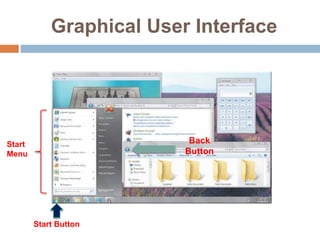
Graphical User Interface
 Most users today work with a graphical user
interface. With a graphical user interface
(GUI), you interact with menus and visual
images such as buttons and other graphical
objects to issue commands
Graphical User Interface
Start
Menu
Start Button
Back
Button
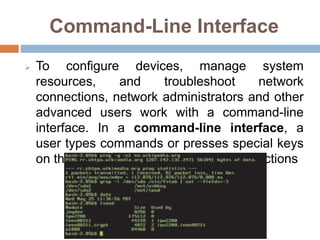
Command-Line Interface
 To configure devices, manage system
resources, and troubleshoot network
connections, network administrators and other
advanced users work with a command-line
interface. In a command-line interface, a
user types commands or presses special keys
on the keyboard to enter data and instructions
 Some operating systems support a single user
and only one running program at a time.
 Others support thousands of users running
multiple programs. How an operating system
handles programs directly affects your
productivity
 A single user/single tasking operating system
allows only one user to run one program at a
time.
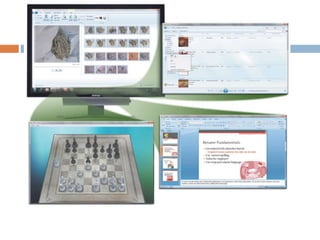
 A single user/multitasking operating system
allows a single user to work on two or more
programs that reside in memory at the same
time. Users today typically run multiple
programs concurrently. It is common to have
an e-mail program and Web browser open at
all times, while working with application
programs such as word processing or
graphics.
 Different sizes and makes of computers have
their own operating systems.
 we should have an idea of what operating
systems do.
 Booting
 CPU management
 File management
 Task management
 Security management 3/9/2020Gulab Devi Educational Complex Lahore
11
Booting
Booting
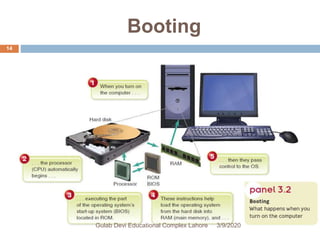
 The work of the operating system begins as soon
as you turn on, or “boot,” the computer. Booting is
the process of loading an operating system
into a computer’s main memory. This loading is
accomplished automatically by programs stored
permanently in the computer’s electronic circuitry
(called read-only memory, or ROM,
3/9/2020Gulab Devi Educational Complex Lahore
13
Booting
3/9/2020Gulab Devi Educational Complex Lahore
14
COLD BOOTS & WARM
BOOTS
 When you power up a computer by turning on the
power “on” switch, this is called a cold boot. If your
computer is already on and you restart it, this is
called a warm boot or a warm start.
3/9/2020Gulab Devi Educational Complex Lahore
15
CPU Management
CPU Management
 The central component of the operating system is
the supervisor. Like a police officer directing
traffic, the supervisor, or kernel manages the
CPU (the central processing unit or processor. It
remains in memory (main memory or primary
storage) while the computer is running and
directs other “nonresident” programs
(programs that are not in memory) to perform
tasks that support application programs.
3/9/2020Gulab Devi Educational Complex Lahore
17
Memory
Management
MEMORY MANAGEMENT
 The operating system also manages memory—it
keeps track of the locations within main memory
where the programs and data are stored. It can
swap portions of data and programs between main
memory and secondary storage, such as your
computer’s hard disk, as so-called virtual memory.
This capability allows a computer to hold only the
most immediately needed data and programs within
main memory. Yet it has ready access to programs
and data on the hard disk, thereby greatly
expanding memory capacity. 3/9/2020Gulab Devi Educational Complex Lahore
19
File Management
File Management
 A file is (1) a named collection of data (data
file), or (2) a program (program file) that exists
in a computer’s secondary storage, such as a
hard disk or CD/DVD. Examples of data files are a
word processing document, a spreadsheet,
images, songs, and the like. Examples of program
files are a word processing program or
spreadsheet program.
3/9/2020Gulab Devi Educational Complex Lahore
21
FINDING &
HANDLING FILES
FINDING & HANDLING FILES
 Files containing programs and data are located in
many places on your hard disk and other
secondary storage devices. The operating
system records the storage location of all files. If
you move, rename, or delete a file, the operating
system manages such changes and helps you
locate and gain access to it.
3/9/2020Gulab Devi Educational Complex Lahore
23
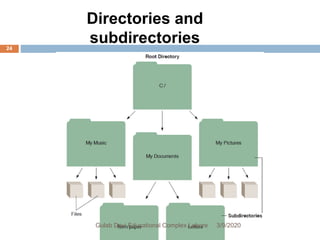
Directories and
subdirectories
3/9/2020Gulab Devi Educational Complex Lahore
24
ORGANIZING FILES:
DIRECTORIES,
SUBDIRECTORIES,
& PATHS
DIRECTORIES,
SUBDIRECTORIES,
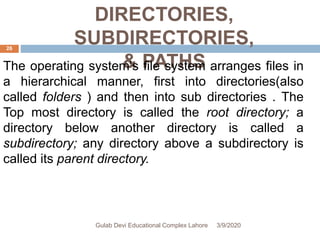
& PATHSThe operating system’s file system arranges files in
a hierarchical manner, first into directories(also
called folders ) and then into sub directories . The
Top most directory is called the root directory; a
directory below another directory is called a
subdirectory; any directory above a subdirectory is
called its parent directory.
3/9/2020Gulab Devi Educational Complex Lahore
26
Task Management
Task Management
 A computer is required to perform many different
tasks at once (multitasking). In word processing, for
example, it accepts input data, stores the data on a
disk, and prints out a document—seemingly
simultaneously. Most desktop and laptop operating
systems are single-user systems that can handle
more than one program at the same time—word
processing, spreadsheet, database searcher. Each
program is displayed in a separate window on the
screen.
3/9/2020Gulab Devi Educational Complex Lahore
28
Security Management
Security Management
 Operating systems allow users to control access to
their computers—an especially important matter
when several people share a computer or the same
computer network
 When you first boot up a new personal computer, the
OS will prompt you to choose a user name and a
password. Then, every time after that, when you
boot up your computer, you will be prompted to type
in your user name and password . Some OSs even
allow you to protect individual files with separate
access passwords. 3/9/2020Gulab Devi Educational Complex Lahore
30
Device Drivers
Device Drivers
 Device drivers are specialized software
programs that allow input and output devices to
communicate with the rest of the computer
system . Each device’s brand and model are
supported by a different driver that works with only
one operating system. Many basic device drivers
come with the system software when you buy a
computer, and the system software will guide you
through choosing and installing the necessary
drivers. If, however, you buy a new peripheral
device, such as a mouse, a scanner, or a printer.3/9/2020Gulab Devi Educational Complex Lahore
32
Types of Operating Systems
 When you purchase a new computer device, it
typically has an operating system preinstalled.
 Here are types of Operating System
 Stand-Alone Operating Systems
 Server Operating Systems
 Embedded Operating Systems
Stand-alone operating
system
 A stand-alone operating system is a
complete operating system that works on a
desktop computer, notebook computer. Some
stand-alone operating systems are called
client operating systems because they also
work in conjunction with a server operating
system.
Server operating system
 a server operating system is an operating system
that is designed specifically to support a network. A
server operating system typically resides on a
server. The client computers on the network rely on
the server(s) for resources.. Some of these stand-
alone operating systems do include networking
capability; however, server operating systems are
designed specifically to support all sizes of
networks, including medium- to large-sized
businesses and Web servers
Embedded operating system
 The operating system on most mobile devices
and many consumer electronics, called an
embedded operating system, resides on a
ROM chip. Popular embedded operating
systems include Windows Embedded CE,
Windows Mobile, Palm OS, iPhone OS,
BlackBerry, Google, embedded Linux.
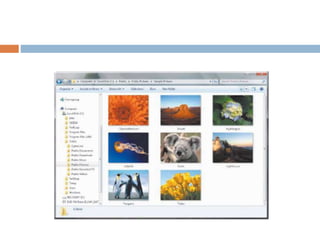
File manager
 file manager A is a utility that performs
functions related to file management. Some of
the file management functions that a file
manager performs are displaying a list of files
on a storage medium organizing files in
folders; and copying, renaming, deleting,
moving, and sorting files. A folder is a specific
named location on a storage medium that
contains related documents. Operating
systems typically include a file manager.
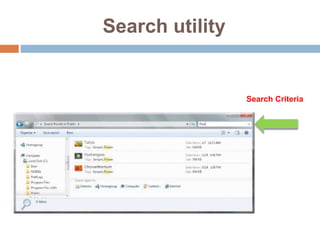
Search utility
 A search utility is a program that attempts to
locate a file on your computer based on criteria
you specify. The criteria could be a word or
words contained in a file, date the file was
created or modified, size of the file, location of
the file, filename, author/artist, and other
similar properties. Search utilities can look
through documents, photos, music ,and other
files. Operating systems typically include a
built-in search utility.
Search utility
Search Criteria

Ch # 07 operating system

  • 1.
    CHAPTER # 07 OPERATINGSYSTEM (OS) Prepar by:M.Robeel
  • 2.
  • 3.
    Operating system (OS) The operating system (OS), also called the software platform, consists of the low-level, master system of programs that manage the basic operations of the computer.  These programs provide resource management services of many kinds. In particular, they handle the control and use of hardware resources, including disk space, memory, CPU time allocation, and peripheral devices. Every general-purpose computer must have an operating system to run other programs. The operating system allows you to3/9/2020Gulab Devi Educational Complex Lahore 3
  • 4.
    Providing a UserInterface  You interact with software through its user interface. That is, a user interface controls how you enter data and instructions and how information is displayed on the screen. Two types of user interfaces are graphical and command-line
  • 5.
    Graphical User Interface Most users today work with a graphical user interface. With a graphical user interface (GUI), you interact with menus and visual images such as buttons and other graphical objects to issue commands
  • 6.
  • 7.
    Command-Line Interface  Toconfigure devices, manage system resources, and troubleshoot network connections, network administrators and other advanced users work with a command-line interface. In a command-line interface, a user types commands or presses special keys on the keyboard to enter data and instructions
  • 8.
     Some operatingsystems support a single user and only one running program at a time.  Others support thousands of users running multiple programs. How an operating system handles programs directly affects your productivity  A single user/single tasking operating system allows only one user to run one program at a time.
  • 9.
     A singleuser/multitasking operating system allows a single user to work on two or more programs that reside in memory at the same time. Users today typically run multiple programs concurrently. It is common to have an e-mail program and Web browser open at all times, while working with application programs such as word processing or graphics.
  • 11.
     Different sizesand makes of computers have their own operating systems.  we should have an idea of what operating systems do.  Booting  CPU management  File management  Task management  Security management 3/9/2020Gulab Devi Educational Complex Lahore 11
  • 12.
  • 13.
    Booting  The workof the operating system begins as soon as you turn on, or “boot,” the computer. Booting is the process of loading an operating system into a computer’s main memory. This loading is accomplished automatically by programs stored permanently in the computer’s electronic circuitry (called read-only memory, or ROM, 3/9/2020Gulab Devi Educational Complex Lahore 13
  • 14.
  • 15.
    COLD BOOTS &WARM BOOTS  When you power up a computer by turning on the power “on” switch, this is called a cold boot. If your computer is already on and you restart it, this is called a warm boot or a warm start. 3/9/2020Gulab Devi Educational Complex Lahore 15
  • 16.
  • 17.
    CPU Management  Thecentral component of the operating system is the supervisor. Like a police officer directing traffic, the supervisor, or kernel manages the CPU (the central processing unit or processor. It remains in memory (main memory or primary storage) while the computer is running and directs other “nonresident” programs (programs that are not in memory) to perform tasks that support application programs. 3/9/2020Gulab Devi Educational Complex Lahore 17
  • 18.
  • 19.
    MEMORY MANAGEMENT  Theoperating system also manages memory—it keeps track of the locations within main memory where the programs and data are stored. It can swap portions of data and programs between main memory and secondary storage, such as your computer’s hard disk, as so-called virtual memory. This capability allows a computer to hold only the most immediately needed data and programs within main memory. Yet it has ready access to programs and data on the hard disk, thereby greatly expanding memory capacity. 3/9/2020Gulab Devi Educational Complex Lahore 19
  • 20.
  • 21.
    File Management  Afile is (1) a named collection of data (data file), or (2) a program (program file) that exists in a computer’s secondary storage, such as a hard disk or CD/DVD. Examples of data files are a word processing document, a spreadsheet, images, songs, and the like. Examples of program files are a word processing program or spreadsheet program. 3/9/2020Gulab Devi Educational Complex Lahore 21
  • 22.
  • 23.
    FINDING & HANDLINGFILES  Files containing programs and data are located in many places on your hard disk and other secondary storage devices. The operating system records the storage location of all files. If you move, rename, or delete a file, the operating system manages such changes and helps you locate and gain access to it. 3/9/2020Gulab Devi Educational Complex Lahore 23
  • 24.
  • 25.
  • 26.
    DIRECTORIES, SUBDIRECTORIES, & PATHSThe operatingsystem’s file system arranges files in a hierarchical manner, first into directories(also called folders ) and then into sub directories . The Top most directory is called the root directory; a directory below another directory is called a subdirectory; any directory above a subdirectory is called its parent directory. 3/9/2020Gulab Devi Educational Complex Lahore 26
  • 27.
  • 28.
    Task Management  Acomputer is required to perform many different tasks at once (multitasking). In word processing, for example, it accepts input data, stores the data on a disk, and prints out a document—seemingly simultaneously. Most desktop and laptop operating systems are single-user systems that can handle more than one program at the same time—word processing, spreadsheet, database searcher. Each program is displayed in a separate window on the screen. 3/9/2020Gulab Devi Educational Complex Lahore 28
  • 29.
  • 30.
    Security Management  Operatingsystems allow users to control access to their computers—an especially important matter when several people share a computer or the same computer network  When you first boot up a new personal computer, the OS will prompt you to choose a user name and a password. Then, every time after that, when you boot up your computer, you will be prompted to type in your user name and password . Some OSs even allow you to protect individual files with separate access passwords. 3/9/2020Gulab Devi Educational Complex Lahore 30
  • 31.
  • 32.
    Device Drivers  Devicedrivers are specialized software programs that allow input and output devices to communicate with the rest of the computer system . Each device’s brand and model are supported by a different driver that works with only one operating system. Many basic device drivers come with the system software when you buy a computer, and the system software will guide you through choosing and installing the necessary drivers. If, however, you buy a new peripheral device, such as a mouse, a scanner, or a printer.3/9/2020Gulab Devi Educational Complex Lahore 32
  • 33.
  • 34.
    Types of OperatingSystems  When you purchase a new computer device, it typically has an operating system preinstalled.  Here are types of Operating System  Stand-Alone Operating Systems  Server Operating Systems  Embedded Operating Systems
  • 35.
    Stand-alone operating system  Astand-alone operating system is a complete operating system that works on a desktop computer, notebook computer. Some stand-alone operating systems are called client operating systems because they also work in conjunction with a server operating system.
  • 36.
    Server operating system a server operating system is an operating system that is designed specifically to support a network. A server operating system typically resides on a server. The client computers on the network rely on the server(s) for resources.. Some of these stand- alone operating systems do include networking capability; however, server operating systems are designed specifically to support all sizes of networks, including medium- to large-sized businesses and Web servers
  • 37.
    Embedded operating system The operating system on most mobile devices and many consumer electronics, called an embedded operating system, resides on a ROM chip. Popular embedded operating systems include Windows Embedded CE, Windows Mobile, Palm OS, iPhone OS, BlackBerry, Google, embedded Linux.
  • 38.
    File manager  filemanager A is a utility that performs functions related to file management. Some of the file management functions that a file manager performs are displaying a list of files on a storage medium organizing files in folders; and copying, renaming, deleting, moving, and sorting files. A folder is a specific named location on a storage medium that contains related documents. Operating systems typically include a file manager.
  • 40.
    Search utility  Asearch utility is a program that attempts to locate a file on your computer based on criteria you specify. The criteria could be a word or words contained in a file, date the file was created or modified, size of the file, location of the file, filename, author/artist, and other similar properties. Search utilities can look through documents, photos, music ,and other files. Operating systems typically include a built-in search utility.
  • 41.