Chapter 8 ADVANCED DISK DRIVES TECHNOLOGY
Objectives At the end of this chapter students should be able to: Know the concept of CD-ROM. Understand how CD works. Know different kind of CD formats. Understand the concept of DVD and how it differs from CD technology. Know several types of DVD. Differentiate the functions of several different types of disc drives. Learn how to connect a disc drive to computer. Know some of the disc burning software. Learn how to burn data and music disc.
CD-ROM
CD-ROM Compact Disc (CD)  is a optical data storage that was originally designed for music storage and playback. Compact Disc, Read-Only-Memory (CD-ROM)  is an adaptation of the CD that is designed to store computer data in the form of  text and graphics , as well as  hi-fi stereo sound. It is popularly used to  distribute computer software,   including games and multimedia applications . Some CDs hold both computer data and audio, with the later versions are capable of being played on a CD player.
DEVELOPMENT OF CD-ROM
Development of CD-ROM CD-ROM was invented on  1972. The CD-ROM standard was officially introduced in  1982  when Philips and Sony agreed on the  4.72-inch size  format we now use today. Later, as Phillips and Sony continued cooperation in the 1980s, additional specifications were announced concerning the use of CD technology for computer data, which evolved into computer CD-ROM drives used today.
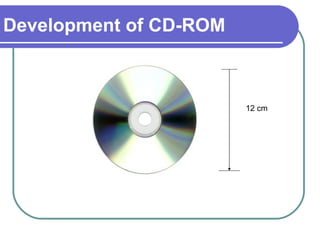
Development of CD-ROM 12 cm
CD is made of a  polycarbonate substance  and is coated with a  metallic film , usually an  aluminum alloy .  This aluminum film is the portion of the disc that the CD-ROM drive reads for information.  The aluminum film is then covered by a  plastic polycarbonate  coating that protects the underlying data.  A label will usually be placed on the top of the disc and data is read from the bottom of the CD.  Development of CD-ROM
A standard CD has a capacity of about 74 minutes of standard CD audio music.  There are extended CDs that can actually exceed this limit and pack more than 80 minutes on a disk, but these are non-standard.  Regular CD-ROM media hold about 650 MB of data, but the actual storage capacity depends on the particular CD format used. Development of CD-ROM
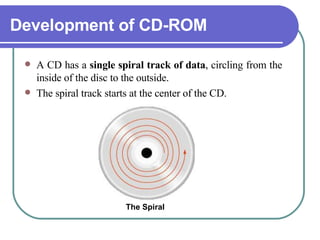
Development of CD-ROM A CD has a  single spiral track of data , circling from the inside of the disc to the outside.  The spiral track starts at the center of the CD.  The Spiral
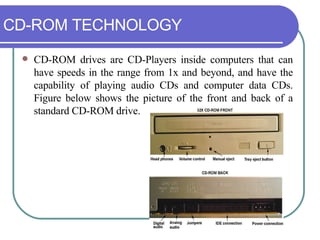
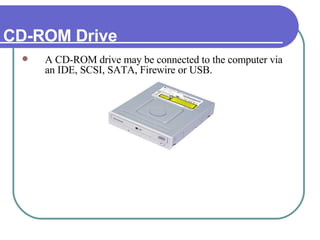
CD-ROM TECHNOLOGY CD-ROM drives are CD-Players inside computers that can have speeds in the range from 1x and beyond, and have the capability of playing audio CDs and computer data CDs. Figure below shows the picture of the front and back of a standard CD-ROM drive.
CD-ROM Drive A CD-ROM drive may be connected to the computer via an IDE, SCSI, SATA, Firewire or USB.
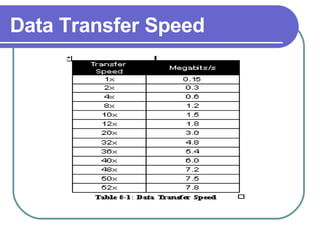
Data Transfer Speed
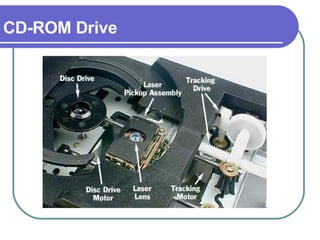
CD-ROM Drive The drive consists of three fundamental components:  A  drive motor  spins the disc. This drive motor is precisely controlled to rotate between 200 and 500 rpm depending on which track is being read.  A  laser  and a  lens   system  focus in on and read the bumps.  A  tracking mechanism  moves the laser assembly so that the laser's beam can follow the spiral track. The tracking system has to be able to move the laser at micron resolutions.
CD-ROM Drive
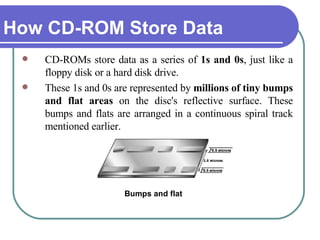
How CD-ROM Store Data CD-ROMs store data as a series of  1s and 0s , just like a floppy disk or a hard disk drive.  These 1s and 0s are represented by  millions of tiny bumps and flat areas  on the disc's reflective surface. These bumps and flats are arranged in a continuous spiral track mentioned earlier. Bumps and flat
CD-ROM Drive However, instead of using magnetic energy to read and write data, CD drive use laser energy. There are two major advantages to using lasers: There is no physical contact between the surface of the CD and the reading device.  The diameter of the laser beam is so small that storage tracks can be written very close together, allowing more data to be stored in a smaller space.
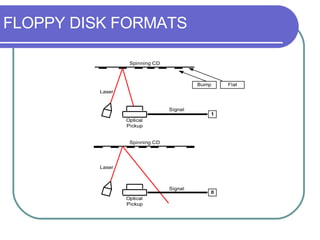
CD-ROM Drive CD drive focuses a laser beam on the track of bumps. When the laser passes over a flat area in the track, the beam is reflected  directly to an optical sensor on the laser assembly. The CD player  interprets this as a 1. When the beam passes over a bump, the  light is bounced away from the optical sensor. The CD player  recognizes this as a 0.
FLOPPY DISK FORMATS
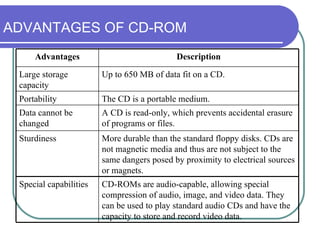
ADVANTAGES OF CD-ROM More durable than the standard floppy disks. CDs are not magnetic media and thus are not subject to the same dangers posed by proximity to electrical sources or magnets. Sturdiness A CD is read-only, which prevents accidental erasure of programs or files. Data cannot be changed CD-ROMs are audio-capable, allowing special compression of audio, image, and video data. They can be used to play standard audio CDs and have the capacity to store and record video data. Special capabilities The CD is a portable medium. Portability Up to 650 MB of data fit on a CD.  Large storage capacity Description Advantages
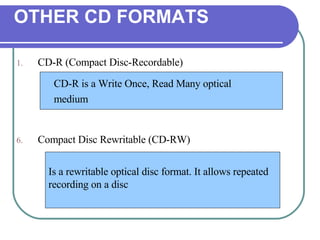
CD-R  (Compact Disc-Recordable) Compact Disc Rewritable (CD-RW)  OTHER CD FORMATS CD-R is a Write Once, Read Many optical  medium  Is a rewritable optical disc format. It allows repeated recording on a disc
DVD: A SUPER CD-ROM ALTERNATIVES
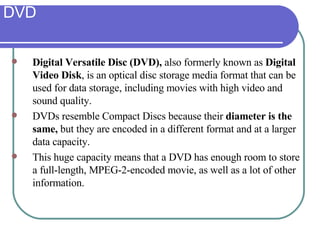
DVD Digital Versatile Disc (DVD),  also formerly known as  Digital Video Disk , is an optical disc storage media format that can be used for data storage, including movies with high video and sound quality.  DVDs resemble Compact Discs because their  diameter is the same,  but they are encoded in a different format and at a larger data capacity.  This huge capacity means that a DVD has enough room to store a full-length, MPEG-2-encoded movie, as well as a lot of other information.
DVD VS CD As mentioned earlier, DVDs are of the  same diameter and thickness  as CDs, and they are made using some of the same materials and manufacturing methods.  Like a CD, the data on a DVD is encoded in the form of small “flats” and “bumps” in the track of the disc.  However, DVD can store data more than CD because of these reasons: .
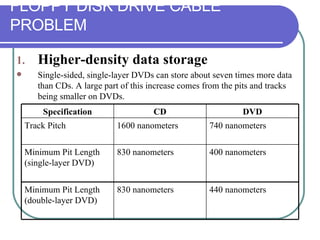
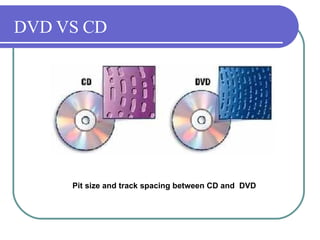
FLOPPY DISK DRIVE CABLE PROBLEM Higher-density data storage  Single-sided, single-layer DVDs can store about seven times more data than CDs. A large part of this increase comes from the pits and tracks being smaller on DVDs. 400 nanometers 830 nanometers Minimum Pit Length (single-layer DVD) 440 nanometers 830 nanometers Minimum Pit Length (double-layer DVD) 740 nanometers 1600 nanometers Track Pitch DVD CD Specification
DVD VS CD Pit size and track spacing between CD and  DVD
DVD VS CD 2. Less overhead, more area   The DVD format doesn't waste as much  space on  error correction, enabling it to  store much more real  information. Another  way that DVDs achieve higher  capacity is by encoding data onto a slightly larger  area of the disc than is done on a CD.
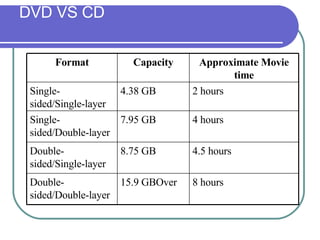
DVD VS CD 3. Multi-layer storage  To increase the storage capacity even more, a DVD can have up to four layers, two on each side. Here is a list of the capacities of different forms of DVDs:
DVD VS CD 4 hours 7.95 GB Single-sided/Double-layer 8 hours 15.9 GBOver Double-sided/Double-layer 4.5 hours 8.75 GB Double-sided/Single-layer 2 hours 4.38 GB Single-sided/Single-layer Approximate Movie time Capacity Format
DVD FORMATS There are several competing DVD Formats: 1. DVD-ROM (DVD-Read Only Memory) These are pressed similarly to CDs. The reflective surface is silver or gold colored. They can be single-sided/single-layered, single-sided/double-layered, double-sided/single-layered, or double-sided/double-layered.  2 . DVD-R (DVD-Recordable) Can record up to 4.5 GB in a similar fashion to a CD-R disc. Once recorded and finalized it can be played by most DVD-ROM players.
DVD FORMATS 3. DVD-RW (DVD-Rewritable) Can record up to 4.7 GB in a similar fashion to a CD-RW disc.  4. DVD-R DL (DVD-Recordable Double Layer) A derivate of DVD-R that uses double-layer recordable discs to store up to 8.5 GB of data.  5.  DVD-RAM (DVD-Random Access Memory) Another kind of rewritable DVD. Requires a special unit to play 4.7GB or 9.4GB recorded discs. It is considered a highly reliable format, as the discs have built-in error control and a defect management system.
BLU-RAY DISC
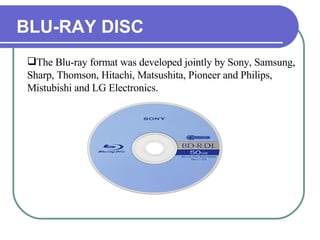
BLU-RAY DISC Blu-ray Disc  uses the  blue-violet laser technology  to read data, in contrast to the red laser technology used in traditional DVD formats.  A Blu-ray disc, can hold up to 27GB of data on a single-sided single layer disc (compared to the traditional DVD’s 4.7GB capacity), which amounts to about 12 hours of standard video or more than 2 hours of high-definition video.  A dual layer Blu-ray Disc can store up to 50GB, almost 6 times the size of a dual layer DVD at 8.5 GB.
BLU-RAY DISC The Blu-ray format was developed jointly by Sony, Samsung, Sharp, Thomson, Hitachi, Matsushita, Pioneer and Philips, Mistubishi and LG Electronics.
TYPES OF CD AND DVD DRIVES There are several types of CD and DVD drives.  1.   CD-ROM Drive CD ROM drive reads data from a CD-ROM. The drives are internal (fit in a drive bay), or external (plug in). Most drives connect to an IDE channel or SCSI port. These drives come with various speed from 1x to 32x speed. 2. CD-RW Drive Also known as CD burner. The drive not only can read data from CD-ROM, but it also can write or rewrite data to CD-R or CD-RW.  3 DVD Drive DVD drives reads data from both CD and DVD.
HDD CHARACTERISTIC 4. Combo Drive Combination of CD-RW and DVD drive altogether. Data can be read from both CD and DVD, but can only be written to CD-R/CD-RW. 5. DVD-RW Drive Also known as DVD burner. DVD-R drive reads and writes on both CD and DVD.
CONNECTING A CD/DVD DRIVE
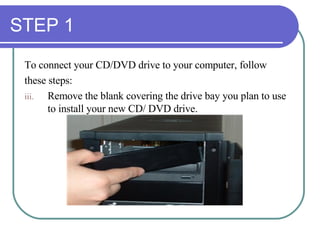
STEP 1 To connect your CD/DVD drive to your computer, follow  these steps: Remove the blank covering the drive bay you plan to use to install your new CD/ DVD drive.
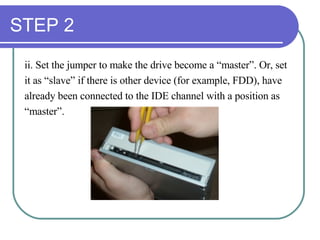
STEP 2 ii. Set the jumper to make the drive become a “master”. Or, set  it as “slave” if there is other device (for example, FDD), have  already been connected to the IDE channel with a position as  “ master”.
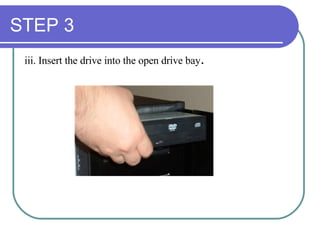
STEP 3 iii. Insert the drive into the open drive bay .
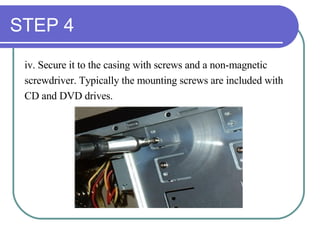
STEP 4 iv. Secure it to the casing with screws and a non-magnetic  screwdriver. Typically the mounting screws are included with  CD and DVD drives.
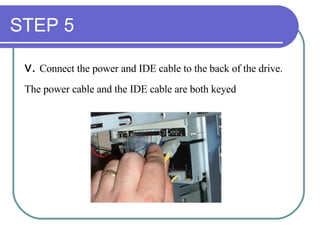
STEP 5 v.  Connect the power and IDE cable to the back of the drive.  The power cable and the IDE cable are both keyed
DISC BURNING SOFTWARE
DISC BURNING SOFTWARE This disc burning software serves several functions:  It converts songs to the correct format for burning.  It allows you to arrange the songs for your mix.  It controls the encoding process for writing to the disc.
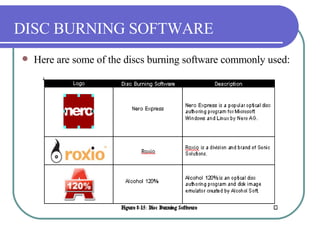
DISC BURNING SOFTWARE Here are some of the discs burning software commonly used:
BURNING DATA DISC Burning data into disc is useful when you want to do backups. You can also burn collections of pictures, videos, and MP3s into disc when your hard disk seems to run out of space.  You have three choices when making CD backups: You can use CD-R disks (cheap) to back up a group of files with Nero in  single sitting. However, you cannot add files to these CD's later.  You can use CD-RW disks (more expensive) which allow you to add more  files later, also using Nero. However CD-RW disks are inherently rather  slow.  You can format a CD-RW disk to use with the In CD software, and then use  it like it was a very big floppy or Zip disk. The initial formatting takes  about 20 minutes.
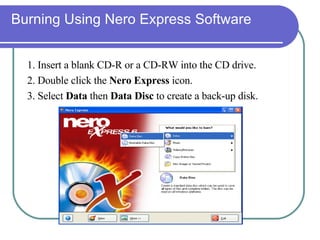
Burning Using Nero Express Software 1. Insert a blank CD-R or a CD-RW into the CD drive. 2. Double click the  Nero Express  icon.  3. Select  Data  then  Data   Disc  to create a back-up disk.
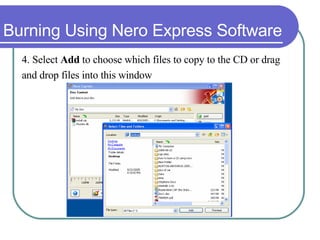
Burning Using Nero Express Software 4.  Select  Add  to choose which files to copy to the CD or drag  and drop files into this window
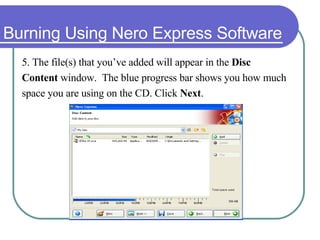
Burning Using Nero Express Software 5.  The file(s) that you’ve added will appear in the  Disc  Content  window.  The blue progress bar shows you how much  space you are using on the CD. Click  Next .
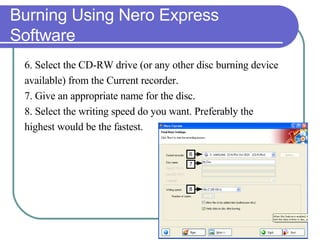
Burning Using Nero Express Software 6. Select the CD-RW drive (or any other disc burning device  available) from the Current recorder.  7. Give an appropriate name for the disc. 8. Select the writing speed do you want. Preferably the  highest would be the fastest.
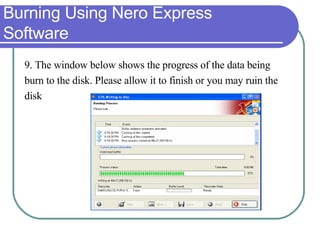
Burning Using Nero Express Software  9. The window below shows the progress of the data being  burn to the disk. Please allow it to finish or you may ruin the  disk
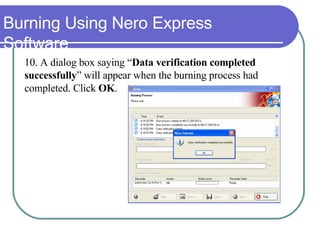
Burning Using Nero Express Software 10.  A dialog box saying “ Data verification completed  successfully ” will appear when the burning process had  completed. Click  OK .
Burning Using Nero Express Software 11. On the following screen, select  Next . 12. Select  Exit , then answer  No  to the final question – “ Do  you want to save your project ”. However, if you wish to save  the project for future, you may click  Yes , and save the project  with an appropriate name in a preferred folder.

Chapter 8: Advanced Drive Technology

  • 1.
    Chapter 8 ADVANCEDDISK DRIVES TECHNOLOGY
  • 2.
    Objectives At theend of this chapter students should be able to: Know the concept of CD-ROM. Understand how CD works. Know different kind of CD formats. Understand the concept of DVD and how it differs from CD technology. Know several types of DVD. Differentiate the functions of several different types of disc drives. Learn how to connect a disc drive to computer. Know some of the disc burning software. Learn how to burn data and music disc.
  • 3.
  • 4.
    CD-ROM Compact Disc(CD) is a optical data storage that was originally designed for music storage and playback. Compact Disc, Read-Only-Memory (CD-ROM) is an adaptation of the CD that is designed to store computer data in the form of text and graphics , as well as hi-fi stereo sound. It is popularly used to distribute computer software, including games and multimedia applications . Some CDs hold both computer data and audio, with the later versions are capable of being played on a CD player.
  • 5.
  • 6.
    Development of CD-ROMCD-ROM was invented on 1972. The CD-ROM standard was officially introduced in 1982 when Philips and Sony agreed on the 4.72-inch size format we now use today. Later, as Phillips and Sony continued cooperation in the 1980s, additional specifications were announced concerning the use of CD technology for computer data, which evolved into computer CD-ROM drives used today.
  • 7.
  • 8.
    CD is madeof a polycarbonate substance and is coated with a metallic film , usually an aluminum alloy . This aluminum film is the portion of the disc that the CD-ROM drive reads for information. The aluminum film is then covered by a plastic polycarbonate coating that protects the underlying data. A label will usually be placed on the top of the disc and data is read from the bottom of the CD. Development of CD-ROM
  • 9.
    A standard CDhas a capacity of about 74 minutes of standard CD audio music. There are extended CDs that can actually exceed this limit and pack more than 80 minutes on a disk, but these are non-standard. Regular CD-ROM media hold about 650 MB of data, but the actual storage capacity depends on the particular CD format used. Development of CD-ROM
  • 10.
    Development of CD-ROMA CD has a single spiral track of data , circling from the inside of the disc to the outside. The spiral track starts at the center of the CD. The Spiral
  • 11.
    CD-ROM TECHNOLOGY CD-ROMdrives are CD-Players inside computers that can have speeds in the range from 1x and beyond, and have the capability of playing audio CDs and computer data CDs. Figure below shows the picture of the front and back of a standard CD-ROM drive.
  • 12.
    CD-ROM Drive ACD-ROM drive may be connected to the computer via an IDE, SCSI, SATA, Firewire or USB.
  • 13.
  • 14.
    CD-ROM Drive Thedrive consists of three fundamental components: A drive motor spins the disc. This drive motor is precisely controlled to rotate between 200 and 500 rpm depending on which track is being read. A laser and a lens system focus in on and read the bumps. A tracking mechanism moves the laser assembly so that the laser's beam can follow the spiral track. The tracking system has to be able to move the laser at micron resolutions.
  • 15.
  • 16.
    How CD-ROM StoreData CD-ROMs store data as a series of 1s and 0s , just like a floppy disk or a hard disk drive. These 1s and 0s are represented by millions of tiny bumps and flat areas on the disc's reflective surface. These bumps and flats are arranged in a continuous spiral track mentioned earlier. Bumps and flat
  • 17.
    CD-ROM Drive However,instead of using magnetic energy to read and write data, CD drive use laser energy. There are two major advantages to using lasers: There is no physical contact between the surface of the CD and the reading device. The diameter of the laser beam is so small that storage tracks can be written very close together, allowing more data to be stored in a smaller space.
  • 18.
    CD-ROM Drive CDdrive focuses a laser beam on the track of bumps. When the laser passes over a flat area in the track, the beam is reflected directly to an optical sensor on the laser assembly. The CD player interprets this as a 1. When the beam passes over a bump, the light is bounced away from the optical sensor. The CD player recognizes this as a 0.
  • 19.
  • 20.
    ADVANTAGES OF CD-ROMMore durable than the standard floppy disks. CDs are not magnetic media and thus are not subject to the same dangers posed by proximity to electrical sources or magnets. Sturdiness A CD is read-only, which prevents accidental erasure of programs or files. Data cannot be changed CD-ROMs are audio-capable, allowing special compression of audio, image, and video data. They can be used to play standard audio CDs and have the capacity to store and record video data. Special capabilities The CD is a portable medium. Portability Up to 650 MB of data fit on a CD. Large storage capacity Description Advantages
  • 21.
    CD-R (CompactDisc-Recordable) Compact Disc Rewritable (CD-RW) OTHER CD FORMATS CD-R is a Write Once, Read Many optical medium Is a rewritable optical disc format. It allows repeated recording on a disc
  • 22.
    DVD: A SUPERCD-ROM ALTERNATIVES
  • 23.
    DVD Digital VersatileDisc (DVD), also formerly known as Digital Video Disk , is an optical disc storage media format that can be used for data storage, including movies with high video and sound quality. DVDs resemble Compact Discs because their diameter is the same, but they are encoded in a different format and at a larger data capacity. This huge capacity means that a DVD has enough room to store a full-length, MPEG-2-encoded movie, as well as a lot of other information.
  • 24.
    DVD VS CDAs mentioned earlier, DVDs are of the same diameter and thickness as CDs, and they are made using some of the same materials and manufacturing methods. Like a CD, the data on a DVD is encoded in the form of small “flats” and “bumps” in the track of the disc. However, DVD can store data more than CD because of these reasons: .
  • 25.
    FLOPPY DISK DRIVECABLE PROBLEM Higher-density data storage Single-sided, single-layer DVDs can store about seven times more data than CDs. A large part of this increase comes from the pits and tracks being smaller on DVDs. 400 nanometers 830 nanometers Minimum Pit Length (single-layer DVD) 440 nanometers 830 nanometers Minimum Pit Length (double-layer DVD) 740 nanometers 1600 nanometers Track Pitch DVD CD Specification
  • 26.
    DVD VS CDPit size and track spacing between CD and DVD
  • 27.
    DVD VS CD2. Less overhead, more area The DVD format doesn't waste as much space on error correction, enabling it to store much more real information. Another way that DVDs achieve higher capacity is by encoding data onto a slightly larger area of the disc than is done on a CD.
  • 28.
    DVD VS CD3. Multi-layer storage To increase the storage capacity even more, a DVD can have up to four layers, two on each side. Here is a list of the capacities of different forms of DVDs:
  • 29.
    DVD VS CD4 hours 7.95 GB Single-sided/Double-layer 8 hours 15.9 GBOver Double-sided/Double-layer 4.5 hours 8.75 GB Double-sided/Single-layer 2 hours 4.38 GB Single-sided/Single-layer Approximate Movie time Capacity Format
  • 30.
    DVD FORMATS Thereare several competing DVD Formats: 1. DVD-ROM (DVD-Read Only Memory) These are pressed similarly to CDs. The reflective surface is silver or gold colored. They can be single-sided/single-layered, single-sided/double-layered, double-sided/single-layered, or double-sided/double-layered. 2 . DVD-R (DVD-Recordable) Can record up to 4.5 GB in a similar fashion to a CD-R disc. Once recorded and finalized it can be played by most DVD-ROM players.
  • 31.
    DVD FORMATS 3.DVD-RW (DVD-Rewritable) Can record up to 4.7 GB in a similar fashion to a CD-RW disc. 4. DVD-R DL (DVD-Recordable Double Layer) A derivate of DVD-R that uses double-layer recordable discs to store up to 8.5 GB of data. 5. DVD-RAM (DVD-Random Access Memory) Another kind of rewritable DVD. Requires a special unit to play 4.7GB or 9.4GB recorded discs. It is considered a highly reliable format, as the discs have built-in error control and a defect management system.
  • 32.
  • 33.
    BLU-RAY DISC Blu-rayDisc uses the blue-violet laser technology to read data, in contrast to the red laser technology used in traditional DVD formats. A Blu-ray disc, can hold up to 27GB of data on a single-sided single layer disc (compared to the traditional DVD’s 4.7GB capacity), which amounts to about 12 hours of standard video or more than 2 hours of high-definition video. A dual layer Blu-ray Disc can store up to 50GB, almost 6 times the size of a dual layer DVD at 8.5 GB.
  • 34.
    BLU-RAY DISC TheBlu-ray format was developed jointly by Sony, Samsung, Sharp, Thomson, Hitachi, Matsushita, Pioneer and Philips, Mistubishi and LG Electronics.
  • 35.
    TYPES OF CDAND DVD DRIVES There are several types of CD and DVD drives. 1. CD-ROM Drive CD ROM drive reads data from a CD-ROM. The drives are internal (fit in a drive bay), or external (plug in). Most drives connect to an IDE channel or SCSI port. These drives come with various speed from 1x to 32x speed. 2. CD-RW Drive Also known as CD burner. The drive not only can read data from CD-ROM, but it also can write or rewrite data to CD-R or CD-RW. 3 DVD Drive DVD drives reads data from both CD and DVD.
  • 36.
    HDD CHARACTERISTIC 4.Combo Drive Combination of CD-RW and DVD drive altogether. Data can be read from both CD and DVD, but can only be written to CD-R/CD-RW. 5. DVD-RW Drive Also known as DVD burner. DVD-R drive reads and writes on both CD and DVD.
  • 37.
  • 38.
    STEP 1 Toconnect your CD/DVD drive to your computer, follow these steps: Remove the blank covering the drive bay you plan to use to install your new CD/ DVD drive.
  • 39.
    STEP 2 ii.Set the jumper to make the drive become a “master”. Or, set it as “slave” if there is other device (for example, FDD), have already been connected to the IDE channel with a position as “ master”.
  • 40.
    STEP 3 iii.Insert the drive into the open drive bay .
  • 41.
    STEP 4 iv.Secure it to the casing with screws and a non-magnetic screwdriver. Typically the mounting screws are included with CD and DVD drives.
  • 42.
    STEP 5 v. Connect the power and IDE cable to the back of the drive. The power cable and the IDE cable are both keyed
  • 43.
  • 44.
    DISC BURNING SOFTWAREThis disc burning software serves several functions: It converts songs to the correct format for burning. It allows you to arrange the songs for your mix. It controls the encoding process for writing to the disc.
  • 45.
    DISC BURNING SOFTWAREHere are some of the discs burning software commonly used:
  • 46.
    BURNING DATA DISCBurning data into disc is useful when you want to do backups. You can also burn collections of pictures, videos, and MP3s into disc when your hard disk seems to run out of space. You have three choices when making CD backups: You can use CD-R disks (cheap) to back up a group of files with Nero in single sitting. However, you cannot add files to these CD's later. You can use CD-RW disks (more expensive) which allow you to add more files later, also using Nero. However CD-RW disks are inherently rather slow. You can format a CD-RW disk to use with the In CD software, and then use it like it was a very big floppy or Zip disk. The initial formatting takes about 20 minutes.
  • 47.
    Burning Using NeroExpress Software 1. Insert a blank CD-R or a CD-RW into the CD drive. 2. Double click the Nero Express icon. 3. Select Data then Data Disc to create a back-up disk.
  • 48.
    Burning Using NeroExpress Software 4. Select Add to choose which files to copy to the CD or drag and drop files into this window
  • 49.
    Burning Using NeroExpress Software 5. The file(s) that you’ve added will appear in the Disc Content window. The blue progress bar shows you how much space you are using on the CD. Click Next .
  • 50.
    Burning Using NeroExpress Software 6. Select the CD-RW drive (or any other disc burning device available) from the Current recorder. 7. Give an appropriate name for the disc. 8. Select the writing speed do you want. Preferably the highest would be the fastest.
  • 51.
    Burning Using NeroExpress Software 9. The window below shows the progress of the data being burn to the disk. Please allow it to finish or you may ruin the disk
  • 52.
    Burning Using NeroExpress Software 10. A dialog box saying “ Data verification completed successfully ” will appear when the burning process had completed. Click OK .
  • 53.
    Burning Using NeroExpress Software 11. On the following screen, select Next . 12. Select Exit , then answer No to the final question – “ Do you want to save your project ”. However, if you wish to save the project for future, you may click Yes , and save the project with an appropriate name in a preferred folder.