Linux Process Management
•Processes carry out tasks within the operating system.
• A program is a set of machine code instructions and data stored on disk and
is, as such, a passive entity; a process can be thought of as a computer
program in action.
• So that Linux can manage the processes in the system, each process is
represented by a task_struct data structure (task and process are terms that
Linux uses interchangeably).
• The task vector is an array of pointers to every task_struct data structure in
the system.
• Maximum number of processes in the system is limited by the size of the
task vector; by default it has 512 entries.
• Linux supports real time processes which have to react very quickly to
external events
2
3.
Process Identifiers
• Everyprocess in the system has a process identifier.
• The process identifier is not an index into the task vector, it is simply a
number.
• Each process also has User and group identifiers, these are used to
control this processes access to the files and devices in the system :
3
4.
Process State
• Asa process executes it changes state according to its circumstances.
Linux processes have the following states:
• Running:
• The process is either running (it is the current process in the system) or it is
ready to run (it is waiting to be assigned to one of the system's CPUs).
• Waiting:
• The process is waiting for an event or for a resource. Linux differentiates
between two types of waiting process; interruptible and uninterruptible.
• Interruptible waiting processes can be interrupted by signals whereas
uninterruptible waiting processes are waiting directly on hardware conditions
and cannot be interrupted under any circumstances.
4
5.
• Stopped:
• Theprocess has been stopped, usually by receiving a signal. A process that is
being debugged can be in a stopped state.
• Zombie:
• This is a halted process which, for some reason, still has a task_struct data
structure in the task vector. It is what it sounds like, a dead process. :
5
6.
Scheduling Information
• Thescheduler needs this information in order to fairly decide which
process in the system most deserves to run.
6
7.
GNU Utilities
• GNUUtilities are additional tools that are combined with Linux kernel
to create a Linux distribution.
• The tools provided non-core functionalities to the user and use the
services of the kernel to service user requests
• GNU stands for GNU’s Not UNIX—recursive acronyms are part of
hacker humor.
• These utilities perform standard functions, such as controlling files
and programs.
7
8.
Environment variables
• Anenvironment variable is a named object that contains data used by
one or more applications.
• The value of an environmental variable can for example be the
location of all executable files in the file system, the default editor
that should be used, or the system locale settings.
• It provide a simple way to share configuration settings between
multiple applications and processes in Linux.
8
9.
• Environment variablescan change the way a software/programs
behaves. E.g. $LANG environment variable stores the value of the
language that the user understands. This value is read by an
application such that a Chinese user is shown a Mandarin interface
while an American user is shown an English interface.
• They have following features:
• Dynamic values which affect the processes or programs on a computer
• Exist in every operating system; types may vary
• Can be created, edited, saved and deleted
• Gives information about the system behavior
9
10.
Default shell environmentvariables
• PATH:
• This variable contains a colon ( : ) separated list of directories in which your
system looks for executable files.
• When you enter a command on terminal, the shell looks for the command in
different directories mentioned in the $PATH variable.
• If the command is found , it executes. Otherwise, it returns with an error
'command not found'.
• USER: Stores the current user’s username
• HOME: Default path to the user's home directory
• EDITOR: Path to the program which edits the content of files
10
11.
• UID: MaintainsUser's unique ID
• TERM: Default terminal emulator
• SHELL: Shell being used by the user
11
12.
Accessing Variable values
•In order to determine value of a variable , use the command
• echo $VARIABLE
• Variables are- Case Sensitive. Make sure that you type the variable
name in the right letter case otherwise you may not get the desired
results.
• To know/access all environment variables
• printenv command – Print all or part of environment.
• env command – Print all exported environment or run a program in a
modified environment.
• set command – Print the name and value of each shell variable.
12
13.
Local and GlobalVariables
• Environment variables are of two types
• Global Environment variables
• They are system variables and are accessible and available and to all users of the system.
• They can be defined in files such as /etc/environment, /etc/profile and certain shell
specific configuration files.
• Local Environment variables
• They are user-specific variables and are accessible and available only to user who has
define it.
• They can be defined in files such as ~/.pam_environment, ~/.profile and User specific
configuration files.
13
14.
Locating system environmentvariables :
• /etc/environment - Use this file to set up system-wide environment variables.
Variables in this file are set in the following format:
• FOO=bar
• VAR_TEST="Test Var"
• /etc/profile - Variables set in this file are loaded whenever a bash login shell is
entered. When declaring environment variables in this file you need to use the export
command:
• export JAVA_HOME="/path/to/java/home"
• export PATH=$PATH:$JAVA_HOME/bin
• Per-user shell specific configuration files. For example, if you are using Bash, you can
declare the variables in the ~/.bashrc:
• export PATH="$HOME/bin:$PATH"
• To load the new environment variables into the current shell session use the source
command:
• source ~/.bashrc
14
15.
The .profile File
•The file /etc/profile is maintained by the system administrator of your
Unix machine and contains shell initialization information required by
all users on a system.
• The file .profile is under your control. You can add as much shell
customization information as you want to this file. The minimum set
of information that you need to configure includes −
• The type of terminal you are using.
• A list of directories in which to locate the commands.
• A list of variables affecting the look and feel of your terminal.
15
16.
• When youlog in to the system, the shell undergoes a phase called
initialization to set up the environment. This is usually a two-step process
that involves the shell reading the following files −
• /etc/profile
• profile
• The process is as follows −
• The shell checks to see whether the file /etc/profile exists.
• If it exists, the shell reads it. Otherwise, this file is skipped. No error message is
displayed.
• The shell checks to see whether the file .profile exists in your home directory. Your
home directory is the directory that you start out in after you log in.
• If it exists, the shell reads it; otherwise, the shell skips it. No error message is
displayed.
• As soon as both of these files have been read, the shell displays a prompt $
• This is the prompt where you can enter commands in order to have them executed.
16
17.
Setting the PATH
•When you type any command on the command prompt, the shell has
to locate the command before it can be executed.
• The PATH variable specifies the locations in which the shell should
look for commands. Usually the Path variable is set as follows −
• $PATH=/bin:/usr/bin
• $
17
18.
Standard Unix Streams
•Under normal circumstances, every Unix/Linux program has three
streams (files) opened for it when it starts up −
• stdin − This is referred to as the standard input and the associated file
descriptor is 0. This is also represented as STDIN. The Unix program will read
the default input from STDIN.
• stdout − This is referred to as the standard output and the associated file
descriptor is 1. This is also represented as STDOUT. The Unix program will
write the default output at STDOUT
• stderr − This is referred to as the standard error and the associated file
descriptor is 2. This is also represented as STDERR. The Unix program will
write all the error messages at STDERR
18
19.
Absolute/Relative Pathnames
• Directoriesare arranged in a hierarchy with root (/) at the top. The
position of any file within the hierarchy is described by its pathname.
• Elements of a pathname are separated by a /. A pathname is absolute,
if it is described in relation to root, thus absolute pathnames always
begin with a / such as:
• /etc/passwd
• /users/sjones/chem/notes
• /dev/rdsk/Os3
• A pathname can also be relative to your current working directory.
Relative pathnames never begin with /. Relative to user amrood's
home directory, some pathnames might look like this −
• chem/notes
• personal/res
19
20.
The directories .(dot) and .. (dot dot)
• The filename . (dot) represents the current working directory; and the
filename .. (dot dot) represents the directory one level above the
current working directory, often referred to as the parent directory.
• If we enter the command to show a listing of the current working
directories/files and use the -a option to list all the files and the -l
option to provide the long listing, we will receive the following result.
20
21.
GNU/Linux shell
• TheGNU/Linux shell is a special interactive utility.
• It provides a way for users to start programs, manage files on the file
system, and manage processes running on the Linux system.
• The core of the shell is the command prompt.
• The command prompt is the interactive part of the shell.
• It allows you to enter text commands, interprets the commands, then
executes the commands in the kernel.
21
22.
• The shellcontains a set of internal commands that you use to control
things such as copying files, moving files, renaming files, displaying
the programs currently running on the system, and stopping programs
running on the system.
• Besides the internal commands, the shell also allows you to enter the
name of a program at the command prompt.
• The shell passes the program name off to the kernel to start it.
22
23.
Shell Types
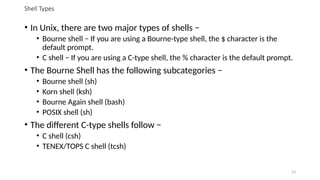
• InUnix, there are two major types of shells −
• Bourne shell − If you are using a Bourne-type shell, the $ character is the
default prompt.
• C shell − If you are using a C-type shell, the % character is the default prompt.
• The Bourne Shell has the following subcategories −
• Bourne shell (sh)
• Korn shell (ksh)
• Bourne Again shell (bash)
• POSIX shell (sh)
• The different C-type shells follow −
• C shell (csh)
• TENEX/TOPS C shell (tcsh)
23
24.
Basic Linux Commands
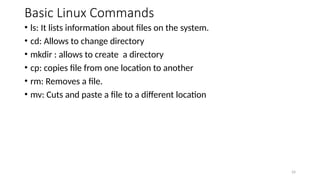
•ls: It lists information about files on the system.
• cd: Allows to change directory
• mkdir : allows to create a directory
• cp: copies file from one location to another
• rm: Removes a file.
• mv: Cuts and paste a file to a different location
24
25.
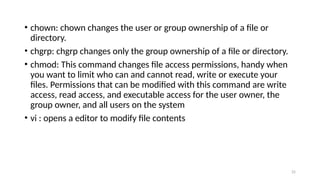
• chown: chownchanges the user or group ownership of a file or
directory.
• chgrp: chgrp changes only the group ownership of a file or directory.
• chmod: This command changes file access permissions, handy when
you want to limit who can and cannot read, write or execute your
files. Permissions that can be modified with this command are write
access, read access, and executable access for the user owner, the
group owner, and all users on the system
• vi : opens a editor to modify file contents
25
26.
Pipe
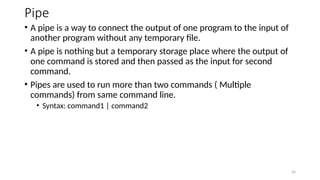
• A pipeis a way to connect the output of one program to the input of
another program without any temporary file.
• A pipe is nothing but a temporary storage place where the output of
one command is stored and then passed as the input for second
command.
• Pipes are used to run more than two commands ( Multiple
commands) from same command line.
• Syntax: command1 | command2
26
27.
Monitoring programs commands
•top:
• The top command is the traditional way to view your system’s resource usage
and see the processes that are taking up the most system resources.
• Top displays a list of processes, with the ones using the most CPU at the top.
• ps:
• The ps command lists running processes.
• You could also pipe the output through grep to search for a specific process
without using any other commands. The following command would search for
the Firefox process:
• ps -A | grep firefox
27
28.
• pstree:
• Thepstree command is another way of visualizing processes.
• It displays them in tree format.
• So, for example, your X server and graphical environment would appear
under the display manager that spawned them.
• kill
• The kill command can kill a process, given its process ID.
• You can get this information from the ps -A, top or pgrep commands.
• Usage: kill PID
• the kill command can send any signal to a process. You can use kill - KILL or kill
-9 instead to kill a stubborn process.
28
29.
• kill
• Thekill command can kill a process, given its process ID. You can get this
information from the ps -A, top or pgrep commands.
• Usage: kill PID
• the kill command can send any signal to a process. You can use kill -KILL or kill
-9 instead to kill a stubborn process.
• pgrep
• Given a search term, pgrep returns the process IDs that match it.
• For example, you could use the following command to find Firefox’s PID:
pgrep firefox
• xkill:
• The xkill command is a way of easily killing graphical programs.
29
30.
• pkill &killall:
• The pkill and killall commands can kill a process, given its name.
• Use either command to kill Firefox:
• pkill firerefox OR killall firerefox
• renice:
• The renice command changes the nice value of an already running process.
• The nice value determines what priority the process runs with.
• A value of -19 is very high priority, while a value of 19 is very low priority. A
value of 0 is the default priority.
• The renice command requires a process’s PID.
• The following command makes a process run with very low priority: renice 19
PID
30
31.
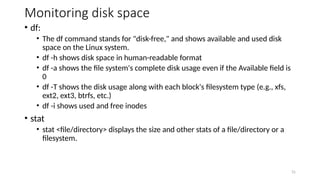
Monitoring disk space
•df:
• The df command stands for "disk-free," and shows available and used disk
space on the Linux system.
• df -h shows disk space in human-readable format
• df -a shows the file system's complete disk usage even if the Available field is
0
• df -T shows the disk usage along with each block's filesystem type (e.g., xfs,
ext2, ext3, btrfs, etc.)
• df -i shows used and free inodes
• stat
• stat <file/directory> displays the size and other stats of a file/directory or a
filesystem.
31
32.
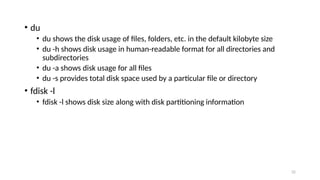
• du
• dushows the disk usage of files, folders, etc. in the default kilobyte size
• du -h shows disk usage in human-readable format for all directories and
subdirectories
• du -a shows disk usage for all files
• du -s provides total disk space used by a particular file or directory
• fdisk -l
• fdisk -l shows disk size along with disk partitioning information
32
33.
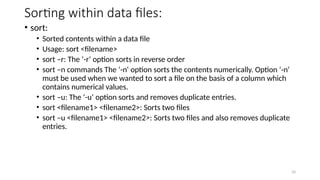
Sorting within datafiles:
• sort:
• Sorted contents within a data file
• Usage: sort <filename>
• sort –r: The ‘-r‘ option sorts in reverse order
• sort –n commands The ‘-n‘ option sorts the contents numerically. Option ‘-n‘
must be used when we wanted to sort a file on the basis of a column which
contains numerical values.
• sort –u: The ‘-u‘ option sorts and removes duplicate entries.
• sort <filename1> <filename2>: Sorts two files
• sort –u <filename1> <filename2>: Sorts two files and also removes duplicate
entries.
33
34.
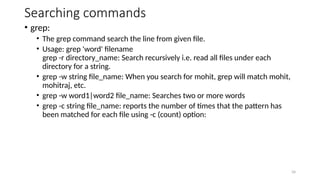
Searching commands
• grep:
•The grep command search the line from given file.
• Usage: grep 'word' filename
grep -r directory_name: Search recursively i.e. read all files under each
directory for a string.
• grep -w string file_name: When you search for mohit, grep will match mohit,
mohitraj, etc.
• grep -w word1|word2 file_name: Searches two or more words
• grep -c string file_name: reports the number of times that the pattern has
been matched for each file using -c (count) option:
34
35.
• find:
• Thefind command allows you to search for files according to various criteria.
• find <directory> -name <filename>: finds a file with filename in the given
directory
• find <directory> -user <username>: finds files of user in the given directory
• Syntax: find <directory> -atime <value>: finds files according to date and time
• -atime +7: All files that were last accessed more than 7 days ago.
• -atime 7: All files that were last accessed exactly 7 days ago.
• -atime -7: All files that were last accessed less than 7 days ago.
• locate: The locate command is the simplest and quickest way to find
the locations of files.
• Usage: locate <filename>
35