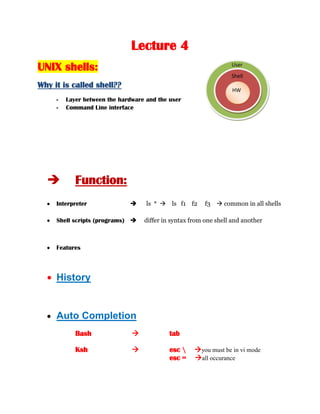
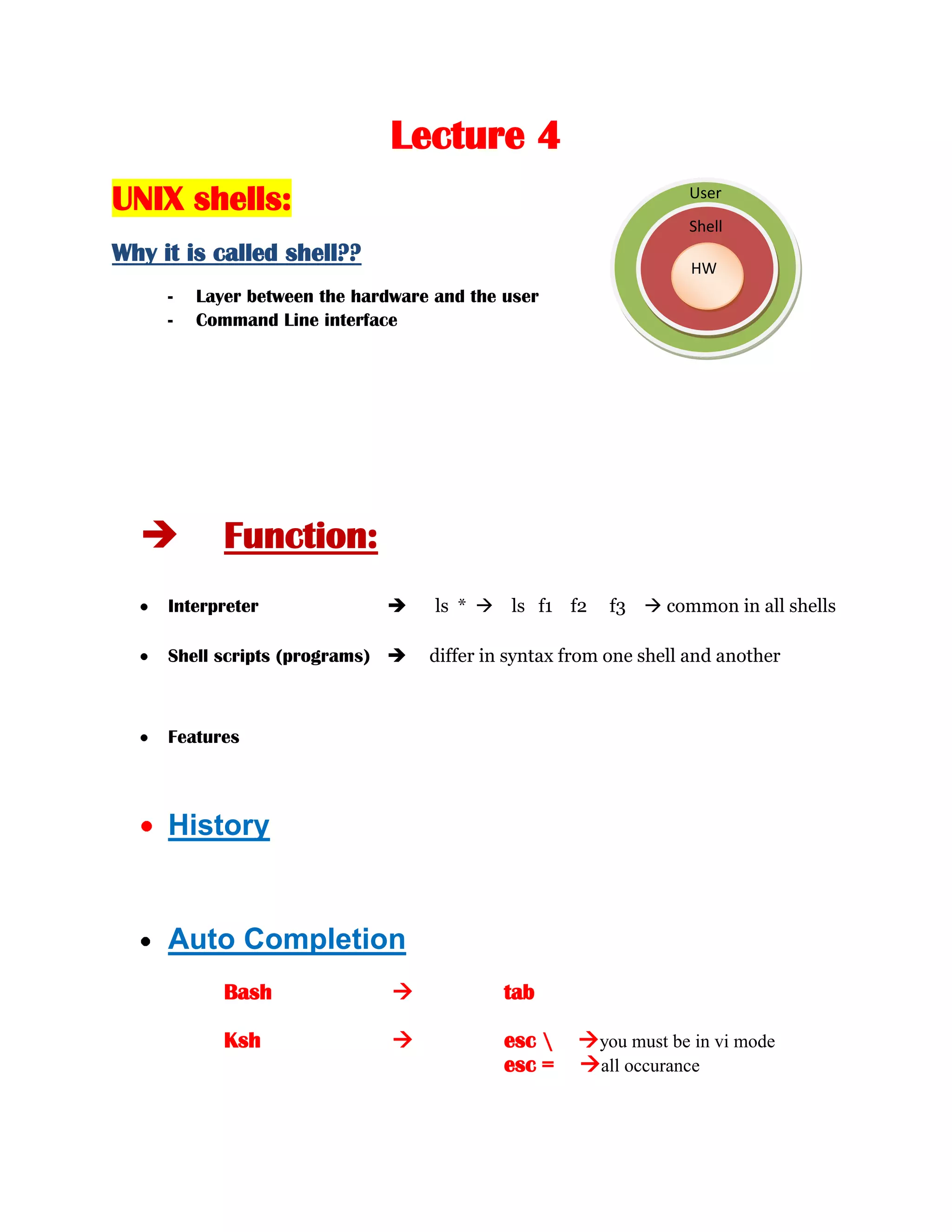
Lecture 4<br />ShellUserUNIX shells:<br />HWWhy it is called shell??<br />Layer between the hardware and the user
Command Line interface
Function:
Interpreter                            ls  *      ls   f1    f2     f3     common in all shells
Shell scripts (programs)       differ in syntax from one shell and another
Features               <br />History
Auto CompletionBash    tab<br />Kshesc \    you must be in vi mode <br />esc =    all occurance<br />Redirection
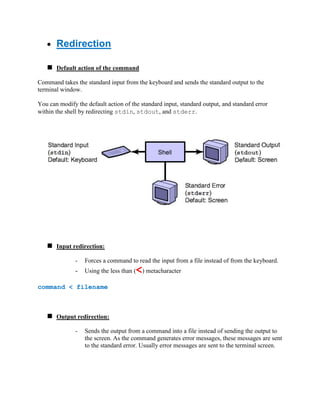
Default action of the commandCommand takes the standard input from the keyboard and sends the standard output to the terminal window.<br />You can modify the default action of the standard input, standard output, and standard error within the shell by redirecting stdin, stdout, and stderr.<br />19558090170
Input redirection:

lec4.docx

  • 1.
    Lecture 4<br />ShellUserUNIXshells:<br />HWWhy it is called shell??<br />Layer between the hardware and the user
  • 2.
  • 3.
  • 4.
    Interpreter ls * ls f1 f2 f3 common in all shells
  • 5.
    Shell scripts (programs) differ in syntax from one shell and another
  • 6.
    Features <br />History
  • 7.
    Auto CompletionBash tab<br />Kshesc \ you must be in vi mode <br />esc = all occurance<br />Redirection
  • 8.
    Default action ofthe commandCommand takes the standard input from the keyboard and sends the standard output to the terminal window.<br />You can modify the default action of the standard input, standard output, and standard error within the shell by redirecting stdin, stdout, and stderr.<br />19558090170
  • 9.
  • 10.
  • 11.
    Forces a commandto read the input from a file instead of from the keyboard.
  • 12.
    Using the lessthan (<) metacharacter command < filename<br />Output redirection:
  • 13.
    Sends the outputfrom a command into a file instead of sending the output to the screen. As the command generates error messages, these messages are sent to the standard error. Usually error messages are sent to the terminal screen.
  • 14.
    Using the greaterthan (>) metacharacter to direct the standard output to a file instead of printing the output to the screen. If file does not exist, the system creates it. If the file exists, the redirection overwrites the contents of the file.command > filename<br /> >> Append instead of overwrite <br />Redirecting Standard Error
  • 15.
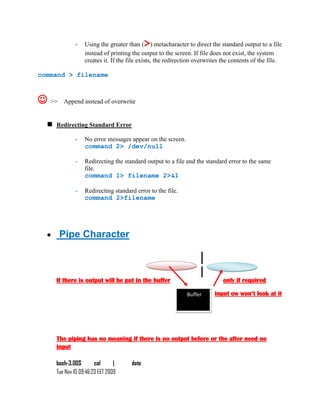
    No error messagesappear on the screen.command 2> /dev/null<br />Redirecting the standard output to a file and the standard error to the same file. command 1> filename 2>&1<br />Redirecting standard error to the file. command 2>filename<br /> Pipe Character BufferIf there is output will be put in the buffer only if required <br /> input ow won’t look at it<br />The piping has no meaning if there is no output before or the after need no input
  • 16.
  • 17.
    Tue Nov 1009:46:23 EET 2009
  • 18.
  • 19.
    Tue Nov 1010:25:45 EET 2009
  • 20.
  • 21.
    Tue Nov 1010:26:34 EET 2009
  • 22.
    here suspend waitingfor input when enter
  • 23.
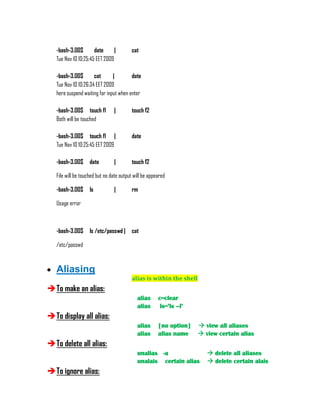
    -bash-3.00$ touch f1 | touch f2
  • 24.
  • 25.
    -bash-3.00$ touch f1 | date
  • 26.
    Tue Nov 1010:25:45 EET 2009
  • 27.
    -bash-3.00$ date | touch f2File will be touched but no date output will be appeared<br />-bash-3.00$ ls | rm<br />Usage error<br />-bash-3.00$ ls /etc/passwd | cat<br />/etc/passwd<br />Aliasing
  • 28.
  • 29.
  • 30.
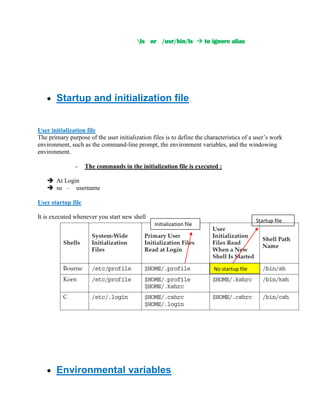
    alias c=clear
  • 31.
    alias ls=’ls –l’
  • 32.
  • 33.
    alias [no option] view all aliases
  • 34.
    alias alias name view certain alias
  • 35.
  • 36.
    unalias -a delete all aliases
  • 37.
    unalais certain alias delete certain alais
  • 38.
  • 39.
    \ls or /usr/bin/ls to ignore alias
  • 40.
    Startup and initializationfileUser initialization file<br />The primary purpose of the user initialization files is to define the characteristics of a user’s work environment, such as the command-line prompt, the environment variables, and the windowing environment.<br />The commands in the initialization file is executed :
  • 41.
  • 42.
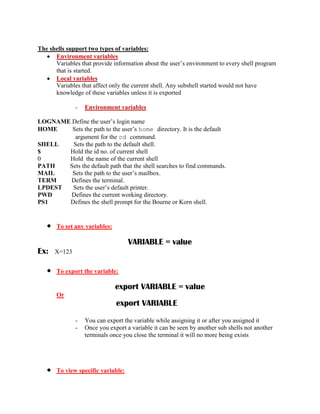
    su – usernameUser startup file<br />Startup fileInitialization fileIt is executed whenever you start new shell<br />No startup file
  • 43.
    Environmental variablesThe shellssupport two types of variables:<br />Environment variables
  • 44.
    Variables that provideinformation about the user’s environment to every shell program that is started.
  • 45.
  • 46.
    Variables that affectonly the current shell. Any subshell started would not have knowledge of these variables unless it is exported
  • 47.
    Environment variables LOGNAMEDefine the user’s login name<br />HOME Sets the path to the user’s home directory. It is the default <br /> argument for the cd command.<br />SHELL Sets the path to the default shell.<br />$ Hold the id no. of current shell<br />0 Hold the name of the current shell<br />PATH Sets the default path that the shell searches to find commands.<br />MAIL Sets the path to the user’s mailbox.<br />TERM Defines the terminal.<br />LPDEST Sets the user’s default printer.<br />PWD Defines the current working directory.<br />PS1 Defines the shell prompt for the Bourne or Korn shell.<br />To set any variables:VARIABLE = value<br />Ex: X=123<br />To export the variable:export VARIABLE = value<br />Or
  • 48.
    exportVARIABLE
  • 49.
    You can exportthe variable while assigning it or after you assigned it
  • 50.
    Once you exporta variable it can be seen by another sub shells not another terminals once you close the terminal it will no more being exists
  • 51.
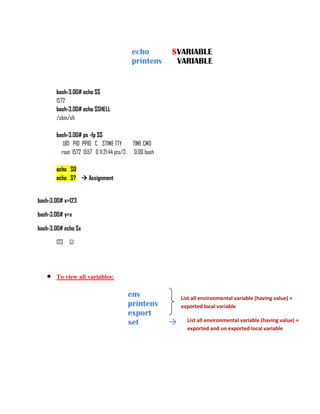
    To view specificvariable:echo $VARIABLE<br />printenv VARIABLE<br />bash-3.00# echo $$
  • 52.
  • 53.
  • 54.
  • 55.
  • 56.
    UID PID PPID C STIME TTY TIME CMD
  • 57.
    root 1572 1557 0 11:21:44 pts/3 0:00 bash
  • 58.
  • 59.
    echo $? Assignmentbash-3.00# x=123 <br />bash-3.00# y=x <br />bash-3.00# echo $x <br />123
  • 60.
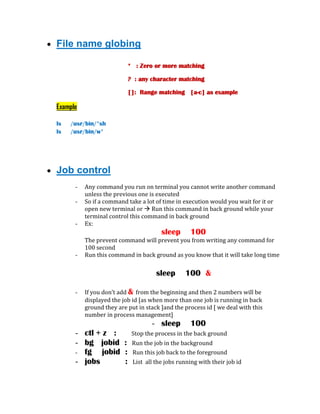
    To view allvariables:List all environmental variable (having value) + exported local variableenv<br />printenv<br />List all environmental variable (having value) + exported and un exported local variableexport<br />set <br /> <br />File name globing * : Zero or more matching <br />? : any character matching<br />[]: Range matching [a-c] as example<br />Example
  • 61.
    ls /usr/bin/*sh
  • 62.
    ls /usr/bin/w*
  • 63.
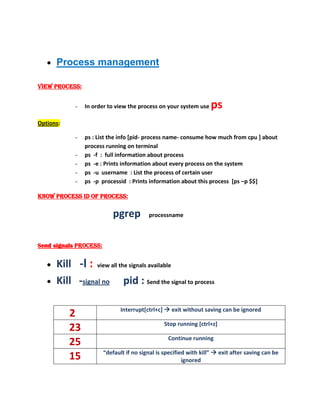
    Job control <br/>Any command you run on terminal you cannot write another command unless the previous one is executed
  • 64.
    So if acommand take a lot of time in execution would you wait for it or open new terminal or Run this command in back ground while your terminal control this command in back ground
  • 65.
  • 66.
  • 67.
    The prevent commandwill prevent you from writing any command for 100 second
  • 68.
    Run this commandin back ground as you know that it will take long time
  • 69.
    sleep 100 &
  • 70.
    If you don’tadd & from the beginning and then 2 numbers will be displayed the job id [as when more than one job is running in back ground they are put in stack ]and the process id [ we deal with this number in process management]
  • 71.
  • 72.
    ctl + z : Stop the process in the back ground
  • 73.
    bg jobid : Run the job in the background
  • 74.
    fg jobid : Run this job back to the foreground
  • 75.
    jobs : List all the jobs running with their job id
  • 76.
    Process managementView process:<br/>In order to view the process on your system use psOptions:<br />ps : List the info [pid- process name- consume how much from cpu ] about process running on terminal
  • 77.
    ps -f : full information about process
  • 78.
    ps -e: Prints information about every process on the system
  • 79.
    ps -u username : List the process of certain user
  • 80.
    ps -p processid : Prints information about this process [ps –p $$]Know process id of process:<br />pgrep processname<br />Send signals process:<br />Kill -l : view all the signals available
  • 81.
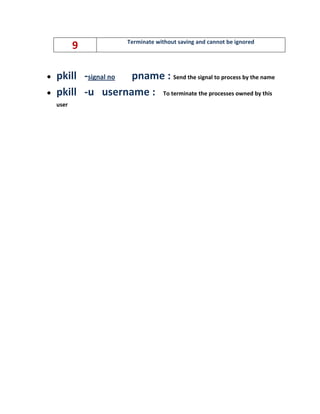
    Kill -signal no pid : Send the signal to process
  • 82.
    2Interrupt[ctrl+c] exit without saving can be ignored23Stop running [ctrl+z]25Continue running15“default if no signal is specified with kill” exit after saving can be ignored9Terminate without saving and cannot be ignored
  • 83.
    pkill -signal nopname : Send the signal to process by the name
  • 84.
    pkill -u username : To terminate the processes owned by this user