SHELL PROGRAMMING
SHELL PROGRAMMING
•A shell program is nothing but a series of commands
•We give the to-do list – a prg- that carries out an entire
procedure. Such programs are known as “shell scripts”
•We can write shell scripts for simple to full-fledged,
custom-made software applications
•We can exploit full power and versality of UNIX
•To execute ss we don’t need a separate compiler. Shell
itself interprets the commands and execute
•The commands like dfspace and shutdown are examples
for ss
•Atleast 280 ss come with UNIX OS
•The ss written for one shell may not work with
the other shell because different shell use
different mechanisms for executing the
commands and keywords may change also
•Ss written for bourne shell are likely to work with
korn shell reverse may not be true because k shell
supports arrays, command aliasing etc
•C shell programming language resemble the C-
language and it is quite different from Bourne
shell
•Basic ss will run under both
When to use shell scripts
Shell scripts can be used for a variety of tasks
•Customizing your work environment
   •Every time login to see current date, welcome message etc
•Automating your daily tasks
   •To take backup all your programs at the end of the day
•Automating repetitive tasks
   •Producing sales report of every month etc
•Executing important system procedures
   •Shutdown, formatting a disk, creating a file system on it,
   mounting and un mounting the disk etc
•Performing same operation on many files
   •Replacing printf with myprintf in all C programs present in a
   dir etc
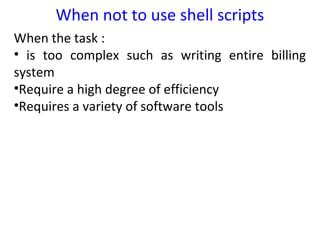
When not to use shell scripts
When the task :
• is too complex such as writing entire billing
system
•Require a high degree of efficiency
•Requires a variety of software tools
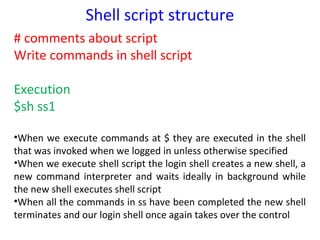
Shell script structure
# comments about script
Write commands in shell script

Execution
$sh ss1

•When we execute commands at $ they are executed in the shell
that was invoked when we logged in unless otherwise specified
•When we execute shell script the login shell creates a new shell, a
new command interpreter and waits ideally in background while
the new shell executes shell script
•When all the commands in ss have been completed the new shell
terminates and our login shell once again takes over the control
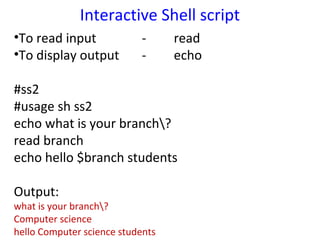
Interactive Shell script
•To read input             -      read
•To display output         -      echo

#ss2
#usage sh ss2
echo what is your branch?
read branch
echo hello $branch students

Output:
what is your branch?
Computer science
hello Computer science students
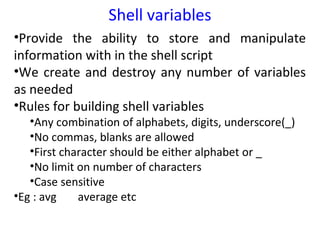
Shell variables
•Provide the ability to store and manipulate
information with in the shell script
•We create and destroy any number of variables
as needed
•Rules for building shell variables
   •Any combination of alphabets, digits, underscore(_)
   •No commas, blanks are allowed
   •First character should be either alphabet or _
   •No limit on number of characters
   •Case sensitive
•Eg : avg    average etc
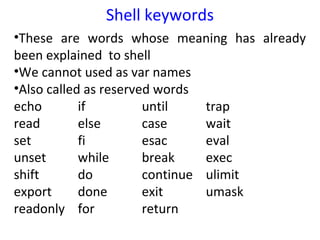
Shell keywords
•These are words whose meaning has already
been explained to shell
•We cannot used as var names
•Also called as reserved words
echo        if         until    trap
read        else       case     wait
set         fi         esac     eval
unset       while      break    exec
shift       do         continue ulimit
export      done       exit     umask
readonly for           return
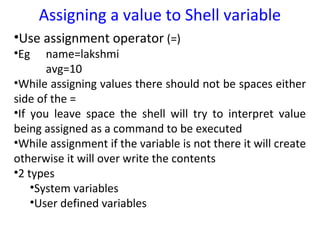
Assigning a value to Shell variable
•Use assignment operator (=)
•Eg    name=lakshmi
       avg=10
•While assigning values there should not be spaces either
side of the =
•If you leave space the shell will try to interpret value
being assigned as a command to be executed
•While assignment if the variable is not there it will create
otherwise it will over write the contents
•2 types
    •System variables
    •User defined variables
System variables
•Standard variables which are always accessible
•The shell provides values for these variables
•Govern the environment
•We can change the values as per our preference
and customize the system environment
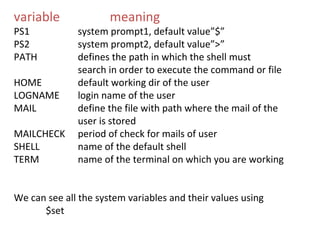
variable              meaning
PS1           system prompt1, default value”$”
PS2           system prompt2, default value”>”
PATH          defines the path in which the shell must
              search in order to execute the command or file
HOME          default working dir of the user
LOGNAME       login name of the user
MAIL          define the file with path where the mail of the
              user is stored
MAILCHECK     period of check for mails of user
SHELL         name of the default shell
TERM          name of the terminal on which you are working


We can see all the system variables and their values using
      $set
User defined variables
•All shell variables are string variables
•We can assign more than one word using “”
    •Eg : c=“one two”
$name=“lakshmi”
$echo name is $name
•All the shell variables defined inside ss die at the
moment the execution of ss is over
•Defining null variables
    1.d=“”            2. d=‘’      3. d=
•On echoing null variables blank line appears on screen
•If we use null variables in commands shell ignores it
       eg: $wc –l $var1 file1             //display number
of lines in file1 only
Unchanging variables
•To declare constants we use readonly key word
       $a=20
       $readonly a
•Shell does not allow us to change the value of a
       $readonly          // display all readonly vars
Wiping out variables
•Unset is used to wipe of shell variables
      $unset a
•We cannot wipeout system variables
      $unset PS1          // will not work
Positional parameters
•We can convey the information to a program using
command line arguments
•Shell uses positional parameters concept to know about
command line arguments
•They are 9 in number named $1 to $9
       Eg: $sh ss this class is mtech(cs)
•Each word is automatically stored serially in the
positional parameters
       $0 assigned ss
       $1 assigned this
       $2 assigned class
       $3 assigned is
       $4 assigned mtech(cs)
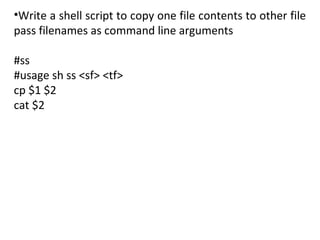
•Write a shell script to copy one file contents to other file
pass filenames as command line arguments

#ss
#usage sh ss <sf> <tf>
cp $1 $2
cat $2
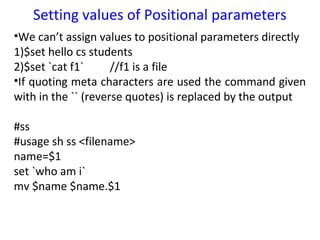
Setting values of Positional parameters
•We can’t assign values to positional parameters directly
1)$set hello cs students
2)$set `cat f1`      //f1 is a file
•If quoting meta characters are used the command given
with in the `` (reverse quotes) is replaced by the output

#ss
#usage sh ss <filename>
name=$1
set `who am i`
mv $name $name.$1
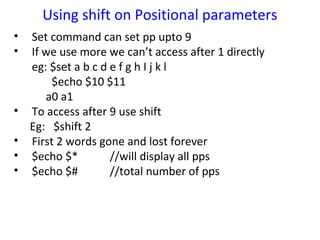
Using shift on Positional parameters
•   Set command can set pp upto 9
•   If we use more we can’t access after 1 directly
    eg: $set a b c d e f g h I j k l
         $echo $10 $11
       a0 a1
•   To access after 9 use shift
    Eg: $shift 2
•   First 2 words gone and lost forever
•   $echo $*         //will display all pps
•   $echo $#         //total number of pps

1 4 sp

  • 1.
  • 2.
    SHELL PROGRAMMING •A shellprogram is nothing but a series of commands •We give the to-do list – a prg- that carries out an entire procedure. Such programs are known as “shell scripts” •We can write shell scripts for simple to full-fledged, custom-made software applications •We can exploit full power and versality of UNIX •To execute ss we don’t need a separate compiler. Shell itself interprets the commands and execute •The commands like dfspace and shutdown are examples for ss •Atleast 280 ss come with UNIX OS
  • 3.
    •The ss writtenfor one shell may not work with the other shell because different shell use different mechanisms for executing the commands and keywords may change also •Ss written for bourne shell are likely to work with korn shell reverse may not be true because k shell supports arrays, command aliasing etc •C shell programming language resemble the C- language and it is quite different from Bourne shell •Basic ss will run under both
  • 4.
    When to useshell scripts Shell scripts can be used for a variety of tasks •Customizing your work environment •Every time login to see current date, welcome message etc •Automating your daily tasks •To take backup all your programs at the end of the day •Automating repetitive tasks •Producing sales report of every month etc •Executing important system procedures •Shutdown, formatting a disk, creating a file system on it, mounting and un mounting the disk etc •Performing same operation on many files •Replacing printf with myprintf in all C programs present in a dir etc
  • 5.
    When not touse shell scripts When the task : • is too complex such as writing entire billing system •Require a high degree of efficiency •Requires a variety of software tools
  • 6.
    Shell script structure #comments about script Write commands in shell script Execution $sh ss1 •When we execute commands at $ they are executed in the shell that was invoked when we logged in unless otherwise specified •When we execute shell script the login shell creates a new shell, a new command interpreter and waits ideally in background while the new shell executes shell script •When all the commands in ss have been completed the new shell terminates and our login shell once again takes over the control
  • 7.
    Interactive Shell script •Toread input - read •To display output - echo #ss2 #usage sh ss2 echo what is your branch? read branch echo hello $branch students Output: what is your branch? Computer science hello Computer science students
  • 8.
    Shell variables •Provide theability to store and manipulate information with in the shell script •We create and destroy any number of variables as needed •Rules for building shell variables •Any combination of alphabets, digits, underscore(_) •No commas, blanks are allowed •First character should be either alphabet or _ •No limit on number of characters •Case sensitive •Eg : avg average etc
  • 9.
    Shell keywords •These arewords whose meaning has already been explained to shell •We cannot used as var names •Also called as reserved words echo if until trap read else case wait set fi esac eval unset while break exec shift do continue ulimit export done exit umask readonly for return
  • 10.
    Assigning a valueto Shell variable •Use assignment operator (=) •Eg name=lakshmi avg=10 •While assigning values there should not be spaces either side of the = •If you leave space the shell will try to interpret value being assigned as a command to be executed •While assignment if the variable is not there it will create otherwise it will over write the contents •2 types •System variables •User defined variables
  • 11.
    System variables •Standard variableswhich are always accessible •The shell provides values for these variables •Govern the environment •We can change the values as per our preference and customize the system environment
  • 12.
    variable meaning PS1 system prompt1, default value”$” PS2 system prompt2, default value”>” PATH defines the path in which the shell must search in order to execute the command or file HOME default working dir of the user LOGNAME login name of the user MAIL define the file with path where the mail of the user is stored MAILCHECK period of check for mails of user SHELL name of the default shell TERM name of the terminal on which you are working We can see all the system variables and their values using $set
  • 13.
    User defined variables •Allshell variables are string variables •We can assign more than one word using “” •Eg : c=“one two” $name=“lakshmi” $echo name is $name •All the shell variables defined inside ss die at the moment the execution of ss is over •Defining null variables 1.d=“” 2. d=‘’ 3. d= •On echoing null variables blank line appears on screen •If we use null variables in commands shell ignores it eg: $wc –l $var1 file1 //display number of lines in file1 only
  • 14.
    Unchanging variables •To declareconstants we use readonly key word $a=20 $readonly a •Shell does not allow us to change the value of a $readonly // display all readonly vars
  • 15.
    Wiping out variables •Unsetis used to wipe of shell variables $unset a •We cannot wipeout system variables $unset PS1 // will not work
  • 16.
    Positional parameters •We canconvey the information to a program using command line arguments •Shell uses positional parameters concept to know about command line arguments •They are 9 in number named $1 to $9 Eg: $sh ss this class is mtech(cs) •Each word is automatically stored serially in the positional parameters $0 assigned ss $1 assigned this $2 assigned class $3 assigned is $4 assigned mtech(cs)
  • 17.
    •Write a shellscript to copy one file contents to other file pass filenames as command line arguments #ss #usage sh ss <sf> <tf> cp $1 $2 cat $2
  • 18.
    Setting values ofPositional parameters •We can’t assign values to positional parameters directly 1)$set hello cs students 2)$set `cat f1` //f1 is a file •If quoting meta characters are used the command given with in the `` (reverse quotes) is replaced by the output #ss #usage sh ss <filename> name=$1 set `who am i` mv $name $name.$1
  • 19.
    Using shift onPositional parameters • Set command can set pp upto 9 • If we use more we can’t access after 1 directly eg: $set a b c d e f g h I j k l $echo $10 $11 a0 a1 • To access after 9 use shift Eg: $shift 2 • First 2 words gone and lost forever • $echo $* //will display all pps • $echo $# //total number of pps