Basics of Image Processing using MATLAB
Date:
INSTRUCTOR
DR. MOHSIN SIDDIQUE
ASSIST. PROFESSOR
DEPARTMENT OF CIVIL & ENV ENG.
 Part 1: Image processing using Command line/Editor
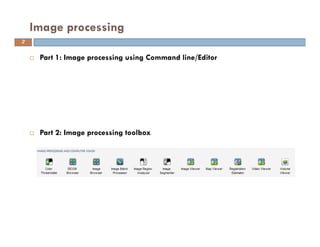
 Part 2: Image processing toolbox
Image processing
2
 Part 1: Image processing using Command line/Editor
Install Matlab with image processing toolbox
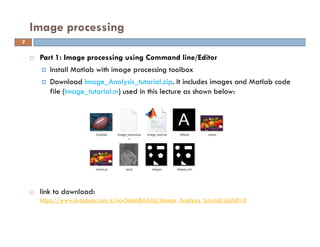
Download Image_Analysis_tutorial.zip. It includes images and Matlab code
file (Image_tutorial.m) used in this lecture as shown below:
 link to download:
https://www.dropbox.com/s/ncv3nlah8cl4dzj/Image_Analysis_tutorial.zip?dl=0
Image processing
3
 Read image
Syntax: imread - it read image from the graphic file
I = imread('path/filename.fileextension');
________________________________________________________________
%Let’s read onion.png
I=imread(‘onion.png');
% where onion.png is image which is stored in I
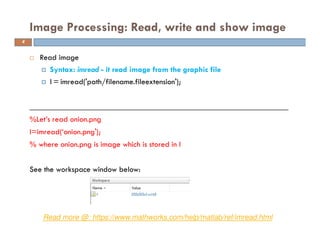
See the workspace window below:
Image Processing: Read, write and show image
Read more @: https://www.mathworks.com/help/matlab/ref/imread.html
4
 Show image
Syntax: imshow: display image
image: display image from array
imshow(figuredata);
image(figuredata)
________________________________________________________
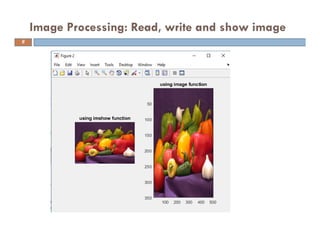
figure(2) %% to show image on figure 2
subplot (1,2,1); imshow(I); title ('using imshow function')
subplot (1,2,2); image(I); title ('using image function')
Image Processing: Read, write and show image
Read more @: https://www.mathworks.com/help/matlab/ref/imshow.html
https://www.mathworks.com/help/matlab/ref/image.html
5
Image Processing: Read, write and show image
6
Image Processing: Read, write and show image
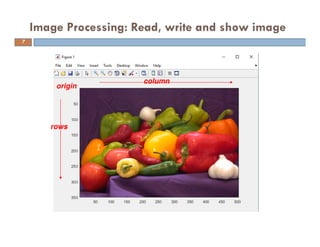
origin
rows
column
7
 Write image
Syntax: imwirte - write image to a graphic file
imwrite(figuredata, file name’);
_______________________________________________________________
%Let write onion_w.png
imwrite(I, ’onion_w.png’); % it will save “onion_w.png” in working directory
%imwrite(I, c:.....name.png) % it will save “name.png” at specific location
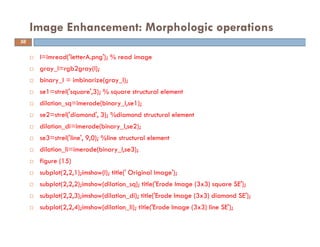
Image Processing: Read, write and show image
Read more @: https://www.mathworks.com/help/matlab/ref/imwrite.html
8
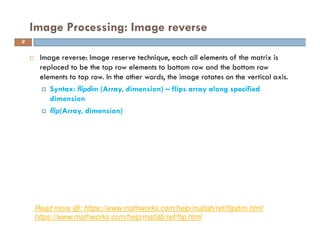
 Image reverse: Image reserve technique, each all elements of the matrix is
replaced to be the top row elements to bottom row and the bottom row
elements to top row. In the other words, the image rotates on the vertical axis.
Syntax: flipdim (Array, dimension) – flips array along specified
dimension
flip(Array, dimension)
Image Processing: Image reverse
Read more @: https://www.mathworks.com/help/matlab/ref/flipdim.html
https://www.mathworks.com/help/matlab/ref/flip.html
9
____________________________________________________________
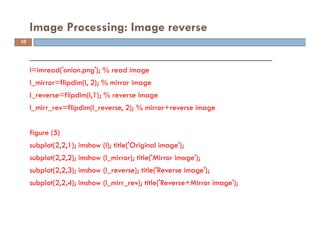
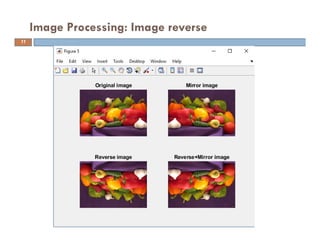
I=imread('onion.png'); % read image
I_mirror=flipdim(I, 2); % mirror image
I_reverse=flipdim(I,1); % reverse image
I_mirr_rev=flipdim(I_reverse, 2); % mirror+reverse image
figure (5)
subplot(2,2,1); imshow (I); title('Original image');
subplot(2,2,2); imshow (I_mirror); title('Mirror image');
subplot(2,2,3); imshow (I_reverse); title('Reverse image');
subplot(2,2,4); imshow (I_mirr_rev); title('Reverse+Mirror image');
Image Processing: Image reverse
10
Image Processing: Image reverse
11
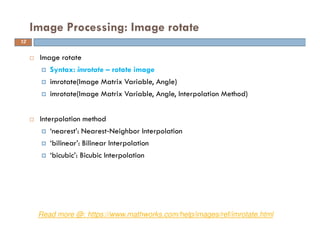
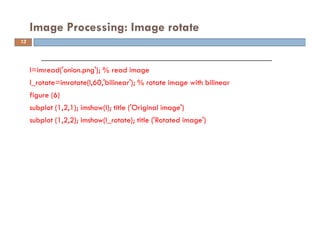
 Image rotate
Syntax: imrotate – rotate image
imrotate(Image Matrix Variable, Angle)
imrotate(Image Matrix Variable, Angle, Interpolation Method)
 Interpolation method
‘nearest’: Nearest‐Neighbor Interpolation
‘bilinear’: Bilinear Interpolation
‘bicubic’: Bicubic Interpolation
Image Processing: Image rotate
Read more @: https://www.mathworks.com/help/images/ref/imrotate.html
12
_________________________________________________________
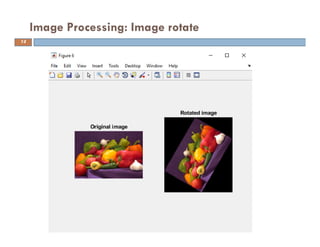
I=imread('onion.png'); % read image
I_rotate=imrotate(I,60,'bilinear'); % rotate image with bilinear
figure (6)
subplot (1,2,1); imshow(I); title ('Original image')
subplot (1,2,2); imshow(I_rotate); title ('Rotated image')
Image Processing: Image rotate
13
Image Processing: Image rotate
14
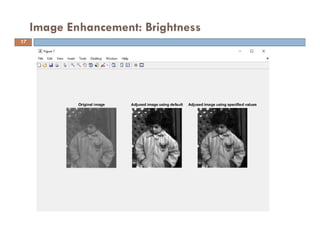
 Brightness of an image is adjusted with adding or subtracting a certain value
to gray level of each pixel.
Syntax: imadjust - adjust intensity values or colormap
For gray-scale images
adjusted_image = imadjust(I)
adjusted_image = imadjust(I,[low_in high_in])
For color images
J = imadjust(RGB,[low_in high_in],___)
Image Enhancement: Brightness
Read more @: https://www.mathworks.com/help/images/ref/imadjust.html
15
%Gray-scale image
I=imread(‘pout.png');
grayI=rgb2gray(I);
adj_I= imadjust(grayI); % for gray-scale images
adj_I2=imadjust(grayI,[0.3 0.7],[]); % using specified values
figure (7)
subplot (1,3,1); imshow(grayI); title ('Original image')
subplot (1,3,2); imshow(adj_I); title ('Adjused image using default')
subplot (1,3,3); imshow(adj_I2); title ('Adjused image using specified values')
Image Enhancement: Brightness
16
Image Enhancement: Brightness
17
%Color images
I_RGB = imread(‘football.png');
adj_I_RGB = imadjust(I_RGB, [.2 .3 0; .6 .7 1], []);
figure (8)
subplot (1,2,1); imshow(I_RGB); title ('Original image')
subplot (1,2,2); imshow(adj_I_RGB); title ('Adjused image')
Image enhancement: Brightness
18
Image Enhancement: Brightness
19
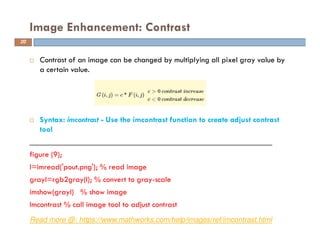
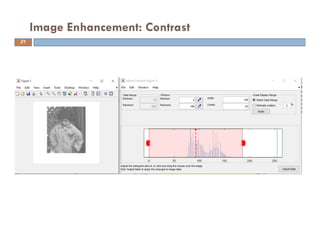
 Contrast of an image can be changed by multiplying all pixel gray value by
a certain value.
 Syntax: imcontrast - Use the imcontrast function to create adjust contrast
tool
____________________________________________________________
figure (9);
I=imread('pout.png'); % read image
grayI=rgb2gray(I); % convert to gray-scale
imshow(grayI) % show image
Imcontrast % call image tool to adjust contrast
Image Enhancement: Contrast
Read more @: https://www.mathworks.com/help/images/ref/imcontrast.html
20
Image Enhancement: Contrast
21
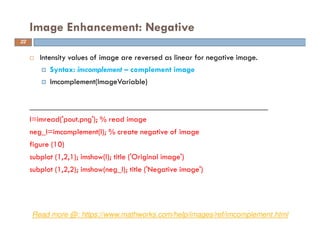
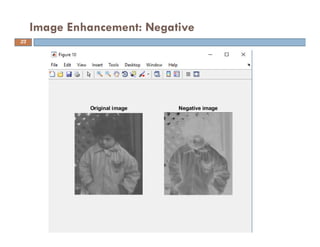
 Intensity values of image are reversed as linear for negative image.
Syntax: imcomplement – complement image
Imcomplement(ImageVariable)
___________________________________________________________
I=imread('pout.png'); % read image
neg_I=imcomplement(I); % create negative of image
figure (10)
subplot (1,2,1); imshow(I); title ('Original image')
subplot (1,2,2); imshow(neg_I); title ('Negative image')
Image Enhancement: Negative
Read more @: https://www.mathworks.com/help/images/ref/imcomplement.html
22
Image Enhancement: Negative
23
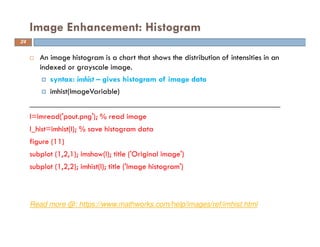
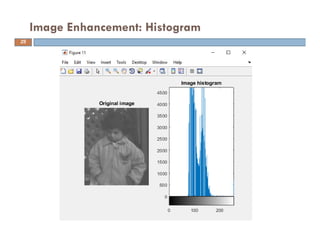
 An image histogram is a chart that shows the distribution of intensities in an
indexed or grayscale image.
syntax: imhist – gives histogram of image data
imhist(ImageVariable)
______________________________________________________________
I=imread('pout.png'); % read image
I_hist=imhist(I); % save histogram data
figure (11)
subplot (1,2,1); imshow(I); title ('Original image')
subplot (1,2,2); imhist(I); title ('Image histogram')
Image Enhancement: Histogram
Read more @: https://www.mathworks.com/help/images/ref/imhist.html
24
Image Enhancement: Histogram
25
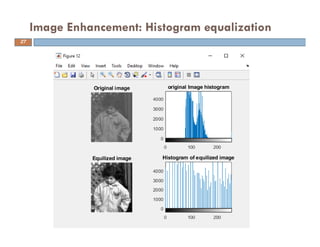
 It automatically adjust the intensity values
 Syntax: histeq – enhance contrast using histogram equalization
 histeq(ImageVariable)
____________________________________________________________
I=imread('pout.png'); % read image
I_hist=imhist(I); % save histogram of image
J=histeq(I); % create a new histogram equalized image
I_histeq=imhist(J); % save histogram of new histogram equalized image
figure (12)
subplot (2,2,1); imshow(I); title ('Original image')
subplot (2,2,2); imhist(I); title ('original Image histogram')
subplot (2,2,3); imshow(J); title ('Equalized image')
subplot (2,2,4); imhist(J); title ('Histogram of equalized image')
Image Enhancement: Histogram equalization
Read more @: https://www.mathworks.com/help/images/ref/histeq.html
26
Image Enhancement: Histogram equalization
27
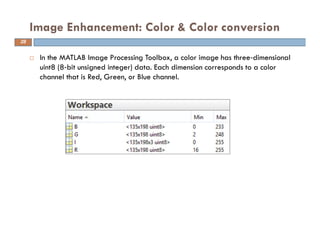
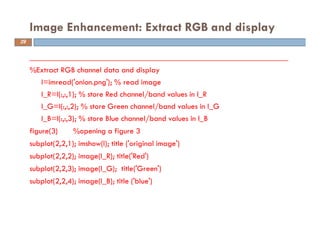
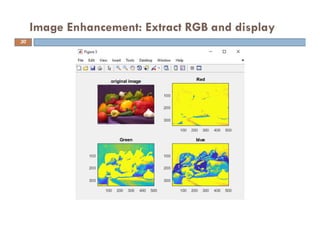
 In the MATLAB Image Processing Toolbox, a color image has three‐dimensional
uint8 (8‐bit unsigned integer) data. Each dimension corresponds to a color
channel that is Red, Green, or Blue channel.
Image Enhancement: Color & Color conversion
28
________________________________________________________________
%Extract RGB channel data and display
I=imread('onion.png'); % read image
I_R=I(:,:,1); % store Red channel/band values in I_R
I_G=I(:,:,2); % store Green channel/band values in I_G
I_B=I(:,:,3); % store Blue channel/band values in I_B
figure(3) %opening a figure 3
subplot(2,2,1); imshow(I); title ('original image')
subplot(2,2,2); image(I_R); title('Red')
subplot(2,2,3); image(I_G); title('Green')
subplot(2,2,4); image(I_B); title ('blue')
Image Enhancement: Extract RGB and display
29
Image Enhancement: Extract RGB and display
30
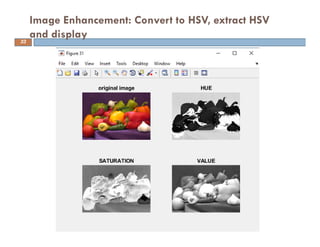
 Covert image from RGB to HSV
Syntax - rgb2hsv – converts RGB colors to HSV
rgb2hsv(RBG_Image)
Image Enhancement: Convert to HSV, extract HSV
and display
Read more @: https://www.mathworks.com/help/matlab/ref/rgb2hsv.html
31
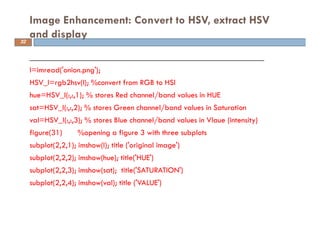
__________________________________________________________
I=imread('onion.png');
HSV_I=rgb2hsv(I); %convert from RGB to HSI
hue=HSV_I(:,:,1); % stores Red channel/band values in HUE
sat=HSV_I(:,:,2); % stores Green channel/band values in Saturation
val=HSV_I(:,:,3); % stores Blue channel/band values in Vlaue (intensity)
figure(31) %opening a figure 3 with three subplots
subplot(2,2,1); imshow(I); title ('original image')
subplot(2,2,2); imshow(hue); title('HUE')
subplot(2,2,3); imshow(sat); title('SATURATION')
subplot(2,2,4); imshow(val); title ('VALUE')
Image Enhancement: Convert to HSV, extract HSV
and display32
Image Enhancement: Convert to HSV, extract HSV
and display33
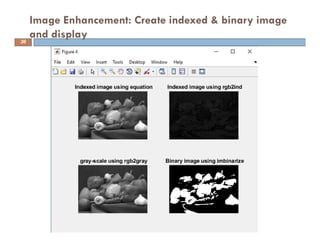
 Gray image is produced using following by NTSC standards. However, we
can calculate different methods, but MATLAB uses NTSC standards and it has
rgb2gray(RGB image) function:
 syntax – rgb2gray - to convert RGB to gray image
 syntax – imbinarize – to convert gray-scale to binary image
Image Enhancement: Create indexed & binary image
and display
Read more @: https://www.mathworks.com/help/matlab/ref/rgb2gray.html
https://www.mathworks.com/help/images/ref/imbinarize.html
34
_______________________________________________________
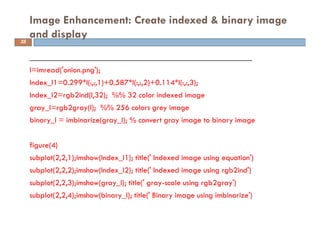
I=imread('onion.png');
Index_I1=0.299*I(:,:,1)+0.587*I(:,:,2)+0.114*I(:,:,3);
Index_I2=rgb2ind(I,32); %% 32 color indexed image
gray_I=rgb2gray(I); %% 256 colors grey image
binary_I = imbinarize(gray_I); % convert gray image to binary image
figure(4)
subplot(2,2,1);imshow(Index_I1); title(' Indexed image using equation')
subplot(2,2,2);imshow(Index_I2); title(' Indexed image using rgb2ind')
subplot(2,2,3);imshow(gray_I); title(' gray-scale using rgb2gray')
subplot(2,2,4);imshow(binary_I); title(' Binary image using imbinarize')
Image Enhancement: Create indexed & binary image
and display35
Image Enhancement: Create indexed & binary image
and display36
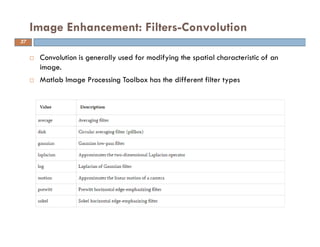
 Convolution is generally used for modifying the spatial characteristic of an
image.
 Matlab Image Processing Toolbox has the different filter types
Image Enhancement: Filters-Convolution
37
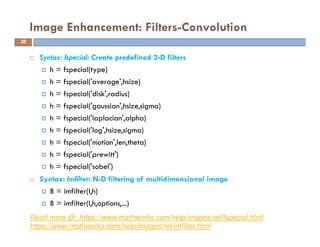
 Syntax: fspecial: Create predefined 2-D filters
h = fspecial(type)
h = fspecial('average',hsize)
h = fspecial('disk',radius)
h = fspecial('gaussian',hsize,sigma)
h = fspecial('laplacian',alpha)
h = fspecial('log',hsize,sigma)
h = fspecial('motion',len,theta)
h = fspecial('prewitt')
h = fspecial('sobel')
 Syntax: Imfilter: N-D filtering of multidimensional image
B = imfilter(I,h)
B = imfilter(I,h,options,...)
Image Enhancement: Filters-Convolution
Read more @: https://www.mathworks.com/help/images/ref/fspecial.html
https://www.mathworks.com/help/images/ref/imfilter.html
38
______________________________________________________________
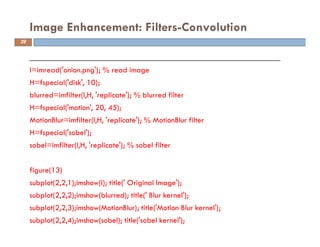
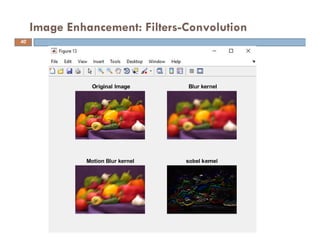
I=imread('onion.png'); % read image
H=fspecial('disk', 10);
blurred=imfilter(I,H, 'replicate'); % blurred filter
H=fspecial('motion', 20, 45);
MotionBlur=imfilter(I,H, 'replicate'); % MotionBlur filter
H=fspecial('sobel');
sobel=imfilter(I,H, 'replicate'); % sobel filter
figure(13)
subplot(2,2,1);imshow(I); title(' Original Image');
subplot(2,2,2);imshow(blurred); title(' Blur kernel');
subplot(2,2,3);imshow(MotionBlur); title('Motion Blur kernel');
subplot(2,2,4);imshow(sobel); title('sobel kernel');
Image Enhancement: Filters-Convolution
39
Image Enhancement: Filters-Convolution
40
 Edge detection is used for finding the border of objects in the image. Common
edge detection algorithms are Sobel, Canny, Prewitt, Roberts, etc.
 Syntax: edge - finds the edges in intensity images
BW = edge(I)
BW = edge(I, method)
Image Enhancement: Edge detection
Read more @: https://www.mathworks.com/help/images/ref/edge.html
41
__________________________________________________________
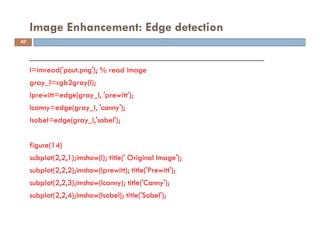
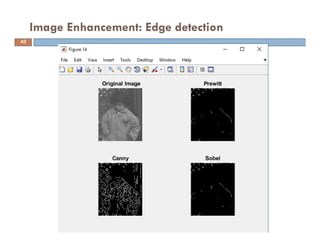
I=imread('pout.png'); % read image
gray_I=rgb2gray(I);
Iprewitt=edge(gray_I, 'prewitt');
Icanny=edge(gray_I, 'canny');
Isobel=edge(gray_I,'sobel');
figure(14)
subplot(2,2,1);imshow(I); title(' Original Image');
subplot(2,2,2);imshow(Iprewitt); title('Prewitt');
subplot(2,2,3);imshow(Icanny); title('Canny');
subplot(2,2,4);imshow(Isobel); title('Sobel');
Image Enhancement: Edge detection
42
Image Enhancement: Edge detection
43
Comments….
Questions….
Suggestions….
References:
https://www.mathworks.com/help
https://www.intechopen.com/books/applications-from-engineering-
with-matlab-concepts/digital-image-processing-with-matlab
44
Thank you !
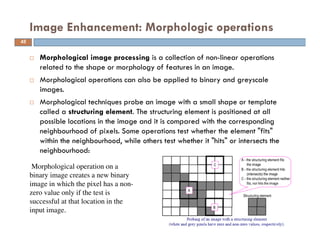
 Morphological image processing is a collection of non-linear operations
related to the shape or morphology of features in an image.
 Morphological operations can also be applied to binary and greyscale
images.
 Morphological techniques probe an image with a small shape or template
called a structuring element. The structuring element is positioned at all
possible locations in the image and it is compared with the corresponding
neighbourhood of pixels. Some operations test whether the element "fits"
within the neighbourhood, while others test whether it "hits" or intersects the
neighbourhood:
Image Enhancement: Morphologic operations
Morphological operation on a
binary image creates a new binary
image in which the pixel has a non-
zero value only if the test is
successful at that location in the
input image.
45
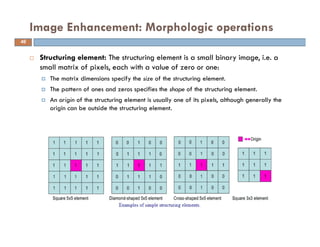
 Structuring element: The structuring element is a small binary image, i.e. a
small matrix of pixels, each with a value of zero or one:
The matrix dimensions specify the size of the structuring element.
The pattern of ones and zeros specifies the shape of the structuring element.
An origin of the structuring element is usually one of its pixels, although generally the
origin can be outside the structuring element.
Image Enhancement: Morphologic operations
46
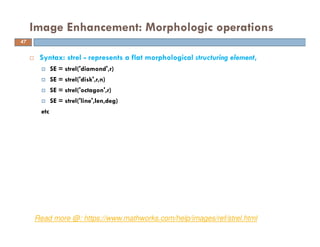
 Syntax: strel - represents a flat morphological structuring element,
SE = strel('diamond',r)
SE = strel('disk',r,n)
SE = strel('octagon',r)
SE = strel('line',len,deg)
etc
Image Enhancement: Morphologic operations
Read more @: https://www.mathworks.com/help/images/ref/strel.html
47
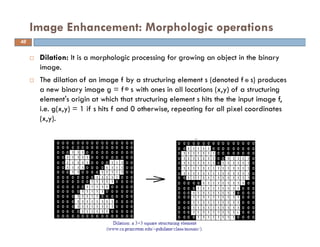
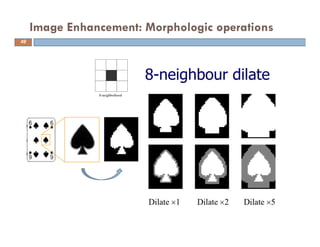
 Dilation: It is a morphologic processing for growing an object in the binary
image.
 The dilation of an image f by a structuring element s (denoted f s) produces
a new binary image g = f s with ones in all locations (x,y) of a structuring
element's origin at which that structuring element s hits the the input image f,
i.e. g(x,y) = 1 if s hits f and 0 otherwise, repeating for all pixel coordinates
(x,y).
Image Enhancement: Morphologic operations
48
Image Enhancement: Morphologic operations
49
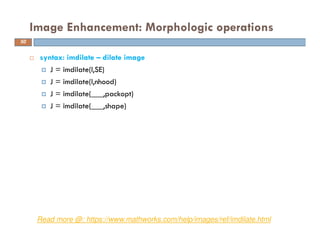
 syntax: imdilate – dilate image
J = imdilate(I,SE)
J = imdilate(I,nhood)
J = imdilate(___,packopt)
J = imdilate(___,shape)
Image Enhancement: Morphologic operations
Read more @: https://www.mathworks.com/help/images/ref/imdilate.html
50
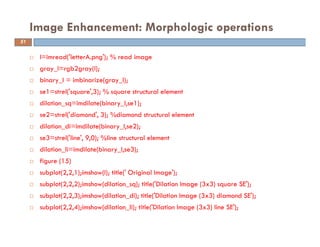
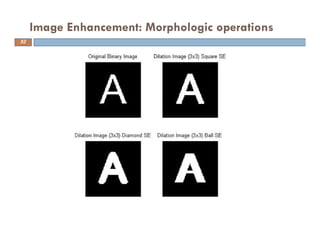
 I=imread('letterA.png'); % read image
 gray_I=rgb2gray(I);
 binary_I = imbinarize(gray_I);
 se1=strel('square',3); % square structural element
 dilation_sq=imdilate(binary_I,se1);
 se2=strel('diamond', 3); %diamond structural element
 dilation_di=imdilate(binary_I,se2);
 se3=strel('line', 9,0); %line structural element
 dilation_li=imdilate(binary_I,se3);
 figure (15)
 subplot(2,2,1);imshow(I); title(' Original Image');
 subplot(2,2,2);imshow(dilation_sq); title('Dilation Image (3x3) square SE');
 subplot(2,2,3);imshow(dilation_di); title('Dilation Image (3x3) diamond SE');
 subplot(2,2,4);imshow(dilation_li); title('Dilation Image (3x3) line SE');
Image Enhancement: Morphologic operations
51
Image Enhancement: Morphologic operations
52
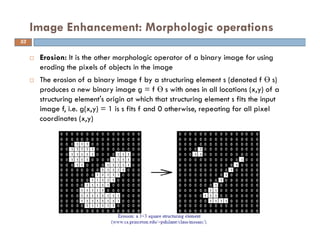
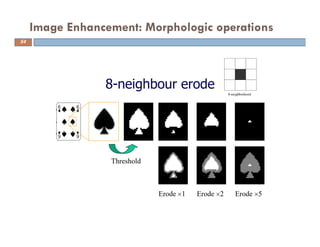
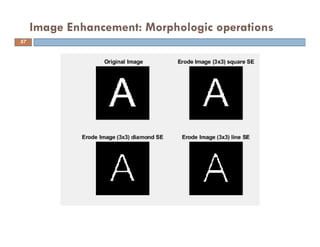
 Erosion: It is the other morphologic operator of a binary image for using
eroding the pixels of objects in the image
 The erosion of a binary image f by a structuring element s (denoted f ϴ s)
produces a new binary image g = f ϴ s with ones in all locations (x,y) of a
structuring element's origin at which that structuring element s fits the input
image f, i.e. g(x,y) = 1 is s fits f and 0 otherwise, repeating for all pixel
coordinates (x,y)
Image Enhancement: Morphologic operations
53
Image Enhancement: Morphologic operations
54
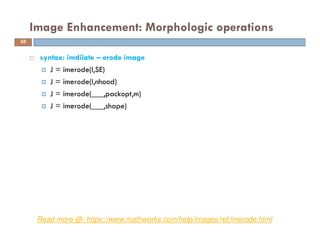
 syntax: imdilate – erode image
J = imerode(I,SE)
J = imerode(I,nhood)
J = imerode(___,packopt,m)
J = imerode(___,shape)
Image Enhancement: Morphologic operations
Read more @: https://www.mathworks.com/help/images/ref/imerode.html
55
 I=imread('letterA.png'); % read image
 gray_I=rgb2gray(I);
 binary_I = imbinarize(gray_I);
 se1=strel('square',3); % square structural element
 dilation_sq=imerode(binary_I,se1);
 se2=strel('diamond', 3); %diamond structural element
 dilation_di=imerode(binary_I,se2);
 se3=strel('line', 9,0); %line structural element
 dilation_li=imerode(binary_I,se3);
 figure (15)
 subplot(2,2,1);imshow(I); title(' Original Image');
 subplot(2,2,2);imshow(dilation_sq); title('Erode Image (3x3) square SE');
 subplot(2,2,3);imshow(dilation_di); title('Erode Image (3x3) diamond SE');
 subplot(2,2,4);imshow(dilation_li); title('Erode Image (3x3) line SE');
Image Enhancement: Morphologic operations
56
Image Enhancement: Morphologic operations
57
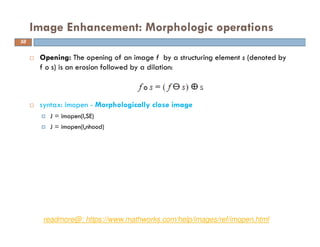
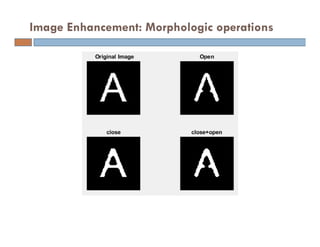
 Opening: The opening of an image f by a structuring element s (denoted by
f o s) is an erosion followed by a dilation:
 syntax: imopen - Morphologically close image
J = imopen(I,SE)
J = imopen(I,nhood)
Image Enhancement: Morphologic operations
readmore@: https://www.mathworks.com/help/images/ref/imopen.html
58
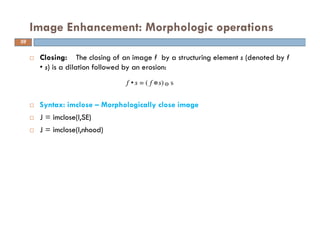
 Closing: The closing of an image f by a structuring element s (denoted by f
• s) is a dilation followed by an erosion:
 Syntax: imclose – Morphologically close image
 J = imclose(I,SE)
 J = imclose(I,nhood)
Image Enhancement: Morphologic operations
f • s = ( f s) s
59
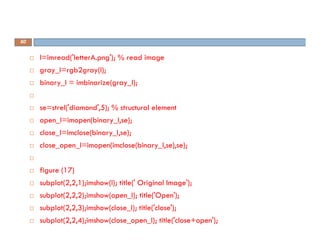
 I=imread('letterA.png'); % read image
 gray_I=rgb2gray(I);
 binary_I = imbinarize(gray_I);

 se=strel('diamond',5); % structural element
 open_I=imopen(binary_I,se);
 close_I=imclose(binary_I,se);
 close_open_I=imopen(imclose(binary_I,se),se);

 figure (17)
 subplot(2,2,1);imshow(I); title(' Original Image');
 subplot(2,2,2);imshow(open_I); title('Open');
 subplot(2,2,3);imshow(close_I); title('close');
 subplot(2,2,4);imshow(close_open_I); title('close+open');
60
Image Enhancement: Morphologic operations
Comments….
Questions….
Suggestions….
References:
https://www.mathworks.com/help
https://www.intechopen.com/books/applications-from-engineering-
with-matlab-concepts/digital-image-processing-with-matlab
https://www.cs.auckland.ac.nz/courses/compsci773s1c/lectures/Ima
geProcessing-html/topic4.htm
http://www0.cs.ucl.ac.uk/staff/G.Brostow/classes/IPG2010/L3_Morp
hology.pdf
62
Thank you !
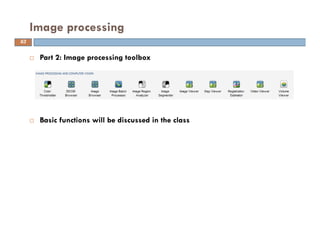
 Part 2: Image processing toolbox
 Basic functions will be discussed in the class
Image processing
63

Basics of image processing using MATLAB

  • 1.
    Basics of ImageProcessing using MATLAB Date: INSTRUCTOR DR. MOHSIN SIDDIQUE ASSIST. PROFESSOR DEPARTMENT OF CIVIL & ENV ENG.
  • 2.
     Part 1:Image processing using Command line/Editor  Part 2: Image processing toolbox Image processing 2
  • 3.
     Part 1:Image processing using Command line/Editor Install Matlab with image processing toolbox Download Image_Analysis_tutorial.zip. It includes images and Matlab code file (Image_tutorial.m) used in this lecture as shown below:  link to download: https://www.dropbox.com/s/ncv3nlah8cl4dzj/Image_Analysis_tutorial.zip?dl=0 Image processing 3
  • 4.
     Read image Syntax:imread - it read image from the graphic file I = imread('path/filename.fileextension'); ________________________________________________________________ %Let’s read onion.png I=imread(‘onion.png'); % where onion.png is image which is stored in I See the workspace window below: Image Processing: Read, write and show image Read more @: https://www.mathworks.com/help/matlab/ref/imread.html 4
  • 5.
     Show image Syntax:imshow: display image image: display image from array imshow(figuredata); image(figuredata) ________________________________________________________ figure(2) %% to show image on figure 2 subplot (1,2,1); imshow(I); title ('using imshow function') subplot (1,2,2); image(I); title ('using image function') Image Processing: Read, write and show image Read more @: https://www.mathworks.com/help/matlab/ref/imshow.html https://www.mathworks.com/help/matlab/ref/image.html 5
  • 6.
    Image Processing: Read,write and show image 6
  • 7.
    Image Processing: Read,write and show image origin rows column 7
  • 8.
     Write image Syntax:imwirte - write image to a graphic file imwrite(figuredata, file name’); _______________________________________________________________ %Let write onion_w.png imwrite(I, ’onion_w.png’); % it will save “onion_w.png” in working directory %imwrite(I, c:.....name.png) % it will save “name.png” at specific location Image Processing: Read, write and show image Read more @: https://www.mathworks.com/help/matlab/ref/imwrite.html 8
  • 9.
     Image reverse:Image reserve technique, each all elements of the matrix is replaced to be the top row elements to bottom row and the bottom row elements to top row. In the other words, the image rotates on the vertical axis. Syntax: flipdim (Array, dimension) – flips array along specified dimension flip(Array, dimension) Image Processing: Image reverse Read more @: https://www.mathworks.com/help/matlab/ref/flipdim.html https://www.mathworks.com/help/matlab/ref/flip.html 9
  • 10.
    ____________________________________________________________ I=imread('onion.png'); % readimage I_mirror=flipdim(I, 2); % mirror image I_reverse=flipdim(I,1); % reverse image I_mirr_rev=flipdim(I_reverse, 2); % mirror+reverse image figure (5) subplot(2,2,1); imshow (I); title('Original image'); subplot(2,2,2); imshow (I_mirror); title('Mirror image'); subplot(2,2,3); imshow (I_reverse); title('Reverse image'); subplot(2,2,4); imshow (I_mirr_rev); title('Reverse+Mirror image'); Image Processing: Image reverse 10
  • 11.
  • 12.
     Image rotate Syntax:imrotate – rotate image imrotate(Image Matrix Variable, Angle) imrotate(Image Matrix Variable, Angle, Interpolation Method)  Interpolation method ‘nearest’: Nearest‐Neighbor Interpolation ‘bilinear’: Bilinear Interpolation ‘bicubic’: Bicubic Interpolation Image Processing: Image rotate Read more @: https://www.mathworks.com/help/images/ref/imrotate.html 12
  • 13.
    _________________________________________________________ I=imread('onion.png'); % readimage I_rotate=imrotate(I,60,'bilinear'); % rotate image with bilinear figure (6) subplot (1,2,1); imshow(I); title ('Original image') subplot (1,2,2); imshow(I_rotate); title ('Rotated image') Image Processing: Image rotate 13
  • 14.
  • 15.
     Brightness ofan image is adjusted with adding or subtracting a certain value to gray level of each pixel. Syntax: imadjust - adjust intensity values or colormap For gray-scale images adjusted_image = imadjust(I) adjusted_image = imadjust(I,[low_in high_in]) For color images J = imadjust(RGB,[low_in high_in],___) Image Enhancement: Brightness Read more @: https://www.mathworks.com/help/images/ref/imadjust.html 15
  • 16.
    %Gray-scale image I=imread(‘pout.png'); grayI=rgb2gray(I); adj_I= imadjust(grayI);% for gray-scale images adj_I2=imadjust(grayI,[0.3 0.7],[]); % using specified values figure (7) subplot (1,3,1); imshow(grayI); title ('Original image') subplot (1,3,2); imshow(adj_I); title ('Adjused image using default') subplot (1,3,3); imshow(adj_I2); title ('Adjused image using specified values') Image Enhancement: Brightness 16
  • 17.
  • 18.
    %Color images I_RGB =imread(‘football.png'); adj_I_RGB = imadjust(I_RGB, [.2 .3 0; .6 .7 1], []); figure (8) subplot (1,2,1); imshow(I_RGB); title ('Original image') subplot (1,2,2); imshow(adj_I_RGB); title ('Adjused image') Image enhancement: Brightness 18
  • 19.
  • 20.
     Contrast ofan image can be changed by multiplying all pixel gray value by a certain value.  Syntax: imcontrast - Use the imcontrast function to create adjust contrast tool ____________________________________________________________ figure (9); I=imread('pout.png'); % read image grayI=rgb2gray(I); % convert to gray-scale imshow(grayI) % show image Imcontrast % call image tool to adjust contrast Image Enhancement: Contrast Read more @: https://www.mathworks.com/help/images/ref/imcontrast.html 20
  • 21.
  • 22.
     Intensity valuesof image are reversed as linear for negative image. Syntax: imcomplement – complement image Imcomplement(ImageVariable) ___________________________________________________________ I=imread('pout.png'); % read image neg_I=imcomplement(I); % create negative of image figure (10) subplot (1,2,1); imshow(I); title ('Original image') subplot (1,2,2); imshow(neg_I); title ('Negative image') Image Enhancement: Negative Read more @: https://www.mathworks.com/help/images/ref/imcomplement.html 22
  • 23.
  • 24.
     An imagehistogram is a chart that shows the distribution of intensities in an indexed or grayscale image. syntax: imhist – gives histogram of image data imhist(ImageVariable) ______________________________________________________________ I=imread('pout.png'); % read image I_hist=imhist(I); % save histogram data figure (11) subplot (1,2,1); imshow(I); title ('Original image') subplot (1,2,2); imhist(I); title ('Image histogram') Image Enhancement: Histogram Read more @: https://www.mathworks.com/help/images/ref/imhist.html 24
  • 25.
  • 26.
     It automaticallyadjust the intensity values  Syntax: histeq – enhance contrast using histogram equalization  histeq(ImageVariable) ____________________________________________________________ I=imread('pout.png'); % read image I_hist=imhist(I); % save histogram of image J=histeq(I); % create a new histogram equalized image I_histeq=imhist(J); % save histogram of new histogram equalized image figure (12) subplot (2,2,1); imshow(I); title ('Original image') subplot (2,2,2); imhist(I); title ('original Image histogram') subplot (2,2,3); imshow(J); title ('Equalized image') subplot (2,2,4); imhist(J); title ('Histogram of equalized image') Image Enhancement: Histogram equalization Read more @: https://www.mathworks.com/help/images/ref/histeq.html 26
  • 27.
  • 28.
     In theMATLAB Image Processing Toolbox, a color image has three‐dimensional uint8 (8‐bit unsigned integer) data. Each dimension corresponds to a color channel that is Red, Green, or Blue channel. Image Enhancement: Color & Color conversion 28
  • 29.
    ________________________________________________________________ %Extract RGB channeldata and display I=imread('onion.png'); % read image I_R=I(:,:,1); % store Red channel/band values in I_R I_G=I(:,:,2); % store Green channel/band values in I_G I_B=I(:,:,3); % store Blue channel/band values in I_B figure(3) %opening a figure 3 subplot(2,2,1); imshow(I); title ('original image') subplot(2,2,2); image(I_R); title('Red') subplot(2,2,3); image(I_G); title('Green') subplot(2,2,4); image(I_B); title ('blue') Image Enhancement: Extract RGB and display 29
  • 30.
    Image Enhancement: ExtractRGB and display 30
  • 31.
     Covert imagefrom RGB to HSV Syntax - rgb2hsv – converts RGB colors to HSV rgb2hsv(RBG_Image) Image Enhancement: Convert to HSV, extract HSV and display Read more @: https://www.mathworks.com/help/matlab/ref/rgb2hsv.html 31
  • 32.
    __________________________________________________________ I=imread('onion.png'); HSV_I=rgb2hsv(I); %convert fromRGB to HSI hue=HSV_I(:,:,1); % stores Red channel/band values in HUE sat=HSV_I(:,:,2); % stores Green channel/band values in Saturation val=HSV_I(:,:,3); % stores Blue channel/band values in Vlaue (intensity) figure(31) %opening a figure 3 with three subplots subplot(2,2,1); imshow(I); title ('original image') subplot(2,2,2); imshow(hue); title('HUE') subplot(2,2,3); imshow(sat); title('SATURATION') subplot(2,2,4); imshow(val); title ('VALUE') Image Enhancement: Convert to HSV, extract HSV and display32
  • 33.
    Image Enhancement: Convertto HSV, extract HSV and display33
  • 34.
     Gray imageis produced using following by NTSC standards. However, we can calculate different methods, but MATLAB uses NTSC standards and it has rgb2gray(RGB image) function:  syntax – rgb2gray - to convert RGB to gray image  syntax – imbinarize – to convert gray-scale to binary image Image Enhancement: Create indexed & binary image and display Read more @: https://www.mathworks.com/help/matlab/ref/rgb2gray.html https://www.mathworks.com/help/images/ref/imbinarize.html 34
  • 35.
    _______________________________________________________ I=imread('onion.png'); Index_I1=0.299*I(:,:,1)+0.587*I(:,:,2)+0.114*I(:,:,3); Index_I2=rgb2ind(I,32); %% 32color indexed image gray_I=rgb2gray(I); %% 256 colors grey image binary_I = imbinarize(gray_I); % convert gray image to binary image figure(4) subplot(2,2,1);imshow(Index_I1); title(' Indexed image using equation') subplot(2,2,2);imshow(Index_I2); title(' Indexed image using rgb2ind') subplot(2,2,3);imshow(gray_I); title(' gray-scale using rgb2gray') subplot(2,2,4);imshow(binary_I); title(' Binary image using imbinarize') Image Enhancement: Create indexed & binary image and display35
  • 36.
    Image Enhancement: Createindexed & binary image and display36
  • 37.
     Convolution isgenerally used for modifying the spatial characteristic of an image.  Matlab Image Processing Toolbox has the different filter types Image Enhancement: Filters-Convolution 37
  • 38.
     Syntax: fspecial:Create predefined 2-D filters h = fspecial(type) h = fspecial('average',hsize) h = fspecial('disk',radius) h = fspecial('gaussian',hsize,sigma) h = fspecial('laplacian',alpha) h = fspecial('log',hsize,sigma) h = fspecial('motion',len,theta) h = fspecial('prewitt') h = fspecial('sobel')  Syntax: Imfilter: N-D filtering of multidimensional image B = imfilter(I,h) B = imfilter(I,h,options,...) Image Enhancement: Filters-Convolution Read more @: https://www.mathworks.com/help/images/ref/fspecial.html https://www.mathworks.com/help/images/ref/imfilter.html 38
  • 39.
    ______________________________________________________________ I=imread('onion.png'); % readimage H=fspecial('disk', 10); blurred=imfilter(I,H, 'replicate'); % blurred filter H=fspecial('motion', 20, 45); MotionBlur=imfilter(I,H, 'replicate'); % MotionBlur filter H=fspecial('sobel'); sobel=imfilter(I,H, 'replicate'); % sobel filter figure(13) subplot(2,2,1);imshow(I); title(' Original Image'); subplot(2,2,2);imshow(blurred); title(' Blur kernel'); subplot(2,2,3);imshow(MotionBlur); title('Motion Blur kernel'); subplot(2,2,4);imshow(sobel); title('sobel kernel'); Image Enhancement: Filters-Convolution 39
  • 40.
  • 41.
     Edge detectionis used for finding the border of objects in the image. Common edge detection algorithms are Sobel, Canny, Prewitt, Roberts, etc.  Syntax: edge - finds the edges in intensity images BW = edge(I) BW = edge(I, method) Image Enhancement: Edge detection Read more @: https://www.mathworks.com/help/images/ref/edge.html 41
  • 42.
    __________________________________________________________ I=imread('pout.png'); % readimage gray_I=rgb2gray(I); Iprewitt=edge(gray_I, 'prewitt'); Icanny=edge(gray_I, 'canny'); Isobel=edge(gray_I,'sobel'); figure(14) subplot(2,2,1);imshow(I); title(' Original Image'); subplot(2,2,2);imshow(Iprewitt); title('Prewitt'); subplot(2,2,3);imshow(Icanny); title('Canny'); subplot(2,2,4);imshow(Isobel); title('Sobel'); Image Enhancement: Edge detection 42
  • 43.
  • 44.
  • 45.
     Morphological imageprocessing is a collection of non-linear operations related to the shape or morphology of features in an image.  Morphological operations can also be applied to binary and greyscale images.  Morphological techniques probe an image with a small shape or template called a structuring element. The structuring element is positioned at all possible locations in the image and it is compared with the corresponding neighbourhood of pixels. Some operations test whether the element "fits" within the neighbourhood, while others test whether it "hits" or intersects the neighbourhood: Image Enhancement: Morphologic operations Morphological operation on a binary image creates a new binary image in which the pixel has a non- zero value only if the test is successful at that location in the input image. 45
  • 46.
     Structuring element:The structuring element is a small binary image, i.e. a small matrix of pixels, each with a value of zero or one: The matrix dimensions specify the size of the structuring element. The pattern of ones and zeros specifies the shape of the structuring element. An origin of the structuring element is usually one of its pixels, although generally the origin can be outside the structuring element. Image Enhancement: Morphologic operations 46
  • 47.
     Syntax: strel- represents a flat morphological structuring element, SE = strel('diamond',r) SE = strel('disk',r,n) SE = strel('octagon',r) SE = strel('line',len,deg) etc Image Enhancement: Morphologic operations Read more @: https://www.mathworks.com/help/images/ref/strel.html 47
  • 48.
     Dilation: Itis a morphologic processing for growing an object in the binary image.  The dilation of an image f by a structuring element s (denoted f s) produces a new binary image g = f s with ones in all locations (x,y) of a structuring element's origin at which that structuring element s hits the the input image f, i.e. g(x,y) = 1 if s hits f and 0 otherwise, repeating for all pixel coordinates (x,y). Image Enhancement: Morphologic operations 48
  • 49.
  • 50.
     syntax: imdilate– dilate image J = imdilate(I,SE) J = imdilate(I,nhood) J = imdilate(___,packopt) J = imdilate(___,shape) Image Enhancement: Morphologic operations Read more @: https://www.mathworks.com/help/images/ref/imdilate.html 50
  • 51.
     I=imread('letterA.png'); %read image  gray_I=rgb2gray(I);  binary_I = imbinarize(gray_I);  se1=strel('square',3); % square structural element  dilation_sq=imdilate(binary_I,se1);  se2=strel('diamond', 3); %diamond structural element  dilation_di=imdilate(binary_I,se2);  se3=strel('line', 9,0); %line structural element  dilation_li=imdilate(binary_I,se3);  figure (15)  subplot(2,2,1);imshow(I); title(' Original Image');  subplot(2,2,2);imshow(dilation_sq); title('Dilation Image (3x3) square SE');  subplot(2,2,3);imshow(dilation_di); title('Dilation Image (3x3) diamond SE');  subplot(2,2,4);imshow(dilation_li); title('Dilation Image (3x3) line SE'); Image Enhancement: Morphologic operations 51
  • 52.
  • 53.
     Erosion: Itis the other morphologic operator of a binary image for using eroding the pixels of objects in the image  The erosion of a binary image f by a structuring element s (denoted f ϴ s) produces a new binary image g = f ϴ s with ones in all locations (x,y) of a structuring element's origin at which that structuring element s fits the input image f, i.e. g(x,y) = 1 is s fits f and 0 otherwise, repeating for all pixel coordinates (x,y) Image Enhancement: Morphologic operations 53
  • 54.
  • 55.
     syntax: imdilate– erode image J = imerode(I,SE) J = imerode(I,nhood) J = imerode(___,packopt,m) J = imerode(___,shape) Image Enhancement: Morphologic operations Read more @: https://www.mathworks.com/help/images/ref/imerode.html 55
  • 56.
     I=imread('letterA.png'); %read image  gray_I=rgb2gray(I);  binary_I = imbinarize(gray_I);  se1=strel('square',3); % square structural element  dilation_sq=imerode(binary_I,se1);  se2=strel('diamond', 3); %diamond structural element  dilation_di=imerode(binary_I,se2);  se3=strel('line', 9,0); %line structural element  dilation_li=imerode(binary_I,se3);  figure (15)  subplot(2,2,1);imshow(I); title(' Original Image');  subplot(2,2,2);imshow(dilation_sq); title('Erode Image (3x3) square SE');  subplot(2,2,3);imshow(dilation_di); title('Erode Image (3x3) diamond SE');  subplot(2,2,4);imshow(dilation_li); title('Erode Image (3x3) line SE'); Image Enhancement: Morphologic operations 56
  • 57.
  • 58.
     Opening: Theopening of an image f by a structuring element s (denoted by f o s) is an erosion followed by a dilation:  syntax: imopen - Morphologically close image J = imopen(I,SE) J = imopen(I,nhood) Image Enhancement: Morphologic operations readmore@: https://www.mathworks.com/help/images/ref/imopen.html 58
  • 59.
     Closing: Theclosing of an image f by a structuring element s (denoted by f • s) is a dilation followed by an erosion:  Syntax: imclose – Morphologically close image  J = imclose(I,SE)  J = imclose(I,nhood) Image Enhancement: Morphologic operations f • s = ( f s) s 59
  • 60.
     I=imread('letterA.png'); %read image  gray_I=rgb2gray(I);  binary_I = imbinarize(gray_I);   se=strel('diamond',5); % structural element  open_I=imopen(binary_I,se);  close_I=imclose(binary_I,se);  close_open_I=imopen(imclose(binary_I,se),se);   figure (17)  subplot(2,2,1);imshow(I); title(' Original Image');  subplot(2,2,2);imshow(open_I); title('Open');  subplot(2,2,3);imshow(close_I); title('close');  subplot(2,2,4);imshow(close_open_I); title('close+open'); 60
  • 61.
  • 62.
  • 63.
     Part 2:Image processing toolbox  Basic functions will be discussed in the class Image processing 63