Sarah Diffley
Sarah.Diffley@lyit.ie
What is Analytics?
 Google Analytics is the enterprise-class web
analytics solution that gives you rich insights into
your website traffic and marketing effectiveness.
Powerful, flexible and easy-to-use features now let
you see and analyze your traffic data in an entirely
new way. With Google Analytics, you're more
prepared to write better-targeted ads, strengthen
your marketing initiatives and create higher
converting websites.
http://www.google.com/analytics/
What is Analytics?
 Analytics is a tool that facilitates the production of
statistics and data about visitors to a website.
 Therefore, websites owners can see how their
website was found by visitors, how these visitors
navigated the website and how the website can be
improved.
Why Analytics?
 Free
 Who are our consumers
 Where are our consumers
 How long are people spending on our site
 Bounce rate
 Goals
 Keywords
 Where can we improve?
 Can combine with other elements – Adwords,
blogs, etc..
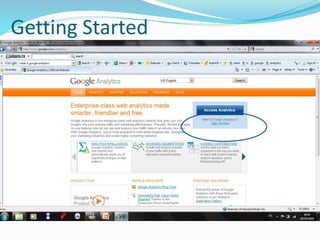
Getting Started
Getting Started
Getting Started
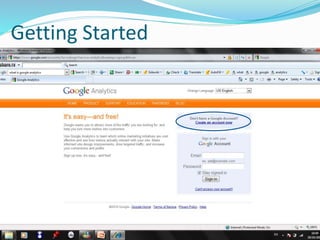
 Sign Up for a Google account/Sign in using Google
account.
 Create a profile for your website(s)
 Fill out administrator details (Account users can be
added and deleted as necessary)
 Add tracking code to website
 Must be added to each page of your website
 Insert before the following tag on each page </body>
Getting Started
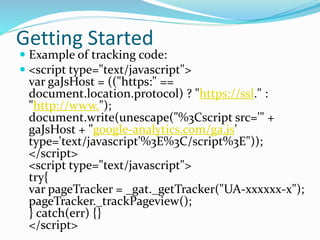
 Example of tracking code:
 <script type="text/javascript">
var gaJsHost = (("https:" ==
document.location.protocol) ? "https://ssl." :
"http://www.");
document.write(unescape("%3Cscript src='" +
gaJsHost + "google-analytics.com/ga.js'
type='text/javascript'%3E%3C/script%3E"));
</script>
<script type="text/javascript">
try{
var pageTracker = _gat._getTracker("UA-xxxxxx-x");
pageTracker._trackPageview();
} catch(err) {}
</script>
Getting Started
 xxxxxx-x will be replaced by company google
analytics account number
 Upon installing and saving the tracking code for
pages there should be activity within 24 hours.
 Profiles can be created for numerous websites
Getting Started
 To grant access when adding a new user:
 Click User Manager
 Click Add User
 Enter the user's email address, last name, and first name. The email
address must be a Google account.
 Select the Access type for this user: View reports only, or Account
Administrator, which allows the user to edit account settings
 Select the profiles to which this user should have access. Reports for
profiles that are not selected will not be available to this user
 Click Add to move these profiles into the Selected Website Profiles
list
 Click Finish to create the new user. They can now log in using their
Google Account email address and password.
Getting Started
 To modify access for an existing user:
 Click User Manager
 Find the user in the Existing Access list and click Edit
 From the Available Website Profiles, select the profiles to
which this user should have access. Reports for profiles
that are not selected will not be available to this user
 Click Add to move these profiles into the Selected
Website Profiles list
 Click Save Changes to update this user's access
Google Reports
Google Reports
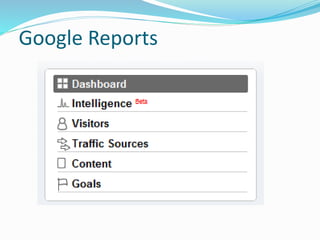
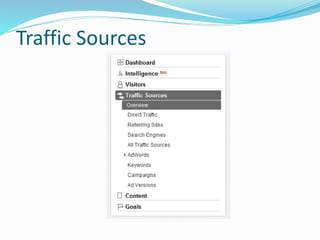
 Google report categories:
 Intelligence
 Visitors
 Traffic sources
 Content
 Goals
 Over 80 reports can be created in relation to these 5
categories
Google Reports
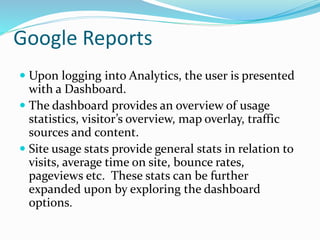
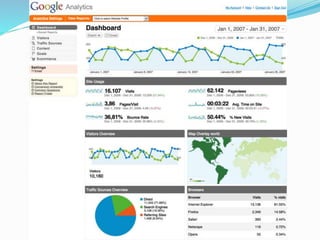
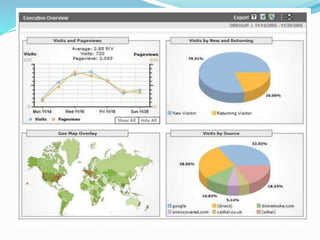
 Upon logging into Analytics, the user is presented
with a Dashboard.
 The dashboard provides an overview of usage
statistics, visitor’s overview, map overlay, traffic
sources and content.
 Site usage stats provide general stats in relation to
visits, average time on site, bounce rates,
pageviews etc. These stats can be further
expanded upon by exploring the dashboard
options.
Intelligence
Intelligence
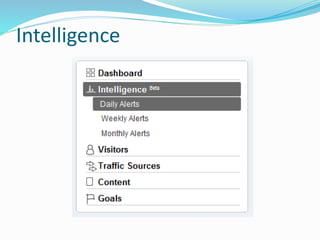
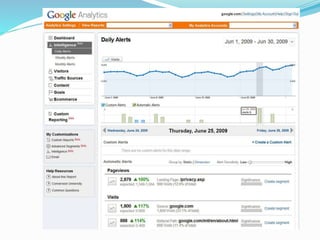
 Analytics Intelligence will provide automatic alerts
of significant changes in the data patterns of your
site metrics and dimensions over daily, weekly and
monthly periods. For instance, Intelligence could
call out a 300% surge in visits from YouTube
referrals last Tuesday or let you know bounce rates
of visitors from Virginia dropped by 70% two
weeks ago.”
Intelligence
 Analytics Intelligence is an algorithmic engine that
detects any statistically significant anomalies in
your traffic patterns
 Alerts automatically get posted daily, weekly or
monthly.
 Custom alerts can be created, such as a conversion
from campaigns
Visitors
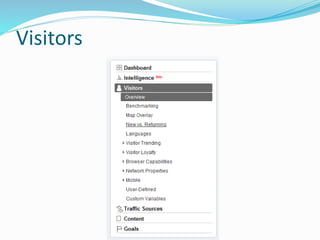
Visitors
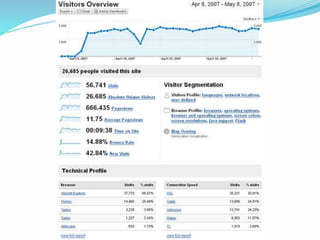
 This provides user statistics and more technical
information such as connection speeds and
browsers. When a connection speed is unknown it
generally means that the connection speed is high.
 User profiles can also be created on the basis of
segmentation.
 Map overlay provides the geographic locations of
visitors.
 Visitor trending and loyalty can also be viewed.
Traffic Sources
Traffic Sources
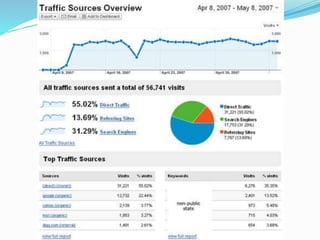
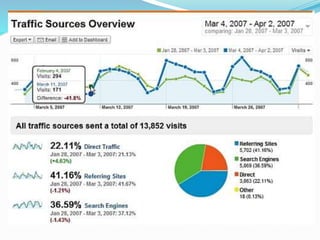
 This enables us to see where our visitors are
coming from. They may come from referred sites,
search engines, or direct traffic.
 Exact locations may then be viewed such as
organic (non-paid) searches, cost-per-click (paid)
searches, and referral websites.
 The keywords used when conducting a search can
also be viewed. These are important to be aware of
– this is what people are using to find you.
Content
Content
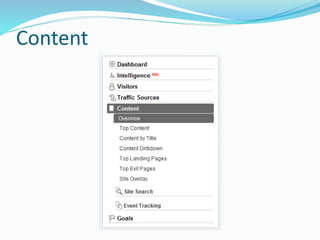
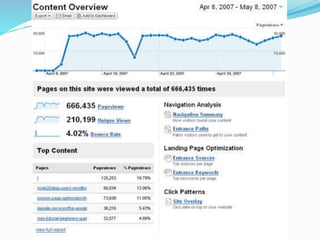
 This looks at the content of the website itself, such
as which pages are most viewed, time spent on
each page, where people exit and the bounce rate.
 Bounce rate should not go over 50 - 60%. The
bounce rate indicates that people have tried to go
to a page and it didn’t load, that they clicked the
wrong link, changed their mind, went to the wrong
site, or the page is taking too long to load.
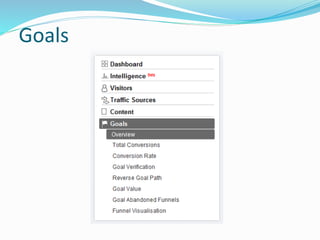
Goals
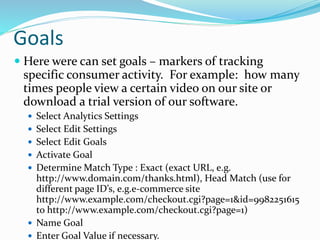
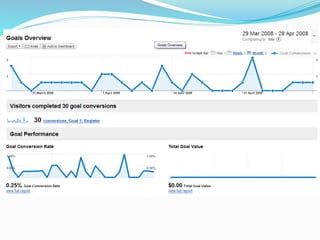
Goals
 Here were can set goals – markers of tracking
specific consumer activity. For example: how many
times people view a certain video on our site or
download a trial version of our software.
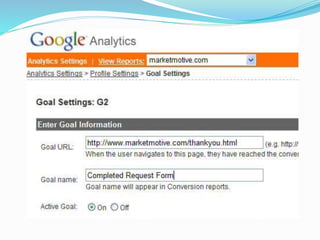
 Select Analytics Settings
 Select Edit Settings
 Select Edit Goals
 Activate Goal
 Determine Match Type : Exact (exact URL, e.g.
http://www.domain.com/thanks.html), Head Match (use for
different page ID’s, e.g.e-commerce site
http://www.example.com/checkout.cgi?page=1&id=9982251615
to http://www.example.com/checkout.cgi?page=1)
 Name Goal
 Enter Goal Value if necessary.
Goals
 The Defined Funnel: you may designate up to 10
pages in a defined funnel. A funnel symbolises the
route that you expect visitors to follow on their way
to converting to the web site goal. By defining these
pages, you will be able to see how often visitors
disregard goals, and where they go instead. For an
e-commerce goal, these pages may be the first web
page of your checkout procedure, then the shipping
address details page, and then the credit
card/payment information page.
Goals
 Define a funnel by carrying out these instructions
(optional):
 Enter the URL of the first page of your conversion funnel.
This page should be a page that is common to all users
working their way towards your Goal. For example, if you
are tracking user flow through your checkout pages, do
not include a product page as a step in your funnel
 Enter a Name for this step
 If this step is a Required step in the conversion process,
select the checkbox to the right of the step. If this
checkbox is selected, users reaching your goal page
without travelling through this funnel page will not be
counted as conversions
 Continue entering goal steps until your funnel has been
completely defined. You may enter up to 10 steps, or as
few as a single step
E-commerce
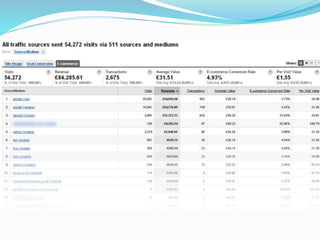
 Tracks on site purchases and total revenue from
purchases.
 Takes into account all visits to site, revenue total,
revenue based on source, number of transactions,
visit to transaction conversion rate, per visit value.
E-commerce
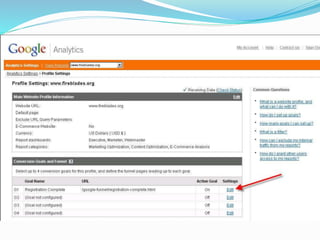
 The first step of tracking e-commerce transactions
is to enable e-commerce reporting for your
website's profile:
 Sign in to your account.
 Click Edit next to the profile you'd like to enable.
 On the Profile Settings page, click Edit next to Main Website
Profile Information.
 Change the E-Commerce Website radio button from No to Yes.
 Configuring your shopping cart
 After you have enabled ecommerce for your website's profile, you'll
need to ensure that your shopping cart's receipt page sends the
ecommerce tracking data to Google Analytics. This involves adding
customized tracking code to your shopping cart pages, and can be
done in a variety of ways, such as using a server-side include, a
module that comes with your content system, or it can simply be
hand-coded into your HTML code.
E-commerce
 Work with designer in order to install e-commerce
on Google Analytics
 The steps to adding code to the website is located
at the following link:
 http://code.google.com/apis/analytics/docs/tracki
ng/gaTrackingEcommerce.html
Integrating Analytics and Adwords
 Ensure you are using the same Google account for
Analytics and Adwords
 Ensure the Adwords login email address has access
to the Analytics account
Integrating Analytics and Adwords
 Sign in to your AdWords account at
https://adwords.google.com.
 Select the Reporting tab and choose "Google Analytics."
 Select "I already have a Google Analytics account."
 From the Existing Google Analytics Account drop-down
menu, select the name of the Analytics account you'd like
to link to. If you don't see it listed, you'll need to first add
your AdWords username to your Analytics account as an
Account Admin.
 Keep the checkboxes selected on this page.
 Select Link Account.
Integrating Analytics and Adsense
 Choose an Analytics account to link AdSense to
 Ensure both AdSense and Google Analytics code is on your
webpages.
 Look in AdSense account for link inviting you to integrate
your accounts. This link appears on both the Overview and
Advanced Reports pages
 Upon clicking on the link, you will be asked to create a new
Analytics account, or indicate an existing Analytics account
to link to.
 To link to an existing Analytics account, your AdSense
login must be an Administrator on that Analytics account.
Integrating Analytics and Adsense
 The AdSense Analytics Code (ASAC) is the additional
snippet of code you must place in your webpage's
HTML
 The necessary code is located in the "Edit AdSense
linking settings"

Analytics

  • 1.
  • 2.
    What is Analytics? Google Analytics is the enterprise-class web analytics solution that gives you rich insights into your website traffic and marketing effectiveness. Powerful, flexible and easy-to-use features now let you see and analyze your traffic data in an entirely new way. With Google Analytics, you're more prepared to write better-targeted ads, strengthen your marketing initiatives and create higher converting websites. http://www.google.com/analytics/
  • 3.
    What is Analytics? Analytics is a tool that facilitates the production of statistics and data about visitors to a website.  Therefore, websites owners can see how their website was found by visitors, how these visitors navigated the website and how the website can be improved.
  • 4.
    Why Analytics?  Free Who are our consumers  Where are our consumers  How long are people spending on our site  Bounce rate  Goals  Keywords  Where can we improve?  Can combine with other elements – Adwords, blogs, etc..
  • 5.
  • 6.
  • 7.
    Getting Started  SignUp for a Google account/Sign in using Google account.  Create a profile for your website(s)  Fill out administrator details (Account users can be added and deleted as necessary)  Add tracking code to website  Must be added to each page of your website  Insert before the following tag on each page </body>
  • 8.
    Getting Started  Exampleof tracking code:  <script type="text/javascript"> var gaJsHost = (("https:" == document.location.protocol) ? "https://ssl." : "http://www."); document.write(unescape("%3Cscript src='" + gaJsHost + "google-analytics.com/ga.js' type='text/javascript'%3E%3C/script%3E")); </script> <script type="text/javascript"> try{ var pageTracker = _gat._getTracker("UA-xxxxxx-x"); pageTracker._trackPageview(); } catch(err) {} </script>
  • 9.
    Getting Started  xxxxxx-xwill be replaced by company google analytics account number  Upon installing and saving the tracking code for pages there should be activity within 24 hours.  Profiles can be created for numerous websites
  • 10.
    Getting Started  Togrant access when adding a new user:  Click User Manager  Click Add User  Enter the user's email address, last name, and first name. The email address must be a Google account.  Select the Access type for this user: View reports only, or Account Administrator, which allows the user to edit account settings  Select the profiles to which this user should have access. Reports for profiles that are not selected will not be available to this user  Click Add to move these profiles into the Selected Website Profiles list  Click Finish to create the new user. They can now log in using their Google Account email address and password.
  • 11.
    Getting Started  Tomodify access for an existing user:  Click User Manager  Find the user in the Existing Access list and click Edit  From the Available Website Profiles, select the profiles to which this user should have access. Reports for profiles that are not selected will not be available to this user  Click Add to move these profiles into the Selected Website Profiles list  Click Save Changes to update this user's access
  • 12.
  • 13.
    Google Reports  Googlereport categories:  Intelligence  Visitors  Traffic sources  Content  Goals  Over 80 reports can be created in relation to these 5 categories
  • 14.
    Google Reports  Uponlogging into Analytics, the user is presented with a Dashboard.  The dashboard provides an overview of usage statistics, visitor’s overview, map overlay, traffic sources and content.  Site usage stats provide general stats in relation to visits, average time on site, bounce rates, pageviews etc. These stats can be further expanded upon by exploring the dashboard options.
  • 16.
  • 17.
    Intelligence  Analytics Intelligencewill provide automatic alerts of significant changes in the data patterns of your site metrics and dimensions over daily, weekly and monthly periods. For instance, Intelligence could call out a 300% surge in visits from YouTube referrals last Tuesday or let you know bounce rates of visitors from Virginia dropped by 70% two weeks ago.”
  • 19.
    Intelligence  Analytics Intelligenceis an algorithmic engine that detects any statistically significant anomalies in your traffic patterns  Alerts automatically get posted daily, weekly or monthly.  Custom alerts can be created, such as a conversion from campaigns
  • 20.
  • 21.
    Visitors  This providesuser statistics and more technical information such as connection speeds and browsers. When a connection speed is unknown it generally means that the connection speed is high.  User profiles can also be created on the basis of segmentation.  Map overlay provides the geographic locations of visitors.  Visitor trending and loyalty can also be viewed.
  • 24.
  • 25.
    Traffic Sources  Thisenables us to see where our visitors are coming from. They may come from referred sites, search engines, or direct traffic.  Exact locations may then be viewed such as organic (non-paid) searches, cost-per-click (paid) searches, and referral websites.  The keywords used when conducting a search can also be viewed. These are important to be aware of – this is what people are using to find you.
  • 28.
  • 29.
    Content  This looksat the content of the website itself, such as which pages are most viewed, time spent on each page, where people exit and the bounce rate.  Bounce rate should not go over 50 - 60%. The bounce rate indicates that people have tried to go to a page and it didn’t load, that they clicked the wrong link, changed their mind, went to the wrong site, or the page is taking too long to load.
  • 31.
  • 32.
    Goals  Here werecan set goals – markers of tracking specific consumer activity. For example: how many times people view a certain video on our site or download a trial version of our software.  Select Analytics Settings  Select Edit Settings  Select Edit Goals  Activate Goal  Determine Match Type : Exact (exact URL, e.g. http://www.domain.com/thanks.html), Head Match (use for different page ID’s, e.g.e-commerce site http://www.example.com/checkout.cgi?page=1&id=9982251615 to http://www.example.com/checkout.cgi?page=1)  Name Goal  Enter Goal Value if necessary.
  • 36.
    Goals  The DefinedFunnel: you may designate up to 10 pages in a defined funnel. A funnel symbolises the route that you expect visitors to follow on their way to converting to the web site goal. By defining these pages, you will be able to see how often visitors disregard goals, and where they go instead. For an e-commerce goal, these pages may be the first web page of your checkout procedure, then the shipping address details page, and then the credit card/payment information page.
  • 37.
    Goals  Define afunnel by carrying out these instructions (optional):  Enter the URL of the first page of your conversion funnel. This page should be a page that is common to all users working their way towards your Goal. For example, if you are tracking user flow through your checkout pages, do not include a product page as a step in your funnel  Enter a Name for this step  If this step is a Required step in the conversion process, select the checkbox to the right of the step. If this checkbox is selected, users reaching your goal page without travelling through this funnel page will not be counted as conversions  Continue entering goal steps until your funnel has been completely defined. You may enter up to 10 steps, or as few as a single step
  • 38.
    E-commerce  Tracks onsite purchases and total revenue from purchases.  Takes into account all visits to site, revenue total, revenue based on source, number of transactions, visit to transaction conversion rate, per visit value.
  • 40.
    E-commerce  The firststep of tracking e-commerce transactions is to enable e-commerce reporting for your website's profile:  Sign in to your account.  Click Edit next to the profile you'd like to enable.  On the Profile Settings page, click Edit next to Main Website Profile Information.  Change the E-Commerce Website radio button from No to Yes.  Configuring your shopping cart  After you have enabled ecommerce for your website's profile, you'll need to ensure that your shopping cart's receipt page sends the ecommerce tracking data to Google Analytics. This involves adding customized tracking code to your shopping cart pages, and can be done in a variety of ways, such as using a server-side include, a module that comes with your content system, or it can simply be hand-coded into your HTML code.
  • 41.
    E-commerce  Work withdesigner in order to install e-commerce on Google Analytics  The steps to adding code to the website is located at the following link:  http://code.google.com/apis/analytics/docs/tracki ng/gaTrackingEcommerce.html
  • 42.
    Integrating Analytics andAdwords  Ensure you are using the same Google account for Analytics and Adwords  Ensure the Adwords login email address has access to the Analytics account
  • 43.
    Integrating Analytics andAdwords  Sign in to your AdWords account at https://adwords.google.com.  Select the Reporting tab and choose "Google Analytics."  Select "I already have a Google Analytics account."  From the Existing Google Analytics Account drop-down menu, select the name of the Analytics account you'd like to link to. If you don't see it listed, you'll need to first add your AdWords username to your Analytics account as an Account Admin.  Keep the checkboxes selected on this page.  Select Link Account.
  • 44.
    Integrating Analytics andAdsense  Choose an Analytics account to link AdSense to  Ensure both AdSense and Google Analytics code is on your webpages.  Look in AdSense account for link inviting you to integrate your accounts. This link appears on both the Overview and Advanced Reports pages  Upon clicking on the link, you will be asked to create a new Analytics account, or indicate an existing Analytics account to link to.  To link to an existing Analytics account, your AdSense login must be an Administrator on that Analytics account.
  • 45.
    Integrating Analytics andAdsense  The AdSense Analytics Code (ASAC) is the additional snippet of code you must place in your webpage's HTML  The necessary code is located in the "Edit AdSense linking settings"