6.3 Adding a Control to a Report
http://www.skitfy.com
• After you create a report using AutoReport or the Report Wizard, you can customize the
report in Design view by adding, modifying, and removing controls.
• As with forms, reports are made up of bound, unbound, and calculated controls.
• When you add fields from a table or query to a report as a control, Access designates the
control as a bound control.
• Bound controls have a connection to an underlying table or query, while unbound controls
do not.
• For example, if you add the EmployeeID field from tblEmployees to a report as a control,
Access will display data from the EmployeeID field in tblEmployees in the report.
• You can customize a report by dividing it into sections, which display information at
different places in the report.
• Reports have three sections by default:
• the Detail section, which shows information from the table or query providing
data for the report;
• the page header, which contains text and other controls that appear at the top of
every printed report page; and
• the page footer, which contains text and other controls that appear at the bottom
of every printed report page
• The Detail, Page Header, and Page Footer sections for reports are almost identical to
these sections for forms.
• When you work with a report, however, you also have the option of including a report
header, a report footer, a group header, and a group footer in your report
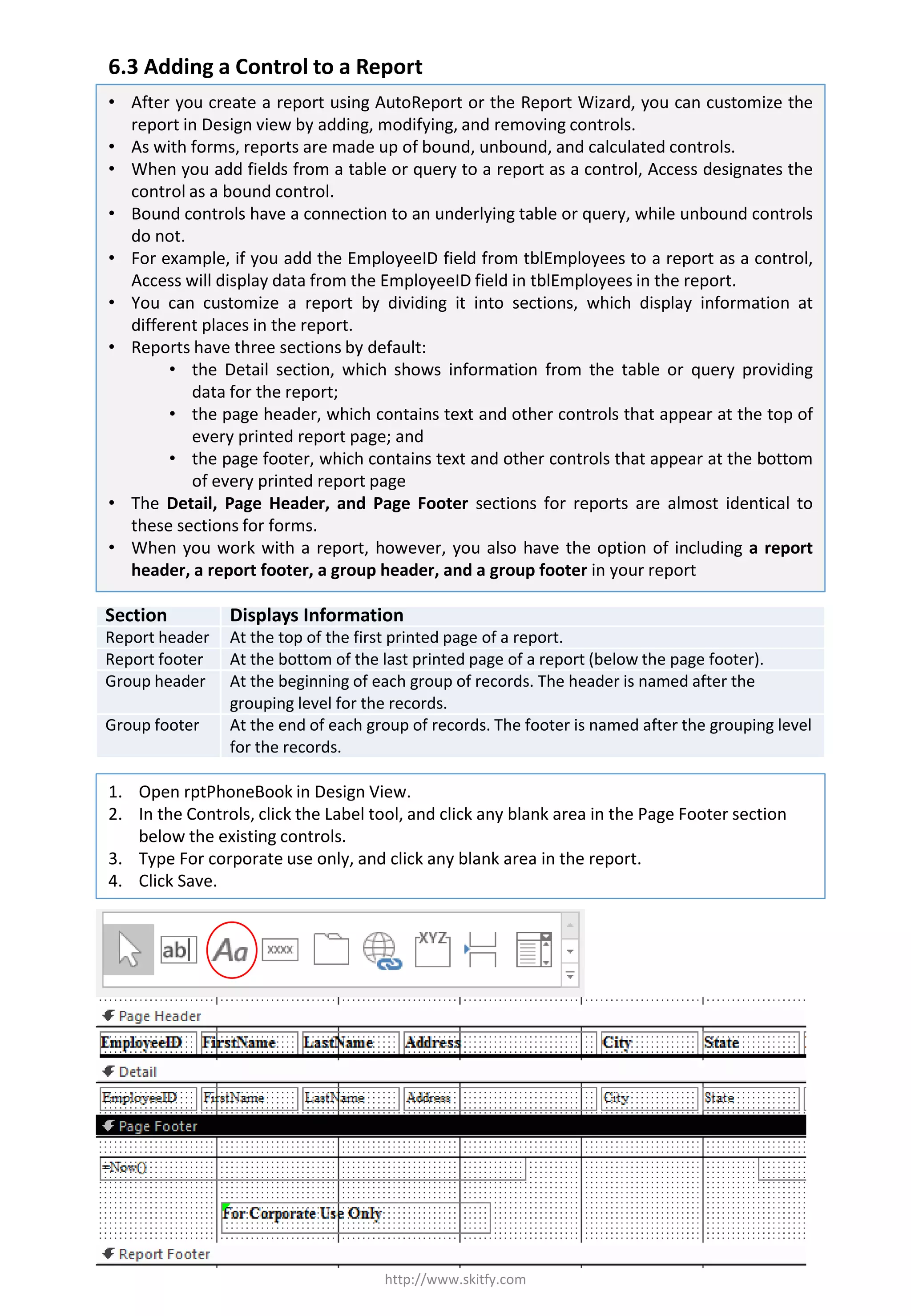
1. Open rptPhoneBook in Design View.
2. In the Controls, click the Label tool, and click any blank area in the Page Footer section
below the existing controls.
3. Type For corporate use only, and click any blank area in the report.
4. Click Save.
Section Displays Information
Report header At the top of the first printed page of a report.
Report footer At the bottom of the last printed page of a report (below the page footer).
Group header At the beginning of each group of records. The header is named after the
grouping level for the records.
Group footer At the end of each group of records. The footer is named after the grouping level
for the records.

6.3 Adding a Control to a Report

  • 1.
    6.3 Adding aControl to a Report http://www.skitfy.com • After you create a report using AutoReport or the Report Wizard, you can customize the report in Design view by adding, modifying, and removing controls. • As with forms, reports are made up of bound, unbound, and calculated controls. • When you add fields from a table or query to a report as a control, Access designates the control as a bound control. • Bound controls have a connection to an underlying table or query, while unbound controls do not. • For example, if you add the EmployeeID field from tblEmployees to a report as a control, Access will display data from the EmployeeID field in tblEmployees in the report. • You can customize a report by dividing it into sections, which display information at different places in the report. • Reports have three sections by default: • the Detail section, which shows information from the table or query providing data for the report; • the page header, which contains text and other controls that appear at the top of every printed report page; and • the page footer, which contains text and other controls that appear at the bottom of every printed report page • The Detail, Page Header, and Page Footer sections for reports are almost identical to these sections for forms. • When you work with a report, however, you also have the option of including a report header, a report footer, a group header, and a group footer in your report 1. Open rptPhoneBook in Design View. 2. In the Controls, click the Label tool, and click any blank area in the Page Footer section below the existing controls. 3. Type For corporate use only, and click any blank area in the report. 4. Click Save. Section Displays Information Report header At the top of the first printed page of a report. Report footer At the bottom of the last printed page of a report (below the page footer). Group header At the beginning of each group of records. The header is named after the grouping level for the records. Group footer At the end of each group of records. The footer is named after the grouping level for the records.