Pre-Production
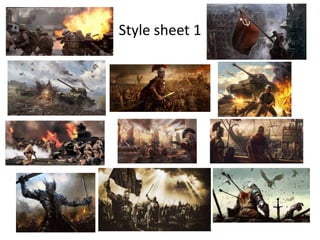
Style sheet 1
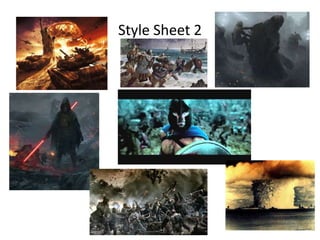
Style Sheet 2
Colour schemes
• The style sheets show the types of colours I am interested
in using. Both sheets use explosions in them and the burst
of colours give a dynamic and powerful effect. Sheet 2 has
lots of interesting modern techniques and styles using
some very dark background to add atmosphere and
foreboding and pops of colour to add action. I like the
colour filters used as well on these images the sepia tinted
filter gives the image a strange other worldly feel I also like
the use of the green filter on the centre image as this ties
the image together and makes it more stylised. In my final
pieces of work I want to use filters and bold colours to
make the images dynamic and dramatic but also have a
feeling of foreboding and moodiness and focus the viewers
attention.
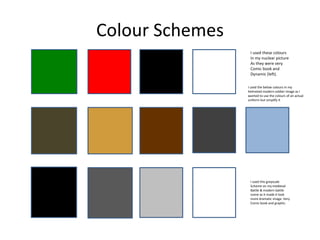
Colour Schemes
I used these colours
In my nuclear picture
As they were very
Comic book and
Dynamic (left).
I used the below colours in my
helmeted modern soldier image as I
wanted to use the colours of an actual
uniform but simplify it
I used this greyscale
Scheme on my medieval
Battle & modern battle
scene as it made it look
more dramatic image. Very
Comic book and graphic.
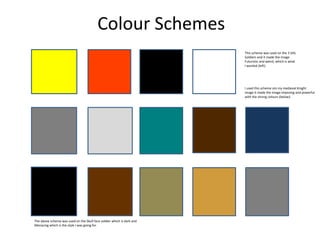
Colour Schemes
This scheme was used on the 3 SAS
Soldiers and it made the image
Futuristic and weird, which is what
I wanted (left).
I used this scheme om my medieval Knight
image it made the image imposing and powerful
with the strong colours (below).
The above scheme was used on the Skull face soldier which is dark and
Menacing which is the style I was going for.
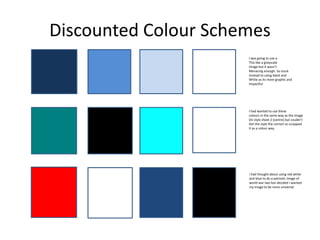
Discounted Colour Schemes
I was going to use a
This like a greyscale
Image but it wasn’t
Menacing enough. So stuck
Instead to using black and
White as its more graphic and
Impactful.
I had wanted to use these
colours in the same way as the image
On style sheet 2 (centre) but couldn’t
Get the style the correct so scrapped
It as a colour way.
I had thought about using red white
and blue to do a patriotic image of
world war two but decided I wanted
my image to be more universal
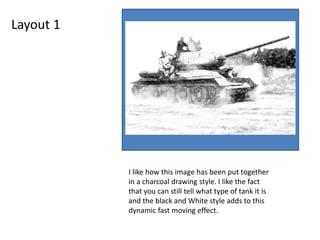
Layout 1
I like how this image has been put together
in a charcoal drawing style. I like the fact
that you can still tell what type of tank it is
and the black and White style adds to this
dynamic fast moving effect.
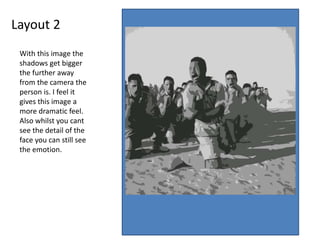
Layout 2
With this image the
shadows get bigger
the further away
from the camera the
person is. I feel it
gives this image a
more dramatic feel.
Also whilst you cant
see the detail of the
face you can still see
the emotion.
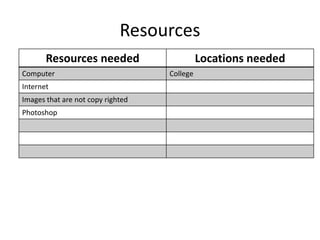
Resources
Resources needed Locations needed
Computer College
Internet
Images that are not copy righted
Photoshop
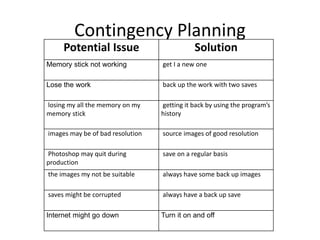
Contingency Planning
Potential Issue Solution
Memory stick not working get I a new one
Lose the work back up the work with two saves
losing my all the memory on my
memory stick
getting it back by using the program’s
history
images may be of bad resolution source images of good resolution
Photoshop may quit during
production
save on a regular basis
the images my not be suitable always have some back up images
saves might be corrupted always have a back up save
Internet might go down Turn it on and off
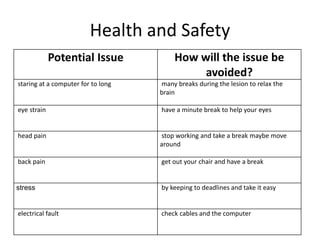
Health and Safety
Potential Issue How will the issue be
avoided?
staring at a computer for to long many breaks during the lesion to relax the
brain
eye strain have a minute break to help your eyes
head pain stop working and take a break maybe move
around
back pain get out your chair and have a break
stress by keeping to deadlines and take it easy
electrical fault check cables and the computer
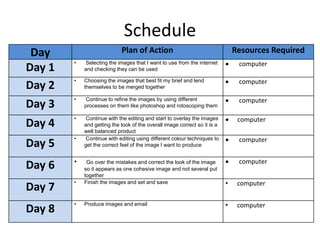
Schedule
Day Plan of Action Resources Required
Day 1
• Selecting the images that I want to use from the internet
and checking they can be used
 computer
Day 2
• Choosing the images that best fit my brief and lend
themselves to be merged together
 computer
Day 3
• Continue to refine the images by using different
processes on them like photoshop and rotoscoping them
 computer
Day 4
• Continue with the editing and start to overlay the images
and getting the look of the overall image correct so it is a
well balanced product
 computer
Day 5
• Continue with editing using different colour techniques to
get the correct feel of the image I want to produce
 computer
Day 6 • Go over the mistakes and correct the look of the image
so it appears as one cohesive image and not several put
together
 computer
Day 7
• Finish the images and set and save • computer
Day 8
• Produce images and email • computer

5. pre production

  • 1.
  • 2.
  • 3.
  • 4.
    Colour schemes • Thestyle sheets show the types of colours I am interested in using. Both sheets use explosions in them and the burst of colours give a dynamic and powerful effect. Sheet 2 has lots of interesting modern techniques and styles using some very dark background to add atmosphere and foreboding and pops of colour to add action. I like the colour filters used as well on these images the sepia tinted filter gives the image a strange other worldly feel I also like the use of the green filter on the centre image as this ties the image together and makes it more stylised. In my final pieces of work I want to use filters and bold colours to make the images dynamic and dramatic but also have a feeling of foreboding and moodiness and focus the viewers attention.
  • 5.
    Colour Schemes I usedthese colours In my nuclear picture As they were very Comic book and Dynamic (left). I used the below colours in my helmeted modern soldier image as I wanted to use the colours of an actual uniform but simplify it I used this greyscale Scheme on my medieval Battle & modern battle scene as it made it look more dramatic image. Very Comic book and graphic.
  • 6.
    Colour Schemes This schemewas used on the 3 SAS Soldiers and it made the image Futuristic and weird, which is what I wanted (left). I used this scheme om my medieval Knight image it made the image imposing and powerful with the strong colours (below). The above scheme was used on the Skull face soldier which is dark and Menacing which is the style I was going for.
  • 7.
    Discounted Colour Schemes Iwas going to use a This like a greyscale Image but it wasn’t Menacing enough. So stuck Instead to using black and White as its more graphic and Impactful. I had wanted to use these colours in the same way as the image On style sheet 2 (centre) but couldn’t Get the style the correct so scrapped It as a colour way. I had thought about using red white and blue to do a patriotic image of world war two but decided I wanted my image to be more universal
  • 8.
    Layout 1 I likehow this image has been put together in a charcoal drawing style. I like the fact that you can still tell what type of tank it is and the black and White style adds to this dynamic fast moving effect.
  • 9.
    Layout 2 With thisimage the shadows get bigger the further away from the camera the person is. I feel it gives this image a more dramatic feel. Also whilst you cant see the detail of the face you can still see the emotion.
  • 10.
    Resources Resources needed Locationsneeded Computer College Internet Images that are not copy righted Photoshop
  • 11.
    Contingency Planning Potential IssueSolution Memory stick not working get I a new one Lose the work back up the work with two saves losing my all the memory on my memory stick getting it back by using the program’s history images may be of bad resolution source images of good resolution Photoshop may quit during production save on a regular basis the images my not be suitable always have some back up images saves might be corrupted always have a back up save Internet might go down Turn it on and off
  • 12.
    Health and Safety PotentialIssue How will the issue be avoided? staring at a computer for to long many breaks during the lesion to relax the brain eye strain have a minute break to help your eyes head pain stop working and take a break maybe move around back pain get out your chair and have a break stress by keeping to deadlines and take it easy electrical fault check cables and the computer
  • 13.
    Schedule Day Plan ofAction Resources Required Day 1 • Selecting the images that I want to use from the internet and checking they can be used  computer Day 2 • Choosing the images that best fit my brief and lend themselves to be merged together  computer Day 3 • Continue to refine the images by using different processes on them like photoshop and rotoscoping them  computer Day 4 • Continue with the editing and start to overlay the images and getting the look of the overall image correct so it is a well balanced product  computer Day 5 • Continue with editing using different colour techniques to get the correct feel of the image I want to produce  computer Day 6 • Go over the mistakes and correct the look of the image so it appears as one cohesive image and not several put together  computer Day 7 • Finish the images and set and save • computer Day 8 • Produce images and email • computer

Editor's Notes

  • #3 Explore colours, fonts and image styles similar to what you want to produce. Discuss all three elements in relation to why you chose them and where you may use them in your project. Go over as many pages as you need to
  • #9 Mock up of a potential design using the colours and fonts established in your style sheet and sourced images
  • #10 Mock up of a potential design using the colours and fonts established in your style sheet and sourced images