MUSIC VIDEO
PRODUCTION
LOG
JOE COLE
PRODUCTION LOG:
GUIDANCE
• This document is for you to track the progress of your
production – filming, editing and post-production.
• This is so you can track what you did and how you did it,
explaining and amendments and changes you made and
tracking the decisions that have shaped the practical
creation of your music video.
• The more detail you include about how you made your music
video, the better. The document is broken down in to two
sections, Filming and Editing, each of these is then made of
specific elements that occur in both.
• For each slide there is a prompt detailing what you should
include, delete the prompt after you have complete the slide.
• Remember, images often show what you’ve done more
effectively than words. Use text to explain an illustration.
FILMING
Explain what worked and didn’t work about your filming and how you managed this covering the following areas:
• Technical – using the cameras and any technical equipment; this could be how you did your lip sync, used the
green screen, dealt with problems with batteries, etc
• Logistical – did your locations work? Did you have any access problems? Did it rain?
• Personnel – how were your cast/crew? Did anyone let you down? How did you manage this?
• Planning – did your planning help? Do you think it could have worked better? How?
• Next steps – do you need to re-film? Film more? Have you changed your video? How/why?
• I had a few Technical issues when first filming with the Cannon camera as it was recording with a lot of bloom and
it took some time to figure out how to correct this to enable me to use the camera correctly. Also another technical
issue was the battery life was short and ran out quickly. I over came this by taking more than one battery out on
location.
• Logistically I feel I planned my locations well as the y were grouped together by area so journeys between each
location had been considered, this alos kept costs down and didn’t waste time. Transport to each location was
provided by my parents and worked well.
• My mum was my camera assistant and did a good job in following my directions for the shots I wanted to create.
• I feel my planning was good as I worked around weekends and days off to ensure I got as much done as possible I
also made sure that my mum was available to take me to locations on these days.
• I didn’t need to re-film any shots as I tended to take more than one of the same shot to ensure I had what I wanted.
*If you make any drastic changes to your video you MUST add this to your planning
documentation and state how and why this has happened
EDITING
• Record your edit progress, decisions, problems, etc. in this
section
• Include screenshots with annotations, statements, etc.
• Try to explain how you worked and justify why you chose to
work the way you did.
• Follow the structure and what to include on each slide as this
is necessary for evidence for assessment
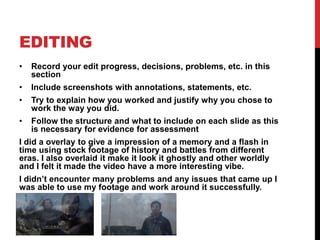
I did a overlay to give a impression of a memory and a flash in
time using stock footage of history and battles from different
eras. I also overlaid it make it look it ghostly and other worldly
and I felt it made the video have a more interesting vibe.
I didn’t encounter many problems and any issues that came up I
was able to use my footage and work around it successfully.
EDITING –
FILE MANAGEMENT
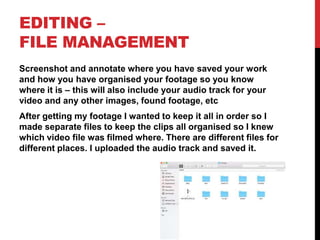
Screenshot and annotate where you have saved your work
and how you have organised your footage so you know
where it is – this will also include your audio track for your
video and any other images, found footage, etc
After getting my footage I wanted to keep it all in order so I
made separate files to keep the clips all organised so I knew
which video file was filmed where. There are different files for
different places. I uploaded the audio track and saved it.
EDITING –
SETTING UP PREMIERE
Screenshot and annotate how you have set up a new
Premiere Pro project – indicate what you called it, where you
saved it
You should also show how you set up your timeline,
indicating the video settings used [e.g. DSLR 1080p 25]
I called my project the same name as my song ‘Everybody
wants to rule the world’ for filing and organisational reasons.
I also saved it to a memory stick to keep it safe and ensure I
had a back up copy should my original file corrupt.
EDITING –
IMPORTING FOOTAGE
Show how you imported your footage, your file set up in
Premiere and how you have organised your different docs
[video, audio, etc]
I just dragged my footage directly into Premier Pro for editing
this is how I imported my footage. I did have all my clips
organised before I imported them to help make this process
easier. I organized my clips into the places where I filmed
them at eg Helmsley this helped me understand where I was
in the process.
EDITING –
WORKSPACE
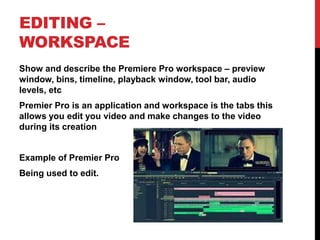
Show and describe the Premiere Pro workspace – preview
window, bins, timeline, playback window, tool bar, audio
levels, etc
Premier Pro is an application and workspace is the tabs this
allows you edit you video and make changes to the video
during its creation
Example of Premier Pro
Being used to edit.
EDITING –
ASSEMBLY EDIT
Show how you put together your basic sequence in the order
you want it – previewing clips, dragging to the timeline,
trimming/cutting, etc
If you have a lip sync, pay special attention to showing how
you synchronised the footage with the audio track
EDITING –
REFINEMENT
Show and explain how you have refined and improved your
initial sequence edit
I refined my video by doing colour correction. As an example, I
made scenes more orange to give a feeling of warmth. I did this
where necessary so that most of the song fit the same feeling of
looking into the past. I used fast colour correction to do this.
I also added contrast to improve the overall feel.
I also added my face into the action scenes and the set up scene
at the beginning to give much more sense of a link of the
presence to the past. To do this I put my face over the footage
and changed the opacity so you could barely see my face. I
changed the opacity at certain parts going higher and then back
down to the level it was, so I appeared and disappeared.
EDITING –
COLOUR CORRECTION/SFX
Show and explain your colour correction process/effects
process – use staged screenshots to show each part of the
process and the effect. Explain why you chose to do this
For some of my scenes I changed the colour to fit what I
wanted out of the shot for example if wanted it to be moody I
changed to darker colours.
So for some scenes I made it look warm and colourful and for
the battle it looks blue and dark to fit the looking in past
ghost like eerie feel.
EDITING –
EXPORT
Show how you exported your completed project, show which
settings you have used and explain your choice of file name
and where you have saved it
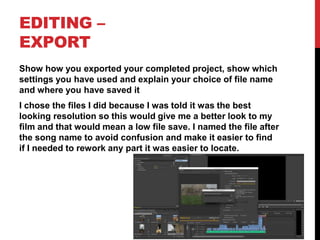
I chose the files I did because I was told it was the best
looking resolution so this would give me a better look to my
film and that would mean a low file save. I named the file after
the song name to avoid confusion and make it easier to find
if I needed to rework any part it was easier to locate.

Mv production log template

  • 1.
  • 2.
    PRODUCTION LOG: GUIDANCE • Thisdocument is for you to track the progress of your production – filming, editing and post-production. • This is so you can track what you did and how you did it, explaining and amendments and changes you made and tracking the decisions that have shaped the practical creation of your music video. • The more detail you include about how you made your music video, the better. The document is broken down in to two sections, Filming and Editing, each of these is then made of specific elements that occur in both. • For each slide there is a prompt detailing what you should include, delete the prompt after you have complete the slide. • Remember, images often show what you’ve done more effectively than words. Use text to explain an illustration.
  • 3.
    FILMING Explain what workedand didn’t work about your filming and how you managed this covering the following areas: • Technical – using the cameras and any technical equipment; this could be how you did your lip sync, used the green screen, dealt with problems with batteries, etc • Logistical – did your locations work? Did you have any access problems? Did it rain? • Personnel – how were your cast/crew? Did anyone let you down? How did you manage this? • Planning – did your planning help? Do you think it could have worked better? How? • Next steps – do you need to re-film? Film more? Have you changed your video? How/why? • I had a few Technical issues when first filming with the Cannon camera as it was recording with a lot of bloom and it took some time to figure out how to correct this to enable me to use the camera correctly. Also another technical issue was the battery life was short and ran out quickly. I over came this by taking more than one battery out on location. • Logistically I feel I planned my locations well as the y were grouped together by area so journeys between each location had been considered, this alos kept costs down and didn’t waste time. Transport to each location was provided by my parents and worked well. • My mum was my camera assistant and did a good job in following my directions for the shots I wanted to create. • I feel my planning was good as I worked around weekends and days off to ensure I got as much done as possible I also made sure that my mum was available to take me to locations on these days. • I didn’t need to re-film any shots as I tended to take more than one of the same shot to ensure I had what I wanted. *If you make any drastic changes to your video you MUST add this to your planning documentation and state how and why this has happened
  • 4.
    EDITING • Record youredit progress, decisions, problems, etc. in this section • Include screenshots with annotations, statements, etc. • Try to explain how you worked and justify why you chose to work the way you did. • Follow the structure and what to include on each slide as this is necessary for evidence for assessment I did a overlay to give a impression of a memory and a flash in time using stock footage of history and battles from different eras. I also overlaid it make it look it ghostly and other worldly and I felt it made the video have a more interesting vibe. I didn’t encounter many problems and any issues that came up I was able to use my footage and work around it successfully.
  • 5.
    EDITING – FILE MANAGEMENT Screenshotand annotate where you have saved your work and how you have organised your footage so you know where it is – this will also include your audio track for your video and any other images, found footage, etc After getting my footage I wanted to keep it all in order so I made separate files to keep the clips all organised so I knew which video file was filmed where. There are different files for different places. I uploaded the audio track and saved it.
  • 6.
    EDITING – SETTING UPPREMIERE Screenshot and annotate how you have set up a new Premiere Pro project – indicate what you called it, where you saved it You should also show how you set up your timeline, indicating the video settings used [e.g. DSLR 1080p 25] I called my project the same name as my song ‘Everybody wants to rule the world’ for filing and organisational reasons. I also saved it to a memory stick to keep it safe and ensure I had a back up copy should my original file corrupt.
  • 7.
    EDITING – IMPORTING FOOTAGE Showhow you imported your footage, your file set up in Premiere and how you have organised your different docs [video, audio, etc] I just dragged my footage directly into Premier Pro for editing this is how I imported my footage. I did have all my clips organised before I imported them to help make this process easier. I organized my clips into the places where I filmed them at eg Helmsley this helped me understand where I was in the process.
  • 8.
    EDITING – WORKSPACE Show anddescribe the Premiere Pro workspace – preview window, bins, timeline, playback window, tool bar, audio levels, etc Premier Pro is an application and workspace is the tabs this allows you edit you video and make changes to the video during its creation Example of Premier Pro Being used to edit.
  • 9.
    EDITING – ASSEMBLY EDIT Showhow you put together your basic sequence in the order you want it – previewing clips, dragging to the timeline, trimming/cutting, etc If you have a lip sync, pay special attention to showing how you synchronised the footage with the audio track
  • 10.
    EDITING – REFINEMENT Show andexplain how you have refined and improved your initial sequence edit I refined my video by doing colour correction. As an example, I made scenes more orange to give a feeling of warmth. I did this where necessary so that most of the song fit the same feeling of looking into the past. I used fast colour correction to do this. I also added contrast to improve the overall feel. I also added my face into the action scenes and the set up scene at the beginning to give much more sense of a link of the presence to the past. To do this I put my face over the footage and changed the opacity so you could barely see my face. I changed the opacity at certain parts going higher and then back down to the level it was, so I appeared and disappeared.
  • 11.
    EDITING – COLOUR CORRECTION/SFX Showand explain your colour correction process/effects process – use staged screenshots to show each part of the process and the effect. Explain why you chose to do this For some of my scenes I changed the colour to fit what I wanted out of the shot for example if wanted it to be moody I changed to darker colours. So for some scenes I made it look warm and colourful and for the battle it looks blue and dark to fit the looking in past ghost like eerie feel.
  • 12.
    EDITING – EXPORT Show howyou exported your completed project, show which settings you have used and explain your choice of file name and where you have saved it I chose the files I did because I was told it was the best looking resolution so this would give me a better look to my film and that would mean a low file save. I named the file after the song name to avoid confusion and make it easier to find if I needed to rework any part it was easier to locate.