MICROSOFT WORD Information and Communication Technology
 
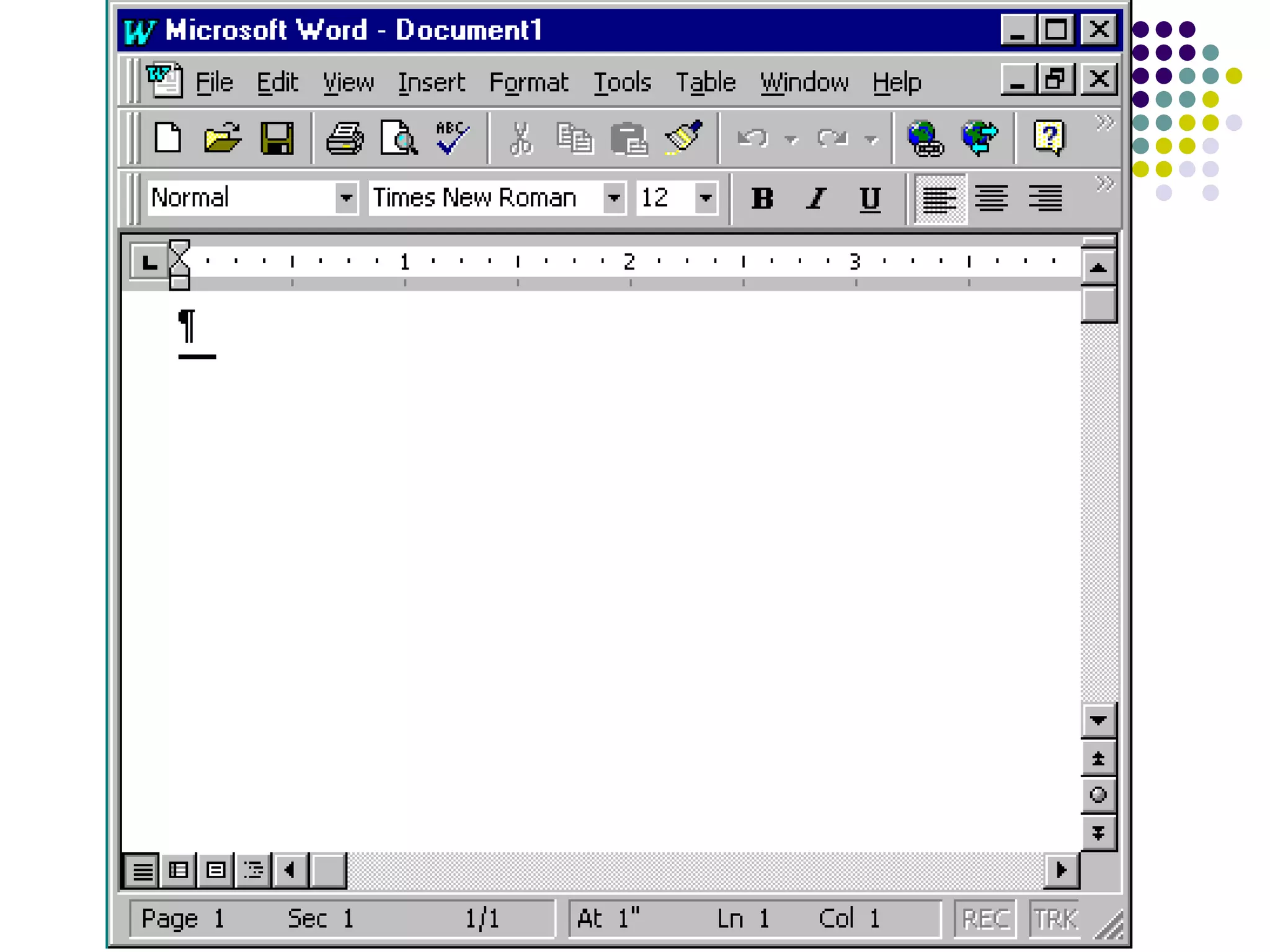
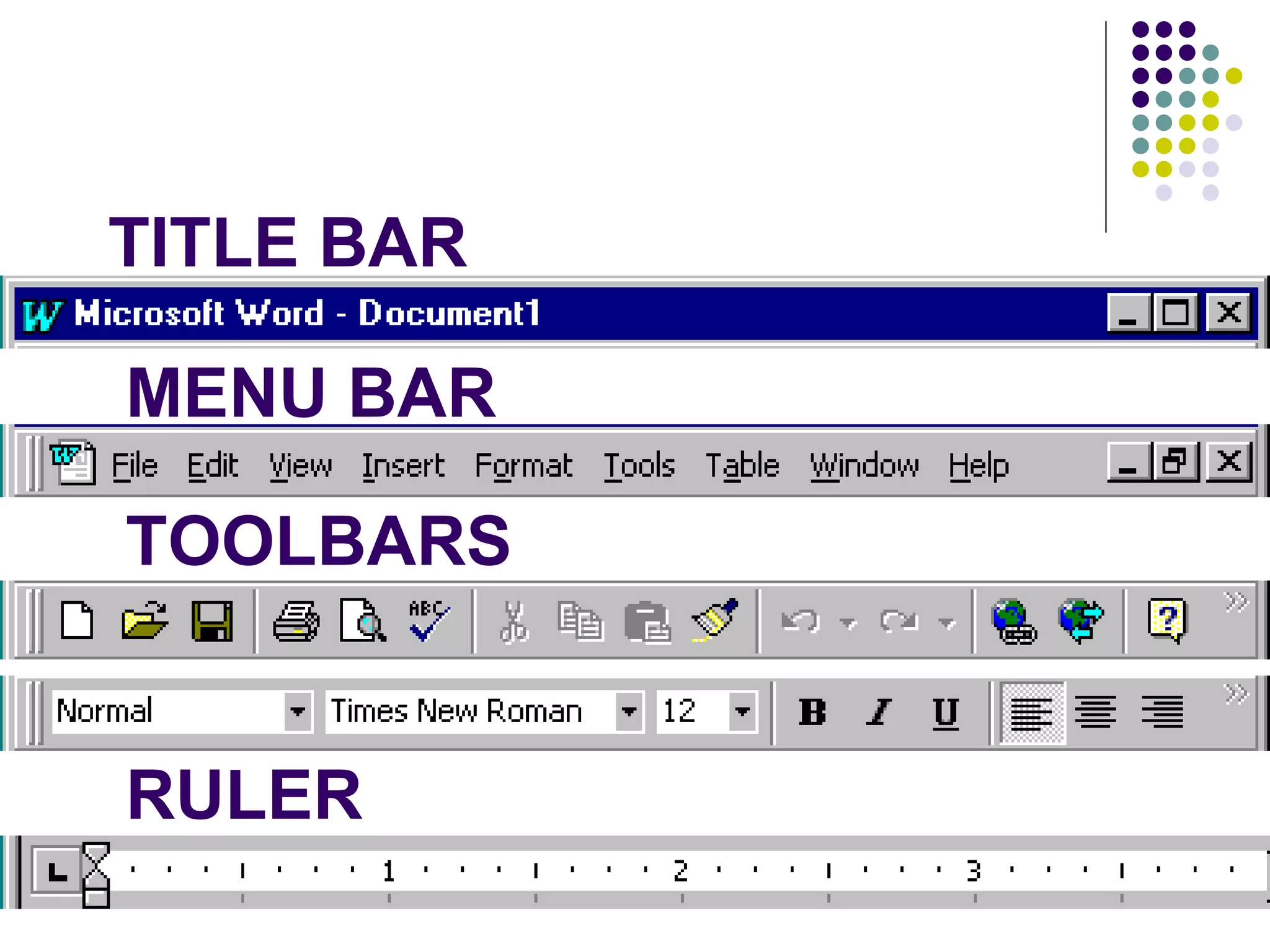
TITLE BAR MENU BAR TOOLBARS RULER
DOCUMENT VIEW Normal view  Normal view is the most often used and shows such formatting as line spacing, font, point size, and italics. Multiple-column text is displayed in one continuous column. Outline view  Outline view displays the document in outline form. Headings can be displayed without the text. A heading can be moved and the accompanying text moved with it.
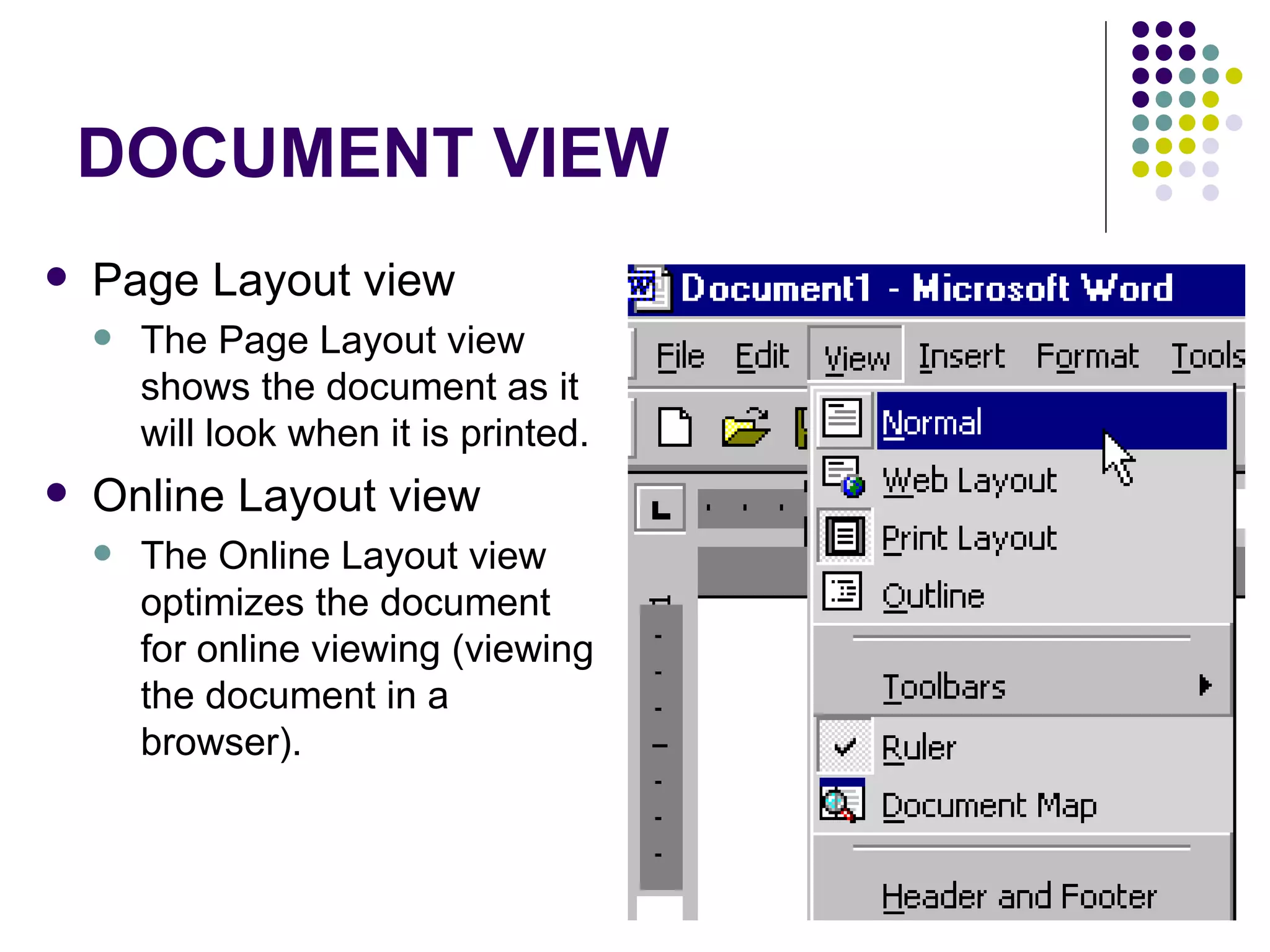
DOCUMENT VIEW Page Layout view  The Page Layout view shows the document as it will look when it is printed. Online Layout view  The Online Layout view optimizes the document for online viewing (viewing the document in a browser).
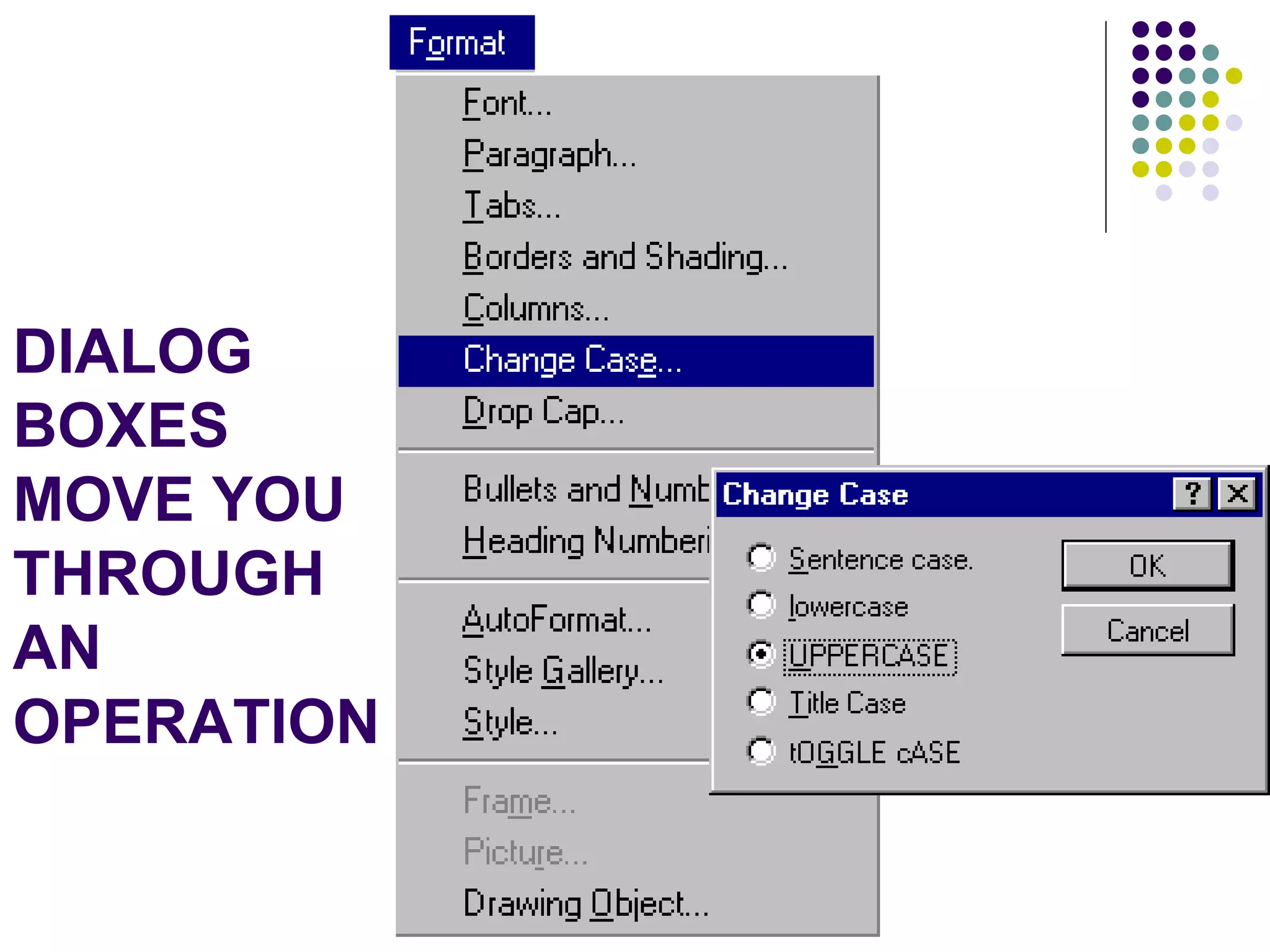
DIALOG BOXES MOVE YOU THROUGH AN OPERATION
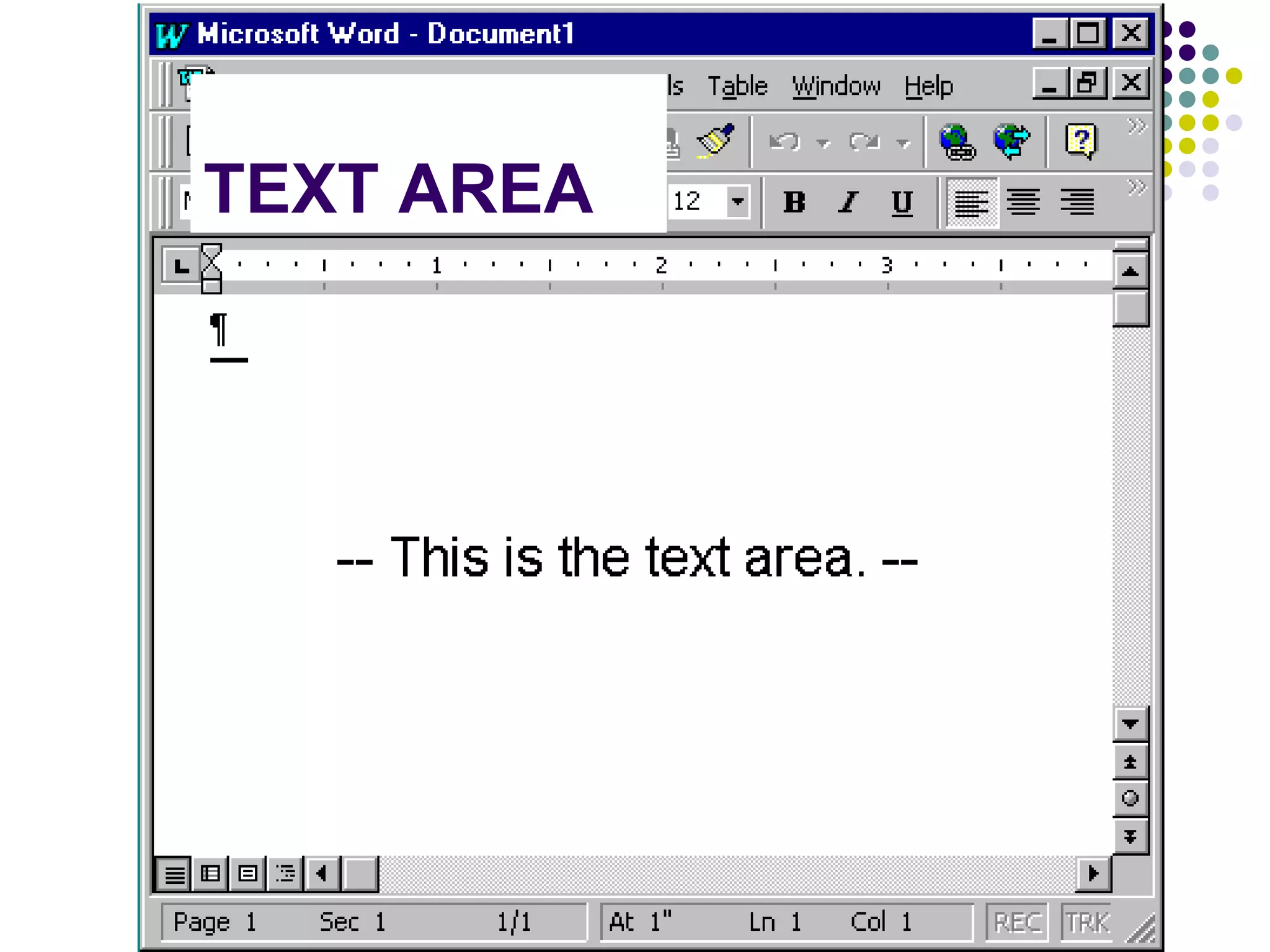
TEXT AREA
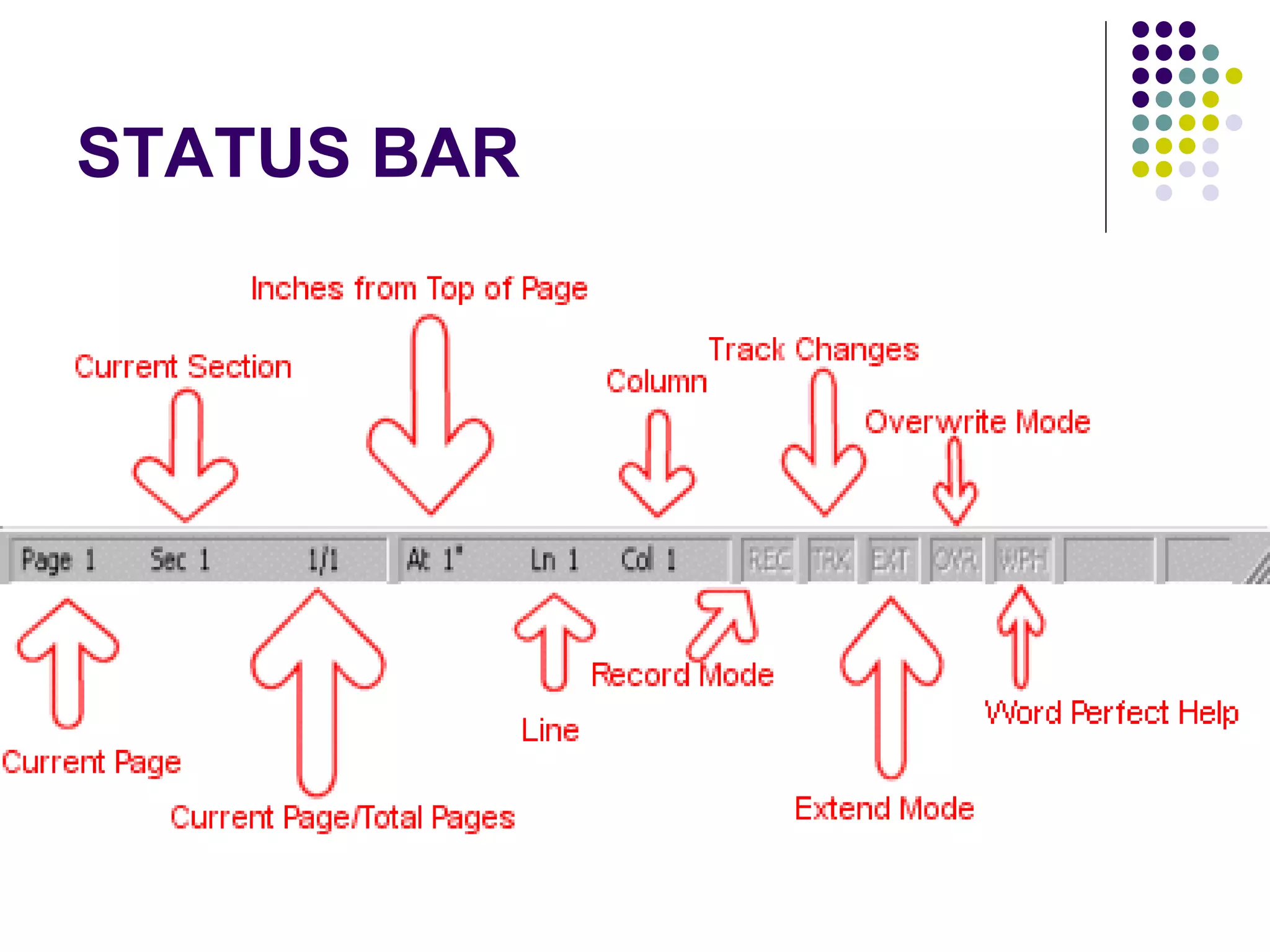
STATUS BAR
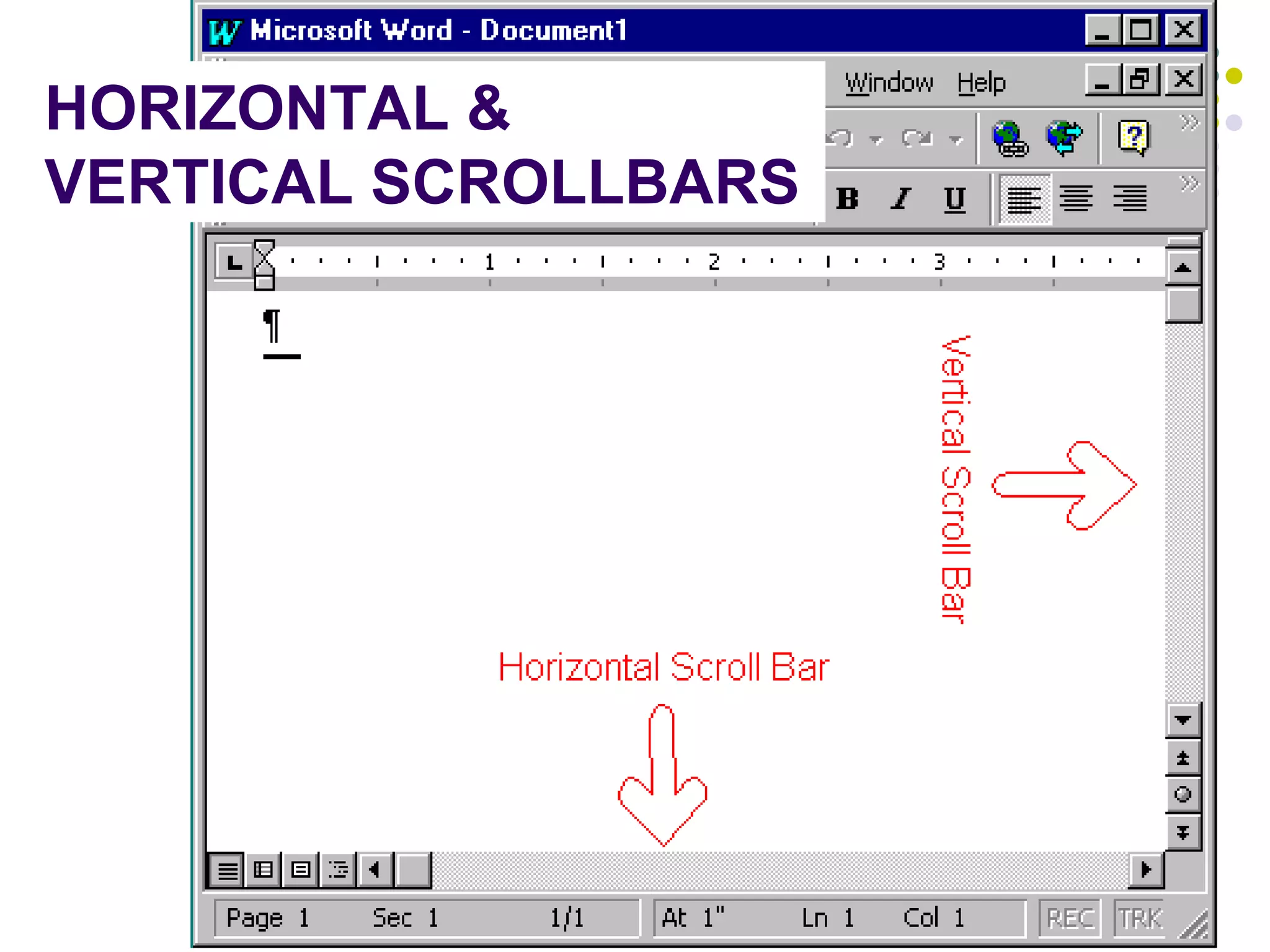
HORIZONTAL & VERTICAL SCROLLBARS
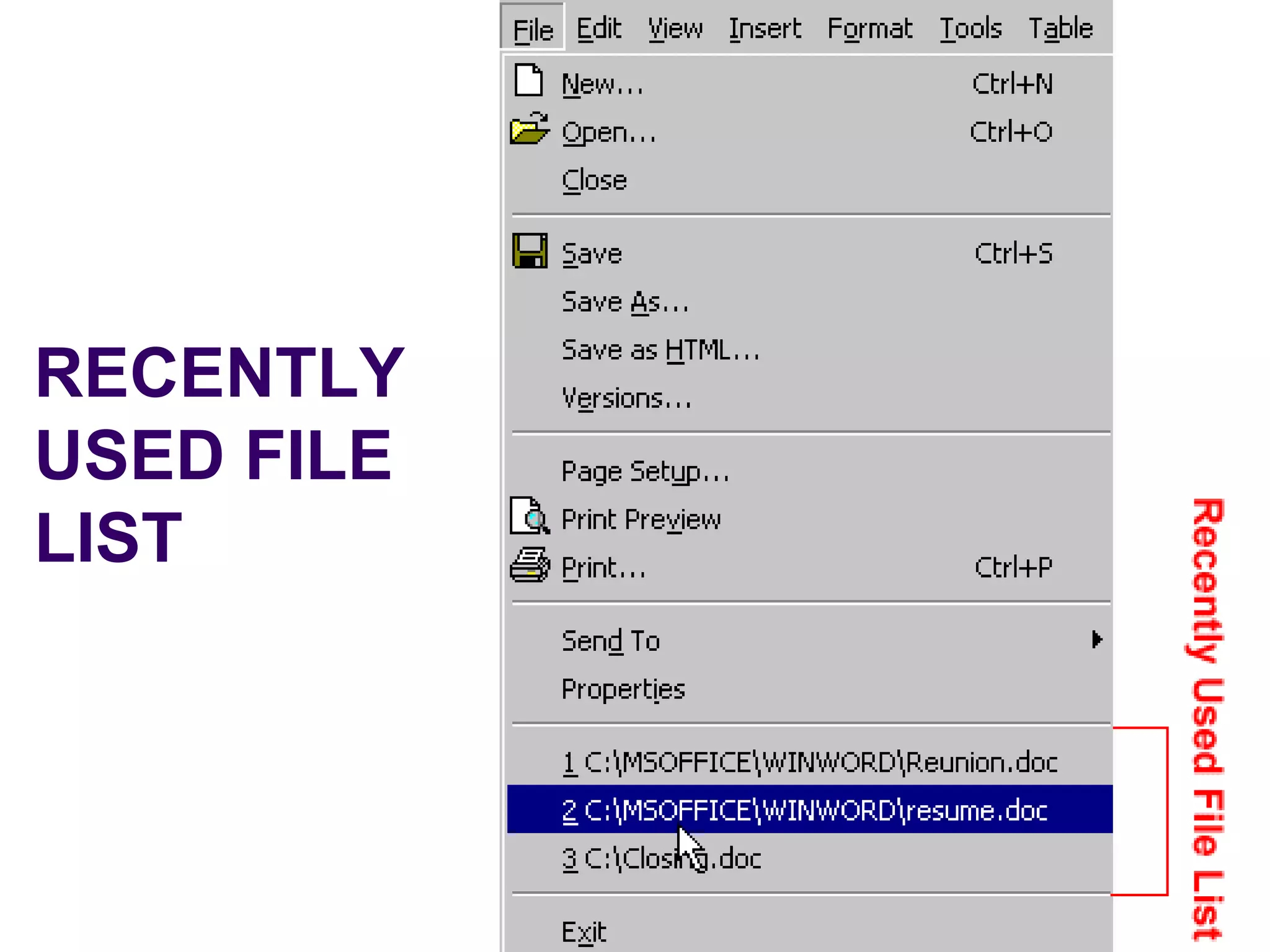
RECENTLY USED FILE LIST
SAVE VS. SAVE AS If you are working in a new document and you select save, Word prompts for a filename.  If you are working in a previously saved document and select  Save , Word saves, without warning you the older version is to be replaced.  If you select  Save As  from the  FILE  menu, then you can assign a new filename or a new drive location.
CHOOSING MENU COMMANDS BY USING ALT KEY Pressing the Alt key while typing the underlined letter on the Menu bar.  Typing the letter underlined on a drop-down menu. If a dialog box appears, you can move around the dialog box by pressing the Alt key and any underlined option.
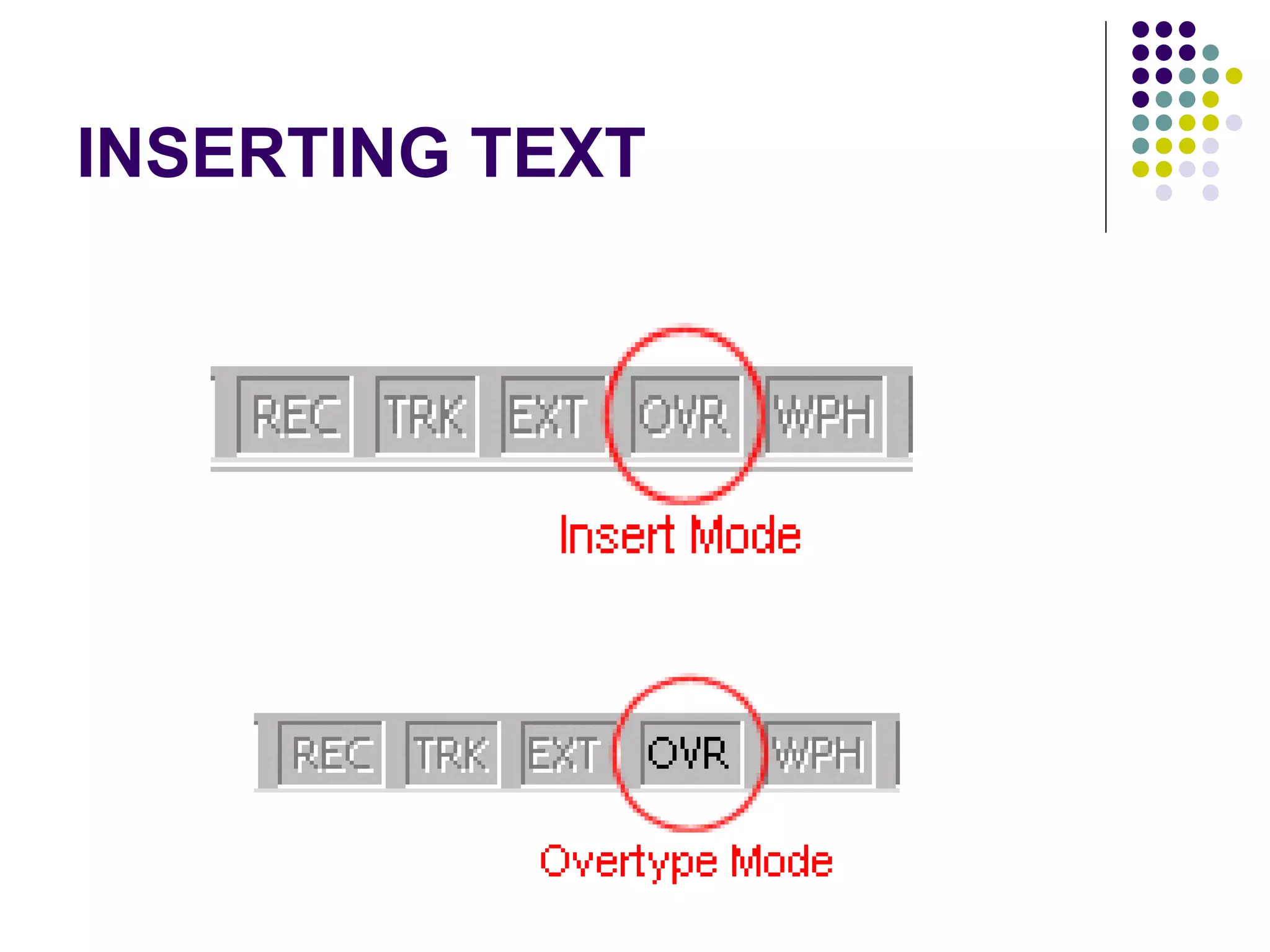
INSERTING TEXT
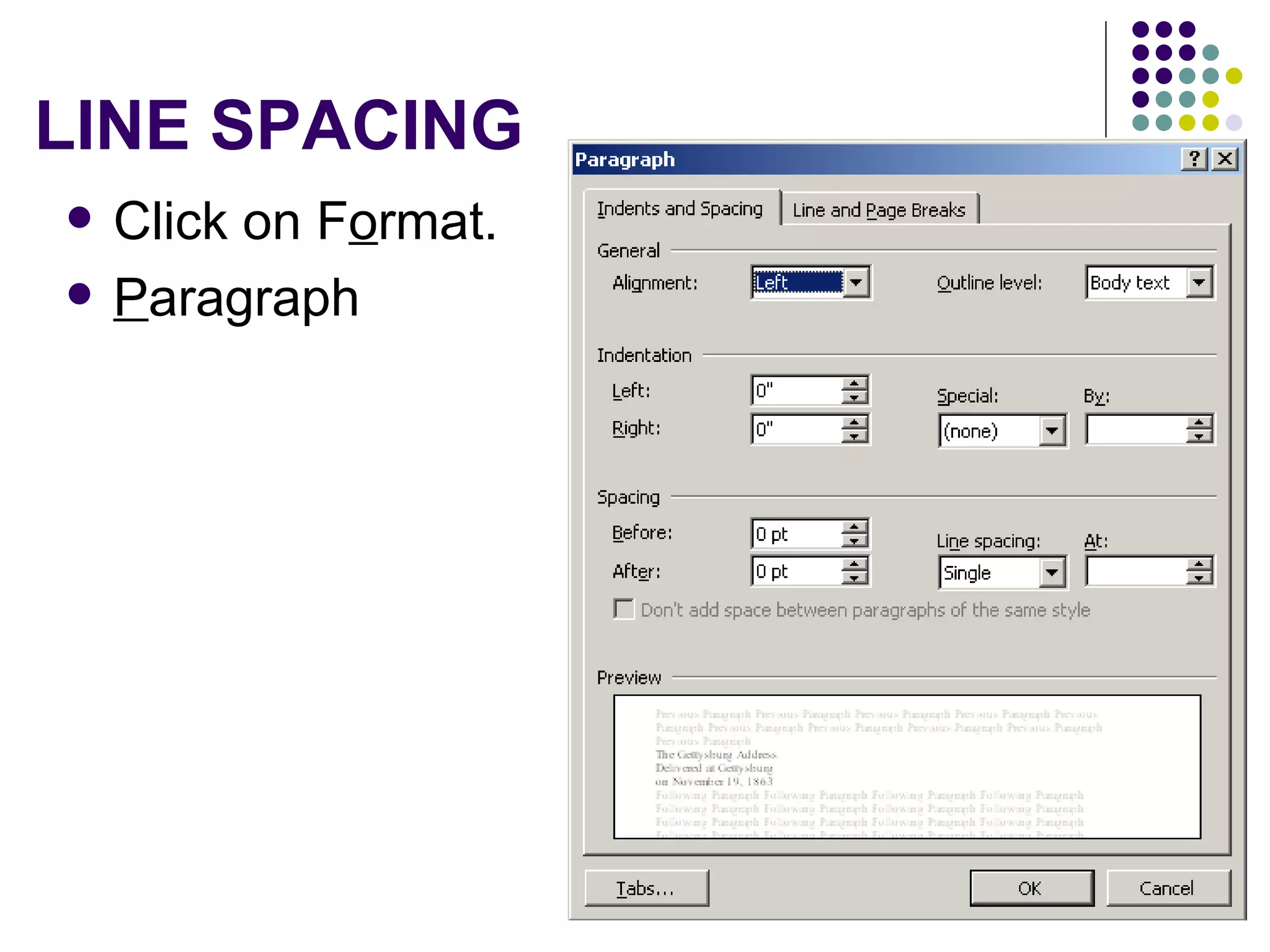
LINE SPACING Click on F o rmat.  P aragraph
Indenting means to add blank space between the left and/or right margin and the paragraph text. Indenting Paragraphs
HANGING INDENT Click on F o rmat.  Highlight Paragraph. Press Enter.  Click on the  I ndents and Spacing tab, if that tab is not in the front.  In the  S pecial field, click to open the pull-down menu. Click on Hanging.  In the B y  box, type  2.0" .  Click on OK.
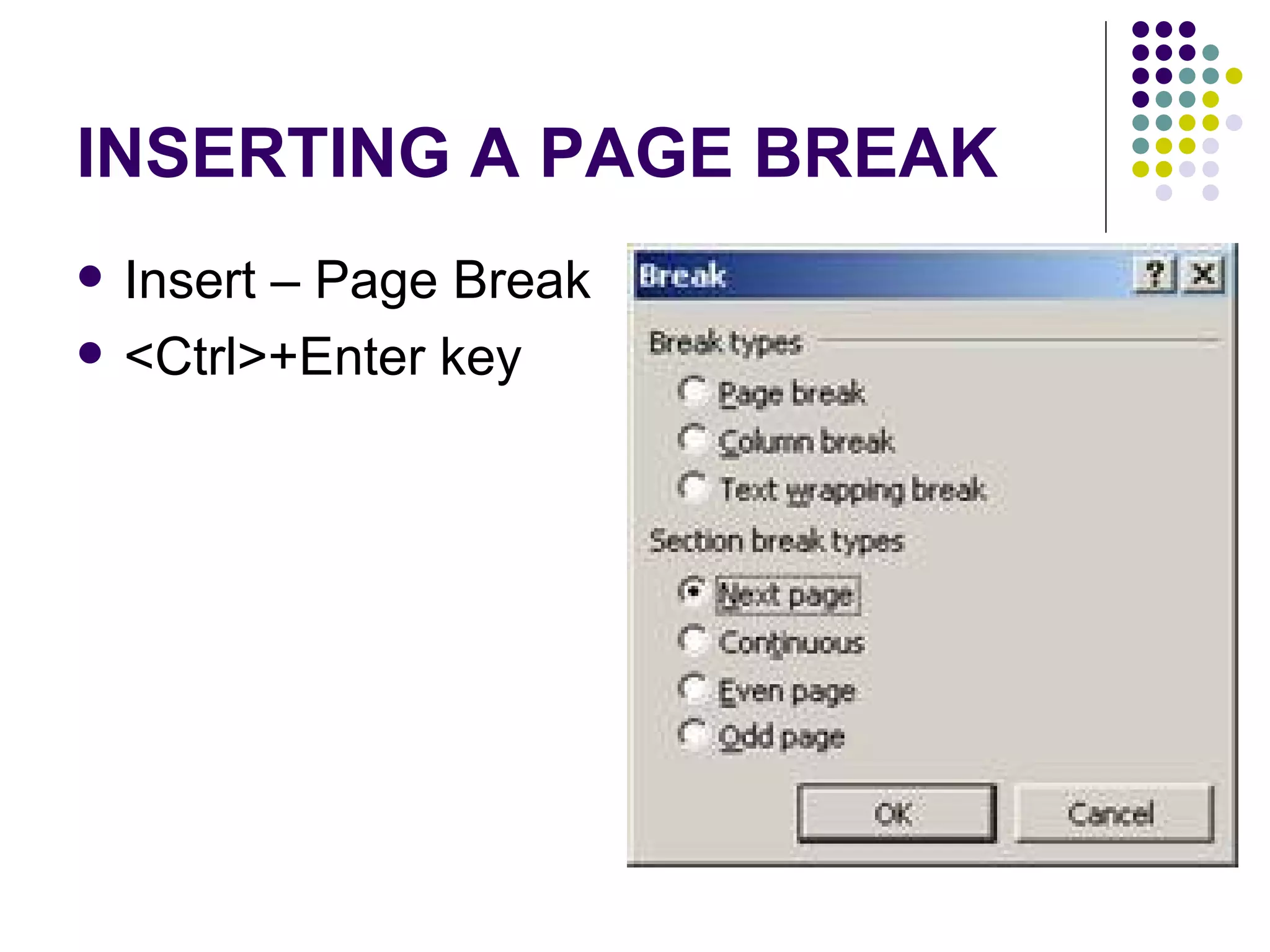
INSERTING A PAGE BREAK Insert – Page Break <Ctrl>+Enter key
CURSOR MOVEMENT Keystroke Action [  ] Left one character [  ] Right one character [Ctrl]+[  ] Right one word [Ctrl]+[  ] Left one word [Home] Beginning of the line [End] End of line [  ] Up one line [  ] Down one line
CURSOR MOVEMENT Keystroke Action [Ctrl]+[  ] Up one paragraph [Ctrl]+[  ] Down one paragraph [Page Up] Top of screen [Page Down] Bottom of screen [Ctrl]+[Home] Beginning of the document [Ctrl]+[End] End of docment [Ctrl]+[Page Up] Previous Page [Ctrl]+[Page Down] Next page
2 BASIC WAYS TO SELECT A TEXT Use the mouse Use the keyboard
Text Selection Shortcuts Keystroke Description A Word Double-click on the word Several Bits of text Select the first of text, then press and hold [Ctrl] as you select the remaining blocks of text A sentence Press and hold [Ctrl] and click anywhere in the sentence A line of text Click in the selection bar next to the line.
Text Selection Shortcuts Keystroke Description A paragraph Triple-click in the paragraph, or double-click in the selection bar next to the paragraph. The whole document Triple-click in the selection bar or press [Ctrl]+[A]
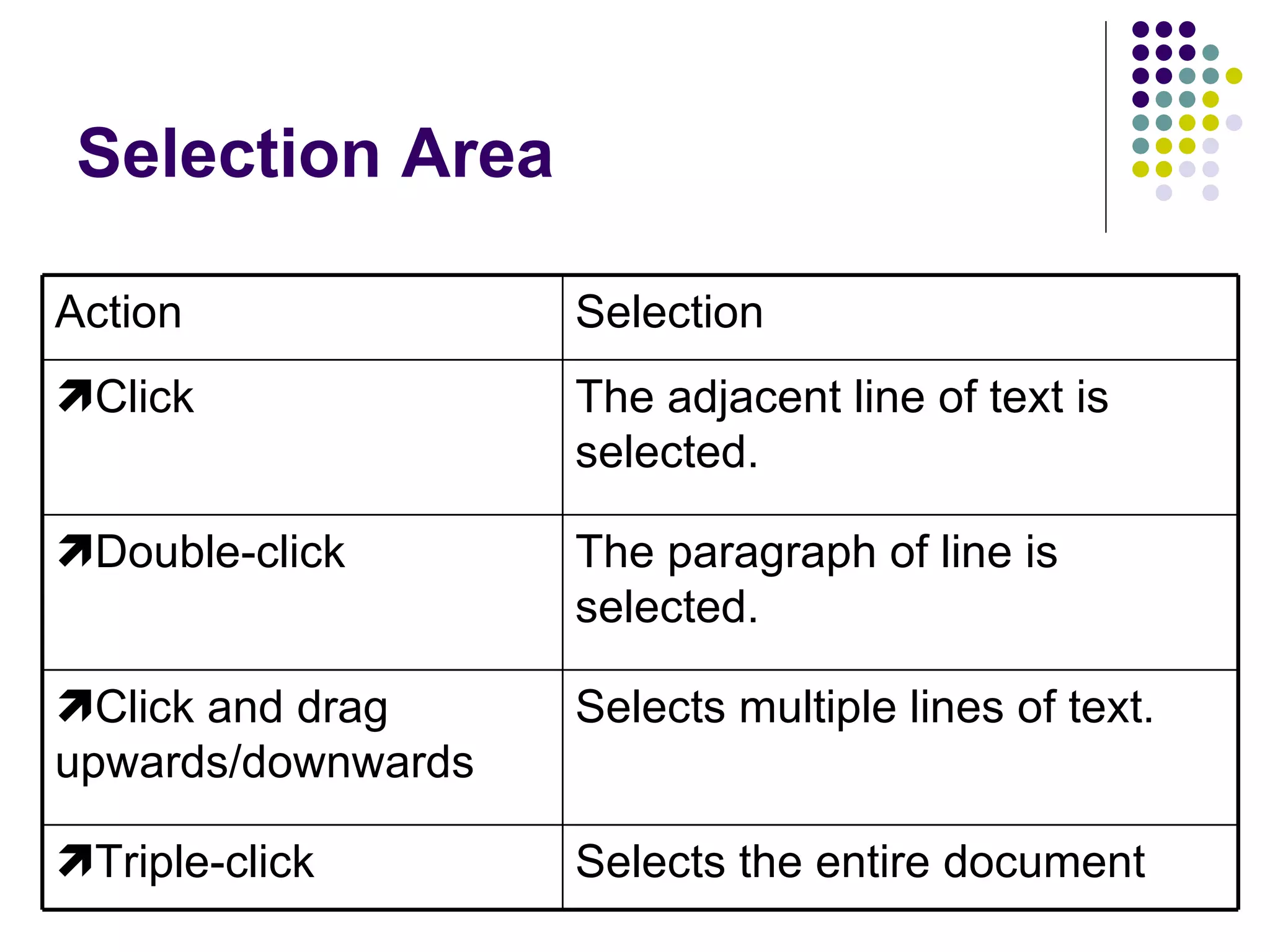
Selection Area Action Selection  Click The adjacent line of text is selected.  Double-click The paragraph of line is selected.  Click and drag upwards/downwards Selects multiple lines of text.  Triple-click Selects the entire document
Selecting Text Using Keyboard Keystroke Selection [Shift]+[  ] One character to the right. [Shift]+[  ] One character to the left. [Shift]+[Ctrl]+[  ] To the end of a word. [Shift]+[Ctrl]+[  ] To the beginning of a word. [Shift]+[End] To the end of a line. [Shift]+[Home] To the beginning of a line. [Shift]+[  ] One line down. [Shift]+[  ] One line up.
Selecting Text Using Keyboard Keystroke Selection [Shift]+[Ctrl]+[  ] To the end of a paragraph. [Shift]+[Ctrl]+[  ] To the beginning of a paragraph. [Shift]+[Page Up] One screen up. [Shift]+[Page Down] One screen down [Shift]+[Ctrl]+[Home] To the beginning of a document [Shift]+[Ctrl]+[End] To the bottom of a document Ctrl+A Entire Document
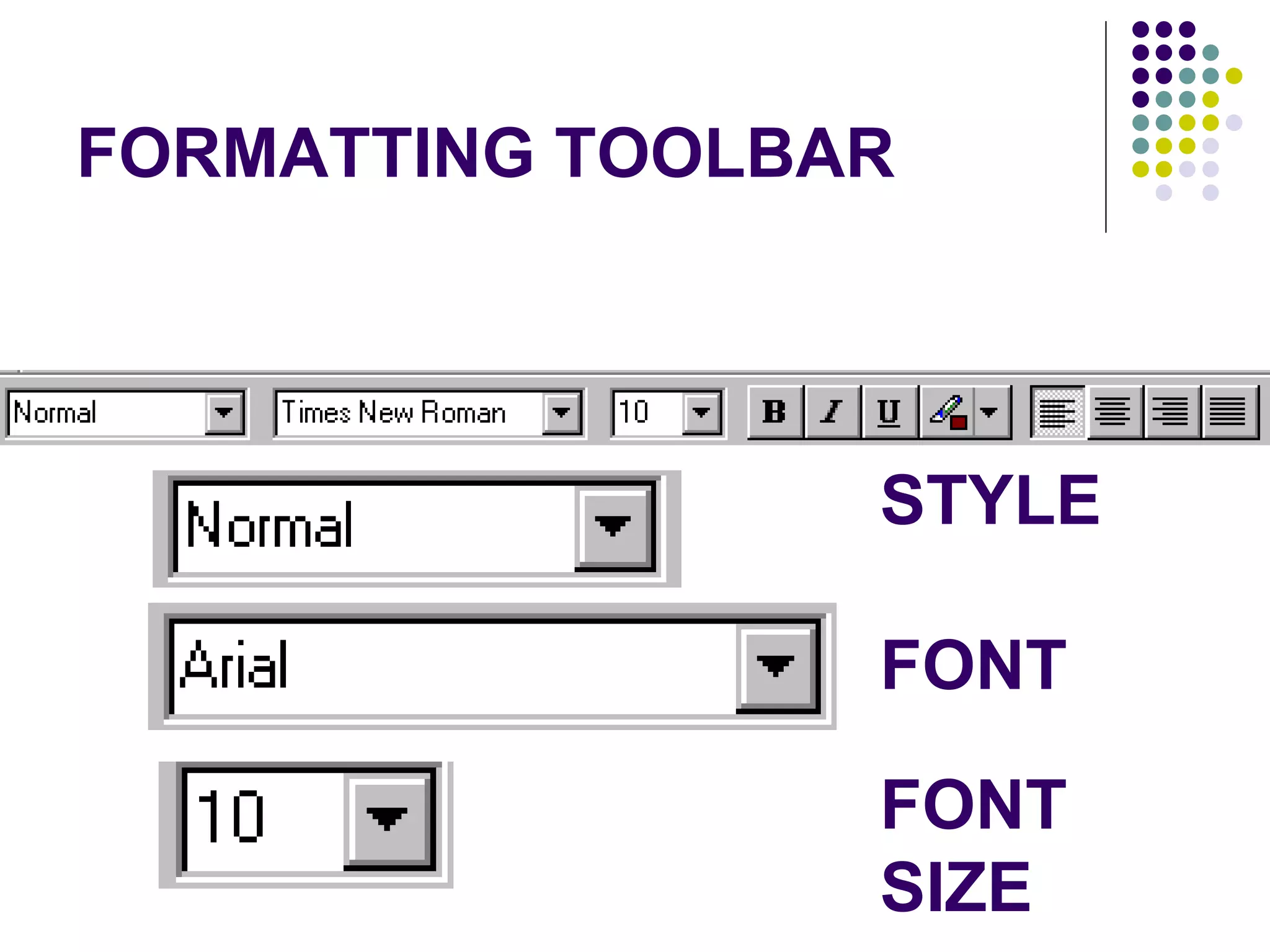
FORMATTING TOOLBAR STYLE FONT FONT SIZE
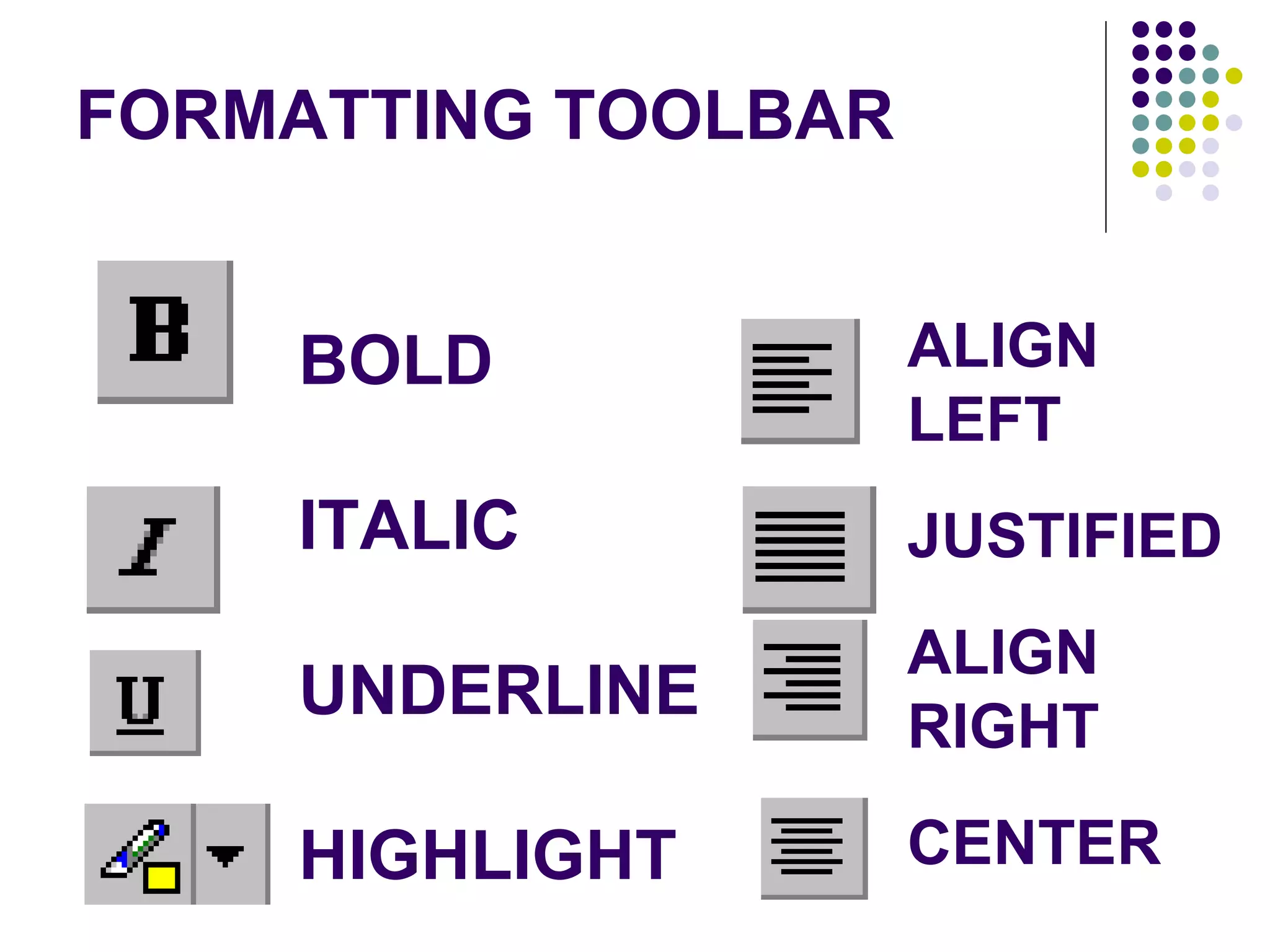
BOLD ITALIC UNDERLINE HIGHLIGHT ALIGN LEFT JUSTIFIED ALIGN RIGHT CENTER FORMATTING TOOLBAR
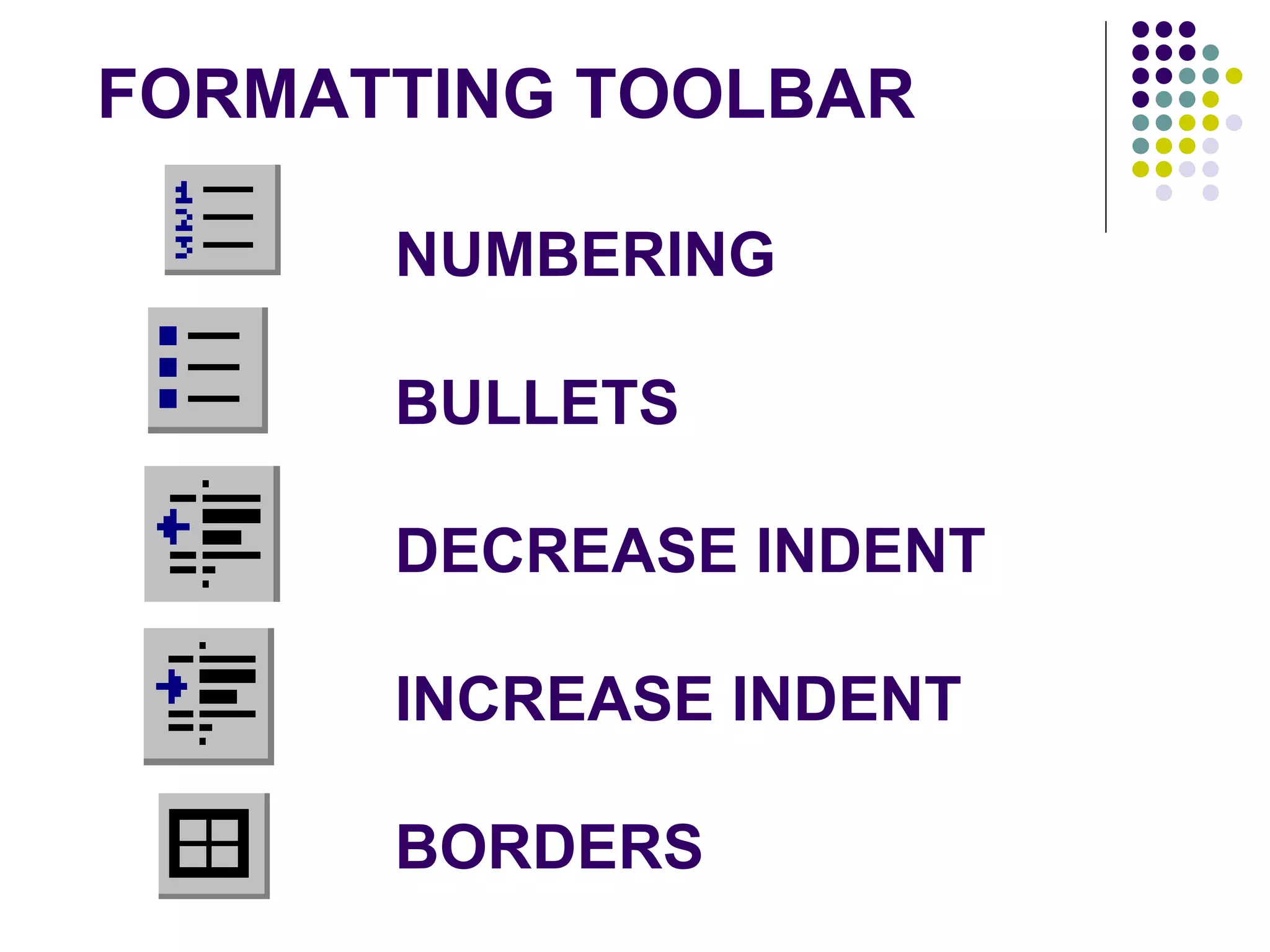
FORMATTING TOOLBAR NUMBERING BULLETS DECREASE INDENT INCREASE INDENT BORDERS
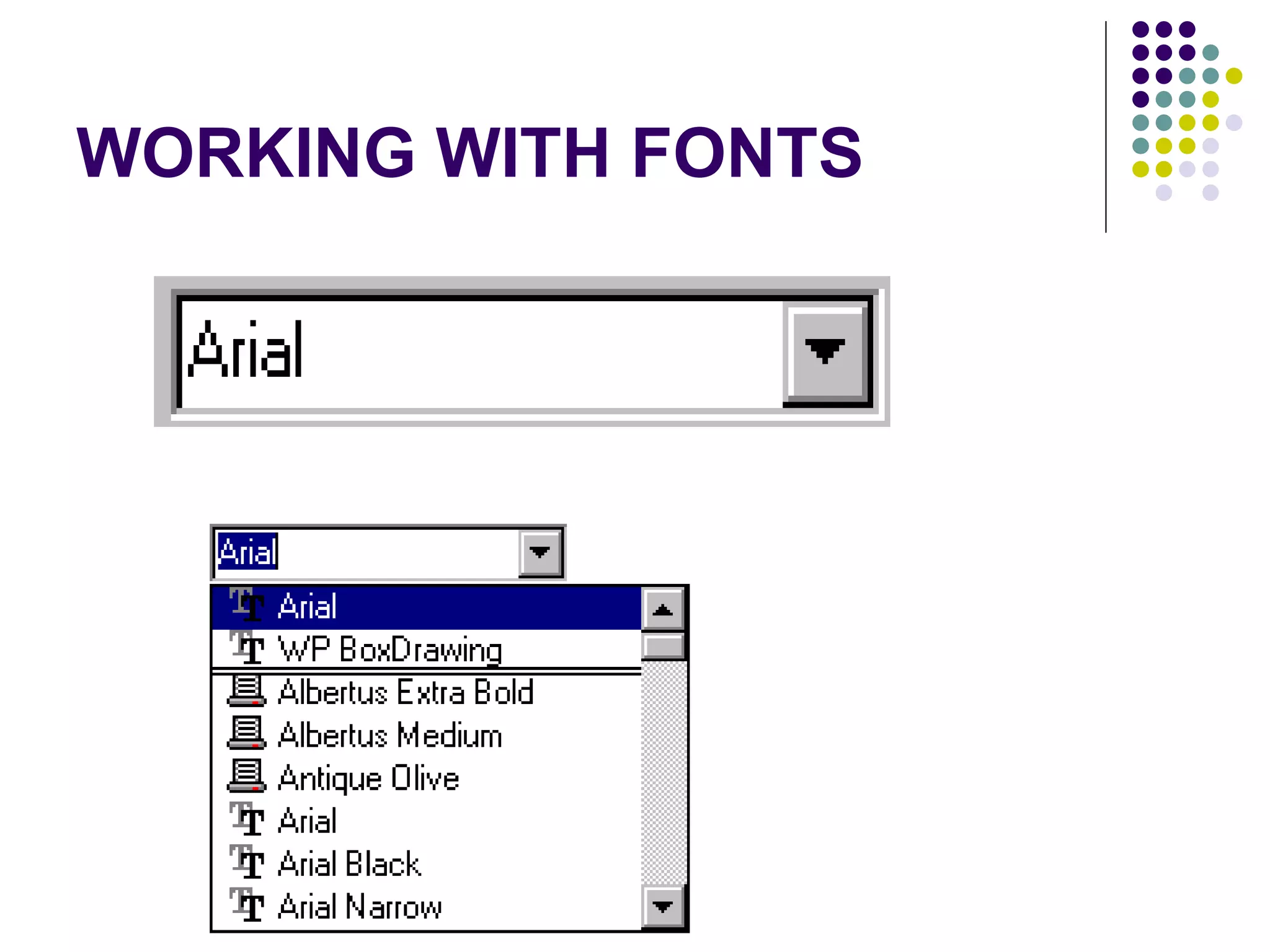
WORKING WITH FONTS
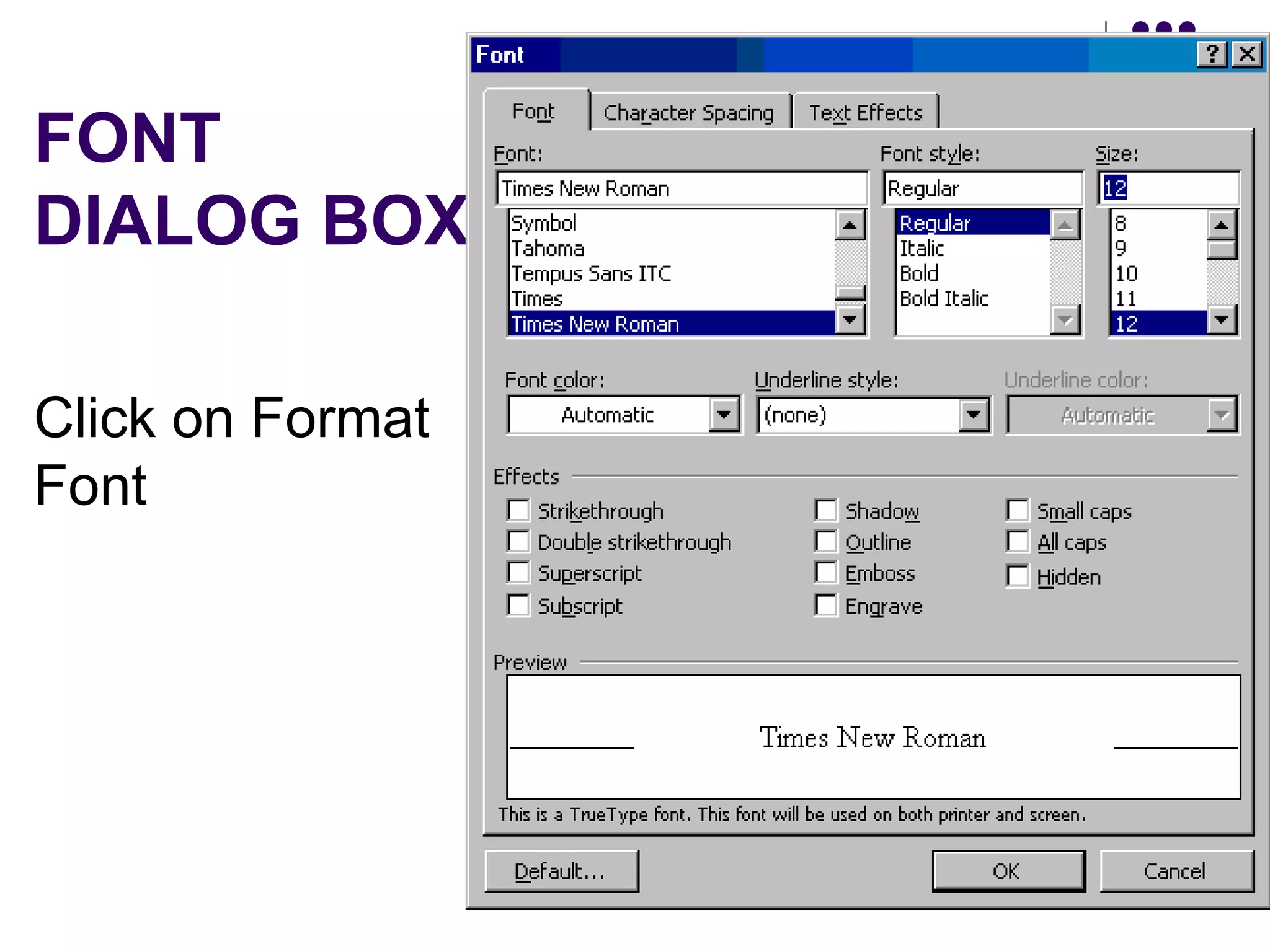
FONT  DIALOG BOX Click on Format Font
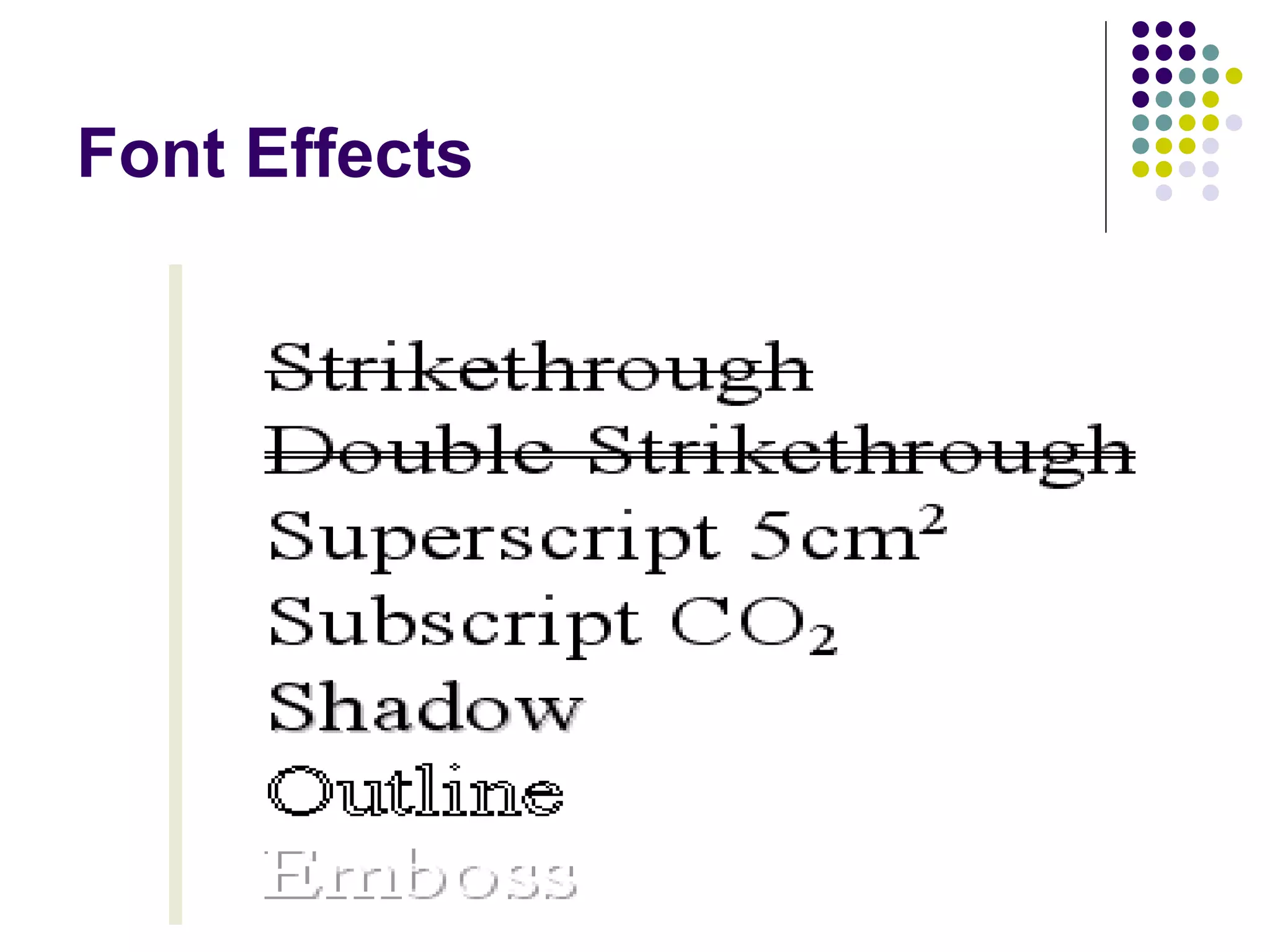
Font Effects
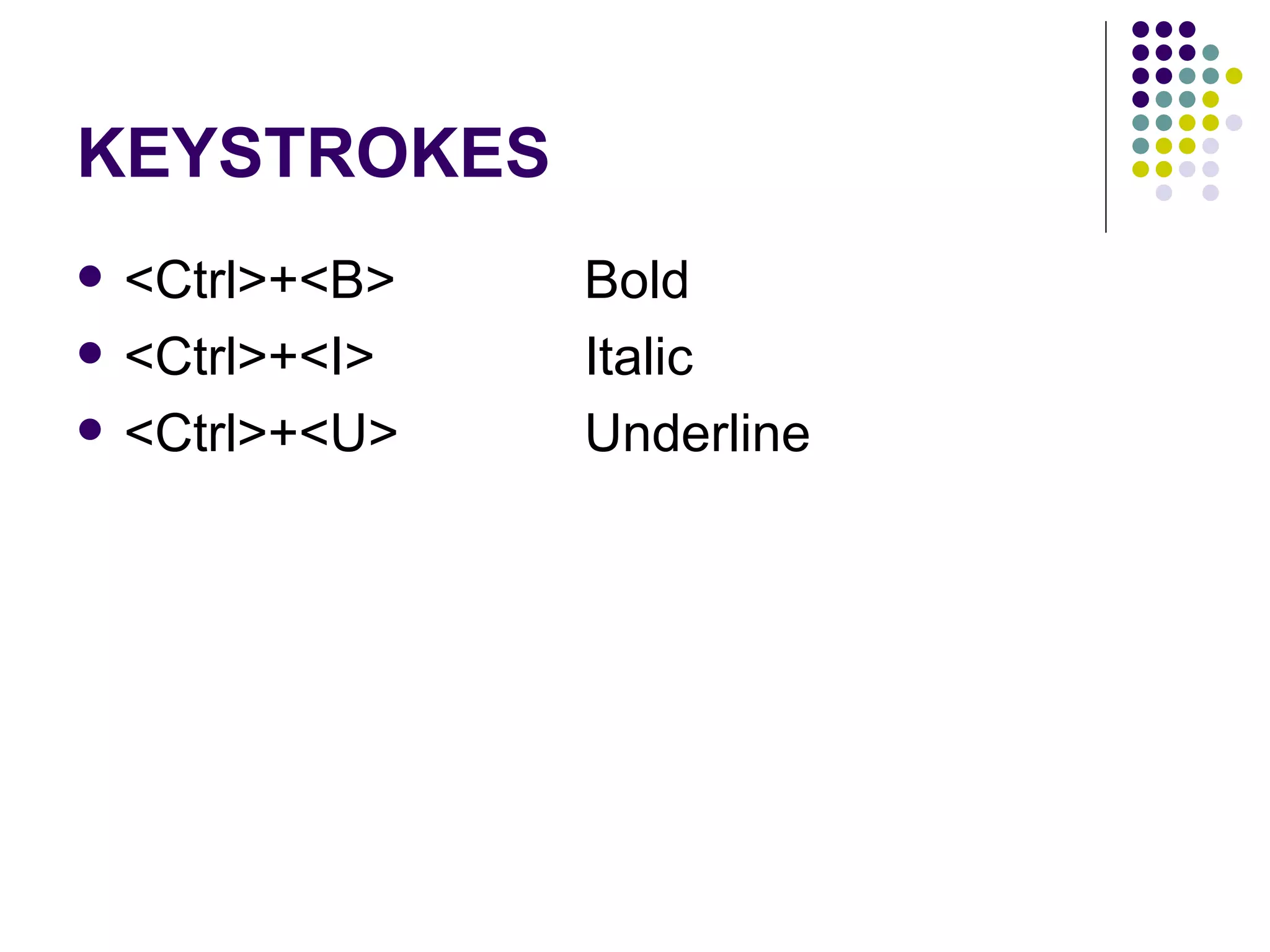
KEYSTROKES <Ctrl>+<B>  Bold  <Ctrl>+<I>  Italic  <Ctrl>+<U>  Underline
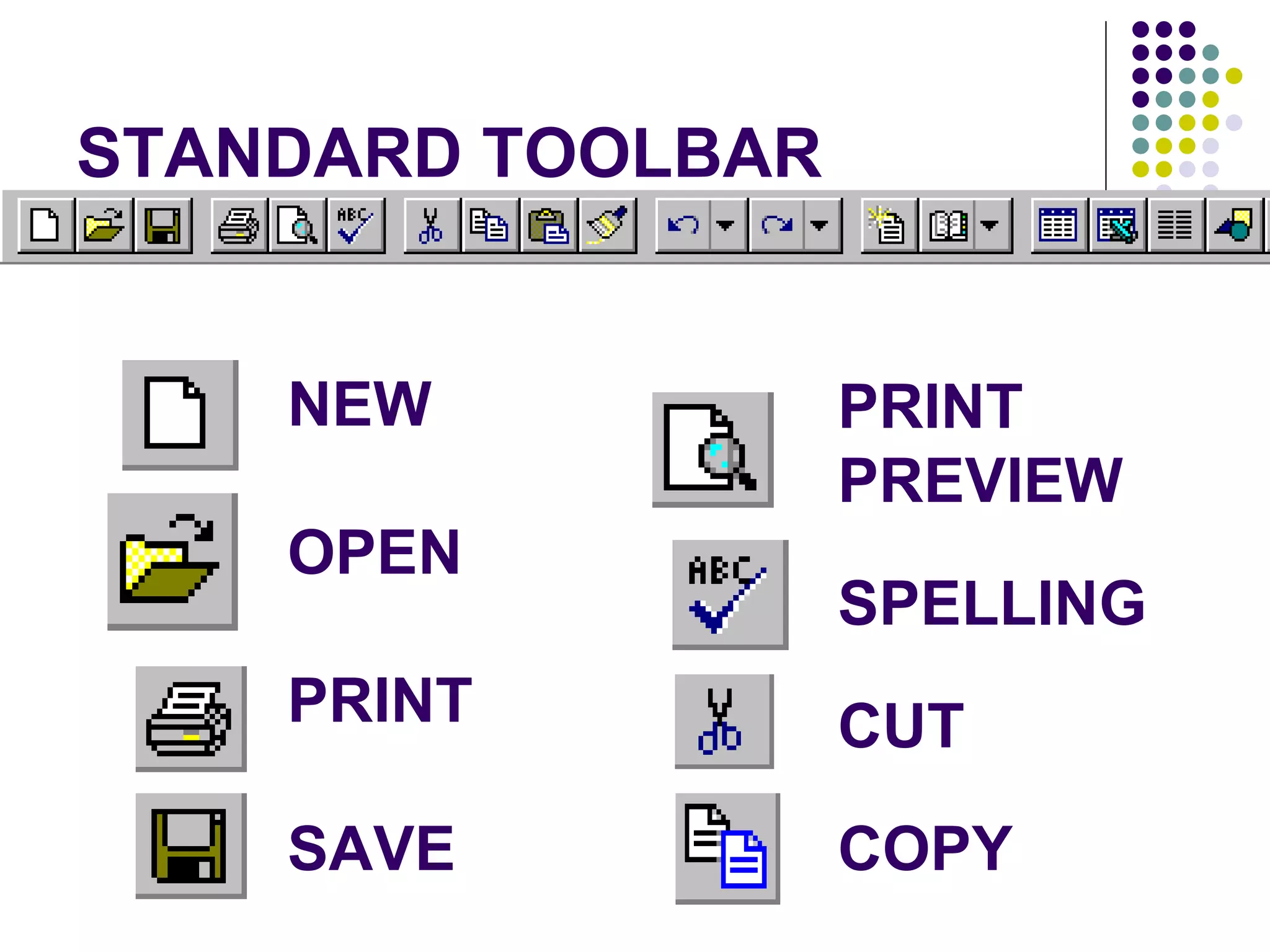
STANDARD TOOLBAR NEW OPEN PRINT SAVE PRINT PREVIEW SPELLING CUT COPY
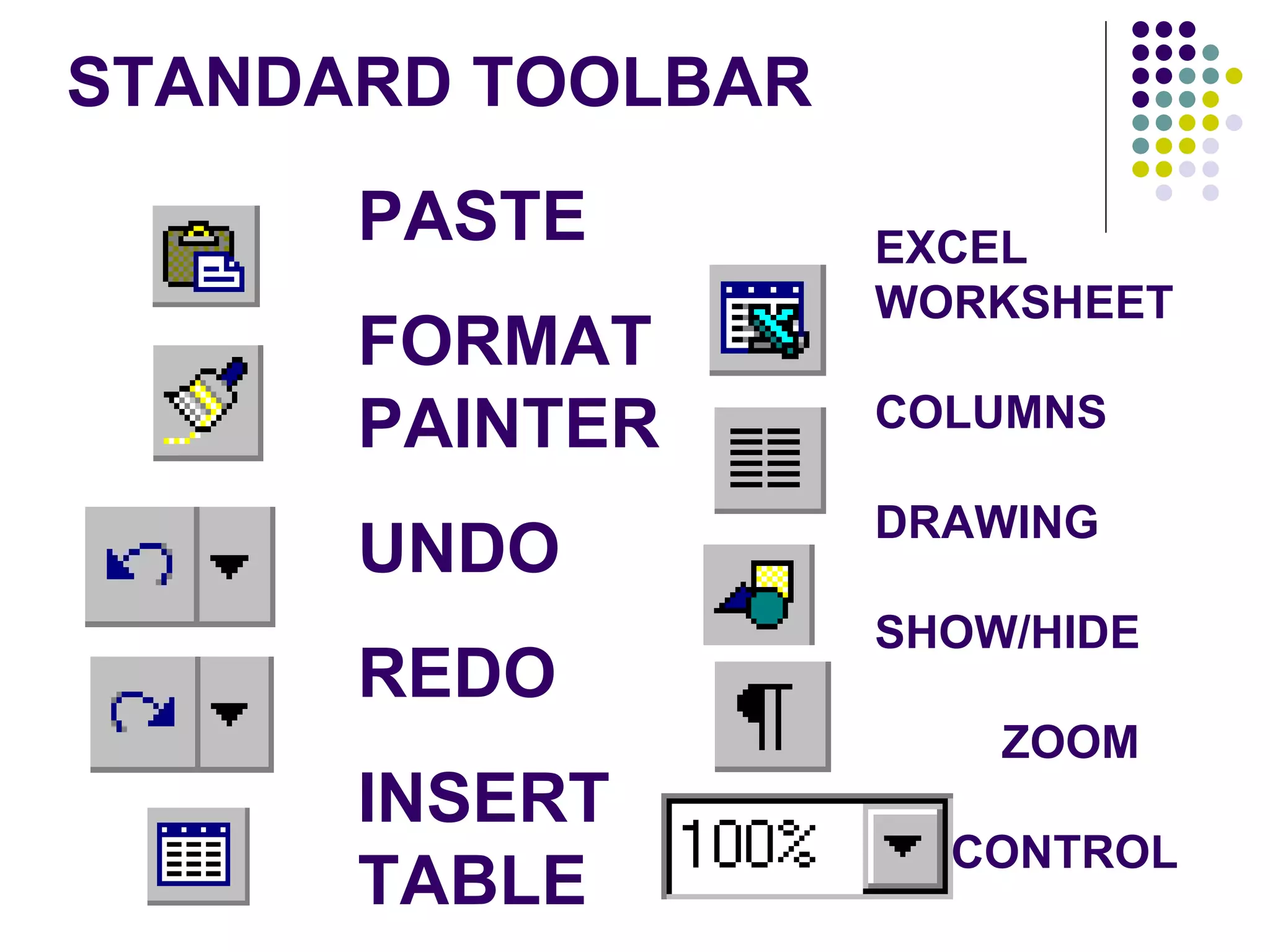
STANDARD TOOLBAR PASTE FORMAT PAINTER UNDO REDO INSERT TABLE EXCEL WORKSHEET COLUMNS DRAWING SHOW/HIDE ZOOM    CONTROL
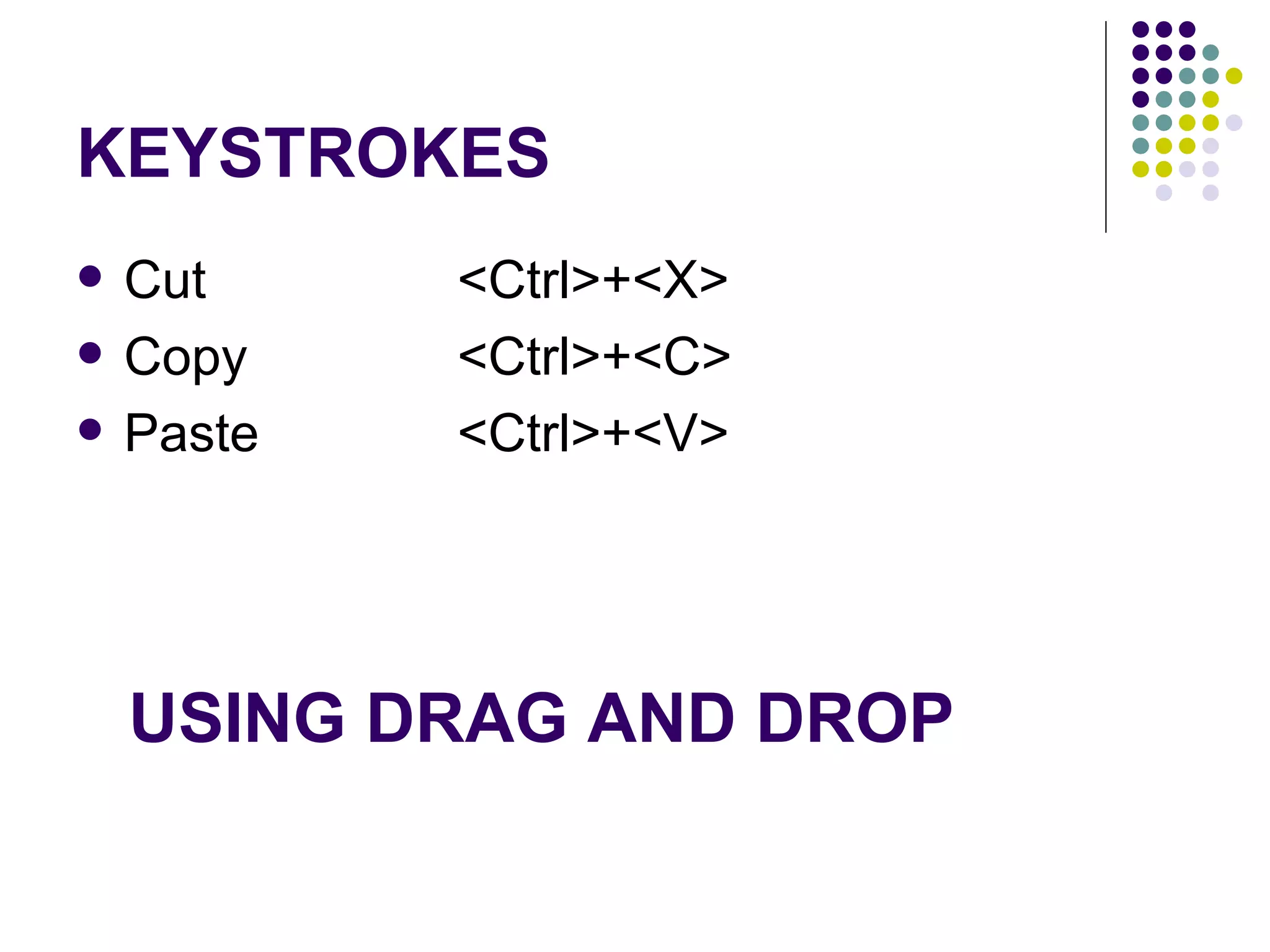
KEYSTROKES Cut  <Ctrl>+<X>  Copy  <Ctrl>+<C>  Paste  <Ctrl>+<V>  USING DRAG AND DROP
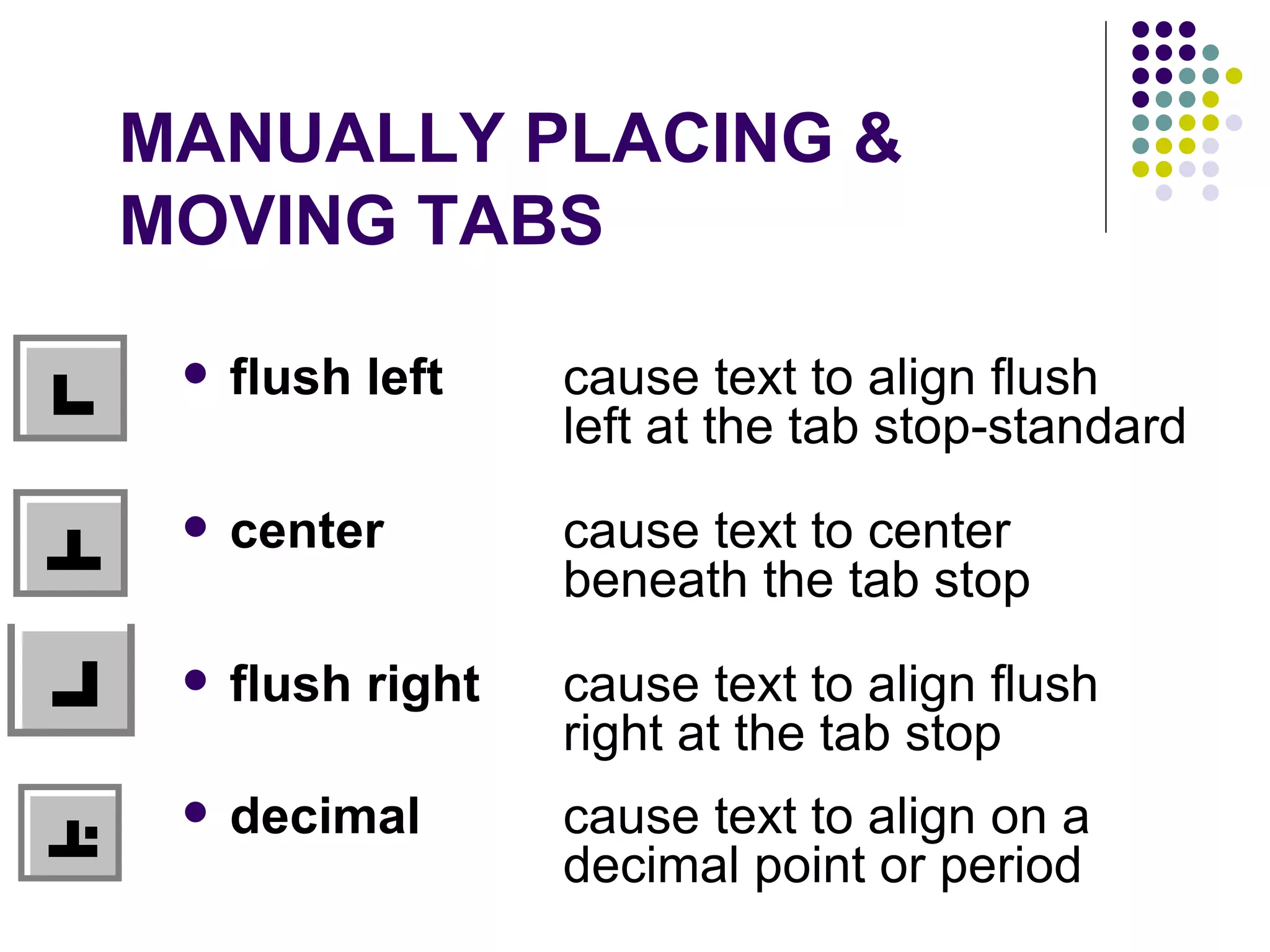
MANUALLY PLACING &  MOVING TABS flush left   cause text to align flush  left at the tab stop-standard center   cause text to center  beneath the tab stop  flush right   cause text to align flush  right at the tab stop  decimal   cause text to align on a  decimal point or period
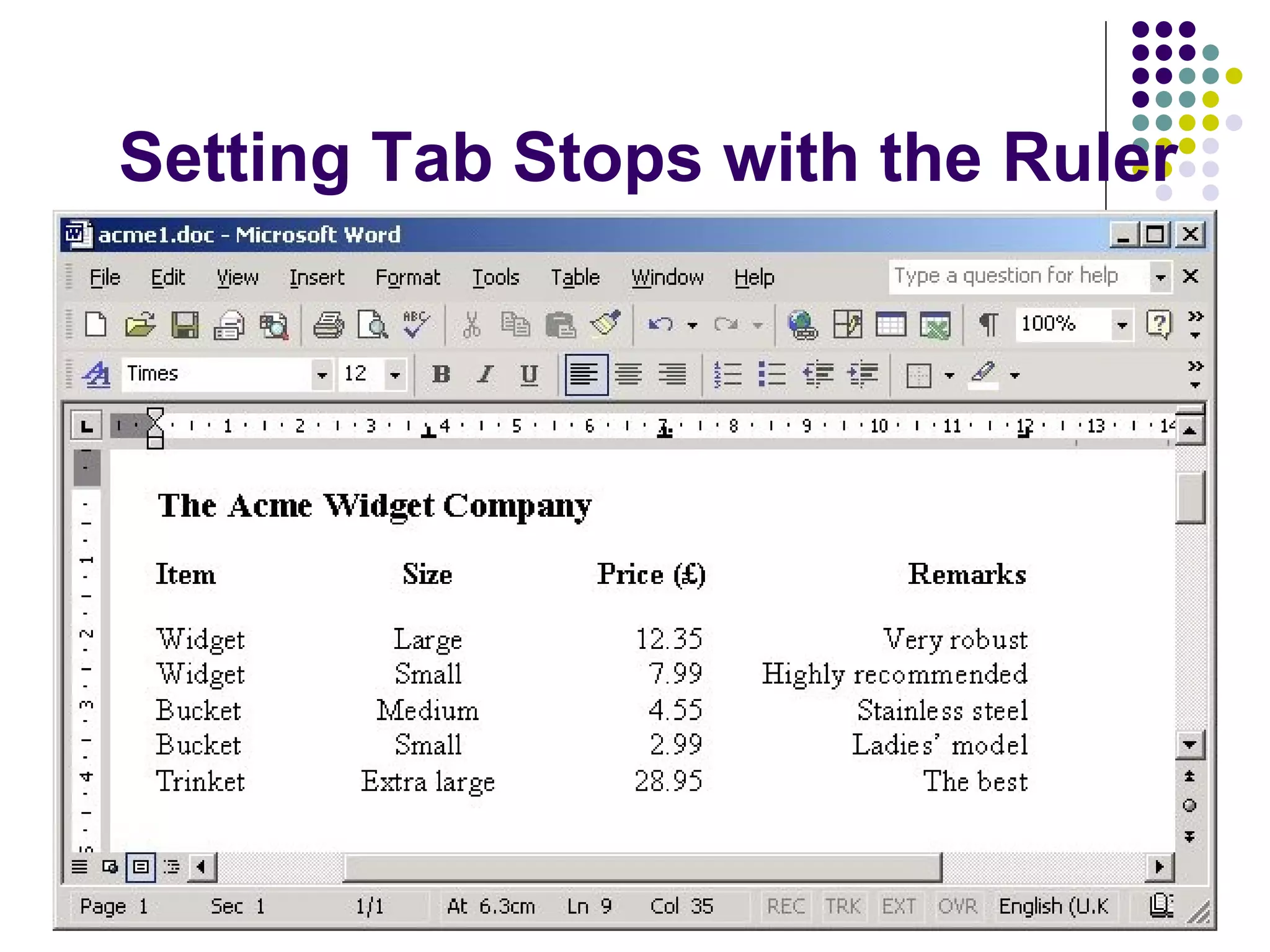
Setting Tab Stops with the Ruler
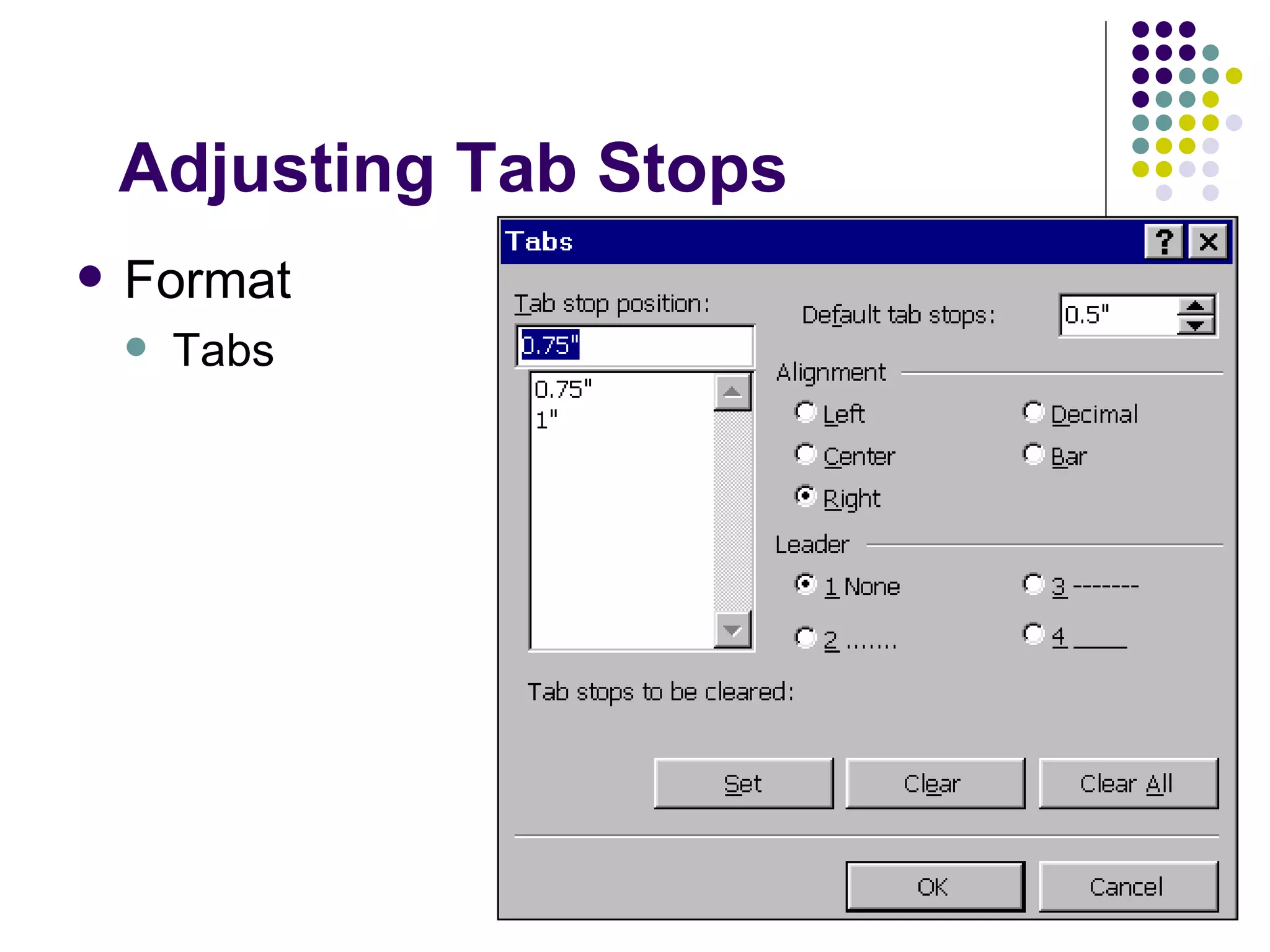
Adjusting Tab Stops Format Tabs
MORE EDITING OPTIONS
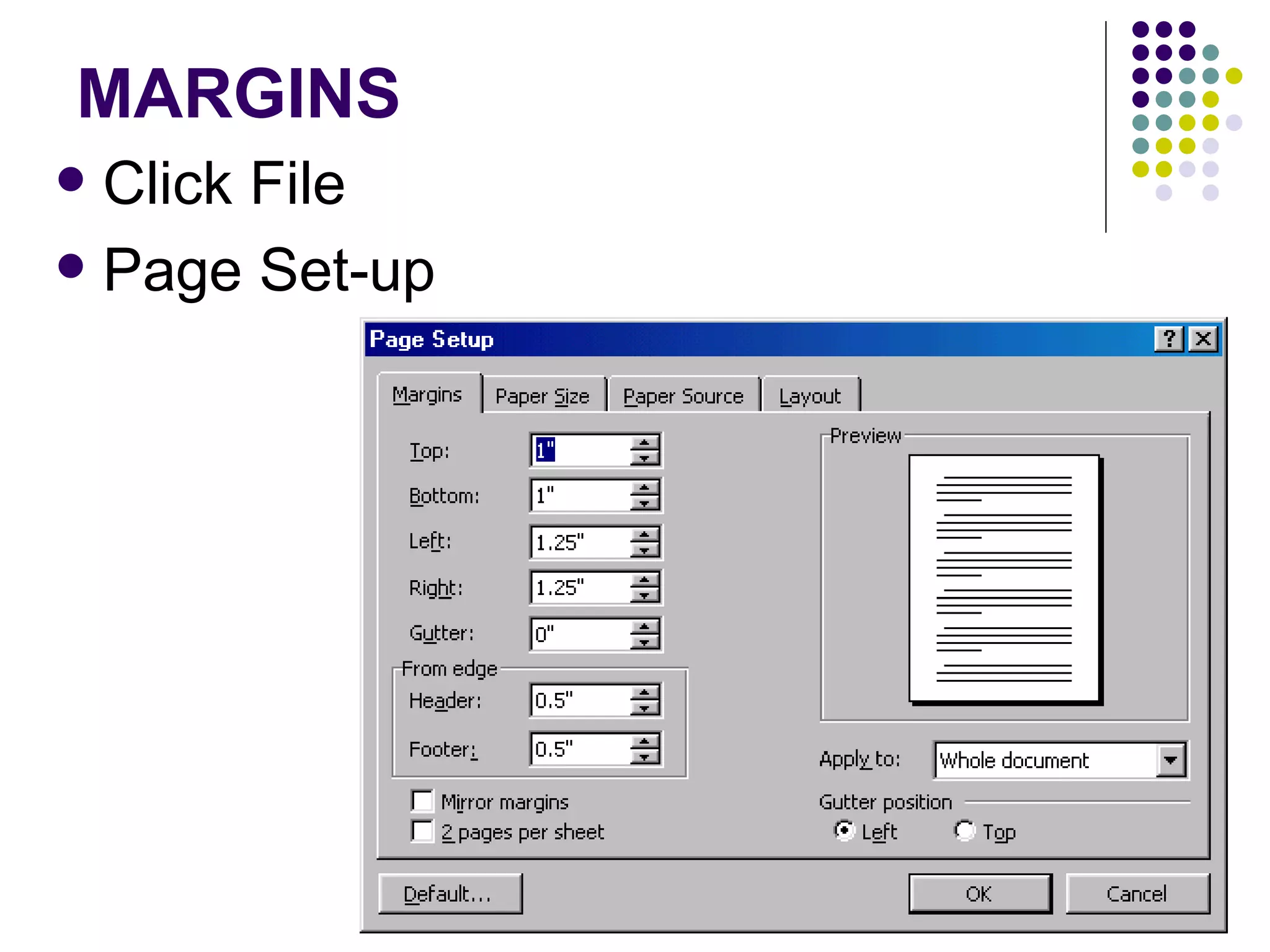
MARGINS Click File Page Set-up
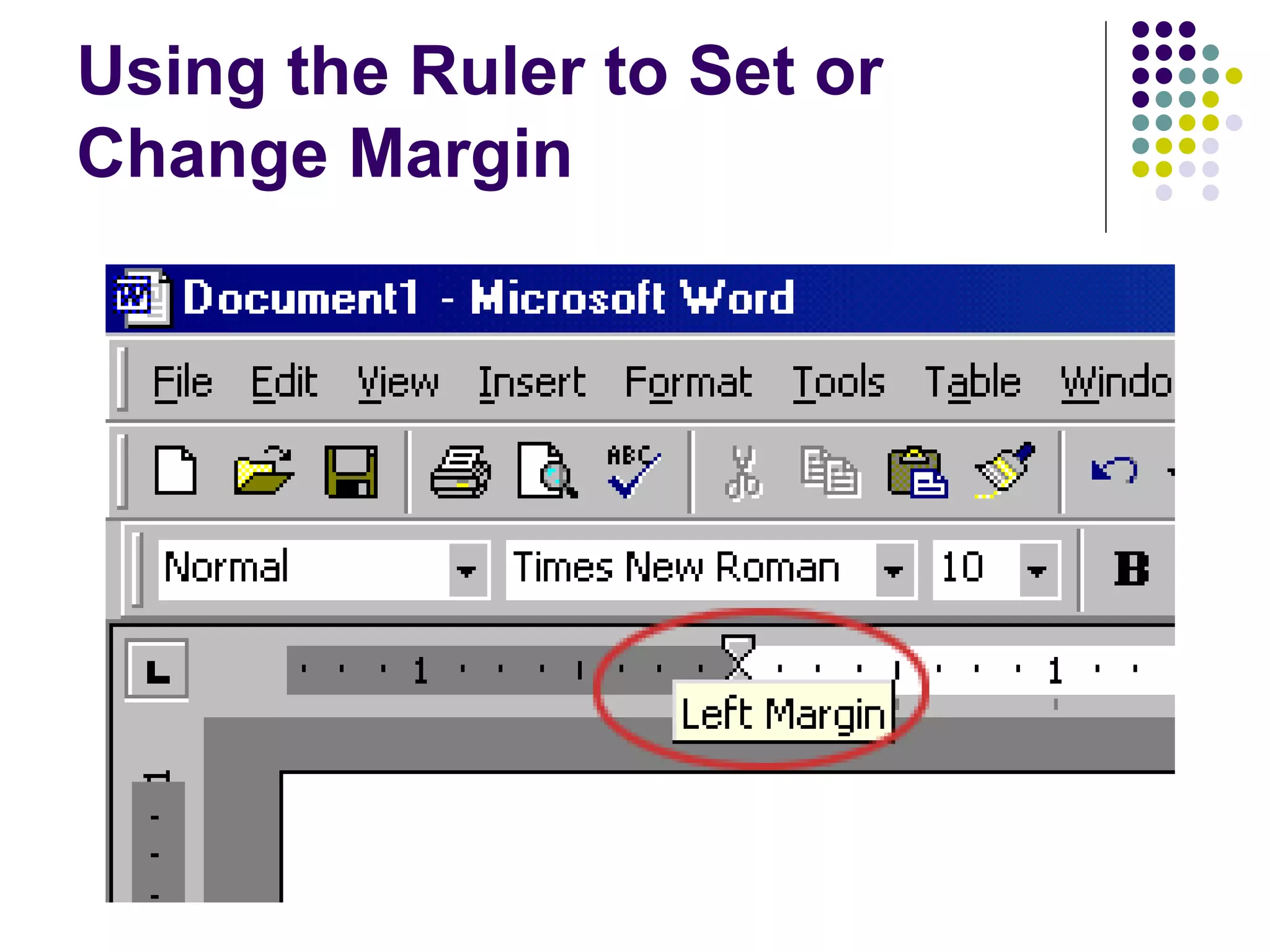
Using the Ruler to Set or Change Margin
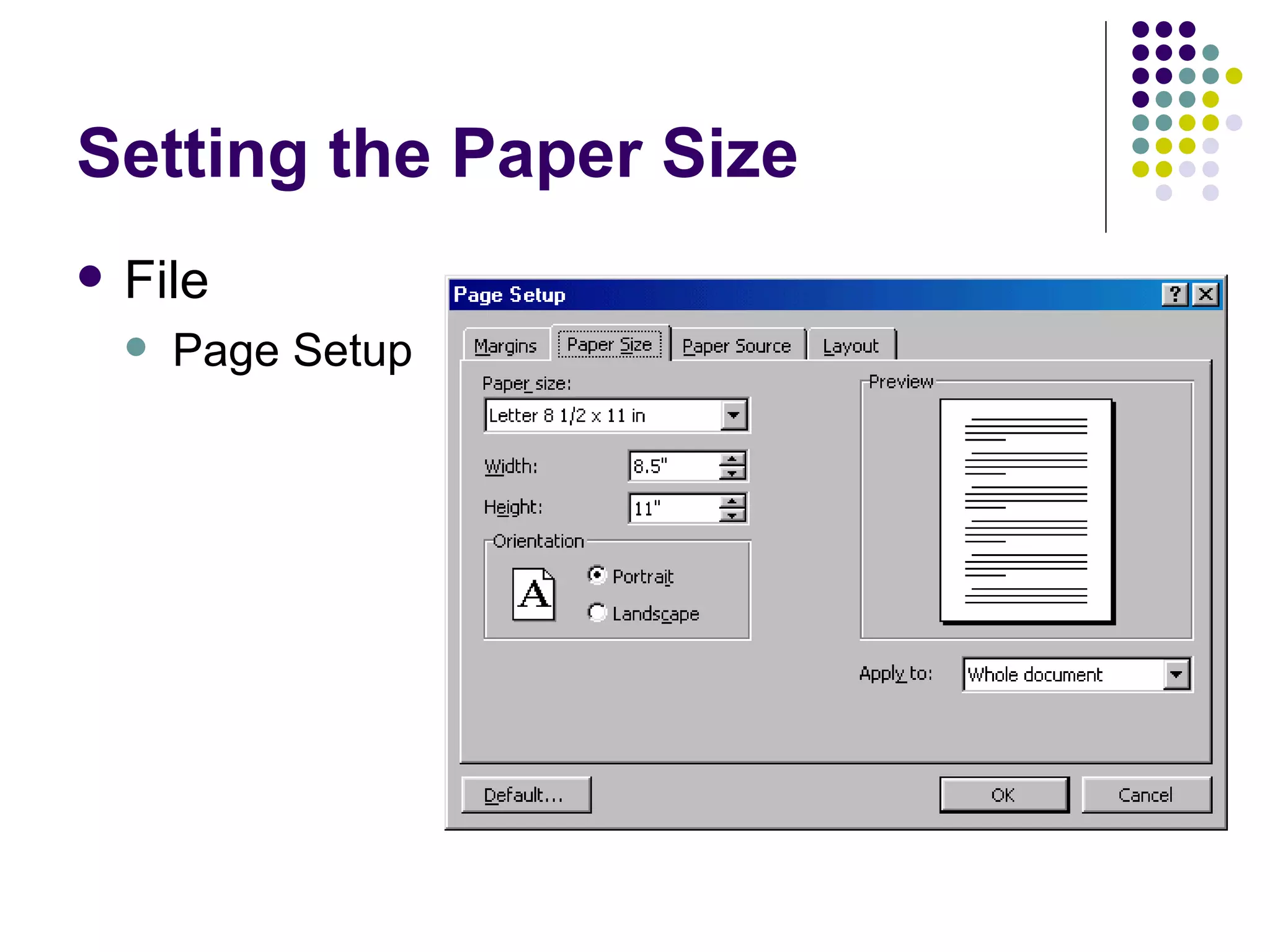
Setting the Paper Size File Page Setup
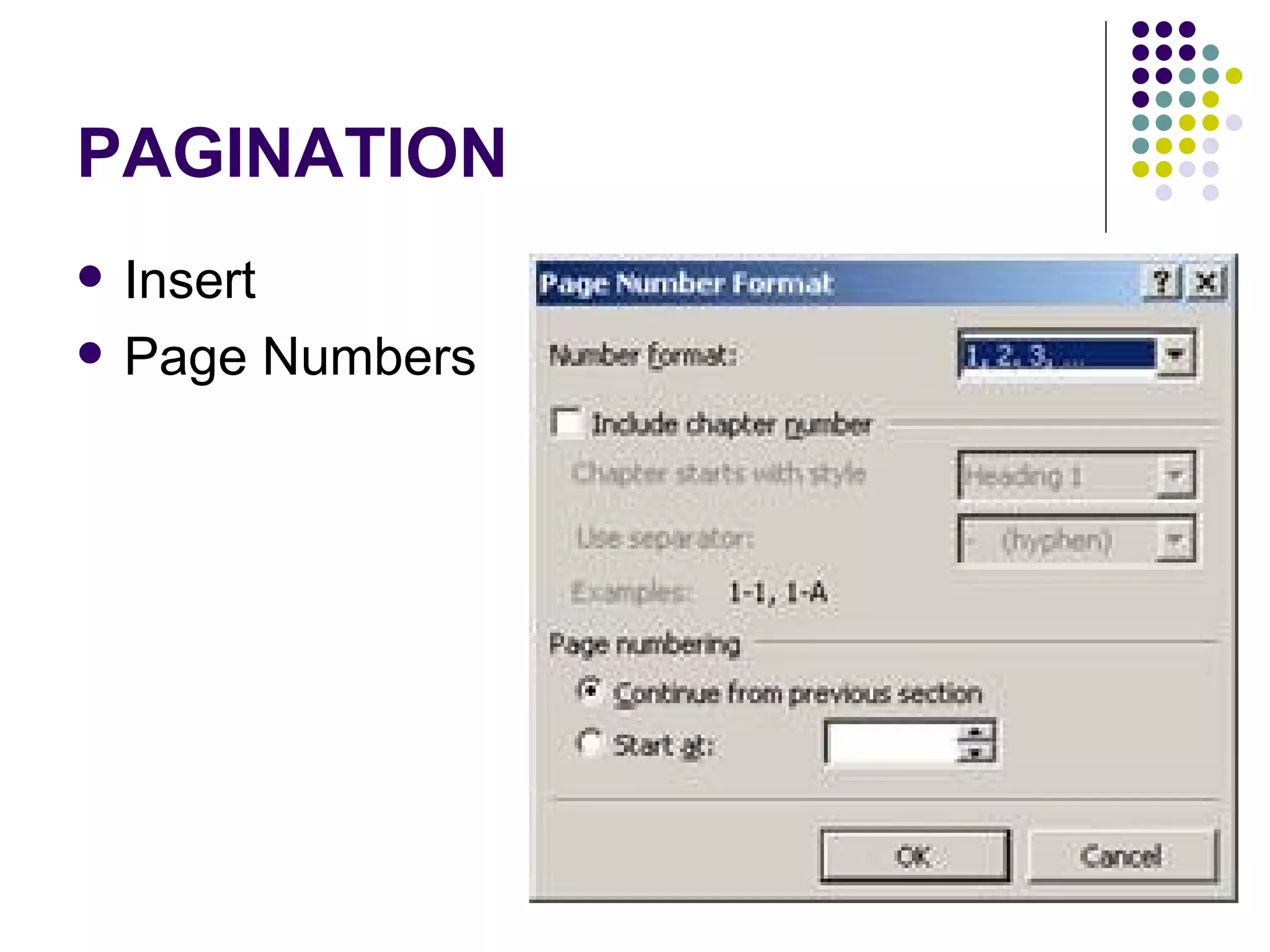
PAGINATION Insert Page Numbers
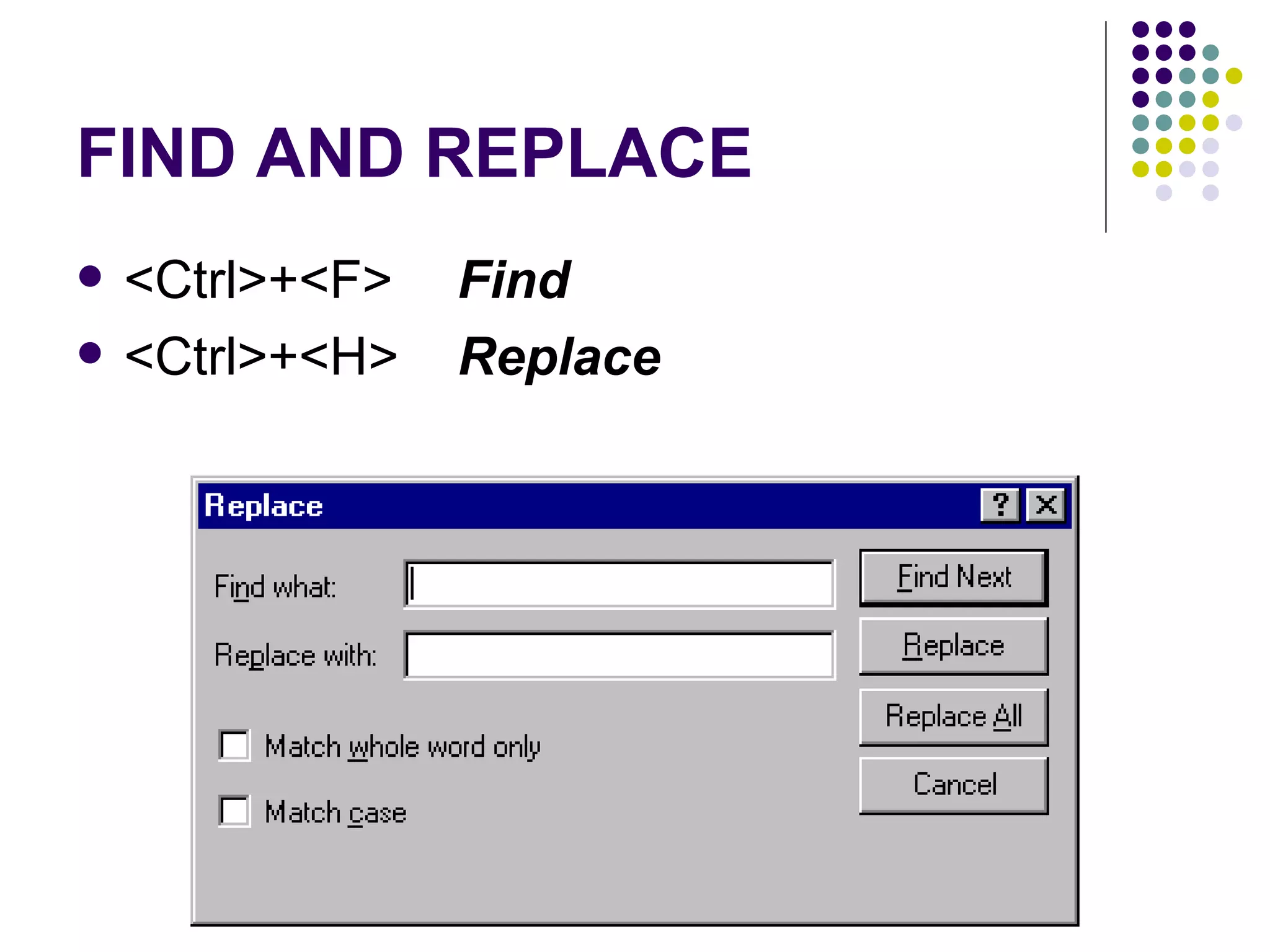
FIND AND REPLACE <Ctrl>+<F>  Find   <Ctrl>+<H>  Replace
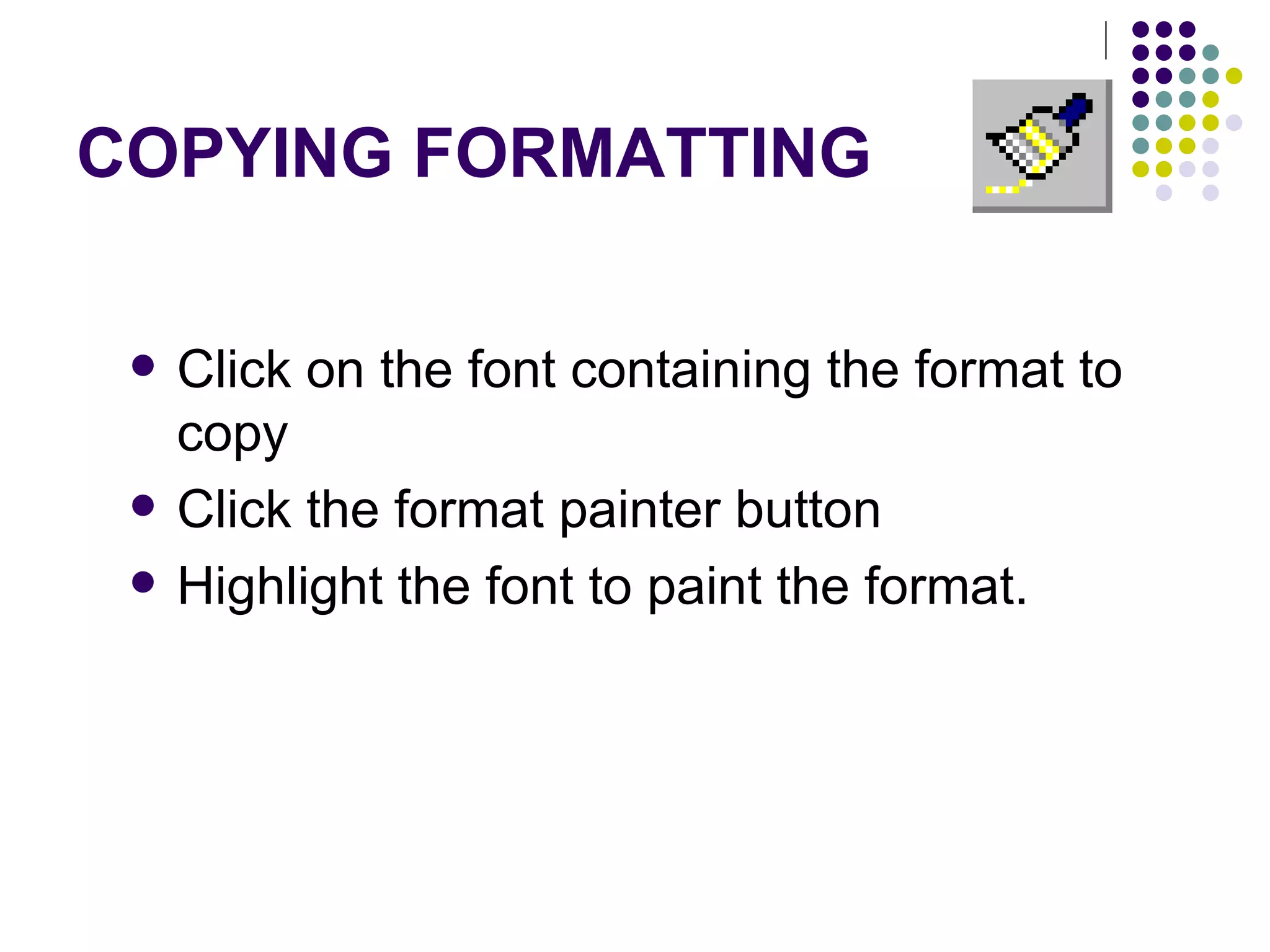
COPYING FORMATTING Click on the font containing the format to copy Click the format painter button Highlight the font to paint the format.
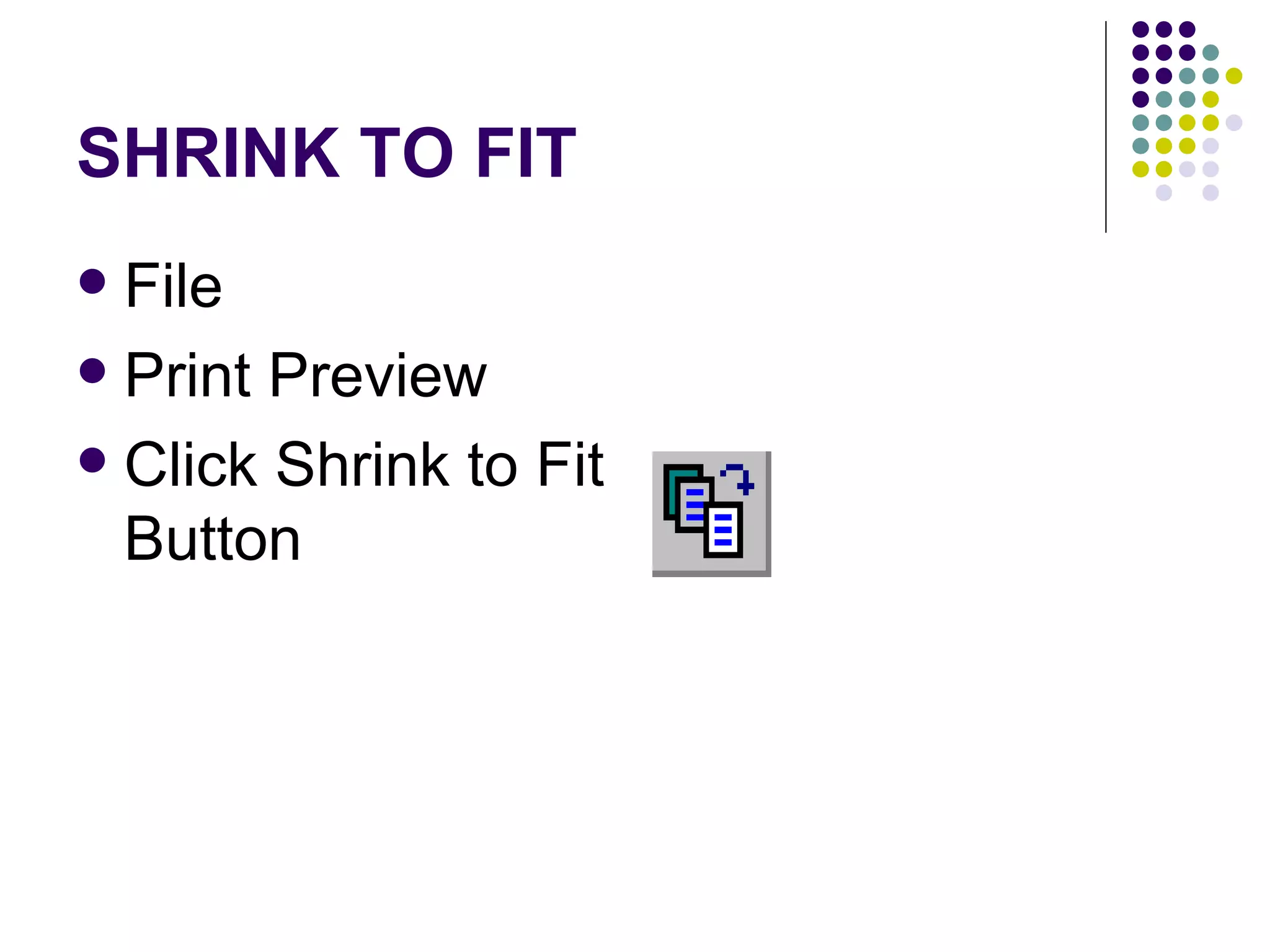
SHRINK TO FIT File Print Preview Click Shrink to Fit Button
OTHER DOCUMENT ENHANCEMENTS
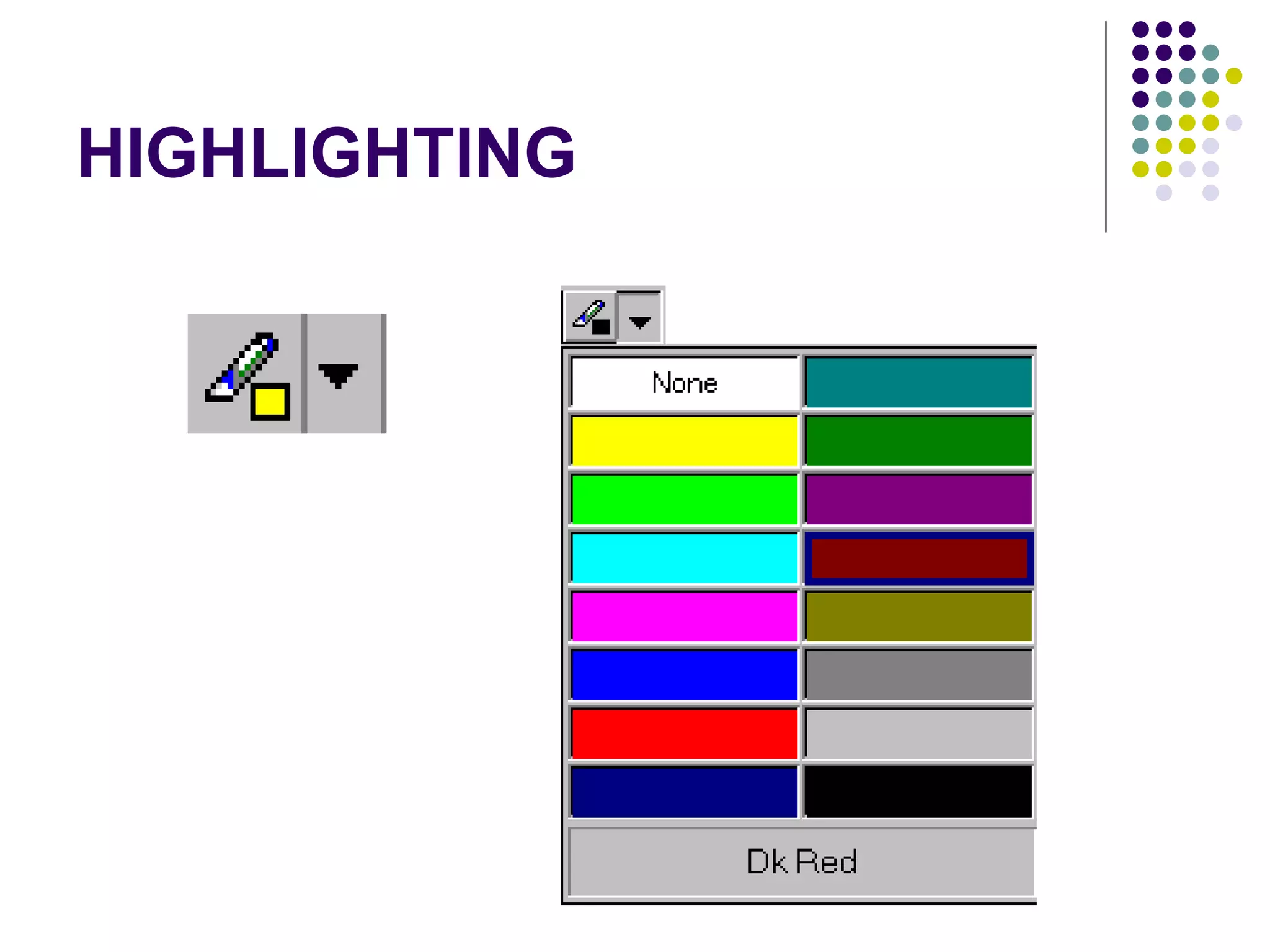
HIGHLIGHTING
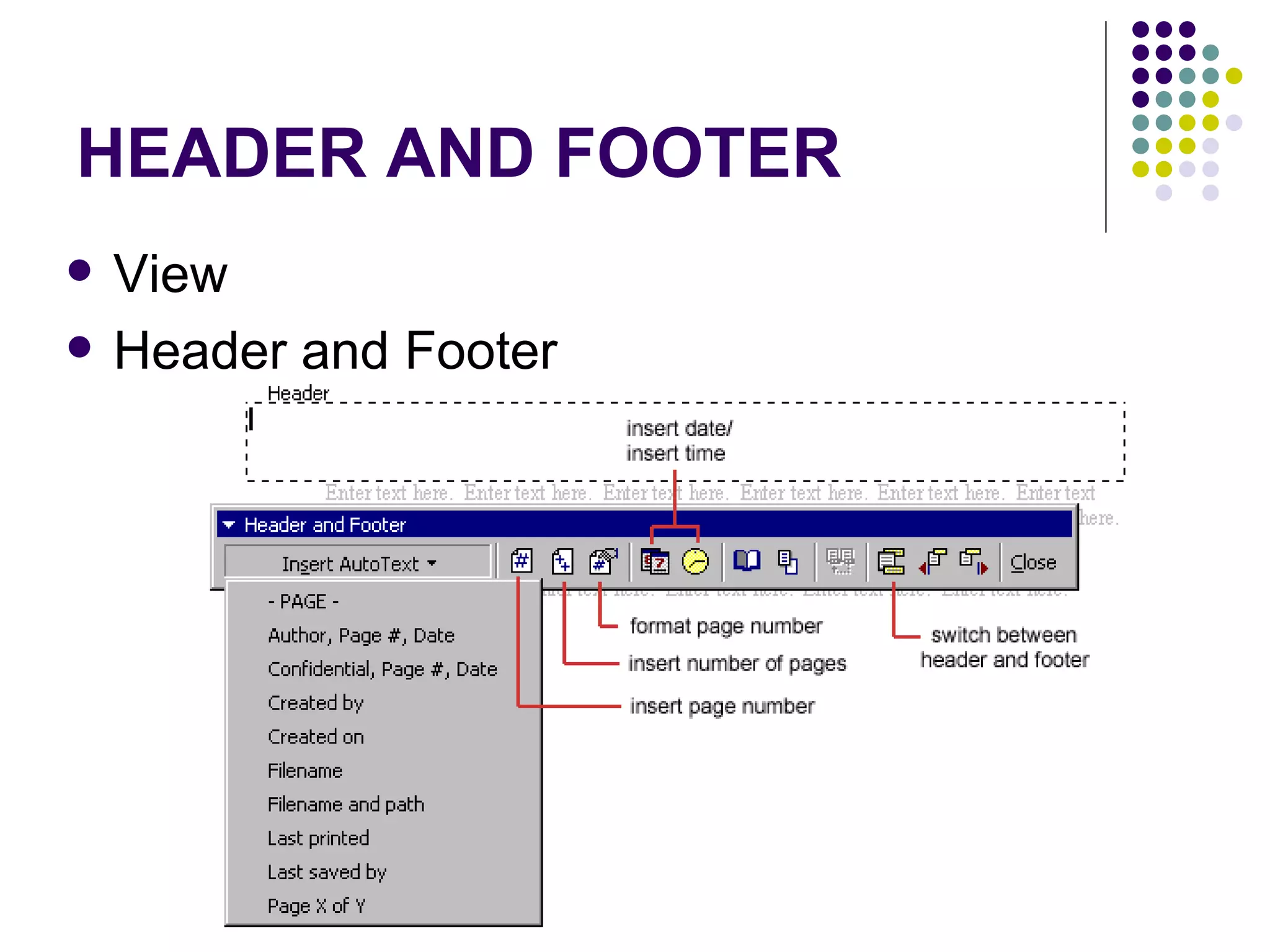
HEADER AND FOOTER View Header and Footer
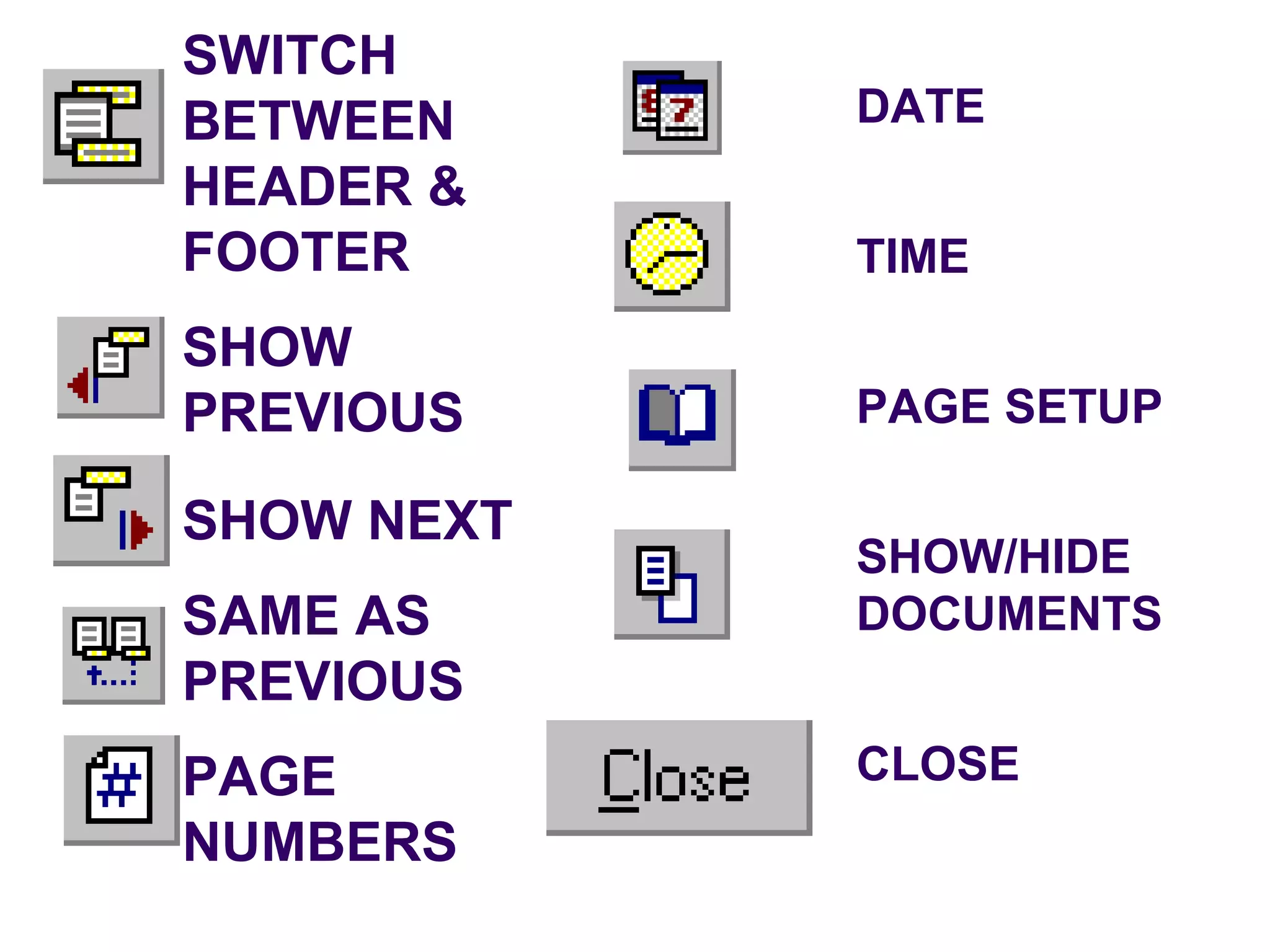
SWITCH BETWEEN HEADER & FOOTER SHOW PREVIOUS SHOW NEXT SAME AS PREVIOUS PAGE NUMBERS DATE TIME PAGE SETUP SHOW/HIDE DOCUMENTS CLOSE
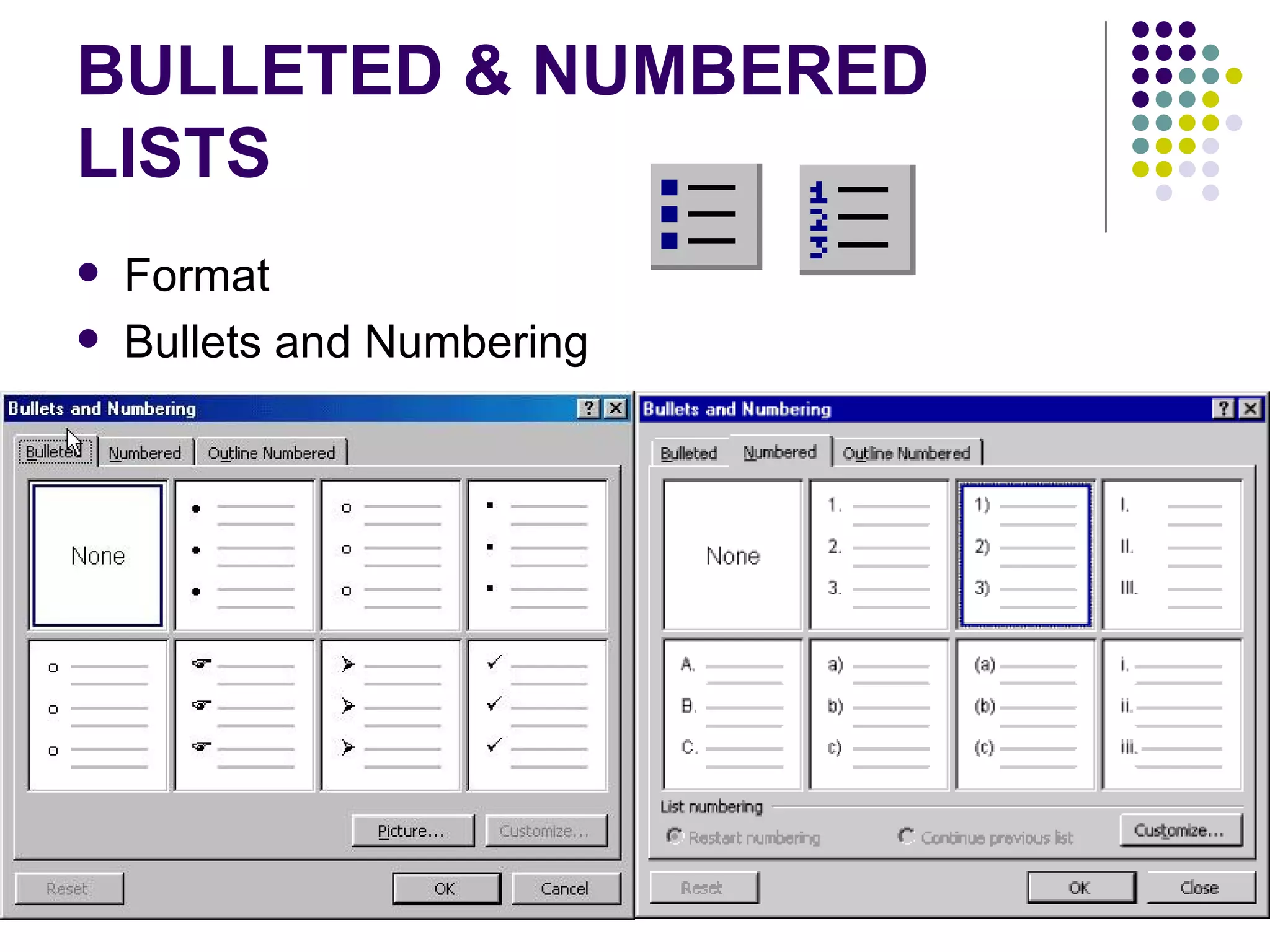
BULLETED & NUMBERED LISTS Format Bullets and Numbering
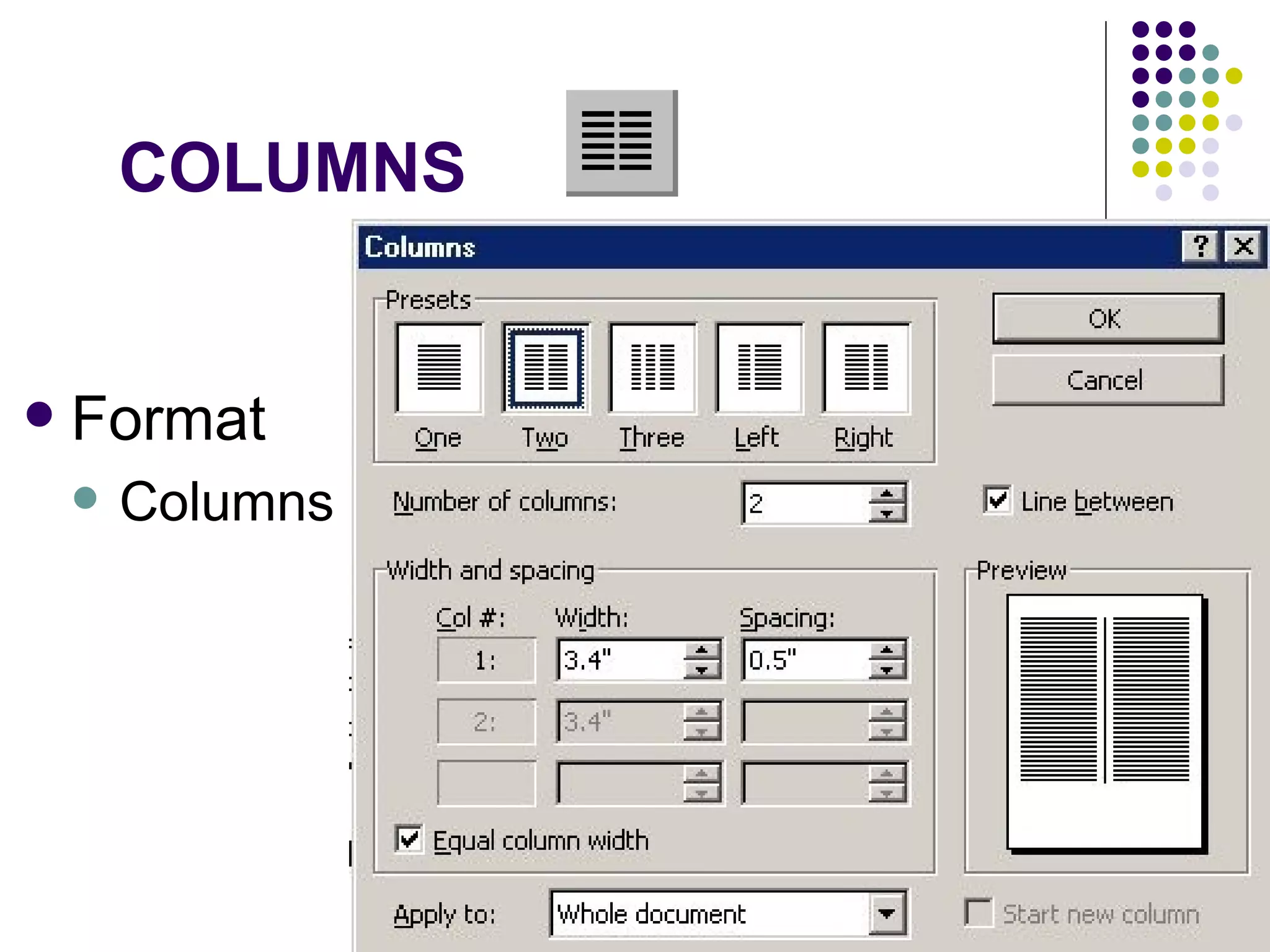
COLUMNS Format Columns
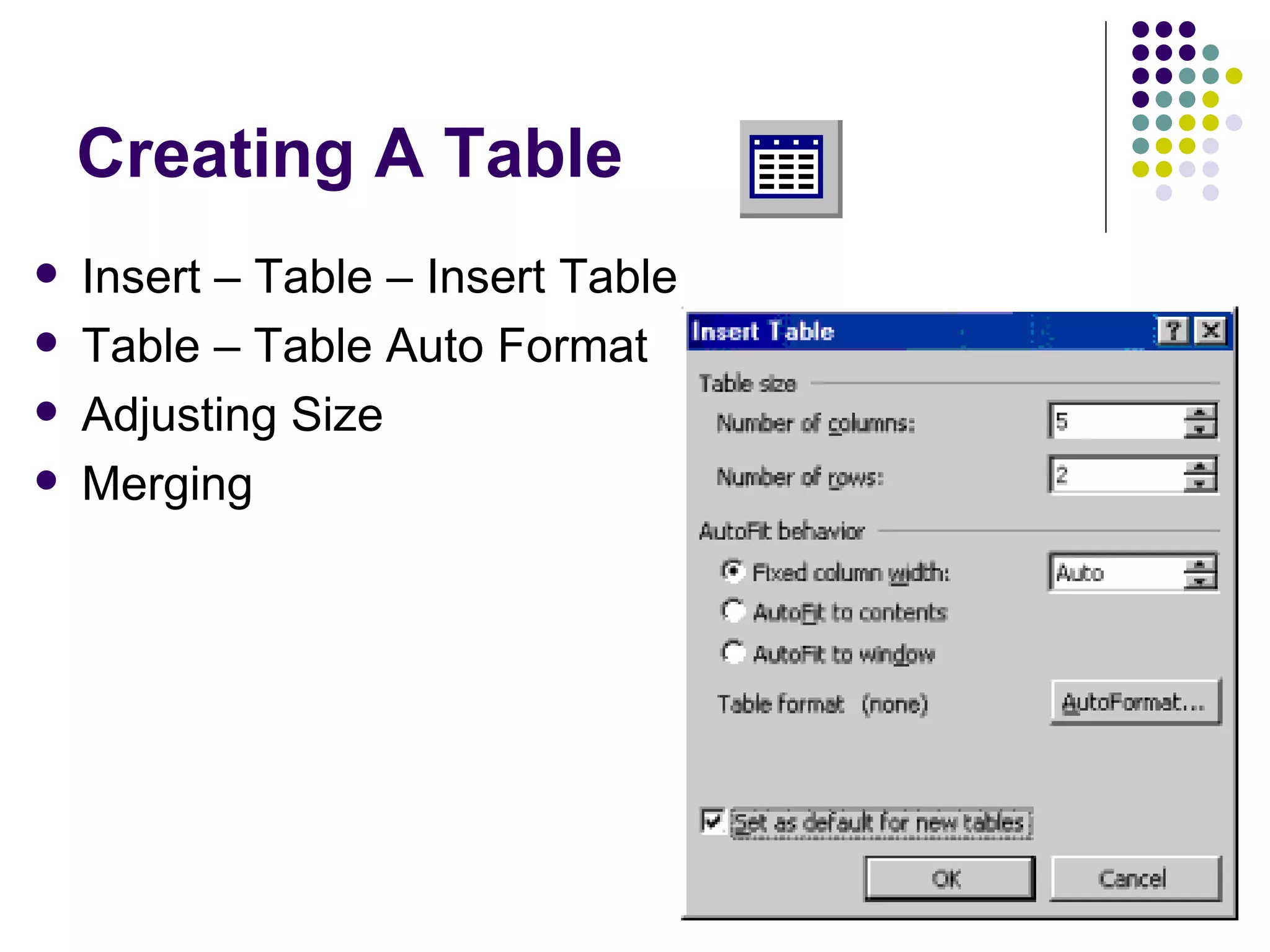
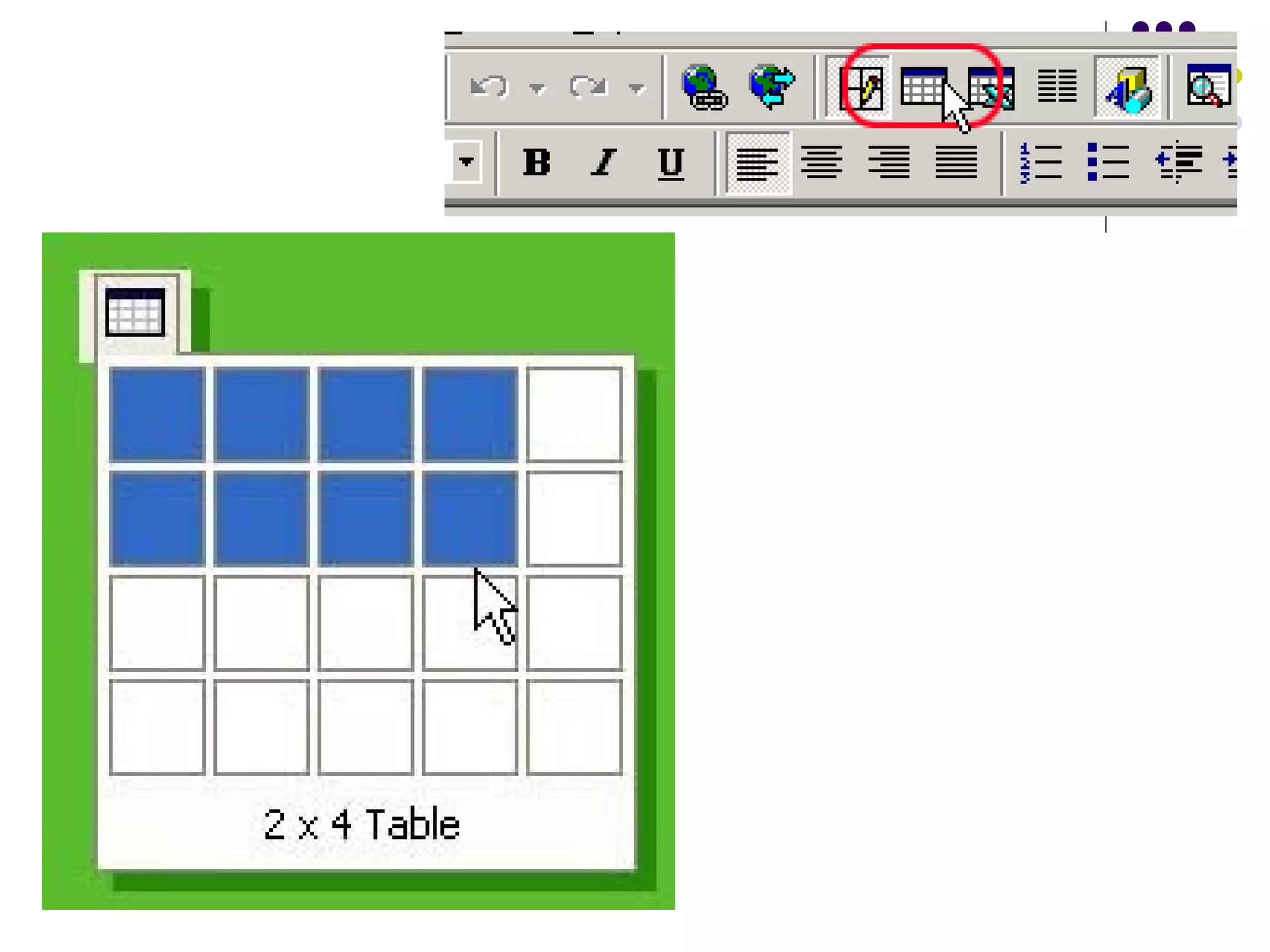
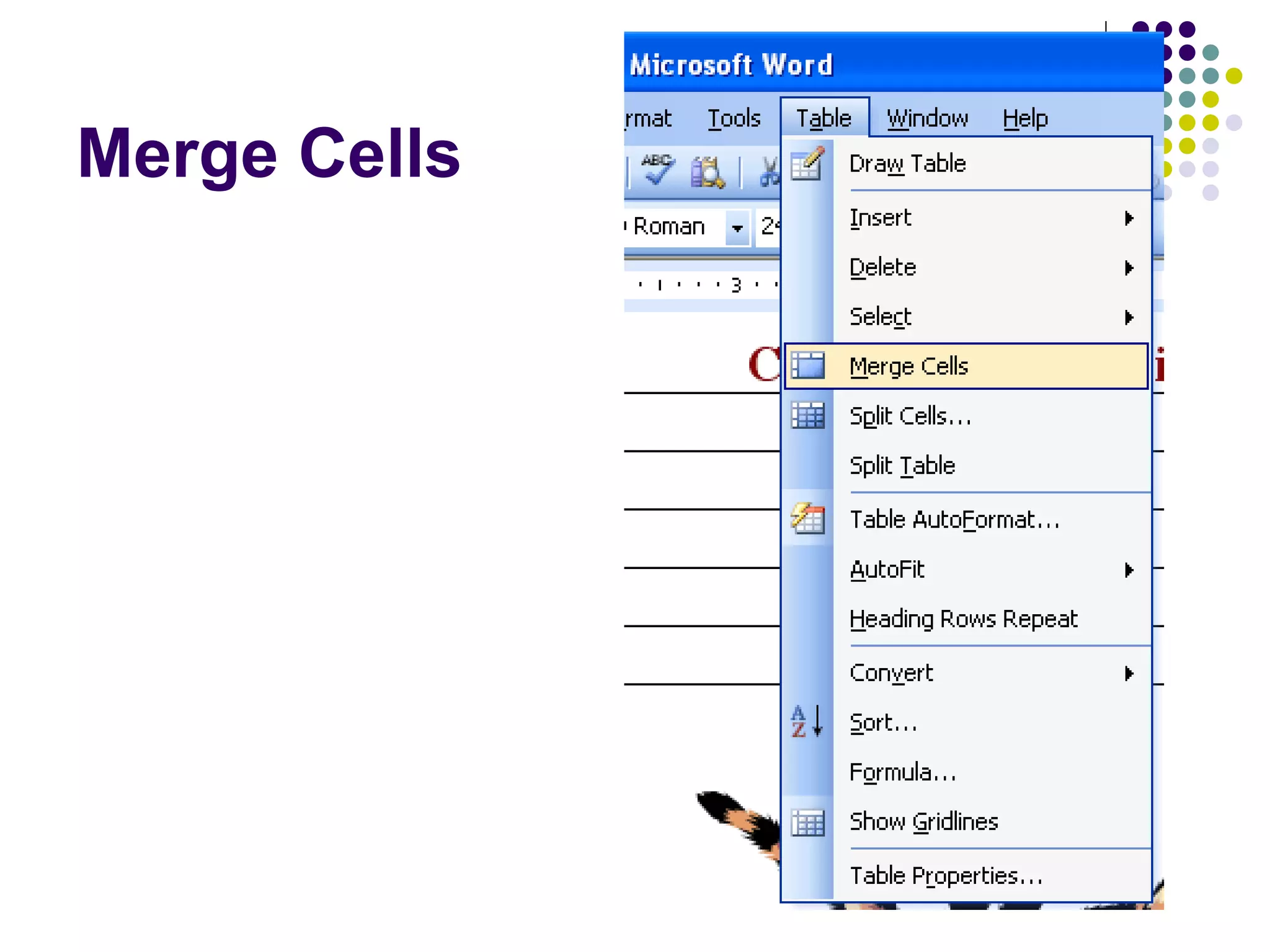
Creating A Table Insert – Table – Insert Table Table – Table Auto Format  Adjusting Size Merging
 
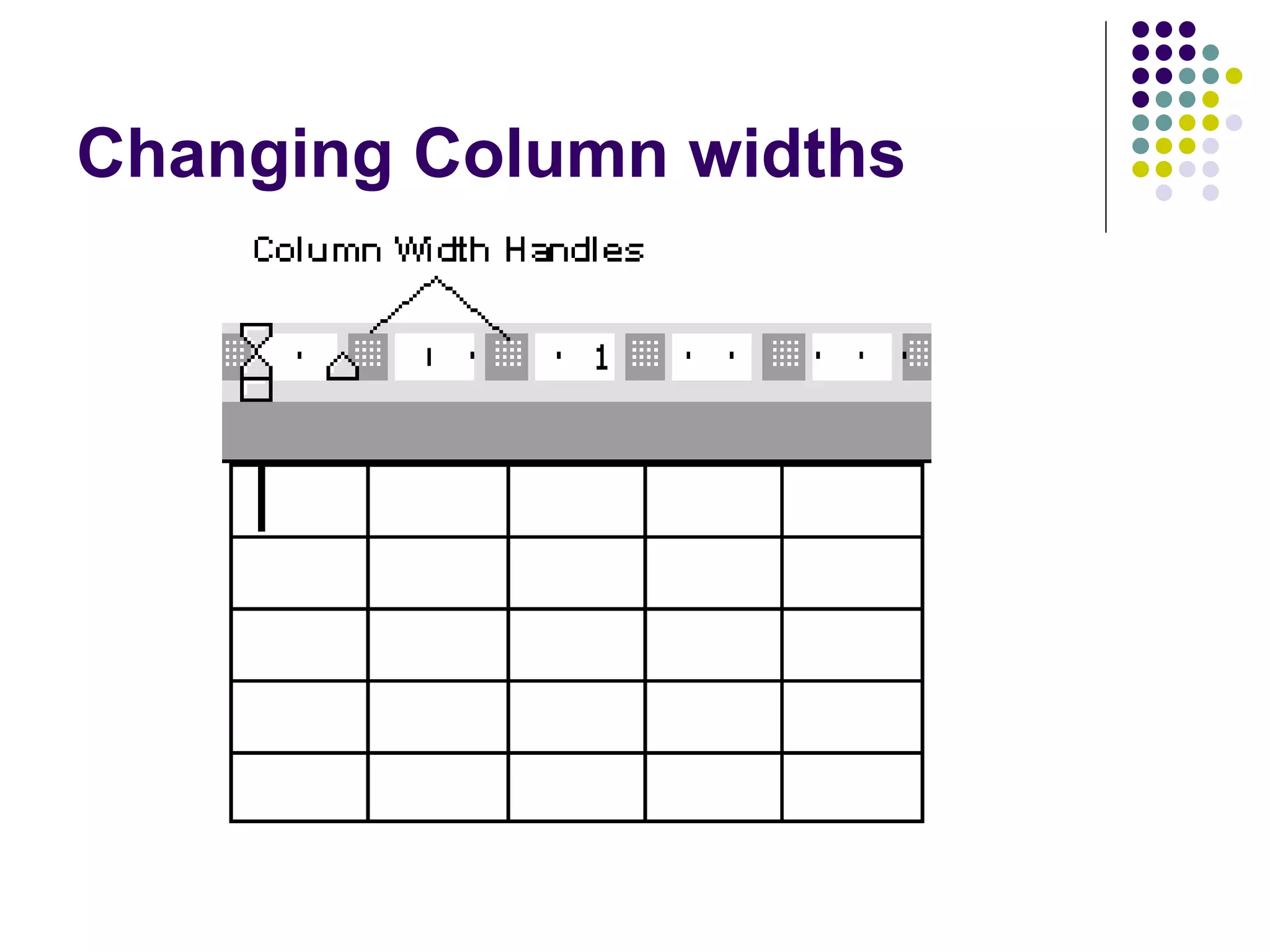
Changing Column widths
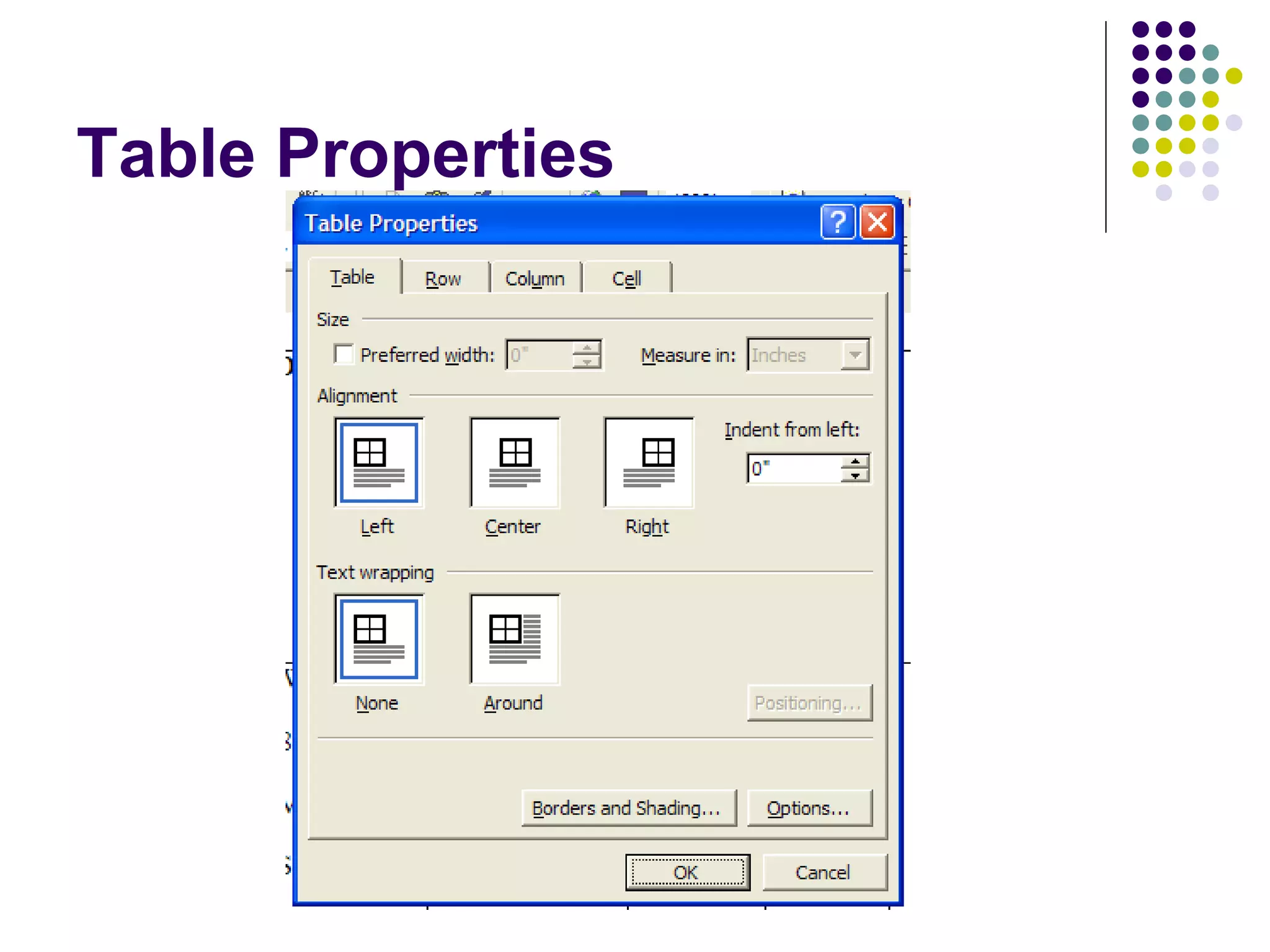
Table Properties
Merge Cells
Password Protecting a Document Tools Options Security Tab
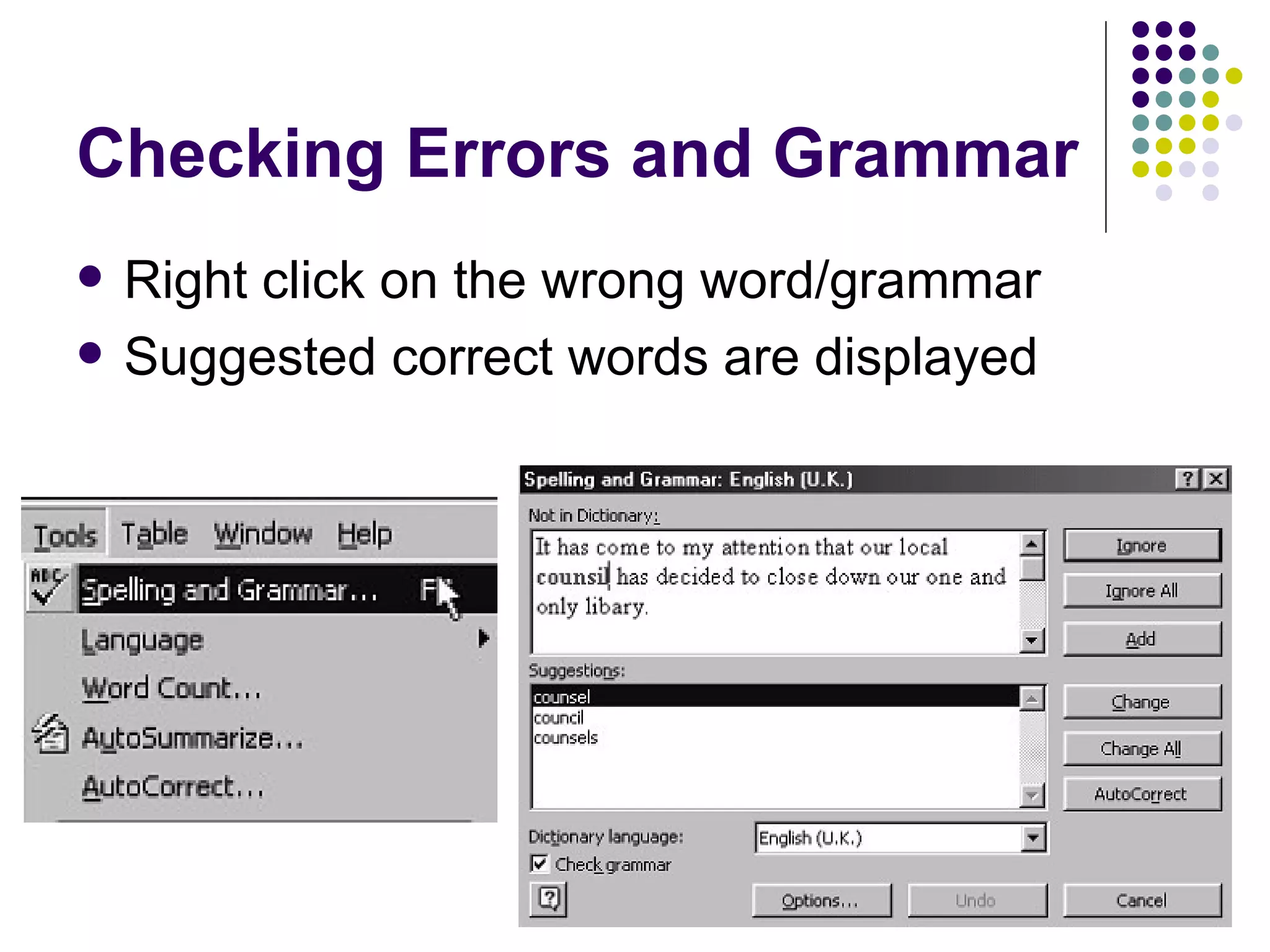
Checking Errors and Grammar Right click on the wrong word/grammar Suggested correct words are displayed
Thesaurus Dialog Box [Shift]+[F7] Tools  Thesaurus
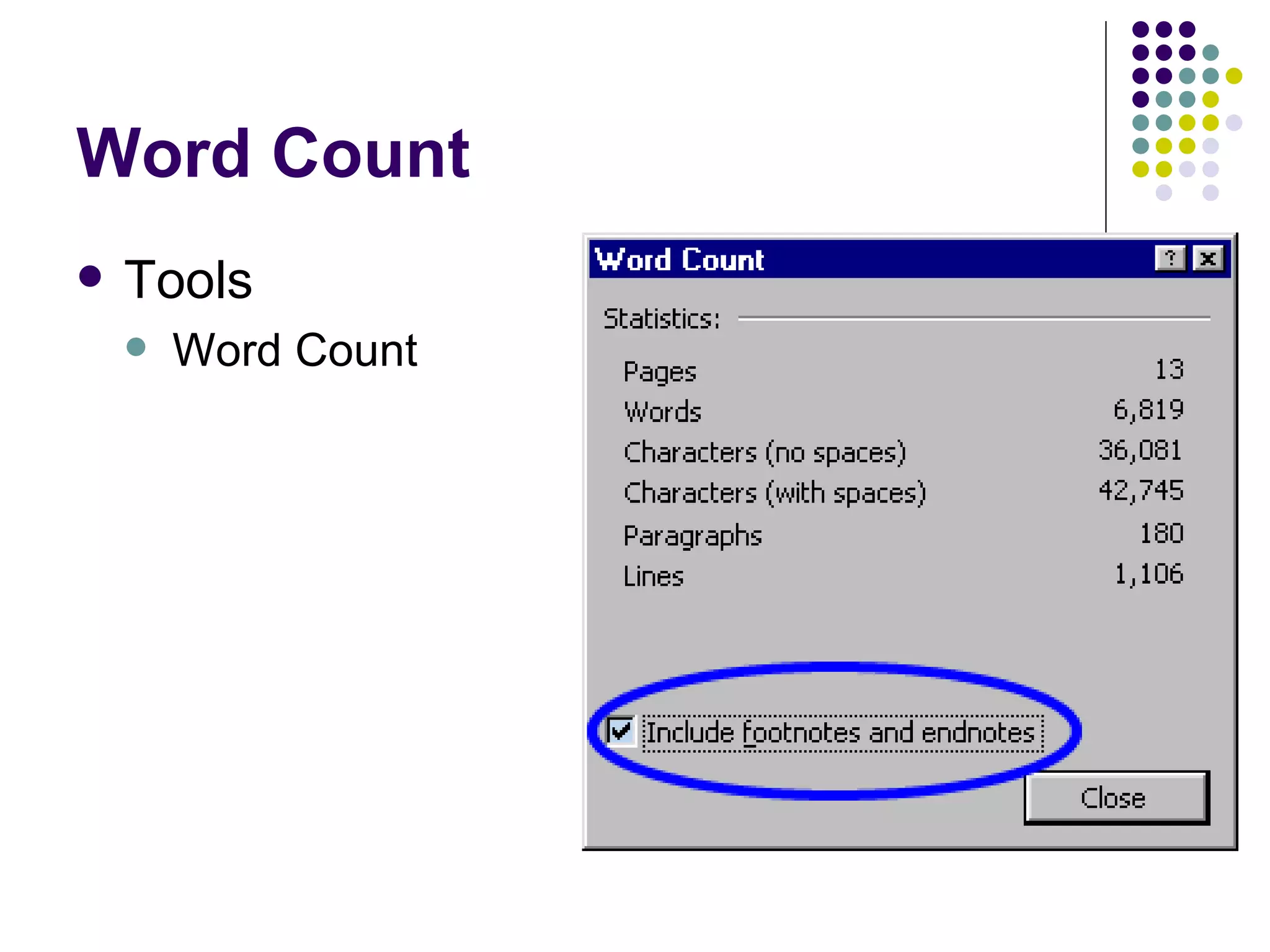
Word Count Tools Word Count
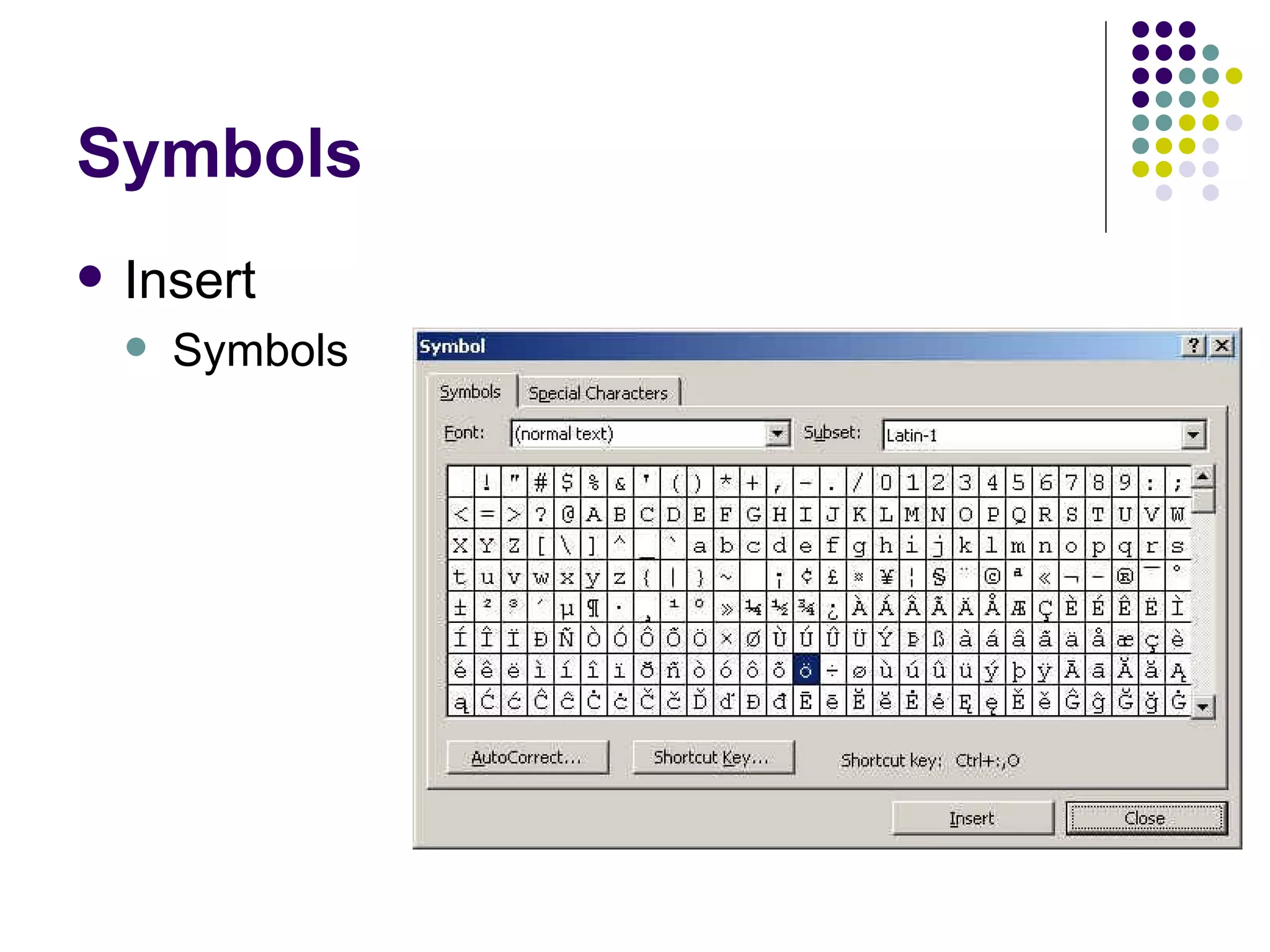
Symbols Insert Symbols
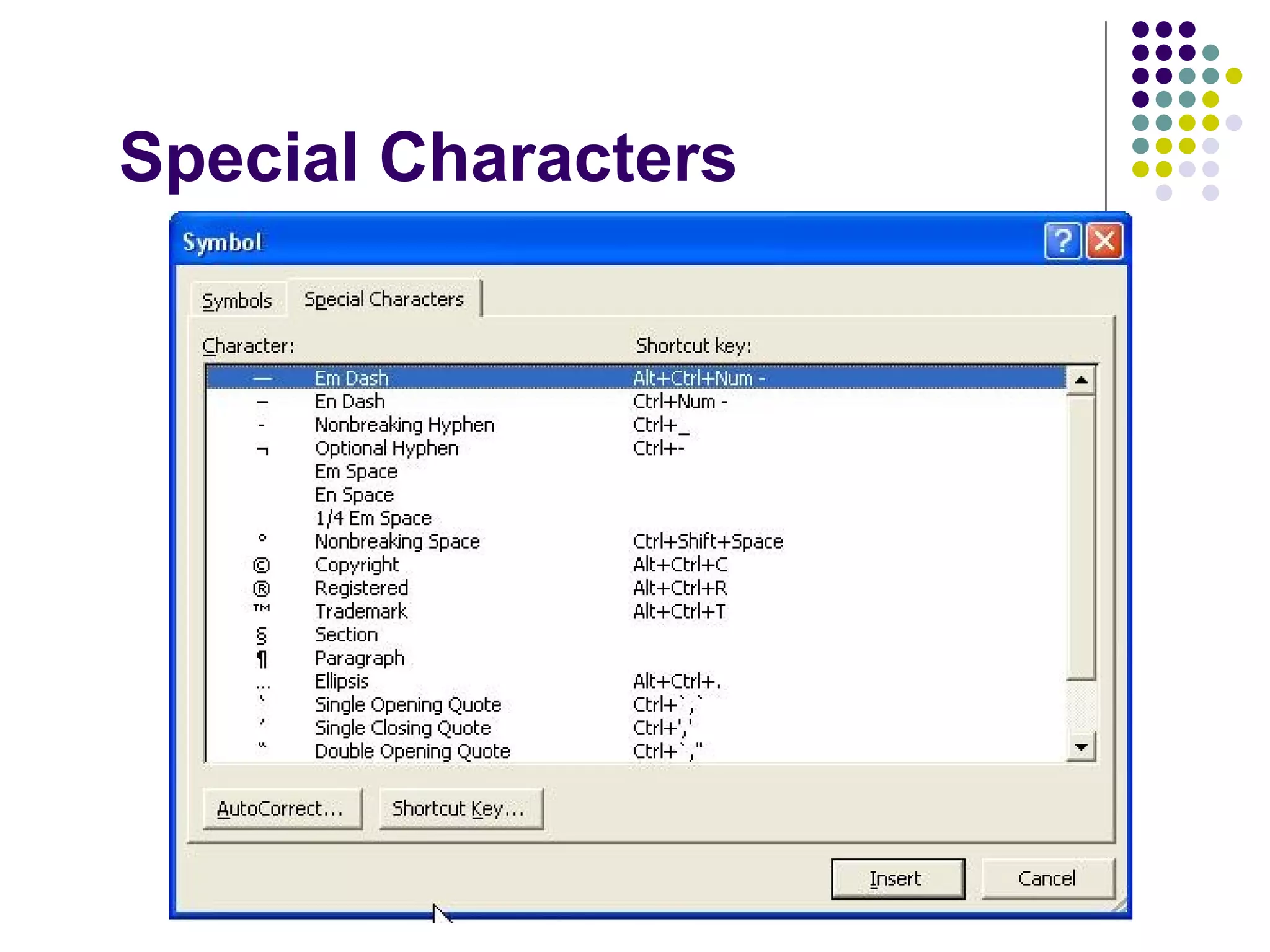
Special Characters
Automating Tasks (AutoCorrect) Correct TWo INitial Capitals Capitalize first letter of sentences Capitalize names of days Correct accidental usage of cAPS lock key Replace text as you type Exceptions
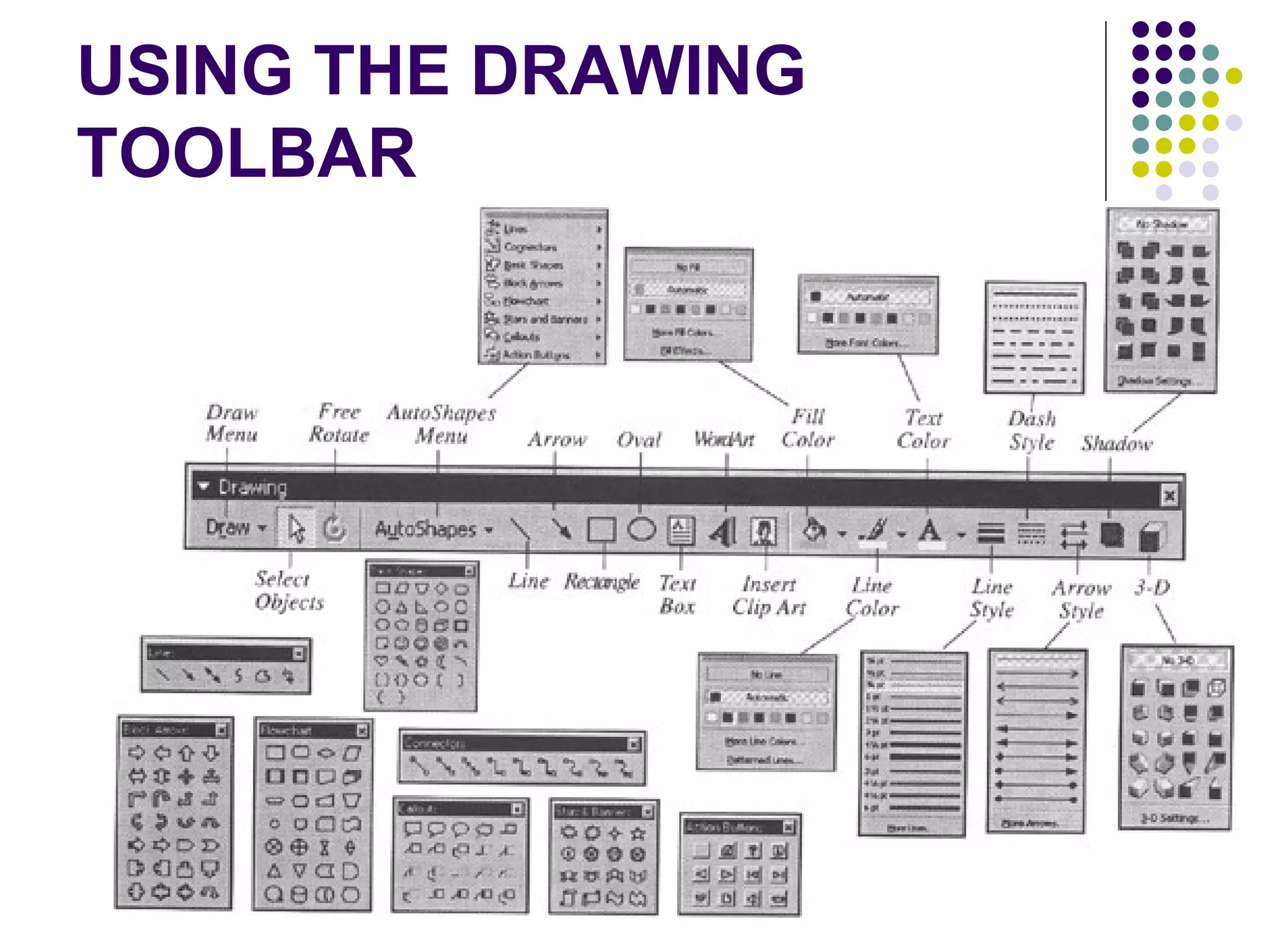
USING THE DRAWING TOOLBAR
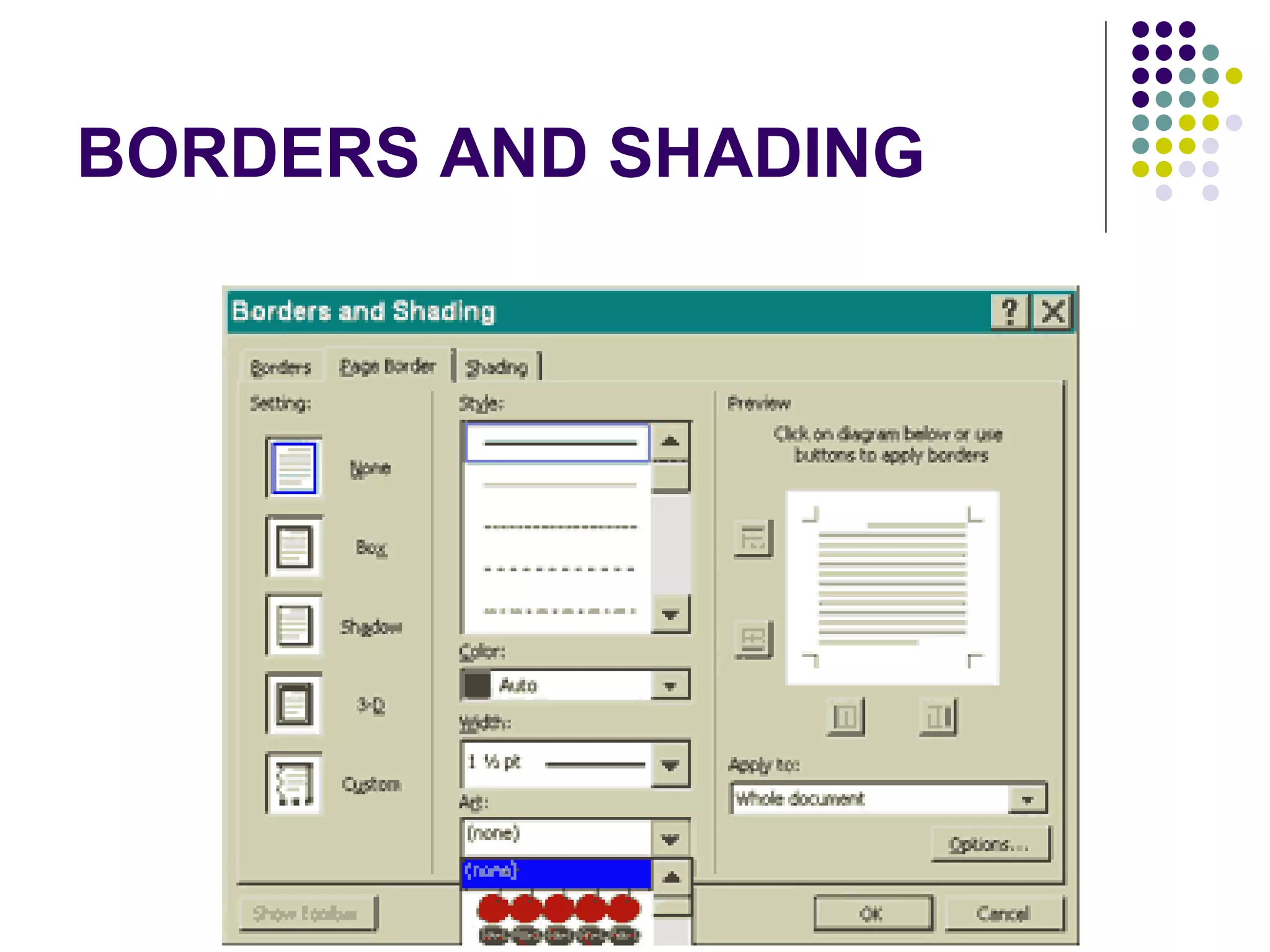
BORDERS AND SHADING
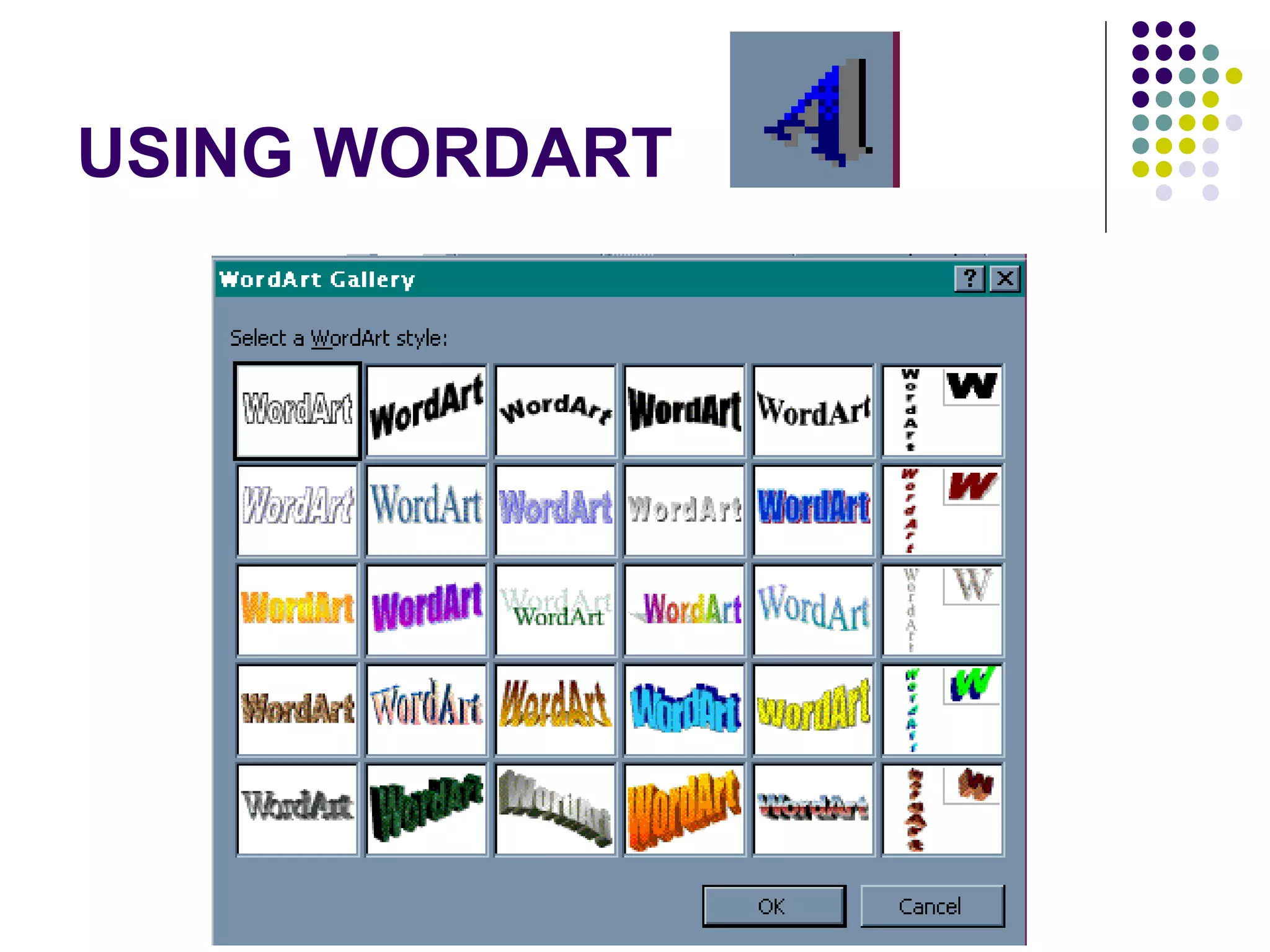
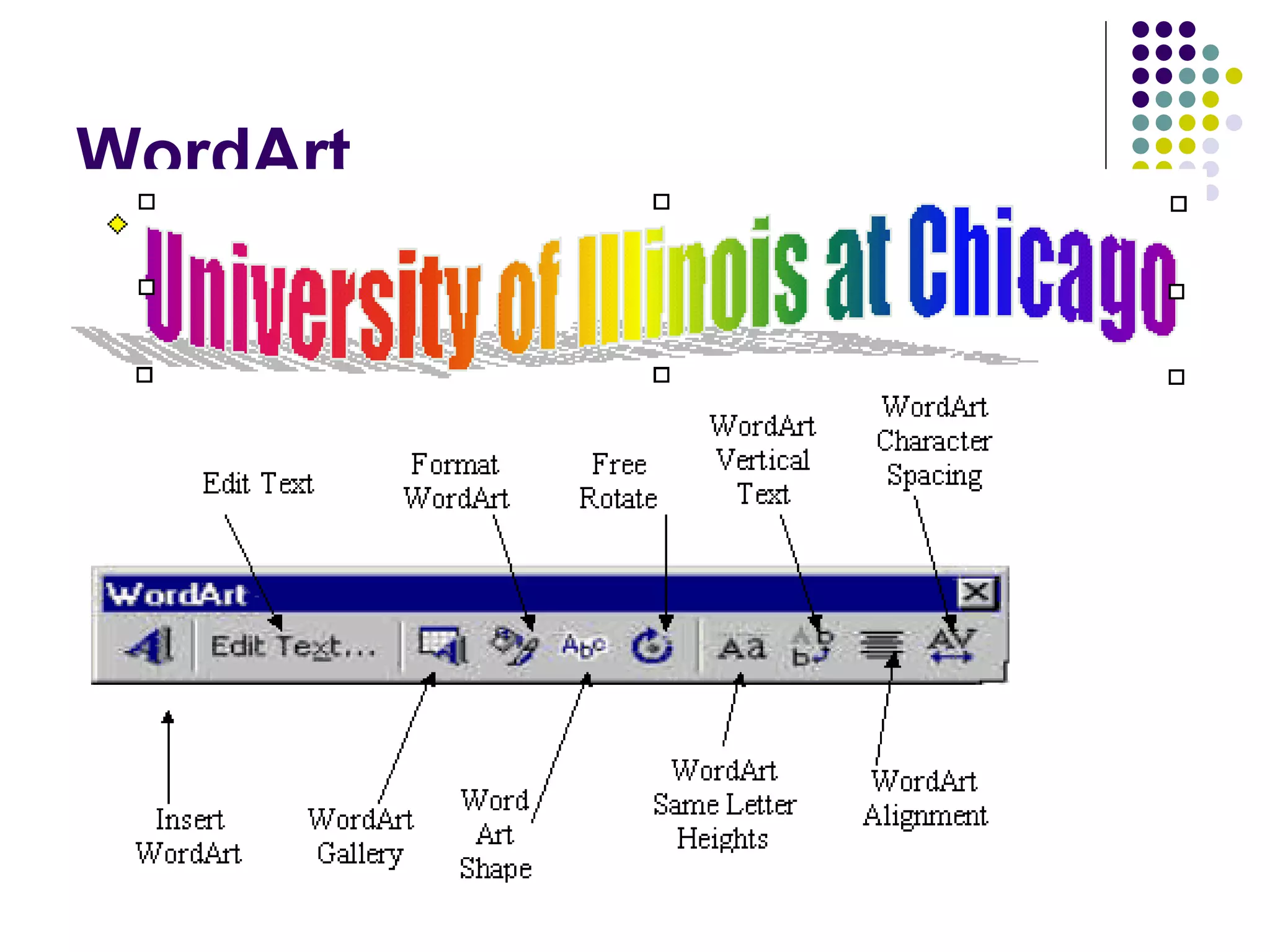
USING WORDART
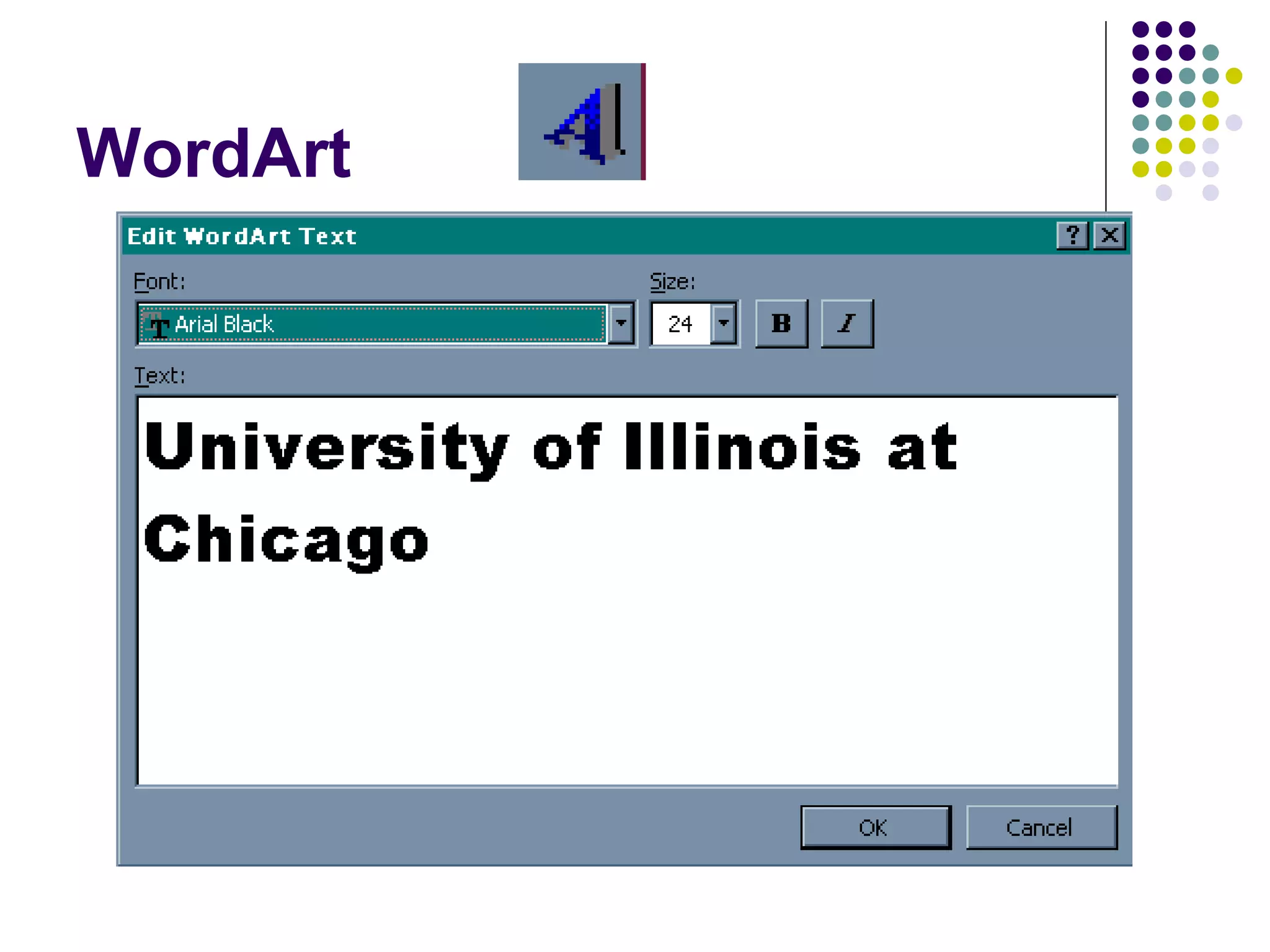
WordArt
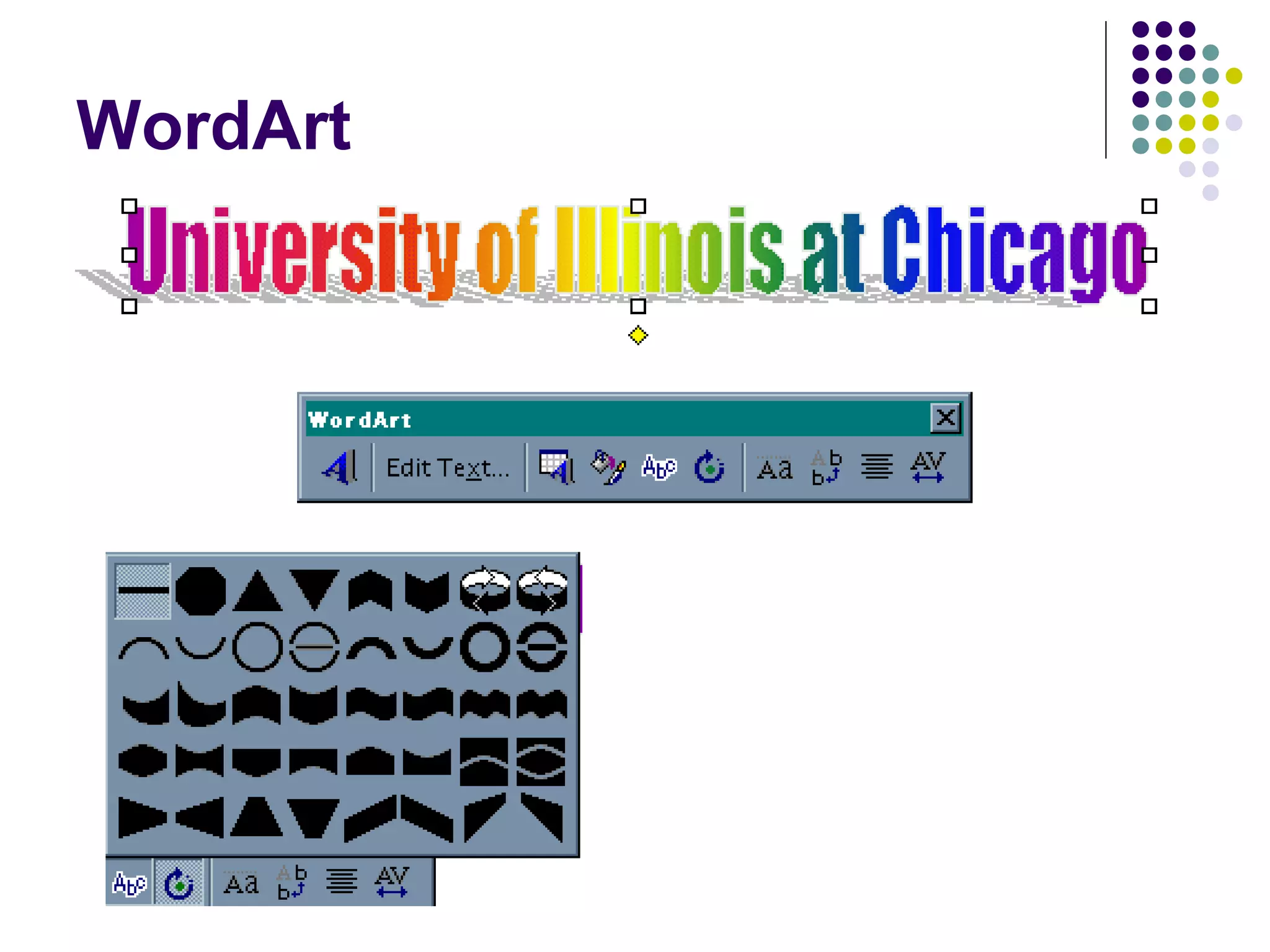
WordArt
WordArt
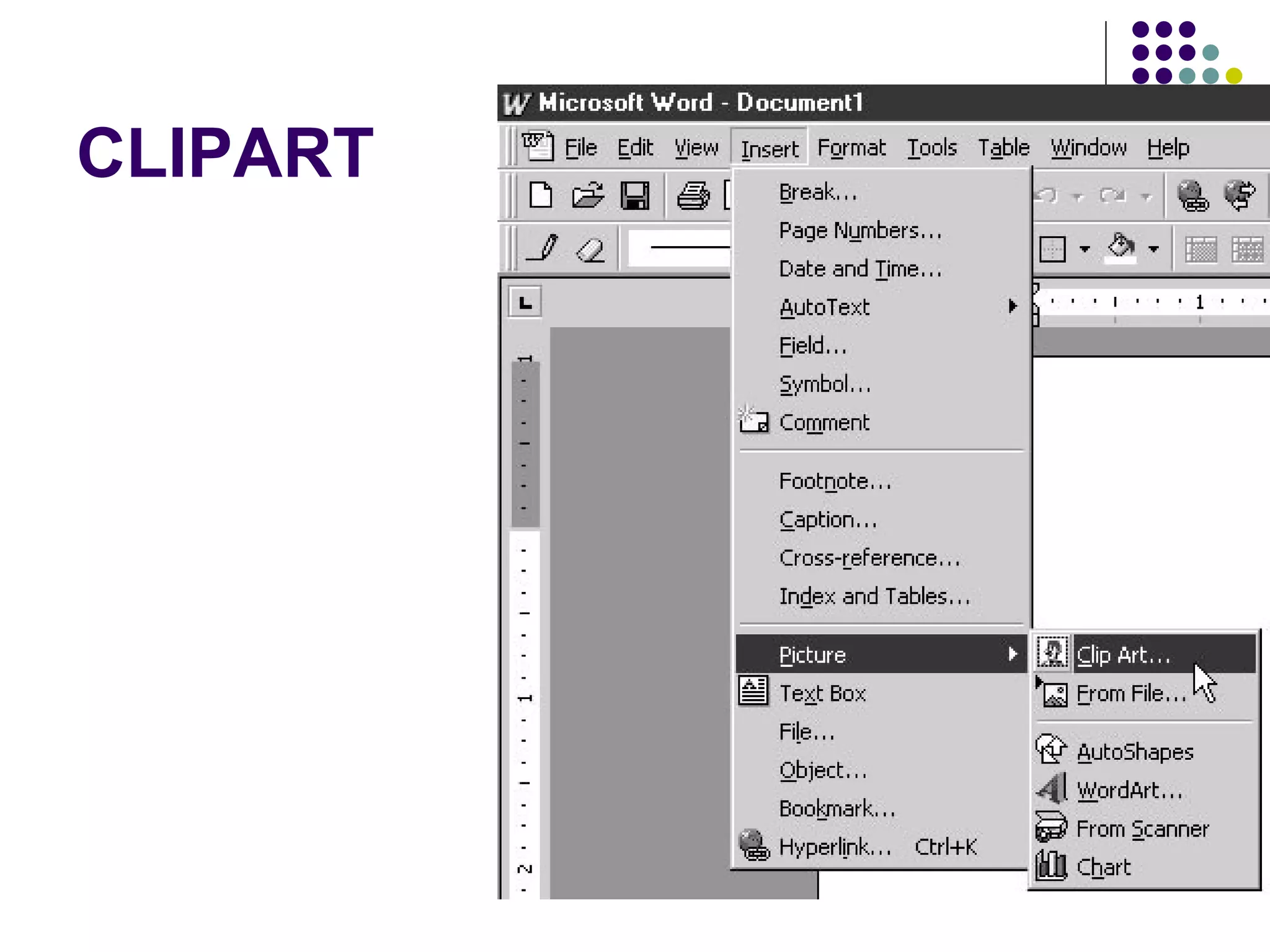
CLIPART
Resizing Clip Art Graphics
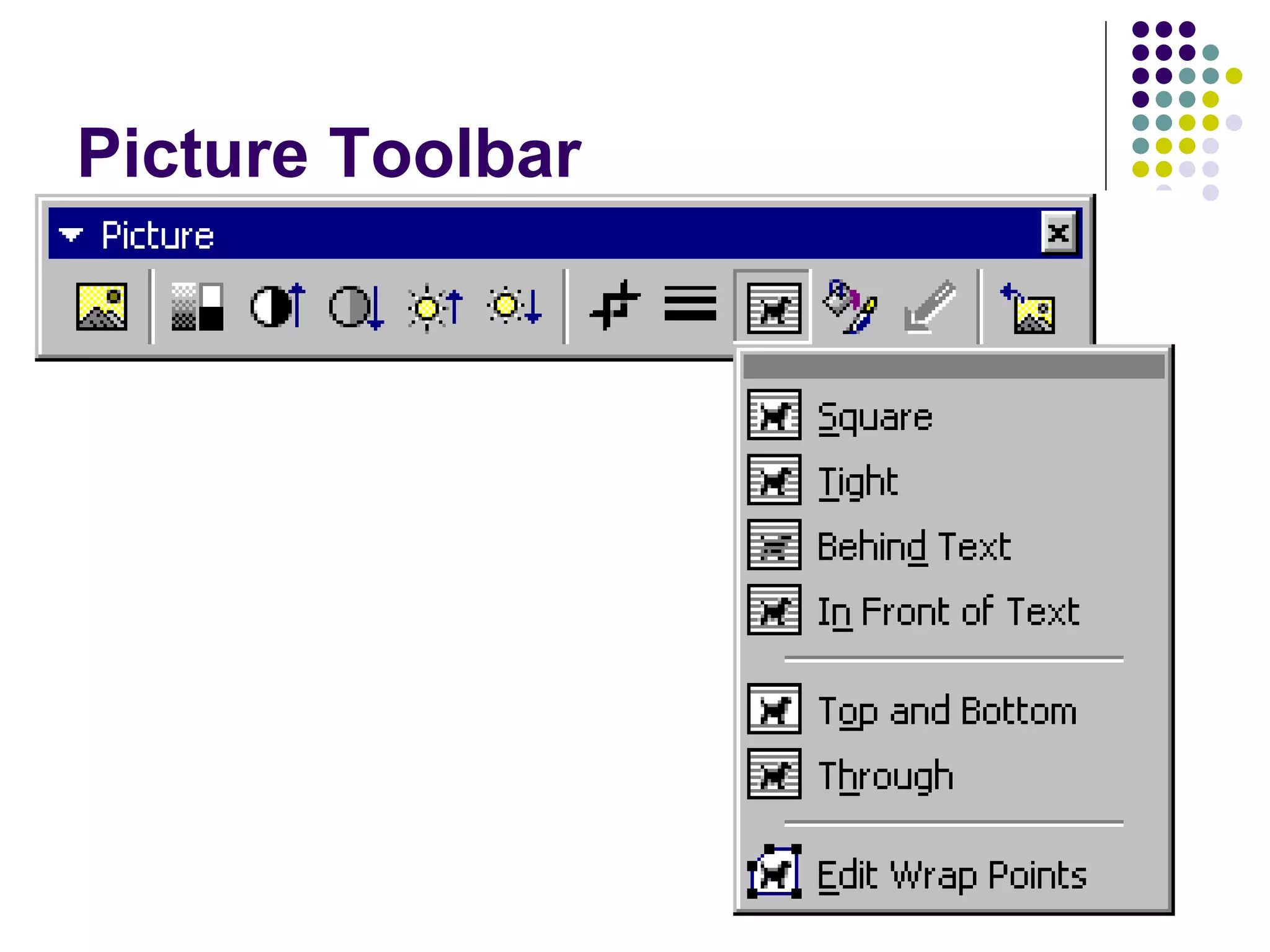
Picture Toolbar
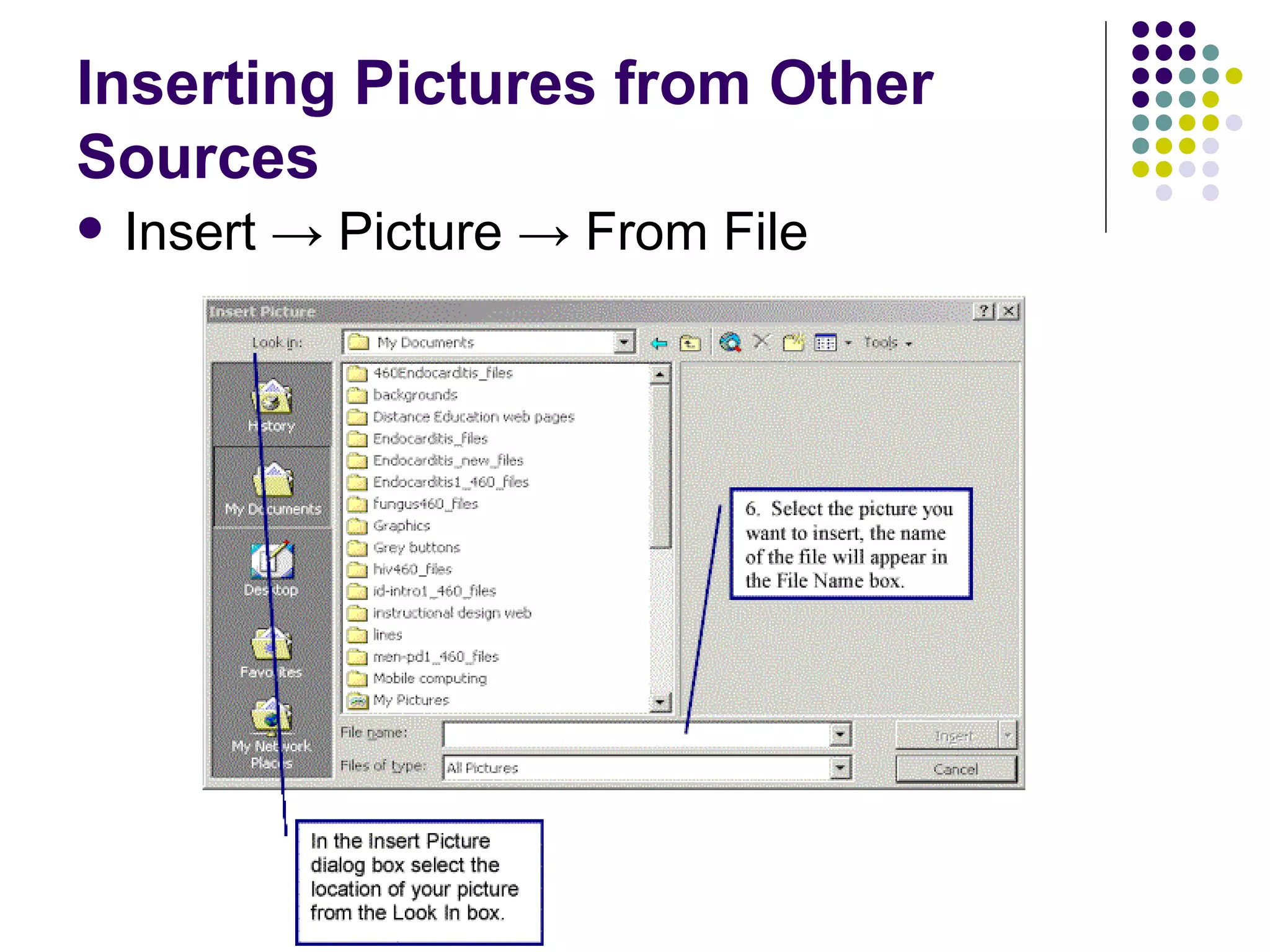
Inserting Pictures from Other Sources Insert  -> Picture -> From File
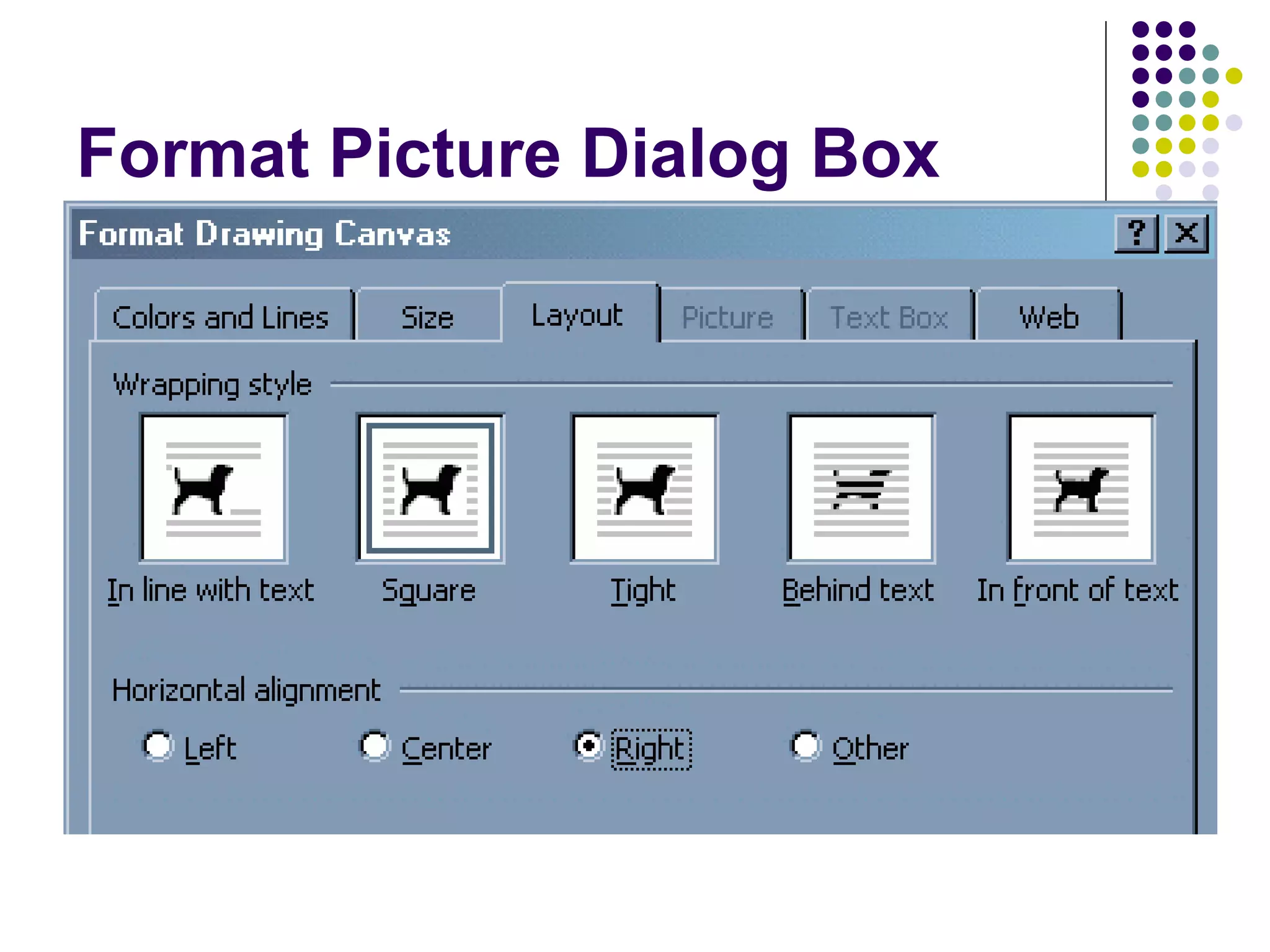
Format Picture Dialog Box
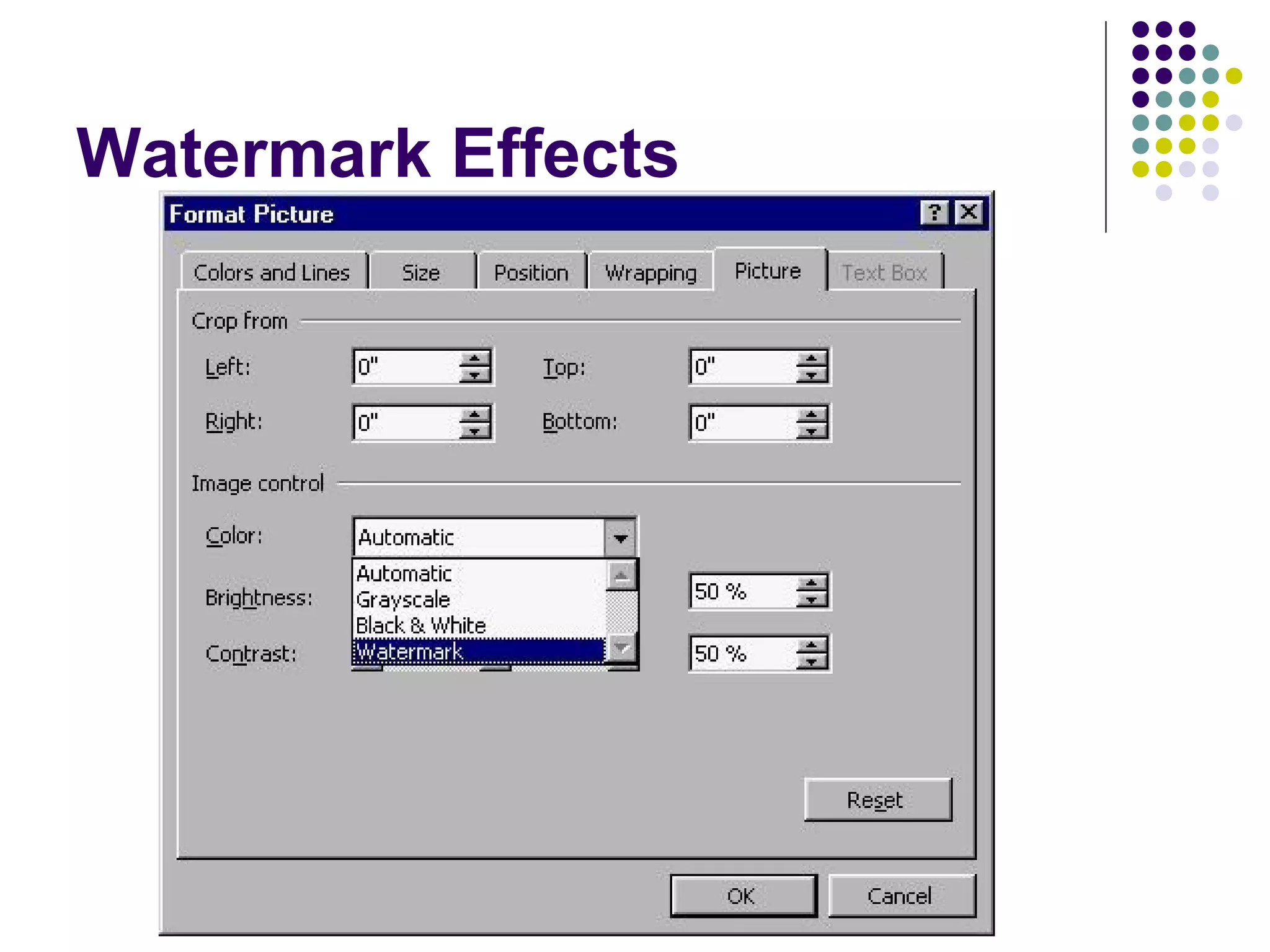
Watermark Effects
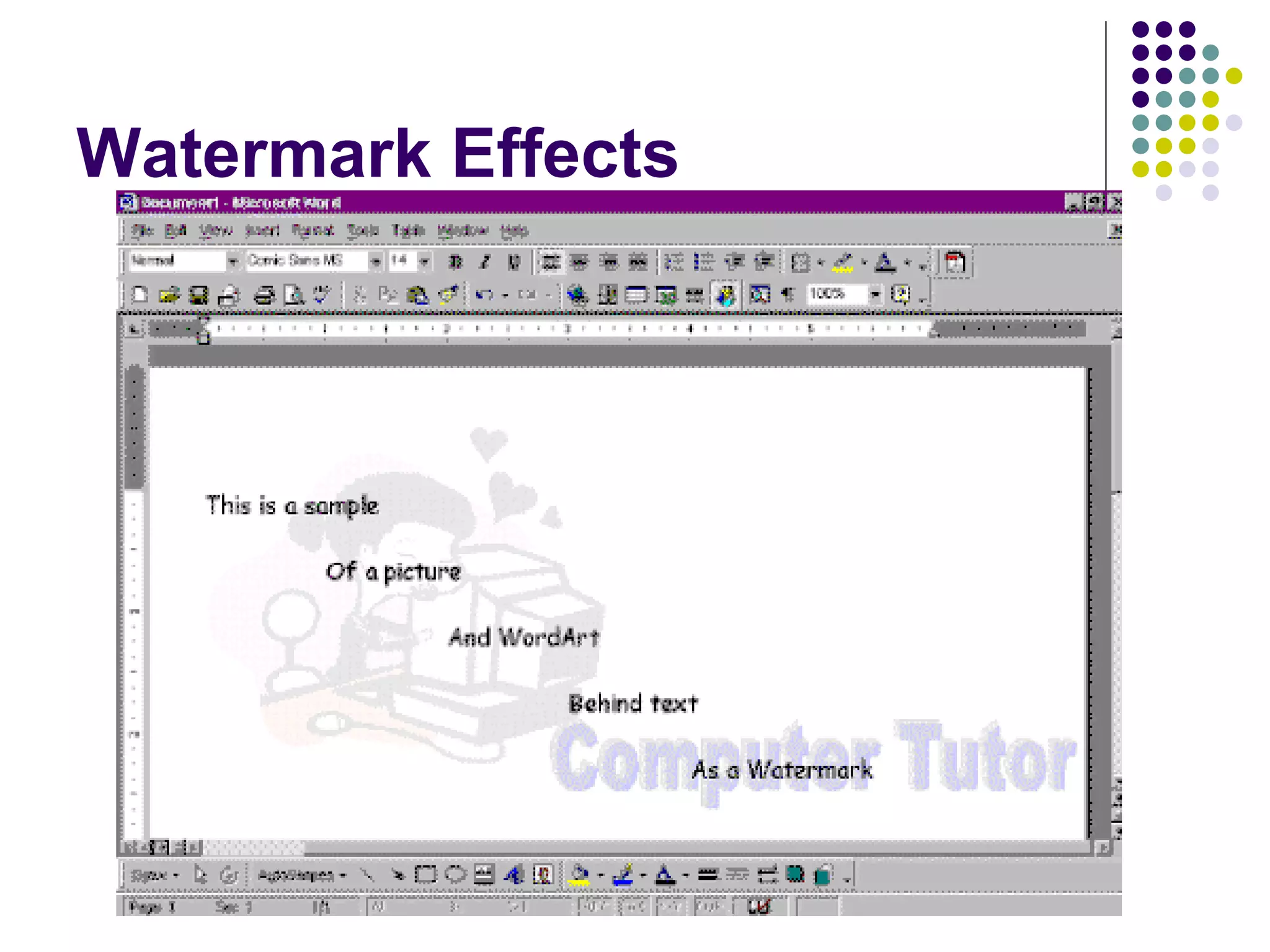
Watermark Effects
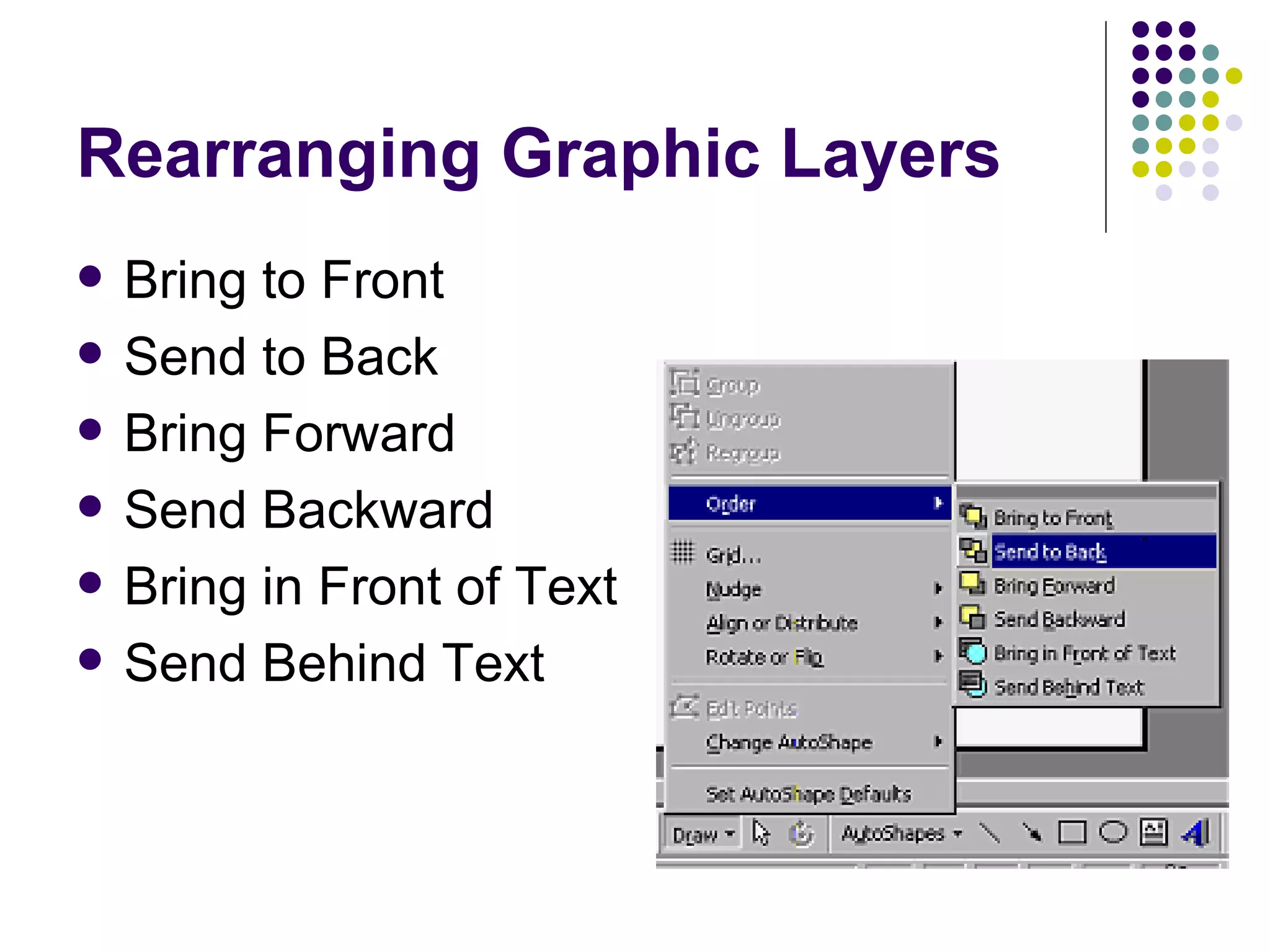
Rearranging Graphic Layers Bring to Front Send to Back Bring Forward Send Backward Bring in Front of Text Send Behind Text
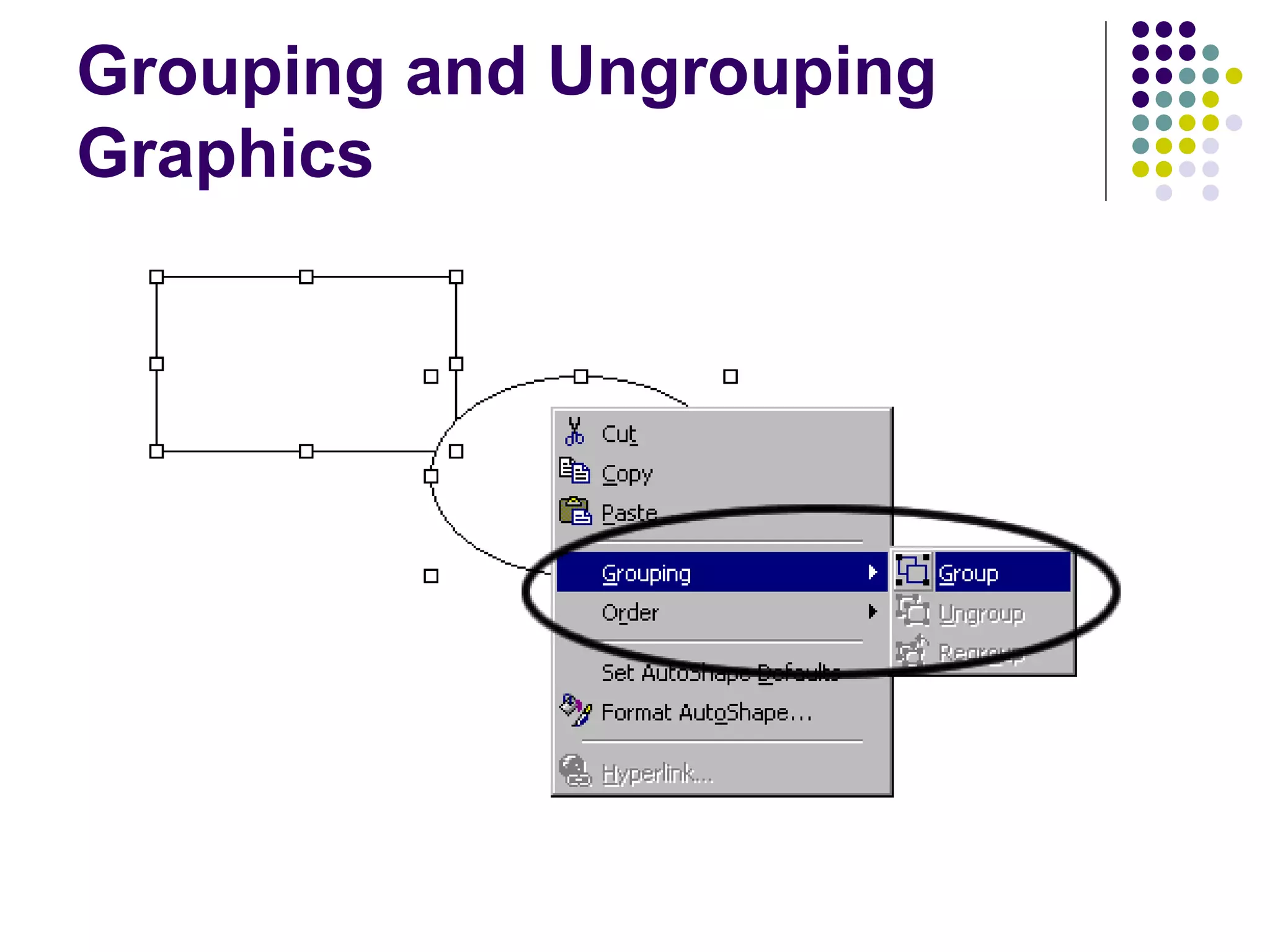
Grouping and Ungrouping Graphics
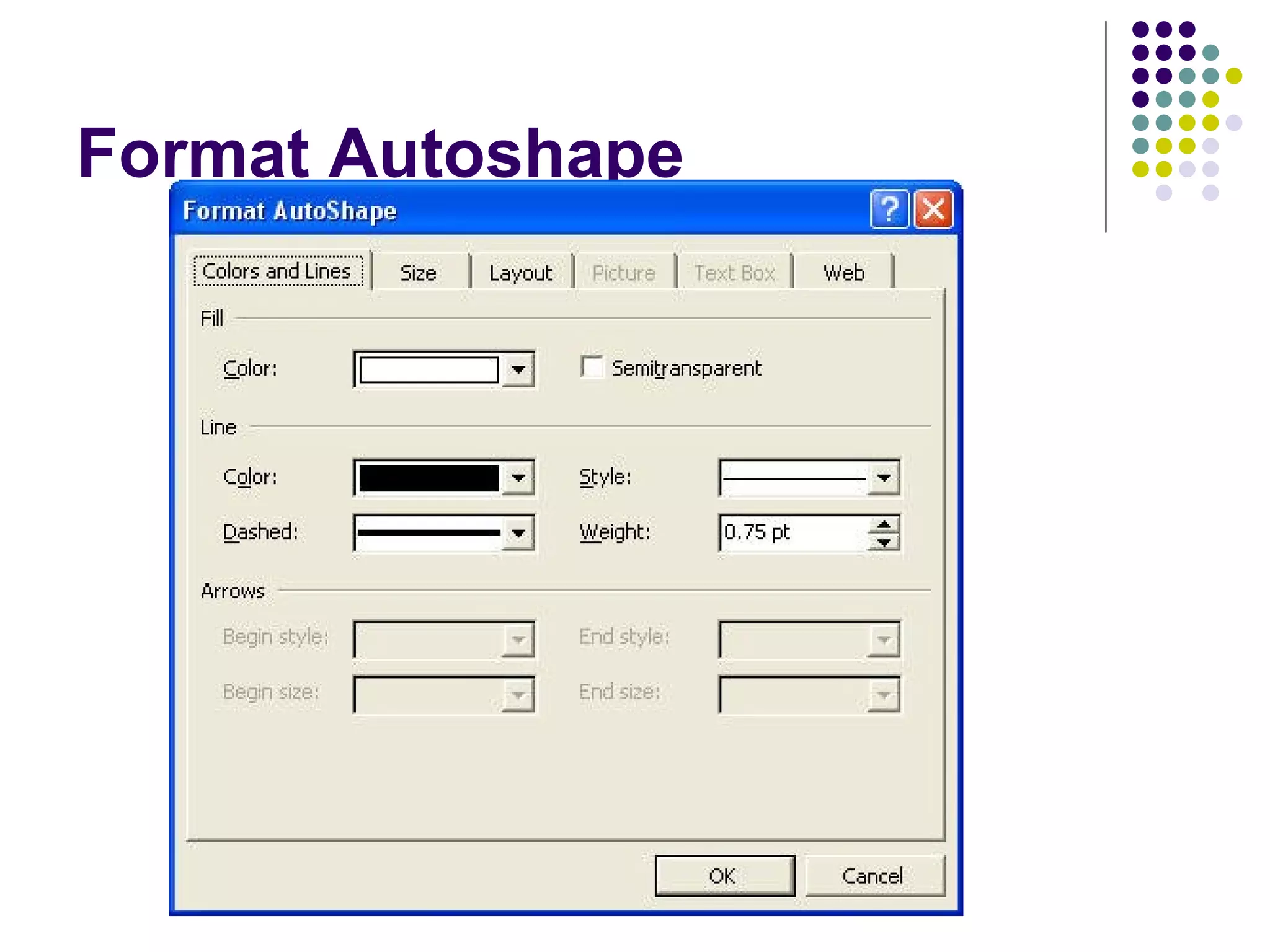
Format Autoshape

Microsoft Word