© 2009 Cyberkeys Ltd Page 1
Microsoft Word Shortcut Keys
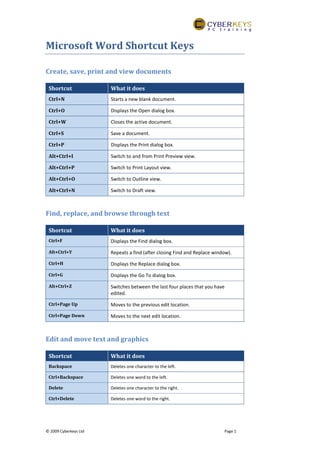
Create, save, print and view documents
Shortcut What it does
Ctrl+N Starts a new blank document.
Ctrl+O Displays the Open dialog box.
Ctrl+W Closes the active document.
Ctrl+S Save a document.
Ctrl+P Displays the Print dialog box.
Alt+Ctrl+I Switch to and from Print Preview view.
Alt+Ctrl+P Switch to Print Layout view.
Alt+Ctrl+O Switch to Outline view.
Alt+Ctrl+N Switch to Draft view.
Find, replace, and browse through text
Shortcut What it does
Ctrl+F Displays the Find dialog box.
Alt+Ctrl+Y Repeats a find (after closing Find and Replace window).
Ctrl+H Displays the Replace dialog box.
Ctrl+G Displays the Go To dialog box.
Alt+Ctrl+Z Switches between the last four places that you have
edited.
Ctrl+Page Up Moves to the previous edit location.
Ctrl+Page Down Moves to the next edit location.
Edit and move text and graphics
Shortcut What it does
Backspace Deletes one character to the left.
Ctrl+Backspace Deletes one word to the left.
Delete Deletes one character to the right.
Ctrl+Delete Deletes one word to the right.
Microsoft Word Shortcut Keys
Page 2 © 2009 Cyberkeys Ltd
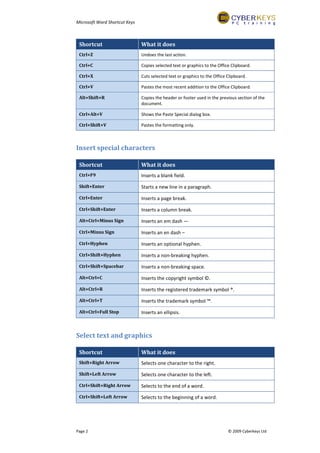
Shortcut What it does
Ctrl+Z Undoes the last action.
Ctrl+C Copies selected text or graphics to the Office Clipboard.
Ctrl+X Cuts selected text or graphics to the Office Clipboard.
Ctrl+V Pastes the most recent addition to the Office Clipboard.
Alt+Shift+R Copies the header or footer used in the previous section of the
document.
Ctrl+Alt+V Shows the Paste Special dialog box.
Ctrl+Shift+V Pastes the formatting only.
Insert special characters
Shortcut What it does
Ctrl+F9 Inserts a blank field.
Shift+Enter Starts a new line in a paragraph.
Ctrl+Enter Inserts a page break.
Ctrl+Shift+Enter Inserts a column break.
Alt+Ctrl+Minus Sign Inserts an em dash —
Ctrl+Minus Sign Inserts an en dash –
Ctrl+Hyphen Inserts an optional hyphen.
Ctrl+Shift+Hyphen Inserts a non-breaking hyphen.
Ctrl+Shift+Spacebar Inserts a non-breaking space.
Alt+Ctrl+C Inserts the copyright symbol ©.
Alt+Ctrl+R Inserts the registered trademark symbol ®.
Alt+Ctrl+T Inserts the trademark symbol ™.
Alt+Ctrl+Full Stop Inserts an ellipsis.
Select text and graphics
Shortcut What it does
Shift+Right Arrow Selects one character to the right.
Shift+Left Arrow Selects one character to the left.
Ctrl+Shift+Right Arrow Selects to the end of a word.
Ctrl+Shift+Left Arrow Selects to the beginning of a word.
Microsoft Word Shortcut Keys
© 2009 Cyberkeys Ltd Page 3
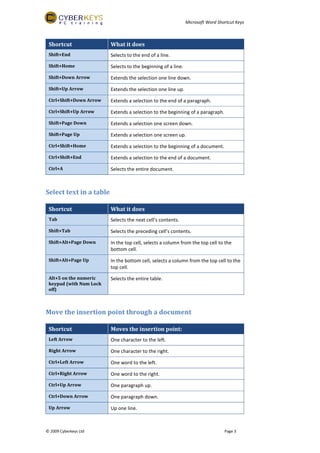
Shortcut What it does
Shift+End Selects to the end of a line.
Shift+Home Selects to the beginning of a line.
Shift+Down Arrow Extends the selection one line down.
Shift+Up Arrow Extends the selection one line up.
Ctrl+Shift+Down Arrow Extends a selection to the end of a paragraph.
Ctrl+Shift+Up Arrow Extends a selection to the beginning of a paragraph.
Shift+Page Down Extends a selection one screen down.
Shift+Page Up Extends a selection one screen up.
Ctrl+Shift+Home Extends a selection to the beginning of a document.
Ctrl+Shift+End Extends a selection to the end of a document.
Ctrl+A Selects the entire document.
Select text in a table
Shortcut What it does
Tab Selects the next cell’s contents.
Shift+Tab Selects the preceding cell’s contents.
Shift+Alt+Page Down In the top cell, selects a column from the top cell to the
bottom cell.
Shift+Alt+Page Up In the bottom cell, selects a column from the top cell to the
top cell.
Alt+5 on the numeric
keypad (with Num Lock
off)
Selects the entire table.
Move the insertion point through a document
Shortcut Moves the insertion point:
Left Arrow One character to the left.
Right Arrow One character to the right.
Ctrl+Left Arrow One word to the left.
Ctrl+Right Arrow One word to the right.
Ctrl+Up Arrow One paragraph up.
Ctrl+Down Arrow One paragraph down.
Up Arrow Up one line.
Microsoft Word Shortcut Keys
Page 4 © 2009 Cyberkeys Ltd
Shortcut Moves the insertion point:
Down Arrow Down one line.
End To the end of a line.
Home To the beginning of a line.
Ctrl+Page Down To the top of the next page.
Ctrl+Page Up To the top of the previous page.
Ctrl+End To the end of a document.
Ctrl+Home To the beginning of a document.
Shift+F5 To a previous revision.
Shift+F5 After opening a document, to the location you were
working in when the document was last closed.
Apply character formats
Shortcut What it does
Ctrl+D Opens the Font dialog box to change the formatting of
characters.
Ctrl+Shift+< Decreases the font size one value.
Ctrl+Shift+> Increases the font size one value.
Ctrl+[ Decreases the font size 1 point.
Ctrl+] Increases the font size 1 point.
Shift+F3 Changes the case of letters.
Ctrl+Shift+A Applies or removes All Caps.
Ctrl+B Applies or removes bold formatting.
Ctrl+U Applies or removes underlining.
Ctrl+Shift+W Applies underline words but not spaces.
Ctrl+Shift+D Applies or removes double-underline.
Ctrl+Shift+H Applies or removes hidden text formatting.
Ctrl+I Applies or removes italic formatting.
Ctrl+Shift+K Applies or removes Small Caps.
Ctrl+Equal Sign Applies or removes subscript formatting.
Ctrl+Shift+Plus Sign Applies or removes superscript formatting.
Ctrl+Spacebar Removes character formatting.
Microsoft Word Shortcut Keys
© 2009 Cyberkeys Ltd Page 5
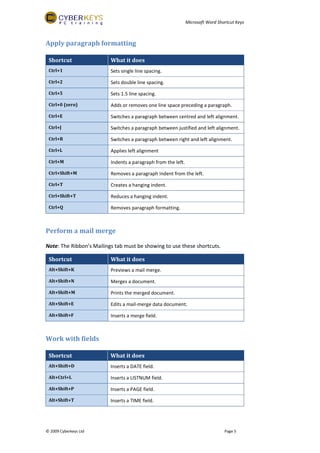
Apply paragraph formatting
Shortcut What it does
Ctrl+1 Sets single line spacing.
Ctrl+2 Sets double line spacing.
Ctrl+5 Sets 1.5 line spacing.
Ctrl+0 (zero) Adds or removes one line space preceding a paragraph.
Ctrl+E Switches a paragraph between centred and left alignment.
Ctrl+J Switches a paragraph between justified and left alignment.
Ctrl+R Switches a paragraph between right and left alignment.
Ctrl+L Applies left alignment
Ctrl+M Indents a paragraph from the left.
Ctrl+Shift+M Removes a paragraph indent from the left.
Ctrl+T Creates a hanging indent.
Ctrl+Shift+T Reduces a hanging indent.
Ctrl+Q Removes paragraph formatting.
Perform a mail merge
Note: The Ribbon’s Mailings tab must be showing to use these shortcuts.
Shortcut What it does
Alt+Shift+K Previews a mail merge.
Alt+Shift+N Merges a document.
Alt+Shift+M Prints the merged document.
Alt+Shift+E Edits a mail-merge data document.
Alt+Shift+F Inserts a merge field.
Work with fields
Shortcut What it does
Alt+Shift+D Inserts a DATE field.
Alt+Ctrl+L Inserts a LISTNUM field.
Alt+Shift+P Inserts a PAGE field.
Alt+Shift+T Inserts a TIME field.
Microsoft Word Shortcut Keys
Page 6 © 2009 Cyberkeys Ltd
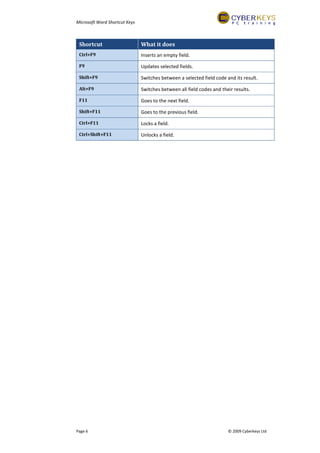
Shortcut What it does
Ctrl+F9 Inserts an empty field.
F9 Updates selected fields.
Shift+F9 Switches between a selected field code and its result.
Alt+F9 Switches between all field codes and their results.
F11 Goes to the next field.
Shift+F11 Goes to the previous field.
Ctrl+F11 Locks a field.
Ctrl+Shift+F11 Unlocks a field.
Microsoft Word Shortcut Keys
© 2009 Cyberkeys Ltd Page 7
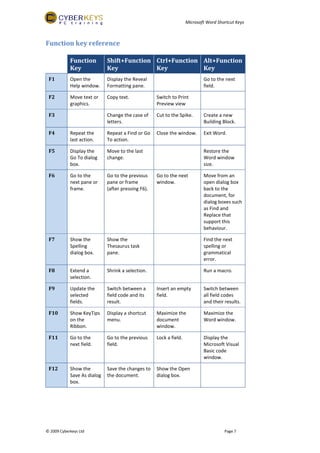
Function key reference
Function
Key
Shift+Function
Key
Ctrl+Function
Key
Alt+Function
Key
F1 Open the
Help window.
Display the Reveal
Formatting pane.
Go to the next
field.
F2 Move text or
graphics.
Copy text. Switch to Print
Preview view
F3 Change the case of
letters.
Cut to the Spike. Create a new
Building Block.
F4 Repeat the
last action.
Repeat a Find or Go
To action.
Close the window. Exit Word.
F5 Display the
Go To dialog
box.
Move to the last
change.
Restore the
Word window
size.
F6 Go to the
next pane or
frame.
Go to the previous
pane or frame
(after pressing F6).
Go to the next
window.
Move from an
open dialog box
back to the
document, for
dialog boxes such
as Find and
Replace that
support this
behaviour.
F7 Show the
Spelling
dialog box.
Show the
Thesaurus task
pane.
Find the next
spelling or
grammatical
error.
F8 Extend a
selection.
Shrink a selection. Run a macro.
F9 Update the
selected
fields.
Switch between a
field code and its
result.
Insert an empty
field.
Switch between
all field codes
and their results.
F10 Show KeyTips
on the
Ribbon.
Display a shortcut
menu.
Maximize the
document
window.
Maximize the
Word window.
F11 Go to the
next field.
Go to the previous
field.
Lock a field. Display the
Microsoft Visual
Basic code
window.
F12 Show the
Save As dialog
box.
Save the changes to
the document.
Show the Open
dialog box.

Microsoft word shortcut keys

  • 1.
    © 2009 CyberkeysLtd Page 1 Microsoft Word Shortcut Keys Create, save, print and view documents Shortcut What it does Ctrl+N Starts a new blank document. Ctrl+O Displays the Open dialog box. Ctrl+W Closes the active document. Ctrl+S Save a document. Ctrl+P Displays the Print dialog box. Alt+Ctrl+I Switch to and from Print Preview view. Alt+Ctrl+P Switch to Print Layout view. Alt+Ctrl+O Switch to Outline view. Alt+Ctrl+N Switch to Draft view. Find, replace, and browse through text Shortcut What it does Ctrl+F Displays the Find dialog box. Alt+Ctrl+Y Repeats a find (after closing Find and Replace window). Ctrl+H Displays the Replace dialog box. Ctrl+G Displays the Go To dialog box. Alt+Ctrl+Z Switches between the last four places that you have edited. Ctrl+Page Up Moves to the previous edit location. Ctrl+Page Down Moves to the next edit location. Edit and move text and graphics Shortcut What it does Backspace Deletes one character to the left. Ctrl+Backspace Deletes one word to the left. Delete Deletes one character to the right. Ctrl+Delete Deletes one word to the right.
  • 2.
    Microsoft Word ShortcutKeys Page 2 © 2009 Cyberkeys Ltd Shortcut What it does Ctrl+Z Undoes the last action. Ctrl+C Copies selected text or graphics to the Office Clipboard. Ctrl+X Cuts selected text or graphics to the Office Clipboard. Ctrl+V Pastes the most recent addition to the Office Clipboard. Alt+Shift+R Copies the header or footer used in the previous section of the document. Ctrl+Alt+V Shows the Paste Special dialog box. Ctrl+Shift+V Pastes the formatting only. Insert special characters Shortcut What it does Ctrl+F9 Inserts a blank field. Shift+Enter Starts a new line in a paragraph. Ctrl+Enter Inserts a page break. Ctrl+Shift+Enter Inserts a column break. Alt+Ctrl+Minus Sign Inserts an em dash — Ctrl+Minus Sign Inserts an en dash – Ctrl+Hyphen Inserts an optional hyphen. Ctrl+Shift+Hyphen Inserts a non-breaking hyphen. Ctrl+Shift+Spacebar Inserts a non-breaking space. Alt+Ctrl+C Inserts the copyright symbol ©. Alt+Ctrl+R Inserts the registered trademark symbol ®. Alt+Ctrl+T Inserts the trademark symbol ™. Alt+Ctrl+Full Stop Inserts an ellipsis. Select text and graphics Shortcut What it does Shift+Right Arrow Selects one character to the right. Shift+Left Arrow Selects one character to the left. Ctrl+Shift+Right Arrow Selects to the end of a word. Ctrl+Shift+Left Arrow Selects to the beginning of a word.
  • 3.
    Microsoft Word ShortcutKeys © 2009 Cyberkeys Ltd Page 3 Shortcut What it does Shift+End Selects to the end of a line. Shift+Home Selects to the beginning of a line. Shift+Down Arrow Extends the selection one line down. Shift+Up Arrow Extends the selection one line up. Ctrl+Shift+Down Arrow Extends a selection to the end of a paragraph. Ctrl+Shift+Up Arrow Extends a selection to the beginning of a paragraph. Shift+Page Down Extends a selection one screen down. Shift+Page Up Extends a selection one screen up. Ctrl+Shift+Home Extends a selection to the beginning of a document. Ctrl+Shift+End Extends a selection to the end of a document. Ctrl+A Selects the entire document. Select text in a table Shortcut What it does Tab Selects the next cell’s contents. Shift+Tab Selects the preceding cell’s contents. Shift+Alt+Page Down In the top cell, selects a column from the top cell to the bottom cell. Shift+Alt+Page Up In the bottom cell, selects a column from the top cell to the top cell. Alt+5 on the numeric keypad (with Num Lock off) Selects the entire table. Move the insertion point through a document Shortcut Moves the insertion point: Left Arrow One character to the left. Right Arrow One character to the right. Ctrl+Left Arrow One word to the left. Ctrl+Right Arrow One word to the right. Ctrl+Up Arrow One paragraph up. Ctrl+Down Arrow One paragraph down. Up Arrow Up one line.
  • 4.
    Microsoft Word ShortcutKeys Page 4 © 2009 Cyberkeys Ltd Shortcut Moves the insertion point: Down Arrow Down one line. End To the end of a line. Home To the beginning of a line. Ctrl+Page Down To the top of the next page. Ctrl+Page Up To the top of the previous page. Ctrl+End To the end of a document. Ctrl+Home To the beginning of a document. Shift+F5 To a previous revision. Shift+F5 After opening a document, to the location you were working in when the document was last closed. Apply character formats Shortcut What it does Ctrl+D Opens the Font dialog box to change the formatting of characters. Ctrl+Shift+< Decreases the font size one value. Ctrl+Shift+> Increases the font size one value. Ctrl+[ Decreases the font size 1 point. Ctrl+] Increases the font size 1 point. Shift+F3 Changes the case of letters. Ctrl+Shift+A Applies or removes All Caps. Ctrl+B Applies or removes bold formatting. Ctrl+U Applies or removes underlining. Ctrl+Shift+W Applies underline words but not spaces. Ctrl+Shift+D Applies or removes double-underline. Ctrl+Shift+H Applies or removes hidden text formatting. Ctrl+I Applies or removes italic formatting. Ctrl+Shift+K Applies or removes Small Caps. Ctrl+Equal Sign Applies or removes subscript formatting. Ctrl+Shift+Plus Sign Applies or removes superscript formatting. Ctrl+Spacebar Removes character formatting.
  • 5.
    Microsoft Word ShortcutKeys © 2009 Cyberkeys Ltd Page 5 Apply paragraph formatting Shortcut What it does Ctrl+1 Sets single line spacing. Ctrl+2 Sets double line spacing. Ctrl+5 Sets 1.5 line spacing. Ctrl+0 (zero) Adds or removes one line space preceding a paragraph. Ctrl+E Switches a paragraph between centred and left alignment. Ctrl+J Switches a paragraph between justified and left alignment. Ctrl+R Switches a paragraph between right and left alignment. Ctrl+L Applies left alignment Ctrl+M Indents a paragraph from the left. Ctrl+Shift+M Removes a paragraph indent from the left. Ctrl+T Creates a hanging indent. Ctrl+Shift+T Reduces a hanging indent. Ctrl+Q Removes paragraph formatting. Perform a mail merge Note: The Ribbon’s Mailings tab must be showing to use these shortcuts. Shortcut What it does Alt+Shift+K Previews a mail merge. Alt+Shift+N Merges a document. Alt+Shift+M Prints the merged document. Alt+Shift+E Edits a mail-merge data document. Alt+Shift+F Inserts a merge field. Work with fields Shortcut What it does Alt+Shift+D Inserts a DATE field. Alt+Ctrl+L Inserts a LISTNUM field. Alt+Shift+P Inserts a PAGE field. Alt+Shift+T Inserts a TIME field.
  • 6.
    Microsoft Word ShortcutKeys Page 6 © 2009 Cyberkeys Ltd Shortcut What it does Ctrl+F9 Inserts an empty field. F9 Updates selected fields. Shift+F9 Switches between a selected field code and its result. Alt+F9 Switches between all field codes and their results. F11 Goes to the next field. Shift+F11 Goes to the previous field. Ctrl+F11 Locks a field. Ctrl+Shift+F11 Unlocks a field.
  • 7.
    Microsoft Word ShortcutKeys © 2009 Cyberkeys Ltd Page 7 Function key reference Function Key Shift+Function Key Ctrl+Function Key Alt+Function Key F1 Open the Help window. Display the Reveal Formatting pane. Go to the next field. F2 Move text or graphics. Copy text. Switch to Print Preview view F3 Change the case of letters. Cut to the Spike. Create a new Building Block. F4 Repeat the last action. Repeat a Find or Go To action. Close the window. Exit Word. F5 Display the Go To dialog box. Move to the last change. Restore the Word window size. F6 Go to the next pane or frame. Go to the previous pane or frame (after pressing F6). Go to the next window. Move from an open dialog box back to the document, for dialog boxes such as Find and Replace that support this behaviour. F7 Show the Spelling dialog box. Show the Thesaurus task pane. Find the next spelling or grammatical error. F8 Extend a selection. Shrink a selection. Run a macro. F9 Update the selected fields. Switch between a field code and its result. Insert an empty field. Switch between all field codes and their results. F10 Show KeyTips on the Ribbon. Display a shortcut menu. Maximize the document window. Maximize the Word window. F11 Go to the next field. Go to the previous field. Lock a field. Display the Microsoft Visual Basic code window. F12 Show the Save As dialog box. Save the changes to the document. Show the Open dialog box.