Microsoft Word 2007 – Level 1 PREPARING DOCUMENTS Chapter 1
Performance Objectives Open Microsoft Word Create, save, name, print, open, and close a Word document Exit Word and Windows Edit a document Move the insertion point within a document Scroll within a document Select text in a document Use the Undo and Redo buttons Check spelling and grammar in a document Use the Help feature
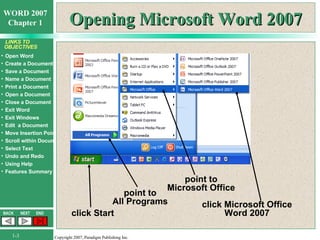
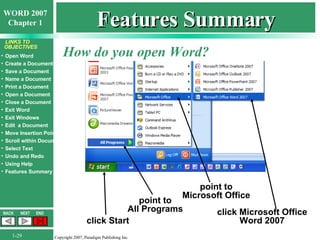
Opening Microsoft Word 2007 point to All Programs point to Microsoft Office click Microsoft Office Word 2007 click Start
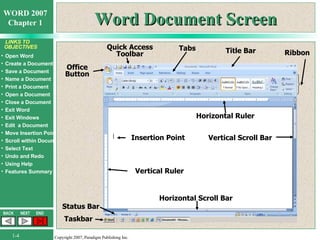
Word Document Screen Tabs Quick Access Toolbar Insertion Point Horizontal Ruler Vertical Scroll Bar Horizontal Scroll Bar Title Bar Ribbon Status Bar Office Button Vertical Ruler Taskbar
Word Concepts When keying in text, consider: Word Wrap AutoCorrect Automatic Spell Checker Automatic Grammar Checker Spacing after Punctuation Option Buttons AutoComplete New Line Command
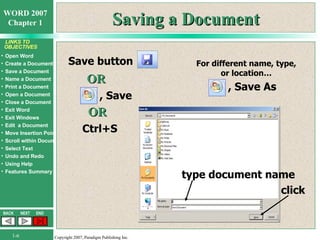
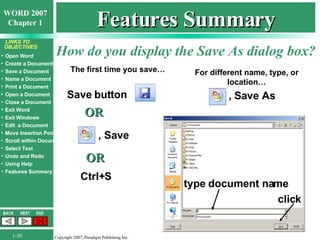
Saving a Document , Save Save button OR , Save As type document name click Ctrl+S OR For different name, type, or location…
Naming a Document Up to 255 characters including drive letter and colon folder names spaces Excluded special characters include forward slash (/) question mark (?) backslash (\) quotation mark (“) greater than sign (>) colon (:) less than sign (<) semicolon (;) asterisk (*) pipe symbol ( | )
Canceling a Command To close a dialog box… To close a menu… click in the document screen or press Alt key or press Esc key twice press Esc key or  Cancel or Close
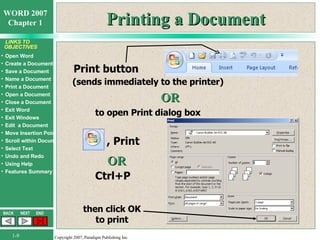
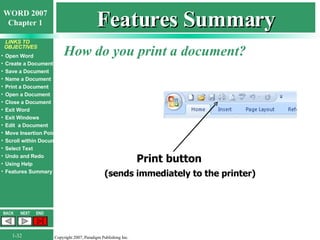
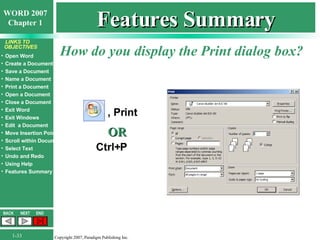
Printing a Document (sends immediately to the printer) OR to open Print dialog box , Print Ctrl+P Print button OR then click OK to print
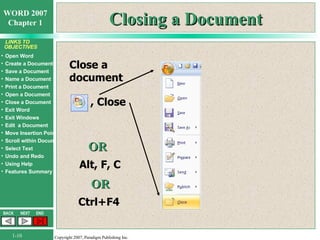
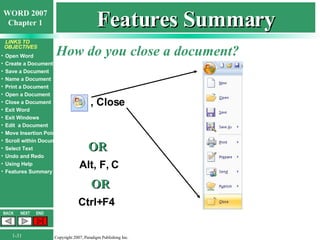
Closing a Document Close a document OR , Close Alt, F, C OR Ctrl+F4
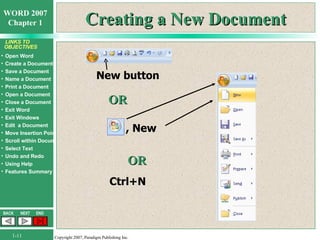
Creating a New Document New button OR Ctrl+N , New OR
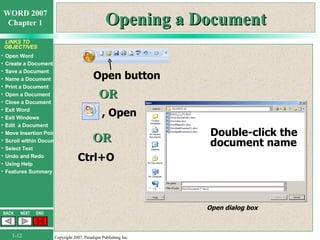
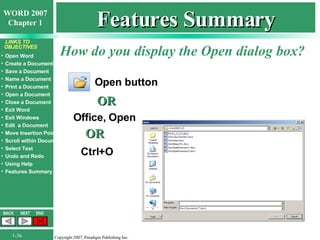
Opening a Document Double-click the document name Open dialog box OR Ctrl+O Open button , Open OR
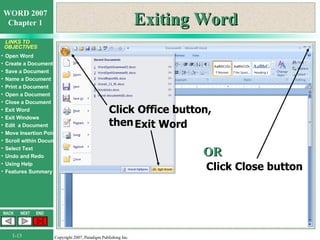
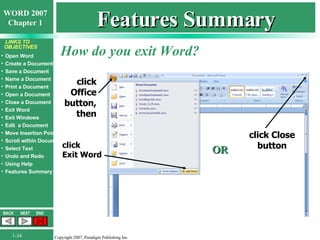
Exiting Word Exit Word Click Office button, then OR Click Close button
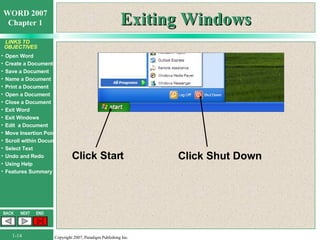
Exiting Windows Click Shut Down Click Start
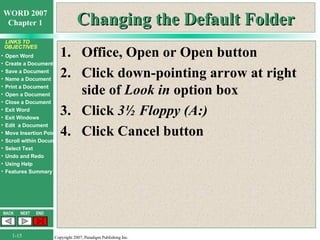
Changing the Default Folder Office, Open or Open button Click down-pointing arrow at right side of  Look in  option box Click  3½   Floppy (A:) Click Cancel button
Editing a Document Created documents may need changes: insertions, deletions, revisions Adding text is called  inserting Deleting text is called  deleting Can move insertion point without erasing text Move insertion point with mouse, keyboard, or a combination of both
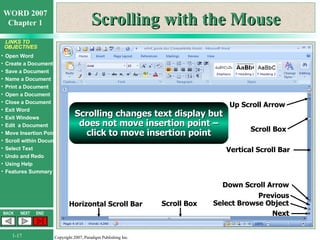
Scrolling with the Mouse Vertical Scroll Bar Horizontal Scroll Bar Up Scroll Arrow Scroll Box Down Scroll Arrow Previous Select Browse Object Next Scroll Box Scrolling changes text display but does not move insertion point – click to move insertion point
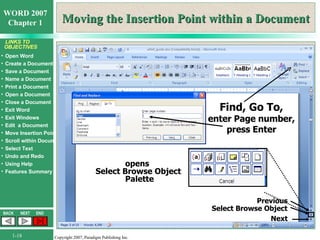
Moving the Insertion Point within a Document Previous Select Browse Object Next opens  Select Browse Object  Palette Find, Go To, enter Page number, press Enter
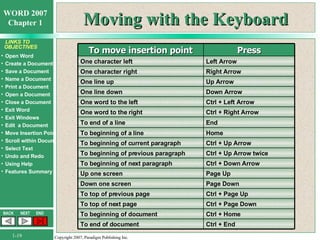
Moving with the Keyboard To move insertion point Press One character left Left Arrow One character right Right Arrow One line up Up Arrow One line down Down Arrow One word to the left Ctrl + Left Arrow One word to the right Ctrl + Right Arrow To end of a line End To beginning of a line Home To beginning of current paragraph Ctrl + Up Arrow To beginning of previous paragraph Ctrl + Up Arrow twice To beginning of next paragraph Ctrl + Down Arrow Up one screen Page Up Down one screen Page Down To top of previous page Ctrl + Page Up To top of next page Ctrl + Page Down To beginning of document Ctrl + Home To end of document Ctrl + End
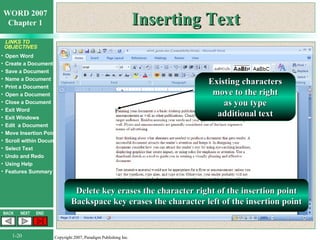
Inserting Text Existing characters move to the right as you type additional text Delete key erases the character right of the insertion point Backspace key erases the character left of the insertion point
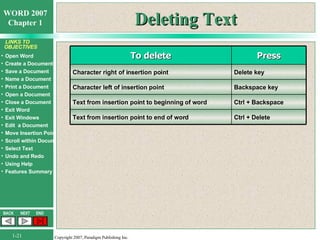
Deleting Text To delete Press Character right of insertion point Delete key Character left of insertion point Backspace key Text from insertion point to beginning of word Ctrl + Backspace Text from insertion point to end of word Ctrl + Delete
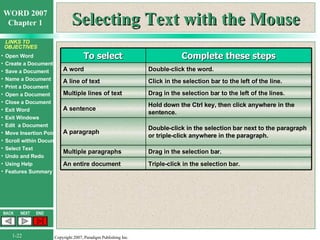
Selecting Text with the Mouse To select Complete these steps A word Double-click the word. A line of text Click in the selection bar to the left of the line. Multiple lines of text Drag in the selection bar to the left of the lines. A sentence Hold down the Ctrl key, then click anywhere in the sentence. A paragraph Double-click in the selection bar next to the paragraph or triple-click anywhere in the paragraph. Multiple paragraphs Drag in the selection bar. An entire document Triple-click in the selection bar.
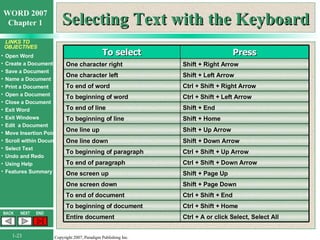
Selecting Text with the Keyboard To select Press One character right Shift + Right Arrow One character left Shift + Left Arrow To end of word Ctrl + Shift + Right Arrow To beginning of word Ctrl + Shift + Left Arrow To end of line Shift + End To beginning of line Shift + Home One line up Shift + Up Arrow One line down Shift + Down Arrow To beginning of paragraph Ctrl + Shift + Up Arrow To end of paragraph Ctrl + Shift + Down Arrow One screen up Shift + Page Up One screen down Shift + Page Down To end of document Ctrl + Shift + End To beginning of document Ctrl + Shift + Home Entire document Ctrl + A or click Select, Select All
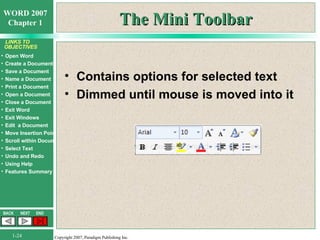
The Mini Toolbar Contains options for selected text Dimmed until mouse is moved into it
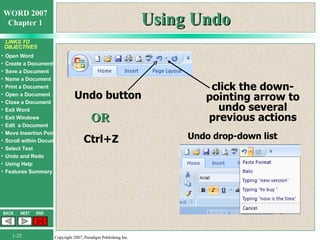
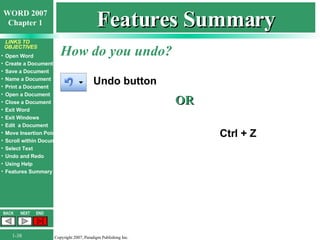
Using Undo Undo button click the down-pointing arrow to undo several previous actions Undo drop-down list OR Ctrl+Z
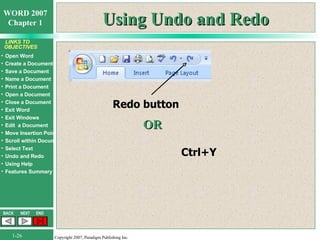
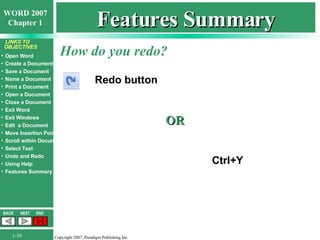
Using Undo and Redo Redo button OR Ctrl+Y
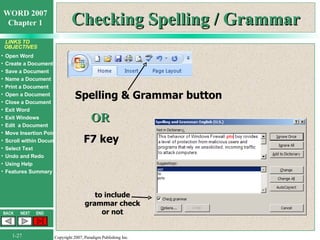
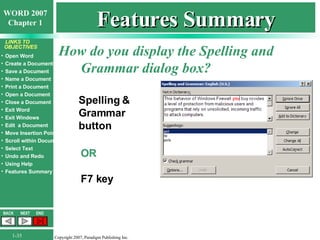
Checking Spelling / Grammar Spelling & Grammar button OR F7 key to include grammar check or not
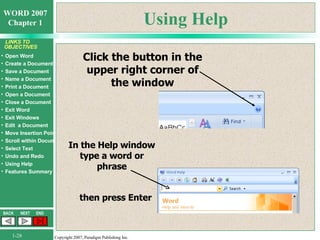
Using Help Click the button in the upper right corner of the window In the Help window type a word or phrase then press Enter
Features Summary How do you open Word? point to All Programs point to Microsoft Office click Microsoft Office Word 2007 click Start
Features Summary How do you display the Save As dialog box? , Save Save button OR , Save As type document name click Ctrl+S OR For different name, type, or location… The first time you save…
Features Summary How do you close a document? OR , Close Alt, F, C OR Ctrl+F4
Features Summary How do you print a document? (sends immediately to the printer) Print button
Features Summary How do you display the Print dialog box? , Print Ctrl+P OR
Features Summary How do you exit Word? click  Exit Word click Office button, then OR click Close button
Features Summary How do you display the Spelling and Grammar dialog box? Spelling & Grammar button OR F7 key
Features Summary How do you display the Open dialog box? Office, Open Open button OR Ctrl+O OR
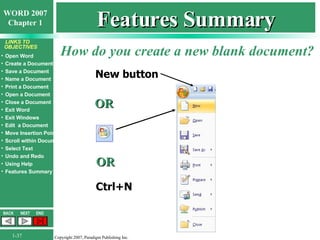
Features Summary How do you create a new blank document? New button OR Ctrl+N OR
Features Summary How do you undo? Undo button OR Ctrl + Z
Features Summary How do you redo? Redo button OR Ctrl+Y
Coming Next FORMATTING CHARACTERS AND PARAGRAPHS Chapter 2

Word Chapter 1 - Preparing Documents

  • 1.
    Microsoft Word 2007– Level 1 PREPARING DOCUMENTS Chapter 1
  • 2.
    Performance Objectives OpenMicrosoft Word Create, save, name, print, open, and close a Word document Exit Word and Windows Edit a document Move the insertion point within a document Scroll within a document Select text in a document Use the Undo and Redo buttons Check spelling and grammar in a document Use the Help feature
  • 3.
    Opening Microsoft Word2007 point to All Programs point to Microsoft Office click Microsoft Office Word 2007 click Start
  • 4.
    Word Document ScreenTabs Quick Access Toolbar Insertion Point Horizontal Ruler Vertical Scroll Bar Horizontal Scroll Bar Title Bar Ribbon Status Bar Office Button Vertical Ruler Taskbar
  • 5.
    Word Concepts Whenkeying in text, consider: Word Wrap AutoCorrect Automatic Spell Checker Automatic Grammar Checker Spacing after Punctuation Option Buttons AutoComplete New Line Command
  • 6.
    Saving a Document, Save Save button OR , Save As type document name click Ctrl+S OR For different name, type, or location…
  • 7.
    Naming a DocumentUp to 255 characters including drive letter and colon folder names spaces Excluded special characters include forward slash (/) question mark (?) backslash (\) quotation mark (“) greater than sign (>) colon (:) less than sign (<) semicolon (;) asterisk (*) pipe symbol ( | )
  • 8.
    Canceling a CommandTo close a dialog box… To close a menu… click in the document screen or press Alt key or press Esc key twice press Esc key or Cancel or Close
  • 9.
    Printing a Document(sends immediately to the printer) OR to open Print dialog box , Print Ctrl+P Print button OR then click OK to print
  • 10.
    Closing a DocumentClose a document OR , Close Alt, F, C OR Ctrl+F4
  • 11.
    Creating a NewDocument New button OR Ctrl+N , New OR
  • 12.
    Opening a DocumentDouble-click the document name Open dialog box OR Ctrl+O Open button , Open OR
  • 13.
    Exiting Word ExitWord Click Office button, then OR Click Close button
  • 14.
    Exiting Windows ClickShut Down Click Start
  • 15.
    Changing the DefaultFolder Office, Open or Open button Click down-pointing arrow at right side of Look in option box Click 3½ Floppy (A:) Click Cancel button
  • 16.
    Editing a DocumentCreated documents may need changes: insertions, deletions, revisions Adding text is called inserting Deleting text is called deleting Can move insertion point without erasing text Move insertion point with mouse, keyboard, or a combination of both
  • 17.
    Scrolling with theMouse Vertical Scroll Bar Horizontal Scroll Bar Up Scroll Arrow Scroll Box Down Scroll Arrow Previous Select Browse Object Next Scroll Box Scrolling changes text display but does not move insertion point – click to move insertion point
  • 18.
    Moving the InsertionPoint within a Document Previous Select Browse Object Next opens Select Browse Object Palette Find, Go To, enter Page number, press Enter
  • 19.
    Moving with theKeyboard To move insertion point Press One character left Left Arrow One character right Right Arrow One line up Up Arrow One line down Down Arrow One word to the left Ctrl + Left Arrow One word to the right Ctrl + Right Arrow To end of a line End To beginning of a line Home To beginning of current paragraph Ctrl + Up Arrow To beginning of previous paragraph Ctrl + Up Arrow twice To beginning of next paragraph Ctrl + Down Arrow Up one screen Page Up Down one screen Page Down To top of previous page Ctrl + Page Up To top of next page Ctrl + Page Down To beginning of document Ctrl + Home To end of document Ctrl + End
  • 20.
    Inserting Text Existingcharacters move to the right as you type additional text Delete key erases the character right of the insertion point Backspace key erases the character left of the insertion point
  • 21.
    Deleting Text Todelete Press Character right of insertion point Delete key Character left of insertion point Backspace key Text from insertion point to beginning of word Ctrl + Backspace Text from insertion point to end of word Ctrl + Delete
  • 22.
    Selecting Text withthe Mouse To select Complete these steps A word Double-click the word. A line of text Click in the selection bar to the left of the line. Multiple lines of text Drag in the selection bar to the left of the lines. A sentence Hold down the Ctrl key, then click anywhere in the sentence. A paragraph Double-click in the selection bar next to the paragraph or triple-click anywhere in the paragraph. Multiple paragraphs Drag in the selection bar. An entire document Triple-click in the selection bar.
  • 23.
    Selecting Text withthe Keyboard To select Press One character right Shift + Right Arrow One character left Shift + Left Arrow To end of word Ctrl + Shift + Right Arrow To beginning of word Ctrl + Shift + Left Arrow To end of line Shift + End To beginning of line Shift + Home One line up Shift + Up Arrow One line down Shift + Down Arrow To beginning of paragraph Ctrl + Shift + Up Arrow To end of paragraph Ctrl + Shift + Down Arrow One screen up Shift + Page Up One screen down Shift + Page Down To end of document Ctrl + Shift + End To beginning of document Ctrl + Shift + Home Entire document Ctrl + A or click Select, Select All
  • 24.
    The Mini ToolbarContains options for selected text Dimmed until mouse is moved into it
  • 25.
    Using Undo Undobutton click the down-pointing arrow to undo several previous actions Undo drop-down list OR Ctrl+Z
  • 26.
    Using Undo andRedo Redo button OR Ctrl+Y
  • 27.
    Checking Spelling /Grammar Spelling & Grammar button OR F7 key to include grammar check or not
  • 28.
    Using Help Clickthe button in the upper right corner of the window In the Help window type a word or phrase then press Enter
  • 29.
    Features Summary Howdo you open Word? point to All Programs point to Microsoft Office click Microsoft Office Word 2007 click Start
  • 30.
    Features Summary Howdo you display the Save As dialog box? , Save Save button OR , Save As type document name click Ctrl+S OR For different name, type, or location… The first time you save…
  • 31.
    Features Summary Howdo you close a document? OR , Close Alt, F, C OR Ctrl+F4
  • 32.
    Features Summary Howdo you print a document? (sends immediately to the printer) Print button
  • 33.
    Features Summary Howdo you display the Print dialog box? , Print Ctrl+P OR
  • 34.
    Features Summary Howdo you exit Word? click Exit Word click Office button, then OR click Close button
  • 35.
    Features Summary Howdo you display the Spelling and Grammar dialog box? Spelling & Grammar button OR F7 key
  • 36.
    Features Summary Howdo you display the Open dialog box? Office, Open Open button OR Ctrl+O OR
  • 37.
    Features Summary Howdo you create a new blank document? New button OR Ctrl+N OR
  • 38.
    Features Summary Howdo you undo? Undo button OR Ctrl + Z
  • 39.
    Features Summary Howdo you redo? Redo button OR Ctrl+Y
  • 40.
    Coming Next FORMATTINGCHARACTERS AND PARAGRAPHS Chapter 2