Migrating to Word 2010
                                                                                                        Microsoft®


                                                                                      from Word 2003

        In This Guide
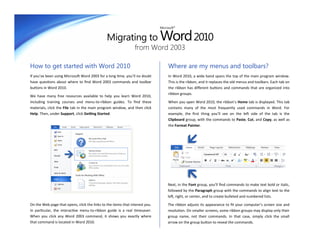
        Microsoft Word 2010 looks very different from Word 2003, so we created this guide to help you minimize the learning curve. Read on to learn key parts of the
        new interface, discover free Word 2010 training, find features such as Print Preview or the Options dialog box, understand how to exchange document files
        with people who don’t yet have Word 2010, and find out how to get access to macros and other advanced features.


                                                                                                                            Ribbon Groups
               Quick Access Toolbar                                          Ribbon Tabs
                                                                                                                            Each ribbon tab contains groups, and each group contains a set of
               Commands shown here are always visible. You                   Click any tab on the ribbon to                 related commands. Here, the Paragraph group contains commands for
               can add your favorite commands to this toolbar.               display its buttons and commands.              creating bulleted or numbered lists, and for centering text.


Backstage View                                                                                                                                                                  Hide the Ribbon
Click the File tab to enter                                                                                                                                                     Need more space on your
Backstage view, where                                                                                                                                                           screen? Click this icon or
you can open, save,                                                                                                                                                             press CTRL+F1 to hide or
print, and manage your                                                                                                                                                          show the ribbon.
Word files.
                                                                 Navigation Pane                                                       Dialog Box Launchers
                                                                                               Contextual Ribbon Tabs
                                                                                                                                     If you see a dialog box launch-
                                                                 Press CTRL+F to display       Some tabs appear on the ribbon
                                                                                                                                     er icon ( ) next to any ribbon
                                                                 the Navigation Pane.          only when you need them. For
                                                                                                                                     group label, click it to open a
                                                                 You can reorganize a          example, if you insert or select a
                                                                                                                                     dialog box with more options
                                                                 document by dragging          table, you’ll see Table Tools,
                                                                                                                                     for that group.
                                                                 its headings into this        which includes two extra tabs —
                                                                 pane. Changes you make        Design and Layout.
                                                                 here are reflected in                                               Switch Between Views
                                                                 your document. Or, use
                                                                 this pane to quickly find                                           Click these buttons to display
                                                                 your way around long                                                the current document in Print
                                                                 documents by typing                                                 Layout, Full Screen Reading,
                                                                 text into the search box.                                           Web Layout, Outline, or Draft
                                                                                                                                     (formerly Normal) view.
To exit Backstage view,
click any ribbon tab.
                                                                                                                                                                                     © 2010 by Microsoft Corporation.
                                                                                                                                                                                           All rights reserved.
Migrating to Word 2010
                                                                              Microsoft®


                                                                from Word 2003

How to get started with Word 2010                                                  Where are my menus and toolbars?
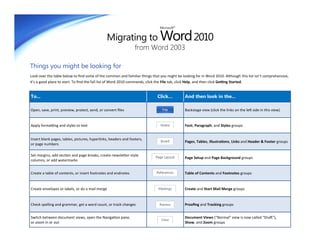
If you’ve been using Microsoft Word 2003 for a long time, you’ll no doubt          In Word 2010, a wide band spans the top of the main program window.
have questions about where to find Word 2003 commands and toolbar                  This is the ribbon, and it replaces the old menus and toolbars. Each tab on
buttons in Word 2010.                                                              the ribbon has different buttons and commands that are organized into
                                                                                   ribbon groups.
We have many free resources available to help you learn Word 2010,
including training courses and menu-to-ribbon guides. To find these                When you open Word 2010, the ribbon’s Home tab is displayed. This tab
materials, click the File tab in the main program window, and then click           contains many of the most frequently used commands in Word. For
Help. Then, under Support, click Getting Started.                                  example, the first thing you’ll see on the left side of the tab is the
                                                                                   Clipboard group, with the commands to Paste, Cut, and Copy, as well as
                                                                                   the Format Painter.


                                                                                   Next, in the Font group, you’ll find commands to make text bold or italic,
                                                                                   followed by the Paragraph group with the commands to align text to the
                                                                                   left, right, or center, and to create bulleted and numbered lists.

On the Web page that opens, click the links to the items that interest you.        The ribbon adjusts its appearance to fit your computer’s screen size and
In particular, the interactive menu-to-ribbon guide is a real timesaver.           resolution. On smaller screens, some ribbon groups may display only their
When you click any Word 2003 command, it shows you exactly where                   group name, not their commands. In that case, simply click the small
that command is located in Word 2010.                                              arrow on the group button to reveal the commands.
Migrating to Word 2010
                                                                              Microsoft®


                                                                 from Word 2003

Things you might be looking for
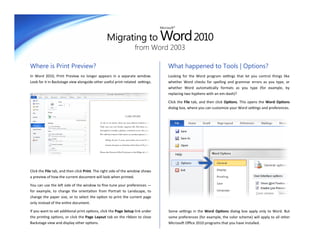
Look over the table below to find some of the common and familiar things that you might be looking for in Word 2010. Although this list isn’t comprehensive,
it’s a good place to start. To find the full list of Word 2010 commands, click the File tab, click Help, and then click Getting Started.


To...                                                                       Click…           And then look in the...

Open, save, print, preview, protect, send, or convert files                                  Backstage view (click the links on the left side in this view)


Apply formatting and styles to text                                                          Font, Paragraph, and Styles groups


Insert blank pages, tables, pictures, hyperlinks, headers and footers,
                                                                                             Pages, Tables, Illustrations, Links and Header & Footer groups
or page numbers

Set margins, add section and page breaks, create newsletter-style
                                                                                             Page Setup and Page Background groups
columns, or add watermarks


Create a table of contents, or insert footnotes and endnotes                                 Table of Contents and Footnotes groups


Create envelopes or labels, or do a mail merge                                               Create and Start Mail Merge groups


Check spelling and grammar, get a word count, or track changes                               Proofing and Tracking groups


Switch between document views, open the Navigation pane,                                     Document Views (“Normal” view is now called “Draft”),
or zoom in or out                                                                            Show, and Zoom groups
Migrating to Word 2010
                                                                               Microsoft®


                                                                 from Word 2003

Where is Print Preview?                                                             What happened to Tools | Options?
In Word 2010, Print Preview no longer appears in a separate window.                 Looking for the Word program settings that let you control things like
Look for it in Backstage view alongside other useful print-related settings.        whether Word checks for spelling and grammar errors as you type, or
                                                                                    whether Word automatically formats as you type (for example, by
                                                                                    replacing two hyphens with an em-dash)?

                                                                                    Click the File tab, and then click Options. This opens the Word Options
                                                                                    dialog box, where you can customize your Word settings and preferences.


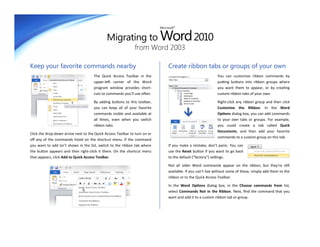
Click the File tab, and then click Print. The right side of the window shows
a preview of how the current document will look when printed.

You can use the left side of the window to fine-tune your preferences —
for example, to change the orientation from Portrait to Landscape, to
change the paper size, or to select the option to print the current page
only instead of the entire document.

If you want to set additional print options, click the Page Setup link under        Some settings in the Word Options dialog box apply only to Word. But
the printing options, or click the Page Layout tab on the ribbon to close           some preferences (for example, the color scheme) will apply to all other
Backstage view and display other options.                                           Microsoft Office 2010 programs that you have installed.
Migrating to Word 2010
                                                                           Microsoft®


                                                              from Word 2003

Keep your favorite commands nearby                                              Create ribbon tabs or groups of your own
                                     The Quick Access Toolbar in the                                          You can customize ribbon commands by
                                     upper-left corner of the Word                                            putting buttons into ribbon groups where
                                     program window provides short-                                           you want them to appear, or by creating
                                     cuts to commands you’ll use often.                                       custom ribbon tabs of your own.

                                     By adding buttons to this toolbar,                                       Right-click any ribbon group and then click
                                     you can keep all of your favorite                                        Customize the Ribbon. In the Word
                                     commands visible and available at                                        Options dialog box, you can add commands
                                     all times, even when you switch                                          to your own tabs or groups. For example,
                                     ribbon tabs.                                                             you could create a tab called Quick
                                                                                                              Documents, and then add your favorite
Click the drop-down arrow next to the Quick Access Toolbar to turn on or
                                                                                                              commands to a custom group on this tab.
off any of the commands listed on the shortcut menu. If the command
you want to add isn’t shown in the list, switch to the ribbon tab where         If you make a mistake, don’t panic. You can
the button appears and then right-click it there. On the shortcut menu          use the Reset button if you want to go back
that appears, click Add to Quick Access Toolbar.                                to the default (“factory”) settings.

                                                                                Not all older Word commands appear on the ribbon, but they’re still
                                                                                available. If you can’t live without some of these, simply add them to the
                                                                                ribbon or to the Quick Access Toolbar.

                                                                                In the Word Options dialog box, in the Choose commands from list,
                                                                                select Commands Not in the Ribbon. Next, find the command that you
                                                                                want and add it to a custom ribbon tab or group.
Migrating to Word 2010
                                                                              Microsoft®


                                                                from Word 2003

Introducing KeyTips                                                                Do keyboard shortcuts still work?
Word 2010 provides shortcuts for the ribbon, called KeyTips, so you can            Keyboard shortcuts from Word 2003 are still available in Word 2010.
quickly perform tasks without using your mouse.                                    If you know a shortcut sequence, go ahead and type it. For example,
                                                                                   CTRL+C still copies selected information to the Clipboard, CTRL+S still
                                                                                   saves changes to the current document, and ALT+F8 still opens the
                                                                                   Macros dialog box.

                                                                                   Many of the old ALT menu accelerators still work in Word 2010. For
                                                                                   example, pressing ALT, T, O in succession opens the Word Options dialog
                                                                                   box (formerly Tools | Options). Similarly, pressing ALT, I, P, C opens the
                                                                                   Clip Art pane (formerly Insert | Picture), and so on.

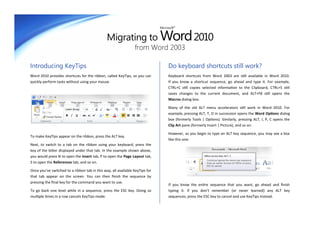
                                                                                   However, as you begin to type an ALT key sequence, you may see a box
To make KeyTips appear on the ribbon, press the ALT key.
                                                                                   like this one:
Next, to switch to a tab on the ribbon using your keyboard, press the
key of the letter displayed under that tab. In the example shown above,
you would press N to open the Insert tab, P to open the Page Layout tab,
S to open the References tab, and so on.

Once you’ve switched to a ribbon tab in this way, all available KeyTips for
that tab appear on the screen. You can then finish the sequence by
pressing the final key for the command you want to use.
                                                                                   If you know the entire sequence that you want, go ahead and finish
To go back one level while in a sequence, press the ESC key. Doing so              typing it. If you don’t remember (or never learned) any ALT key
multiple times in a row cancels KeyTips mode.                                      sequences, press the ESC key to cancel and use KeyTips instead.
Migrating to Word 2010
                                                                                            Microsoft®


                                                                        from Word 2003

How to work with people who don’t yet have Word 2010
Word 2010 (and Word 2007) documents use a new file format for saving files. If people you work with are using different versions of Word, don’t worry —
you can still open and edit older documents in Word 2010, and share your files with people who don’t yet have Word 2010.


In Word 2010...                What happens?                                                                                  What should I do?
You open a document that was   In the Word 2010 program window, you’ll see the words [Compatibility Mode] next to the         To exit Compatibility Mode and convert the 2003 file to the
created with Word 2003.        file name on the title bar.                                                                    new Word 2010 format, click the File tab, click Info, and then
                                                                                                                              click Convert.

                                                                                                                              Before you convert your file, ask yourself if you need to
                                                                                                                              collaborate on your document with people who still use
                               This tells you that even though you’re in Word 2010, you’re still technically working in the   Word 2003 (or an even older version). If the answer is yes,
                               earlier file format, and that you won’t be able to use Word 2010 features like new chart       you may want to keep working in Compatibility Mode so
                               tools or math equations until you convert the file to the Word 2010 file format.               that you won’t be tempted to use new features that aren’t
                                                                                                                              supported in the older file format.

You save your document as a    If someone opens the document in Word 2003, a prompt appears with a link to download           If you think that Word 2003 users may need to interact with
Word 2010 file.                the free Compatibility Pack (provided that the latest patches and service packs are already    your Word 2010 document, you should run the Compatibility
                               installed). The Compatibility Pack is required for Word 2003 to open and interact with         Checker tool to make sure the file will work correctly for them.
                               Word 2010 documents.
                                                                                                                              To check for compatibility, click the File tab, click Info, click
                               If you’ve used new Word 2010 features or formatting in your document, such as chart            Check for Issues, and then click Check Compatibility.
                               tools or math equations, Word 2003 users may see warnings about unsupported features,
                                                                                                                              The tool tells you which new features in Word 2010 aren’t
                               or the formatting or feature may not appear in the file.
                                                                                                                              supported in older versions. You can then decide whether to
                                                                                                                              remove these features to avoid warnings in Word 2003.

You save your document as a    If someone opens the document in Word 2003, the document will open normally — no               You don’t have to do anything, necessarily.
Word 2003 file.                Compatibility Pack is required.
                                                                                                                              When you save your file in the older Word 2003 file format,
                               If you’ve used new Word 2010 features or formatting in your document, such as chart            the Compatibility Checker will run automatically and warn
                               tools or math equations, Word 2003 users may see warnings about unsupported                    you about any unsupported features. You can then make
                               features, or the formatting or feature may not appear in the file.                             any necessary design changes to the file.
Migrating to Word 2010
                                                                           Microsoft®


                                                              from Word 2003

Get Word 2003 line spacing back                                                 Find advanced features
In Word 2003, the space between lines is 1.0, with no blank line between        If you plan to routinely use Word 2010 to design macros, forms, and XML
paragraphs. In Word 2010 (and in Word 2007), the space between lines            or Microsoft Visual Basic for Applications (VBA) solutions, you can add the
has changed to 1.15, with a blank line between paragraphs. You may              Developer tab to the Word ribbon.
prefer spacing to look the way it has before.

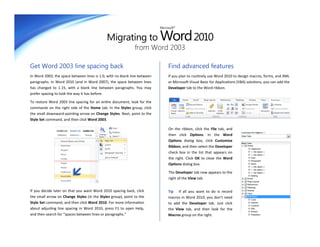
To restore Word 2003 line spacing for an entire document, look for the
commands on the right side of the Home tab. In the Styles group, click
the small downward-pointing arrow on Change Styles. Next, point to the
Style Set command, and then click Word 2003.

                                                                                On the ribbon, click the File tab, and
                                                                                then click Options. In the Word
                                                                                Options dialog box, click Customize
                                                                                Ribbon, and then select the Developer
                                                                                check box in the list that appears on
                                                                                the right. Click OK to close the Word
                                                                                Options dialog box.

                                                                                The Developer tab now appears to the
                                                                                right of the View tab.


If you decide later on that you want Word 2010 spacing back, click              Tip If all you want to do is record
the small arrow on Change Styles (in the Styles group), point to the            macros in Word 2010, you don’t need
Style Set command, and then click Word 2010. For more information               to add the Developer tab. Just click
about adjusting line spacing in Word 2010, press F1 to open Help,               the View tab, and then look for the
and then search for “spaces between lines or paragraphs.”                       Macros group on the right.

Migrating to Word 2010 from Word 2003 | Microsoft

  • 1.
    Migrating to Word2010 Microsoft® from Word 2003 In This Guide Microsoft Word 2010 looks very different from Word 2003, so we created this guide to help you minimize the learning curve. Read on to learn key parts of the new interface, discover free Word 2010 training, find features such as Print Preview or the Options dialog box, understand how to exchange document files with people who don’t yet have Word 2010, and find out how to get access to macros and other advanced features. Ribbon Groups Quick Access Toolbar Ribbon Tabs Each ribbon tab contains groups, and each group contains a set of Commands shown here are always visible. You Click any tab on the ribbon to related commands. Here, the Paragraph group contains commands for can add your favorite commands to this toolbar. display its buttons and commands. creating bulleted or numbered lists, and for centering text. Backstage View Hide the Ribbon Click the File tab to enter Need more space on your Backstage view, where screen? Click this icon or you can open, save, press CTRL+F1 to hide or print, and manage your show the ribbon. Word files. Navigation Pane Dialog Box Launchers Contextual Ribbon Tabs If you see a dialog box launch- Press CTRL+F to display Some tabs appear on the ribbon er icon ( ) next to any ribbon the Navigation Pane. only when you need them. For group label, click it to open a You can reorganize a example, if you insert or select a dialog box with more options document by dragging table, you’ll see Table Tools, for that group. its headings into this which includes two extra tabs — pane. Changes you make Design and Layout. here are reflected in Switch Between Views your document. Or, use this pane to quickly find Click these buttons to display your way around long the current document in Print documents by typing Layout, Full Screen Reading, text into the search box. Web Layout, Outline, or Draft (formerly Normal) view. To exit Backstage view, click any ribbon tab. © 2010 by Microsoft Corporation. All rights reserved.
  • 2.
    Migrating to Word2010 Microsoft® from Word 2003 How to get started with Word 2010 Where are my menus and toolbars? If you’ve been using Microsoft Word 2003 for a long time, you’ll no doubt In Word 2010, a wide band spans the top of the main program window. have questions about where to find Word 2003 commands and toolbar This is the ribbon, and it replaces the old menus and toolbars. Each tab on buttons in Word 2010. the ribbon has different buttons and commands that are organized into ribbon groups. We have many free resources available to help you learn Word 2010, including training courses and menu-to-ribbon guides. To find these When you open Word 2010, the ribbon’s Home tab is displayed. This tab materials, click the File tab in the main program window, and then click contains many of the most frequently used commands in Word. For Help. Then, under Support, click Getting Started. example, the first thing you’ll see on the left side of the tab is the Clipboard group, with the commands to Paste, Cut, and Copy, as well as the Format Painter. Next, in the Font group, you’ll find commands to make text bold or italic, followed by the Paragraph group with the commands to align text to the left, right, or center, and to create bulleted and numbered lists. On the Web page that opens, click the links to the items that interest you. The ribbon adjusts its appearance to fit your computer’s screen size and In particular, the interactive menu-to-ribbon guide is a real timesaver. resolution. On smaller screens, some ribbon groups may display only their When you click any Word 2003 command, it shows you exactly where group name, not their commands. In that case, simply click the small that command is located in Word 2010. arrow on the group button to reveal the commands.
  • 3.
    Migrating to Word2010 Microsoft® from Word 2003 Things you might be looking for Look over the table below to find some of the common and familiar things that you might be looking for in Word 2010. Although this list isn’t comprehensive, it’s a good place to start. To find the full list of Word 2010 commands, click the File tab, click Help, and then click Getting Started. To... Click… And then look in the... Open, save, print, preview, protect, send, or convert files Backstage view (click the links on the left side in this view) Apply formatting and styles to text Font, Paragraph, and Styles groups Insert blank pages, tables, pictures, hyperlinks, headers and footers, Pages, Tables, Illustrations, Links and Header & Footer groups or page numbers Set margins, add section and page breaks, create newsletter-style Page Setup and Page Background groups columns, or add watermarks Create a table of contents, or insert footnotes and endnotes Table of Contents and Footnotes groups Create envelopes or labels, or do a mail merge Create and Start Mail Merge groups Check spelling and grammar, get a word count, or track changes Proofing and Tracking groups Switch between document views, open the Navigation pane, Document Views (“Normal” view is now called “Draft”), or zoom in or out Show, and Zoom groups
  • 4.
    Migrating to Word2010 Microsoft® from Word 2003 Where is Print Preview? What happened to Tools | Options? In Word 2010, Print Preview no longer appears in a separate window. Looking for the Word program settings that let you control things like Look for it in Backstage view alongside other useful print-related settings. whether Word checks for spelling and grammar errors as you type, or whether Word automatically formats as you type (for example, by replacing two hyphens with an em-dash)? Click the File tab, and then click Options. This opens the Word Options dialog box, where you can customize your Word settings and preferences. Click the File tab, and then click Print. The right side of the window shows a preview of how the current document will look when printed. You can use the left side of the window to fine-tune your preferences — for example, to change the orientation from Portrait to Landscape, to change the paper size, or to select the option to print the current page only instead of the entire document. If you want to set additional print options, click the Page Setup link under Some settings in the Word Options dialog box apply only to Word. But the printing options, or click the Page Layout tab on the ribbon to close some preferences (for example, the color scheme) will apply to all other Backstage view and display other options. Microsoft Office 2010 programs that you have installed.
  • 5.
    Migrating to Word2010 Microsoft® from Word 2003 Keep your favorite commands nearby Create ribbon tabs or groups of your own The Quick Access Toolbar in the You can customize ribbon commands by upper-left corner of the Word putting buttons into ribbon groups where program window provides short- you want them to appear, or by creating cuts to commands you’ll use often. custom ribbon tabs of your own. By adding buttons to this toolbar, Right-click any ribbon group and then click you can keep all of your favorite Customize the Ribbon. In the Word commands visible and available at Options dialog box, you can add commands all times, even when you switch to your own tabs or groups. For example, ribbon tabs. you could create a tab called Quick Documents, and then add your favorite Click the drop-down arrow next to the Quick Access Toolbar to turn on or commands to a custom group on this tab. off any of the commands listed on the shortcut menu. If the command you want to add isn’t shown in the list, switch to the ribbon tab where If you make a mistake, don’t panic. You can the button appears and then right-click it there. On the shortcut menu use the Reset button if you want to go back that appears, click Add to Quick Access Toolbar. to the default (“factory”) settings. Not all older Word commands appear on the ribbon, but they’re still available. If you can’t live without some of these, simply add them to the ribbon or to the Quick Access Toolbar. In the Word Options dialog box, in the Choose commands from list, select Commands Not in the Ribbon. Next, find the command that you want and add it to a custom ribbon tab or group.
  • 6.
    Migrating to Word2010 Microsoft® from Word 2003 Introducing KeyTips Do keyboard shortcuts still work? Word 2010 provides shortcuts for the ribbon, called KeyTips, so you can Keyboard shortcuts from Word 2003 are still available in Word 2010. quickly perform tasks without using your mouse. If you know a shortcut sequence, go ahead and type it. For example, CTRL+C still copies selected information to the Clipboard, CTRL+S still saves changes to the current document, and ALT+F8 still opens the Macros dialog box. Many of the old ALT menu accelerators still work in Word 2010. For example, pressing ALT, T, O in succession opens the Word Options dialog box (formerly Tools | Options). Similarly, pressing ALT, I, P, C opens the Clip Art pane (formerly Insert | Picture), and so on. However, as you begin to type an ALT key sequence, you may see a box To make KeyTips appear on the ribbon, press the ALT key. like this one: Next, to switch to a tab on the ribbon using your keyboard, press the key of the letter displayed under that tab. In the example shown above, you would press N to open the Insert tab, P to open the Page Layout tab, S to open the References tab, and so on. Once you’ve switched to a ribbon tab in this way, all available KeyTips for that tab appear on the screen. You can then finish the sequence by pressing the final key for the command you want to use. If you know the entire sequence that you want, go ahead and finish To go back one level while in a sequence, press the ESC key. Doing so typing it. If you don’t remember (or never learned) any ALT key multiple times in a row cancels KeyTips mode. sequences, press the ESC key to cancel and use KeyTips instead.
  • 7.
    Migrating to Word2010 Microsoft® from Word 2003 How to work with people who don’t yet have Word 2010 Word 2010 (and Word 2007) documents use a new file format for saving files. If people you work with are using different versions of Word, don’t worry — you can still open and edit older documents in Word 2010, and share your files with people who don’t yet have Word 2010. In Word 2010... What happens? What should I do? You open a document that was In the Word 2010 program window, you’ll see the words [Compatibility Mode] next to the To exit Compatibility Mode and convert the 2003 file to the created with Word 2003. file name on the title bar. new Word 2010 format, click the File tab, click Info, and then click Convert. Before you convert your file, ask yourself if you need to collaborate on your document with people who still use This tells you that even though you’re in Word 2010, you’re still technically working in the Word 2003 (or an even older version). If the answer is yes, earlier file format, and that you won’t be able to use Word 2010 features like new chart you may want to keep working in Compatibility Mode so tools or math equations until you convert the file to the Word 2010 file format. that you won’t be tempted to use new features that aren’t supported in the older file format. You save your document as a If someone opens the document in Word 2003, a prompt appears with a link to download If you think that Word 2003 users may need to interact with Word 2010 file. the free Compatibility Pack (provided that the latest patches and service packs are already your Word 2010 document, you should run the Compatibility installed). The Compatibility Pack is required for Word 2003 to open and interact with Checker tool to make sure the file will work correctly for them. Word 2010 documents. To check for compatibility, click the File tab, click Info, click If you’ve used new Word 2010 features or formatting in your document, such as chart Check for Issues, and then click Check Compatibility. tools or math equations, Word 2003 users may see warnings about unsupported features, The tool tells you which new features in Word 2010 aren’t or the formatting or feature may not appear in the file. supported in older versions. You can then decide whether to remove these features to avoid warnings in Word 2003. You save your document as a If someone opens the document in Word 2003, the document will open normally — no You don’t have to do anything, necessarily. Word 2003 file. Compatibility Pack is required. When you save your file in the older Word 2003 file format, If you’ve used new Word 2010 features or formatting in your document, such as chart the Compatibility Checker will run automatically and warn tools or math equations, Word 2003 users may see warnings about unsupported you about any unsupported features. You can then make features, or the formatting or feature may not appear in the file. any necessary design changes to the file.
  • 8.
    Migrating to Word2010 Microsoft® from Word 2003 Get Word 2003 line spacing back Find advanced features In Word 2003, the space between lines is 1.0, with no blank line between If you plan to routinely use Word 2010 to design macros, forms, and XML paragraphs. In Word 2010 (and in Word 2007), the space between lines or Microsoft Visual Basic for Applications (VBA) solutions, you can add the has changed to 1.15, with a blank line between paragraphs. You may Developer tab to the Word ribbon. prefer spacing to look the way it has before. To restore Word 2003 line spacing for an entire document, look for the commands on the right side of the Home tab. In the Styles group, click the small downward-pointing arrow on Change Styles. Next, point to the Style Set command, and then click Word 2003. On the ribbon, click the File tab, and then click Options. In the Word Options dialog box, click Customize Ribbon, and then select the Developer check box in the list that appears on the right. Click OK to close the Word Options dialog box. The Developer tab now appears to the right of the View tab. If you decide later on that you want Word 2010 spacing back, click Tip If all you want to do is record the small arrow on Change Styles (in the Styles group), point to the macros in Word 2010, you don’t need Style Set command, and then click Word 2010. For more information to add the Developer tab. Just click about adjusting line spacing in Word 2010, press F1 to open Help, the View tab, and then look for the and then search for “spaces between lines or paragraphs.” Macros group on the right.