Microsoft word
1Yeshey Lhendup
Objectives
• Familiarize with the tools of Ms
Word
• Use various text formatting tools
• edit word document
• Convert Word into pdf
Yeshey Lhendup 2
Topics
• Introduction to MS word window
• Page and font setting
• Bullets and numbering
• Formatting text
• Editing word doc
• Saving word into pdf
Yeshey Lhendup 3
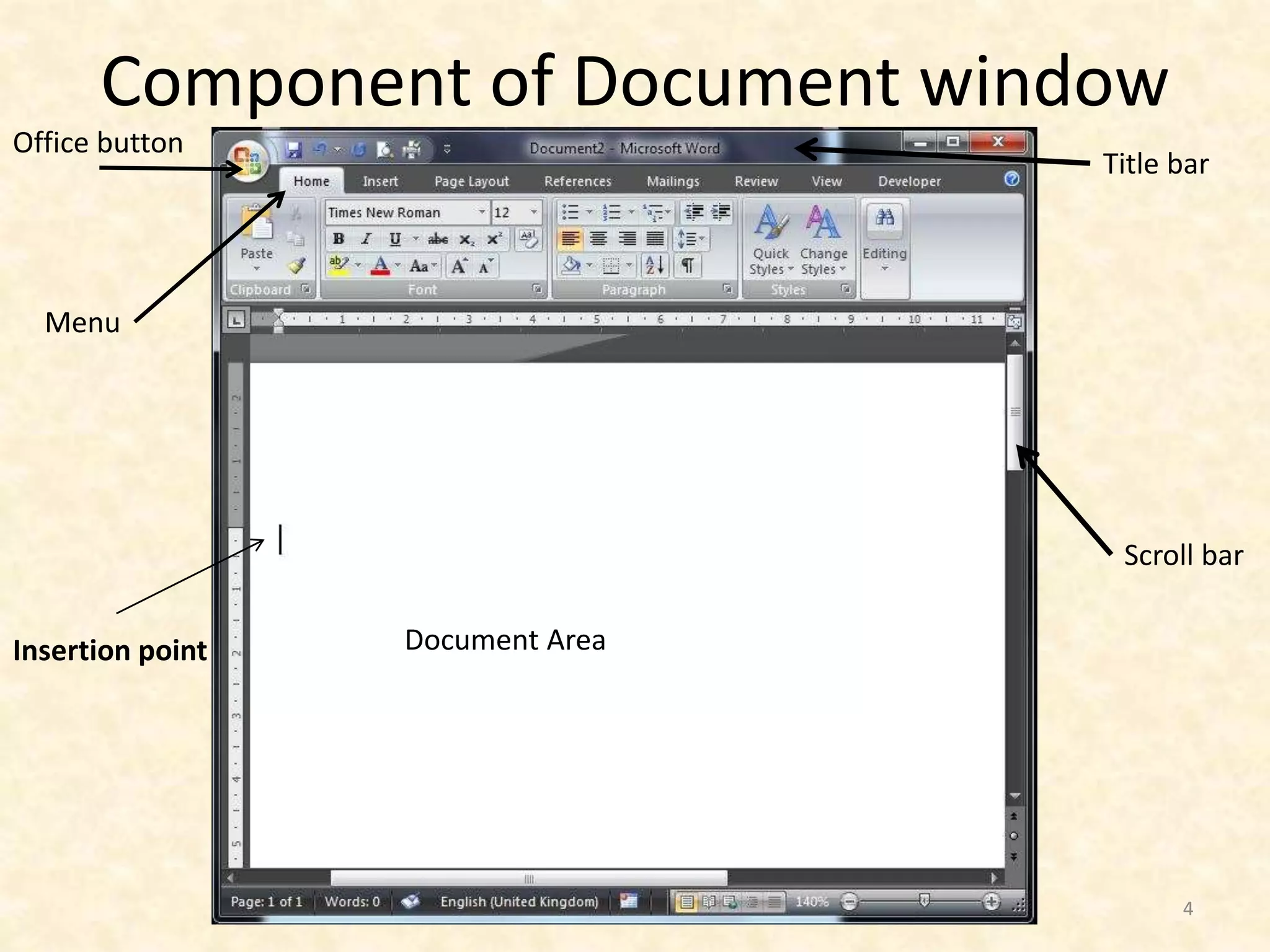
Component of Document window
4
Title bar
Office button
Menu
Insertion point
Scroll bar
Document Area
Yeshey Lhendup 5
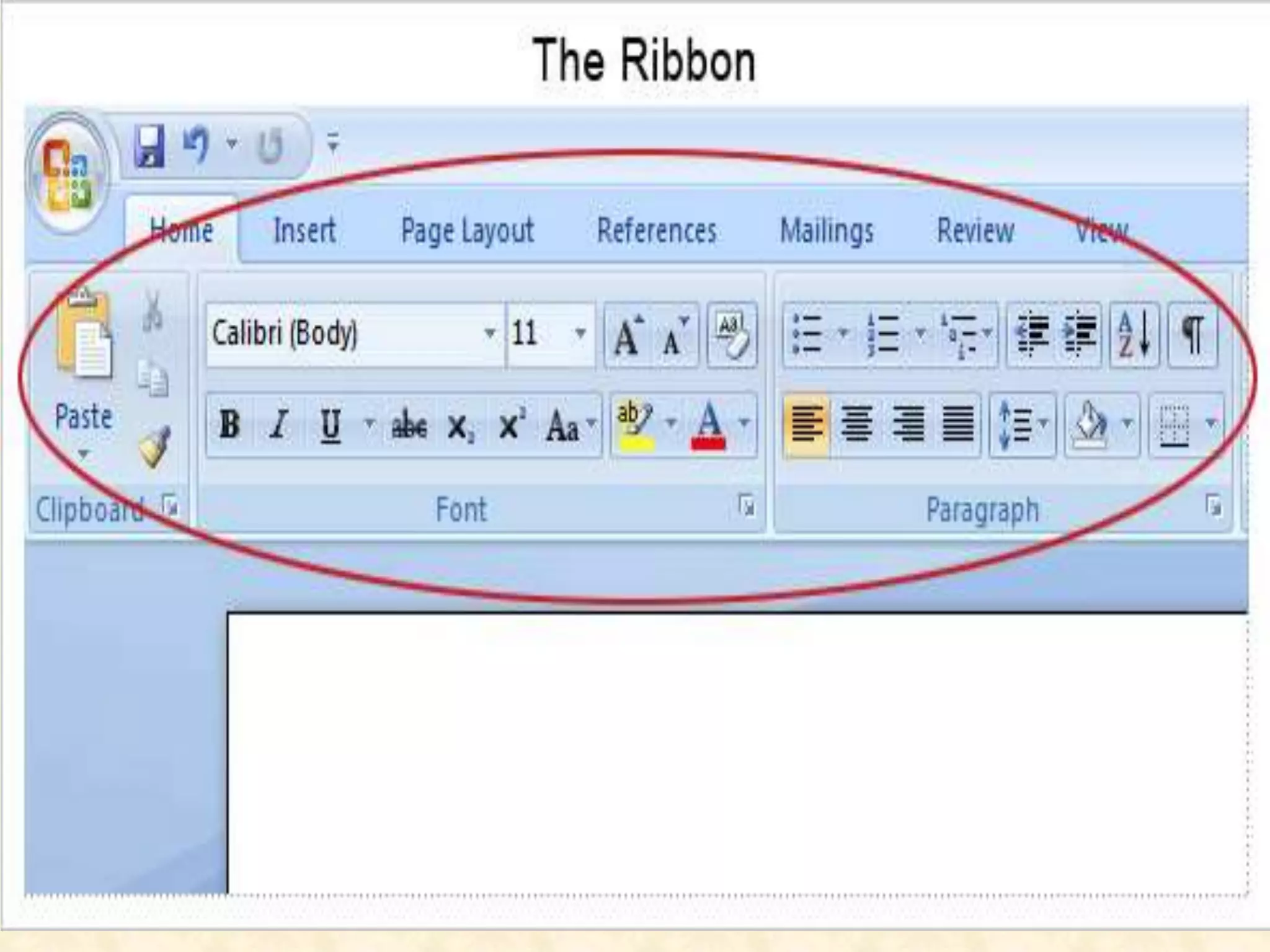
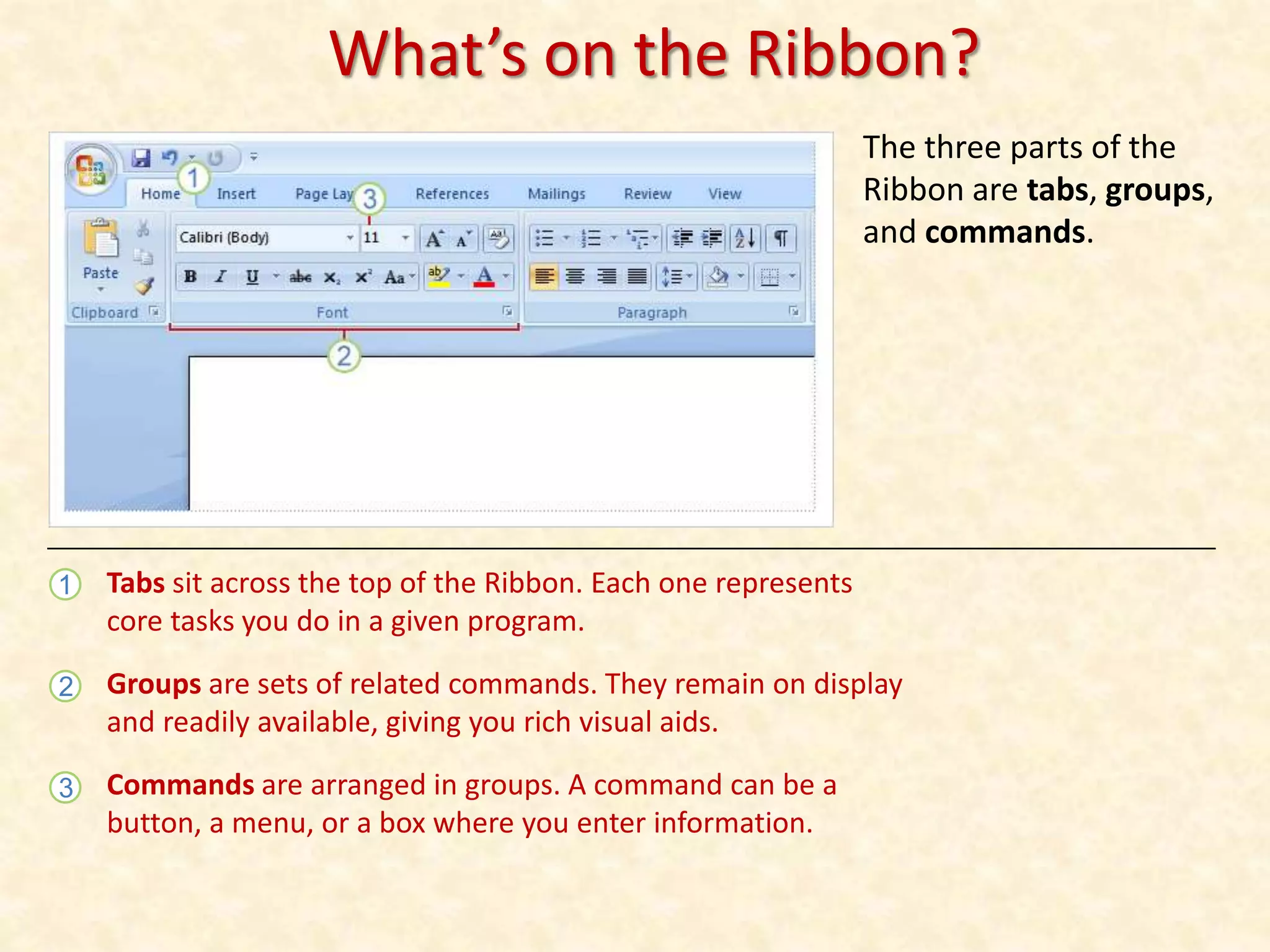
What’s on the Ribbon?
The three parts of the
Ribbon are tabs, groups,
and commands.
1
2
3
Tabs sit across the top of the Ribbon. Each one represents
core tasks you do in a given program.
Groups are sets of related commands. They remain on display
and readily available, giving you rich visual aids.
Commands are arranged in groups. A command can be a
button, a menu, or a box where you enter information.
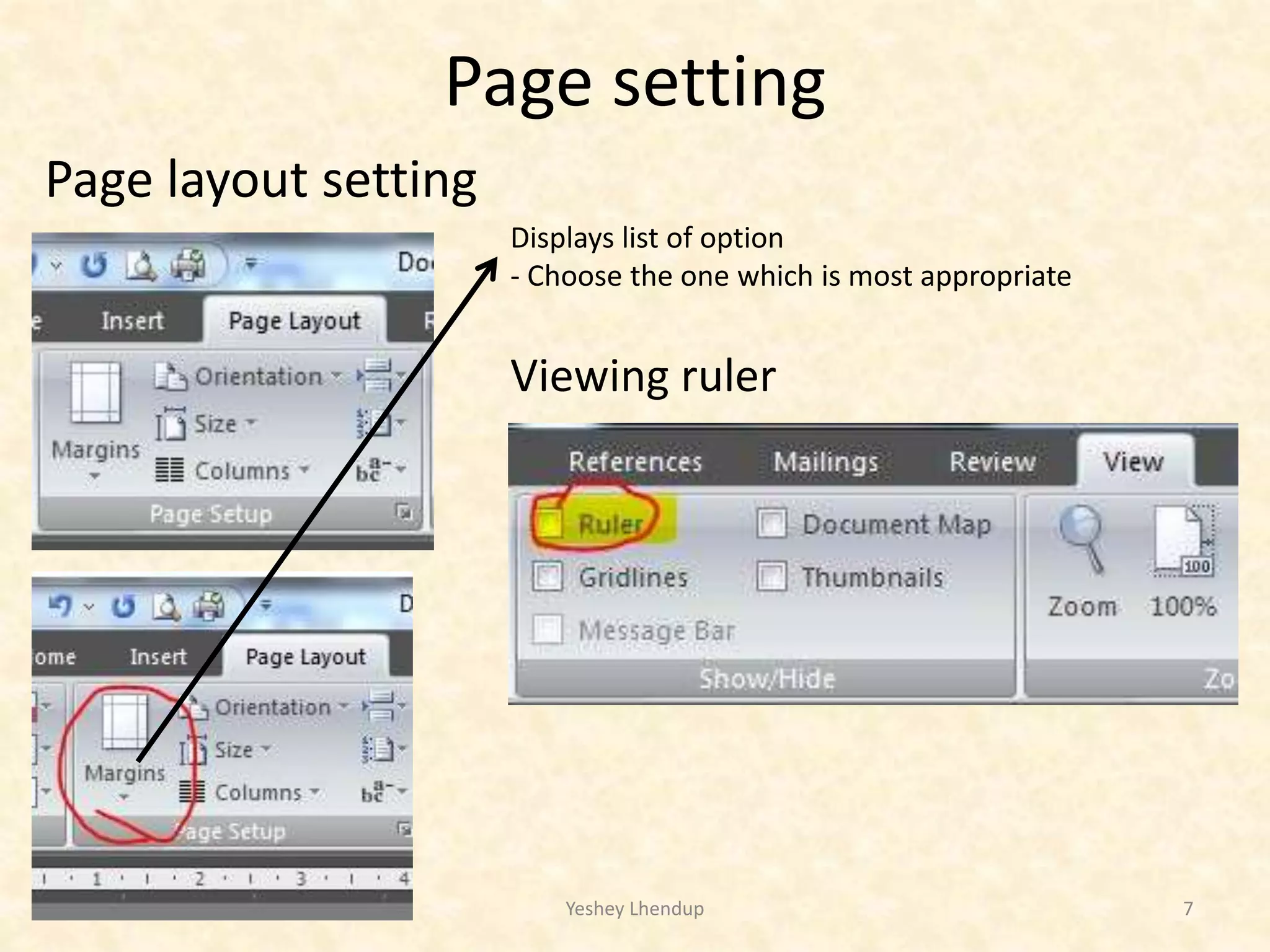
Page setting
Page layout setting
Yeshey Lhendup 7
Displays list of option
- Choose the one which is most appropriate
Viewing ruler
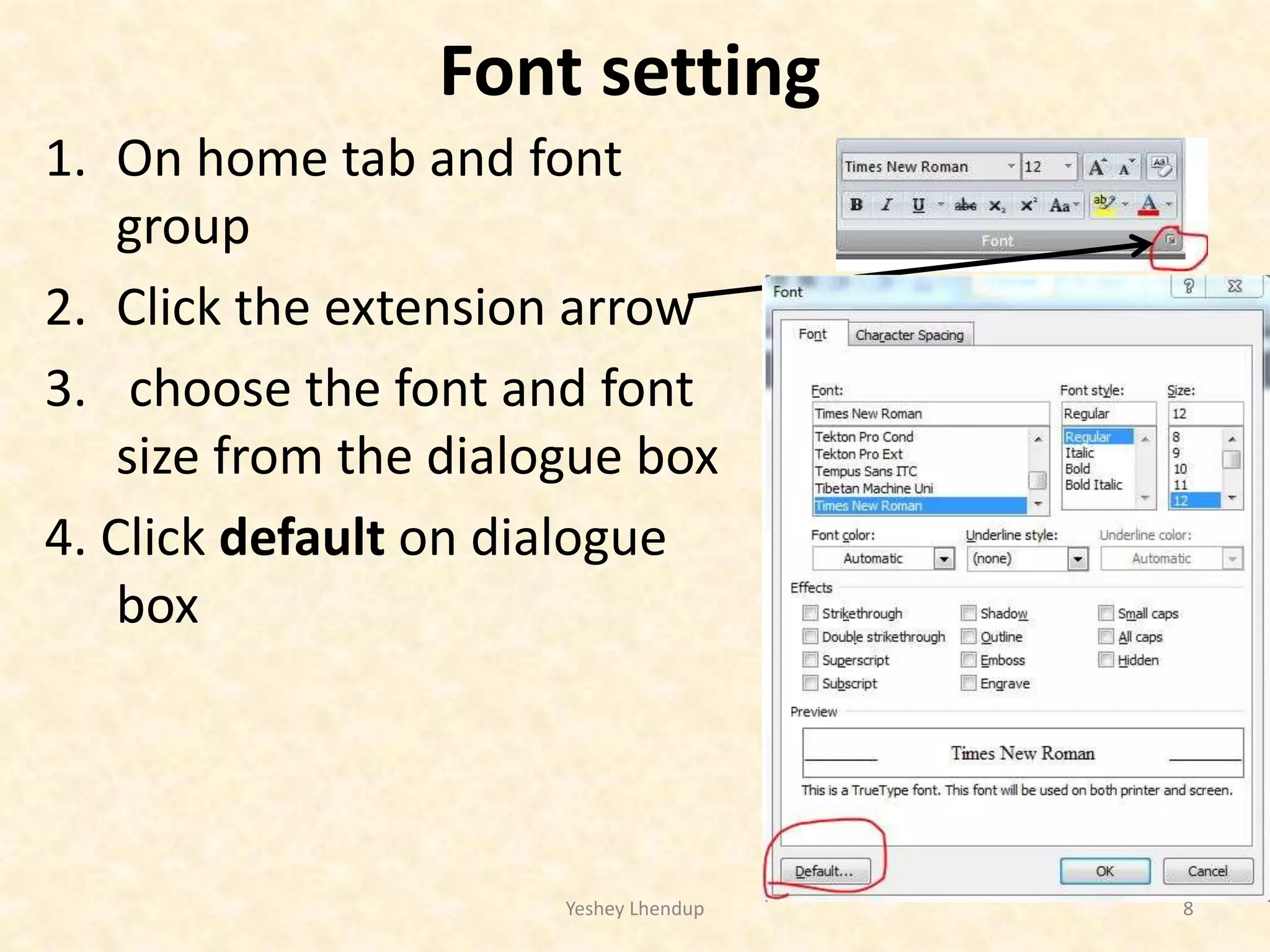
Font setting
1. On home tab and font
group
2. Click the extension arrow
3. choose the font and font
size from the dialogue box
4. Click default on dialogue
box
Yeshey Lhendup 8
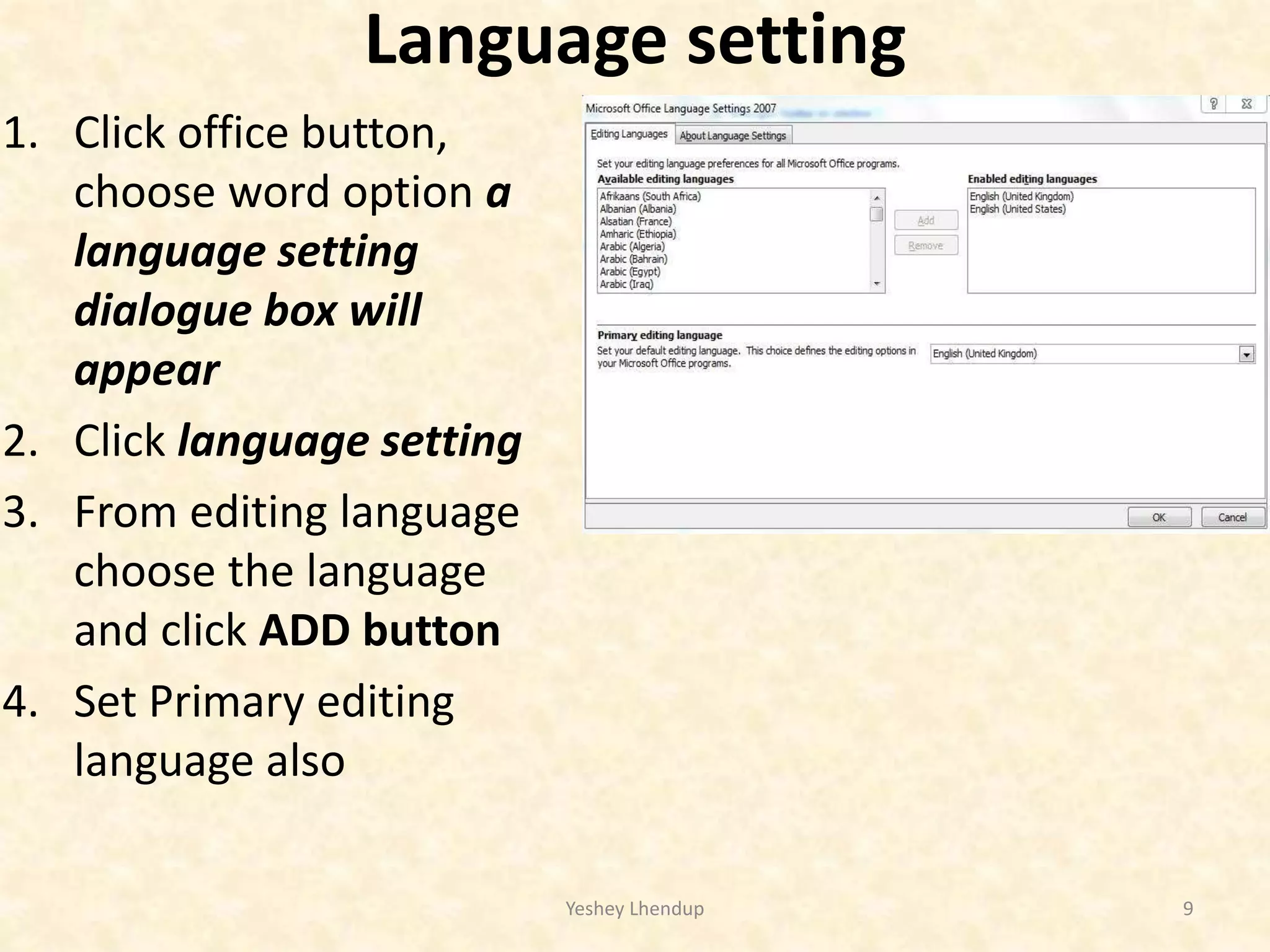
Language setting
1. Click office button,
choose word option a
language setting
dialogue box will
appear
2. Click language setting
3. From editing language
choose the language
and click ADD button
4. Set Primary editing
language also
Yeshey Lhendup 9
Yeshey Lhendup 10
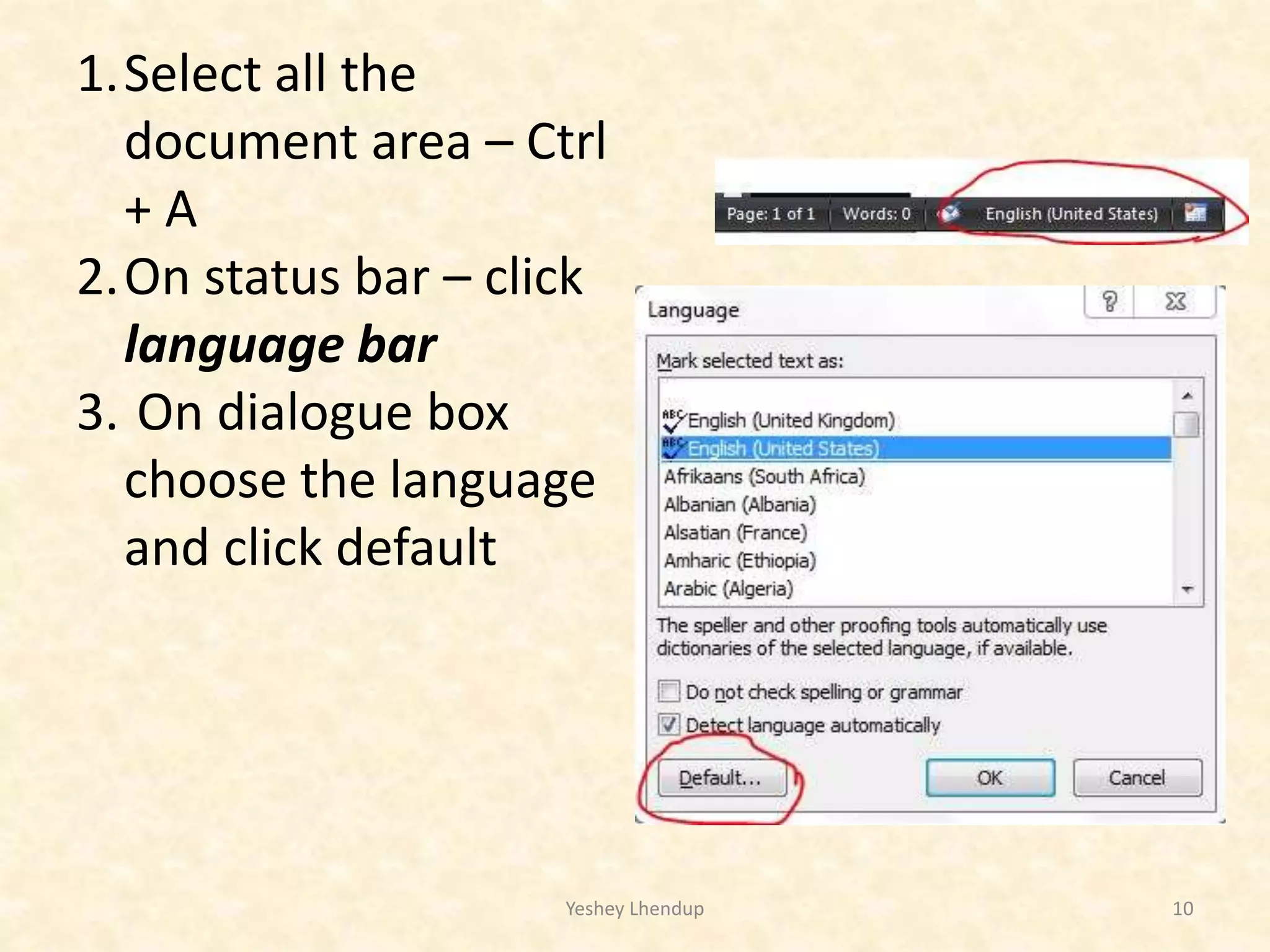
1.Select all the
document area – Ctrl
+ A
2.On status bar – click
language bar
3. On dialogue box
choose the language
and click default
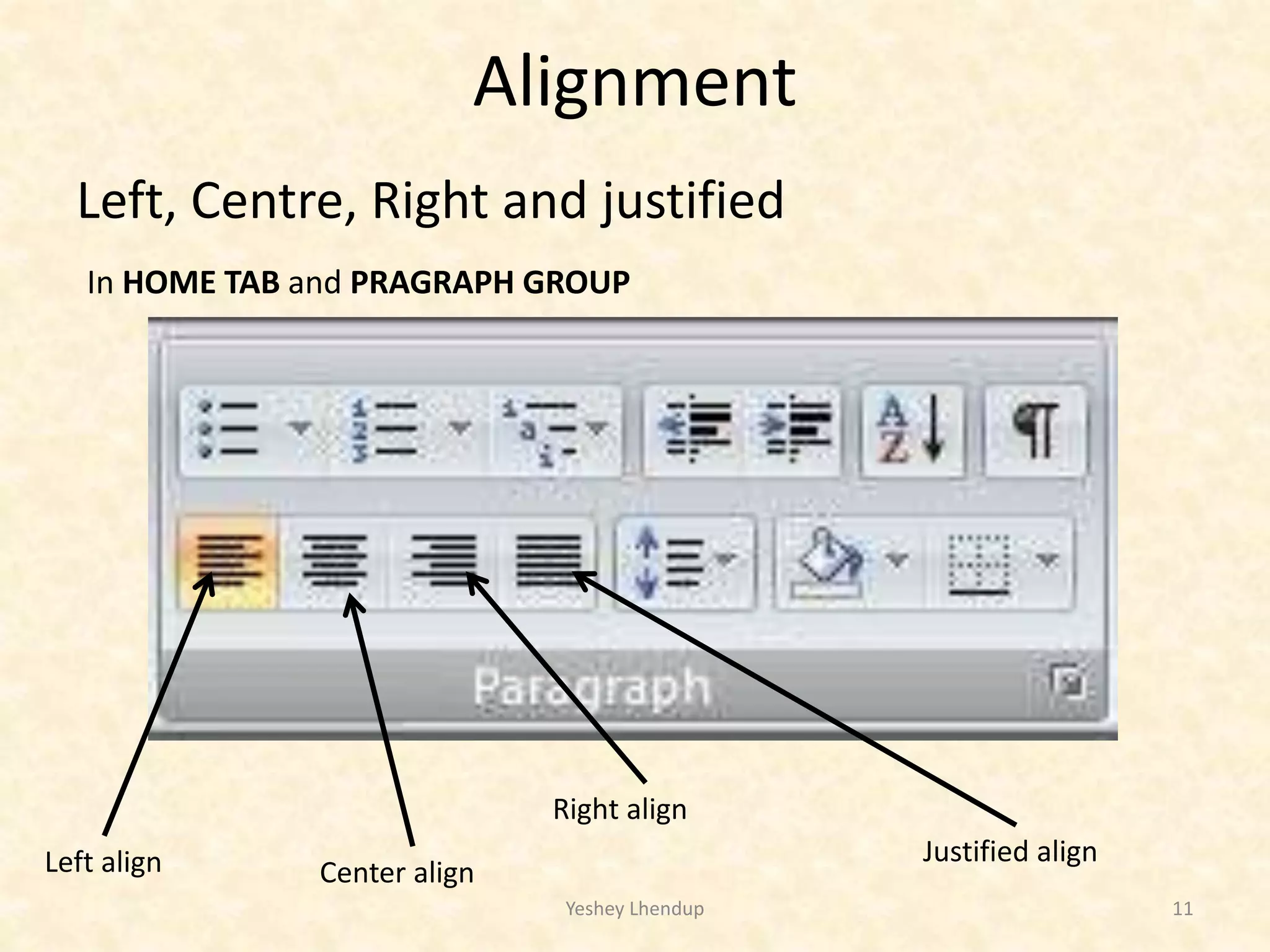
Alignment
Left, Centre, Right and justified
Yeshey Lhendup 11
In HOME TAB and PRAGRAPH GROUP
Left align Center align
Right align
Justified align
Indenting a text/paragraph
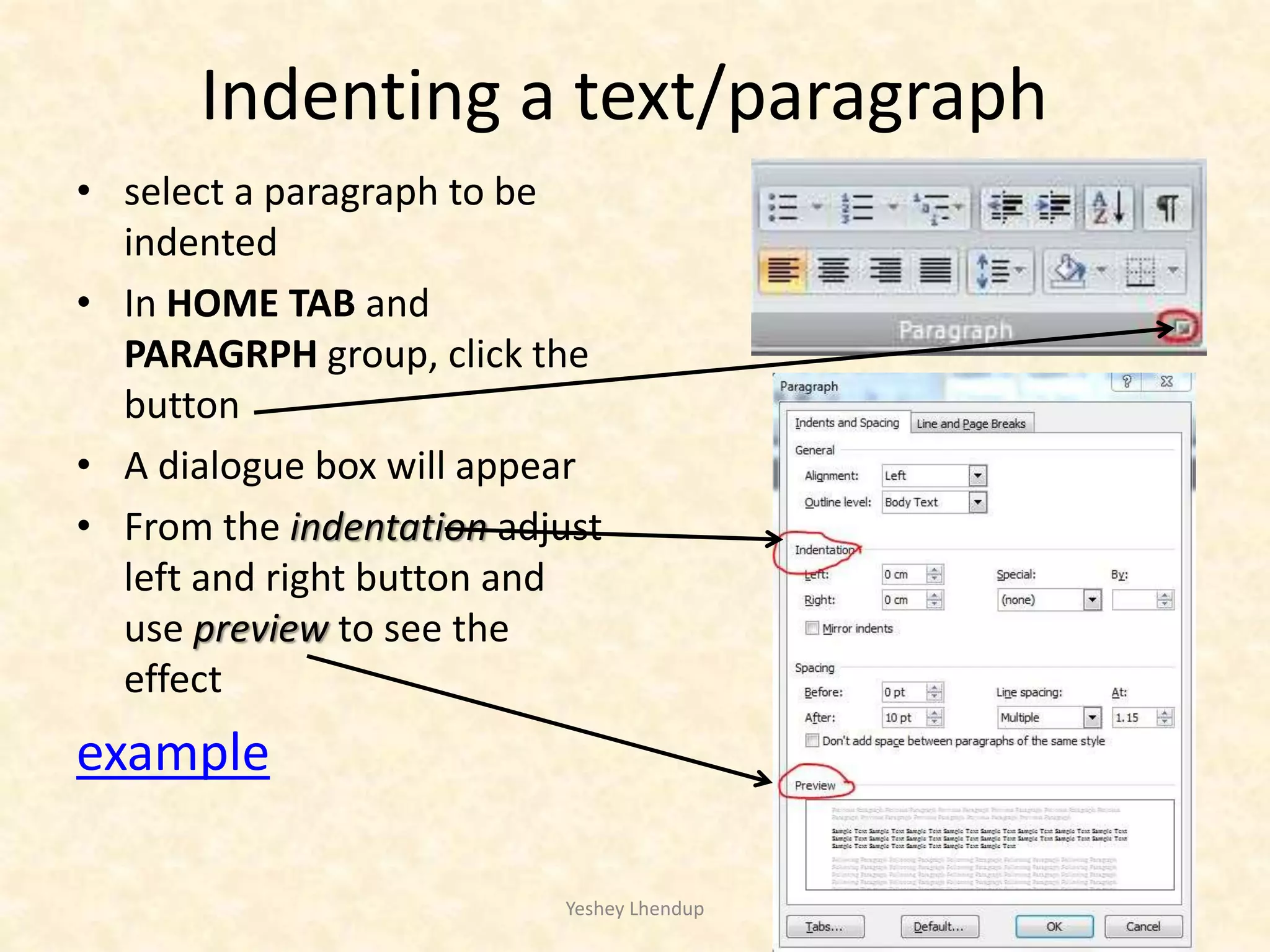
• select a paragraph to be
indented
• In HOME TAB and
PARAGRPH group, click the
button
• A dialogue box will appear
• From the indentation adjust
left and right button and
use preview to see the
effect
example
Yeshey Lhendup 12
Managing line space
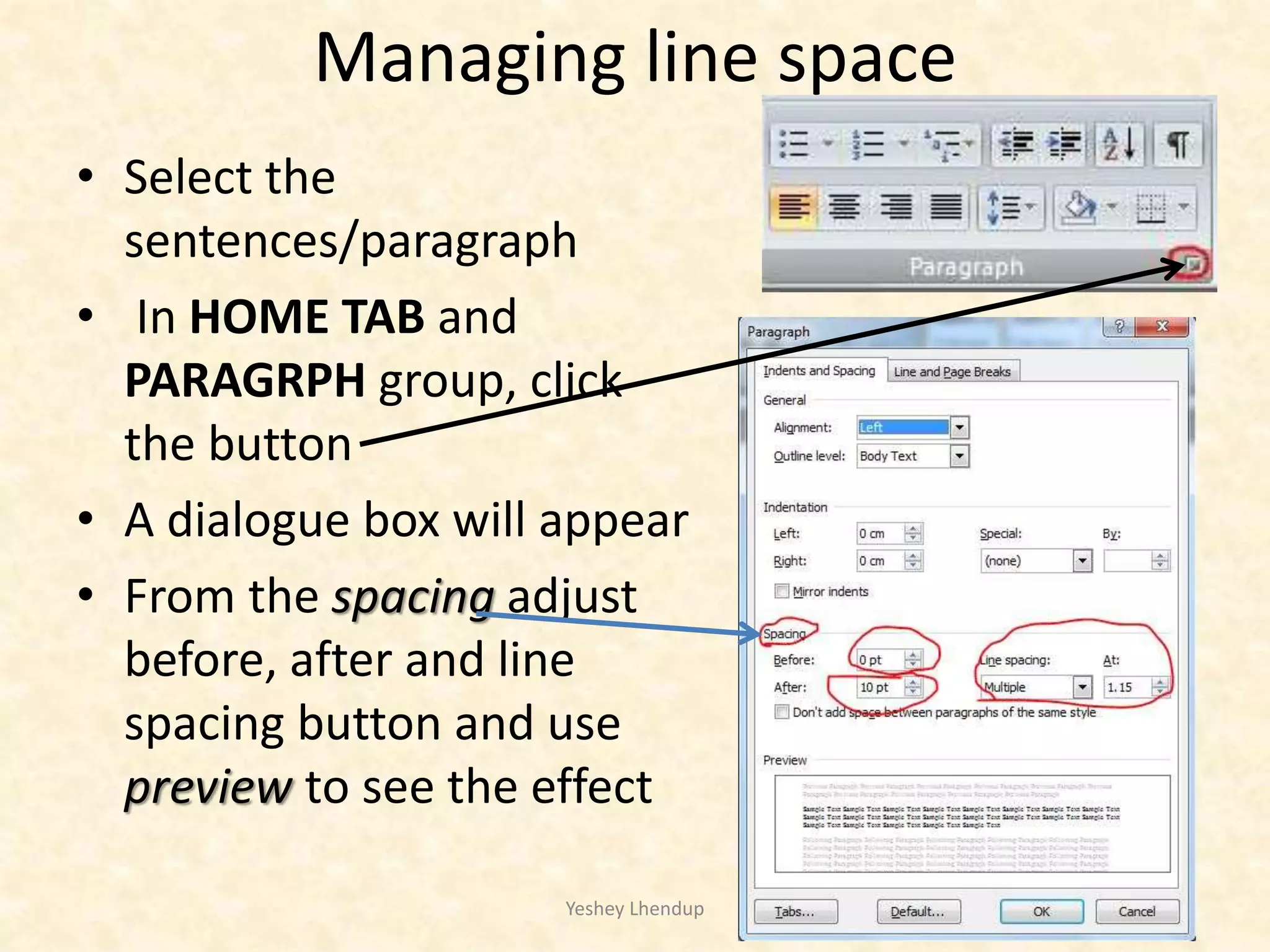
• Select the
sentences/paragraph
• In HOME TAB and
PARAGRPH group, click
the button
• A dialogue box will appear
• From the spacing adjust
before, after and line
spacing button and use
preview to see the effect
Yeshey Lhendup 13
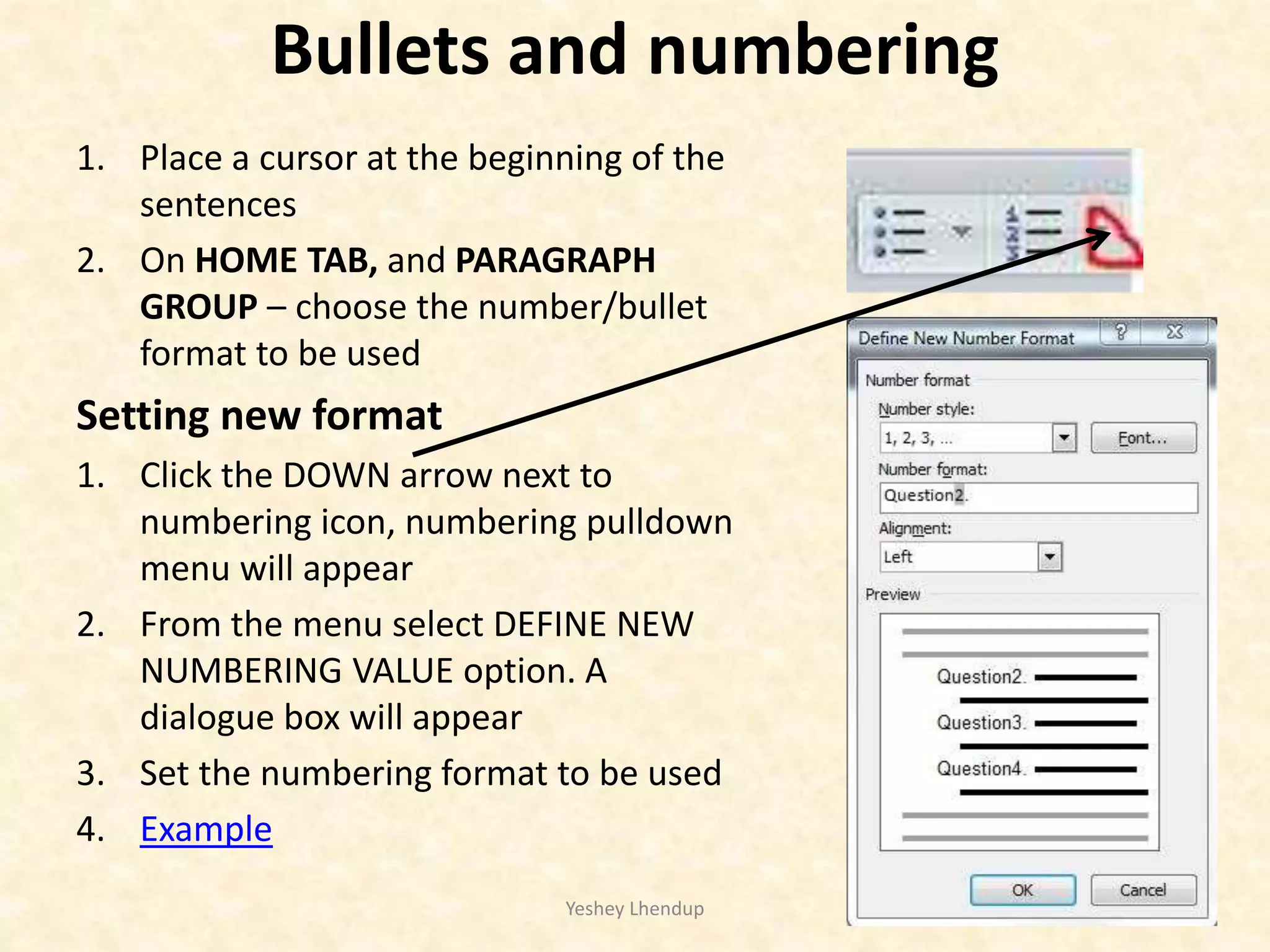
Bullets and numbering
1. Place a cursor at the beginning of the
sentences
2. On HOME TAB, and PARAGRAPH
GROUP – choose the number/bullet
format to be used
Setting new format
1. Click the DOWN arrow next to
numbering icon, numbering pulldown
menu will appear
2. From the menu select DEFINE NEW
NUMBERING VALUE option. A
dialogue box will appear
3. Set the numbering format to be used
4. Example
Yeshey Lhendup 14
Numbering and bulleting the sub
parts
• Give the number/bullet to the first sentence
and press enter - 2nd number appears
• Before typing press tab key a sub
bullet/number will appear automatically. The
type of Number/bullet format can be changed
from the paragraph group
• If you want to continue numbering of first
sentence after sub parts, press enter key twice
• Example
Yeshey Lhendup 15
Others
• Using page layout
• Tables
• Inserting picture
• Page number
Yeshey Lhendup 16
Preparing pdf
• Need safe as PDF adds-in
• Can be download
Yeshey Lhendup 17
Any questions????
Yeshey Lhendup 18
Others/reminder
• Result sheet
• ToD
• Leave
Yeshey Lhendup 19

Microsoft word - editing and formatting a question paper document

  • 1.
  • 2.
    Objectives • Familiarize withthe tools of Ms Word • Use various text formatting tools • edit word document • Convert Word into pdf Yeshey Lhendup 2
  • 3.
    Topics • Introduction toMS word window • Page and font setting • Bullets and numbering • Formatting text • Editing word doc • Saving word into pdf Yeshey Lhendup 3
  • 4.
    Component of Documentwindow 4 Title bar Office button Menu Insertion point Scroll bar Document Area
  • 5.
  • 6.
    What’s on theRibbon? The three parts of the Ribbon are tabs, groups, and commands. 1 2 3 Tabs sit across the top of the Ribbon. Each one represents core tasks you do in a given program. Groups are sets of related commands. They remain on display and readily available, giving you rich visual aids. Commands are arranged in groups. A command can be a button, a menu, or a box where you enter information.
  • 7.
    Page setting Page layoutsetting Yeshey Lhendup 7 Displays list of option - Choose the one which is most appropriate Viewing ruler
  • 8.
    Font setting 1. Onhome tab and font group 2. Click the extension arrow 3. choose the font and font size from the dialogue box 4. Click default on dialogue box Yeshey Lhendup 8
  • 9.
    Language setting 1. Clickoffice button, choose word option a language setting dialogue box will appear 2. Click language setting 3. From editing language choose the language and click ADD button 4. Set Primary editing language also Yeshey Lhendup 9
  • 10.
    Yeshey Lhendup 10 1.Selectall the document area – Ctrl + A 2.On status bar – click language bar 3. On dialogue box choose the language and click default
  • 11.
    Alignment Left, Centre, Rightand justified Yeshey Lhendup 11 In HOME TAB and PRAGRAPH GROUP Left align Center align Right align Justified align
  • 12.
    Indenting a text/paragraph •select a paragraph to be indented • In HOME TAB and PARAGRPH group, click the button • A dialogue box will appear • From the indentation adjust left and right button and use preview to see the effect example Yeshey Lhendup 12
  • 13.
    Managing line space •Select the sentences/paragraph • In HOME TAB and PARAGRPH group, click the button • A dialogue box will appear • From the spacing adjust before, after and line spacing button and use preview to see the effect Yeshey Lhendup 13
  • 14.
    Bullets and numbering 1.Place a cursor at the beginning of the sentences 2. On HOME TAB, and PARAGRAPH GROUP – choose the number/bullet format to be used Setting new format 1. Click the DOWN arrow next to numbering icon, numbering pulldown menu will appear 2. From the menu select DEFINE NEW NUMBERING VALUE option. A dialogue box will appear 3. Set the numbering format to be used 4. Example Yeshey Lhendup 14
  • 15.
    Numbering and bulletingthe sub parts • Give the number/bullet to the first sentence and press enter - 2nd number appears • Before typing press tab key a sub bullet/number will appear automatically. The type of Number/bullet format can be changed from the paragraph group • If you want to continue numbering of first sentence after sub parts, press enter key twice • Example Yeshey Lhendup 15
  • 16.
    Others • Using pagelayout • Tables • Inserting picture • Page number Yeshey Lhendup 16
  • 17.
    Preparing pdf • Needsafe as PDF adds-in • Can be download Yeshey Lhendup 17
  • 18.
  • 19.
    Others/reminder • Result sheet •ToD • Leave Yeshey Lhendup 19