Windows 
Handy shortcuts and file handling
Word 
Basic document techniques
Before we start 
• Shortcuts 
• A list with handy common shortcuts is 
attached to your handouts. 
• Convenient way to improve your 
workflow
Most common shortcuts 
• Managing documents 
• Open a Document <Ctrl + O> 
• Create New <Ctrl + N> 
• Create new page inside your document <Ctrl + Enter> 
• Save a Document <Ctrl + S> 
• Print a Document <Ctrl + P> 
• Close a Document <Ctrl + W> 
• Sellect all text: <Ctrl + A> 
• Help <F1>
Startup 
• This is not just a presentation, it is a workshop 
• Please open the document ‘LnL – Word Basic - 
Exercises’. It is located on your desktop 
• Try the exercises in the document during this session -> 
limited time, questions in the Q&A
Document set-up 
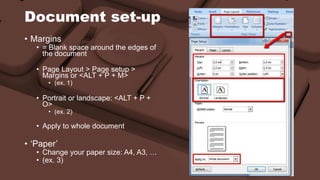
• Margins 
• = Blank space around the edges of 
the document 
• Page Layout > Page setup > 
Margins or <ALT + P + M> 
• (ex. 1) 
• Portrait or landscape: <ALT + P + 
O> 
• (ex. 2) 
• Apply to whole document 
• ‘Paper’ 
• Change your paper size: A4, A3, … 
• (ex. 3)
Fonts and markup 
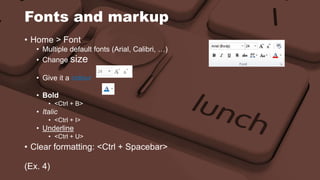
• Home > Font 
• Multiple default fonts (Arial, Calibri, …) 
• Change size 
• Give it a colour 
• Bold 
• <Ctrl + B> 
• Italic 
• <Ctrl + I> 
• Underline 
• <Ctrl + U> 
• Clear formatting: <Ctrl + Spacebar> 
(Ex. 4)
Paragraphs (1) 
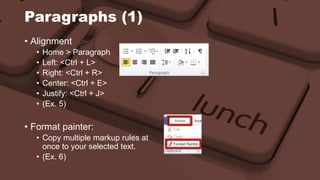
• Alignment 
• Home > Paragraph 
• Left: <Ctrl + L> 
• Right: <Ctrl + R> 
• Center: <Ctrl + E> 
• Justify: <Ctrl + J> 
• (Ex. 5) 
• Format painter: 
• Copy multiple markup rules at 
once to your selected text. 
• (Ex. 6)
Paragraphs (2) 
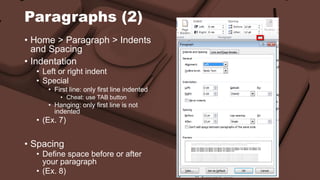
• Home > Paragraph > Indents 
and Spacing 
• Indentation 
• Left or right indent 
• Special 
• First line: only first line indented 
• Cheat: use TAB button 
• Hanging: only first line is not 
indented 
• (Ex. 7) 
• Spacing 
• Define space before or after 
your paragraph 
• (Ex. 8)
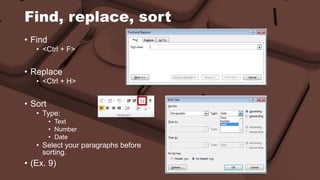
Find, replace, sort 
• Find 
• <Ctrl + F> 
• Replace 
• <Ctrl + H> 
• Sort 
• Type: 
• Text 
• Number 
• Date 
• Select your paragraphs before 
sorting. 
• (Ex. 9)
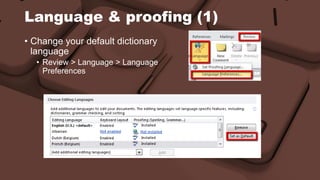
Language & proofing (1) 
• Change your default dictionary 
language 
• Review > Language > Language 
Preferences
Language & proofing (2) 
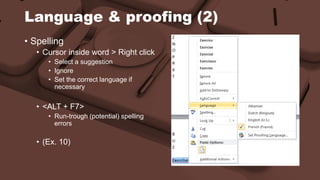
• Spelling 
• Cursor inside word > Right click 
• Select a suggestion 
• Ignore 
• Set the correct language if 
necessary 
• <ALT + F7> 
• Run-trough (potential) spelling 
errors 
• (Ex. 10)
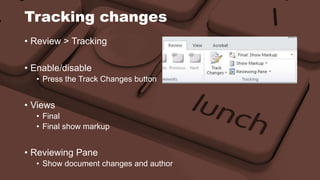
Tracking changes 
• Review > Tracking 
• Enable/disable 
• Press the Track Changes button 
• Views 
• Final 
• Final show markup 
• Reviewing Pane 
• Show document changes and author
Q&A 
Future questions? 
• ICT intranet 
 Training 
 ICT Service Lunch ‘n Learn 
• Helpdesk 
http://ict.coleurope.eu 
helpdesk.be@coleurope.eu 
Tel 050 47 70 00

Lunch 'n Learn - Word: Basic document techniques

  • 1.
    Windows Handy shortcutsand file handling
  • 2.
  • 3.
    Before we start • Shortcuts • A list with handy common shortcuts is attached to your handouts. • Convenient way to improve your workflow
  • 4.
    Most common shortcuts • Managing documents • Open a Document <Ctrl + O> • Create New <Ctrl + N> • Create new page inside your document <Ctrl + Enter> • Save a Document <Ctrl + S> • Print a Document <Ctrl + P> • Close a Document <Ctrl + W> • Sellect all text: <Ctrl + A> • Help <F1>
  • 5.
    Startup • Thisis not just a presentation, it is a workshop • Please open the document ‘LnL – Word Basic - Exercises’. It is located on your desktop • Try the exercises in the document during this session -> limited time, questions in the Q&A
  • 6.
    Document set-up •Margins • = Blank space around the edges of the document • Page Layout > Page setup > Margins or <ALT + P + M> • (ex. 1) • Portrait or landscape: <ALT + P + O> • (ex. 2) • Apply to whole document • ‘Paper’ • Change your paper size: A4, A3, … • (ex. 3)
  • 7.
    Fonts and markup • Home > Font • Multiple default fonts (Arial, Calibri, …) • Change size • Give it a colour • Bold • <Ctrl + B> • Italic • <Ctrl + I> • Underline • <Ctrl + U> • Clear formatting: <Ctrl + Spacebar> (Ex. 4)
  • 8.
    Paragraphs (1) •Alignment • Home > Paragraph • Left: <Ctrl + L> • Right: <Ctrl + R> • Center: <Ctrl + E> • Justify: <Ctrl + J> • (Ex. 5) • Format painter: • Copy multiple markup rules at once to your selected text. • (Ex. 6)
  • 9.
    Paragraphs (2) •Home > Paragraph > Indents and Spacing • Indentation • Left or right indent • Special • First line: only first line indented • Cheat: use TAB button • Hanging: only first line is not indented • (Ex. 7) • Spacing • Define space before or after your paragraph • (Ex. 8)
  • 10.
    Find, replace, sort • Find • <Ctrl + F> • Replace • <Ctrl + H> • Sort • Type: • Text • Number • Date • Select your paragraphs before sorting. • (Ex. 9)
  • 11.
    Language & proofing(1) • Change your default dictionary language • Review > Language > Language Preferences
  • 12.
    Language & proofing(2) • Spelling • Cursor inside word > Right click • Select a suggestion • Ignore • Set the correct language if necessary • <ALT + F7> • Run-trough (potential) spelling errors • (Ex. 10)
  • 13.
    Tracking changes •Review > Tracking • Enable/disable • Press the Track Changes button • Views • Final • Final show markup • Reviewing Pane • Show document changes and author
  • 14.
    Q&A Future questions? • ICT intranet  Training  ICT Service Lunch ‘n Learn • Helpdesk http://ict.coleurope.eu helpdesk.be@coleurope.eu Tel 050 47 70 00