

Virtualization Best Practices
- Tips and Tricks from Expert

    Lai Yoong Seng | Technical Consultant
    MVP Virtual Machine
    www.ms4u.info | laiys@redynamics.com
Session Objective and Takeaways
• Objectives:
  • Virtualization Best Practice in term of
      • Planning , Deployment ,Management
  • 10 awesome Tip & Tricks
  • Some free tools to use..


• Key Takeaways:
                                                        Slid
  • Tip & Trick for a successful virtualization deployment
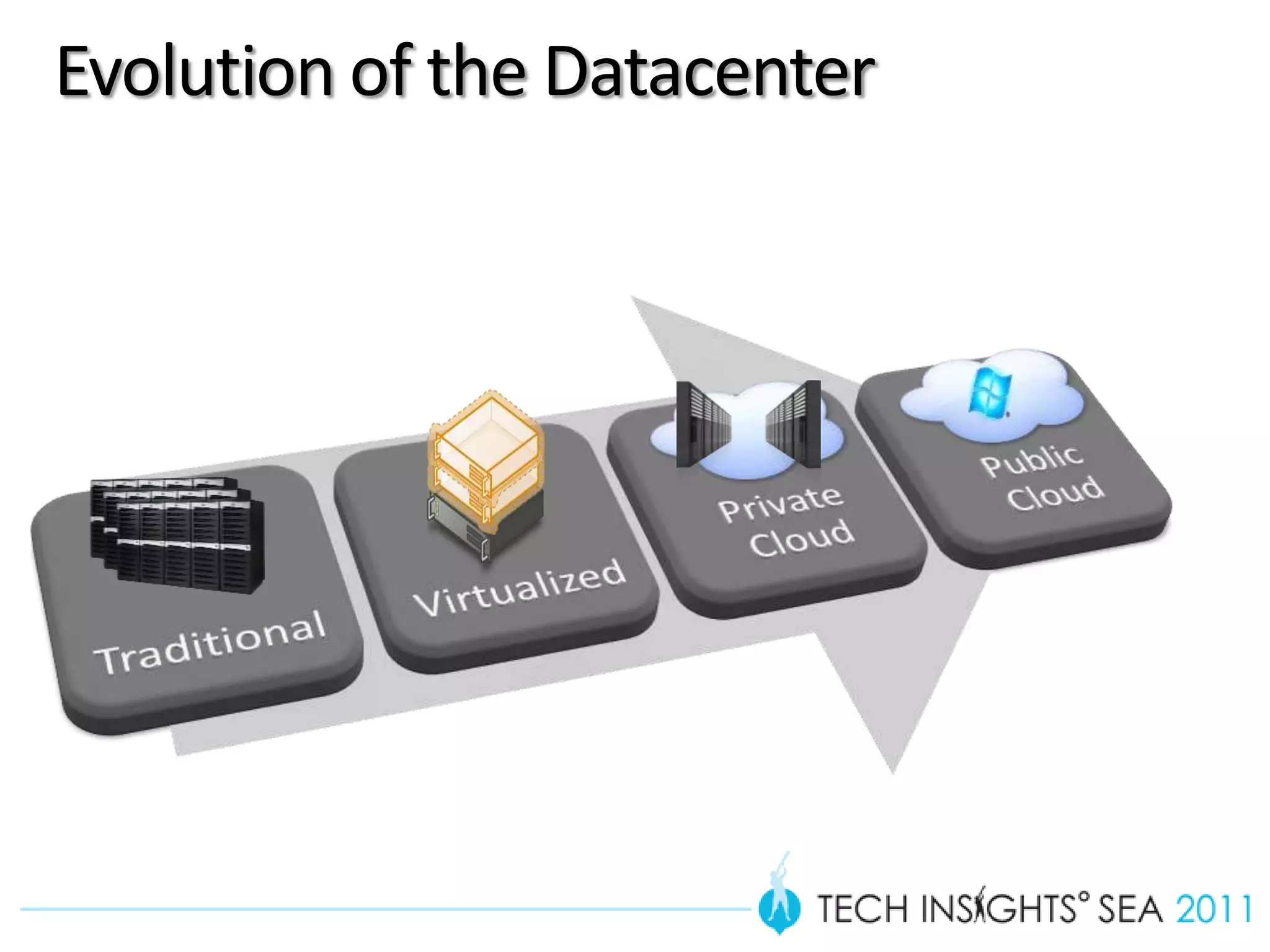
Evolution of the Datacenter
Planning
Q1:- Physical or Virtual?
  Running application in physical or virtual?


                                  or
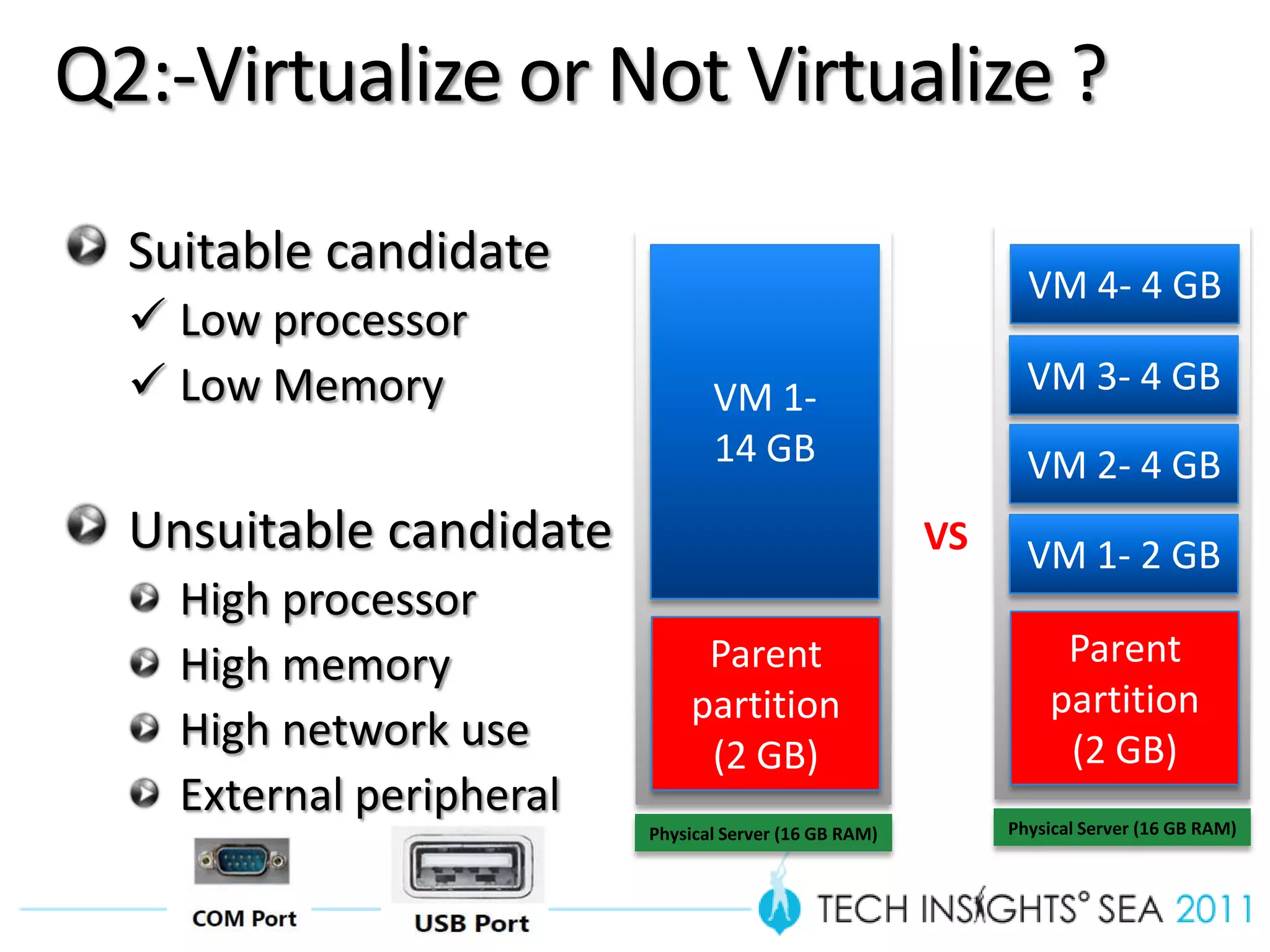
Q2:-Virtualize or Not Virtualize ?
  Suitable candidate
                                                               VM 4- 4 GB
   Low processor
   Low Memory                   VM 1-                         VM 3- 4 GB
                                 14 GB                         VM 2- 4 GB
  Unsuitable candidate                                  VS     VM 1- 2 GB
    High processor
    High memory                Parent                             Parent
                              partition                          partition
    High network use           (2 GB)                             (2 GB)
    External peripheral                                      Physical Server (16 GB RAM)
                          Physical Server (16 GB RAM)
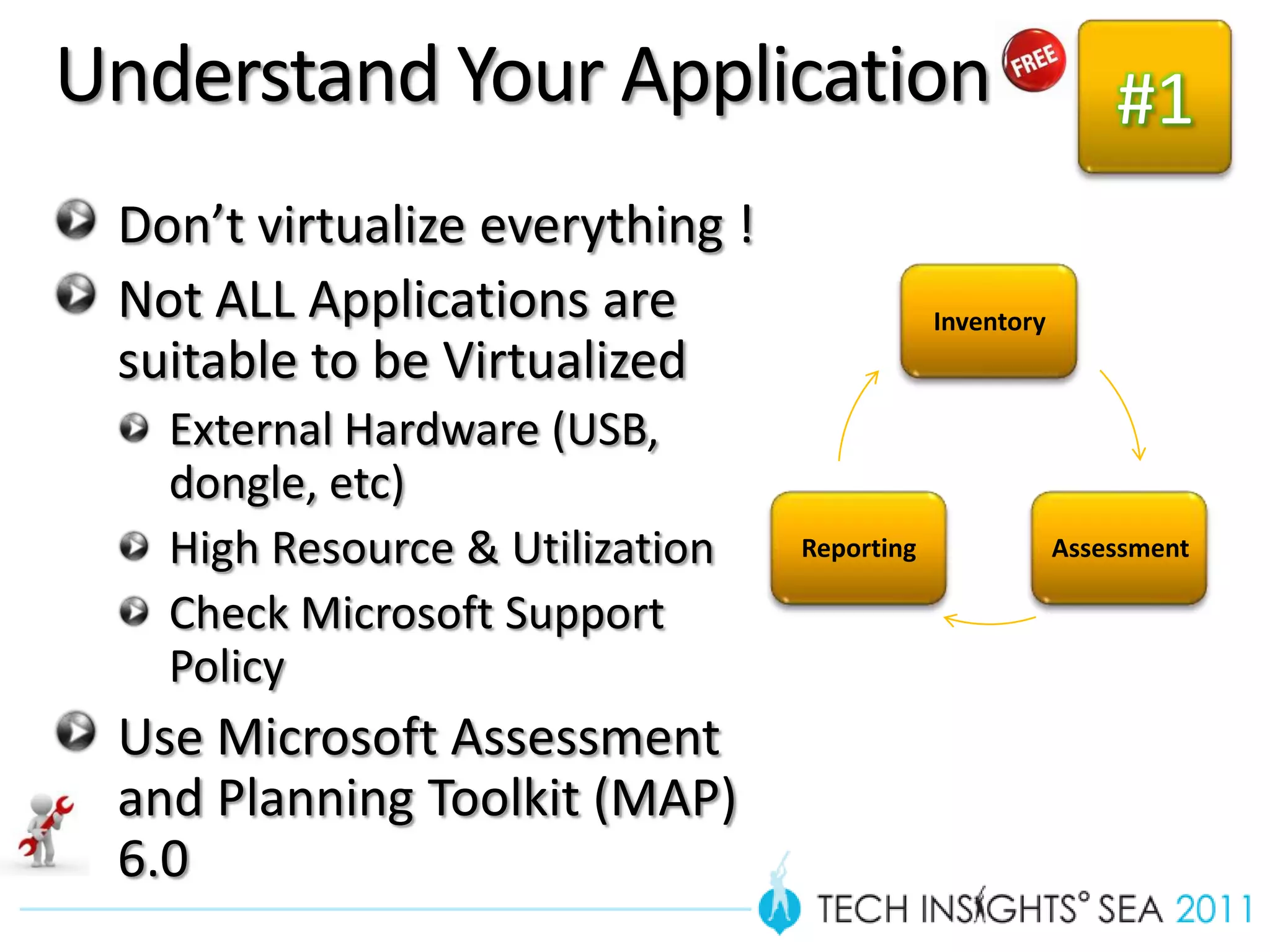
Understand Your Application                                  #1
 Don’t virtualize everything !
 Not ALL Applications are                    Inventory
 suitable to be Virtualized
   External Hardware (USB,
   dongle, etc)
   High Resource & Utilization   Reporting               Assessment

   Check Microsoft Support
   Policy
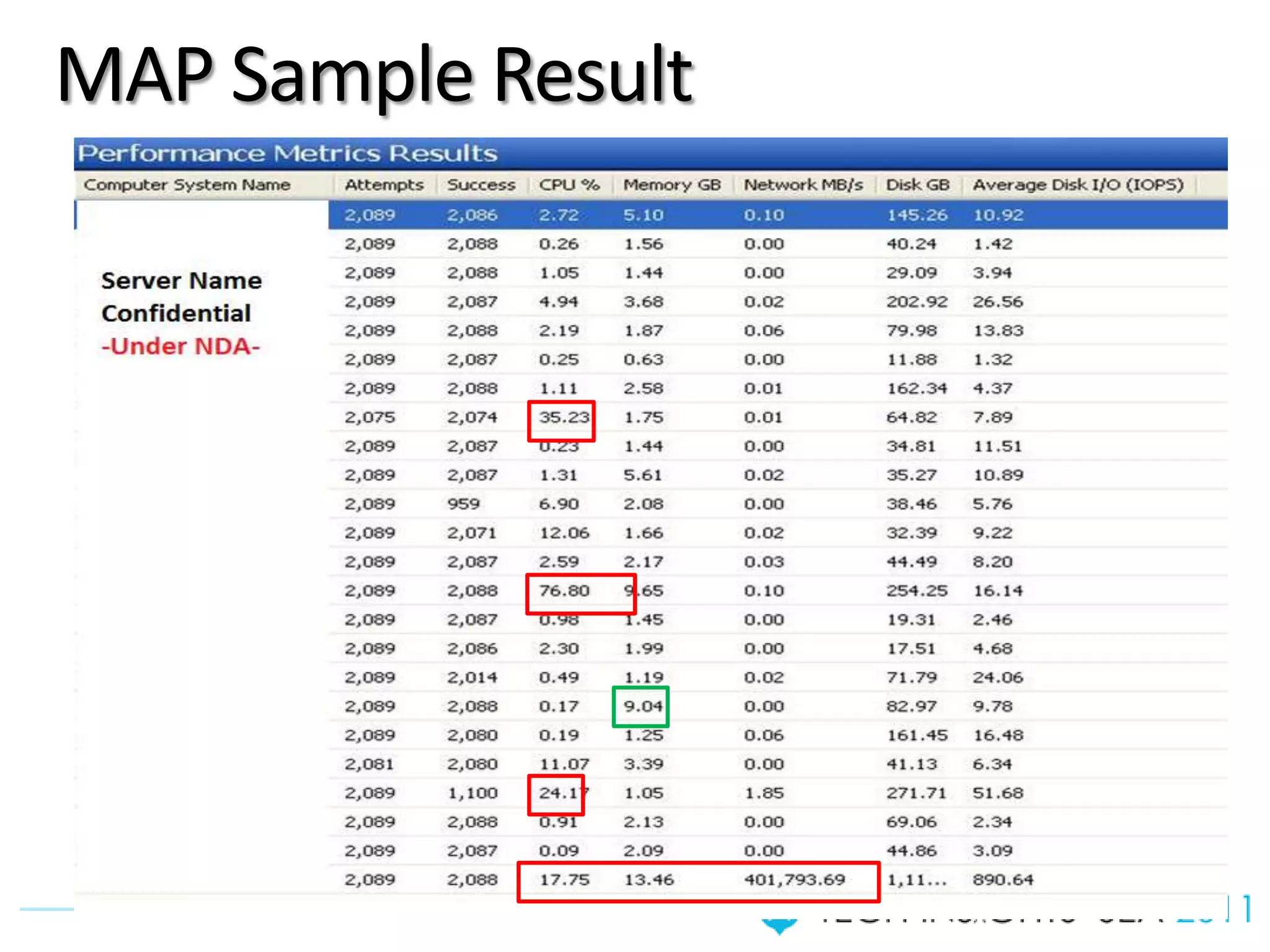
 Use Microsoft Assessment
 and Planning Toolkit (MAP)
 6.0
Microsoft Assessment &
    Planning Toolkit
MAP Sample Result
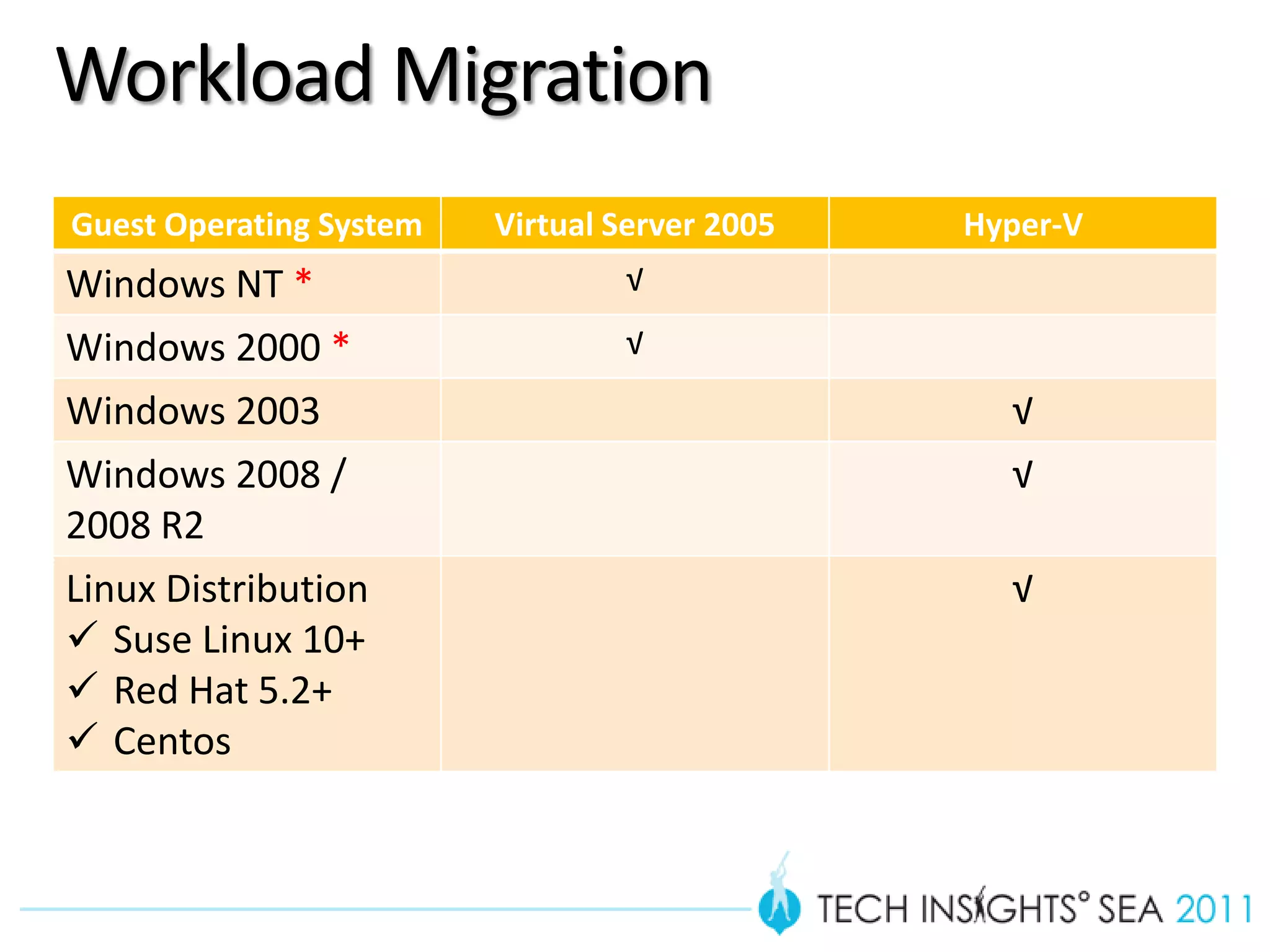
Workload Migration
Guest Operating System   Virtual Server 2005   Hyper-V
Windows NT *                     √
Windows 2000 *                   √
Windows 2003                                     √
Windows 2008 /                                   √
2008 R2
Linux Distribution                               √
 Suse Linux 10+
 Red Hat 5.2+
 Centos
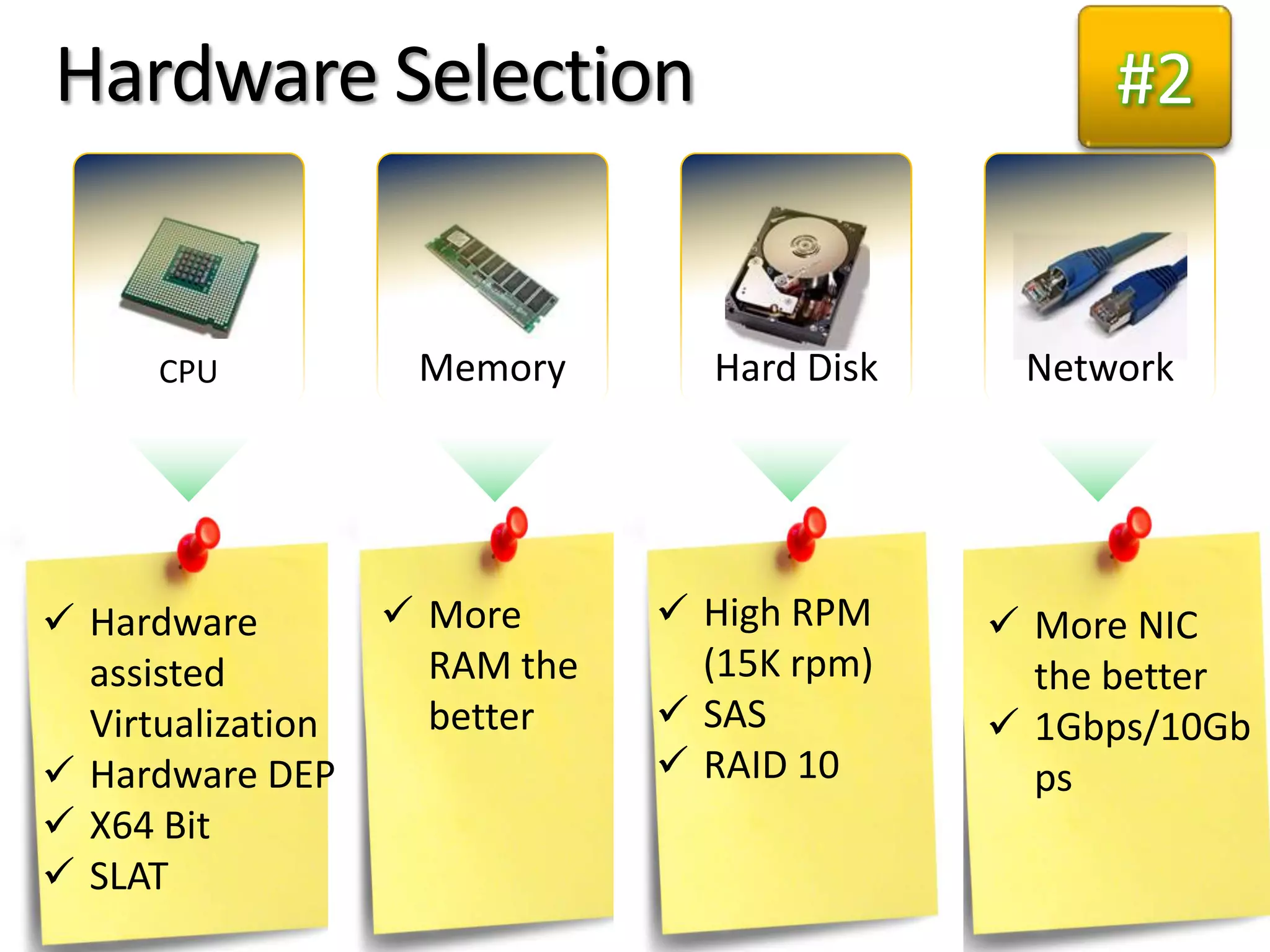
Hardware Selection                                #2


      CPU           Memory       Hard Disk    Network


 Hardware          More       High RPM     More NIC
  assisted           RAM the     (15K rpm)     the better
  Virtualization     better     SAS          1Gbps/10Gb
 Hardware DEP                  RAID 10       ps
 X64 Bit
 SLAT
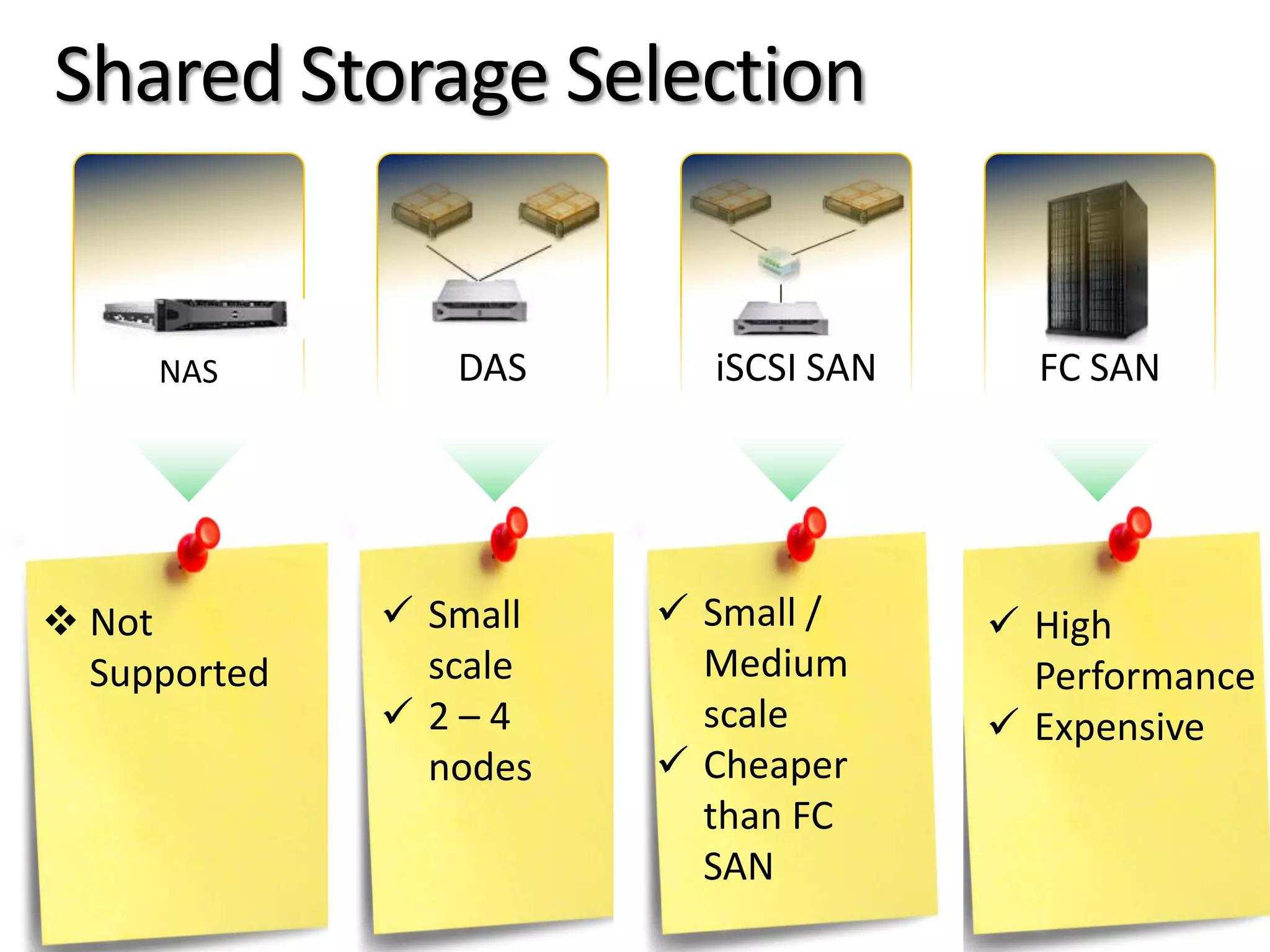
Shared Storage Selection


     NAS         DAS      iSCSI SAN     FC SAN


 Not          Small    Small /      High
  Supported     scale     Medium        Performance
               2–4       scale        Expensive
                nodes    Cheaper
                          than FC
                          SAN
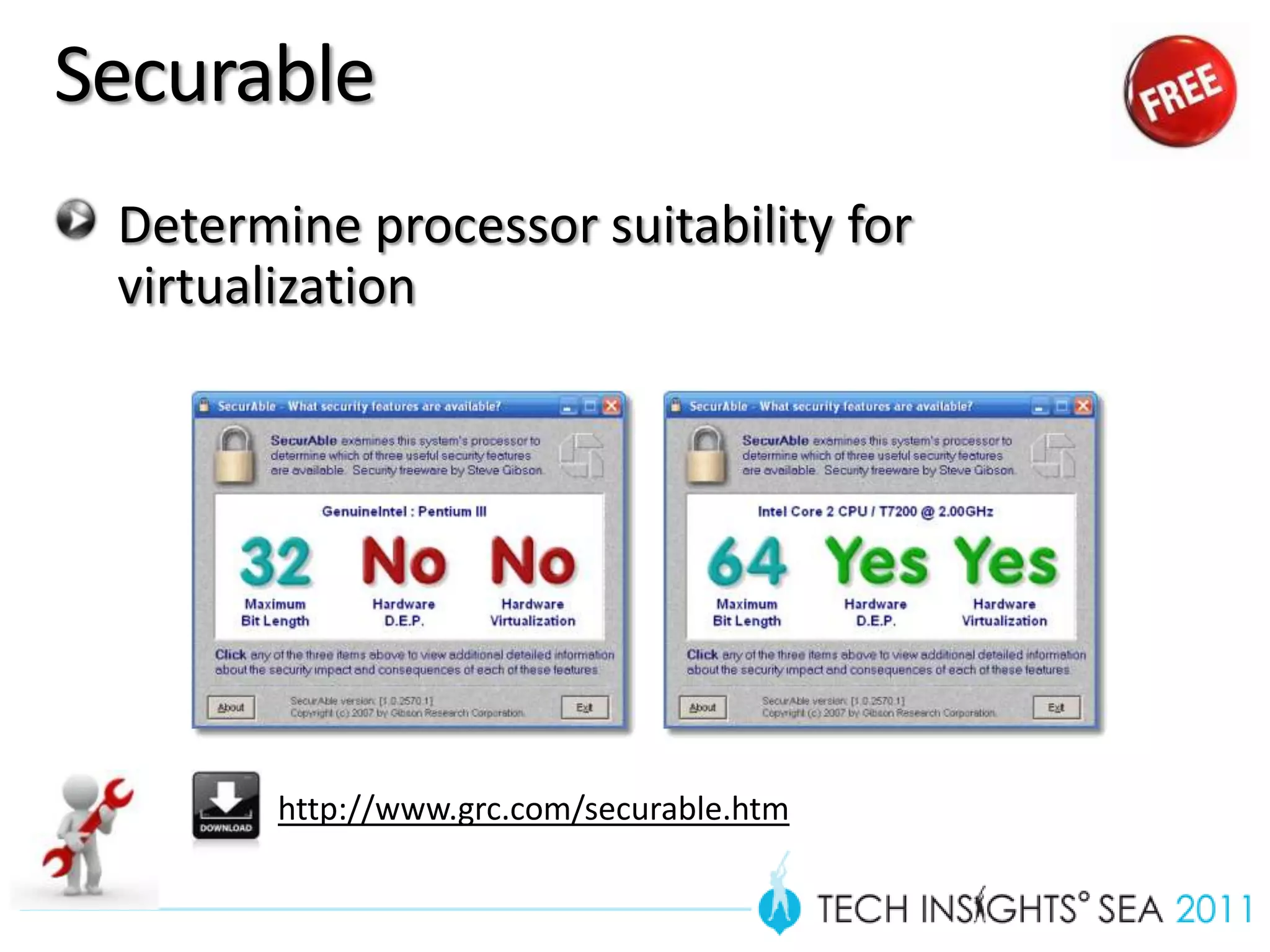
Securable
 Determine processor suitability for
 virtualization


        http://www.grc.com/securable.htm
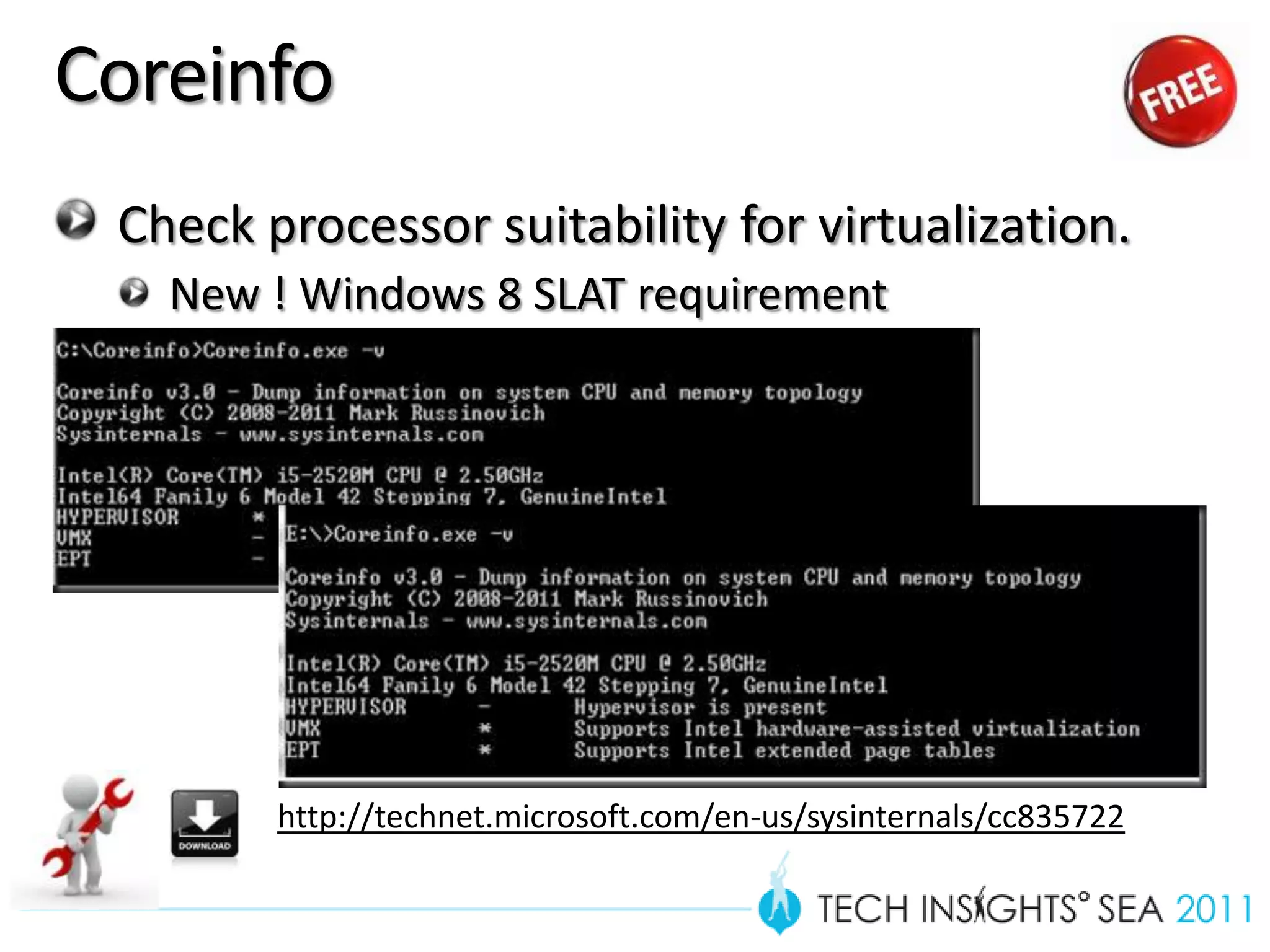
Coreinfo
 Check processor suitability for virtualization.
   New ! Windows 8 SLAT requirement


        http://technet.microsoft.com/en-us/sysinternals/cc835722
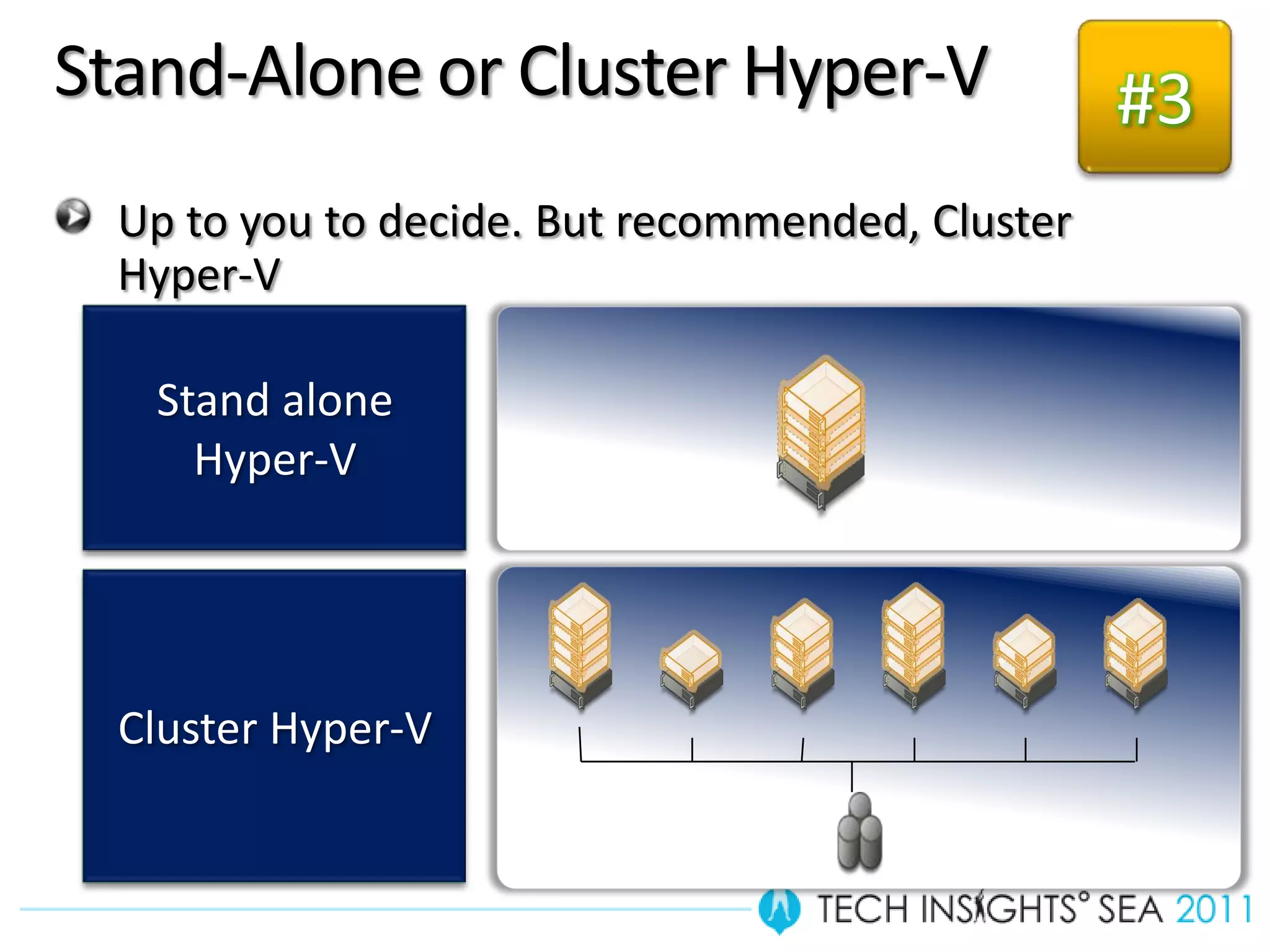
Stand-Alone or Cluster Hyper-V                    #3
  Up to you to decide. But recommended, Cluster
  Hyper-V

   Stand alone
     Hyper-V


  Cluster Hyper-V
Deployment
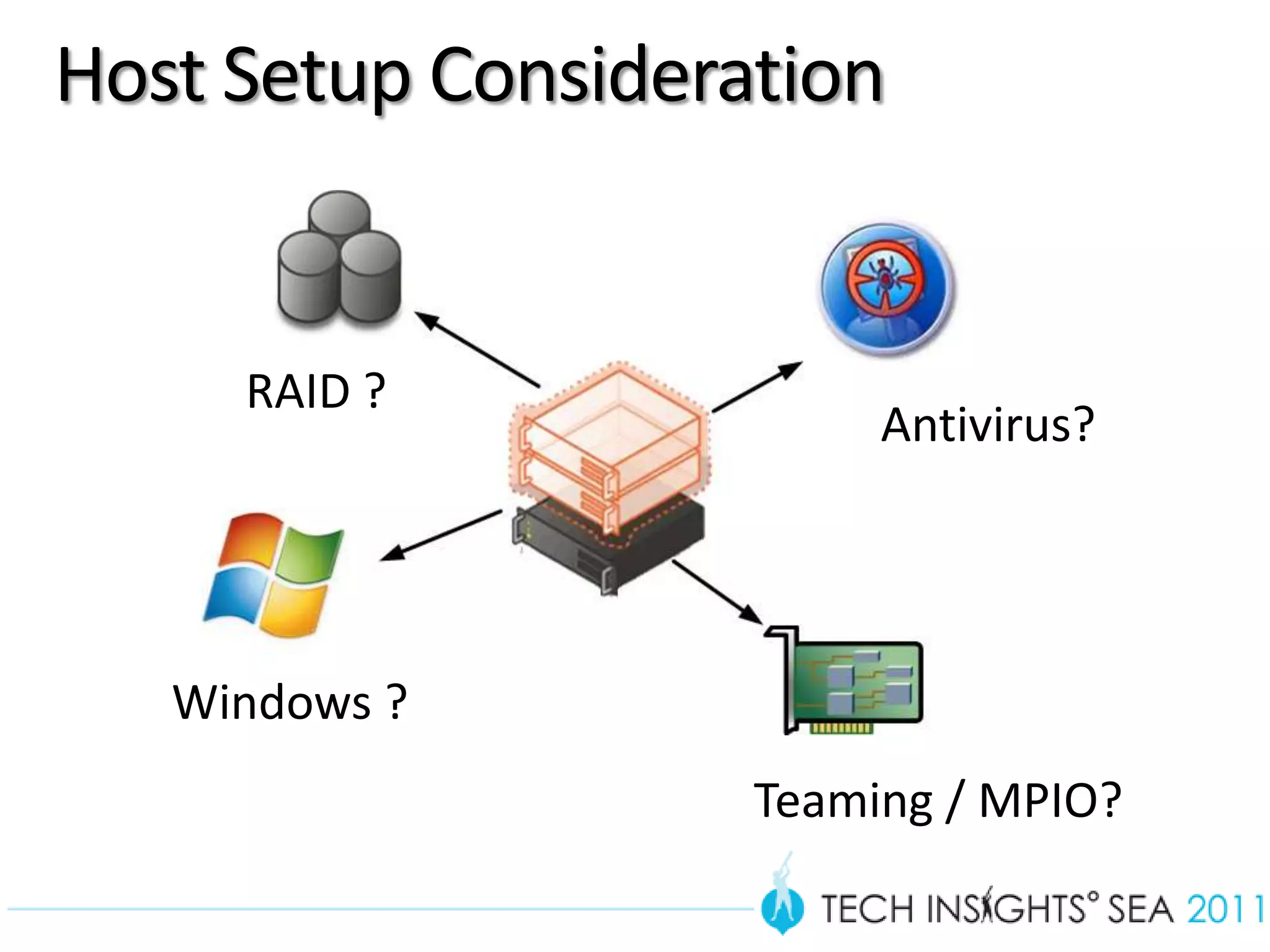
Host Setup Consideration


     RAID ?
                         Antivirus?


   Windows ?
                    Teaming / MPIO?
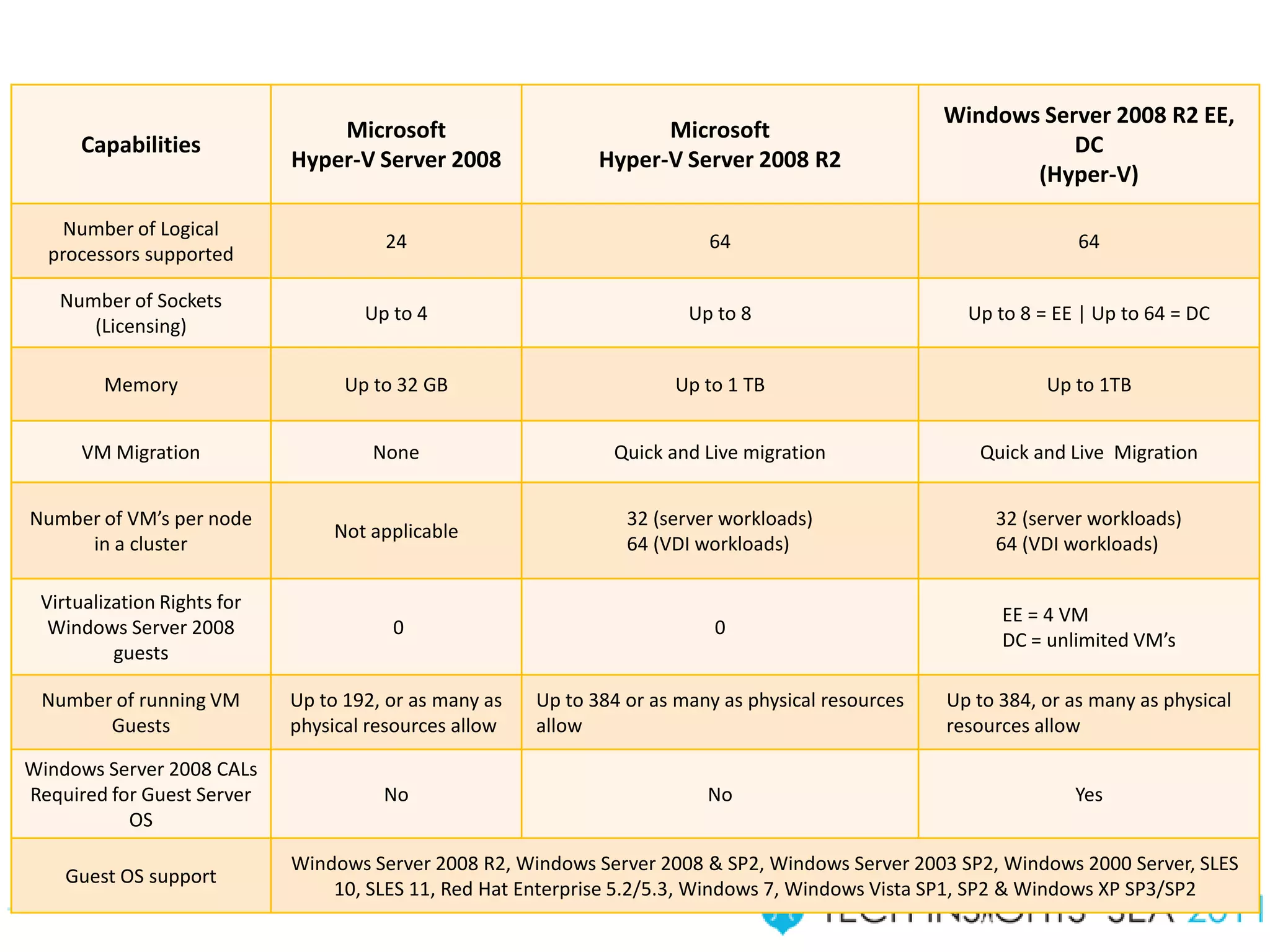
Windows Server 2008 R2 EE,
                                 Microsoft                           Microsoft
      Capabilities                                                                                              DC
                             Hyper-V Server 2008               Hyper-V Server 2008 R2
                                                                                                            (Hyper-V)

    Number of Logical
                                       24                                  64                                       64
  processors supported

   Number of Sockets
                                     Up to 4                             Up to 8                       Up to 8 = EE | Up to 64 = DC
      (Licensing)

        Memory                     Up to 32 GB                         Up to 1 TB                               Up to 1TB


      VM Migration                    None                      Quick and Live migration                Quick and Live Migration


Number of VM’s per node                                           32 (server workloads)                   32 (server workloads)
                                 Not applicable
     in a cluster                                                 64 (VDI workloads)                      64 (VDI workloads)

 Virtualization Rights for
                                                                                                           EE = 4 VM
  Windows Server 2008                   0                                   0
                                                                                                           DC = unlimited VM’s
          guests

 Number of running VM        Up to 192, or as many as   Up to 384 or as many as physical resources   Up to 384, or as many as physical
       Guests                physical resources allow   allow                                        resources allow

Windows Server 2008 CALs
Required for Guest Server              No                                  No                                      Yes
           OS

                             Windows Server 2008 R2, Windows Server 2008 & SP2, Windows Server 2003 SP2, Windows 2000 Server, SLES
    Guest OS support
                                 10, SLES 11, Red Hat Enterprise 5.2/5.3, Windows 7, Windows Vista SP1, SP2 & Windows XP SP3/SP2
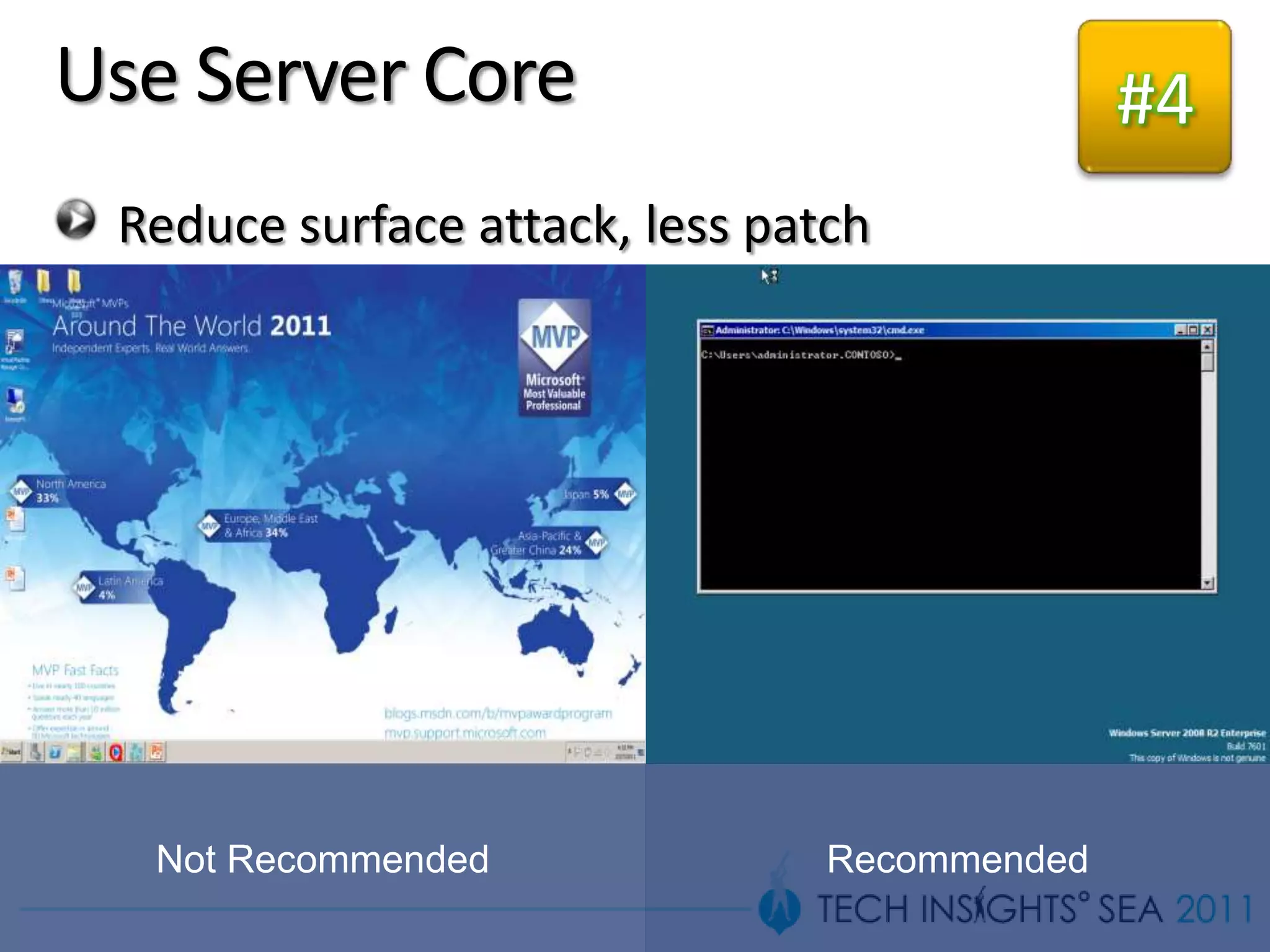
Use Server Core                               #4
 Reduce surface attack, less patch


  Not Recommended               Recommended
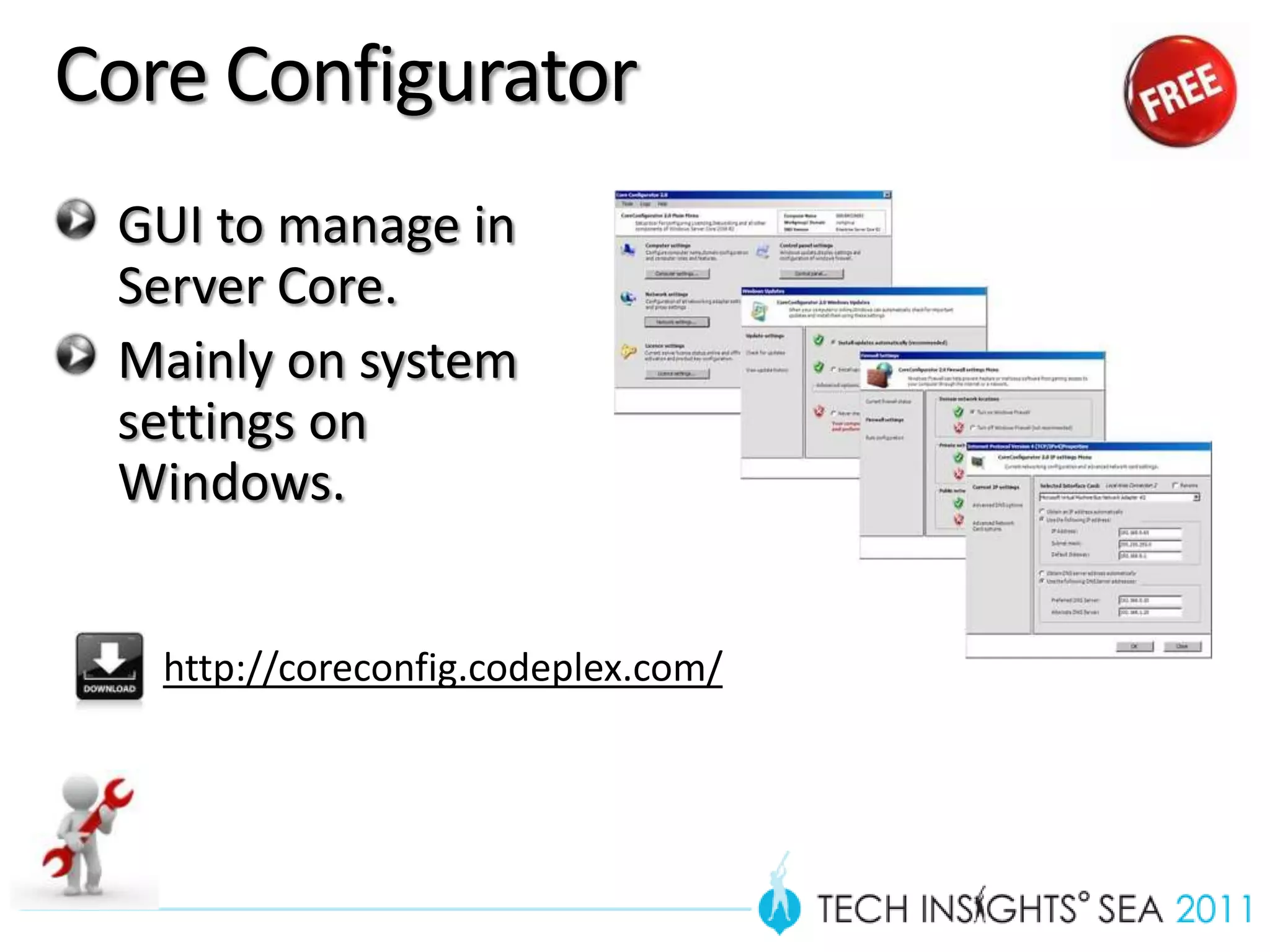
Core Configurator
 GUI to manage in
 Server Core.
 Mainly on system
 settings on
 Windows.


   http://coreconfig.codeplex.com/
Server Core &
Core Configurator
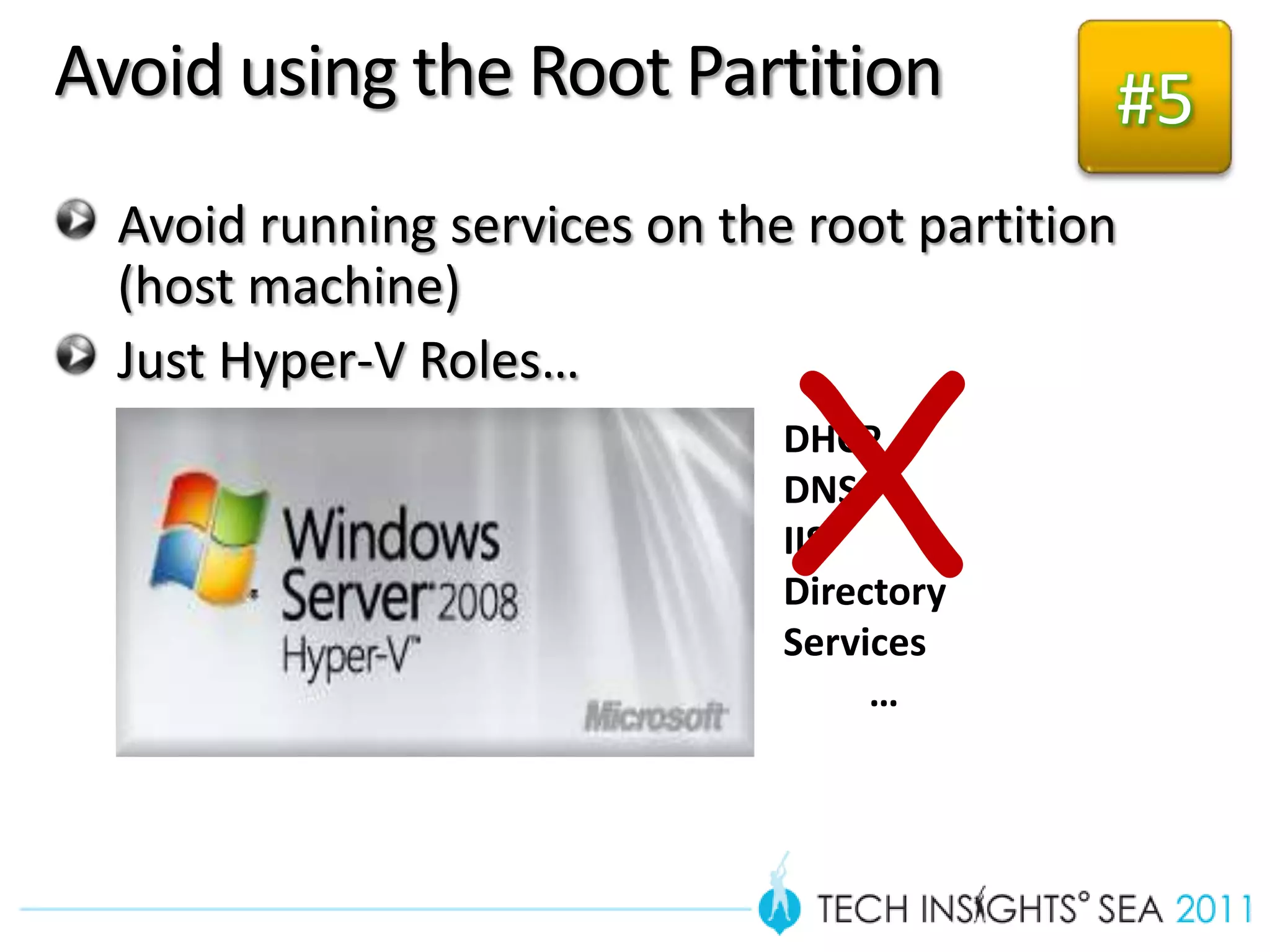
Avoid using the Root Partition               #5
  Avoid running services on the root partition
  (host machine)


                               X
  Just Hyper-V Roles…
                               DHCP
                               DNS
                               IIS
                               Directory
                               Services
                                    …
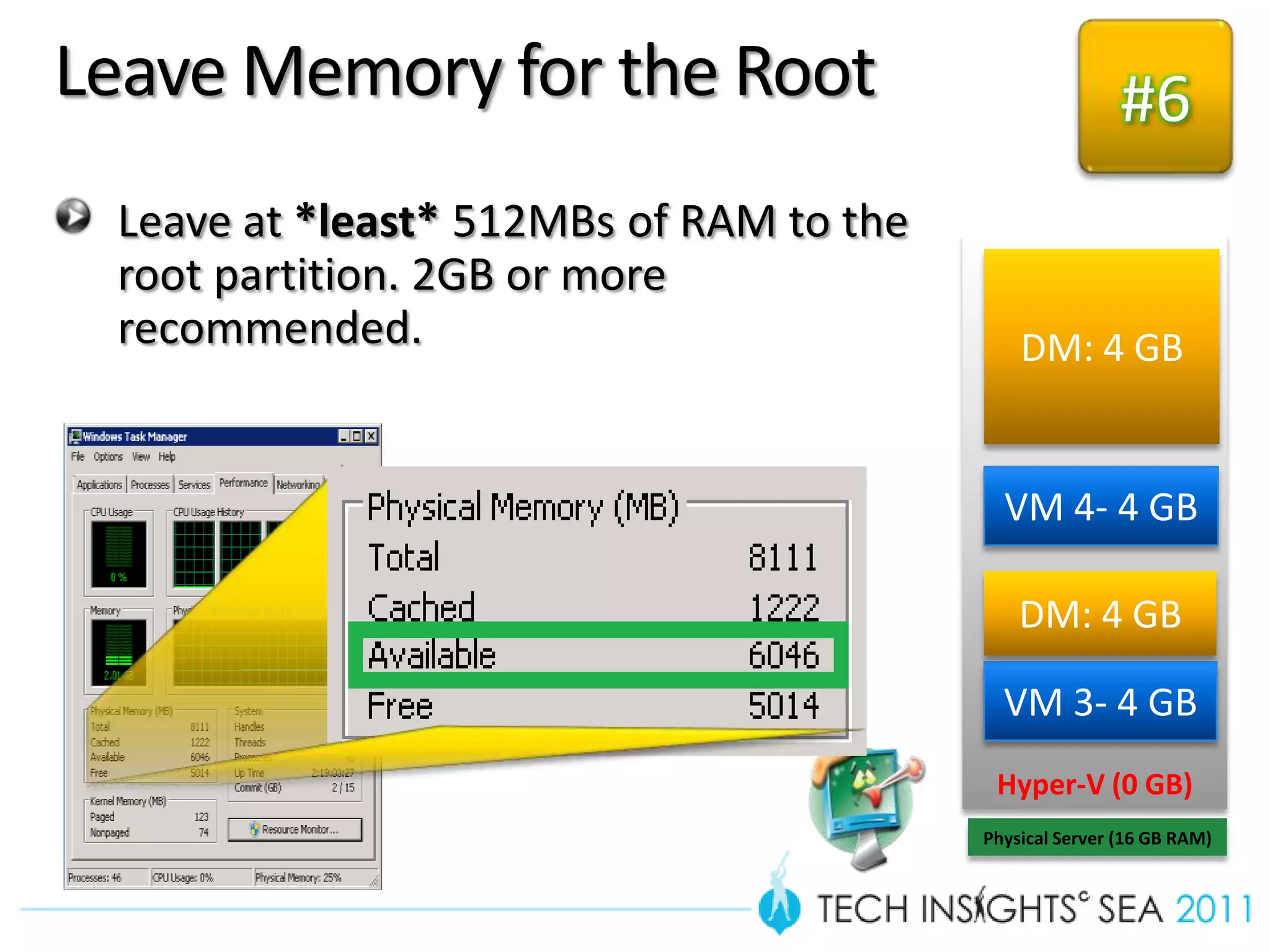
Leave Memory for the Root                                #6
 Leave at *least* 512MBs of RAM to the
 root partition. 2GB or more
 recommended.                                DM: 4 GB


                                           VM 4- 4 GB

                                             DM: 4 GB

                                           VM 3- 4 GB
                                          Hyper-V (0 GB)
                                         Physical Server (16 GB RAM)

                                                  Hyper-V Host 1
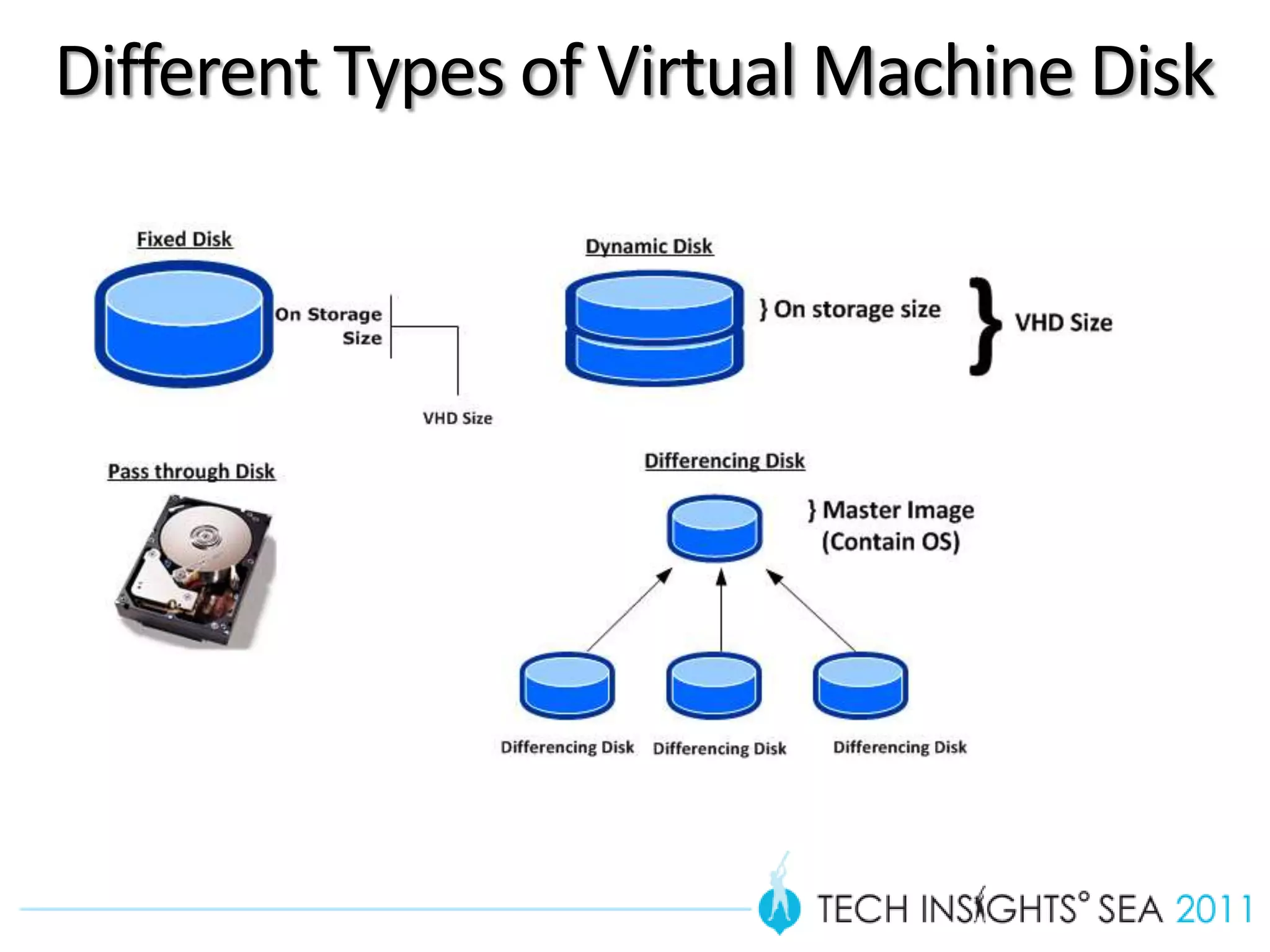
Different Types of Virtual Machine Disk
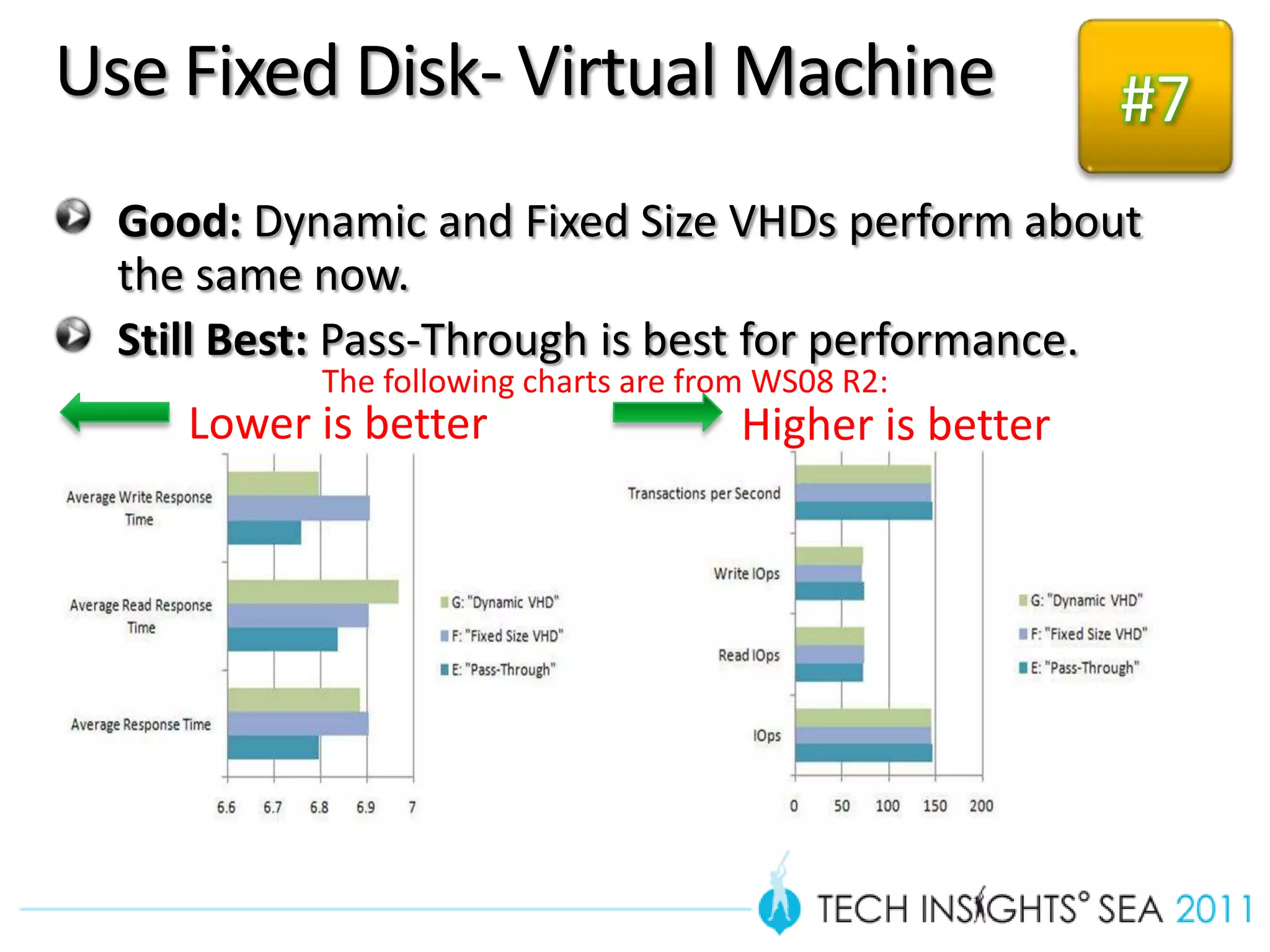
Use Fixed Disk- Virtual Machine                           #7
  Good: Dynamic and Fixed Size VHDs perform about
  the same now.
  Still Best: Pass-Through is best for performance.
           The following charts are from WS08 R2:
     Lower is better                   Higher is better
Antivirus
 Configure exclusion
   Virtual Machine Configuration Directory
   Virtual Machine VHD Directory
   Snapshot Directory
   VMMS.EXE
   VMWP.EXE
   Cluster Storage Volume (CSV)
Management
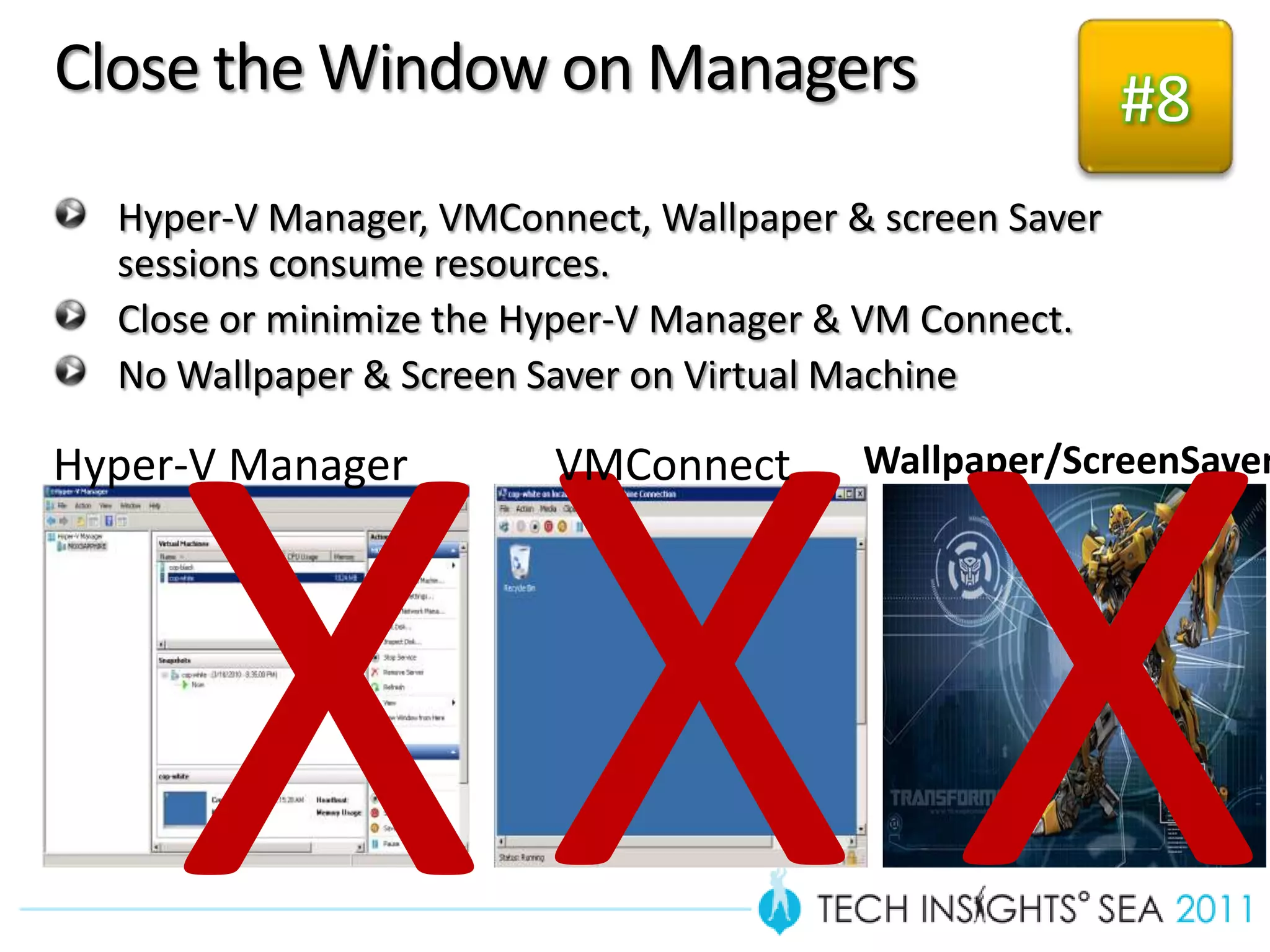
Close the Window on Managers                             #8
  Hyper-V Manager, VMConnect, Wallpaper & screen Saver
  sessions consume resources.
  Close or minimize the Hyper-V Manager & VM Connect.
  No Wallpaper & Screen Saver on Virtual Machine

Hyper-V Manager          VMConnect       Wallpaper/ScreenSaver
Disable Removable Media                    #9
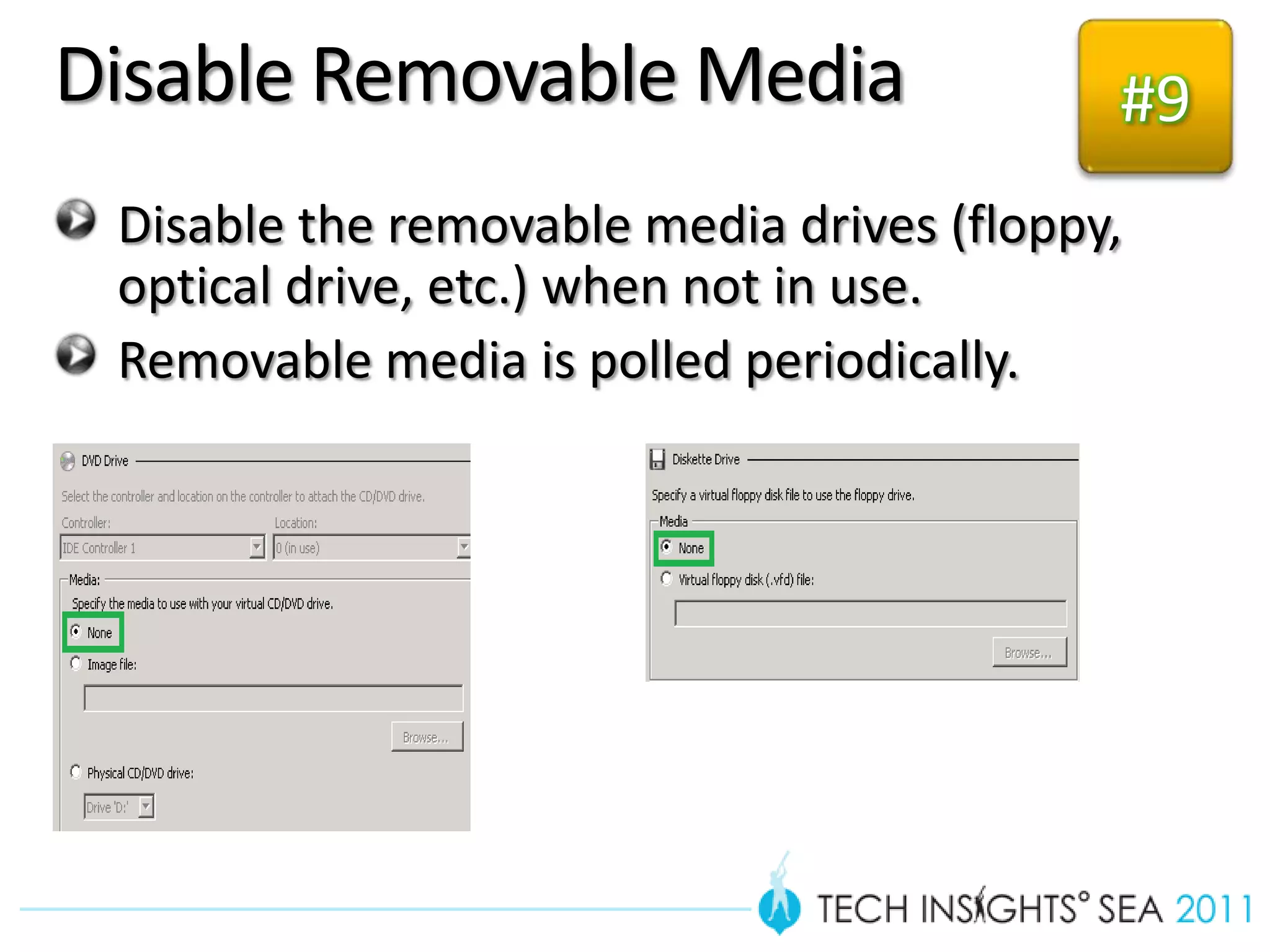
 Disable the removable media drives (floppy,
 optical drive, etc.) when not in use.
 Removable media is polled periodically.
Monitor VM                       CPU    MEM
                                                #10
Performance                      DISK    NET

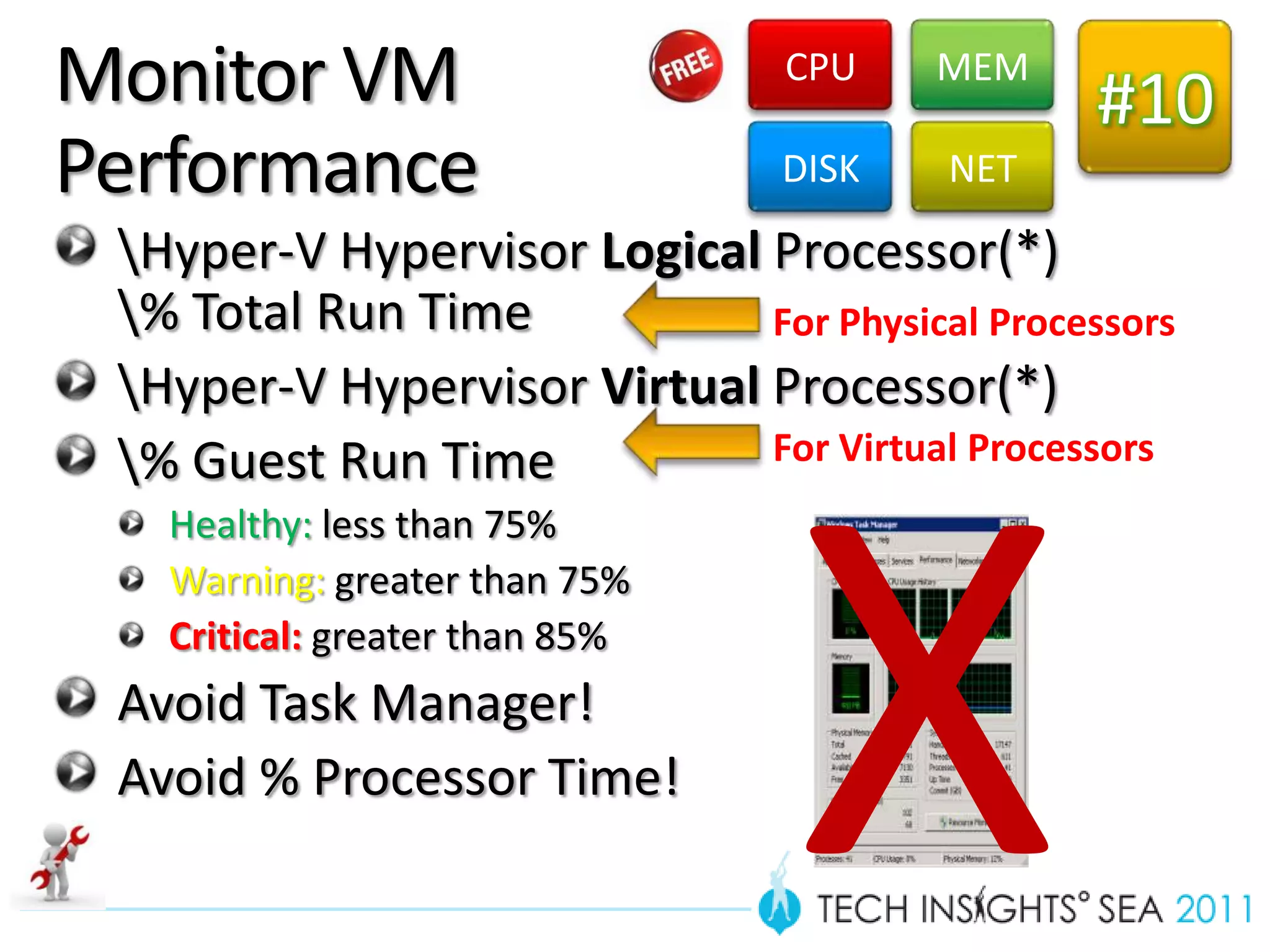
 Hyper-V Hypervisor Logical Processor(*)
 % Total Run Time           For Physical Processors
 Hyper-V Hypervisor Virtual Processor(*)
 % Guest Run Time           For Virtual Processors
   Healthy: less than 75%
   Warning: greater than 75%
   Critical: greater than 85%
 Avoid Task Manager!
 Avoid % Processor Time!
Dynamic Memory Performance
     Monitor
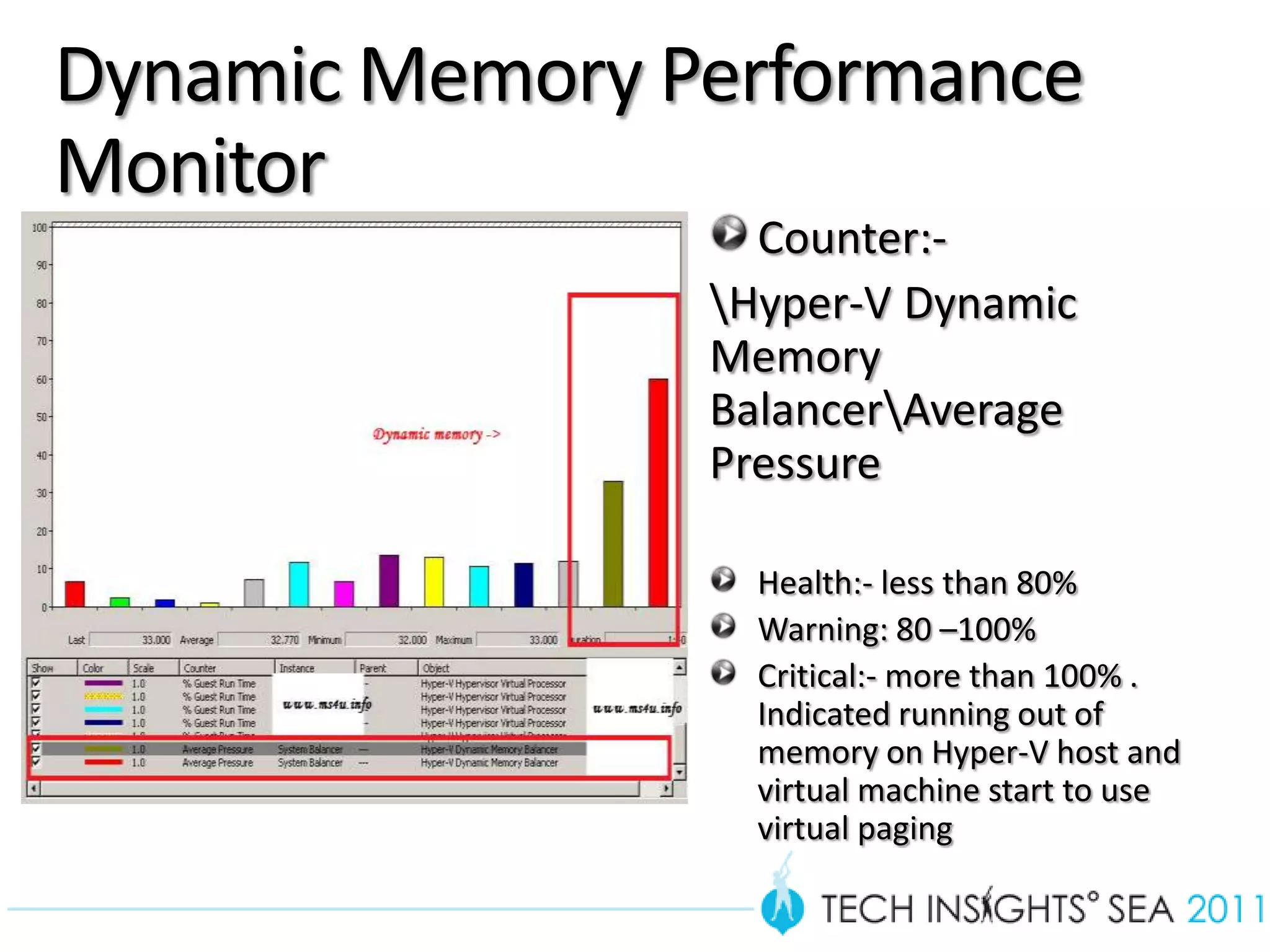
                       Counter:-
                     Hyper-V Dynamic
                     Memory
                     BalancerAverage
                     Pressure

                       Health:- less than 80%
                       Warning: 80 –100%
                       Critical:- more than 100% .
                       Indicated running out of
                       memory on Hyper-V host and
                       virtual machine start to use
                       virtual paging

32
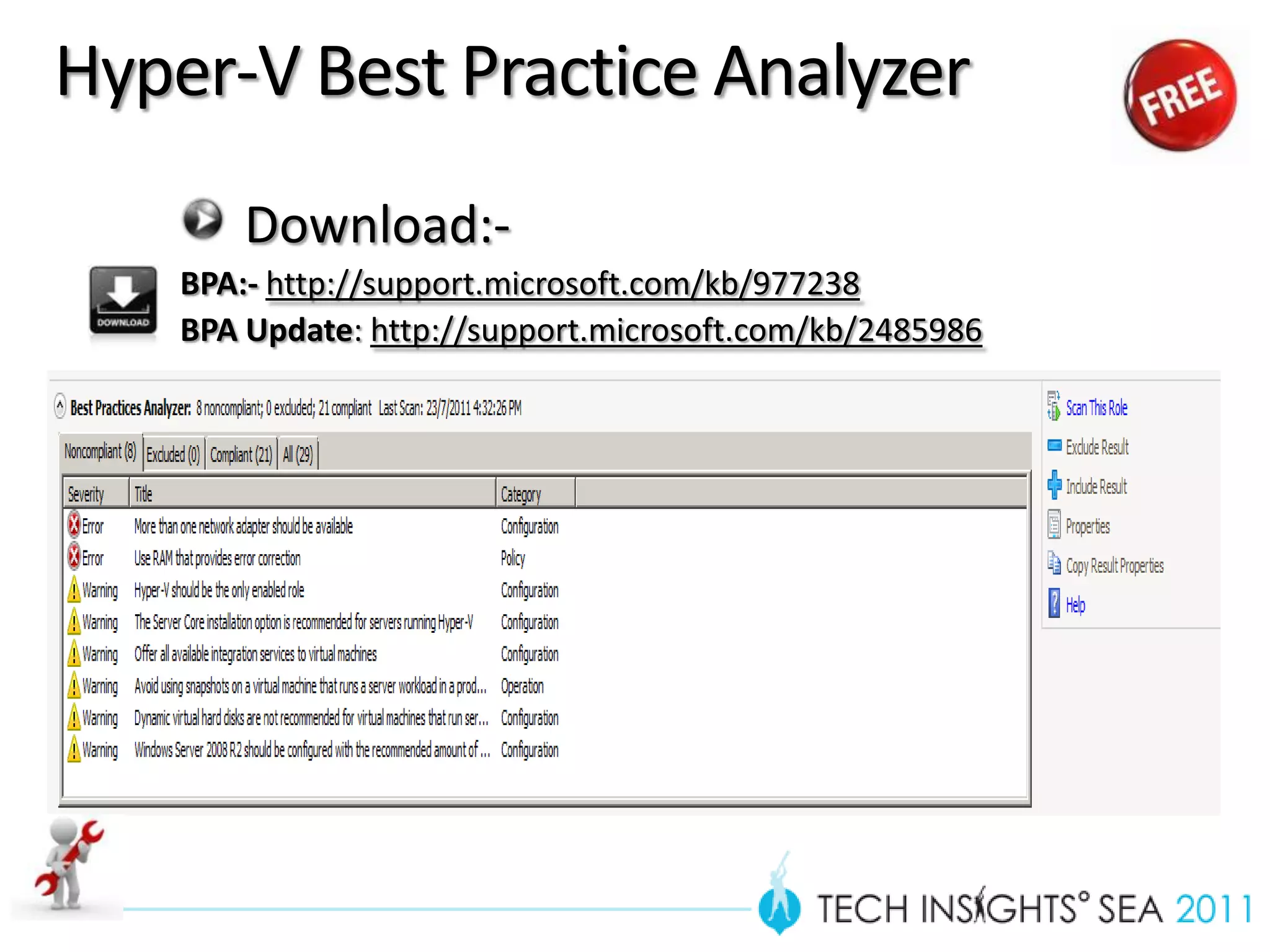
Hyper-V Best Practice Analyzer
        Download:-
    BPA:- http://support.microsoft.com/kb/977238
    BPA Update: http://support.microsoft.com/kb/2485986
Best Practice Analyzer
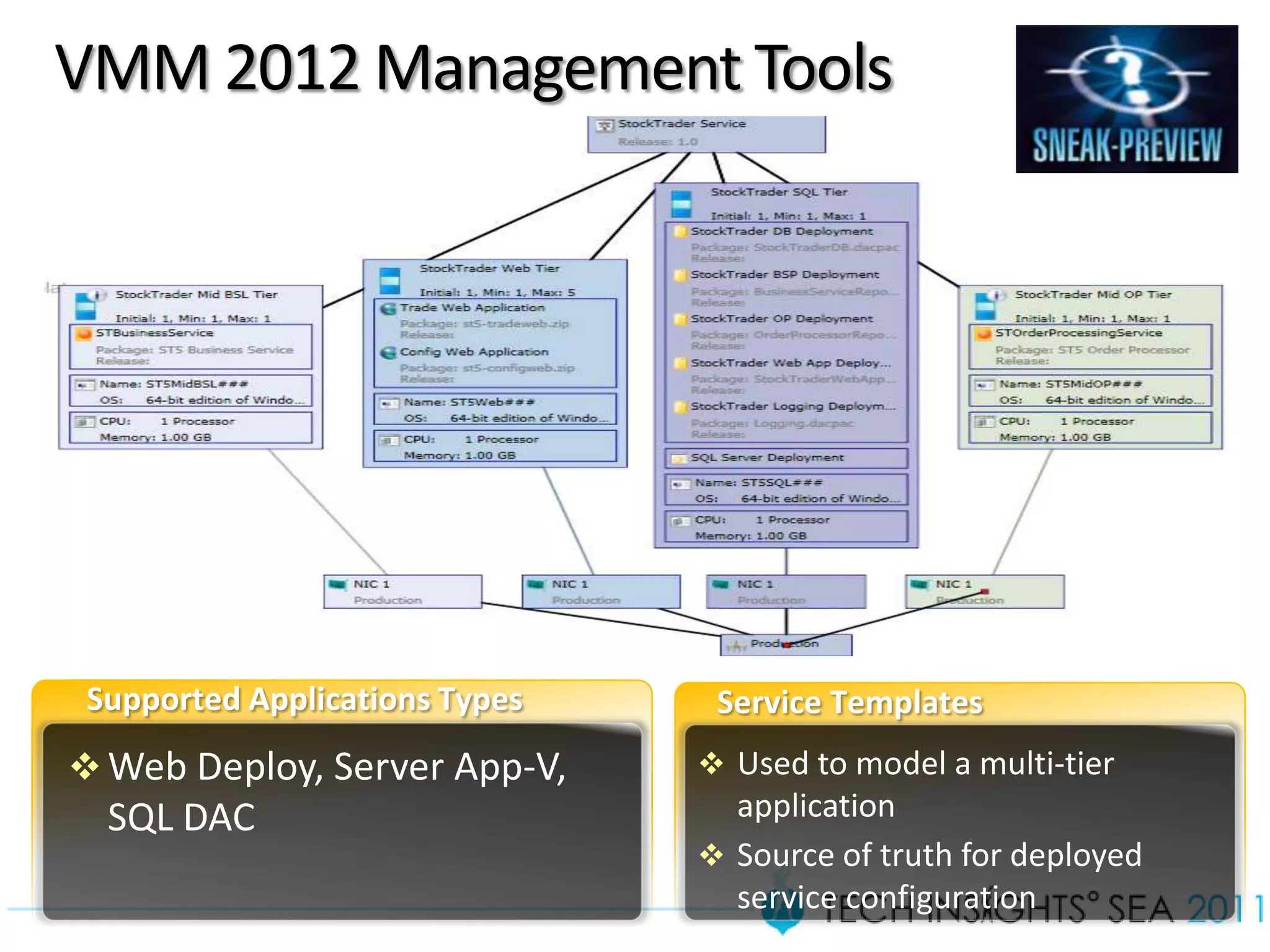
VMM 2012 Management Tools


                  

                   
Service Designer Template
         (VMM)
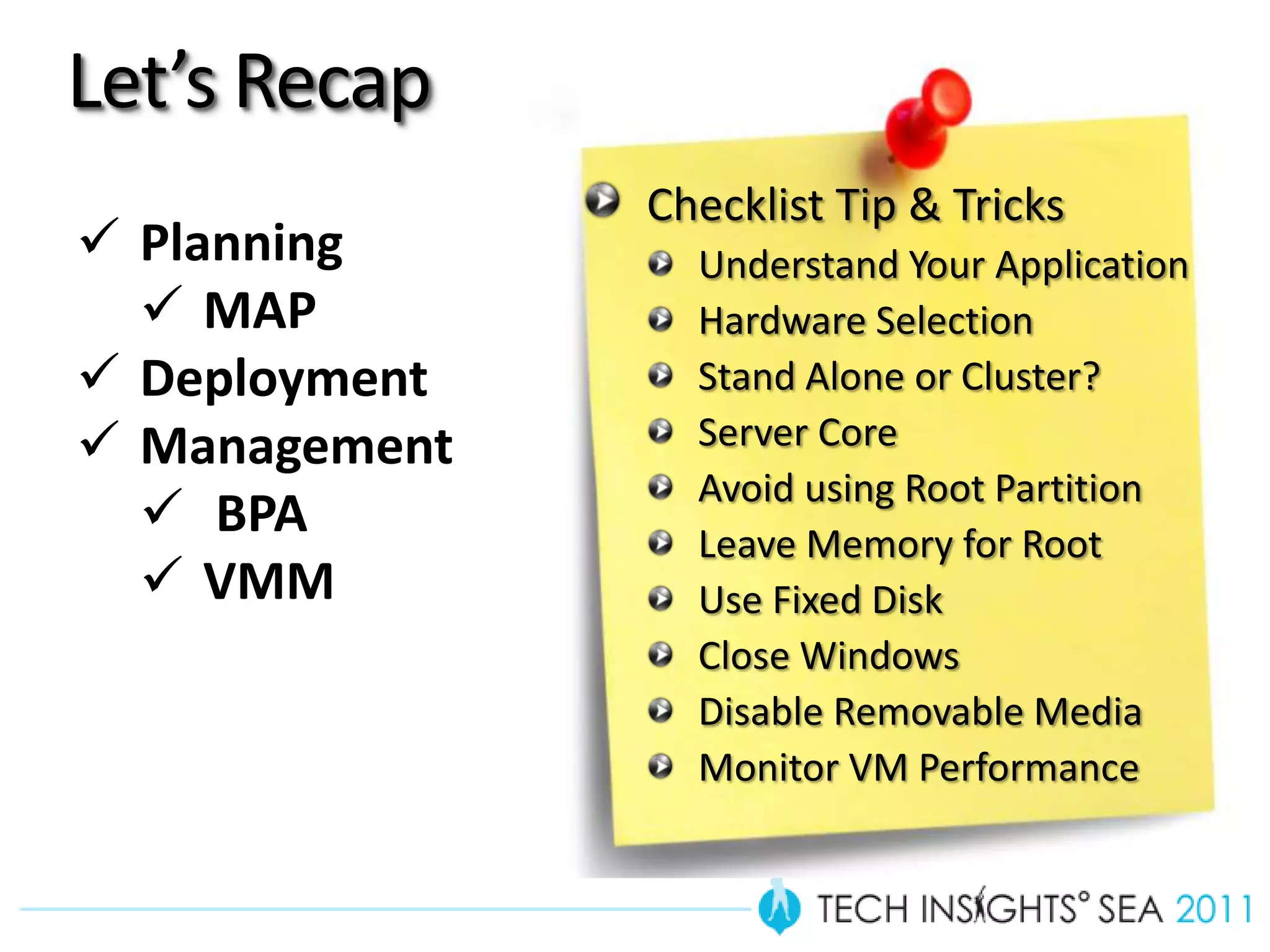
Let’s Recap
               Checklist Tip & Tricks
 Planning       Understand Your Application
   MAP          Hardware Selection
 Deployment     Stand Alone or Cluster?
 Management     Server Core
                 Avoid using Root Partition
   BPA          Leave Memory for Root
   VMM          Use Fixed Disk
                 Close Windows
                 Disable Removable Media
                 Monitor VM Performance
Questions & Answers
Resources
Lai Blog’s – Virtualization & System Center
www.ms4u.info
                  Join Malaysia Virtualization User Group
                  Go Facebook & Search “MVUG”


Microsoft Server Software and Supported Virtualization Environment
http://support.microsoft.com/kb/957006

Microsoft Assessment and Planning Toolkit (MAP)
http://blogs.technet.com/b/configurationmgr/archive/2011/07/21/microsoft-
assessment-and-planning-toolkit-6-0-now-available.aspx
Microsoft Virtualization Hyper-V Best Practice
http://blogs.technet.com/b/iftekhar/archive/2010/05/25/microsoft-
virtualization-hyper-v-best-practices.aspx
Win Cool Prizes!!!
   Complete the Tech Insights contests
   and stand a chance to win many cool
   prizes…


   Look in your conference bags NOW!!
We value your feedback!

Please remember to complete the
overall conference evaluation form (in
your bag) and return it to the
Registration Counter on the last day in
return for a Limited Edition Gift

Virtualization Best Practices-Tips and Tricks From Expert

  • 2.
    Virtualization Best Practices -Tips and Tricks from Expert Lai Yoong Seng | Technical Consultant MVP Virtual Machine www.ms4u.info | laiys@redynamics.com
  • 3.
    Session Objective andTakeaways • Objectives: • Virtualization Best Practice in term of • Planning , Deployment ,Management • 10 awesome Tip & Tricks • Some free tools to use.. • Key Takeaways: Slid • Tip & Trick for a successful virtualization deployment
  • 4.
    Evolution of theDatacenter
  • 5.
  • 6.
    Q1:- Physical orVirtual? Running application in physical or virtual? or
  • 7.
    Q2:-Virtualize or NotVirtualize ? Suitable candidate VM 4- 4 GB  Low processor  Low Memory VM 1- VM 3- 4 GB 14 GB VM 2- 4 GB Unsuitable candidate VS VM 1- 2 GB High processor High memory Parent Parent partition partition High network use (2 GB) (2 GB) External peripheral Physical Server (16 GB RAM) Physical Server (16 GB RAM)
  • 8.
    Understand Your Application #1 Don’t virtualize everything ! Not ALL Applications are Inventory suitable to be Virtualized External Hardware (USB, dongle, etc) High Resource & Utilization Reporting Assessment Check Microsoft Support Policy Use Microsoft Assessment and Planning Toolkit (MAP) 6.0
  • 9.
    Microsoft Assessment & Planning Toolkit
  • 10.
  • 11.
    Workload Migration Guest OperatingSystem Virtual Server 2005 Hyper-V Windows NT * √ Windows 2000 * √ Windows 2003 √ Windows 2008 / √ 2008 R2 Linux Distribution √  Suse Linux 10+  Red Hat 5.2+  Centos
  • 12.
    Hardware Selection #2 CPU Memory Hard Disk Network  Hardware  More  High RPM  More NIC assisted RAM the (15K rpm) the better Virtualization better  SAS  1Gbps/10Gb  Hardware DEP  RAID 10 ps  X64 Bit  SLAT
  • 13.
    Shared Storage Selection NAS DAS iSCSI SAN FC SAN  Not  Small  Small /  High Supported scale Medium Performance  2–4 scale  Expensive nodes  Cheaper than FC SAN
  • 14.
    Securable Determine processorsuitability for virtualization http://www.grc.com/securable.htm
  • 15.
    Coreinfo Check processorsuitability for virtualization. New ! Windows 8 SLAT requirement http://technet.microsoft.com/en-us/sysinternals/cc835722
  • 16.
    Stand-Alone or ClusterHyper-V #3 Up to you to decide. But recommended, Cluster Hyper-V Stand alone Hyper-V Cluster Hyper-V
  • 17.
  • 18.
    Host Setup Consideration RAID ? Antivirus? Windows ? Teaming / MPIO?
  • 19.
    Windows Server 2008R2 EE, Microsoft Microsoft Capabilities DC Hyper-V Server 2008 Hyper-V Server 2008 R2 (Hyper-V) Number of Logical 24 64 64 processors supported Number of Sockets Up to 4 Up to 8 Up to 8 = EE | Up to 64 = DC (Licensing) Memory Up to 32 GB Up to 1 TB Up to 1TB VM Migration None Quick and Live migration Quick and Live Migration Number of VM’s per node 32 (server workloads) 32 (server workloads) Not applicable in a cluster 64 (VDI workloads) 64 (VDI workloads) Virtualization Rights for EE = 4 VM Windows Server 2008 0 0 DC = unlimited VM’s guests Number of running VM Up to 192, or as many as Up to 384 or as many as physical resources Up to 384, or as many as physical Guests physical resources allow allow resources allow Windows Server 2008 CALs Required for Guest Server No No Yes OS Windows Server 2008 R2, Windows Server 2008 & SP2, Windows Server 2003 SP2, Windows 2000 Server, SLES Guest OS support 10, SLES 11, Red Hat Enterprise 5.2/5.3, Windows 7, Windows Vista SP1, SP2 & Windows XP SP3/SP2
  • 20.
    Use Server Core #4 Reduce surface attack, less patch Not Recommended Recommended
  • 21.
    Core Configurator GUIto manage in Server Core. Mainly on system settings on Windows. http://coreconfig.codeplex.com/
  • 22.
    Server Core & CoreConfigurator
  • 23.
    Avoid using theRoot Partition #5 Avoid running services on the root partition (host machine) X Just Hyper-V Roles… DHCP DNS IIS Directory Services …
  • 24.
    Leave Memory forthe Root #6 Leave at *least* 512MBs of RAM to the root partition. 2GB or more recommended. DM: 4 GB VM 4- 4 GB DM: 4 GB VM 3- 4 GB Hyper-V (0 GB) Physical Server (16 GB RAM) Hyper-V Host 1
  • 25.
    Different Types ofVirtual Machine Disk
  • 26.
    Use Fixed Disk-Virtual Machine #7 Good: Dynamic and Fixed Size VHDs perform about the same now. Still Best: Pass-Through is best for performance. The following charts are from WS08 R2: Lower is better Higher is better
  • 27.
    Antivirus Configure exclusion Virtual Machine Configuration Directory Virtual Machine VHD Directory Snapshot Directory VMMS.EXE VMWP.EXE Cluster Storage Volume (CSV)
  • 28.
  • 29.
    Close the Windowon Managers #8 Hyper-V Manager, VMConnect, Wallpaper & screen Saver sessions consume resources. Close or minimize the Hyper-V Manager & VM Connect. No Wallpaper & Screen Saver on Virtual Machine Hyper-V Manager VMConnect Wallpaper/ScreenSaver
  • 30.
    Disable Removable Media #9 Disable the removable media drives (floppy, optical drive, etc.) when not in use. Removable media is polled periodically.
  • 31.
    Monitor VM CPU MEM #10 Performance DISK NET Hyper-V Hypervisor Logical Processor(*) % Total Run Time For Physical Processors Hyper-V Hypervisor Virtual Processor(*) % Guest Run Time For Virtual Processors Healthy: less than 75% Warning: greater than 75% Critical: greater than 85% Avoid Task Manager! Avoid % Processor Time!
  • 32.
    Dynamic Memory Performance Monitor Counter:- Hyper-V Dynamic Memory BalancerAverage Pressure Health:- less than 80% Warning: 80 –100% Critical:- more than 100% . Indicated running out of memory on Hyper-V host and virtual machine start to use virtual paging 32
  • 33.
    Hyper-V Best PracticeAnalyzer Download:- BPA:- http://support.microsoft.com/kb/977238 BPA Update: http://support.microsoft.com/kb/2485986
  • 34.
  • 35.
    VMM 2012 ManagementTools   
  • 36.
  • 37.
    Let’s Recap Checklist Tip & Tricks  Planning Understand Your Application  MAP Hardware Selection  Deployment Stand Alone or Cluster?  Management Server Core Avoid using Root Partition  BPA Leave Memory for Root  VMM Use Fixed Disk Close Windows Disable Removable Media Monitor VM Performance
  • 38.
  • 39.
    Resources Lai Blog’s –Virtualization & System Center www.ms4u.info Join Malaysia Virtualization User Group Go Facebook & Search “MVUG” Microsoft Server Software and Supported Virtualization Environment http://support.microsoft.com/kb/957006 Microsoft Assessment and Planning Toolkit (MAP) http://blogs.technet.com/b/configurationmgr/archive/2011/07/21/microsoft- assessment-and-planning-toolkit-6-0-now-available.aspx Microsoft Virtualization Hyper-V Best Practice http://blogs.technet.com/b/iftekhar/archive/2010/05/25/microsoft- virtualization-hyper-v-best-practices.aspx
  • 40.
    Win Cool Prizes!!! Complete the Tech Insights contests and stand a chance to win many cool prizes… Look in your conference bags NOW!!
  • 41.
    We value yourfeedback! Please remember to complete the overall conference evaluation form (in your bag) and return it to the Registration Counter on the last day in return for a Limited Edition Gift

Editor's Notes

  • #40 Presenters please use this slide to direct participants to websites, books, trials, product pages etc as a follow through to your presentation