MVP Virtual Machine
www.ms4u.info | laiys@redynamics.com
Redynamics Asia System Management
Objective &
               Setup Storage Spaces
Key
               Setup Scale Out File Server
Takeaway
Practical Approach

Setup Storage
Spaces
Lai Yoong Seng
MVP Virtual Machine | www.ms4u.info
Physical or
Virtualized Servers


                         File and Storage Manager      ReFS & NTFS        SMB v3 RDMA
Windows Server 2012
Capabilities
                        Failover Clustering & CSV v2    Hyper-V      Storage Mgmt. PowerShell


Virtualized Resilient
Storage


Cost-efficient shared
SAS JBOD arrays
Resilient Spaces    Mirror   Parity   Mirror   Mirror   Mirror   Parity   Mirror    Mirror
                    Space    Space    Space    Space    Space    Space    Space     Space


                                                                                             Resiliency to
Industry standard
                                                                                             Drive Failure
storage
                                                                                    Hot
                                                                                   Spare
Gold           Silver    Bronze
Effectively   Diverse spaces
              for diverse
Utilize       workloads

Hardware                       Finance    ERP     Home      Archive
                                Space    Space    Space      Space
Investment
              Industry
              standard
              commodity
              storage           Solid state      15K RPM   7200 RPM
1    Requirements
Min 3 physical disk

               More than 4GB each physical disk
Hardware
               Serial Attached SCSI (SAS)
Requirements
               RAID
Fixed Provisioning

Simple and Mirror Storage Spaces
                                   Storage Spaces
Dedicated for Pool                 Requirements
NTFS
2    Configure Storage Pool
Step 2:- Configure Cluster Storage Pool
                           Create Storage Pool
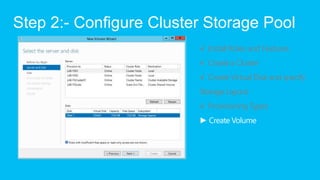
Step 2:- Configure Cluster Storage Pool
                         √ Install Roles and Features
Step 2:- Configure Cluster Storage Pool
                         √ Install Roles and Features
                         √ Create a Cluster
Step 2:- Configure Cluster Storage Pool
                         √ Install Roles and Features
                         √ Create a Cluster
                         √ Create Virtual Disk and specify
                         Storage Layout
Step 2:- Configure Cluster Storage Pool
                         √ Install Roles and Features
                         √ Create a Cluster
                         √ Create Virtual Disk and specify
                         Storage Layout
                         √ Provisioning Types
Extend Virtual
     Disk


Resiliency to
Drive Failure


                 Extend
                 Volume
Practical Approach

Setup Scale Out File
Server
Lai Yoong Seng
MVP Virtual Machine | www.ms4u.info
Supporting Features
SMB Transparent Failover -
Continuous availability       SQL              SQL
                             Server           Server
SMB Scale-Out –
Active/Active file server      IIS                IIS
clusters                       VDI             VDI
SMB Direct (SMB over         Deskto          Deskto
RDMA) - Low latency, low      Hyper-V
                                p
                             Hyper-V
                                                p
                                              Hyper-V
                                             Hyper-V
                             Hyper-V         Hyper-V
CPU use
SMB Multichannel –                                      LAB-FSSCALEShare
Network throughput and          File           File
                               Server         Server
failover
SMB Encryption - Security
                                        Shared
VSS for SMB File Shares -               Storage
Backup and restore
Handling Permanent Network Failure

                    Multichannel:
                      - Transparently Uses Alternate
                        Network Path
Handling File Server Node Failure

                                 Continuous Availability
                                  - Transparently Fails Over Share To
                                    Different File Server


  File Server      File Server
    Node A           Node B
            Clustered
Handling Hyper-V Node Failure

       Clustered       Cluster Client Failover (CCF)
                        - VMs communicate identity
                        - Enables Quick Recovery


      File Server
Overview of Steps


      Step 1:     Step 2:         Step 3:          Step 4:
     Planning   Install Pre-     Configure        Configure
                 requisite     Scale Out File   Hyper-V to Use
                                  Server          Scale Out
1    Planning
Step 1:- Planning
Storage                              Network
    Validate Storage Configuration     Same Network Adapter (2)
    NTFS                               Enough Network Bandwidth for
                                       CSV redirection
    Cluster Shared Volume
                                       DNS Dynamic update protocol
     Loopback Share
Hyper-V over SMB - File Server Configurations

Single-node File Server
     Lowest cost for shared storage
     Shares not continuously
      available

  Hyper-V Parent 1            Hyper-V Parent N

           Child 1                         Child N
  Config                          Config

   VHD       Disk                 VHD        Disk


              Share1        Share2

               Disk          Disk


                    File Server


                        A
Hyper-V over SMB - File Server Configurations
Single-node File Server                                 Dual-node File Server
          Lowest cost for shared storage
          Shares not continuously available                   Low cost for continuously
                                                                available shared storage
                                                               Limited scalability
                                                                (up to a few hundred disks)
  Hyper-V Parent 1               Hyper-V Parent N        Hyper-V Parent 1         Hyper-V Parent N

              Child 1                         Child N                Child 1                  Child N
  Config                             Config              Config                    Config

   VHD          Disk                 VHD        Disk                   Disk                     Disk
                                                          VHD                       VHD


                Share1         Share2                    Share1      Share2        Share1     Share2

                  Disk          Disk                       File Server 1              File Server 2


                       File Server
                                                              Disk         Disk    Disk        Disk

                                                                      Shared SAS Storage

                           A                              B
Hyper-V over SMB - File Server Configurations
Single-node File Server                              Dual-node File Server                           Multi-node File Server
     Lowest cost for shared storage                        Low cost for continuously                   Highest scalability
     Shares not continuously                                available shared storage
                                                                                                          (up to thousands of disks)
      available                                             Limited scalability
                                                             (up to a few hundred disks)                 Higher cost, but still lower
                                                                                                          than connecting all Hyper-V
                                                                                                          hosts with FC
  Hyper-V Parent 1            Hyper-V Parent N        Hyper-V Parent 1         Hyper-V Parent N        Hyper-V Parent 1                 Hyper-V Parent N

           Child 1                         Child N                Child 1                  Child N                  Child 1                         Child N
  Config                          Config              Config                    Config                  Config                           Config

   VHD       Disk                 VHD        Disk                   Disk                     Disk                       Disk                             Disk
                                                       VHD                       VHD                    VHD                              VHD


              Share1        Share2                    Share1      Share2        Share1     Share2      Share1           Share2          Share3           Share4

               Disk          Disk                       File Server 1              File Server 2        FS 1             FS 2            FS 3             FS 4


                    File Server
                                                           Disk         Disk    Disk        Disk        Disk     Disk     Disk   Disk     Disk    Disk      Disk

                                                                   Shared SAS Storage                            Fibre Channel Storage Array

                        A                              B                                               C
2    Install Pre-requisite
Step 2:- Install Pre-requisite
                            √ Install Roles and Features
Step 2:- Install Pre-requisite
                            √ Install Roles and Features
                            √ Create a Cluster
Step 2:- Install Pre-requisite
                            √ Install Roles and Features
                            √ Create a Cluster
                            √ Add Storage to Cluster Shared
                            Volume
3    Configure Scale Out File
      Server
Step 3:- Configure Scale Out File Server
                          √ Configure File Server Role
Step 3:- Configure Scale Out File Server
                          √ Configure File Server Role
Step 3:- Configure Scale Out File Server
 Full permissions on NTFS folder and SMB
 share for
   Hyper-V Administrator
   Computer Account of Hyper-V hosts
   If Hyper-V is clustered, the Hyper-V Cluster
   Account (CNO)
4    Configure Hyper-V to Use
      Scale Out File Server
Step 4:- Configure Hyper-V to Use the
Scale Out File Server


            LAB-FSSCALESMBFSVM1.vhd
Summary
Q&A
            Join us !
            Malaysia Virtualization User Group (MVUG)
            https://www.facebook.com/groups/mvuggroup/ or go to Facebook,
            search “MVUG”

            Windows Server 2012 Storage Resources:-
            Configure Cluster Storage Spaces –
            http://blogs.msdn.com/b/clustering/archive/2012/06/02/10314262.a
Resources   spx

            Configure Scale Out File Server-
            http://technet.microsoft.com/en-us/library/hh831349.aspx
Home PC Backup Software


Giveaway


           Email to ms4u@outlook.com with the subject
           “2nd Session Windows Server 2012 Malaysia
           Roadshow Giveaway”
Thank you

Setting up Storage Features in Windows Server 2012

  • 1.
    MVP Virtual Machine www.ms4u.info| laiys@redynamics.com Redynamics Asia System Management
  • 2.
    Objective &  Setup Storage Spaces Key  Setup Scale Out File Server Takeaway
  • 3.
    Practical Approach Setup Storage Spaces LaiYoong Seng MVP Virtual Machine | www.ms4u.info
  • 4.
    Physical or Virtualized Servers File and Storage Manager ReFS & NTFS SMB v3 RDMA Windows Server 2012 Capabilities Failover Clustering & CSV v2 Hyper-V Storage Mgmt. PowerShell Virtualized Resilient Storage Cost-efficient shared SAS JBOD arrays
  • 5.
    Resilient Spaces Mirror Parity Mirror Mirror Mirror Parity Mirror Mirror Space Space Space Space Space Space Space Space Resiliency to Industry standard Drive Failure storage Hot Spare
  • 6.
    Gold Silver Bronze Effectively Diverse spaces for diverse Utilize workloads Hardware Finance ERP Home Archive Space Space Space Space Investment Industry standard commodity storage Solid state 15K RPM 7200 RPM
  • 7.
    1  Requirements
  • 8.
    Min 3 physicaldisk More than 4GB each physical disk Hardware Serial Attached SCSI (SAS) Requirements RAID
  • 9.
    Fixed Provisioning Simple andMirror Storage Spaces Storage Spaces Dedicated for Pool Requirements NTFS
  • 10.
    2  Configure Storage Pool
  • 11.
    Step 2:- ConfigureCluster Storage Pool Create Storage Pool
  • 12.
    Step 2:- ConfigureCluster Storage Pool √ Install Roles and Features
  • 13.
    Step 2:- ConfigureCluster Storage Pool √ Install Roles and Features √ Create a Cluster
  • 14.
    Step 2:- ConfigureCluster Storage Pool √ Install Roles and Features √ Create a Cluster √ Create Virtual Disk and specify Storage Layout
  • 15.
    Step 2:- ConfigureCluster Storage Pool √ Install Roles and Features √ Create a Cluster √ Create Virtual Disk and specify Storage Layout √ Provisioning Types
  • 16.
    Extend Virtual Disk Resiliency to Drive Failure Extend Volume
  • 17.
    Practical Approach Setup ScaleOut File Server Lai Yoong Seng MVP Virtual Machine | www.ms4u.info
  • 18.
    Supporting Features SMB TransparentFailover - Continuous availability SQL SQL Server Server SMB Scale-Out – Active/Active file server IIS IIS clusters VDI VDI SMB Direct (SMB over Deskto Deskto RDMA) - Low latency, low Hyper-V p Hyper-V p Hyper-V Hyper-V Hyper-V Hyper-V CPU use SMB Multichannel – LAB-FSSCALEShare Network throughput and File File Server Server failover SMB Encryption - Security Shared VSS for SMB File Shares - Storage Backup and restore
  • 19.
    Handling Permanent NetworkFailure Multichannel: - Transparently Uses Alternate Network Path
  • 20.
    Handling File ServerNode Failure Continuous Availability - Transparently Fails Over Share To Different File Server File Server File Server Node A Node B Clustered
  • 21.
    Handling Hyper-V NodeFailure Clustered Cluster Client Failover (CCF) - VMs communicate identity - Enables Quick Recovery File Server
  • 22.
    Overview of Steps Step 1: Step 2: Step 3: Step 4: Planning Install Pre- Configure Configure requisite Scale Out File Hyper-V to Use Server Scale Out
  • 23.
    1  Planning
  • 24.
    Step 1:- Planning Storage Network Validate Storage Configuration Same Network Adapter (2) NTFS Enough Network Bandwidth for CSV redirection Cluster Shared Volume DNS Dynamic update protocol Loopback Share
  • 25.
    Hyper-V over SMB- File Server Configurations Single-node File Server  Lowest cost for shared storage  Shares not continuously available Hyper-V Parent 1 Hyper-V Parent N Child 1 Child N Config Config VHD Disk VHD Disk Share1 Share2 Disk Disk File Server A
  • 26.
    Hyper-V over SMB- File Server Configurations Single-node File Server Dual-node File Server  Lowest cost for shared storage  Shares not continuously available  Low cost for continuously available shared storage  Limited scalability (up to a few hundred disks) Hyper-V Parent 1 Hyper-V Parent N Hyper-V Parent 1 Hyper-V Parent N Child 1 Child N Child 1 Child N Config Config Config Config VHD Disk VHD Disk Disk Disk VHD VHD Share1 Share2 Share1 Share2 Share1 Share2 Disk Disk File Server 1 File Server 2 File Server Disk Disk Disk Disk Shared SAS Storage A B
  • 27.
    Hyper-V over SMB- File Server Configurations Single-node File Server Dual-node File Server Multi-node File Server  Lowest cost for shared storage  Low cost for continuously  Highest scalability  Shares not continuously available shared storage (up to thousands of disks) available  Limited scalability (up to a few hundred disks)  Higher cost, but still lower than connecting all Hyper-V hosts with FC Hyper-V Parent 1 Hyper-V Parent N Hyper-V Parent 1 Hyper-V Parent N Hyper-V Parent 1 Hyper-V Parent N Child 1 Child N Child 1 Child N Child 1 Child N Config Config Config Config Config Config VHD Disk VHD Disk Disk Disk Disk Disk VHD VHD VHD VHD Share1 Share2 Share1 Share2 Share1 Share2 Share1 Share2 Share3 Share4 Disk Disk File Server 1 File Server 2 FS 1 FS 2 FS 3 FS 4 File Server Disk Disk Disk Disk Disk Disk Disk Disk Disk Disk Disk Shared SAS Storage Fibre Channel Storage Array A B C
  • 28.
    2  Install Pre-requisite
  • 29.
    Step 2:- InstallPre-requisite
  • 30.
    Step 2:- InstallPre-requisite √ Install Roles and Features
  • 31.
    Step 2:- InstallPre-requisite √ Install Roles and Features √ Create a Cluster
  • 32.
    Step 2:- InstallPre-requisite √ Install Roles and Features √ Create a Cluster √ Add Storage to Cluster Shared Volume
  • 33.
    3  Configure Scale Out File Server
  • 34.
    Step 3:- ConfigureScale Out File Server
  • 35.
    Step 3:- ConfigureScale Out File Server √ Configure File Server Role
  • 36.
    Step 3:- ConfigureScale Out File Server √ Configure File Server Role
  • 37.
    Step 3:- ConfigureScale Out File Server Full permissions on NTFS folder and SMB share for Hyper-V Administrator Computer Account of Hyper-V hosts If Hyper-V is clustered, the Hyper-V Cluster Account (CNO)
  • 38.
    4  Configure Hyper-V to Use Scale Out File Server
  • 39.
    Step 4:- ConfigureHyper-V to Use the Scale Out File Server LAB-FSSCALESMBFSVM1.vhd
  • 40.
  • 41.
    Q&A Join us ! Malaysia Virtualization User Group (MVUG) https://www.facebook.com/groups/mvuggroup/ or go to Facebook, search “MVUG” Windows Server 2012 Storage Resources:- Configure Cluster Storage Spaces – http://blogs.msdn.com/b/clustering/archive/2012/06/02/10314262.a Resources spx Configure Scale Out File Server- http://technet.microsoft.com/en-us/library/hh831349.aspx
  • 42.
    Home PC BackupSoftware Giveaway Email to ms4u@outlook.com with the subject “2nd Session Windows Server 2012 Malaysia Roadshow Giveaway”
  • 43.

Editor's Notes

  • #4 Inbox Solution ProvidesPoolingThin provisioningResiliencySimple SpaceMirror SpaceParity SpaceCluster Supports SpacesNot For Parity Spaces
  • #5 Resilient storageMirror spaces with dirty region trackingParity spaces with integrated journalingRapid recovery via per-pool hot spares
  • #24 Single 10 GbE network adapter. Each computer is configured with a 10 GbE network adapter, which is RSS-capable or RDMA-capable.Dual 1 GbE network adapters configured in a team. Each computer is configured with two 1 gigabit Ethernet network adapters in a load balancing and failover environment, also known as a network adapter team.Dual 1 GbE network adapters. Each computer is configured with dual 1 gigabit Ethernet network adapters.Dual 10 GbE network adapters. Each computer is configured with dual 10 GbE network adapters. These adapters could also be RSS-capable and/or RDMA-capable.Dual Infiniband network adapters. Each computer is configured with dual Infiniband network adapters. These adapters are typically RDMA-capable.You should ensure that the cluster node name is registered by using DNS dynamic update protocol. This should include the name of the Scale-Out File Server and the IP addresses of all of the network adapters in every cluster node on the client network.RSS-capable and/or RDMA-capable network adapters, you can verify that these capabilities are being properly detected.Make sure both Allow cluster network communication on this network and the checkbox next to Allow clients to connect through this network are selected.
  • #33 File Server & Failover Clustering
  • #36 Configure constraint delegation in Active Directory Users and Computers snap-in. When enabled, constrained delegation gives you the ability to use a specific SMB remote file share without requiring you to perform an action on any computer. Constrained delegation tells Active Directory Users and Computers that between two computers, (in this case, the Hyper-V server and the SMB file server), and for specific services, (in this case, SMB), it is allowed to re-issue access to the resources.
  • #37 Non-disruptive testing of workload – zero downtimeTest any recovery pointPre-configure isolated network
  • #38 Log on to the server as a member of the local Administrators group.Click Start, type Failover Cluster, and then click Failover Cluster Manager.Right-click the cluster, and then click Configure Role.On the Before You Begin page, click Next.On the Select Role page, click File Server, and then click Next.On the File Server Type page, select the Scale-Out File Server for application data option, and then click Next.On the Client Access Point page, in the Name box, type a NETBIOS name that will be used to access Scale-Out File Server, and then click Next.On the Confirmation page, confirm your settings, and then click Next.On the Summary page, click Finish.
  • #39 You must create a file share on the cluster shared volume by using Failover Cluster Manager.To create a continuously available file share on the cluster shared volumeLog on to the server as a member of the local Administrators group.Click Start, type Failover Cluster, and then click Failover Cluster Manager.Expand the cluster, and then click Roles.Right-click the file server role, and then click Add File Share.On the Select the profile for this share page, click SMB Share – Applications, and then click Next.On the Select the server and path for this share page, click the cluster shared volume, and then click Next.On the Specify share name page, in the Share name box, type a name, and then click Next.On the Configure share settings page, ensure that the Enable continuous availability check box is selected, and then click Next.NoteYou should not use access-based enumeration on file shares for Scale-Out File Server because of the increased metadata traffic that is generated on the coordinator node.On the Specify permissions to control access page, click Customize permissions, grant the following permissions, and then click Next:If you are using this Scale-Out File Server file share for Hyper-V, all Hyper-V computer accounts, the SYSTEM account, and all Hyper-V administrators must be granted full control on the share and the file system.If you are using Scale-Out File Server on Microsoft SQL Server, the SQL Server service account must be granted full control on the share and the file system.On the Confirm selections page, click Create.On the View results page, click Close.
  • #40 You must create a file share on the cluster shared volume by using Failover Cluster Manager.To create a continuously available file share on the cluster shared volumeLog on to the server as a member of the local Administrators group.Click Start, type Failover Cluster, and then click Failover Cluster Manager.Expand the cluster, and then click Roles.Right-click the file server role, and then click Add File Share.On the Select the profile for this share page, click SMB Share – Applications, and then click Next.On the Select the server and path for this share page, click the cluster shared volume, and then click Next.On the Specify share name page, in the Share name box, type a name, and then click Next.On the Configure share settings page, ensure that the Enable continuous availability check box is selected, and then click Next.NoteYou should not use access-based enumeration on file shares for Scale-Out File Server because of the increased metadata traffic that is generated on the coordinator node.On the Specify permissions to control access page, click Customize permissions, grant the following permissions, and then click Next:If you are using this Scale-Out File Server file share for Hyper-V, all Hyper-V computer accounts, the SYSTEM account, and all Hyper-V administrators must be granted full control on the share and the file system.If you are using Scale-Out File Server on Microsoft SQL Server, the SQL Server service account must be granted full control on the share and the file system.On the Confirm selections page, click Create.On the View results page, click Close.
  • #41 og on to the server as a member of the local Administrators group.Open Windows Explorer and navigate to the shared folder.Right-click the folder, and then click Properties.Click the Sharing tab, click Advanced Sharing, and then click Permissions.Ensure that the Hyper-V computer accounts, the SYSTEM account, and all Hyper-V administrators have full control permissions.Click OK twice.Click the Security tab.Ensure that the Hyper-V computer accounts, the SYSTEM account, and all Hyper-V administrators have full control permissions.