Chapter 3Formatting a Document
What’s Inside and on the CD?In this chapter, you will learn how to format text, using features such as:Bold and italic textDifferent fonts and font sizesLine Spacing and Paragraph alignmentTables, Bulleted and numbered lists2Practical Microsoft Office 2010
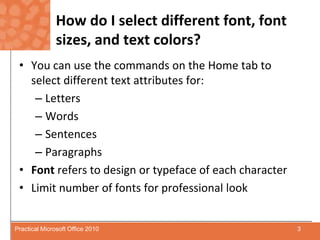
How do I select different font, font sizes, and text colors?You can use the commands on the Home tab to select different text attributes for:LettersWordsSentencesParagraphsFontrefers to design or typeface of each characterLimit number of fonts for professional look3Practical Microsoft Office 2010
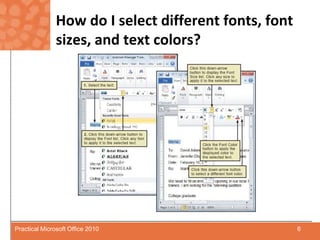
How do I select different fonts, font sizes, and text colors?Text attributesFontFont sizeNormal font size 9 – 12 pointRange from 8 – 72 pointsLarger font by typing in number larger than 72 BoldItalicUnderlineText color4Practical Microsoft Office 2010
How do I select different fonts, font sizes, and text colors?Selected textChange, add, delete formatting optionsWhen finished, click outside highlighted area to deselect itFont effects include:Super and sub scriptStrikethrough Small caps and all capsEmbossClick Editing, Select, then Select All on the Home tab to apply any text attributes to entire document 5Practical Microsoft Office 2010
How do I select different fonts, font sizes, and text colors?6Practical Microsoft Office 2010
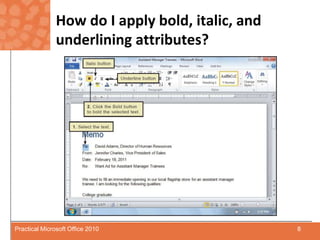
How do I apply bold, italic, and underlining attributes?Use commands in the Font group to apply text attributesBoldItalicUnderliningTypically, you’ll apply attributes to text you’ve already typed, but you can apply attributes before typing new textToolbar buttons both apply and remove attributesHyperlinks are automatically formatted with blue text and underlined7Practical Microsoft Office 2010
How do I apply bold, italic, and underlining attributes?8Practical Microsoft Office 2010
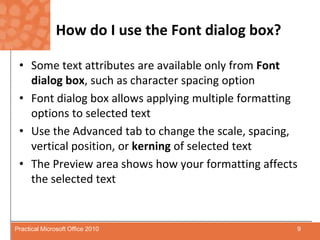
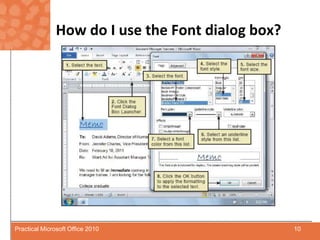
How do I use the Font dialog box?Some text attributes are available only from Font dialog box, such as character spacing optionFont dialog box allows applying multiple formatting options to selected textUse the Advanced tab to change the scale, spacing, vertical position, or kerning of selected textThe Preview area shows how your formatting affects the selected text9Practical Microsoft Office 2010
How do I use the Font dialog box?10Practical Microsoft Office 2010
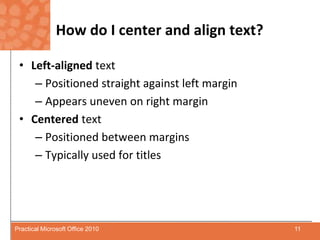
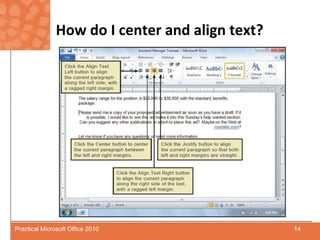
How do I center and align text?Left-aligned text Positioned straight against left marginAppears uneven on right marginCenteredtextPositioned between marginsTypically used for titles11Practical Microsoft Office 2010
How do I center and align text?Justified textBoth left and right margins alignedTypically used in formal documentsMore professional lookRight-alignedtextRarely usedCan be useful for headings in a paper, or return address in a letter12Practical Microsoft Office 2010
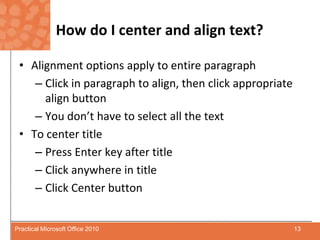
How do I center and align text?Alignment options apply to entire paragraphClick in paragraph to align, then click appropriate align buttonYou don’t have to select all the textTo center titlePress Enter key after titleClick anywhere in titleClick Center button13Practical Microsoft Office 2010
How do I center and align text?14Practical Microsoft Office 2010
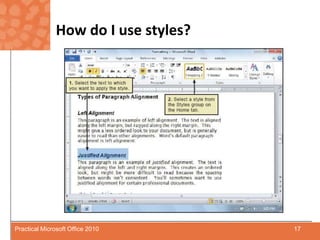
How do I use styles?Style consists of predefined formatting applied to selected textAdvantages of styles:Consistency in formattingAvoid design errors15Practical Microsoft Office 2010
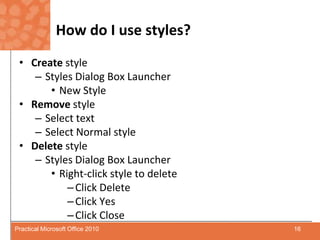
How do I use styles?Create style Styles Dialog Box LauncherNew StyleRemovestyleSelect textSelect Normal styleDelete styleStyles Dialog Box LauncherRight-click style to deleteClick DeleteClick YesClick Close16Practical Microsoft Office 2010
How do I use styles?17Practical Microsoft Office 2010
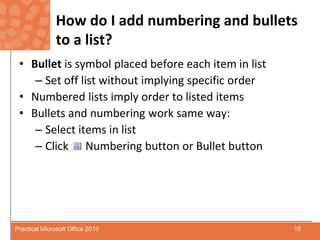
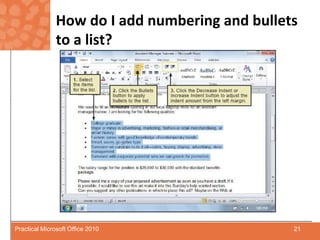
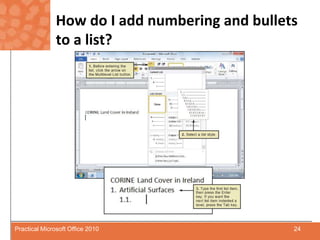
How do I add numbering and bullets to a list?Bullet is symbol placed before each item in listSet off list without implying specific orderNumbered lists imply order to listed itemsBullets and numbering work same way: Select items in listClick      Numbering button or Bullet button18Practical Microsoft Office 2010
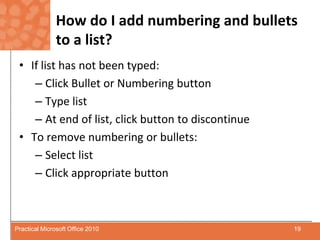
How do I add numbering and bullets to a list?If list has not been typed:Click Bullet or Numbering buttonType listAt end of list, click button to discontinueTo remove numbering or bullets:Select listClick appropriate button19Practical Microsoft Office 2010
How do I add numbering and bullets to a list?Word automatically renumbers list if you add, delete, or move items If numbering is incorrect:Select listClick numbering button twiceTo change style:Right-click selected listHighlight Bullets and NumberingSelect a format20Practical Microsoft Office 2010
How do I add numbering and bullets to a list?21Practical Microsoft Office 2010
How do I add numbering and bullets to a list?A multilevel list displays list items in levels and sublevelsUsed in outlines and legal documentsYou can apply bullets or numbering after entering the listPress the Tab key to change a list item to the next level down, or Shift+Tab to move a list item up a level22Practical Microsoft Office 2010
How do I add numbering and bullets to a list?You can define custom styles for text, numbers, and bulletsClick the arrow next to the Multilevel List buttonSelect Define New List StyleChange a number manually by right-clicking the number and selecting Set Numbering Value23Practical Microsoft Office 2010
How do I add numbering and bullets to a list?24Practical Microsoft Office 2010
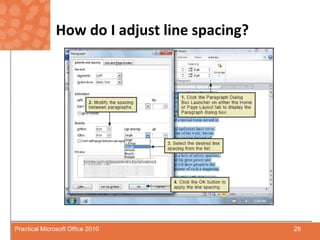
How do I adjust line spacing?Word defaults to single-spacingOther spacing options can be applied to paragraph, group of paragraphs, or entire documentSpace between paragraphs can also be adjusted25Practical Microsoft Office 2010
How do I adjust line spacing?Double-space document by setting line spacing to double-spaceTo set line spacing for one paragraph:Position insertion point in paragraph, click the Paragraph Dialog Box Launcher on Home Or Page Layout tabSelect desired line spacing from Line-spacing drop-down list on Indents and Spacing tabTo adjust line spacing for more than one paragraph, select paragraphs, then follow above guidelines26Practical Microsoft Office 2010
How do I adjust line spacing?To set line spacing for entire document before you begin typing:Click Editing, Select, then click Select AllClick the Paragraph Dialog Box Launcher on Home or Page Layout tabSelect desired line spacing, then click OKAs you type, text appears with selected line spacing27Practical Microsoft Office 2010
How do I adjust line spacing?28Practical Microsoft Office 2010
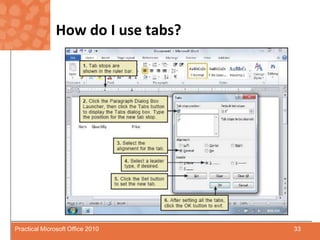
How do I use tabs?Use Tabs to align text in columnsDefault tab stops – every ½ inchTab stops can be changedPersonal tab stops can be addedMany types of tab stops:Left tab stop aligns text on left side of tabRight tab stop aligns text on right side of tabCenter tab stop centers text at that locationDecimal tab stop aligns numbers with decimal at tab locationBar tab stop places vertical bar at tab location29Practical Microsoft Office 2010
How do I use tabs?Leader– line of punctuation characters that fills area from text to tab stopTypically used in table of contentsTo clear tab stop:Click it in Tab stop position boxClick Clear buttonTo clear all tab stops:Click Clear All button in Tabs dialog box30Practical Microsoft Office 2010
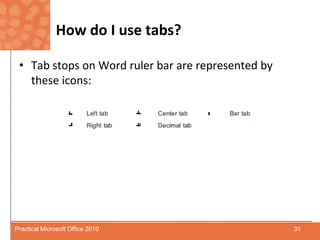
How do I use tabs?Tab stops on Word ruler bar are represented by these icons:31Practical Microsoft Office 2010
How do I use tabs?To set tab stops using ruler:Click appropriate icon at left end of rulerClick location on ruler to set tab stopTo change position of tab stop, select it and slide left or rightIf the ruler bar is not displayed:Click the View tabSelect the Ruler option in the Show/Hide group32Practical Microsoft Office 2010
How do I use tabs?33Practical Microsoft Office 2010
How do I indent text?Text can be indented from left, right, or both marginsFirst line of text can be indented differently from rest of paragraphHanging indent will move first line of text more to left than rest of text34Practical Microsoft Office 2010
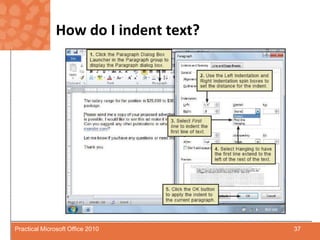
How do I indent text?To indent a paragraph from left or right:Click spin box buttons in appropriate Indentation box to increase or decrease indent distanceCheck Preview section to see how indentation affects paragraphTo indent first line:Select First Line from Special pull-down listSelect amount of indentation from By spin box35Practical Microsoft Office 2010
How do I indent text?To create hanging indent:Select Hanging from Special pull-down listSelect amount of negative indent from By spin boxIndent settings apply to paragraph that contains insertion pointTo apply indent settings to more than one paragraph:Select paragraphsUse Paragraph dialog box to set indent36Practical Microsoft Office 2010
How do I indent text?37Practical Microsoft Office 2010
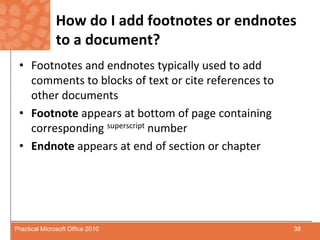
How do I add footnotes or endnotes to a document?Footnotes and endnotes typically used to add comments to blocks of text or cite references to other documentsFootnoteappears at bottom of page containing corresponding superscript numberEndnoteappears at end of section or chapter38Practical Microsoft Office 2010
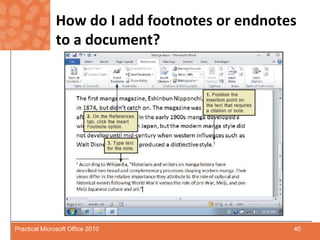
How do I add footnotes or endnotes to a document?Click References tab, click Insert Footnote or Insert Endnote buttonFootnote and Endnote dialog box appearsClick appropriate optionDelete footnote or endnote by selecting number that corresponds to note in text, and pressing Delete keyThe References tab contains several tools for adding citations to a document39Practical Microsoft Office 2010
How do I add footnotes or endnotes to a document?40Practical Microsoft Office 2010
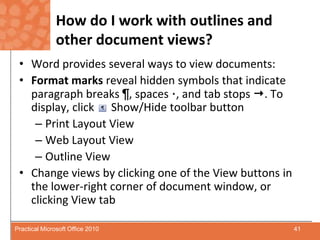
How do I work with outlines and other document views?Word provides several ways to view documents:Format marks reveal hidden symbols that indicate paragraph breaks ¶, spaces ·, and tab stops . To display, click      Show/Hide toolbar buttonPrint Layout ViewWeb Layout ViewOutline ViewChange views by clicking one of the View buttons in the lower-right corner of document window, or clicking View tab  41Practical Microsoft Office 2010
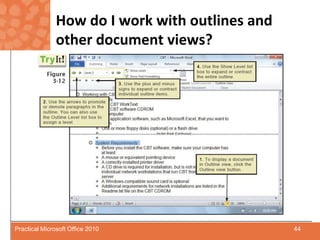
How do I work with outlines and other document views?Outline view handy for organizing contentAssign outline levels to each title, heading, and paragraphView any level of outline to get overview, or include all detailsEasy to rearrange sections to streamline document’s organization42Practical Microsoft Office 2010
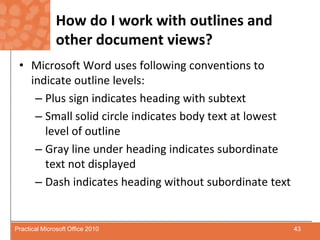
How do I work with outlines and other document views?Microsoft Word uses following conventions to indicate outline levels:Plus sign indicates heading with subtextSmall solid circle indicates body text at lowest level of outlineGray line under heading indicates subordinate text not displayedDash indicates heading without subordinate text43Practical Microsoft Office 2010
How do I work with outlines and other document views?44Practical Microsoft Office 2010
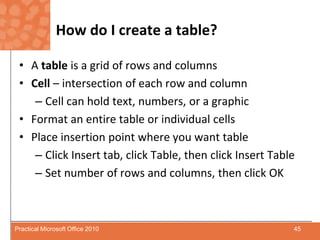
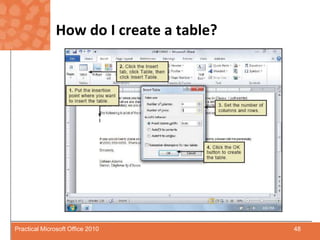
How do I create a table?A table is a grid of rows and columnsCell – intersection of each row and column Cell can hold text, numbers, or a graphicFormat an entire table or individual cellsPlace insertion point where you want tableClick Insert tab, click Table, then click Insert TableSet number of rows and columns, then click OK45Practical Microsoft Office 2010
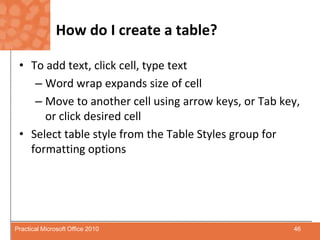
How do I create a table?To add text, click cell, type textWord wrap expands size of cellMove to another cell using arrow keys, or Tab key, or click desired cellSelect table style from the Table Styles group for formatting options46Practical Microsoft Office 2010
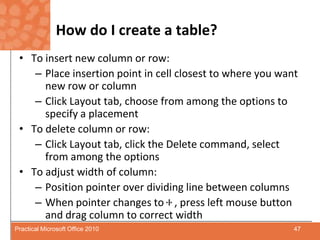
How do I create a table?To insert new column or row:Place insertion point in cell closest to where you want new row or columnClick Layout tab, choose from among the options to specify a placementTo delete column or row: Click Layout tab, click the Delete command, select from among the optionsTo adjust width of column:Position pointer over dividing line between columnsWhen pointer changes to    , press left mouse button and drag column to correct width47Practical Microsoft Office 2010
How do I create a table?48Practical Microsoft Office 2010
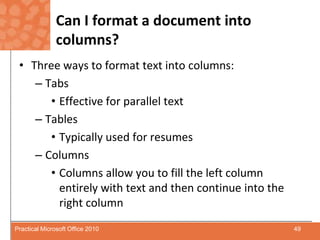
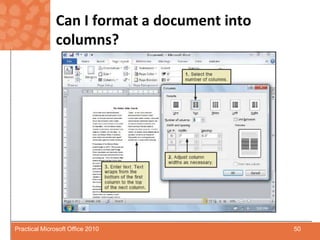
Can I format a document into columns?Three ways to format text into columns:TabsEffective for parallel textTablesTypically used for resumesColumnsColumns allow you to fill the left column entirely with text and then continue into the right column49Practical Microsoft Office 2010
Can I format a document into columns?50Practical Microsoft Office 2010

Chapter.03

  • 1.
  • 2.
    What’s Inside andon the CD?In this chapter, you will learn how to format text, using features such as:Bold and italic textDifferent fonts and font sizesLine Spacing and Paragraph alignmentTables, Bulleted and numbered lists2Practical Microsoft Office 2010
  • 3.
    How do Iselect different font, font sizes, and text colors?You can use the commands on the Home tab to select different text attributes for:LettersWordsSentencesParagraphsFontrefers to design or typeface of each characterLimit number of fonts for professional look3Practical Microsoft Office 2010
  • 4.
    How do Iselect different fonts, font sizes, and text colors?Text attributesFontFont sizeNormal font size 9 – 12 pointRange from 8 – 72 pointsLarger font by typing in number larger than 72 BoldItalicUnderlineText color4Practical Microsoft Office 2010
  • 5.
    How do Iselect different fonts, font sizes, and text colors?Selected textChange, add, delete formatting optionsWhen finished, click outside highlighted area to deselect itFont effects include:Super and sub scriptStrikethrough Small caps and all capsEmbossClick Editing, Select, then Select All on the Home tab to apply any text attributes to entire document 5Practical Microsoft Office 2010
  • 6.
    How do Iselect different fonts, font sizes, and text colors?6Practical Microsoft Office 2010
  • 7.
    How do Iapply bold, italic, and underlining attributes?Use commands in the Font group to apply text attributesBoldItalicUnderliningTypically, you’ll apply attributes to text you’ve already typed, but you can apply attributes before typing new textToolbar buttons both apply and remove attributesHyperlinks are automatically formatted with blue text and underlined7Practical Microsoft Office 2010
  • 8.
    How do Iapply bold, italic, and underlining attributes?8Practical Microsoft Office 2010
  • 9.
    How do Iuse the Font dialog box?Some text attributes are available only from Font dialog box, such as character spacing optionFont dialog box allows applying multiple formatting options to selected textUse the Advanced tab to change the scale, spacing, vertical position, or kerning of selected textThe Preview area shows how your formatting affects the selected text9Practical Microsoft Office 2010
  • 10.
    How do Iuse the Font dialog box?10Practical Microsoft Office 2010
  • 11.
    How do Icenter and align text?Left-aligned text Positioned straight against left marginAppears uneven on right marginCenteredtextPositioned between marginsTypically used for titles11Practical Microsoft Office 2010
  • 12.
    How do Icenter and align text?Justified textBoth left and right margins alignedTypically used in formal documentsMore professional lookRight-alignedtextRarely usedCan be useful for headings in a paper, or return address in a letter12Practical Microsoft Office 2010
  • 13.
    How do Icenter and align text?Alignment options apply to entire paragraphClick in paragraph to align, then click appropriate align buttonYou don’t have to select all the textTo center titlePress Enter key after titleClick anywhere in titleClick Center button13Practical Microsoft Office 2010
  • 14.
    How do Icenter and align text?14Practical Microsoft Office 2010
  • 15.
    How do Iuse styles?Style consists of predefined formatting applied to selected textAdvantages of styles:Consistency in formattingAvoid design errors15Practical Microsoft Office 2010
  • 16.
    How do Iuse styles?Create style Styles Dialog Box LauncherNew StyleRemovestyleSelect textSelect Normal styleDelete styleStyles Dialog Box LauncherRight-click style to deleteClick DeleteClick YesClick Close16Practical Microsoft Office 2010
  • 17.
    How do Iuse styles?17Practical Microsoft Office 2010
  • 18.
    How do Iadd numbering and bullets to a list?Bullet is symbol placed before each item in listSet off list without implying specific orderNumbered lists imply order to listed itemsBullets and numbering work same way: Select items in listClick Numbering button or Bullet button18Practical Microsoft Office 2010
  • 19.
    How do Iadd numbering and bullets to a list?If list has not been typed:Click Bullet or Numbering buttonType listAt end of list, click button to discontinueTo remove numbering or bullets:Select listClick appropriate button19Practical Microsoft Office 2010
  • 20.
    How do Iadd numbering and bullets to a list?Word automatically renumbers list if you add, delete, or move items If numbering is incorrect:Select listClick numbering button twiceTo change style:Right-click selected listHighlight Bullets and NumberingSelect a format20Practical Microsoft Office 2010
  • 21.
    How do Iadd numbering and bullets to a list?21Practical Microsoft Office 2010
  • 22.
    How do Iadd numbering and bullets to a list?A multilevel list displays list items in levels and sublevelsUsed in outlines and legal documentsYou can apply bullets or numbering after entering the listPress the Tab key to change a list item to the next level down, or Shift+Tab to move a list item up a level22Practical Microsoft Office 2010
  • 23.
    How do Iadd numbering and bullets to a list?You can define custom styles for text, numbers, and bulletsClick the arrow next to the Multilevel List buttonSelect Define New List StyleChange a number manually by right-clicking the number and selecting Set Numbering Value23Practical Microsoft Office 2010
  • 24.
    How do Iadd numbering and bullets to a list?24Practical Microsoft Office 2010
  • 25.
    How do Iadjust line spacing?Word defaults to single-spacingOther spacing options can be applied to paragraph, group of paragraphs, or entire documentSpace between paragraphs can also be adjusted25Practical Microsoft Office 2010
  • 26.
    How do Iadjust line spacing?Double-space document by setting line spacing to double-spaceTo set line spacing for one paragraph:Position insertion point in paragraph, click the Paragraph Dialog Box Launcher on Home Or Page Layout tabSelect desired line spacing from Line-spacing drop-down list on Indents and Spacing tabTo adjust line spacing for more than one paragraph, select paragraphs, then follow above guidelines26Practical Microsoft Office 2010
  • 27.
    How do Iadjust line spacing?To set line spacing for entire document before you begin typing:Click Editing, Select, then click Select AllClick the Paragraph Dialog Box Launcher on Home or Page Layout tabSelect desired line spacing, then click OKAs you type, text appears with selected line spacing27Practical Microsoft Office 2010
  • 28.
    How do Iadjust line spacing?28Practical Microsoft Office 2010
  • 29.
    How do Iuse tabs?Use Tabs to align text in columnsDefault tab stops – every ½ inchTab stops can be changedPersonal tab stops can be addedMany types of tab stops:Left tab stop aligns text on left side of tabRight tab stop aligns text on right side of tabCenter tab stop centers text at that locationDecimal tab stop aligns numbers with decimal at tab locationBar tab stop places vertical bar at tab location29Practical Microsoft Office 2010
  • 30.
    How do Iuse tabs?Leader– line of punctuation characters that fills area from text to tab stopTypically used in table of contentsTo clear tab stop:Click it in Tab stop position boxClick Clear buttonTo clear all tab stops:Click Clear All button in Tabs dialog box30Practical Microsoft Office 2010
  • 31.
    How do Iuse tabs?Tab stops on Word ruler bar are represented by these icons:31Practical Microsoft Office 2010
  • 32.
    How do Iuse tabs?To set tab stops using ruler:Click appropriate icon at left end of rulerClick location on ruler to set tab stopTo change position of tab stop, select it and slide left or rightIf the ruler bar is not displayed:Click the View tabSelect the Ruler option in the Show/Hide group32Practical Microsoft Office 2010
  • 33.
    How do Iuse tabs?33Practical Microsoft Office 2010
  • 34.
    How do Iindent text?Text can be indented from left, right, or both marginsFirst line of text can be indented differently from rest of paragraphHanging indent will move first line of text more to left than rest of text34Practical Microsoft Office 2010
  • 35.
    How do Iindent text?To indent a paragraph from left or right:Click spin box buttons in appropriate Indentation box to increase or decrease indent distanceCheck Preview section to see how indentation affects paragraphTo indent first line:Select First Line from Special pull-down listSelect amount of indentation from By spin box35Practical Microsoft Office 2010
  • 36.
    How do Iindent text?To create hanging indent:Select Hanging from Special pull-down listSelect amount of negative indent from By spin boxIndent settings apply to paragraph that contains insertion pointTo apply indent settings to more than one paragraph:Select paragraphsUse Paragraph dialog box to set indent36Practical Microsoft Office 2010
  • 37.
    How do Iindent text?37Practical Microsoft Office 2010
  • 38.
    How do Iadd footnotes or endnotes to a document?Footnotes and endnotes typically used to add comments to blocks of text or cite references to other documentsFootnoteappears at bottom of page containing corresponding superscript numberEndnoteappears at end of section or chapter38Practical Microsoft Office 2010
  • 39.
    How do Iadd footnotes or endnotes to a document?Click References tab, click Insert Footnote or Insert Endnote buttonFootnote and Endnote dialog box appearsClick appropriate optionDelete footnote or endnote by selecting number that corresponds to note in text, and pressing Delete keyThe References tab contains several tools for adding citations to a document39Practical Microsoft Office 2010
  • 40.
    How do Iadd footnotes or endnotes to a document?40Practical Microsoft Office 2010
  • 41.
    How do Iwork with outlines and other document views?Word provides several ways to view documents:Format marks reveal hidden symbols that indicate paragraph breaks ¶, spaces ·, and tab stops . To display, click Show/Hide toolbar buttonPrint Layout ViewWeb Layout ViewOutline ViewChange views by clicking one of the View buttons in the lower-right corner of document window, or clicking View tab  41Practical Microsoft Office 2010
  • 42.
    How do Iwork with outlines and other document views?Outline view handy for organizing contentAssign outline levels to each title, heading, and paragraphView any level of outline to get overview, or include all detailsEasy to rearrange sections to streamline document’s organization42Practical Microsoft Office 2010
  • 43.
    How do Iwork with outlines and other document views?Microsoft Word uses following conventions to indicate outline levels:Plus sign indicates heading with subtextSmall solid circle indicates body text at lowest level of outlineGray line under heading indicates subordinate text not displayedDash indicates heading without subordinate text43Practical Microsoft Office 2010
  • 44.
    How do Iwork with outlines and other document views?44Practical Microsoft Office 2010
  • 45.
    How do Icreate a table?A table is a grid of rows and columnsCell – intersection of each row and column Cell can hold text, numbers, or a graphicFormat an entire table or individual cellsPlace insertion point where you want tableClick Insert tab, click Table, then click Insert TableSet number of rows and columns, then click OK45Practical Microsoft Office 2010
  • 46.
    How do Icreate a table?To add text, click cell, type textWord wrap expands size of cellMove to another cell using arrow keys, or Tab key, or click desired cellSelect table style from the Table Styles group for formatting options46Practical Microsoft Office 2010
  • 47.
    How do Icreate a table?To insert new column or row:Place insertion point in cell closest to where you want new row or columnClick Layout tab, choose from among the options to specify a placementTo delete column or row: Click Layout tab, click the Delete command, select from among the optionsTo adjust width of column:Position pointer over dividing line between columnsWhen pointer changes to , press left mouse button and drag column to correct width47Practical Microsoft Office 2010
  • 48.
    How do Icreate a table?48Practical Microsoft Office 2010
  • 49.
    Can I formata document into columns?Three ways to format text into columns:TabsEffective for parallel textTablesTypically used for resumesColumnsColumns allow you to fill the left column entirely with text and then continue into the right column49Practical Microsoft Office 2010
  • 50.
    Can I formata document into columns?50Practical Microsoft Office 2010