Digital Forensics and Windows 7
Overview
Troy Larson
Principal Forensics Program Manager
TWC Network Security Investigations
NSINV-R3– Research|Readiness|Response
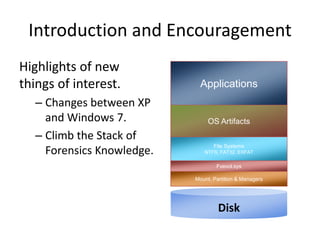
Introduction and Encouragement
Fvevol.sys
File Systems
NTFS, FAT32, EXFAT
Mount, Partition & Managers
Applications
OS Artifacts
Disk
Highlights of new
things of interest.
– Changes between XP
and Windows 7.
– Climb the Stack of
Forensics Knowledge.
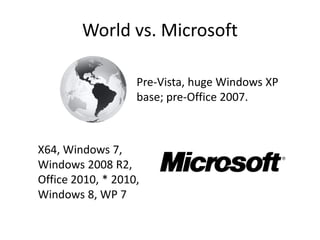
World vs. Microsoft
Pre-Vista, huge Windows XP
base; pre-Office 2007.
X64, Windows 7,
Windows 2008 R2,
Office 2010, * 2010,
Windows 8, WP 7
From XP to Vista
• Changed location of boot sector.
• BitLocker, unlocking, imaging,
preservation.
• EXFAT. Transactional NTFS.
• Event Logging.
• New format-.evtx.
• New system for collecting and
displaying events.
• New security event numbering.
• New directory tree for account
profiles.
• Symbolic links. “Virtual” folders .
• “Virtual” registries.
• Volume Shadow Copies and
difference files.
• User Account Control.
• Enforced Signed Drivers x64.
• Hard links. WinSxS.*
• Default settings-NTFS, change
journal.
• Recycle Bin, no info2, now $I.* &
$R.*
• Built in volume and disk wiping.
• SuperFetch & prefetch files.
• Profile based thumbcaches.*
• Office file format changes .docx,
.pptx, .xlsx.
• New Office files—InfoPath, Grove,
OneNote.
• EFS encrypted pagefile.
• x64 Windows.
• Windows 2008 Hyper-V.
• Built in Defender.
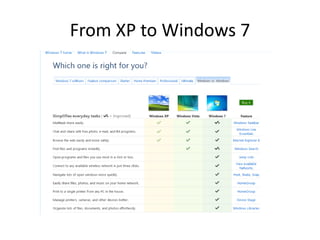
From XP to Windows 7
Windows 7 Highlights for Forensics
• Changed volume header for
BitLocker volumes.
• Updated BitLocker, multiple
volumes, Smartcard keys, not
backwardly compatible.
• BitLocker To Go.
• Virtual Hard drives—Boot from,
mount as “Disks.”
• Virtual PC—integrated into the
OS.
• XP Mode.
• Flash Media Enhancements.
• Libraries, Sticky Notes, Jump
Lists.
• Service and Driver triggers.
• Fewer Services on default
startup.
• I.E. 8, InPrivate Browsing, Tab
and Session Recovery.
• Changes in Volume Shadow
Copy behavior.
• New registry-like files.
• WebDAV-Office cache.
• More x64 clients. X64
Windows 2008 R2 (server).
• Changes in Hyper-V.
• Office 2010 file format
changes—OneNote.
• Thumbnail Cache.
• Virtual Servers, thin clients.
• Direct Access (IPSec).
• Windows Search.
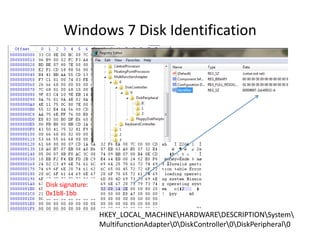
Windows 7 Disk Identification
Disk signature:
0x1b8-1bb
HKEY_LOCAL_MACHINEHARDWAREDESCRIPTIONSystem
MultifunctionAdapter0DiskController0DiskPeripheral0
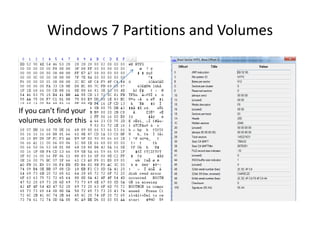
Windows 7 Partitions and Volumes
If you can’t find your
volumes look for this
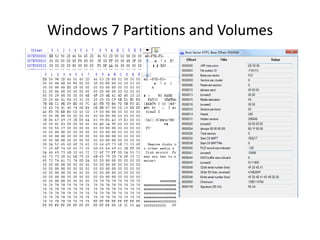
Windows 7 Partitions and Volumes
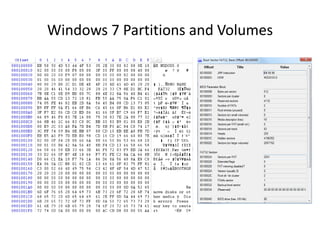
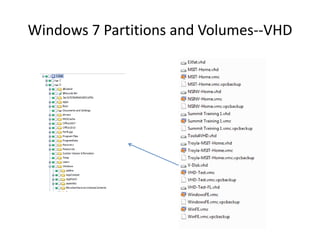
Windows 7 Partitions and Volumes--VHD
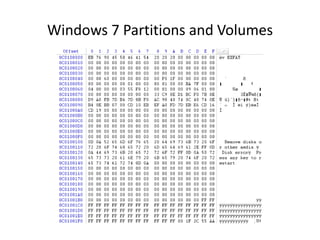
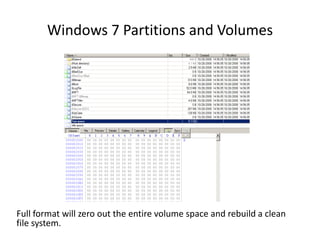
Windows 7 Partitions and Volumes
Full format will zero out the entire volume space and rebuild a clean
file system.
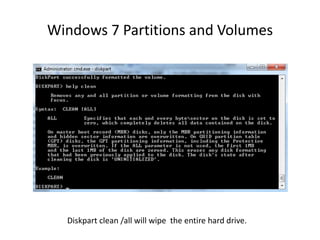
Windows 7 Partitions and Volumes
Diskpart clean /all will wipe the entire hard drive.
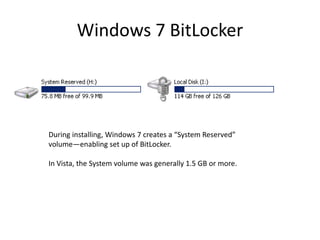
Windows 7 BitLocker
During installing, Windows 7 creates a “System Reserved”
volume—enabling set up of BitLocker.
In Vista, the System volume was generally 1.5 GB or more.
Windows 7 BitLocker
• Vista & Windows 2008 cannot unlock
BitLocker volumes created with Windows 7 or
2008 R2.
• Forensics tools may not recognize the new
BitLocker volume header.
• Must use Windows 7 or 2008 R2 to open (and
image) BitLocker volumes from Windows 7 or
2008 R2.
Windows 7 BitLocker
Review or Imaging
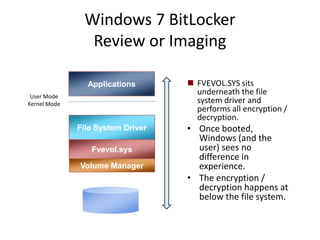
File System Driver
Fvevol.sys
Volume Manager
Applications
User Mode
Kernel Mode
 FVEVOL.SYS sits
underneath the file
system driver and
performs all encryption /
decryption.
• Once booted,
Windows (and the
user) sees no
difference in
experience.
• The encryption /
decryption happens at
below the file system.
Windows 7 BitLocker
Review or Imaging
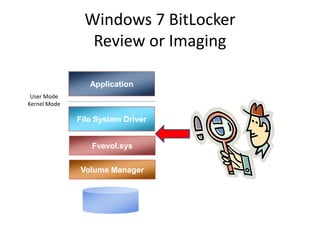
File System Driver
Fvevol.sys
Volume Manager
Application
User Mode
Kernel Mode
Windows 7 BitLocker
Review or Imaging
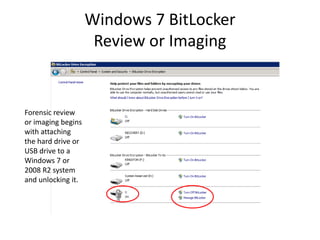
Forensic review
or imaging begins
with attaching
the hard drive or
USB drive to a
Windows 7 or
2008 R2 system
and unlocking it.
Windows 7 BitLocker
Review or Imaging
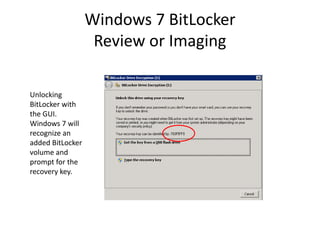
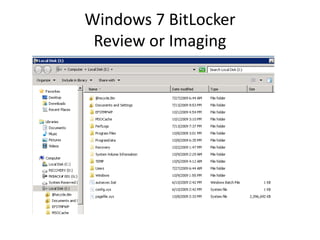
Unlocking
BitLocker with
the GUI.
Windows 7 will
recognize an
added BitLocker
volume and
prompt for the
recovery key.
Windows 7 BitLocker
Review or Imaging
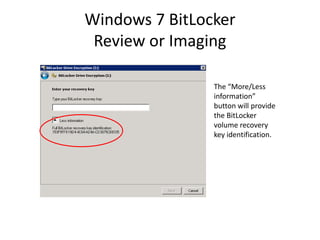
The “More/Less
information”
button will provide
the BitLocker
volume recovery
key identification.
Windows 7 BitLocker
Review or Imaging
To unlock a BitLockered volume, first get the Recovery
Password ID: manage-bde –protectors –get [volume].
The Recovery Password ID can be used to recover the
Recovery Password from the AD.
Windows 7 BitLocker
Review or Imaging
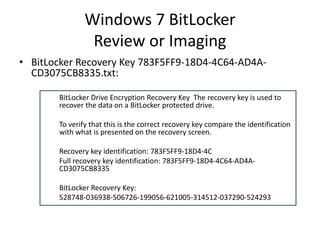
• BitLocker Recovery Key 783F5FF9-18D4-4C64-AD4A-
CD3075CB8335.txt:
BitLocker Drive Encryption Recovery Key The recovery key is used to
recover the data on a BitLocker protected drive.
To verify that this is the correct recovery key compare the identification
with what is presented on the recovery screen.
Recovery key identification: 783F5FF9-18D4-4C
Full recovery key identification: 783F5FF9-18D4-4C64-AD4A-
CD3075CB8335
BitLocker Recovery Key:
528748-036938-506726-199056-621005-314512-037290-524293
Windows 7 BitLocker
Review or Imaging
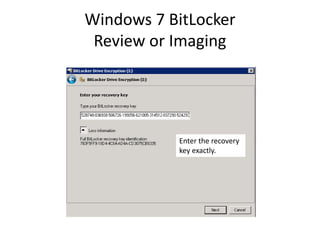
Enter the recovery
key exactly.
Windows 7 BitLocker
Review or Imaging
Unlock the BitLocker volume:
Manage-bde.exe –unlock [volume] –rp [recovery password].
Windows 7 BitLocker
Review or Imaging
Windows 7 BitLocker
Review or Imaging
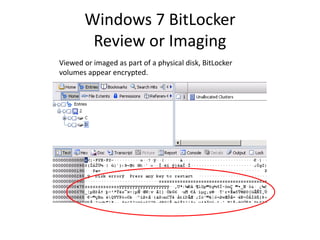
Viewed or imaged as part of a physical disk, BitLocker
volumes appear encrypted.
Windows 7 BitLocker
Review or Imaging
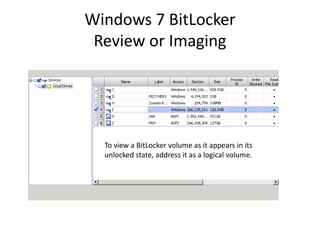
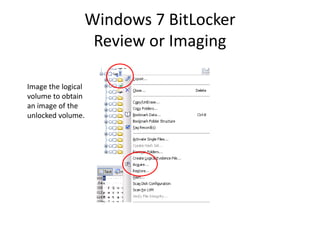
To view a BitLocker volume as it appears in its
unlocked state, address it as a logical volume.
Windows 7 BitLocker
Review or Imaging
Windows 7 BitLocker
Review or Imaging
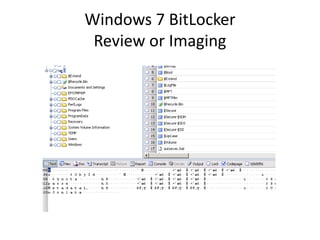
Image the logical
volume to obtain
an image of the
unlocked volume.
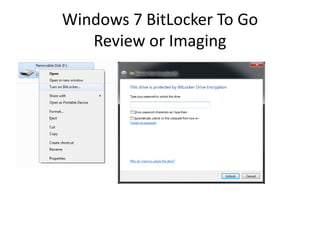
Windows 7 BitLocker To Go
Review or Imaging
Windows 7 BitLocker To Go
Review or Imaging
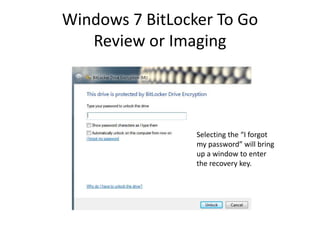
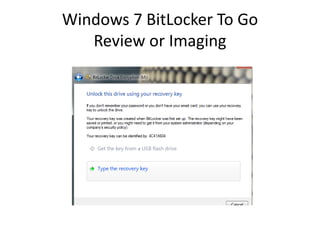
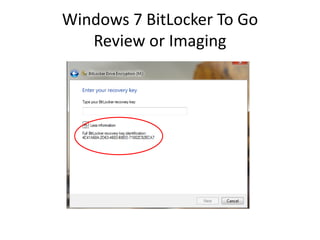
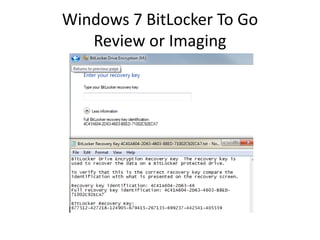
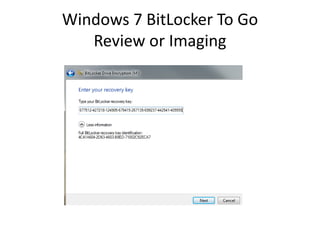
Selecting the “I forgot
my password” will bring
up a window to enter
the recovery key.
Windows 7 BitLocker To Go
Review or Imaging
Windows 7 BitLocker To Go
Review or Imaging
Windows 7 BitLocker To Go
Review or Imaging
Windows 7 BitLocker To Go
Review or Imaging
Windows 7 BitLocker To Go
Review or Imaging
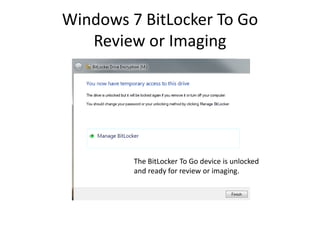
The BitLocker To Go device is unlocked
and ready for review or imaging.
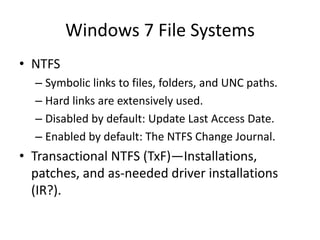
Windows 7 File Systems
• NTFS
– Symbolic links to files, folders, and UNC paths.
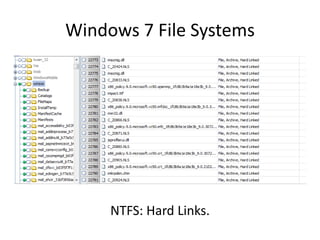
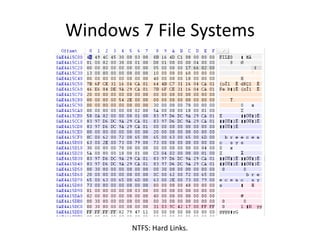
– Hard links are extensively used.
– Disabled by default: Update Last Access Date.
– Enabled by default: The NTFS Change Journal.
• Transactional NTFS (TxF)—Installations,
patches, and as-needed driver installations
(IR?).
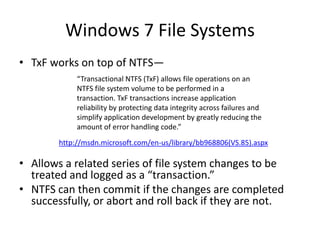
Windows 7 File Systems
• TxF works on top of NTFS—
• Allows a related series of file system changes to be
treated and logged as a “transaction.”
• NTFS can then commit if the changes are completed
successfully, or abort and roll back if they are not.
“Transactional NTFS (TxF) allows file operations on an
NTFS file system volume to be performed in a
transaction. TxF transactions increase application
reliability by protecting data integrity across failures and
simplify application development by greatly reducing the
amount of error handling code.”
http://msdn.microsoft.com/en-us/library/bb968806(VS.85).aspx
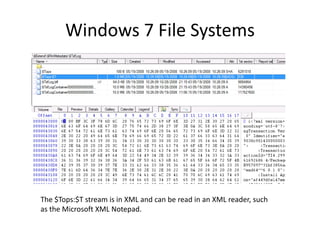
The $Tops:$T stream is in XML and can be read in an XML reader, such
as the Microsoft XML Notepad.
Windows 7 File Systems
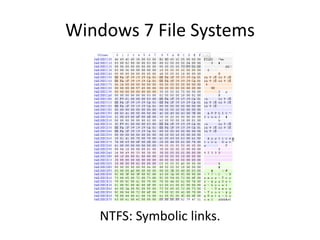
NTFS: Symbolic links.
Windows 7 File Systems
NTFS: Hard Links.
Windows 7 File Systems
NTFS: Hard Links.
Windows 7 File Systems
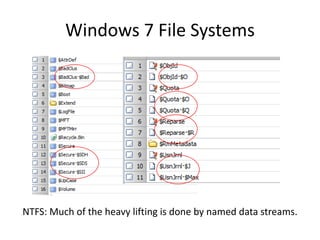
NTFS: Much of the heavy lifting is done by named data streams.
Windows 7 File Systems
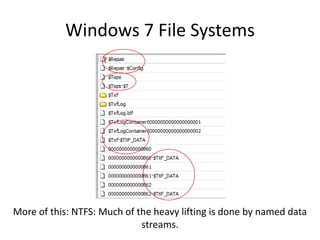
More of this: NTFS: Much of the heavy lifting is done by named data
streams.
Windows 7 File Systems
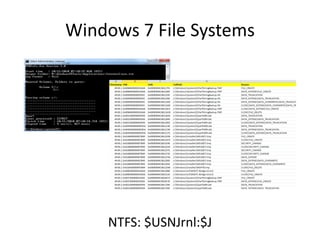
NTFS: $USNJrnl:$J
Windows 7 Artifacts—Recycle.Bin
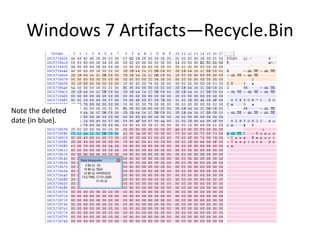
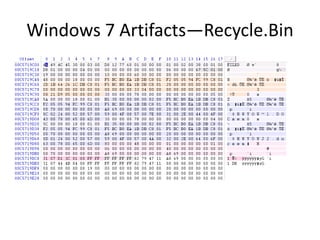
• [Volume]:$Recycle.Bin.
• $Recycle.Bin is visible in Explorer (view hidden files).
• Per user store in a subfolder named with account SID.
• When a file is moved to the Recycle Bin, it becomes two files.
• $I and $R files.
• $I file—original name and path, as well as the deleted date.
• $R file—original file data stream and other attributes.
Windows 7 Artifacts—Recycle.Bin
Note the deleted
date (in blue).
Windows 7 Artifacts—Recycle.Bin
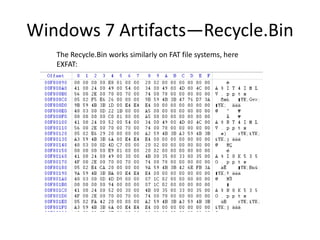
The Recycle.Bin works similarly on FAT file systems, here
EXFAT:
Windows 7 Artifacts
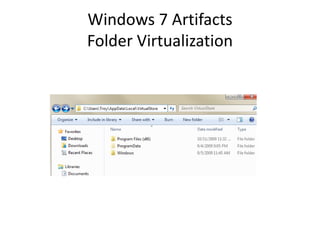
Folder Virtualization
Windows 7 Artifacts
Folder Virtualization
– Part of User Access Control—Standard user cannot
write to certain protected folders.
• C:Windows
• C:Program Files
• C:Program Data
– To allow standard user to function, any writes to
protected folders are “virtualized” and written to
C:Users[user]AppDataLocalVirtualStore
Windows 7 Artifacts
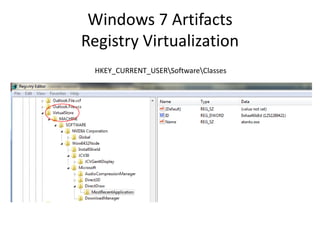
Registry Virtualization
HKEY_CURRENT_USERSoftwareClasses
Windows 7 Artifacts
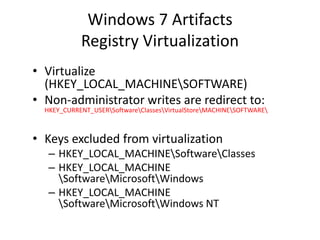
Registry Virtualization
• Virtualize
(HKEY_LOCAL_MACHINESOFTWARE)
• Non-administrator writes are redirect to:
HKEY_CURRENT_USERSoftwareClassesVirtualStoreMACHINESOFTWARE
• Keys excluded from virtualization
– HKEY_LOCAL_MACHINESoftwareClasses
– HKEY_LOCAL_MACHINE
SoftwareMicrosoftWindows
– HKEY_LOCAL_MACHINE
SoftwareMicrosoftWindows NT
Windows 7 Artifacts
Registry Virtualization
• Location of the registry hive file for the
VirtualStore
– Is NOT the user’s NTUSER.DAT
– It is stored in the user’s UsrClass.dat
Users[user]AppDataLocalMicrosoftWindowsUsrClass.dat
• Investigation of Vista through 2008 R2 requires
the investigator to examine at least two account
specific registry hive files for each user account.
– NTUSER.DAT
– UsrClass.dat
Windows 7 Artifacts
Transactional Registry
• Related to TxF—also built on the Kernel
Transaction Manager
– http://msdn.microsoft.com/en-us/library/cc303705.aspx
• TxR allows applications to perform registry
operations in a transactional manner.
– Typical scenario: software installation.
– Files copied to file system and information to the
registry as a single operation.
– In the event of failure, registry modification rolled
back or discarded.
Windows 7 Artifacts
Transactional Registry
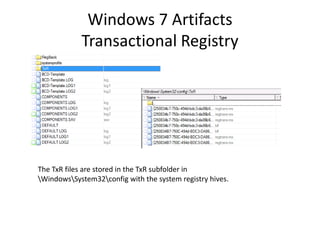
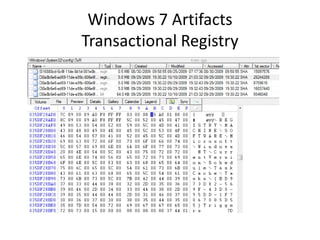
The TxR files are stored in the TxR subfolder in
WindowsSystem32config with the system registry hives.
Windows 7 Artifacts
Transactional Registry
Windows 7 Artifacts
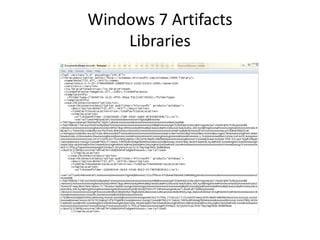
Libraries
Windows 7 Artifacts
Libraries
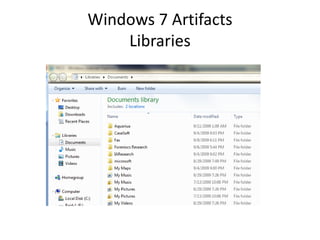
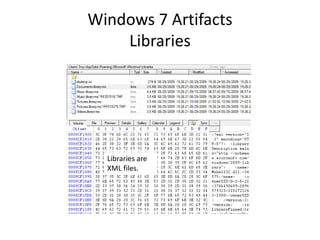
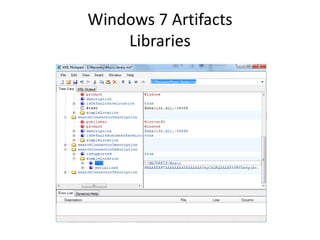
Users[account]AppDataRoamingMicrosoftWindowsLibraries.
Windows 7 Artifacts
Libraries
Libraries are
XML files.
Windows 7 Artifacts
Libraries
Windows 7 Artifacts
Libraries
Windows 7 Artifacts
Sticky Notes
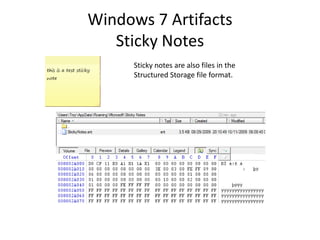
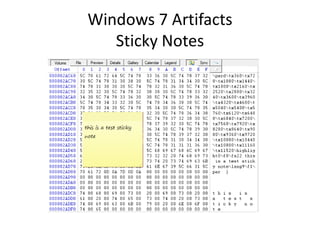
Sticky notes are also files in the
Structured Storage file format.
Windows 7 Artifacts
Sticky Notes
Windows 7 Artifacts
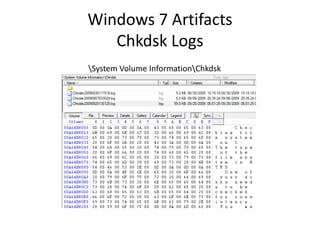
Chkdsk Logs
System Volume InformationChkdsk
Windows 7 Artifacts
Superfetch
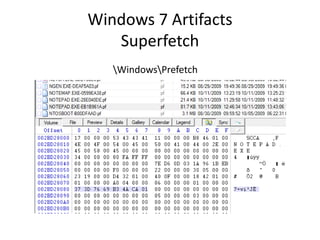
• The existence of a prefetch file indicates that the
application named by the prefetch file was run.
• The creation date of a prefetch file can indicate
when the named application was first run.
• The modification date of a prefetch file can
indicate when the named application was last
run.
Windows 7 Artifacts
Superfetch
WindowsPrefetch
Windows 7 Artifacts
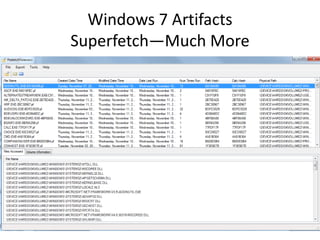
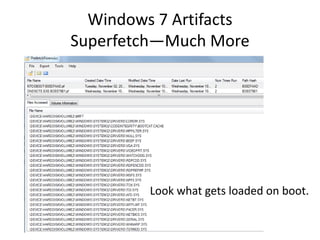
Superfetch—Much More
Windows 7 Artifacts
Superfetch—Much More
Look what gets loaded on boot.
Windows 7 Artifacts
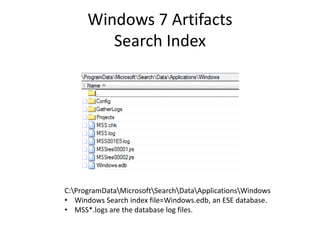
Search Index
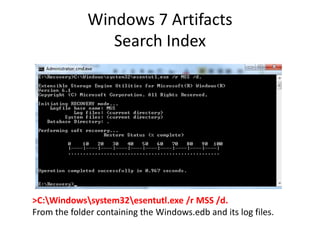
C:ProgramDataMicrosoftSearchDataApplicationsWindows
• Windows Search index file=Windows.edb, an ESE database.
• MSS*.logs are the database log files.
Windows 7 Artifacts
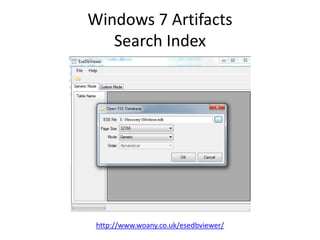
Search Index
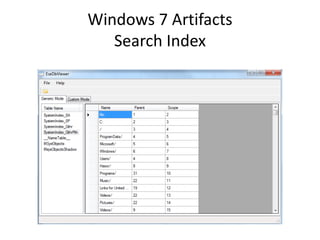
http://www.woany.co.uk/esedbviewer/
Windows 7 Artifacts
Search Index
Windows 7 Artifacts
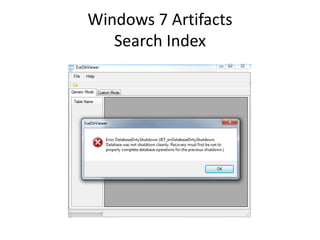
Search Index
>C:Windowssystem32esentutl.exe /r MSS /d.
From the folder containing the Windows.edb and its log files.
Windows 7 Artifacts
Search Index
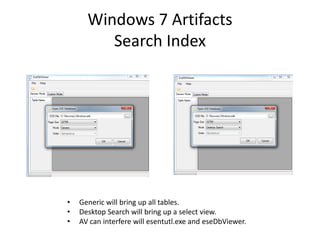
• Generic will bring up all tables.
• Desktop Search will bring up a select view.
• AV can interfere will esentutl.exe and eseDbViewer.
Windows 7 Artifacts
Search Index
Windows 7 Artifacts
Search Index
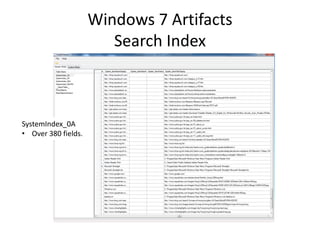
SystemIndex_0A
• Over 380 fields.
Windows 7 Artifacts
Search Index
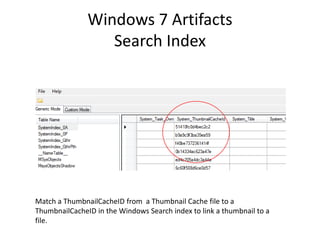
Match a ThumbnailCacheID from a Thumbnail Cache file to a
ThumbnailCacheID in the Windows Search index to link a thumbnail to a
file.
Windows 7 Artifacts
Volume Shadow Copy
• Volume shadow copies are bit level differential
backups of a volume.
– 16 KB blocks.
– Copy on write.
– Volume Shadow copy files are “difference” files.
• The shadow copy service is enabled by default on
Vista and Windows 7, but not on Windows 2008
or 2008 R2.
Windows 7 Artifacts
Volume Shadow Copy
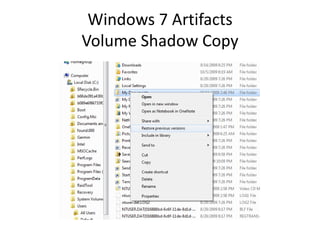
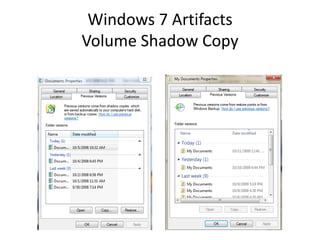
• Shadow copies are the source data for Restore
Points and the Restore Previous Versions
features.
• Used in can backup operations.
• Shadow copies provide a “snapshot” of a volume
at a particular time.
• Shadow copies can show how files have been
altered.
• Shadow copies can retain data that has later been
deleted, wiped, or encrypted.
Windows 7 Artifacts
Volume Shadow Copy
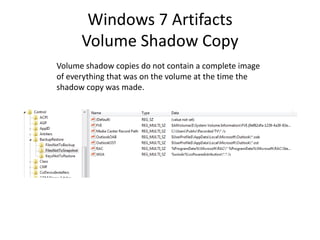
Volume shadow copies do not contain a complete image
of everything that was on the volume at the time the
shadow copy was made.
Windows 7 Artifacts
Volume Shadow Copy
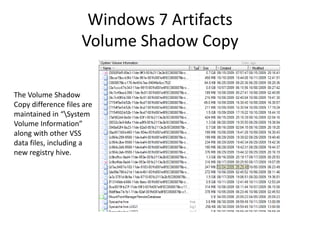
The Volume Shadow
Copy difference files are
maintained in “System
Volume Information”
along with other VSS
data files, including a
new registry hive.
Windows 7 Artifacts
Volume Shadow Copy
1
0
1 9
1
2
1
1
2 3 4 5 6 7 8
1
0
1 9
1
2
1
1
2 3 4 5 6 7 8
1
0
92 3 5 7
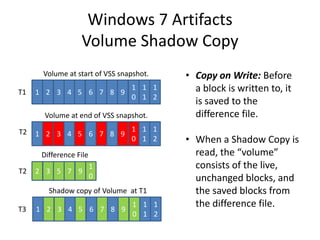
• Copy on Write: Before
a block is written to, it
is saved to the
difference file.
• When a Shadow Copy is
read, the “volume”
consists of the live,
unchanged blocks, and
the saved blocks from
the difference file.
Volume at start of VSS snapshot.
Difference File
Shadow copy of Volume at T1
T1
T3
1
0
1 9
1
2
1
1
2 3 4 5 6 7 8T2
Volume at end of VSS snapshot.
T2
Volume Shadow Copy
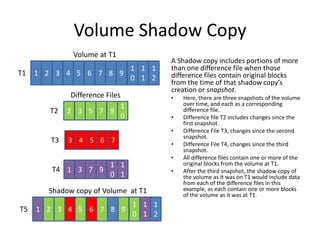
A Shadow copy includes portions of more
than one difference file when those
difference files contain original blocks
from the time of that shadow copy’s
creation or snapshot.
• Here, there are three snapshots of the volume
over time, and each as a corresponding
difference file.
• Difference file T2 includes changes since the
first snapshot.
• Difference File T3, changes since the second
snapshot.
• Difference File T4, changes since the third
snapshot.
• All difference files contain one or more of the
original blocks from the volume at T1.
• After the third snapshot, the shadow copy of
the volume as it was on T1 would include data
from each of the difference files in this
example, as each contain one or more blocks
of the volume as it was at T1.
1
0
1 9
1
2
1
1
2 3 4 5 6 7 8
1
1
1
0
1 3 7 9
1
0
92 3 5 7
73 4 5 6
1
0
1 9
1
2
1
1
2 3 4 5 6 7 8
Shadow copy of Volume at T1
Difference Files
Volume at T1
T1
T2
T5
T3
T4
Windows 7 Artifacts
Volume Shadow Copy
Windows 7 Artifacts
Volume Shadow Copy
Windows 7 Artifacts
Volume Shadow Copy
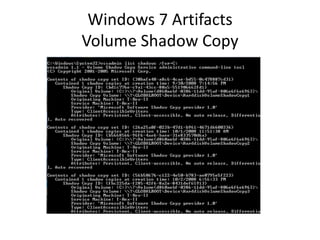
vssadmin list shadows /for=[volume]:
Windows 7 Artifacts
Volume Shadow Copy
Windows 7 Artifacts
Volume Shadow Copy
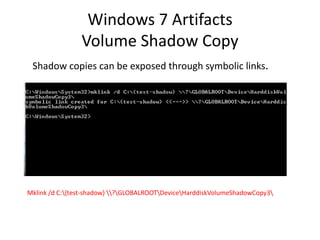
Shadow copies can be exposed through symbolic links.
Mklink /d C:{test-shadow} ?GLOBALROOTDeviceHarddiskVolumeShadowCopy3
Windows 7 Artifacts
Volume Shadow Copy
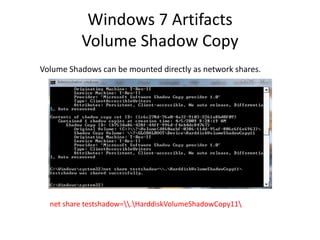
Volume Shadows can be mounted directly as network shares.
net share testshadow=.HarddiskVolumeShadowCopy11
Windows 7 Artifacts
Volume Shadow Copy
>psexec [computername] vssadmin list shadows /for=C:
>psexec [computername] net share testshadow=.HarddiskVolumeShadowCopy20
PsExec v1.94 - Execute processes remotely
. . .
testshadow was shared successfully.
net exited on [computername] with error code 0.
>robocopy /S /R:1 /W:1 /LOG:D:VSStestcopylog.txt [computername] testshadow D:vssTest
Log File : D:VSStestcopylog.txt
. . .
Windows 7 Artifacts
Volume Shadow Copy
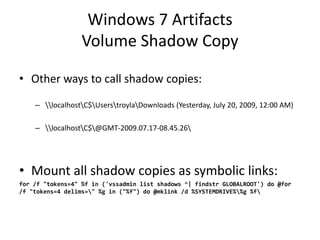
• Other ways to call shadow copies:
– localhostC$UserstroylaDownloads (Yesterday, July 20, 2009, 12:00 AM)
– localhostC$@GMT-2009.07.17-08.45.26
• Mount all shadow copies as symbolic links:
for /f "tokens=4" %f in ('vssadmin list shadows ^| findstr GLOBALROOT') do @for
/f "tokens=4 delims=" %g in ("%f") do @mklink /d %SYSTEMDRIVE%%g %f
Windows 7 Artifacts
Volume Shadow Copy
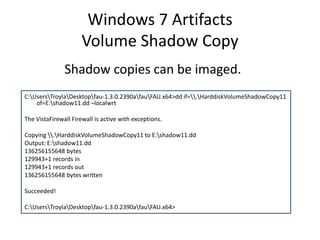
C:UsersTroylaDesktopfau-1.3.0.2390afauFAU.x64>dd if=.HarddiskVolumeShadowCopy11
of=E:shadow11.dd –localwrt
The VistaFirewall Firewall is active with exceptions.
Copying .HarddiskVolumeShadowCopy11 to E:shadow11.dd
Output: E:shadow11.dd
136256155648 bytes
129943+1 records in
129943+1 records out
136256155648 bytes written
Succeeded!
C:UsersTroylaDesktopfau-1.3.0.2390afauFAU.x64>
Shadow copies can be imaged.
Windows 7 Artifacts
Volume Shadow Copy
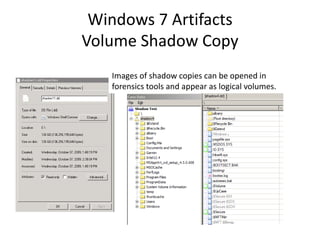
Images of shadow copies can be opened in
forensics tools and appear as logical volumes.
Windows 7 Artifacts
Volume Shadow Copy
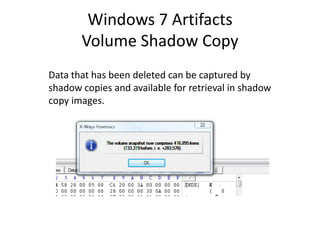
Data that has been deleted can be captured by
shadow copies and available for retrieval in shadow
copy images.
Windows 7 Artifacts
Volume Shadow Copy
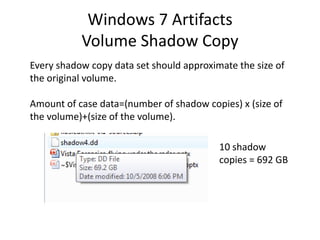
Every shadow copy data set should approximate the size of
the original volume.
Amount of case data=(number of shadow copies) x (size of
the volume)+(size of the volume).
10 shadow
copies = 692 GB
You want More?
Questions?

Windows 7 forensics -overview-r3

  • 1.
    Digital Forensics andWindows 7 Overview Troy Larson Principal Forensics Program Manager TWC Network Security Investigations NSINV-R3– Research|Readiness|Response
  • 2.
    Introduction and Encouragement Fvevol.sys FileSystems NTFS, FAT32, EXFAT Mount, Partition & Managers Applications OS Artifacts Disk Highlights of new things of interest. – Changes between XP and Windows 7. – Climb the Stack of Forensics Knowledge.
  • 3.
    World vs. Microsoft Pre-Vista,huge Windows XP base; pre-Office 2007. X64, Windows 7, Windows 2008 R2, Office 2010, * 2010, Windows 8, WP 7
  • 4.
    From XP toVista • Changed location of boot sector. • BitLocker, unlocking, imaging, preservation. • EXFAT. Transactional NTFS. • Event Logging. • New format-.evtx. • New system for collecting and displaying events. • New security event numbering. • New directory tree for account profiles. • Symbolic links. “Virtual” folders . • “Virtual” registries. • Volume Shadow Copies and difference files. • User Account Control. • Enforced Signed Drivers x64. • Hard links. WinSxS.* • Default settings-NTFS, change journal. • Recycle Bin, no info2, now $I.* & $R.* • Built in volume and disk wiping. • SuperFetch & prefetch files. • Profile based thumbcaches.* • Office file format changes .docx, .pptx, .xlsx. • New Office files—InfoPath, Grove, OneNote. • EFS encrypted pagefile. • x64 Windows. • Windows 2008 Hyper-V. • Built in Defender.
  • 5.
    From XP toWindows 7
  • 6.
    Windows 7 Highlightsfor Forensics • Changed volume header for BitLocker volumes. • Updated BitLocker, multiple volumes, Smartcard keys, not backwardly compatible. • BitLocker To Go. • Virtual Hard drives—Boot from, mount as “Disks.” • Virtual PC—integrated into the OS. • XP Mode. • Flash Media Enhancements. • Libraries, Sticky Notes, Jump Lists. • Service and Driver triggers. • Fewer Services on default startup. • I.E. 8, InPrivate Browsing, Tab and Session Recovery. • Changes in Volume Shadow Copy behavior. • New registry-like files. • WebDAV-Office cache. • More x64 clients. X64 Windows 2008 R2 (server). • Changes in Hyper-V. • Office 2010 file format changes—OneNote. • Thumbnail Cache. • Virtual Servers, thin clients. • Direct Access (IPSec). • Windows Search.
  • 7.
    Windows 7 DiskIdentification Disk signature: 0x1b8-1bb HKEY_LOCAL_MACHINEHARDWAREDESCRIPTIONSystem MultifunctionAdapter0DiskController0DiskPeripheral0
  • 8.
    Windows 7 Partitionsand Volumes If you can’t find your volumes look for this
  • 9.
  • 10.
  • 11.
  • 12.
    Windows 7 Partitionsand Volumes--VHD
  • 13.
    Windows 7 Partitionsand Volumes Full format will zero out the entire volume space and rebuild a clean file system.
  • 14.
    Windows 7 Partitionsand Volumes Diskpart clean /all will wipe the entire hard drive.
  • 15.
    Windows 7 BitLocker Duringinstalling, Windows 7 creates a “System Reserved” volume—enabling set up of BitLocker. In Vista, the System volume was generally 1.5 GB or more.
  • 16.
    Windows 7 BitLocker •Vista & Windows 2008 cannot unlock BitLocker volumes created with Windows 7 or 2008 R2. • Forensics tools may not recognize the new BitLocker volume header. • Must use Windows 7 or 2008 R2 to open (and image) BitLocker volumes from Windows 7 or 2008 R2.
  • 17.
    Windows 7 BitLocker Reviewor Imaging File System Driver Fvevol.sys Volume Manager Applications User Mode Kernel Mode  FVEVOL.SYS sits underneath the file system driver and performs all encryption / decryption. • Once booted, Windows (and the user) sees no difference in experience. • The encryption / decryption happens at below the file system.
  • 18.
    Windows 7 BitLocker Reviewor Imaging File System Driver Fvevol.sys Volume Manager Application User Mode Kernel Mode
  • 19.
    Windows 7 BitLocker Reviewor Imaging Forensic review or imaging begins with attaching the hard drive or USB drive to a Windows 7 or 2008 R2 system and unlocking it.
  • 20.
    Windows 7 BitLocker Reviewor Imaging Unlocking BitLocker with the GUI. Windows 7 will recognize an added BitLocker volume and prompt for the recovery key.
  • 21.
    Windows 7 BitLocker Reviewor Imaging The “More/Less information” button will provide the BitLocker volume recovery key identification.
  • 22.
    Windows 7 BitLocker Reviewor Imaging To unlock a BitLockered volume, first get the Recovery Password ID: manage-bde –protectors –get [volume]. The Recovery Password ID can be used to recover the Recovery Password from the AD.
  • 23.
    Windows 7 BitLocker Reviewor Imaging • BitLocker Recovery Key 783F5FF9-18D4-4C64-AD4A- CD3075CB8335.txt: BitLocker Drive Encryption Recovery Key The recovery key is used to recover the data on a BitLocker protected drive. To verify that this is the correct recovery key compare the identification with what is presented on the recovery screen. Recovery key identification: 783F5FF9-18D4-4C Full recovery key identification: 783F5FF9-18D4-4C64-AD4A- CD3075CB8335 BitLocker Recovery Key: 528748-036938-506726-199056-621005-314512-037290-524293
  • 24.
    Windows 7 BitLocker Reviewor Imaging Enter the recovery key exactly.
  • 25.
    Windows 7 BitLocker Reviewor Imaging Unlock the BitLocker volume: Manage-bde.exe –unlock [volume] –rp [recovery password].
  • 26.
  • 27.
    Windows 7 BitLocker Reviewor Imaging Viewed or imaged as part of a physical disk, BitLocker volumes appear encrypted.
  • 28.
    Windows 7 BitLocker Reviewor Imaging To view a BitLocker volume as it appears in its unlocked state, address it as a logical volume.
  • 29.
  • 30.
    Windows 7 BitLocker Reviewor Imaging Image the logical volume to obtain an image of the unlocked volume.
  • 31.
    Windows 7 BitLockerTo Go Review or Imaging
  • 32.
    Windows 7 BitLockerTo Go Review or Imaging Selecting the “I forgot my password” will bring up a window to enter the recovery key.
  • 33.
    Windows 7 BitLockerTo Go Review or Imaging
  • 34.
    Windows 7 BitLockerTo Go Review or Imaging
  • 35.
    Windows 7 BitLockerTo Go Review or Imaging
  • 36.
    Windows 7 BitLockerTo Go Review or Imaging
  • 37.
    Windows 7 BitLockerTo Go Review or Imaging The BitLocker To Go device is unlocked and ready for review or imaging.
  • 38.
    Windows 7 FileSystems • NTFS – Symbolic links to files, folders, and UNC paths. – Hard links are extensively used. – Disabled by default: Update Last Access Date. – Enabled by default: The NTFS Change Journal. • Transactional NTFS (TxF)—Installations, patches, and as-needed driver installations (IR?).
  • 39.
    Windows 7 FileSystems • TxF works on top of NTFS— • Allows a related series of file system changes to be treated and logged as a “transaction.” • NTFS can then commit if the changes are completed successfully, or abort and roll back if they are not. “Transactional NTFS (TxF) allows file operations on an NTFS file system volume to be performed in a transaction. TxF transactions increase application reliability by protecting data integrity across failures and simplify application development by greatly reducing the amount of error handling code.” http://msdn.microsoft.com/en-us/library/bb968806(VS.85).aspx
  • 40.
    The $Tops:$T streamis in XML and can be read in an XML reader, such as the Microsoft XML Notepad. Windows 7 File Systems
  • 41.
    Windows 7 FileSystems NTFS: Symbolic links.
  • 42.
    Windows 7 FileSystems NTFS: Hard Links.
  • 43.
    Windows 7 FileSystems NTFS: Hard Links.
  • 44.
    Windows 7 FileSystems NTFS: Much of the heavy lifting is done by named data streams.
  • 45.
    Windows 7 FileSystems More of this: NTFS: Much of the heavy lifting is done by named data streams.
  • 46.
    Windows 7 FileSystems NTFS: $USNJrnl:$J
  • 47.
    Windows 7 Artifacts—Recycle.Bin •[Volume]:$Recycle.Bin. • $Recycle.Bin is visible in Explorer (view hidden files). • Per user store in a subfolder named with account SID. • When a file is moved to the Recycle Bin, it becomes two files. • $I and $R files. • $I file—original name and path, as well as the deleted date. • $R file—original file data stream and other attributes.
  • 48.
    Windows 7 Artifacts—Recycle.Bin Notethe deleted date (in blue).
  • 49.
  • 50.
    Windows 7 Artifacts—Recycle.Bin TheRecycle.Bin works similarly on FAT file systems, here EXFAT:
  • 51.
  • 52.
    Windows 7 Artifacts FolderVirtualization – Part of User Access Control—Standard user cannot write to certain protected folders. • C:Windows • C:Program Files • C:Program Data – To allow standard user to function, any writes to protected folders are “virtualized” and written to C:Users[user]AppDataLocalVirtualStore
  • 53.
    Windows 7 Artifacts RegistryVirtualization HKEY_CURRENT_USERSoftwareClasses
  • 54.
    Windows 7 Artifacts RegistryVirtualization • Virtualize (HKEY_LOCAL_MACHINESOFTWARE) • Non-administrator writes are redirect to: HKEY_CURRENT_USERSoftwareClassesVirtualStoreMACHINESOFTWARE • Keys excluded from virtualization – HKEY_LOCAL_MACHINESoftwareClasses – HKEY_LOCAL_MACHINE SoftwareMicrosoftWindows – HKEY_LOCAL_MACHINE SoftwareMicrosoftWindows NT
  • 55.
    Windows 7 Artifacts RegistryVirtualization • Location of the registry hive file for the VirtualStore – Is NOT the user’s NTUSER.DAT – It is stored in the user’s UsrClass.dat Users[user]AppDataLocalMicrosoftWindowsUsrClass.dat • Investigation of Vista through 2008 R2 requires the investigator to examine at least two account specific registry hive files for each user account. – NTUSER.DAT – UsrClass.dat
  • 56.
    Windows 7 Artifacts TransactionalRegistry • Related to TxF—also built on the Kernel Transaction Manager – http://msdn.microsoft.com/en-us/library/cc303705.aspx • TxR allows applications to perform registry operations in a transactional manner. – Typical scenario: software installation. – Files copied to file system and information to the registry as a single operation. – In the event of failure, registry modification rolled back or discarded.
  • 57.
    Windows 7 Artifacts TransactionalRegistry The TxR files are stored in the TxR subfolder in WindowsSystem32config with the system registry hives.
  • 58.
  • 59.
  • 60.
  • 61.
  • 62.
  • 63.
  • 64.
    Windows 7 Artifacts StickyNotes Sticky notes are also files in the Structured Storage file format.
  • 65.
  • 66.
    Windows 7 Artifacts ChkdskLogs System Volume InformationChkdsk
  • 67.
    Windows 7 Artifacts Superfetch •The existence of a prefetch file indicates that the application named by the prefetch file was run. • The creation date of a prefetch file can indicate when the named application was first run. • The modification date of a prefetch file can indicate when the named application was last run.
  • 68.
  • 69.
  • 70.
    Windows 7 Artifacts Superfetch—MuchMore Look what gets loaded on boot.
  • 71.
    Windows 7 Artifacts SearchIndex C:ProgramDataMicrosoftSearchDataApplicationsWindows • Windows Search index file=Windows.edb, an ESE database. • MSS*.logs are the database log files.
  • 72.
    Windows 7 Artifacts SearchIndex http://www.woany.co.uk/esedbviewer/
  • 73.
  • 74.
    Windows 7 Artifacts SearchIndex >C:Windowssystem32esentutl.exe /r MSS /d. From the folder containing the Windows.edb and its log files.
  • 75.
    Windows 7 Artifacts SearchIndex • Generic will bring up all tables. • Desktop Search will bring up a select view. • AV can interfere will esentutl.exe and eseDbViewer.
  • 76.
  • 77.
    Windows 7 Artifacts SearchIndex SystemIndex_0A • Over 380 fields.
  • 78.
    Windows 7 Artifacts SearchIndex Match a ThumbnailCacheID from a Thumbnail Cache file to a ThumbnailCacheID in the Windows Search index to link a thumbnail to a file.
  • 79.
    Windows 7 Artifacts VolumeShadow Copy • Volume shadow copies are bit level differential backups of a volume. – 16 KB blocks. – Copy on write. – Volume Shadow copy files are “difference” files. • The shadow copy service is enabled by default on Vista and Windows 7, but not on Windows 2008 or 2008 R2.
  • 80.
    Windows 7 Artifacts VolumeShadow Copy • Shadow copies are the source data for Restore Points and the Restore Previous Versions features. • Used in can backup operations. • Shadow copies provide a “snapshot” of a volume at a particular time. • Shadow copies can show how files have been altered. • Shadow copies can retain data that has later been deleted, wiped, or encrypted.
  • 81.
    Windows 7 Artifacts VolumeShadow Copy Volume shadow copies do not contain a complete image of everything that was on the volume at the time the shadow copy was made.
  • 82.
    Windows 7 Artifacts VolumeShadow Copy The Volume Shadow Copy difference files are maintained in “System Volume Information” along with other VSS data files, including a new registry hive.
  • 83.
    Windows 7 Artifacts VolumeShadow Copy 1 0 1 9 1 2 1 1 2 3 4 5 6 7 8 1 0 1 9 1 2 1 1 2 3 4 5 6 7 8 1 0 92 3 5 7 • Copy on Write: Before a block is written to, it is saved to the difference file. • When a Shadow Copy is read, the “volume” consists of the live, unchanged blocks, and the saved blocks from the difference file. Volume at start of VSS snapshot. Difference File Shadow copy of Volume at T1 T1 T3 1 0 1 9 1 2 1 1 2 3 4 5 6 7 8T2 Volume at end of VSS snapshot. T2
  • 84.
    Volume Shadow Copy AShadow copy includes portions of more than one difference file when those difference files contain original blocks from the time of that shadow copy’s creation or snapshot. • Here, there are three snapshots of the volume over time, and each as a corresponding difference file. • Difference file T2 includes changes since the first snapshot. • Difference File T3, changes since the second snapshot. • Difference File T4, changes since the third snapshot. • All difference files contain one or more of the original blocks from the volume at T1. • After the third snapshot, the shadow copy of the volume as it was on T1 would include data from each of the difference files in this example, as each contain one or more blocks of the volume as it was at T1. 1 0 1 9 1 2 1 1 2 3 4 5 6 7 8 1 1 1 0 1 3 7 9 1 0 92 3 5 7 73 4 5 6 1 0 1 9 1 2 1 1 2 3 4 5 6 7 8 Shadow copy of Volume at T1 Difference Files Volume at T1 T1 T2 T5 T3 T4
  • 85.
  • 86.
  • 87.
    Windows 7 Artifacts VolumeShadow Copy vssadmin list shadows /for=[volume]:
  • 88.
  • 89.
    Windows 7 Artifacts VolumeShadow Copy Shadow copies can be exposed through symbolic links. Mklink /d C:{test-shadow} ?GLOBALROOTDeviceHarddiskVolumeShadowCopy3
  • 90.
    Windows 7 Artifacts VolumeShadow Copy Volume Shadows can be mounted directly as network shares. net share testshadow=.HarddiskVolumeShadowCopy11
  • 91.
    Windows 7 Artifacts VolumeShadow Copy >psexec [computername] vssadmin list shadows /for=C: >psexec [computername] net share testshadow=.HarddiskVolumeShadowCopy20 PsExec v1.94 - Execute processes remotely . . . testshadow was shared successfully. net exited on [computername] with error code 0. >robocopy /S /R:1 /W:1 /LOG:D:VSStestcopylog.txt [computername] testshadow D:vssTest Log File : D:VSStestcopylog.txt . . .
  • 92.
    Windows 7 Artifacts VolumeShadow Copy • Other ways to call shadow copies: – localhostC$UserstroylaDownloads (Yesterday, July 20, 2009, 12:00 AM) – localhostC$@GMT-2009.07.17-08.45.26 • Mount all shadow copies as symbolic links: for /f "tokens=4" %f in ('vssadmin list shadows ^| findstr GLOBALROOT') do @for /f "tokens=4 delims=" %g in ("%f") do @mklink /d %SYSTEMDRIVE%%g %f
  • 93.
    Windows 7 Artifacts VolumeShadow Copy C:UsersTroylaDesktopfau-1.3.0.2390afauFAU.x64>dd if=.HarddiskVolumeShadowCopy11 of=E:shadow11.dd –localwrt The VistaFirewall Firewall is active with exceptions. Copying .HarddiskVolumeShadowCopy11 to E:shadow11.dd Output: E:shadow11.dd 136256155648 bytes 129943+1 records in 129943+1 records out 136256155648 bytes written Succeeded! C:UsersTroylaDesktopfau-1.3.0.2390afauFAU.x64> Shadow copies can be imaged.
  • 94.
    Windows 7 Artifacts VolumeShadow Copy Images of shadow copies can be opened in forensics tools and appear as logical volumes.
  • 95.
    Windows 7 Artifacts VolumeShadow Copy Data that has been deleted can be captured by shadow copies and available for retrieval in shadow copy images.
  • 96.
    Windows 7 Artifacts VolumeShadow Copy Every shadow copy data set should approximate the size of the original volume. Amount of case data=(number of shadow copies) x (size of the volume)+(size of the volume). 10 shadow copies = 692 GB
  • 97.
  • 98.