Wikispaces for the Classroom
Why use wikis? Lesson Summaries  Collaboration of Notes  Concept Introduction and Exploratory Projects  Dissemination of Important Classroom Learning Beyond the Classroom  Individual Assessment Projects
Advantages of using Wikispaces Wikis are free to K – 12 educators using the link  http:// www.wikispaces.com /site/for/teachers . Wikis can be edited from anywhere, anytime Assignments can be submitted anytime Communication can continue outside the classroom in a safe environment
Your Privileges as a Wiki Organizer Setting permissions for the whole wiki  Managing wiki members  Changing the look and feel  Locking pages so no one can edit them  Deleting or renaming files and pages Can promote others to organizers as well
Managing Your Wiki Look and feel Permissions Inviting people Pages
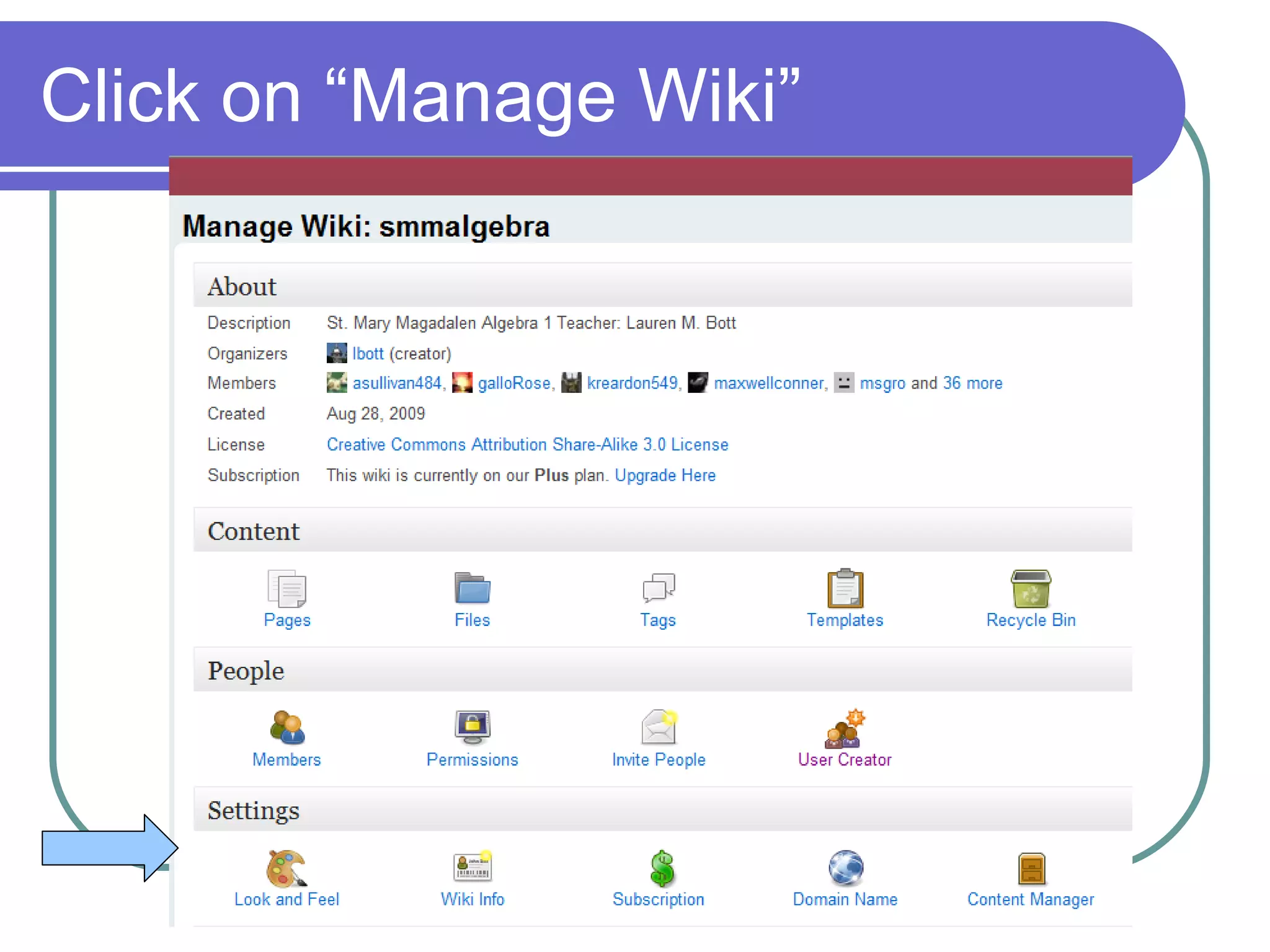
Click on “Manage Wiki”
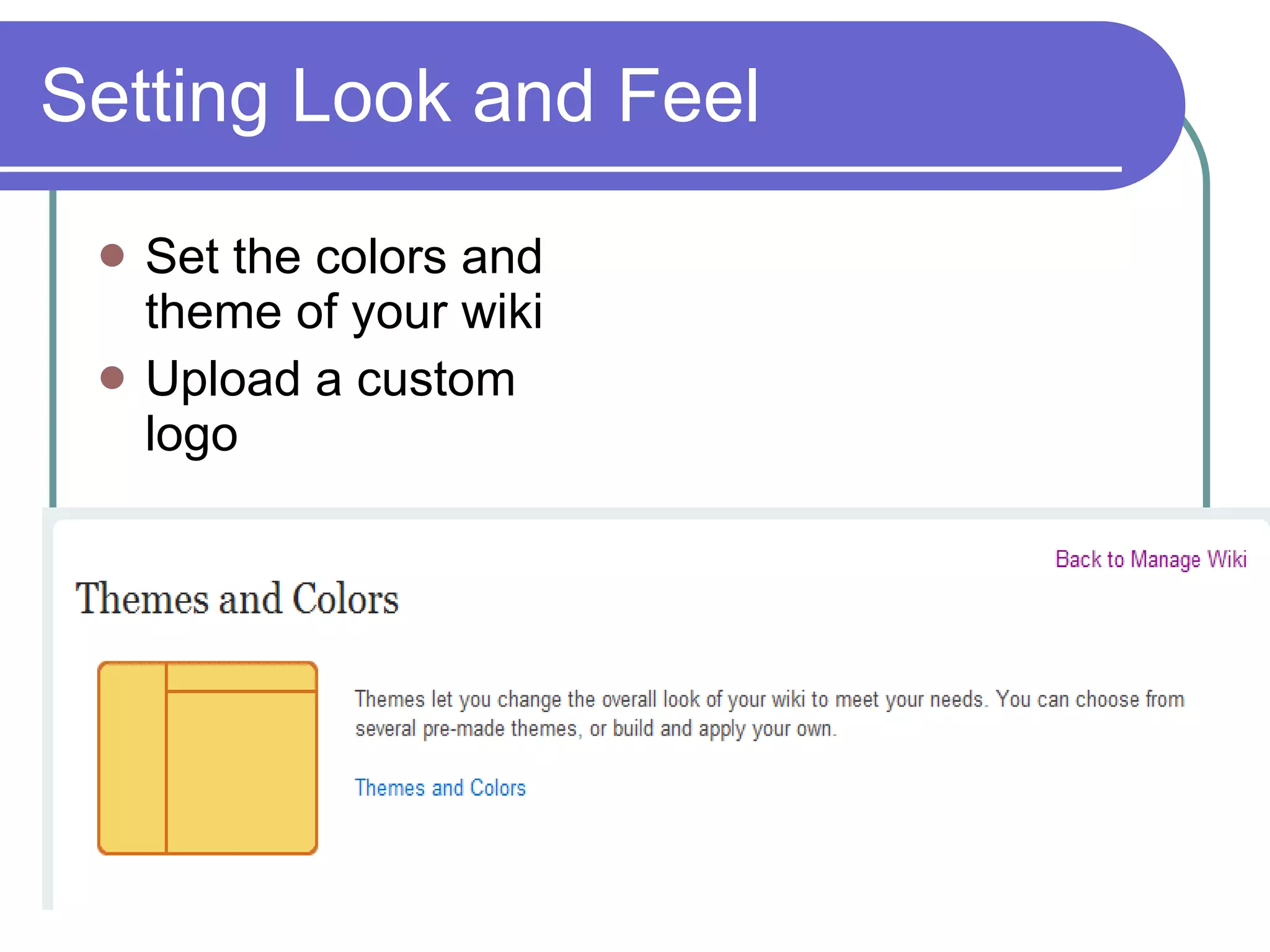
Setting Look and Feel Set the colors and theme of your wiki  Upload a custom logo
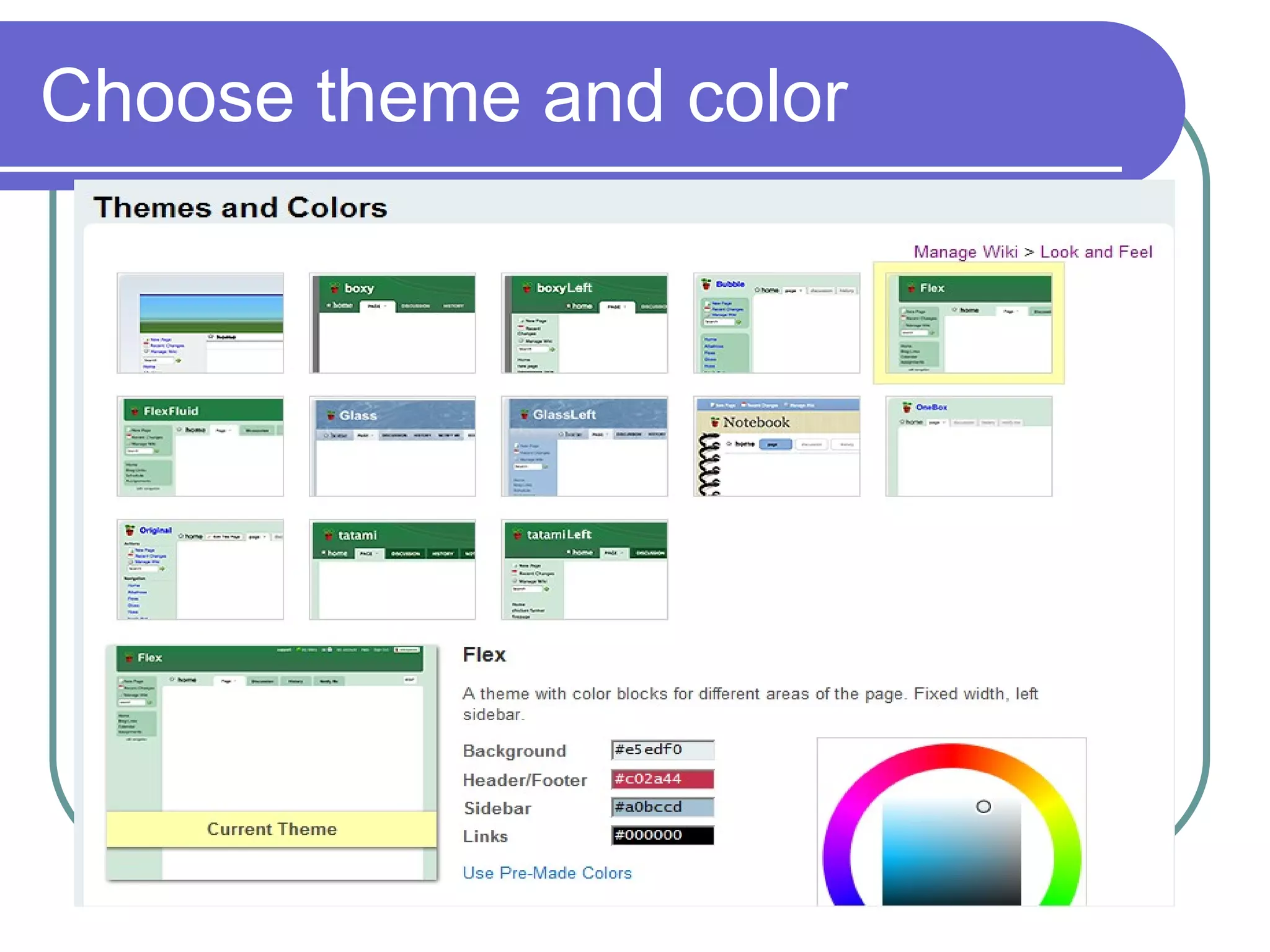
Choose theme and color
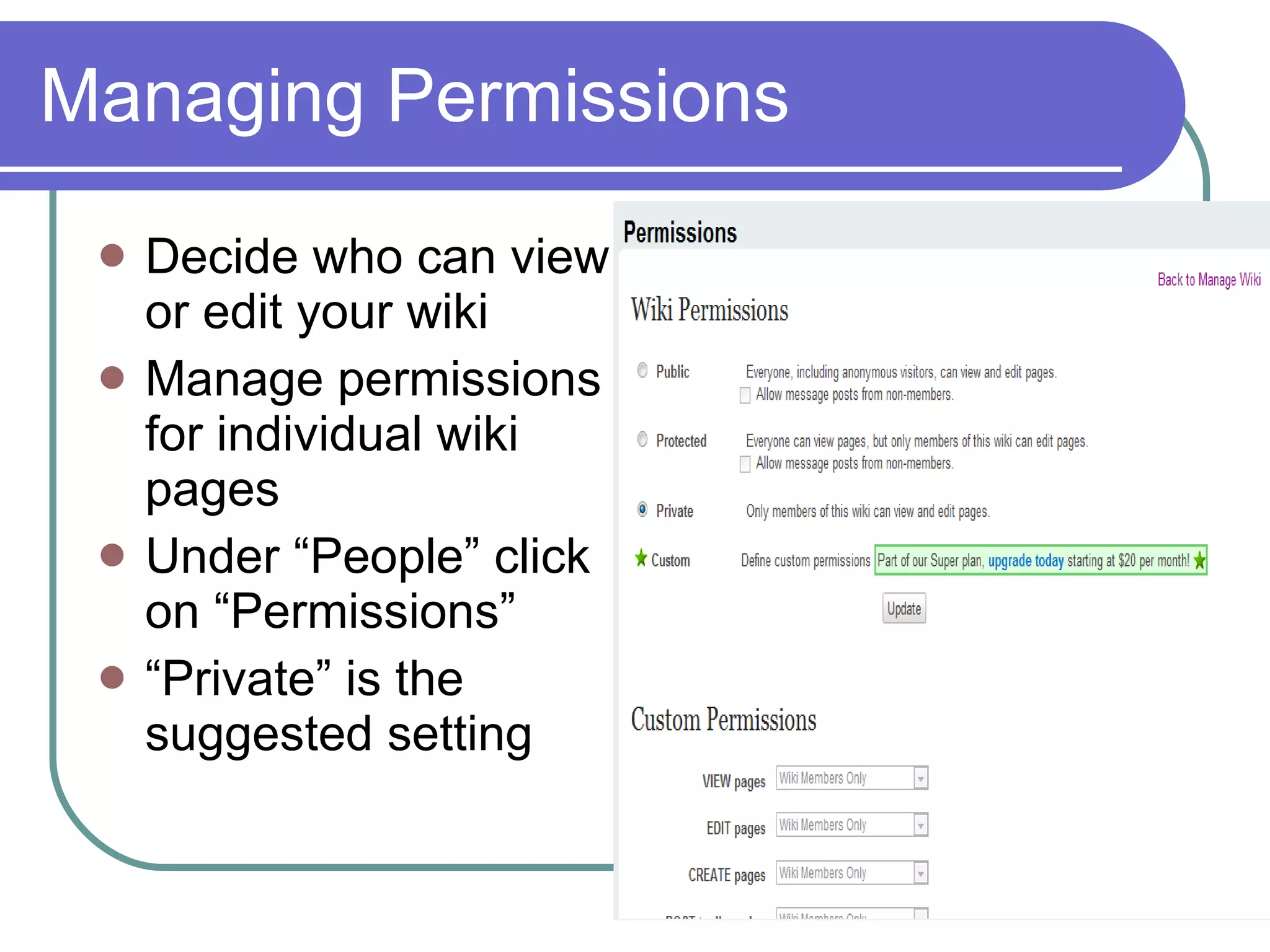
Managing Permissions Decide who can view or edit your wiki  Manage permissions for individual wiki pages Under “People” click on “Permissions” “ Private” is the suggested setting
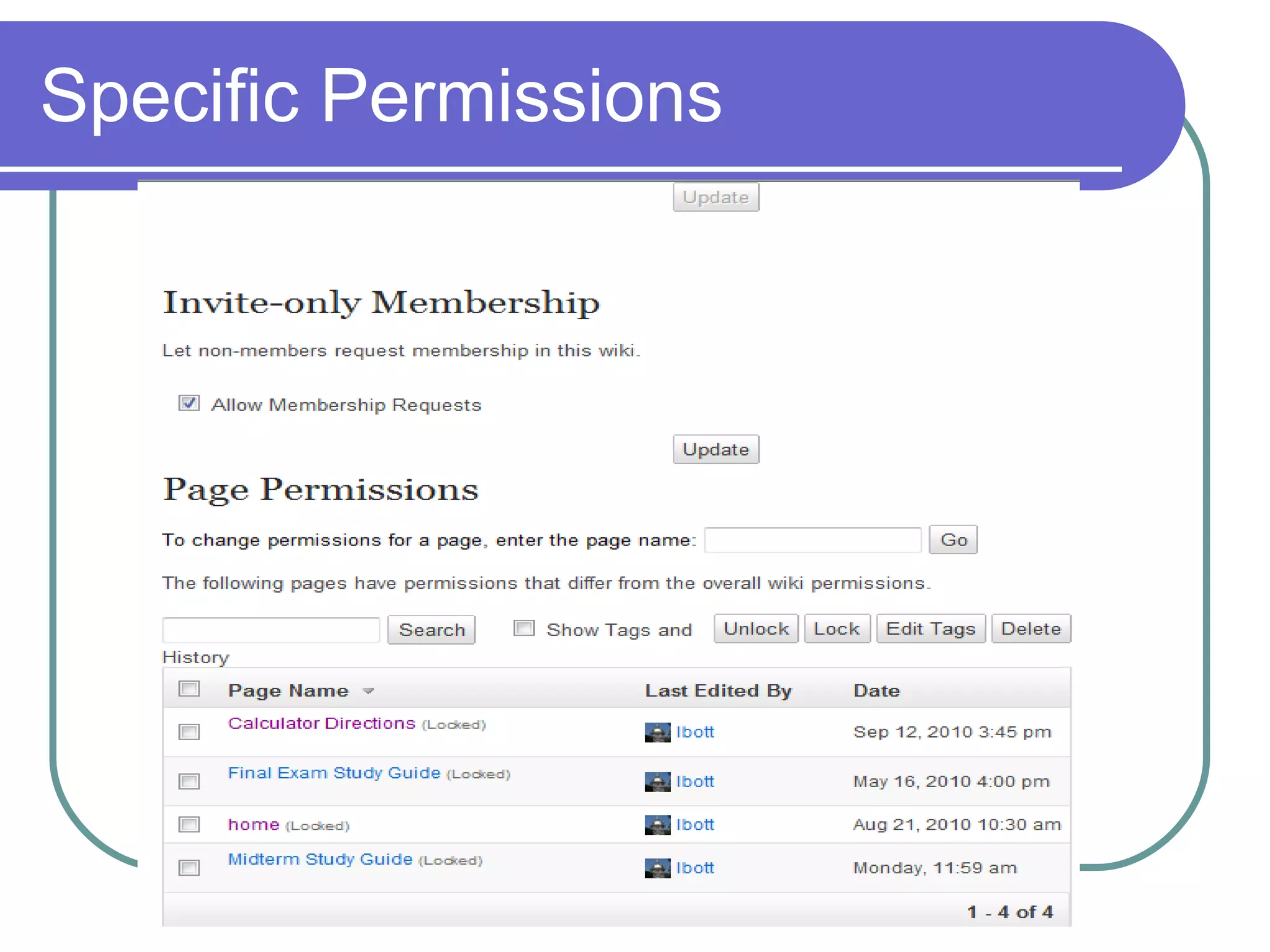
Specific Permissions
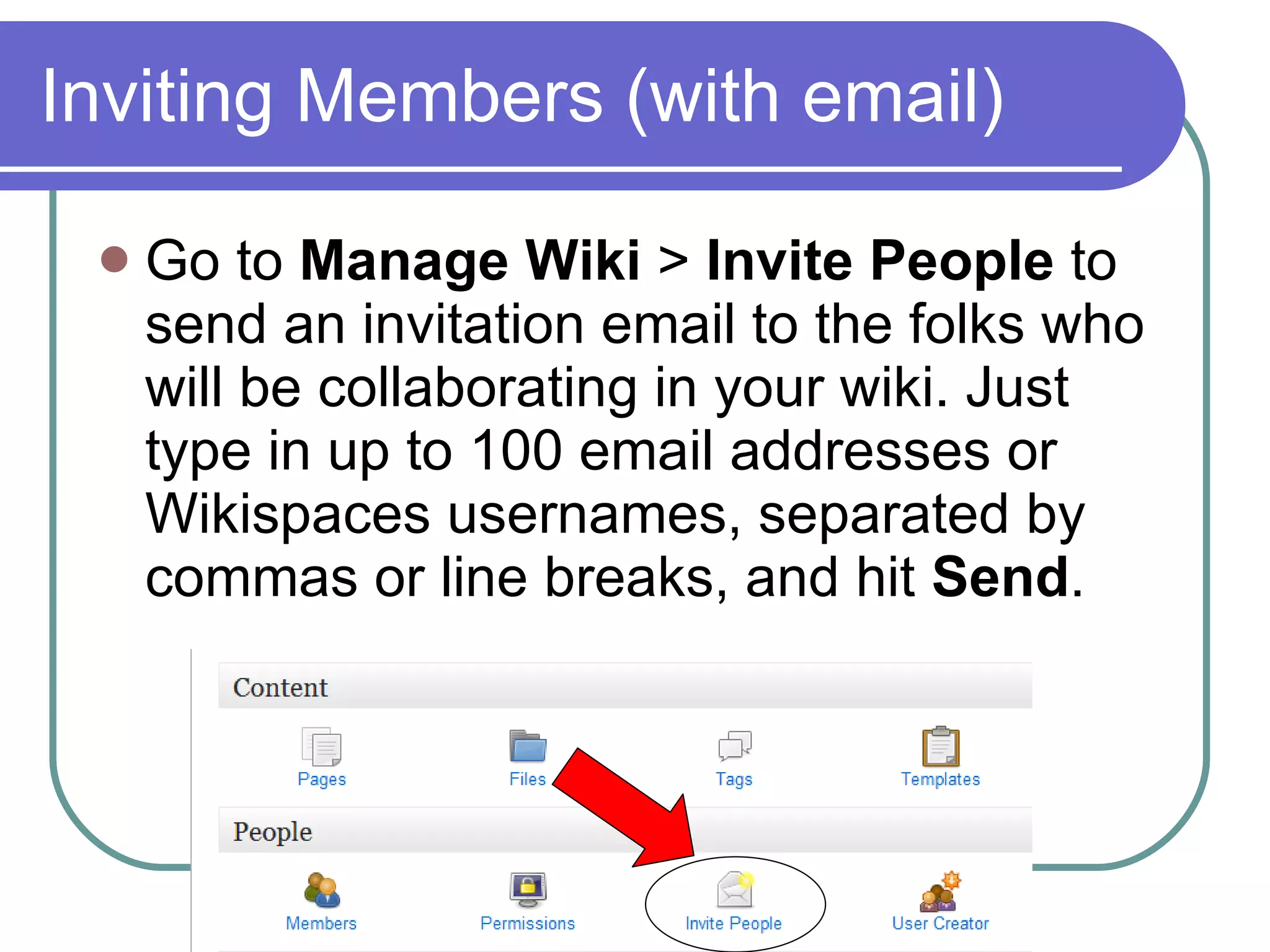
Inviting Members (with email) Go to  Manage Wiki  >  Invite People  to send an invitation email to the folks who will be collaborating in your wiki. Just type in up to 100 email addresses or Wikispaces usernames, separated by commas or line breaks, and hit  Send .
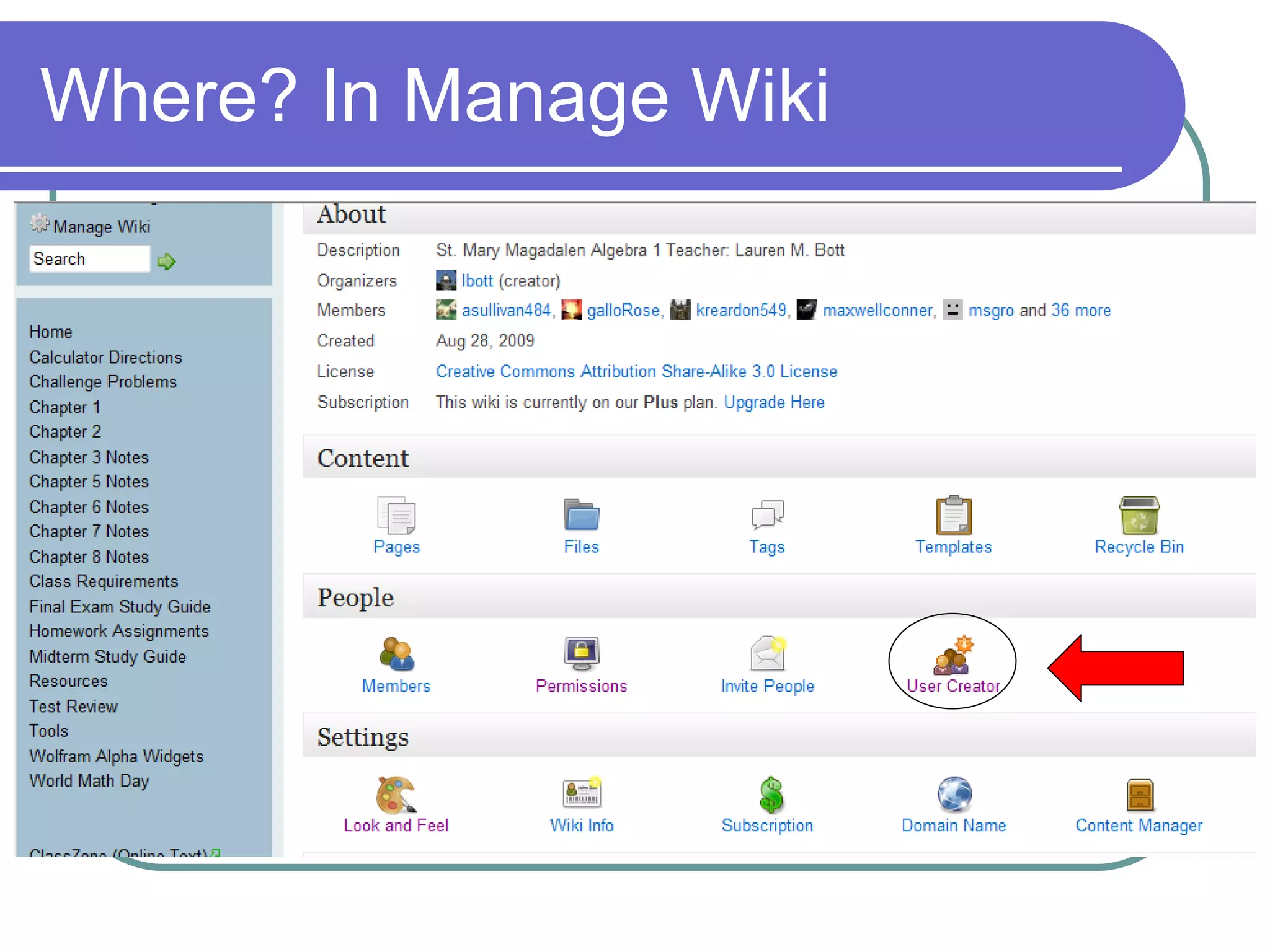
Inviting Members (w/o email) If you are a teacher and need to add a whole class’ worth of student accounts, you can do it all at once by going to  Manage Wiki  >  User Creator . You will be able to make accounts for all of your students, even if they don’t have email addresses. Keep in mind that every Wikispaces username must be unique. Try using numbers, or initials, or a first name-last name combination to create unique usernames.
Where? In Manage Wiki
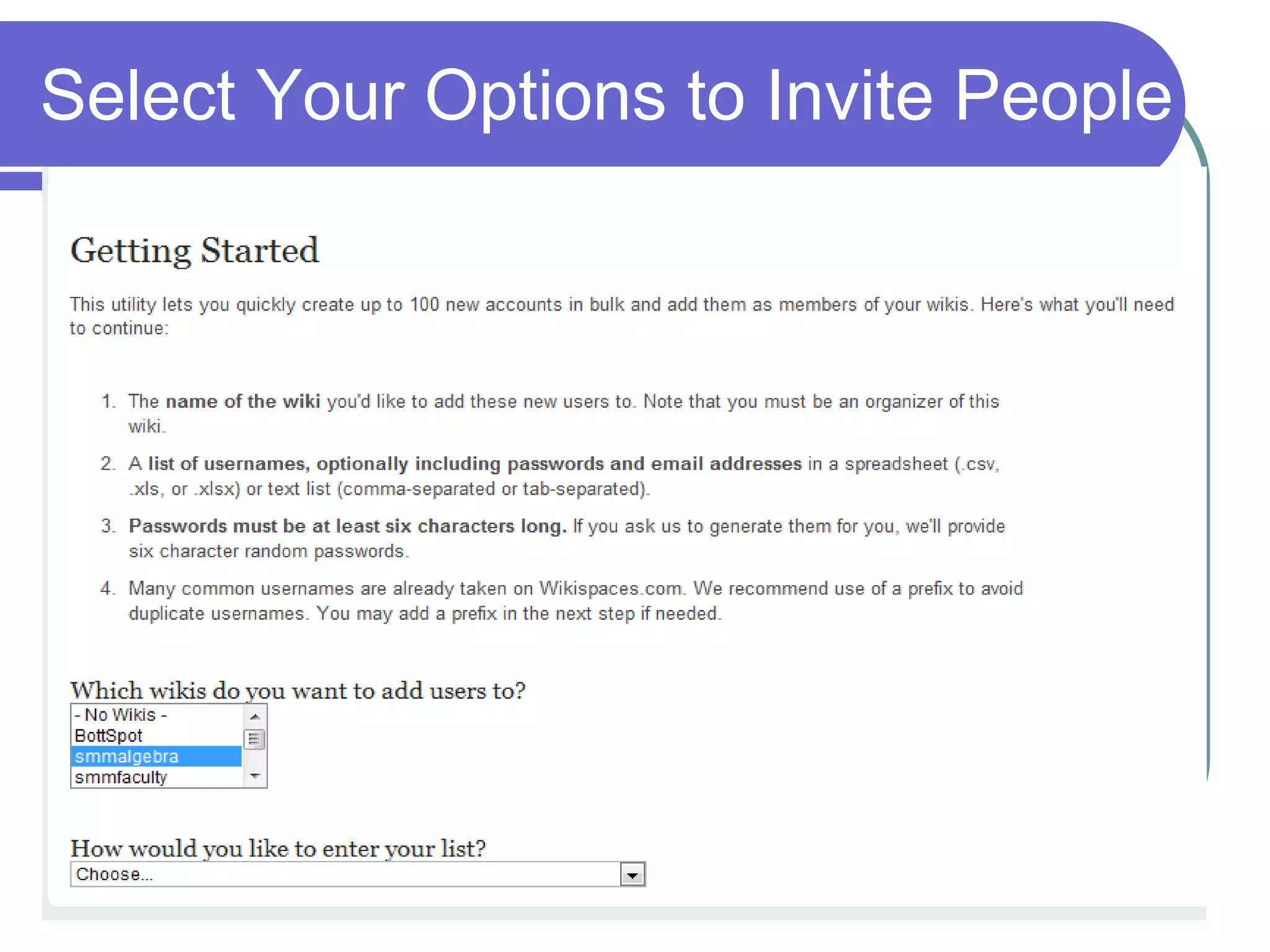
Select Your Options to Invite People
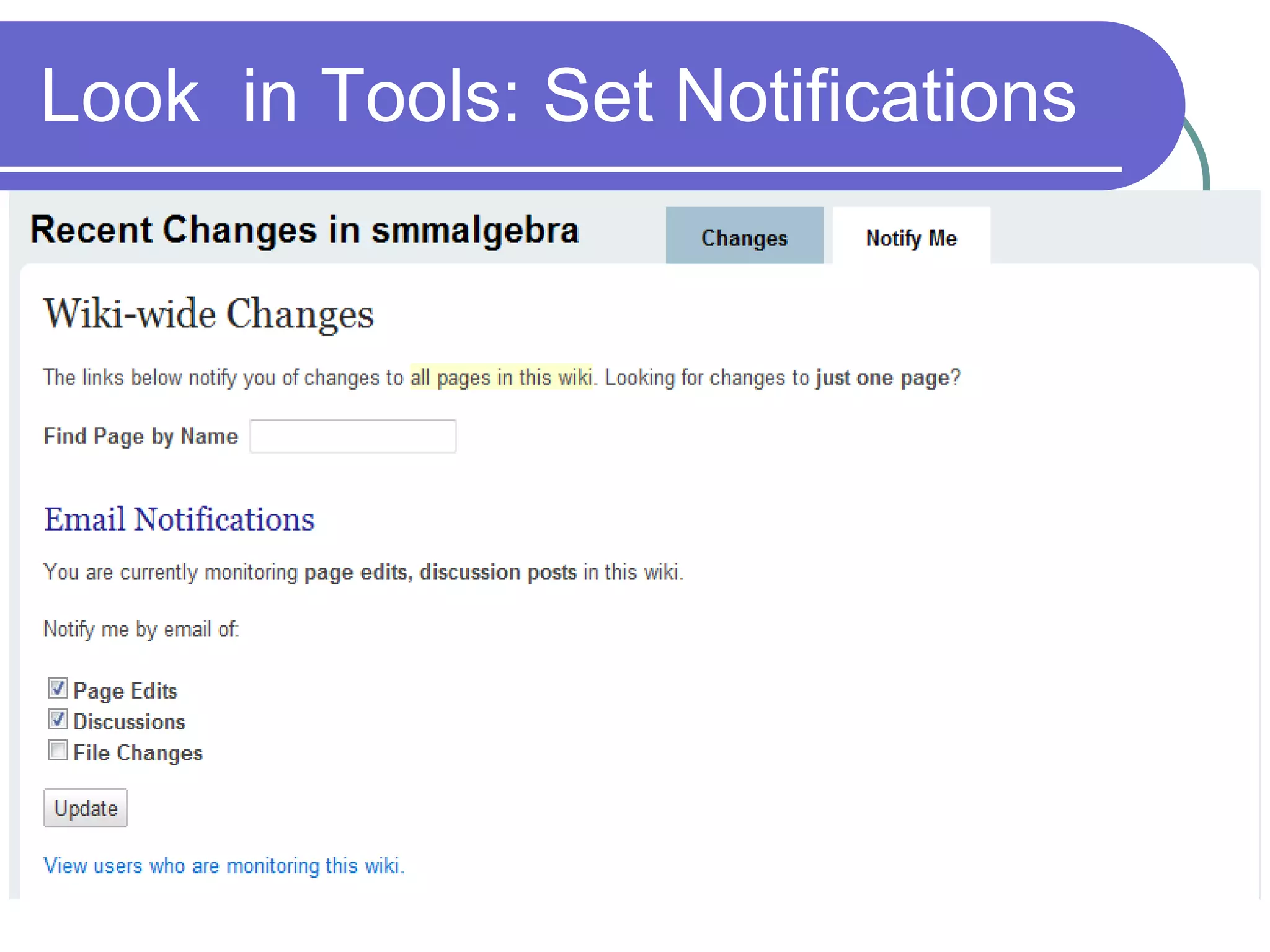
Look  in Tools: Set Notifications
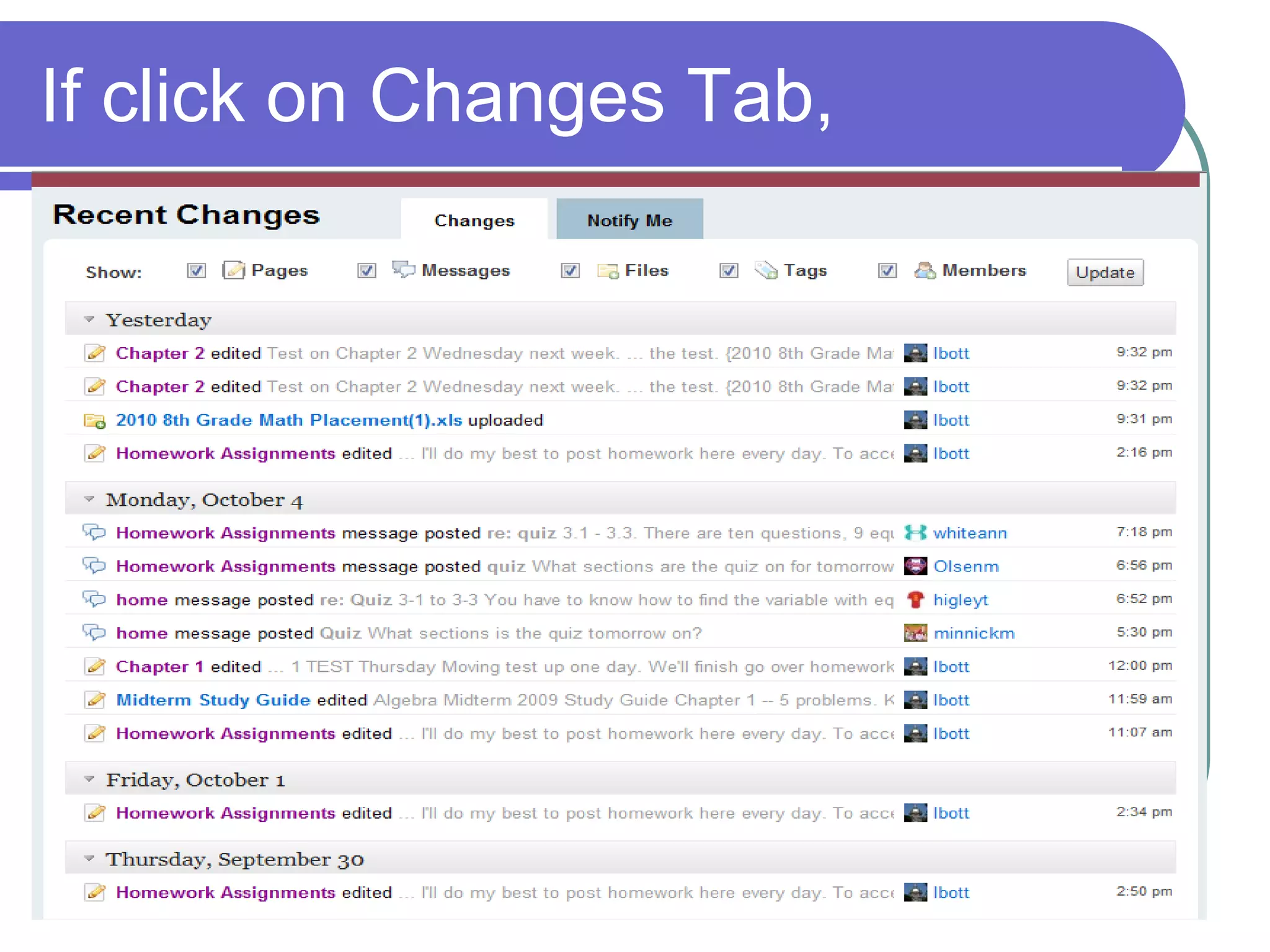
If click on Changes Tab,
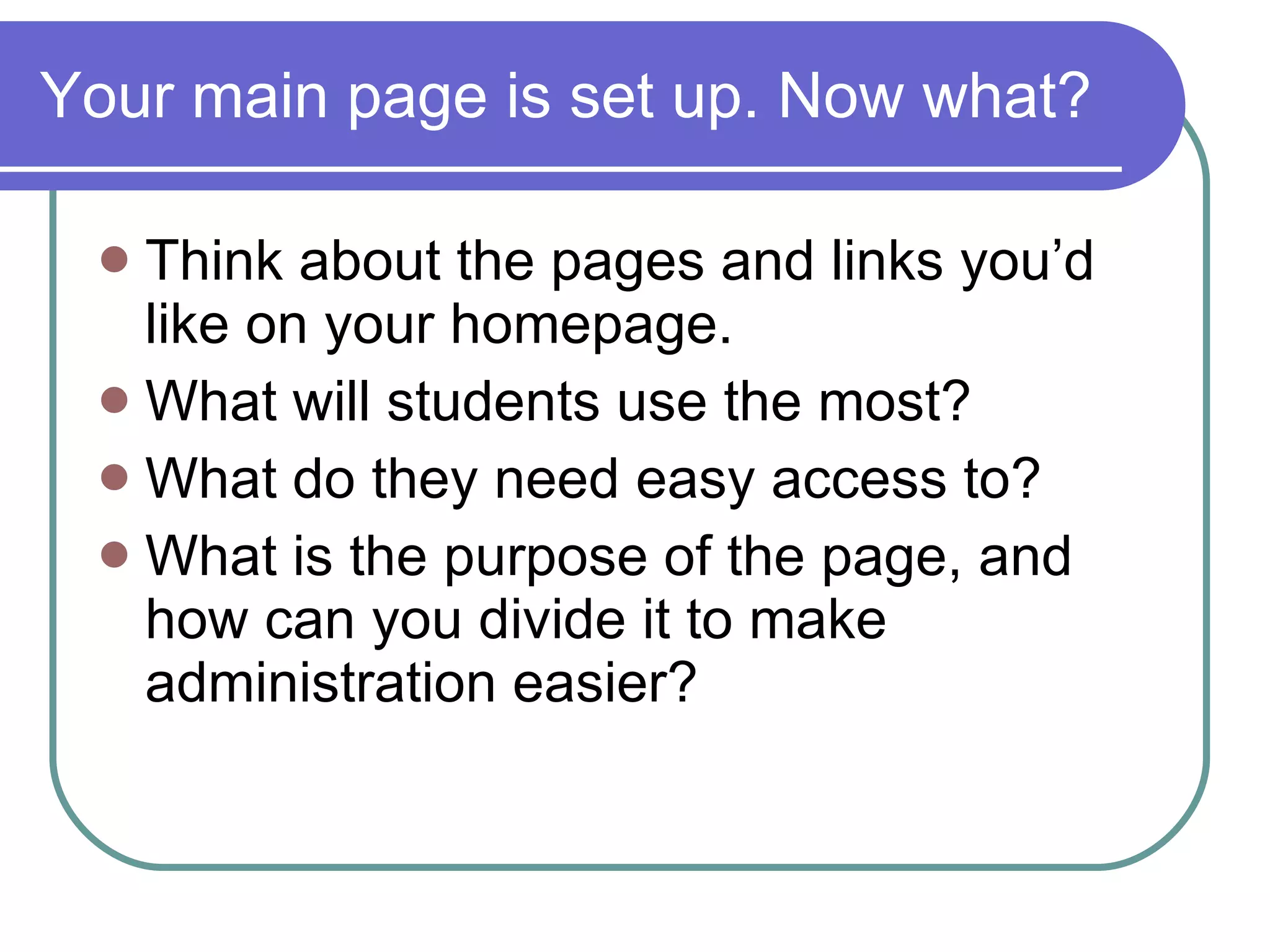
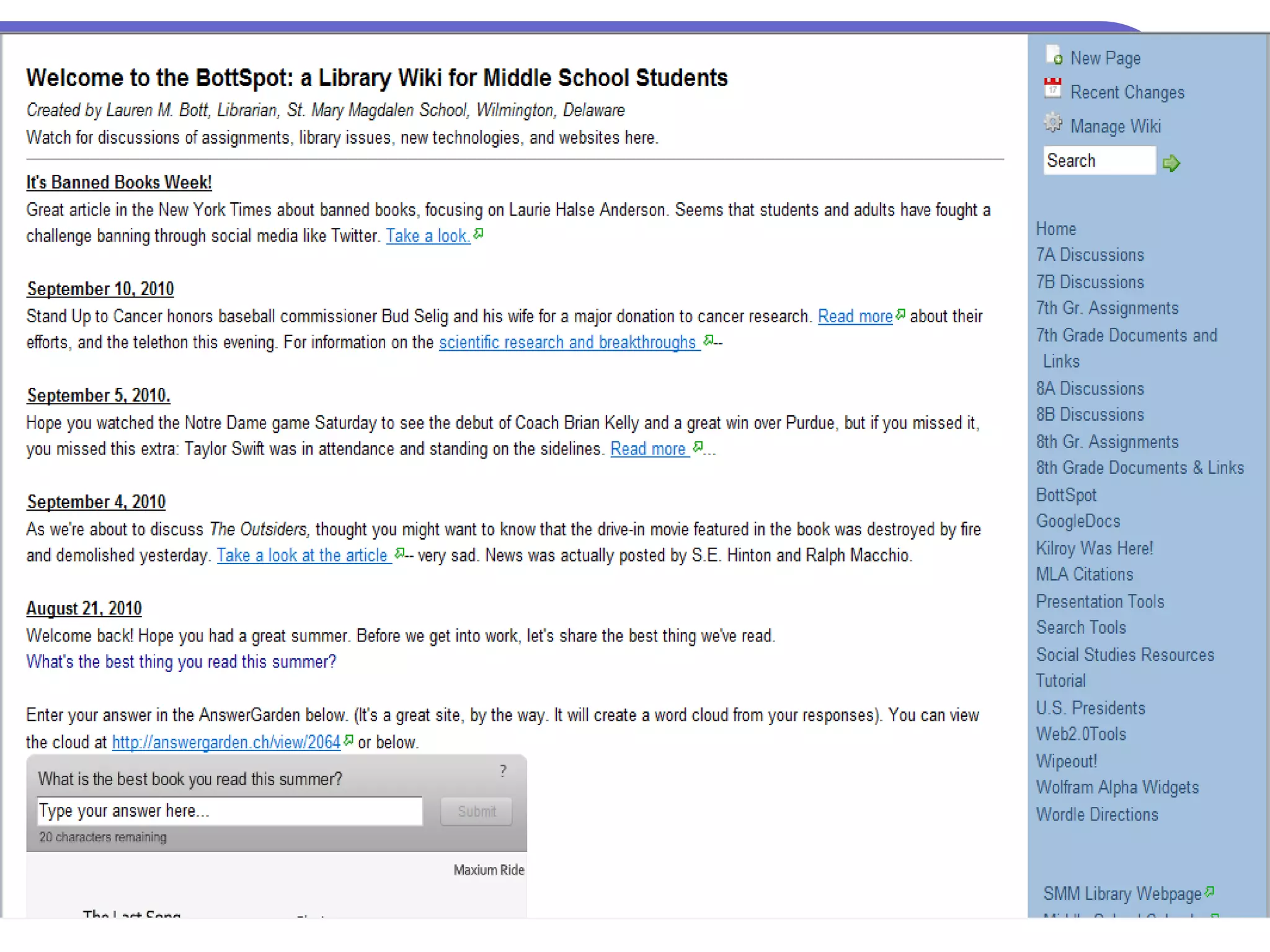
Your main page is set up. Now what? Think about the pages and links you’d like on your homepage. What will students use the most? What do they need easy access to? What is the purpose of the page, and how can you divide it to make administration easier?
 
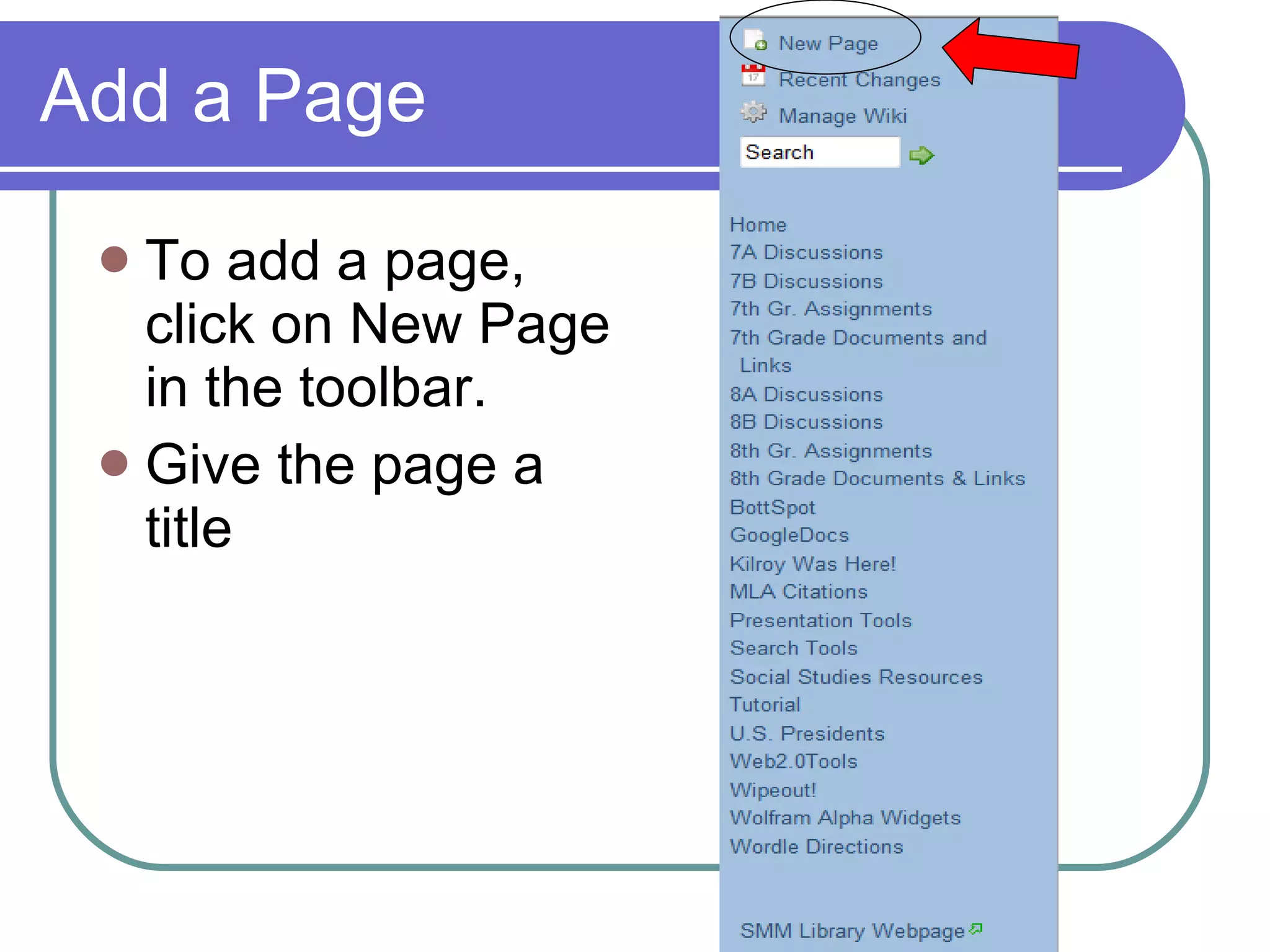
Add a Page To add a page, click on New Page in the toolbar. Give the page a title
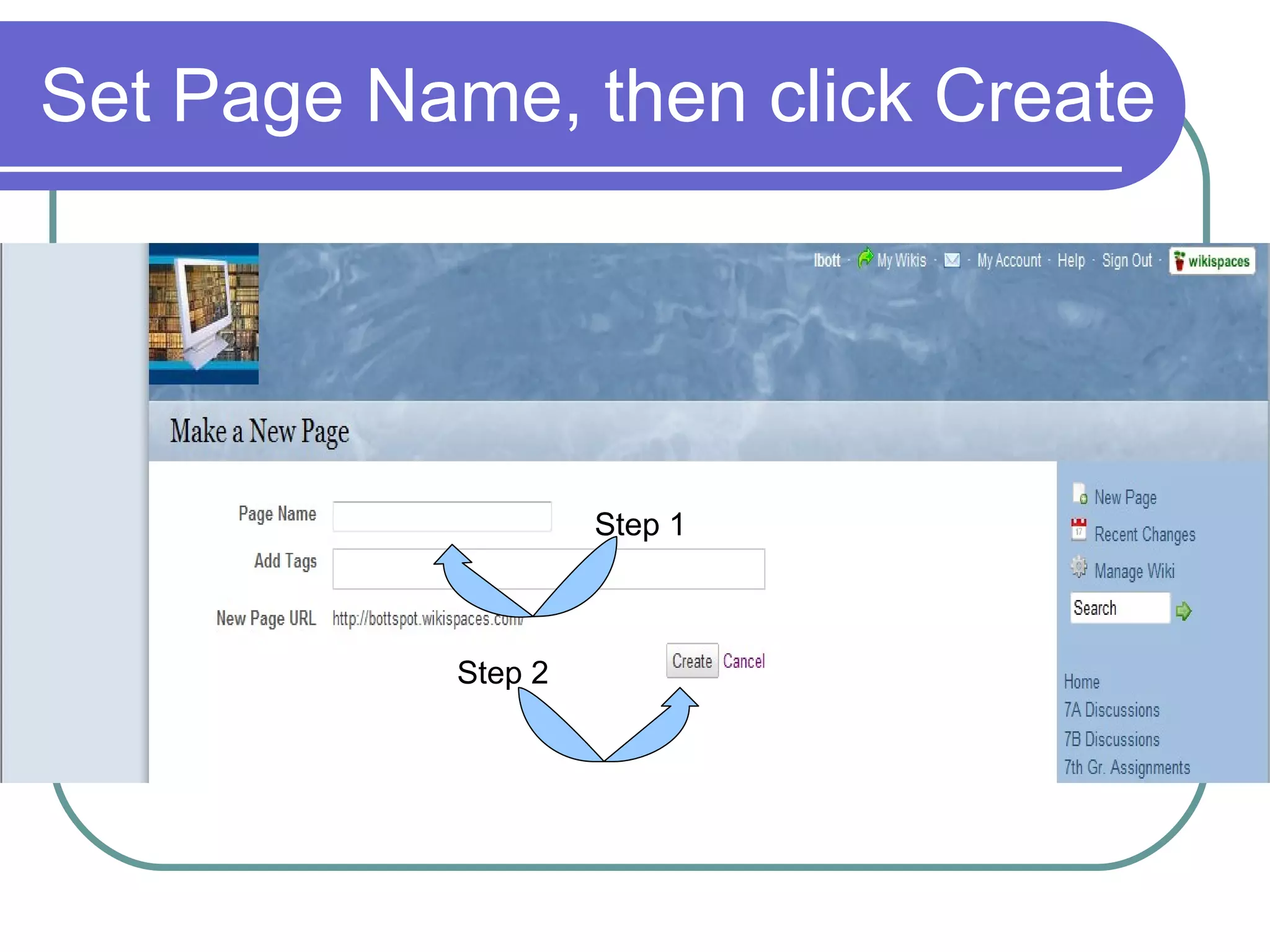
Set Page Name, then click Create Step 1 Step 2
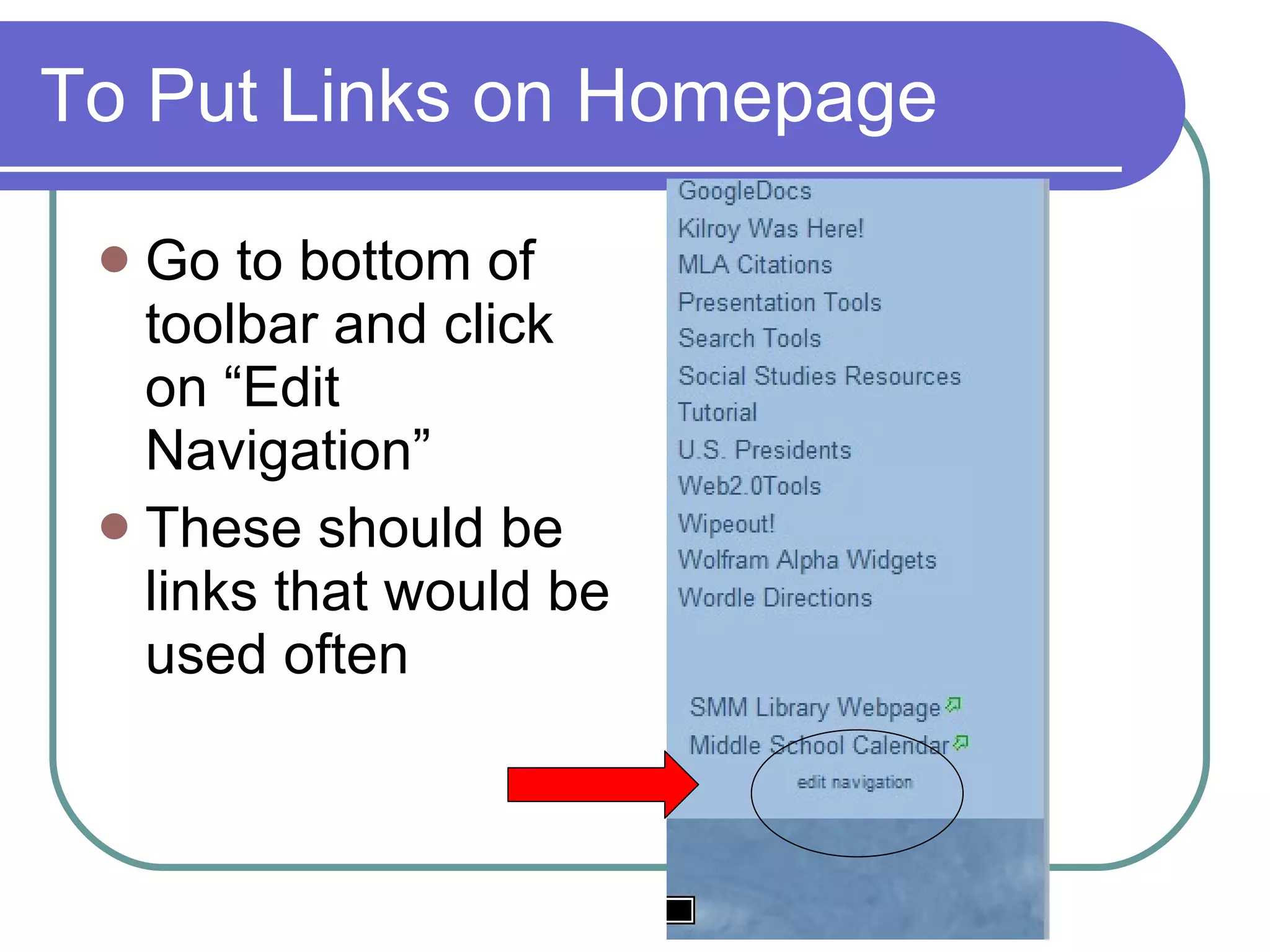
To Put Links on Homepage Go to bottom of toolbar and click on “Edit Navigation” These should be links that would be used often
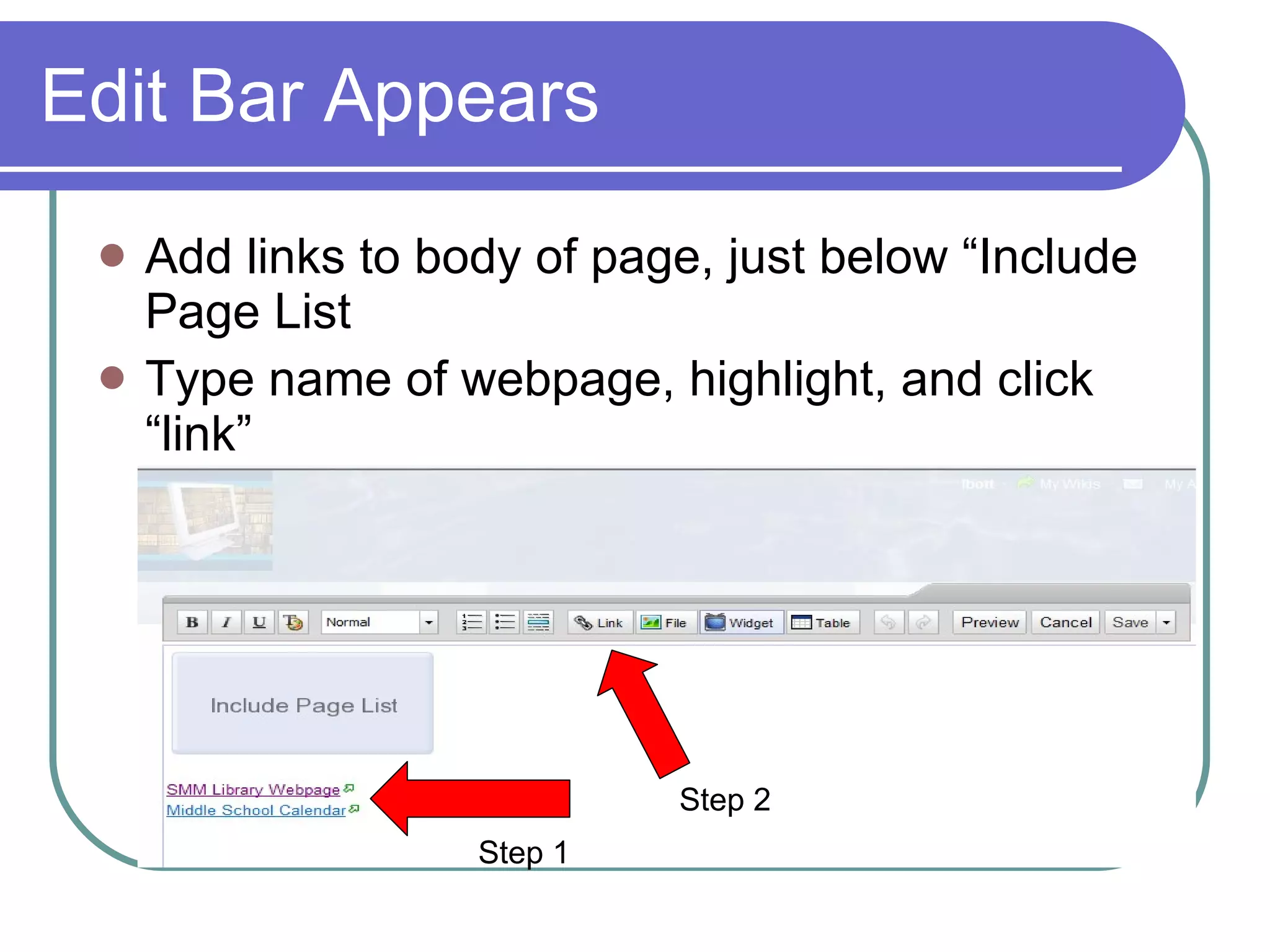
Edit Bar Appears Add links to body of page, just below “Include Page List Type name of webpage, highlight, and click “link” Step 1 Step 2
Editing Your Page Once you’ve set up your page, you can add: Text Links within text Documents Video Widgets
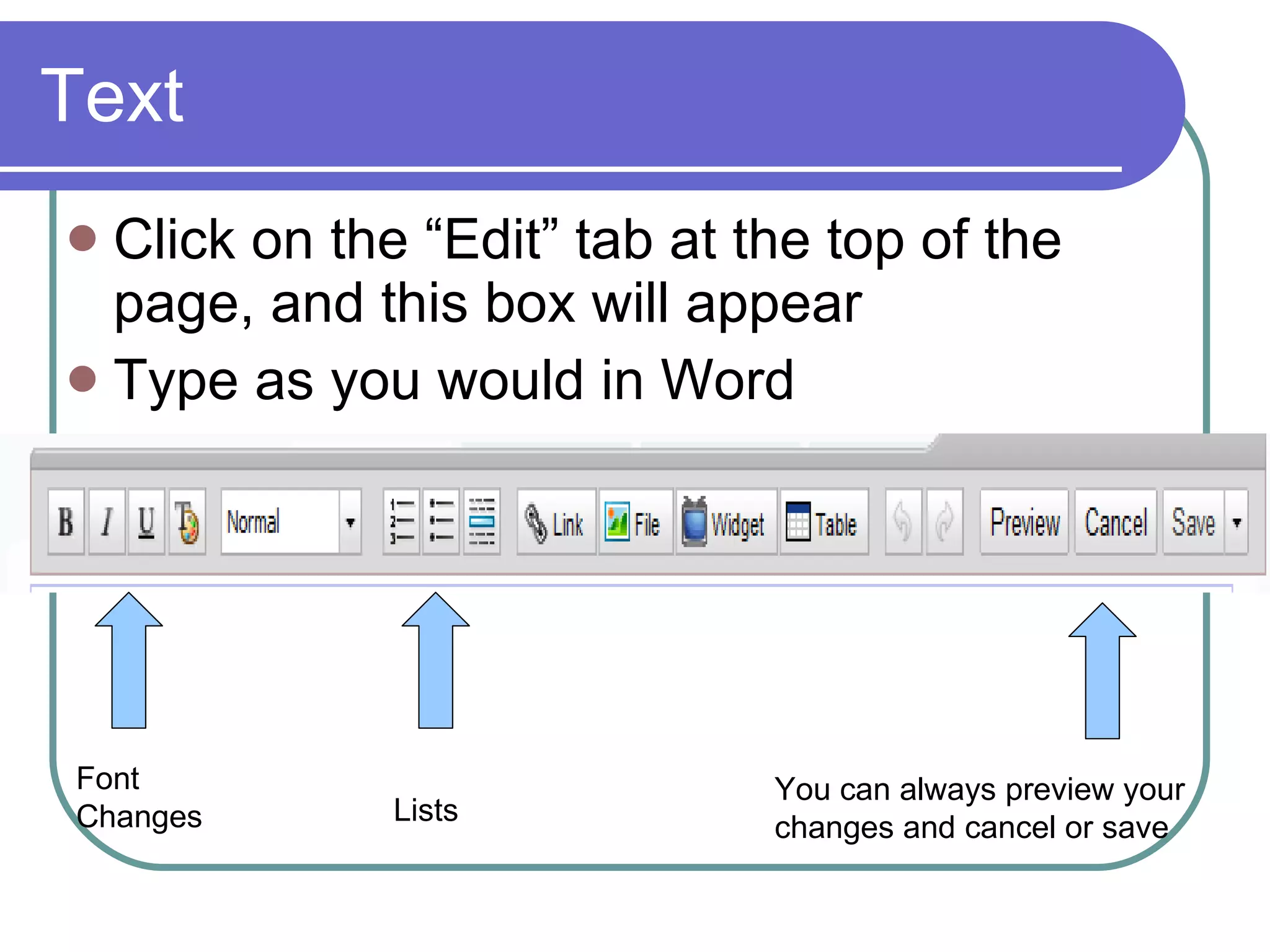
Text Click on the “Edit” tab at the top of the page, and this box will appear Type as you would in Word Font Changes Lists You can always preview your changes and cancel or save
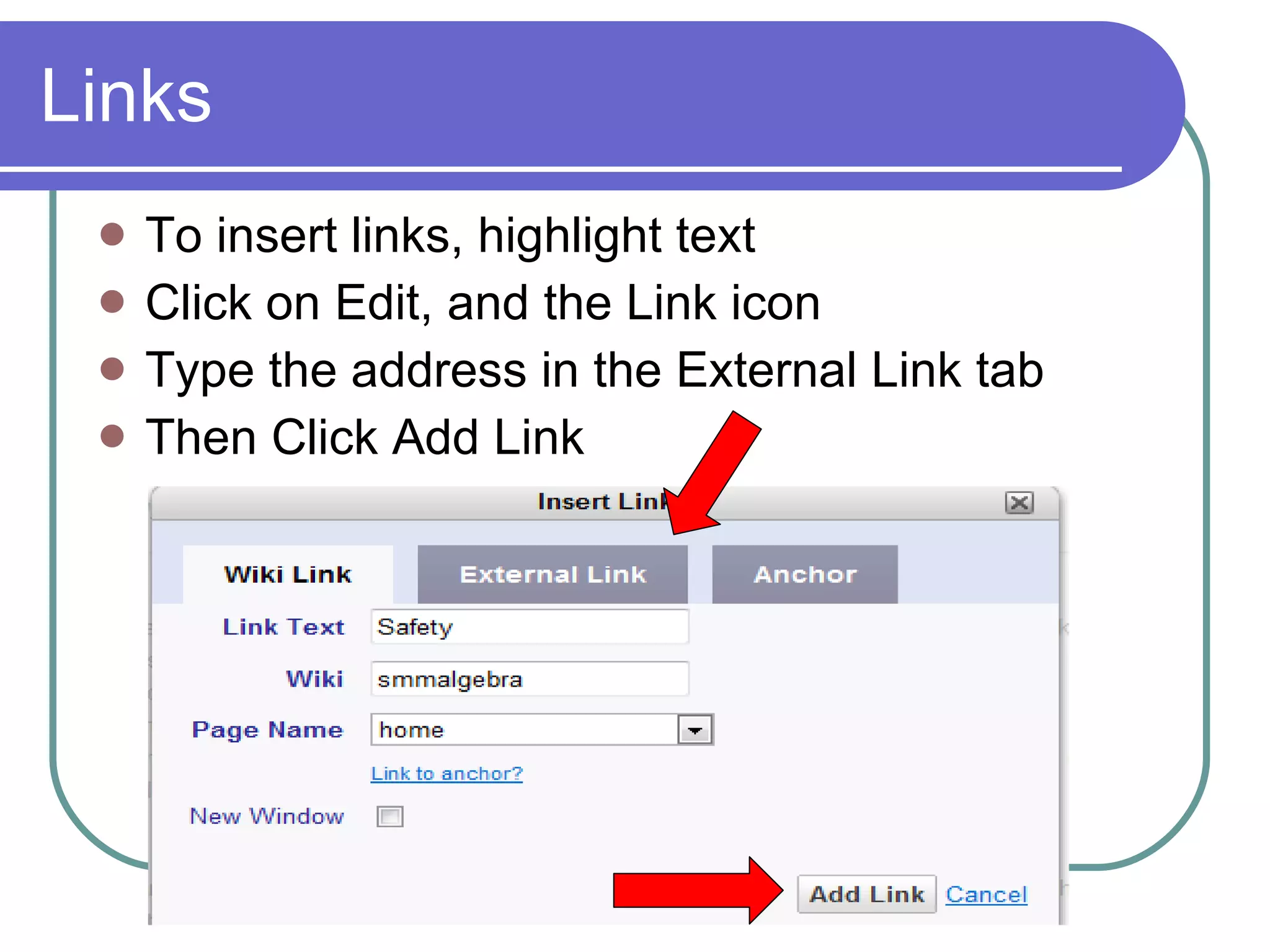
Links To insert links, highlight text Click on Edit, and the Link icon Type the address in the External Link tab Then Click Add Link
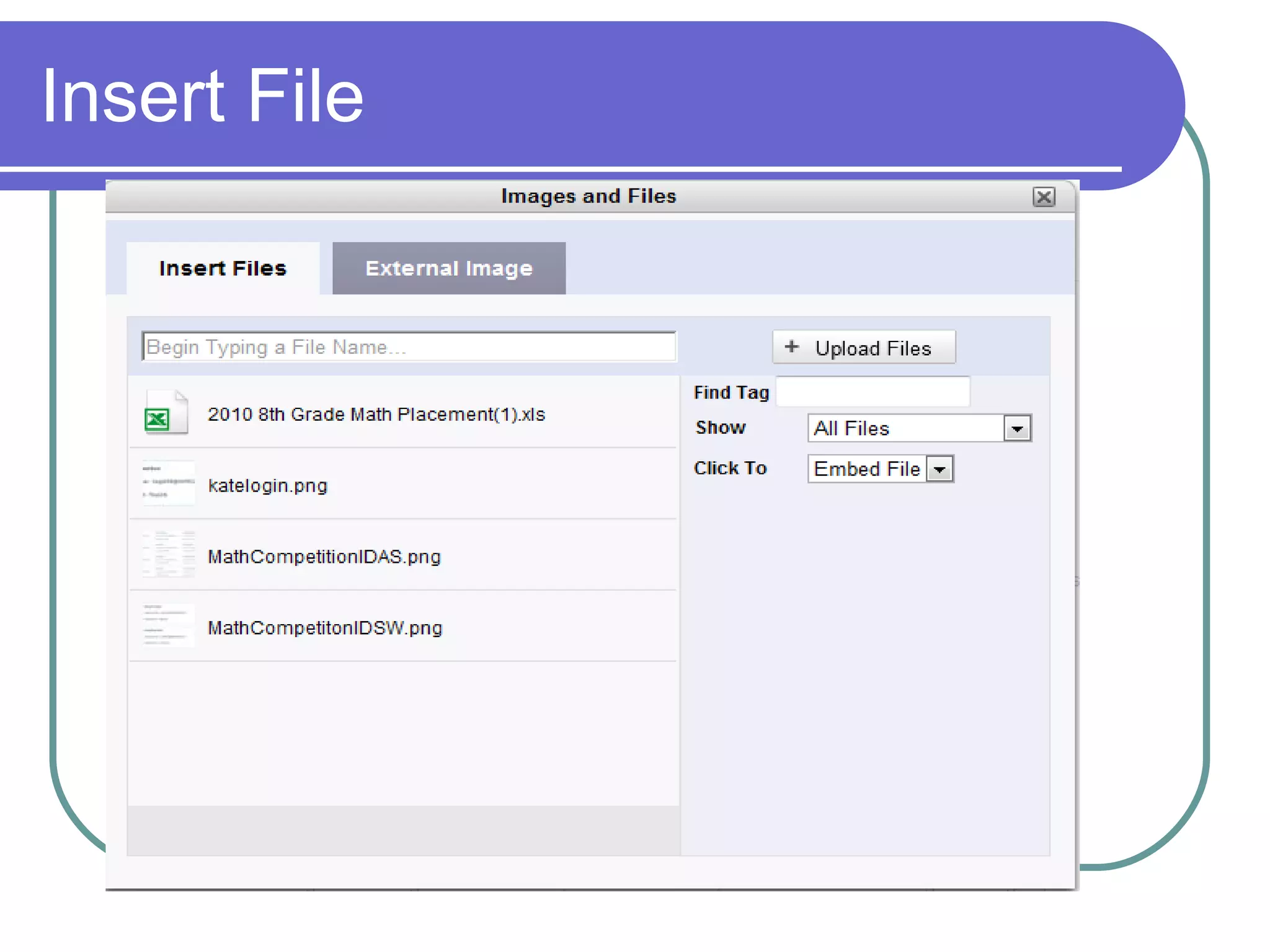
Documents In the edit tab, click on file Type the name of the file you want to upload. It will show up on the screen. Then embed.  OR Consider using Slideshare to save documents and slideshows.  Use embed code to add.
Insert File
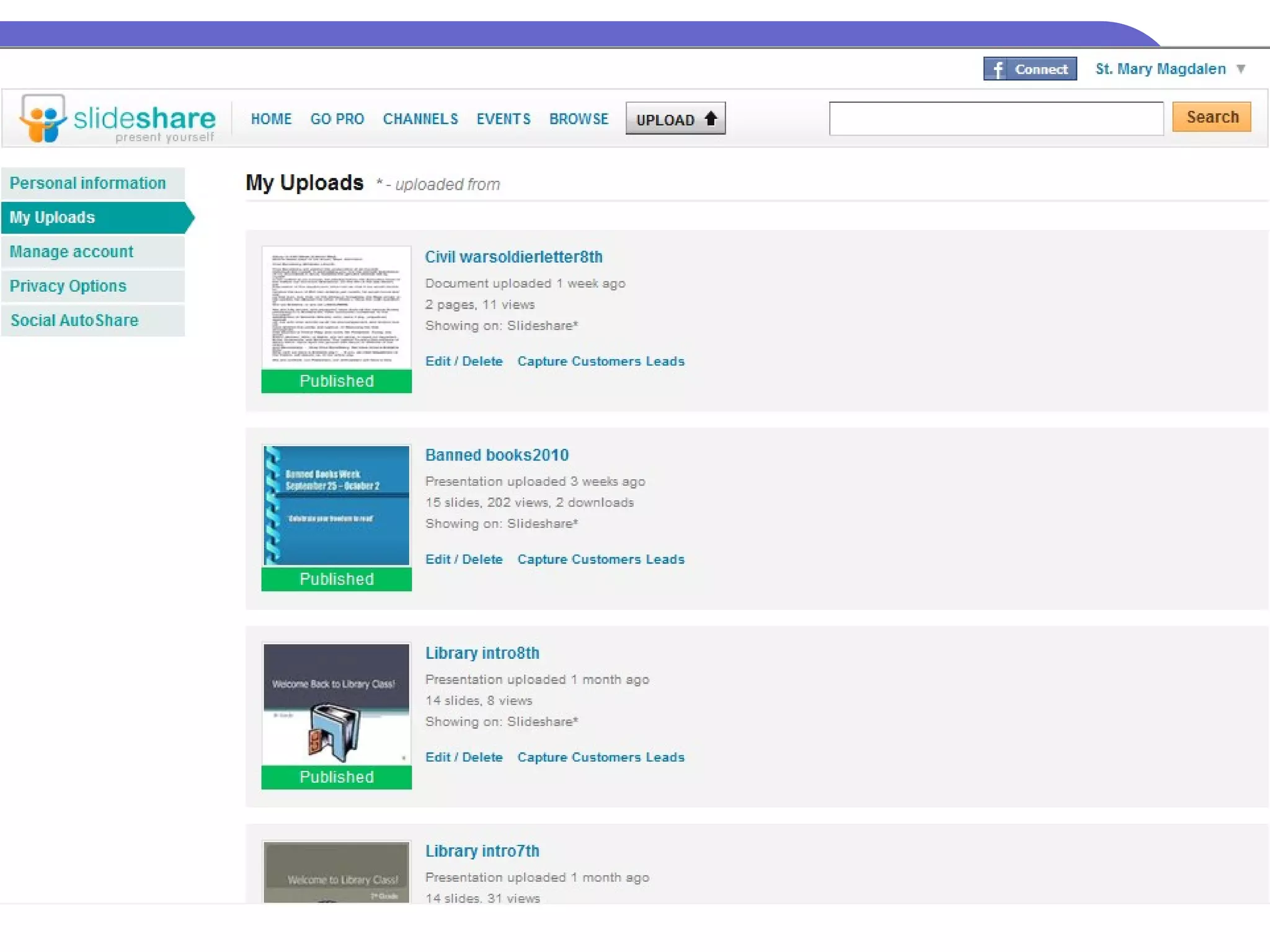
Slideshare Set up an free account at Slideshare.net Upload any of your documents or PowerPoint presentations. Slideshare will save them under your account, and give you an embed code. Caution: They will be available to the public.
 
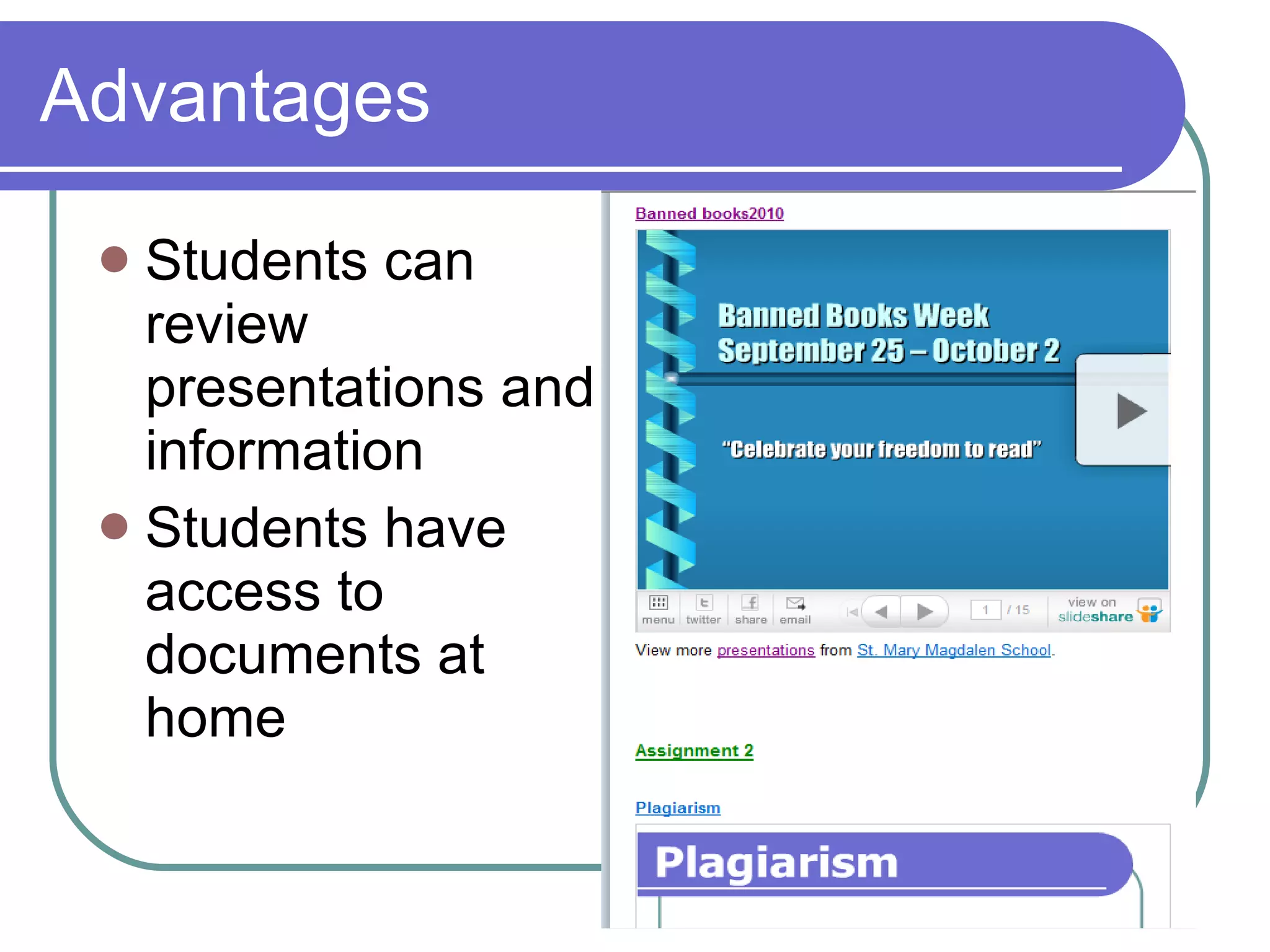
Advantages Students can review presentations and information Students have access to documents at home
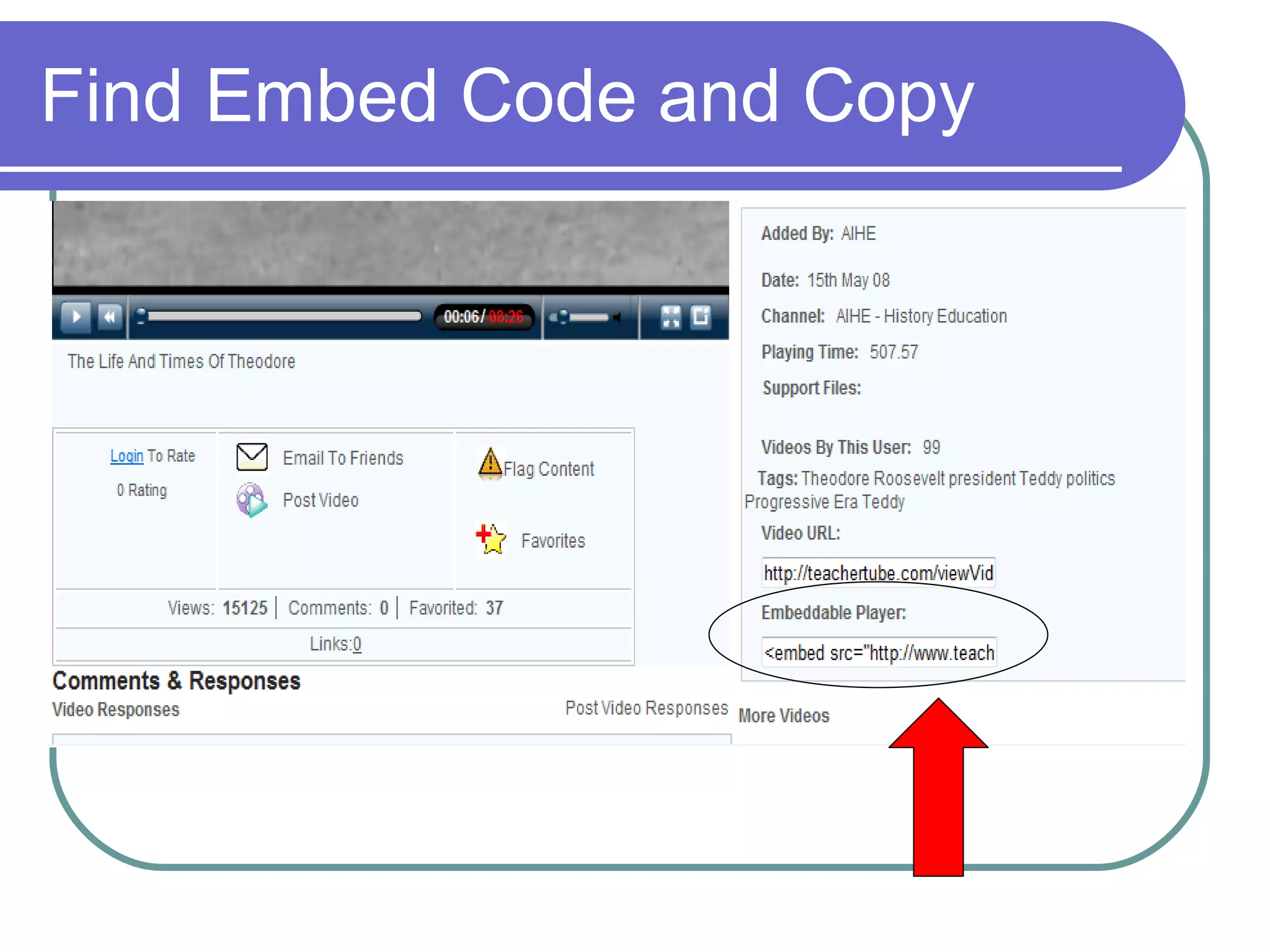
Adding Video From various sources: TeacherTube, Youtube, Youtube.edu, Google The embed code is located beneath or to the right of the video. Copy it.
Find Embed Code and Copy
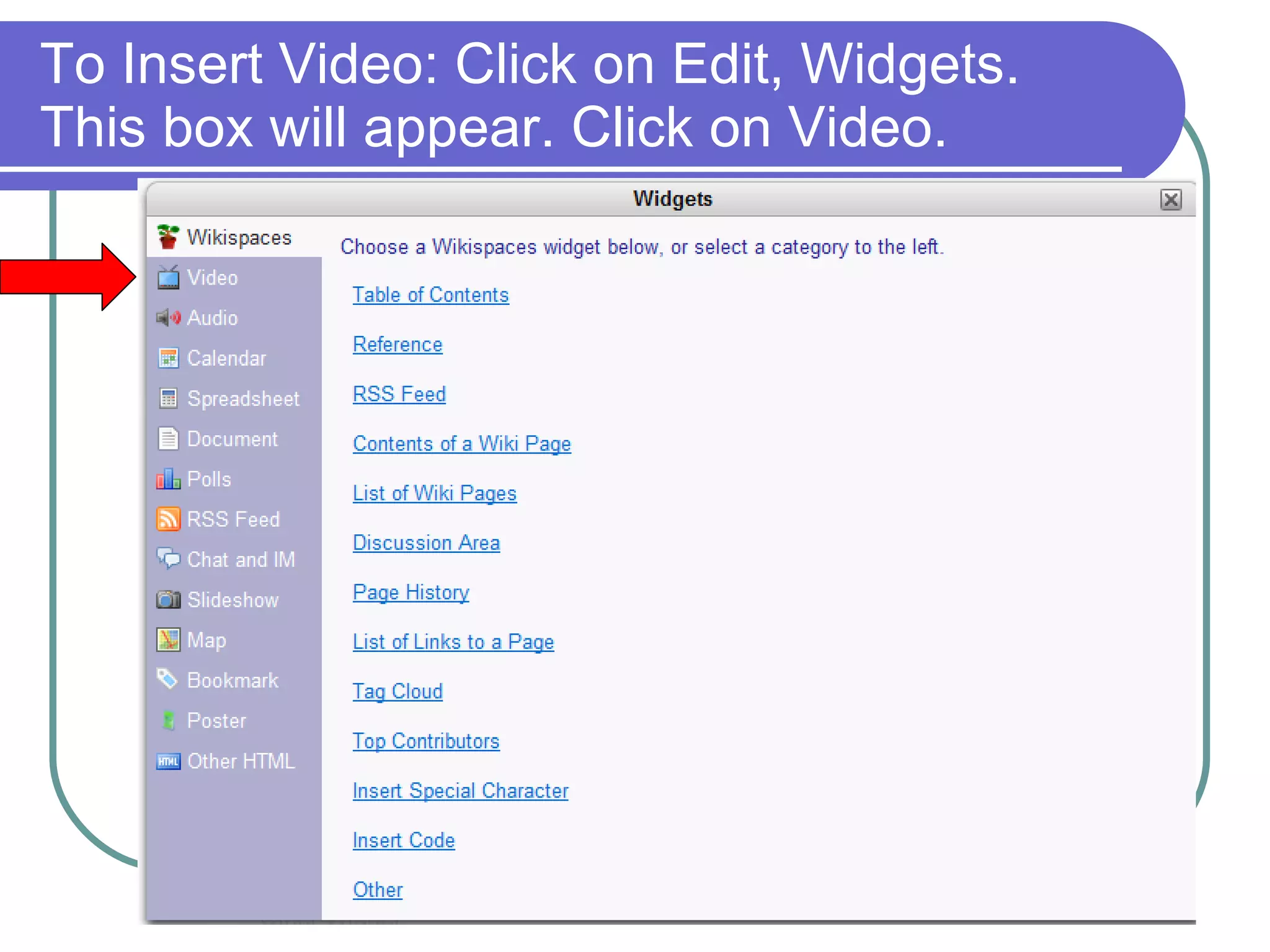
To Insert Video: Click on Edit, Widgets. This box will appear. Click on Video.
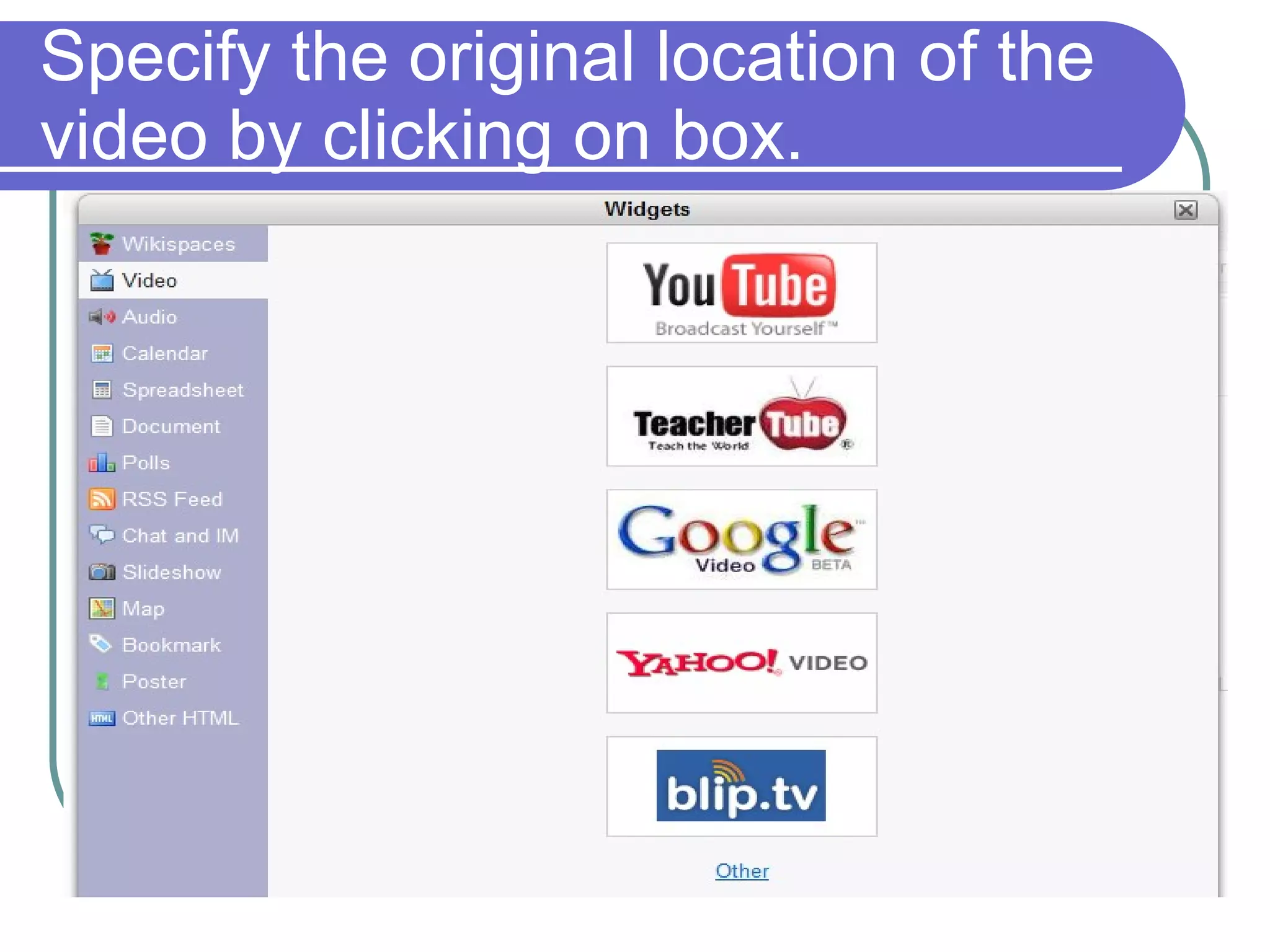
Specify the original location of the video by clicking on box.
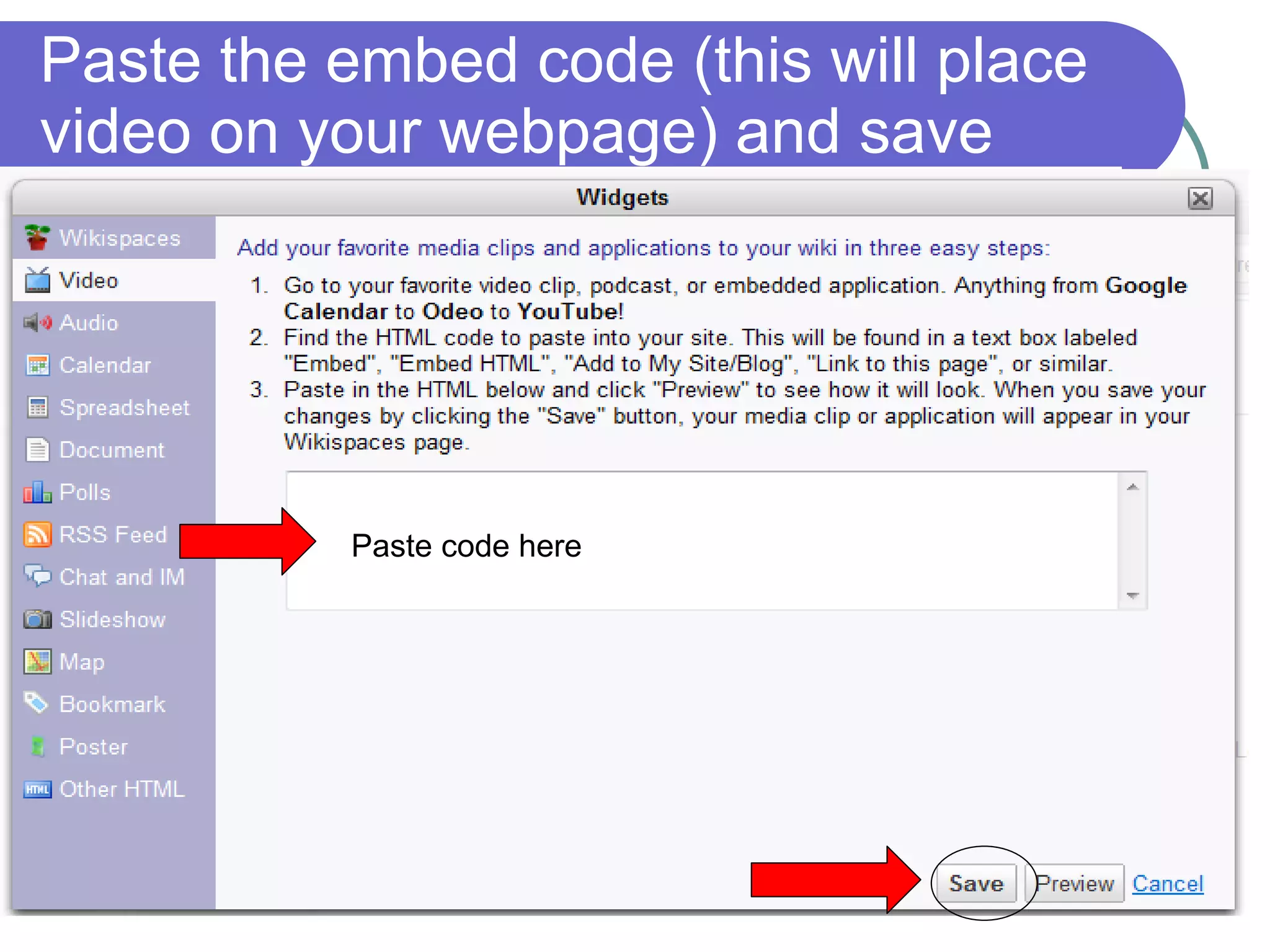
Paste the embed code (this will place video on your webpage) and save Paste code here
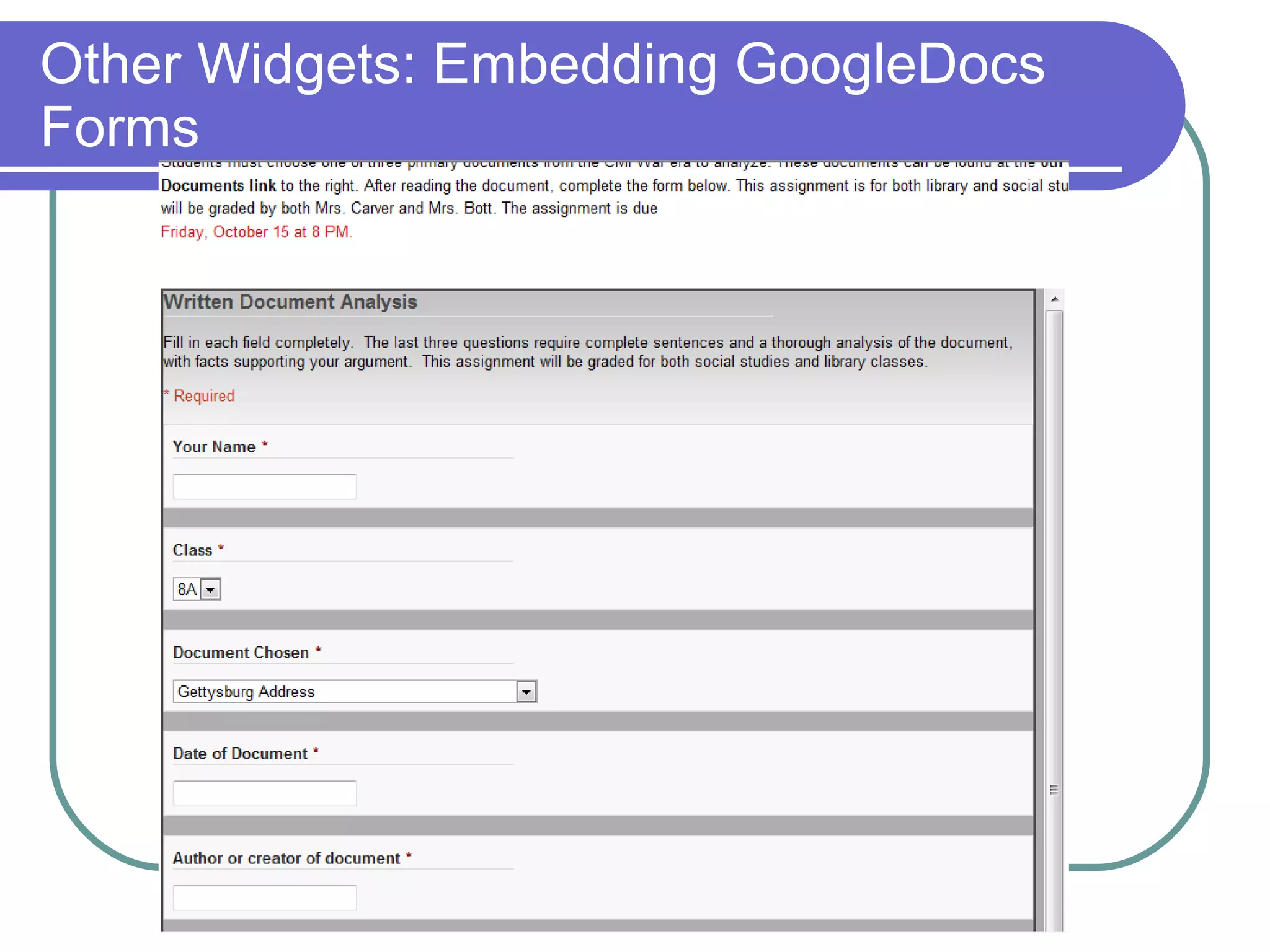
Other Widgets: Embedding GoogleDocs Forms
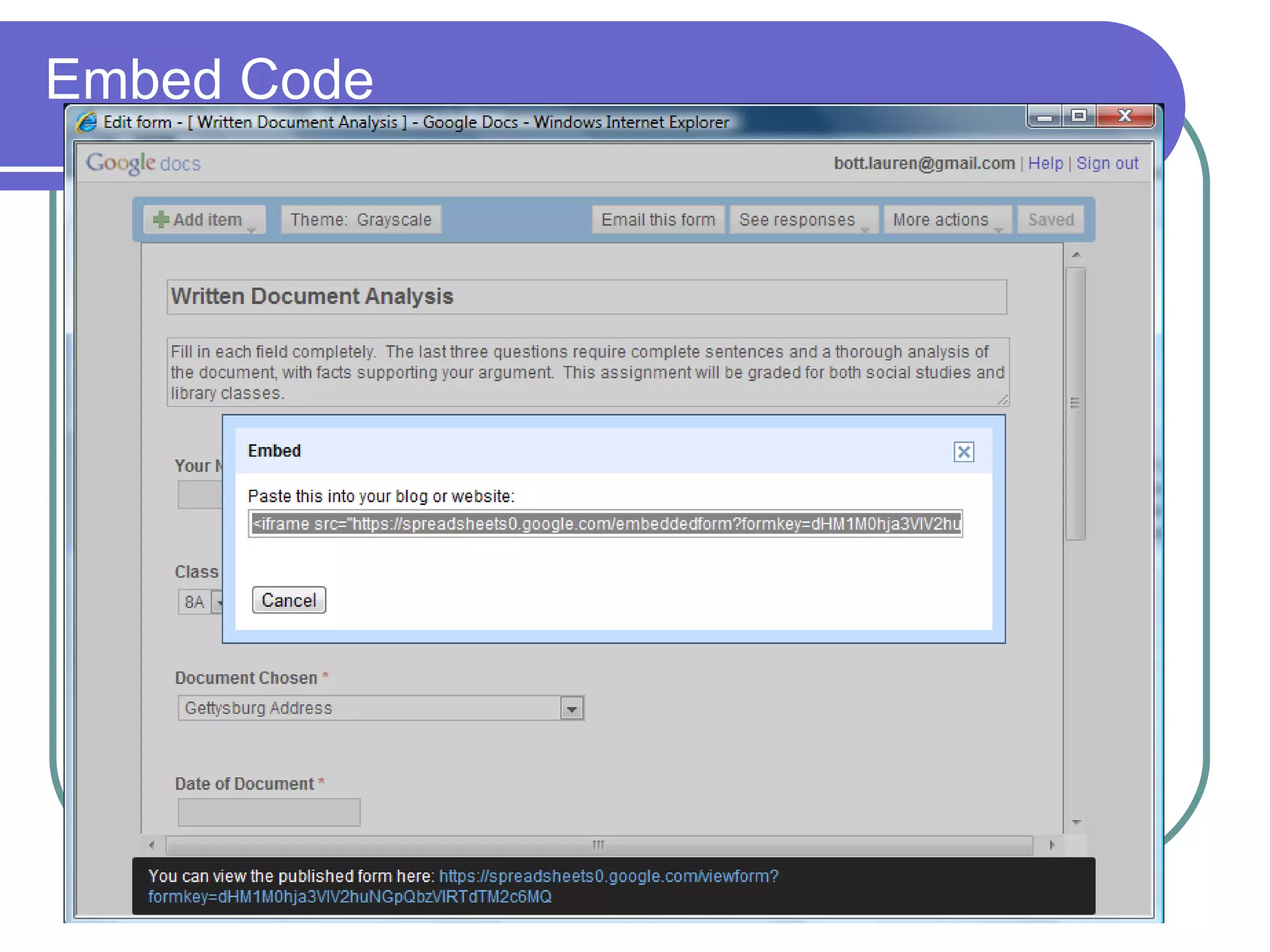
Begin by Creating a Form in GoogleDocs Great for online assignments, surveys Go to docs.google.com and click on Create Form Once finished, you have the option of getting an imbed code Click on Form, Imbed Form on webpage A box appears with a code Copy the code
Embed Code
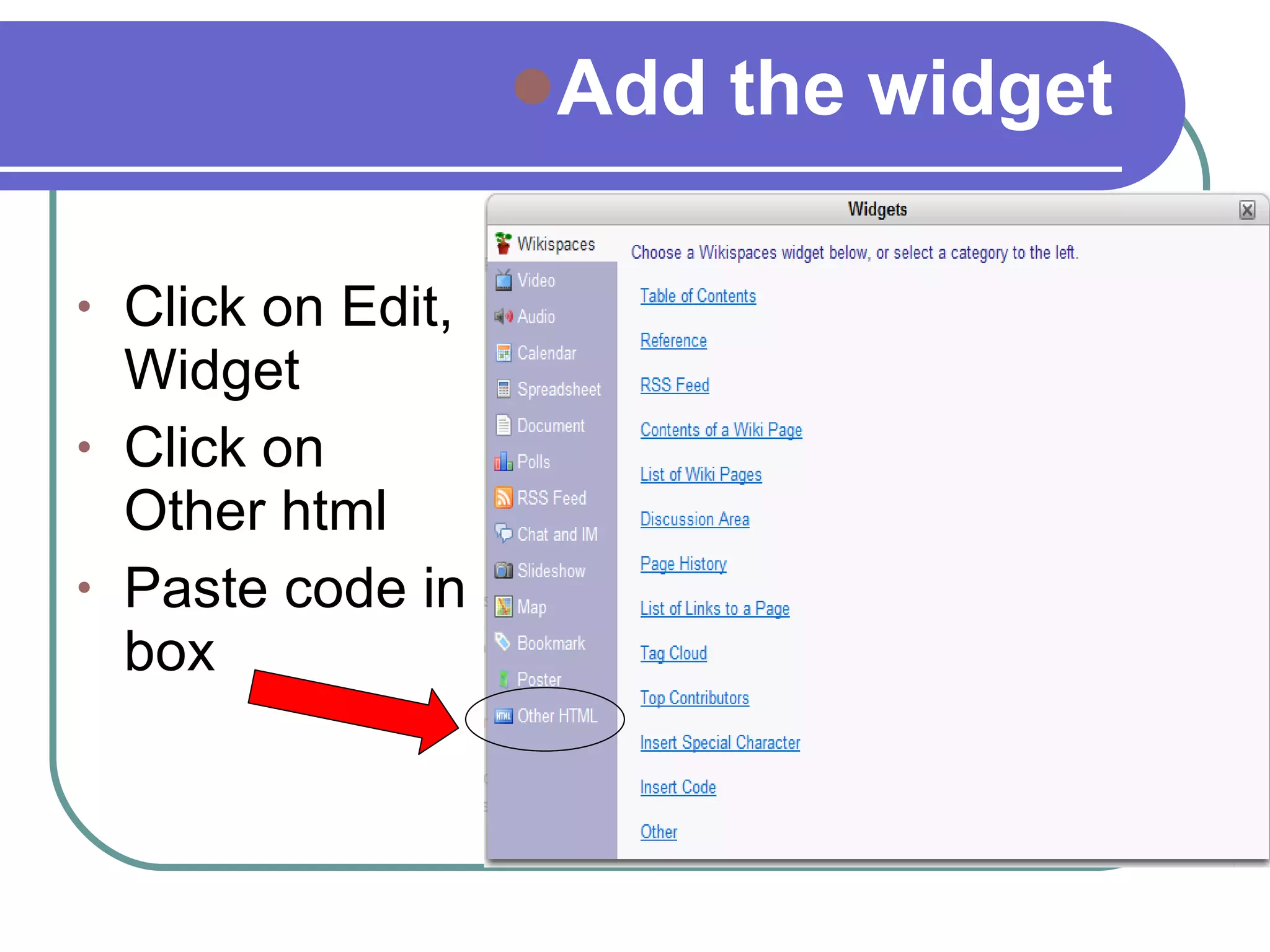
Add the widget Click on Edit, Widget Click on Other html Paste code in box
The form will appear on the wiki Students can answer questions online. All data entered in the form will go into a spreadsheet in GoogleDocs, viewable by you. Another suggested form: AnswerGarden (great for surveys; answers presented in Word Clouds)  http:// bottspot.wikispaces.com /

Wikispaces for the classroom

  • 1.
  • 2.
    Why use wikis?Lesson Summaries Collaboration of Notes Concept Introduction and Exploratory Projects Dissemination of Important Classroom Learning Beyond the Classroom Individual Assessment Projects
  • 3.
    Advantages of usingWikispaces Wikis are free to K – 12 educators using the link http:// www.wikispaces.com /site/for/teachers . Wikis can be edited from anywhere, anytime Assignments can be submitted anytime Communication can continue outside the classroom in a safe environment
  • 4.
    Your Privileges asa Wiki Organizer Setting permissions for the whole wiki Managing wiki members Changing the look and feel Locking pages so no one can edit them Deleting or renaming files and pages Can promote others to organizers as well
  • 5.
    Managing Your WikiLook and feel Permissions Inviting people Pages
  • 6.
  • 7.
    Setting Look andFeel Set the colors and theme of your wiki Upload a custom logo
  • 8.
  • 9.
    Managing Permissions Decidewho can view or edit your wiki Manage permissions for individual wiki pages Under “People” click on “Permissions” “ Private” is the suggested setting
  • 10.
  • 11.
    Inviting Members (withemail) Go to Manage Wiki > Invite People to send an invitation email to the folks who will be collaborating in your wiki. Just type in up to 100 email addresses or Wikispaces usernames, separated by commas or line breaks, and hit Send .
  • 12.
    Inviting Members (w/oemail) If you are a teacher and need to add a whole class’ worth of student accounts, you can do it all at once by going to Manage Wiki > User Creator . You will be able to make accounts for all of your students, even if they don’t have email addresses. Keep in mind that every Wikispaces username must be unique. Try using numbers, or initials, or a first name-last name combination to create unique usernames.
  • 13.
  • 14.
    Select Your Optionsto Invite People
  • 15.
    Look inTools: Set Notifications
  • 16.
    If click onChanges Tab,
  • 17.
    Your main pageis set up. Now what? Think about the pages and links you’d like on your homepage. What will students use the most? What do they need easy access to? What is the purpose of the page, and how can you divide it to make administration easier?
  • 18.
  • 19.
    Add a PageTo add a page, click on New Page in the toolbar. Give the page a title
  • 20.
    Set Page Name,then click Create Step 1 Step 2
  • 21.
    To Put Linkson Homepage Go to bottom of toolbar and click on “Edit Navigation” These should be links that would be used often
  • 22.
    Edit Bar AppearsAdd links to body of page, just below “Include Page List Type name of webpage, highlight, and click “link” Step 1 Step 2
  • 23.
    Editing Your PageOnce you’ve set up your page, you can add: Text Links within text Documents Video Widgets
  • 24.
    Text Click onthe “Edit” tab at the top of the page, and this box will appear Type as you would in Word Font Changes Lists You can always preview your changes and cancel or save
  • 25.
    Links To insertlinks, highlight text Click on Edit, and the Link icon Type the address in the External Link tab Then Click Add Link
  • 26.
    Documents In theedit tab, click on file Type the name of the file you want to upload. It will show up on the screen. Then embed. OR Consider using Slideshare to save documents and slideshows. Use embed code to add.
  • 27.
  • 28.
    Slideshare Set upan free account at Slideshare.net Upload any of your documents or PowerPoint presentations. Slideshare will save them under your account, and give you an embed code. Caution: They will be available to the public.
  • 29.
  • 30.
    Advantages Students canreview presentations and information Students have access to documents at home
  • 31.
    Adding Video Fromvarious sources: TeacherTube, Youtube, Youtube.edu, Google The embed code is located beneath or to the right of the video. Copy it.
  • 32.
  • 33.
    To Insert Video:Click on Edit, Widgets. This box will appear. Click on Video.
  • 34.
    Specify the originallocation of the video by clicking on box.
  • 35.
    Paste the embedcode (this will place video on your webpage) and save Paste code here
  • 36.
    Other Widgets: EmbeddingGoogleDocs Forms
  • 37.
    Begin by Creatinga Form in GoogleDocs Great for online assignments, surveys Go to docs.google.com and click on Create Form Once finished, you have the option of getting an imbed code Click on Form, Imbed Form on webpage A box appears with a code Copy the code
  • 38.
  • 39.
    Add the widgetClick on Edit, Widget Click on Other html Paste code in box
  • 40.
    The form willappear on the wiki Students can answer questions online. All data entered in the form will go into a spreadsheet in GoogleDocs, viewable by you. Another suggested form: AnswerGarden (great for surveys; answers presented in Word Clouds) http:// bottspot.wikispaces.com /