



GETtingSTARTED WITH WikispacesPROF DR. MOHAMED AMIN EMBICentre for Academic Advancement
Step 1Centre for Academic Advancement
Go to:http://www.wikispaces.com/site/for/teachers  Centre for Academic Advancement
Step 2SignUp/Register Centre for Academic Advancement
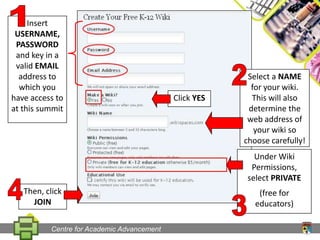
1Insert USERNAME, PASSWORD and key in a valid EMAIL address to which you have access to at this summit2Select a NAME for your wiki. This will also determine the web address of your wiki so choose carefully!Click YESUnder Wiki Permissions, select PRIVATE(free for educators)4Then, click JOIN3Centre for Academic Advancement
Next, you need to access the email account you entered above. Wikispaces will have sent you a confirmation email. Click on the link in that message to confirm your email address.Centre for Academic Advancement
Step 3Start editing WikispacesCentre for Academic Advancement
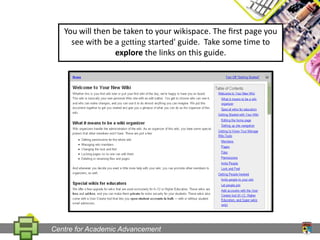
You will then be taken to your wikispace. The first page you see with be a getting started' guide.  Take some time to explore the links on this guide.Centre for Academic Advancement
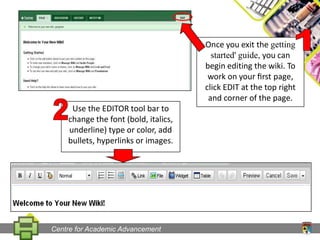
Once you exit the getting started' guide, you can begin editing the wiki. To work on your first page, click EDIT at the top right and corner of the page.12Use the EDITOR tool bar to change the font (bold, italics, underline) type or color, add bullets, hyperlinks or images.Centre for Academic Advancement
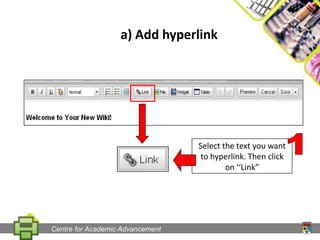
a) Add hyperlinkSelect the text you want to hyperlink. Then click on ‘‘Link”1Centre for Academic Advancement
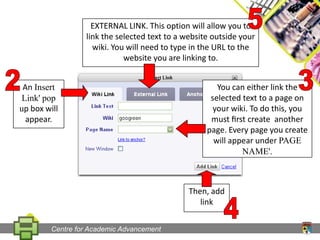
5EXTERNAL LINK. This option will allow you to link the selected text to a website outside your wiki. You will need to type in the URLto the website you are linking to.23An Insert Link' pop up box will appear.You can either link theselected text to a page on your wiki. To do this, you must first create  another page. Every page you create will appear under PAGE NAME'.Then, add link4Centre for Academic Advancement
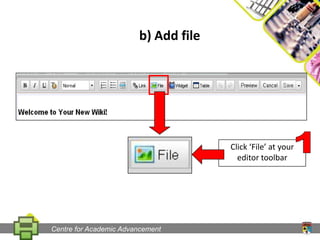
b) Add fileClick ‘File’ at your editor toolbar1Centre for Academic Advancement
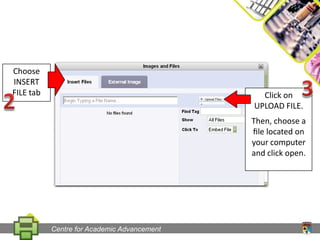
Choose INSERT FILE tab32Click on UPLOAD FILE.Then, choose a file located on your computer and click open.Centre for Academic Advancement
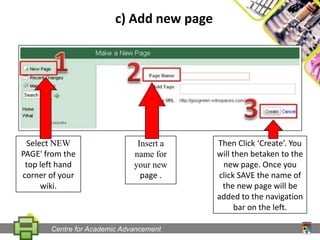
c) Add new pageSelect NEW PAGE' from the top left hand corner of your wiki.Insert a name for your new page .Then Click ‘Create’. You will then betaken to the new page. Once you click SAVE the name of the new page will be added to the navigation bar on the left.Centre for Academic Advancement
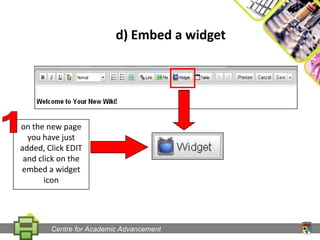
d) Embed a widget1on the new page you have just added, Click EDIT and click on the embed a widget iconCentre for Academic Advancement
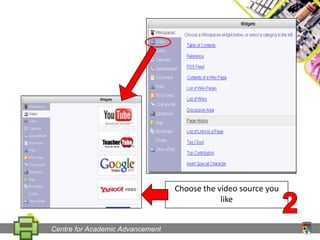
Choose the video source you like2Centre for Academic Advancement
Step 4Discussion boardCentre for Academic Advancement
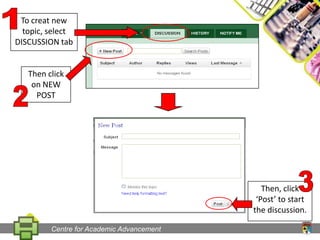
1To creat new topic, select DISCUSSION tabThen click on NEW POST23Then, click ‘Post’ to start the discussion.Centre for Academic Advancement
Step 5Add and manage membersCentre for Academic Advancement
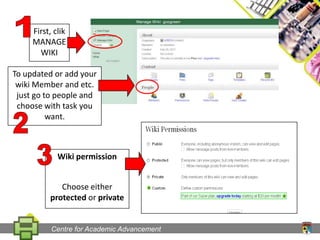
1First, clik MANAGE WIKITo updated or add your wiki Member and etc. just go to people and choose with task you want.23Wiki permissionChoose either  protected or privateCentre for Academic Advancement
The endCentre for Academic Advancement

Getting started with wikispaces

  • 1.
    GETtingSTARTED WITH WikispacesPROFDR. MOHAMED AMIN EMBICentre for Academic Advancement
  • 2.
    Step 1Centre forAcademic Advancement
  • 3.
  • 4.
    Step 2SignUp/Register Centrefor Academic Advancement
  • 5.
    1Insert USERNAME, PASSWORDand key in a valid EMAIL address to which you have access to at this summit2Select a NAME for your wiki. This will also determine the web address of your wiki so choose carefully!Click YESUnder Wiki Permissions, select PRIVATE(free for educators)4Then, click JOIN3Centre for Academic Advancement
  • 6.
    Next, you needto access the email account you entered above. Wikispaces will have sent you a confirmation email. Click on the link in that message to confirm your email address.Centre for Academic Advancement
  • 7.
    Step 3Start editingWikispacesCentre for Academic Advancement
  • 8.
    You will thenbe taken to your wikispace. The first page you see with be a getting started' guide. Take some time to explore the links on this guide.Centre for Academic Advancement
  • 9.
    Once you exitthe getting started' guide, you can begin editing the wiki. To work on your first page, click EDIT at the top right and corner of the page.12Use the EDITOR tool bar to change the font (bold, italics, underline) type or color, add bullets, hyperlinks or images.Centre for Academic Advancement
  • 10.
    a) Add hyperlinkSelectthe text you want to hyperlink. Then click on ‘‘Link”1Centre for Academic Advancement
  • 11.
    5EXTERNAL LINK. Thisoption will allow you to link the selected text to a website outside your wiki. You will need to type in the URLto the website you are linking to.23An Insert Link' pop up box will appear.You can either link theselected text to a page on your wiki. To do this, you must first create another page. Every page you create will appear under PAGE NAME'.Then, add link4Centre for Academic Advancement
  • 12.
    b) Add fileClick‘File’ at your editor toolbar1Centre for Academic Advancement
  • 13.
    Choose INSERT FILEtab32Click on UPLOAD FILE.Then, choose a file located on your computer and click open.Centre for Academic Advancement
  • 14.
    c) Add newpageSelect NEW PAGE' from the top left hand corner of your wiki.Insert a name for your new page .Then Click ‘Create’. You will then betaken to the new page. Once you click SAVE the name of the new page will be added to the navigation bar on the left.Centre for Academic Advancement
  • 15.
    d) Embed awidget1on the new page you have just added, Click EDIT and click on the embed a widget iconCentre for Academic Advancement
  • 16.
    Choose the videosource you like2Centre for Academic Advancement
  • 17.
    Step 4Discussion boardCentrefor Academic Advancement
  • 18.
    1To creat newtopic, select DISCUSSION tabThen click on NEW POST23Then, click ‘Post’ to start the discussion.Centre for Academic Advancement
  • 19.
    Step 5Add andmanage membersCentre for Academic Advancement
  • 20.
    1First, clik MANAGEWIKITo updated or add your wiki Member and etc. just go to people and choose with task you want.23Wiki permissionChoose either protected or privateCentre for Academic Advancement
  • 21.
    The endCentre forAcademic Advancement