How to embed videos, insert files and images and hyperlink using a Wikispaces wiki
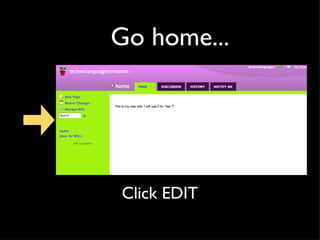
Go home... Click EDIT
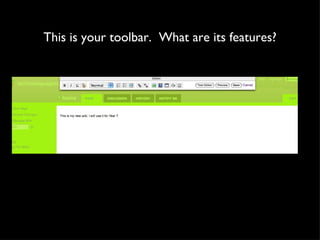
This is your toolbar.  What are its features?
The basics.... Bold Italic Underline Change font size and colour Numbered lists and bulleted lists Add a line
The rest... Create and break hyperlink Insert Images and Files Embed Widget Insert Table   The last two are ‘Insert Special Character’ and ‘Insert Code’
Now we will embed a video into your wiki For this, you will need the ‘Embed Widget’ button, but before you press it.... WIDGET: a third party item that can be embedded into a webpage EMBED: to take something from one website and place it into another
Step 1: Find a video! Go to  www.teachertube.com Search ‘Did You Know’
Step 2: Locate the ‘embed code’ and copy it
Step 3: go back to your wiki page, open it for editing, then click on the Embed Widget button
Step 4:  Click ‘Video’
Step 5: Click ‘Teacher Tube’
Step 6: Paste embed code in box then click ‘save’
You should see something like this: You can write text above or below it, change it’s alignment etc.  Step 7: When you’re done, click SAVE
You should see your video on your page
For this next step you will need a file (wod document) saved to your computer. You can create one now. Find an image from the internet and save it to your desktop.
Now for images and files: Step 1: Open your page for editing again and click on the ‘Insert Images and Files’ button on the toolbar:
Step 2: Click on the ‘Upload Files’ tab
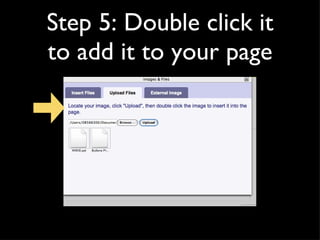
Step 3: Click ‘Browse’ to find your file on your computer
Step 4:  When you have your file, click ‘Upload’
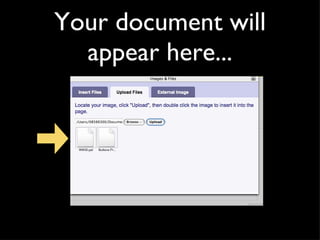
Your document will appear here...
Step 5: Double click it to add it to your page
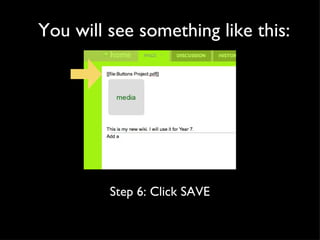
You will see something like this:  Step 6: Click SAVE
Then you will see something like this:
Now, try the same process with an image TIP:  You may need to resize your image once you have inserted it into your wiki. You can do this by dragging the corners of the image inwards.
You should get something like this:
TIP: Once you have uploaded an image or document to your wiki, it stays there. That means if you want to add it to another page on the wiki, you don’t need to upload it again. Just click in ‘Insert Images and Files’ and double click on the file you want to insert.
Don’t forget: You can add text above or below you image or file and you can change the alignment of it too - whether you want it on the left, right or in the middle.
Hyperlinking (linking to another page) Step 1: Open your page up for editing again, type the words ‘Year 7,’ then highlight them:
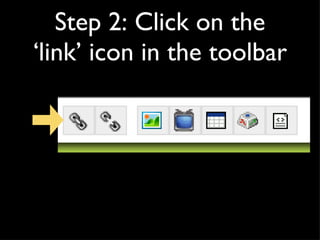
Step 2: Click on the ‘link’ icon in the toolbar
You have two options. You can create a new page, or choose one that already exists  Step 3: This time we will be creating a new page, so make sure the page name is there - it should say ‘Year 7.’
Step 4: Click ‘Add Link’
You should see something like this: Step 5: Click SAVE
Now try clicking on the link you created:
It will take you to a new page that you can edit. But note that it doesn’t show up in your side bar. It is part of your front page rather than part of your contents. Sidebar
Hyperlinking(linking to another website) Step 1: Open your page for editing, type the word ‘Slideshare,’ then highlight it
Step 2: Click on the ‘link’ icon in the toolbar
Step 3: Choose the ‘External Link’ tab - because this time we are linking to an external site
Step 4: type  www.slideshare.net  into the address box, then click ‘Add Link’
You should see something like this:  Note the little green arrow next to the link. This means it is going out of the wiki to another site.
Step 5: Click ‘save’ then click on the link to see where it takes you... Click Me!
Slideshare is a great site for uploading powerpoints and then embedding them in your wiki, just like a video.
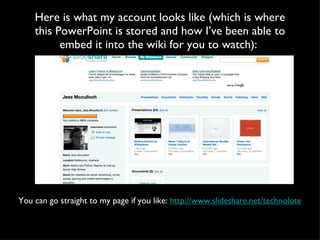
Here is what my account looks like (which is where this PowerPoint is stored and how I’ve been able to embed it into the wiki for you to watch):  You can go straight to my page if you like:  http://www.slideshare.net/technolote
Can you find the embed code on this page?

Embedding, Inserting and Linking on Wikispaces

  • 1.
    How to embedvideos, insert files and images and hyperlink using a Wikispaces wiki
  • 2.
  • 3.
    This is yourtoolbar. What are its features?
  • 4.
    The basics.... BoldItalic Underline Change font size and colour Numbered lists and bulleted lists Add a line
  • 5.
    The rest... Createand break hyperlink Insert Images and Files Embed Widget Insert Table The last two are ‘Insert Special Character’ and ‘Insert Code’
  • 6.
    Now we willembed a video into your wiki For this, you will need the ‘Embed Widget’ button, but before you press it.... WIDGET: a third party item that can be embedded into a webpage EMBED: to take something from one website and place it into another
  • 7.
    Step 1: Finda video! Go to www.teachertube.com Search ‘Did You Know’
  • 8.
    Step 2: Locatethe ‘embed code’ and copy it
  • 9.
    Step 3: goback to your wiki page, open it for editing, then click on the Embed Widget button
  • 10.
    Step 4: Click ‘Video’
  • 11.
    Step 5: Click‘Teacher Tube’
  • 12.
    Step 6: Pasteembed code in box then click ‘save’
  • 13.
    You should seesomething like this: You can write text above or below it, change it’s alignment etc. Step 7: When you’re done, click SAVE
  • 14.
    You should seeyour video on your page
  • 15.
    For this nextstep you will need a file (wod document) saved to your computer. You can create one now. Find an image from the internet and save it to your desktop.
  • 16.
    Now for imagesand files: Step 1: Open your page for editing again and click on the ‘Insert Images and Files’ button on the toolbar:
  • 17.
    Step 2: Clickon the ‘Upload Files’ tab
  • 18.
    Step 3: Click‘Browse’ to find your file on your computer
  • 19.
    Step 4: When you have your file, click ‘Upload’
  • 20.
    Your document willappear here...
  • 21.
    Step 5: Doubleclick it to add it to your page
  • 22.
    You will seesomething like this: Step 6: Click SAVE
  • 23.
    Then you willsee something like this:
  • 24.
    Now, try thesame process with an image TIP: You may need to resize your image once you have inserted it into your wiki. You can do this by dragging the corners of the image inwards.
  • 25.
    You should getsomething like this:
  • 26.
    TIP: Once youhave uploaded an image or document to your wiki, it stays there. That means if you want to add it to another page on the wiki, you don’t need to upload it again. Just click in ‘Insert Images and Files’ and double click on the file you want to insert.
  • 27.
    Don’t forget: Youcan add text above or below you image or file and you can change the alignment of it too - whether you want it on the left, right or in the middle.
  • 28.
    Hyperlinking (linking toanother page) Step 1: Open your page up for editing again, type the words ‘Year 7,’ then highlight them:
  • 29.
    Step 2: Clickon the ‘link’ icon in the toolbar
  • 30.
    You have twooptions. You can create a new page, or choose one that already exists Step 3: This time we will be creating a new page, so make sure the page name is there - it should say ‘Year 7.’
  • 31.
    Step 4: Click‘Add Link’
  • 32.
    You should seesomething like this: Step 5: Click SAVE
  • 33.
    Now try clickingon the link you created:
  • 34.
    It will takeyou to a new page that you can edit. But note that it doesn’t show up in your side bar. It is part of your front page rather than part of your contents. Sidebar
  • 35.
    Hyperlinking(linking to anotherwebsite) Step 1: Open your page for editing, type the word ‘Slideshare,’ then highlight it
  • 36.
    Step 2: Clickon the ‘link’ icon in the toolbar
  • 37.
    Step 3: Choosethe ‘External Link’ tab - because this time we are linking to an external site
  • 38.
    Step 4: type www.slideshare.net into the address box, then click ‘Add Link’
  • 39.
    You should seesomething like this: Note the little green arrow next to the link. This means it is going out of the wiki to another site.
  • 40.
    Step 5: Click‘save’ then click on the link to see where it takes you... Click Me!
  • 41.
    Slideshare is agreat site for uploading powerpoints and then embedding them in your wiki, just like a video.
  • 42.
    Here is whatmy account looks like (which is where this PowerPoint is stored and how I’ve been able to embed it into the wiki for you to watch): You can go straight to my page if you like: http://www.slideshare.net/technolote
  • 43.
    Can you findthe embed code on this page?