Basic Wiki
Jacqui Sharp

updated January 2014
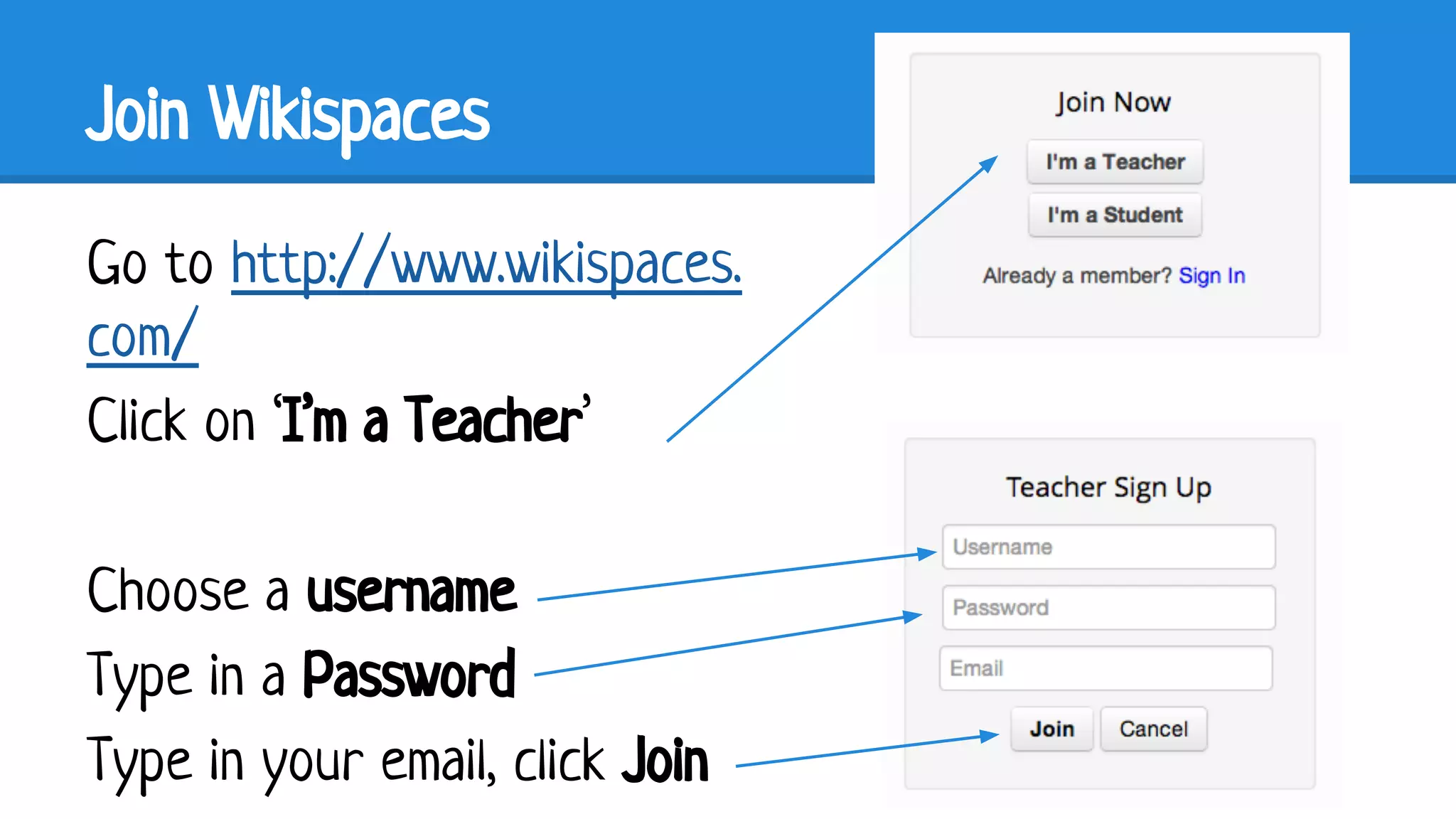
Join Wikispaces
Go to http://www.wikispaces.
com/
Click on ‘I’m a Teacher’
Choose a username
Type in a Password
Type in your email, click Join
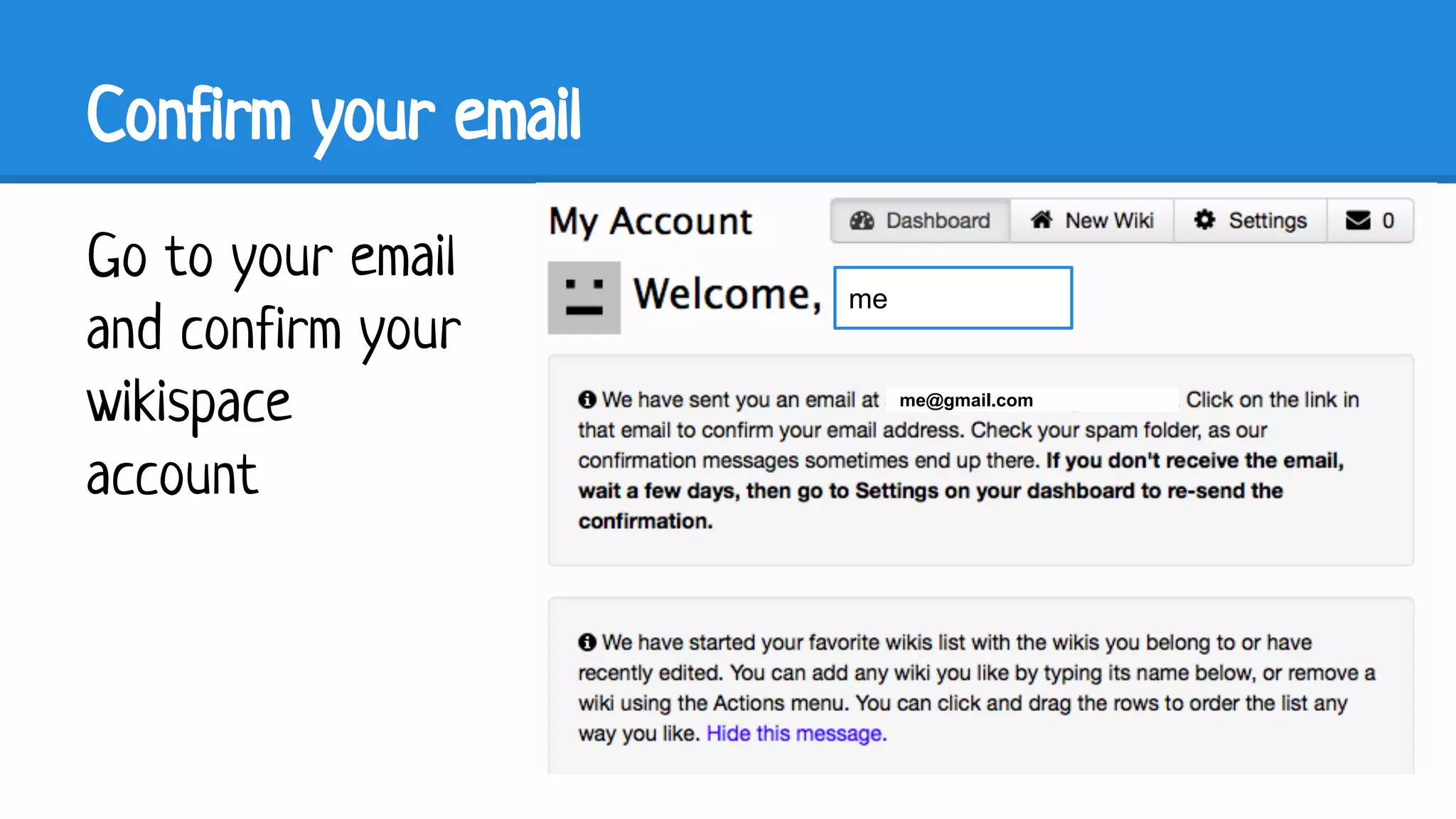
Confirm your email
Go to your email
and confirm your
wikispace
account

me

me@gmail.com
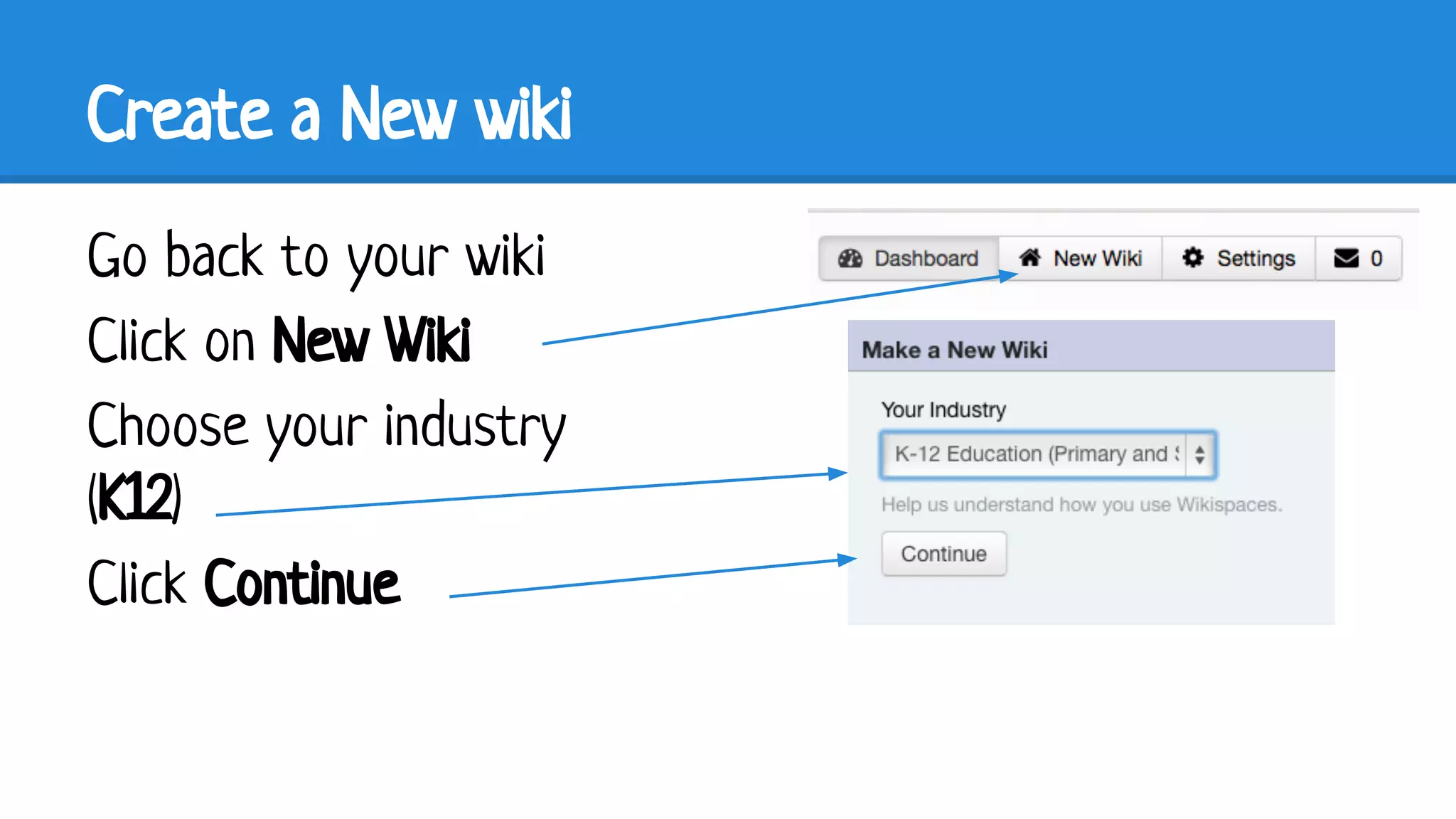
Create a New wiki
Go back to your wiki
Click on New Wiki
Choose your industry
(K12)
Click Continue
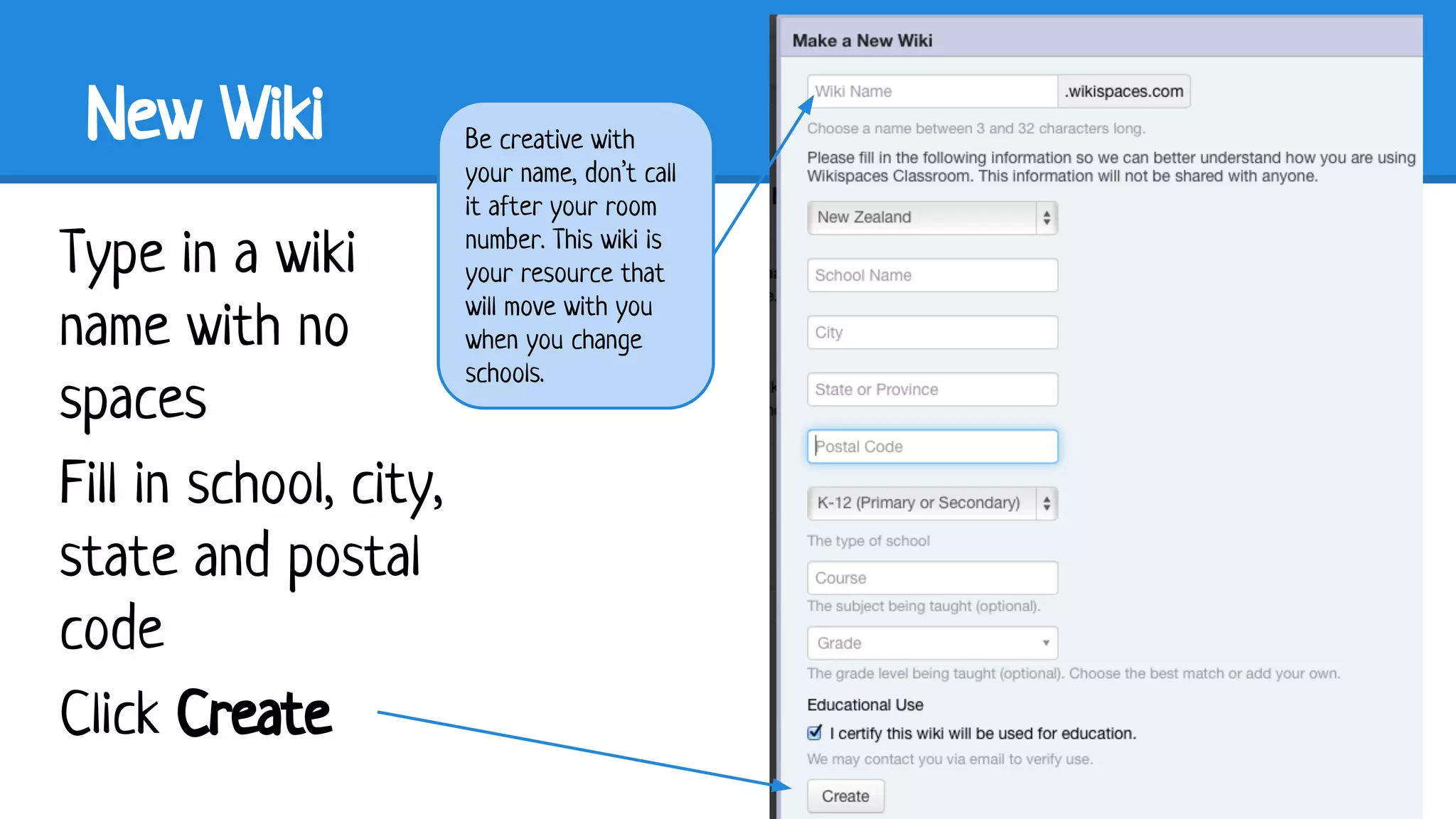
New Wiki
Type in a wiki
name with no
spaces
Fill in school, city,
state and postal
code
Click Create

Be creative with
your name, don’t call
it after your room
number. This wiki is
your resource that
will move with you
when you change
schools.
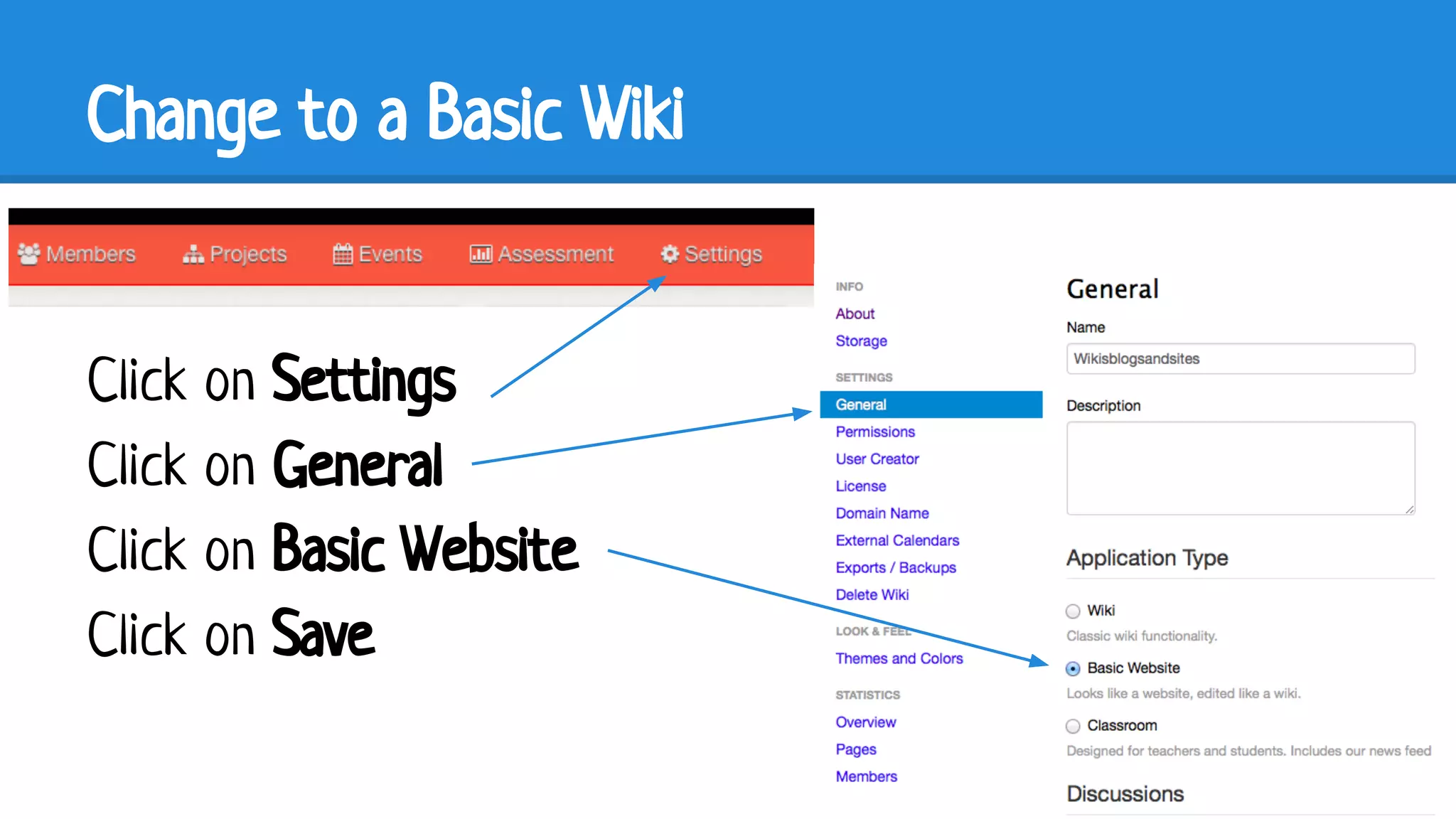
Change to a Basic Wiki

Click on Settings
Click on General
Click on Basic Website
Click on Save
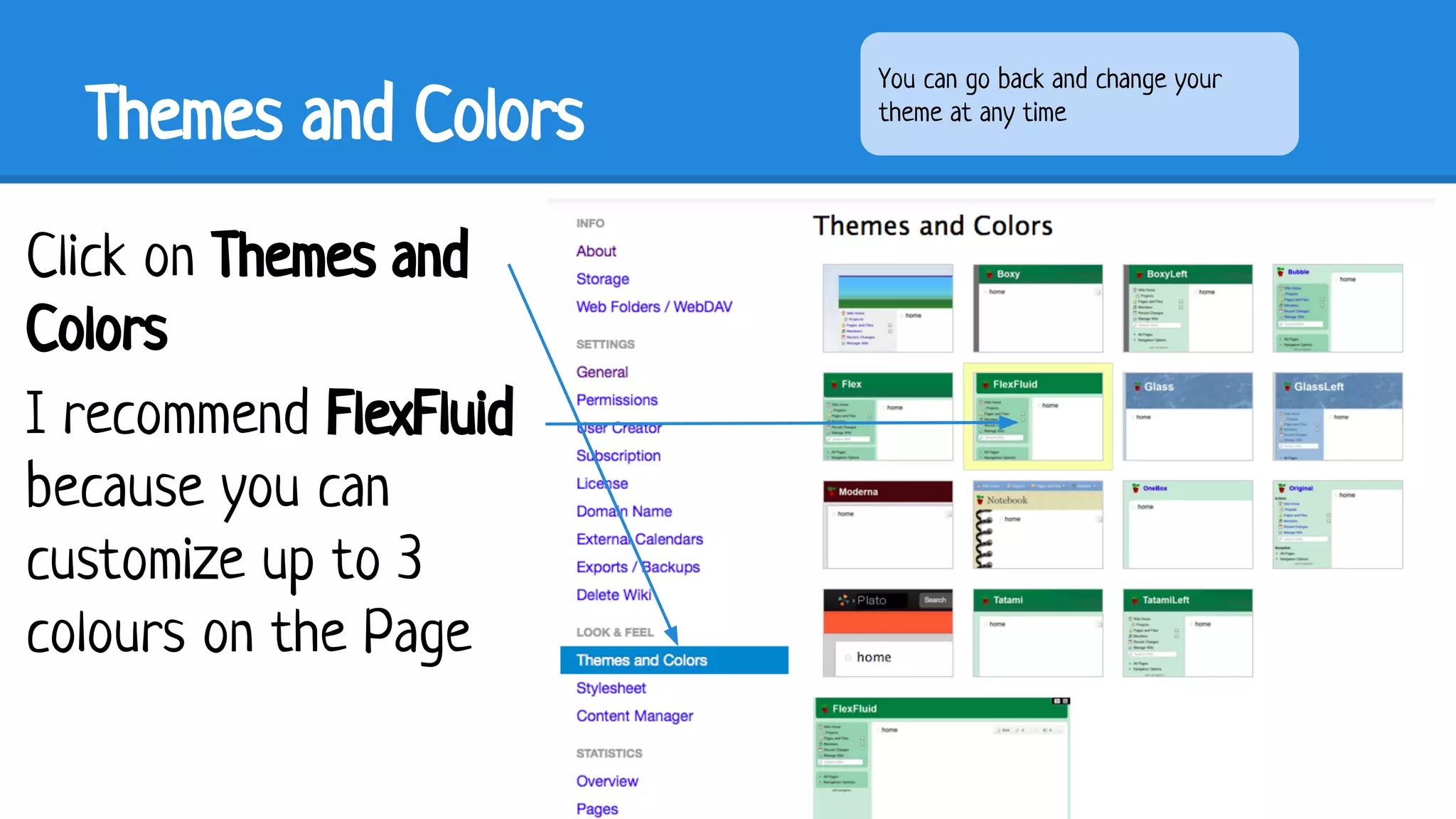
Themes and Colors
Click on Themes and
Colors
I recommend FlexFluid
because you can
customize up to 3
colours on the Page

You can go back and change your
theme at any time
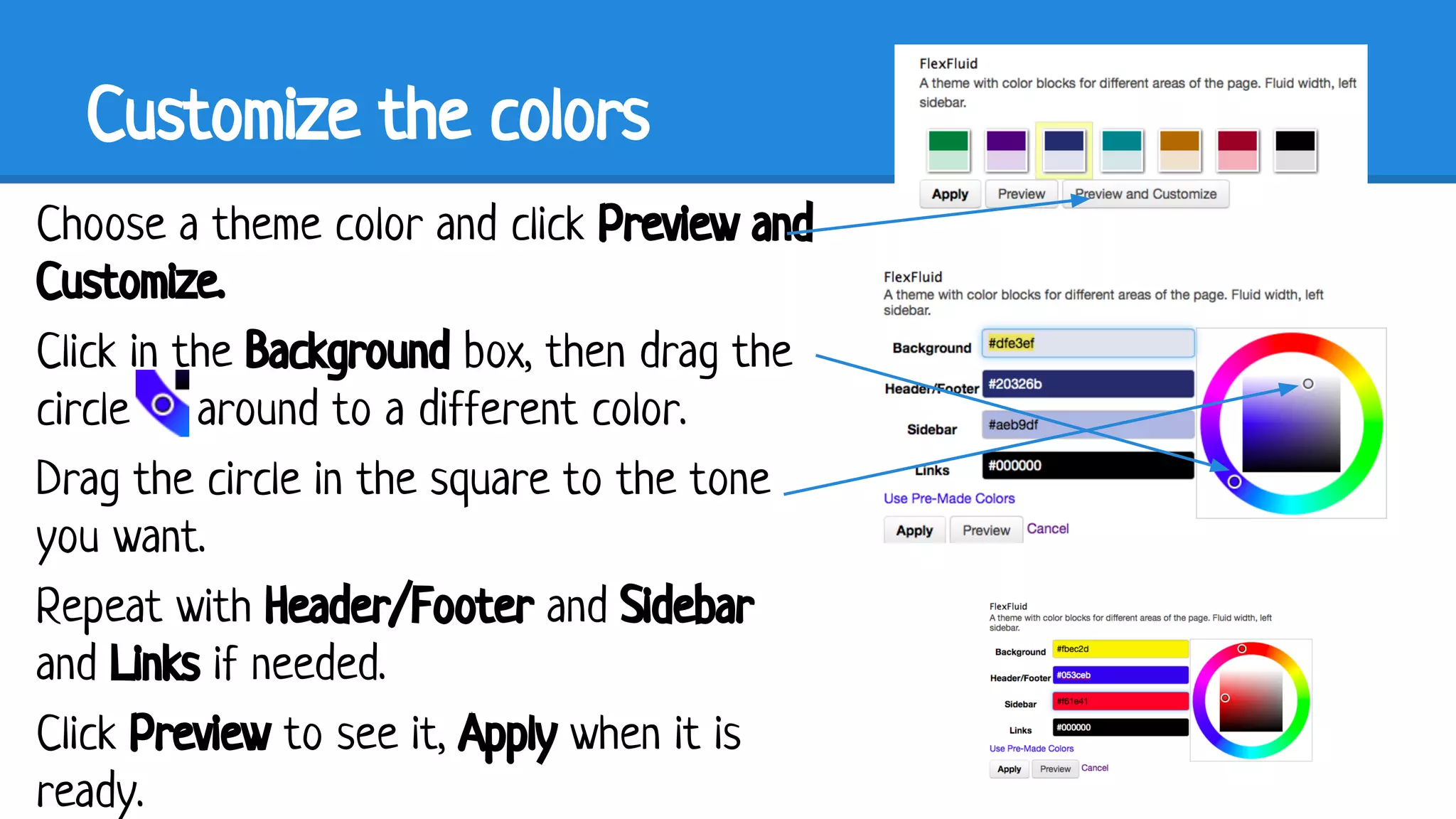
Customize the colors
Choose a theme color and click Preview and
Customize.
Click in the Background box, then drag the
circle around to a different color.
Drag the circle in the square to the tone
you want.
Repeat with Header/Footer and Sidebar
and Links if needed.
Click Preview to see it, Apply when it is
ready.
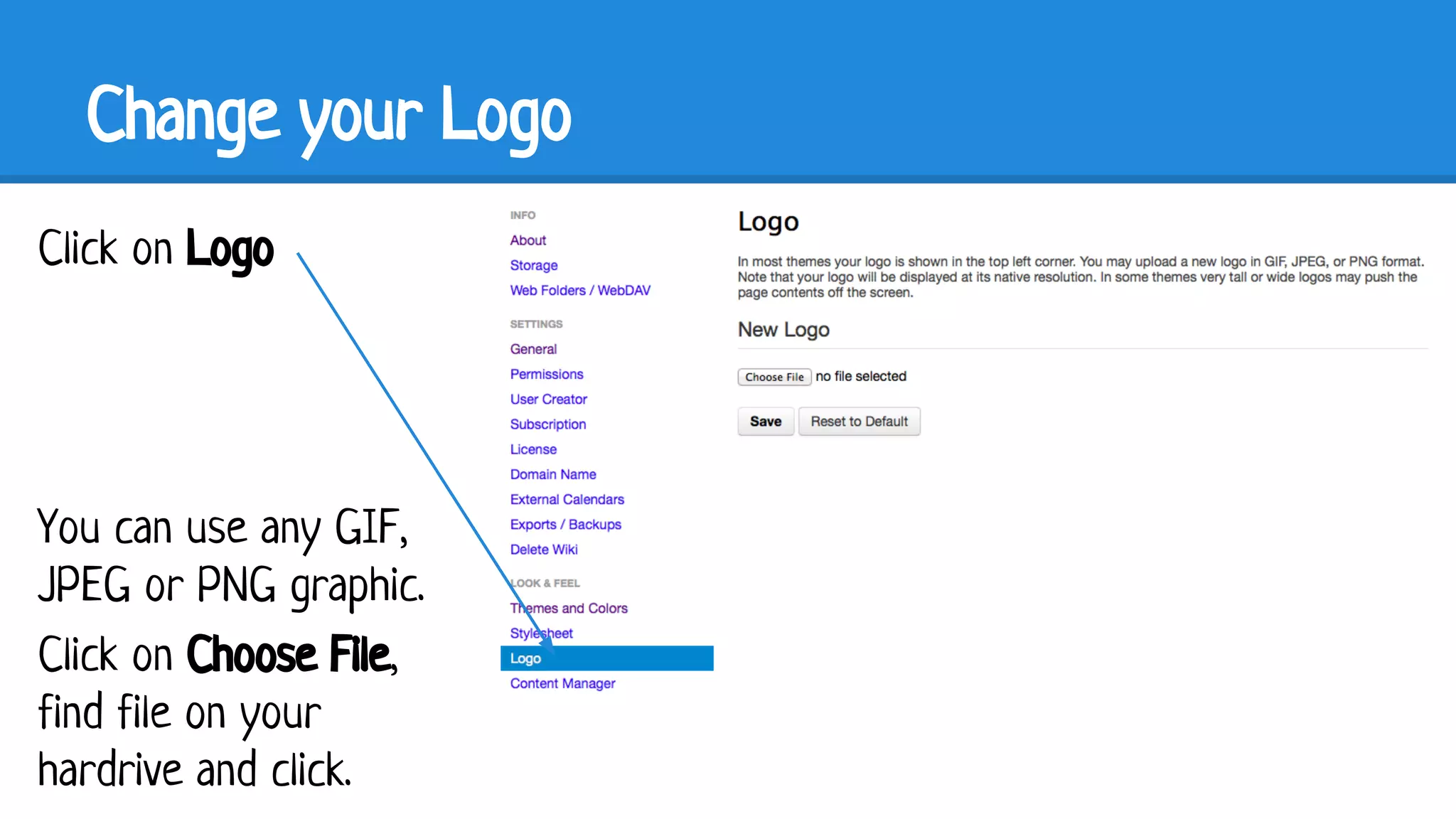
Change your Logo
Click on Logo

You can use any GIF,
JPEG or PNG graphic.
Click on Choose File,
find file on your
hardrive and click.
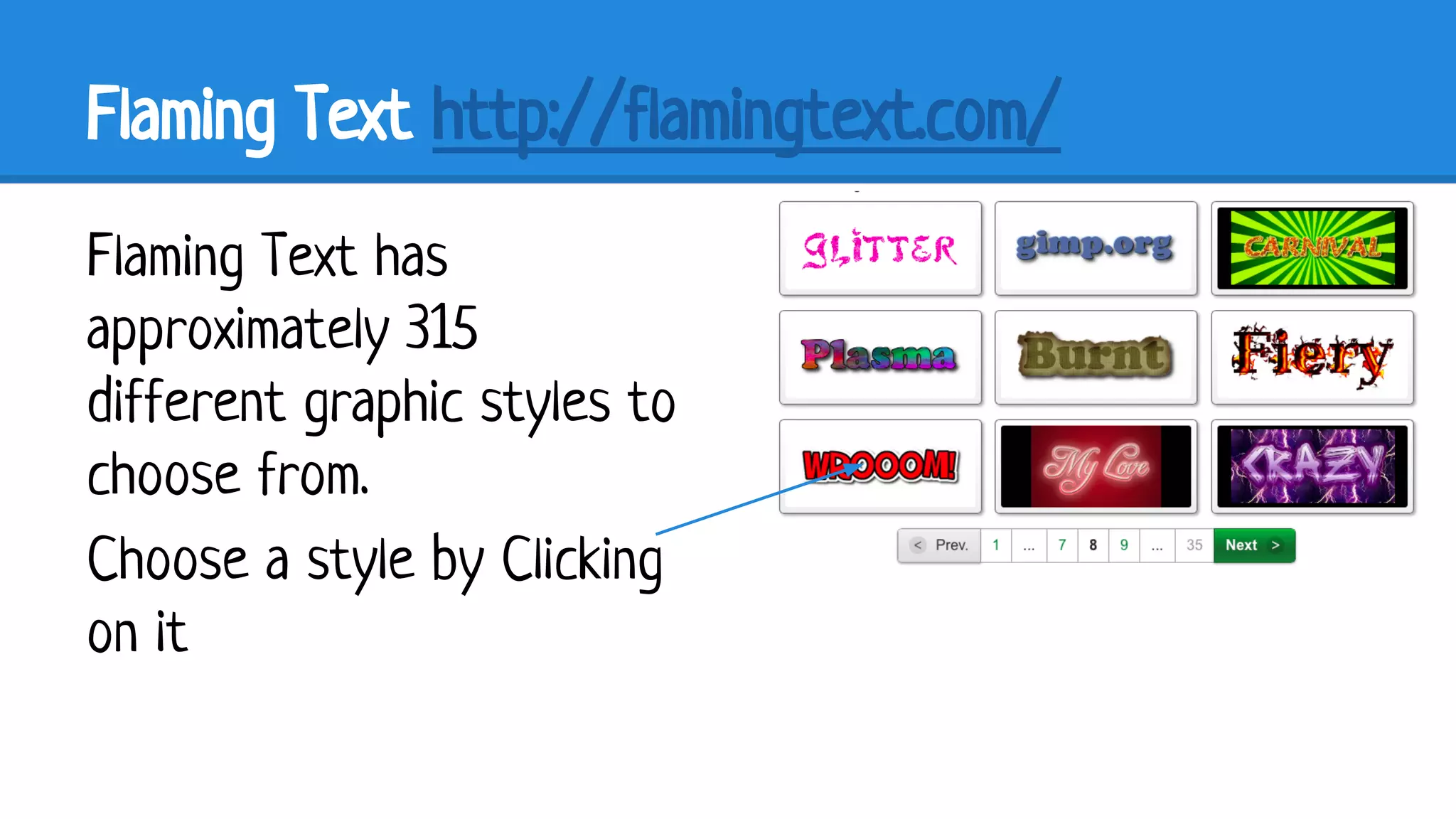
Flaming Text http://flamingtext.com/
Flaming Text has
approximately 315
different graphic styles to
choose from.
Choose a style by Clicking
on it
Flaming Text
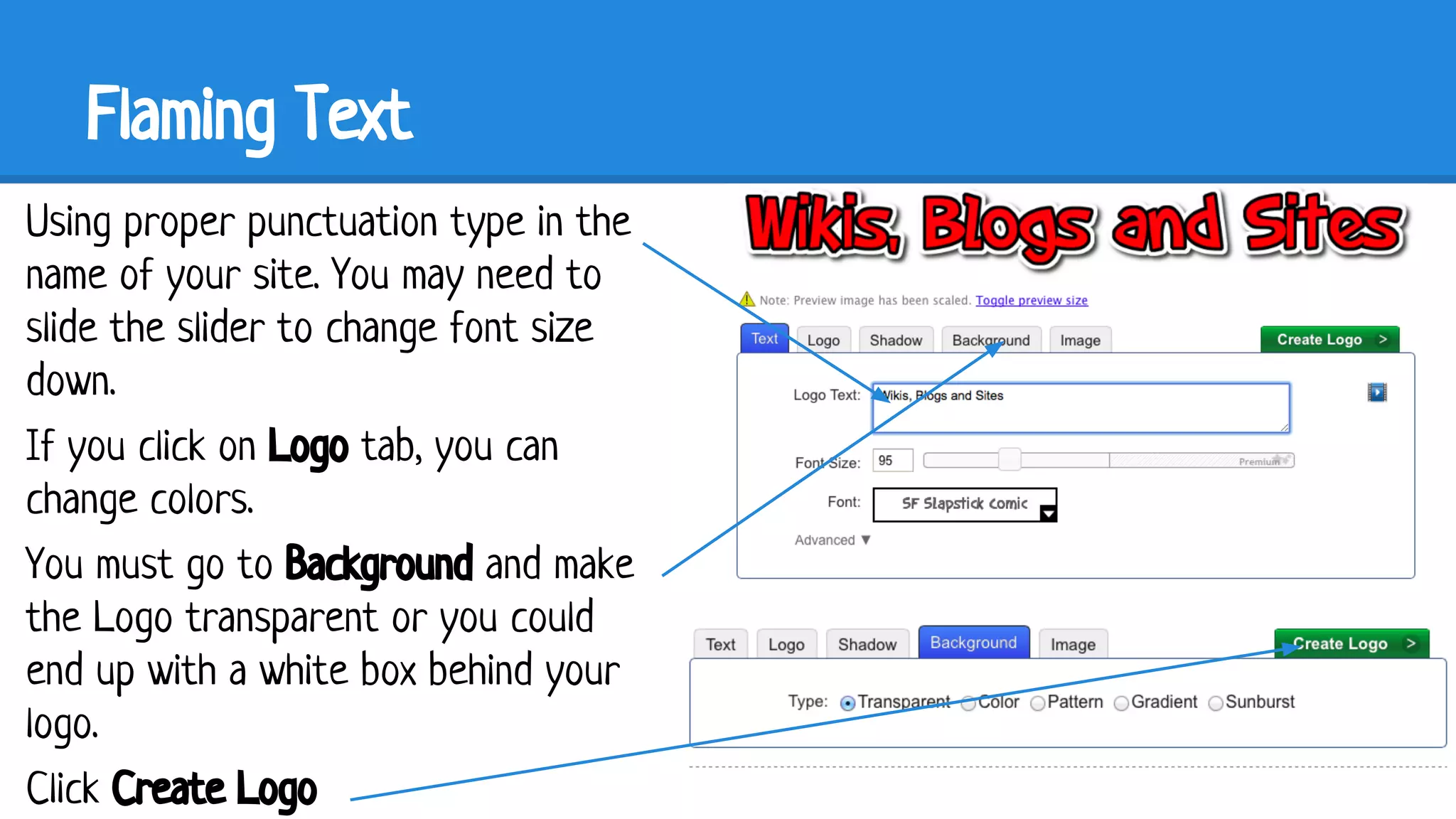
Using proper punctuation type in the
name of your site. You may need to
slide the slider to change font size
down.
If you click on Logo tab, you can
change colors.
You must go to Background and make
the Logo transparent or you could
end up with a white box behind your
logo.
Click Create Logo
Flaming Text
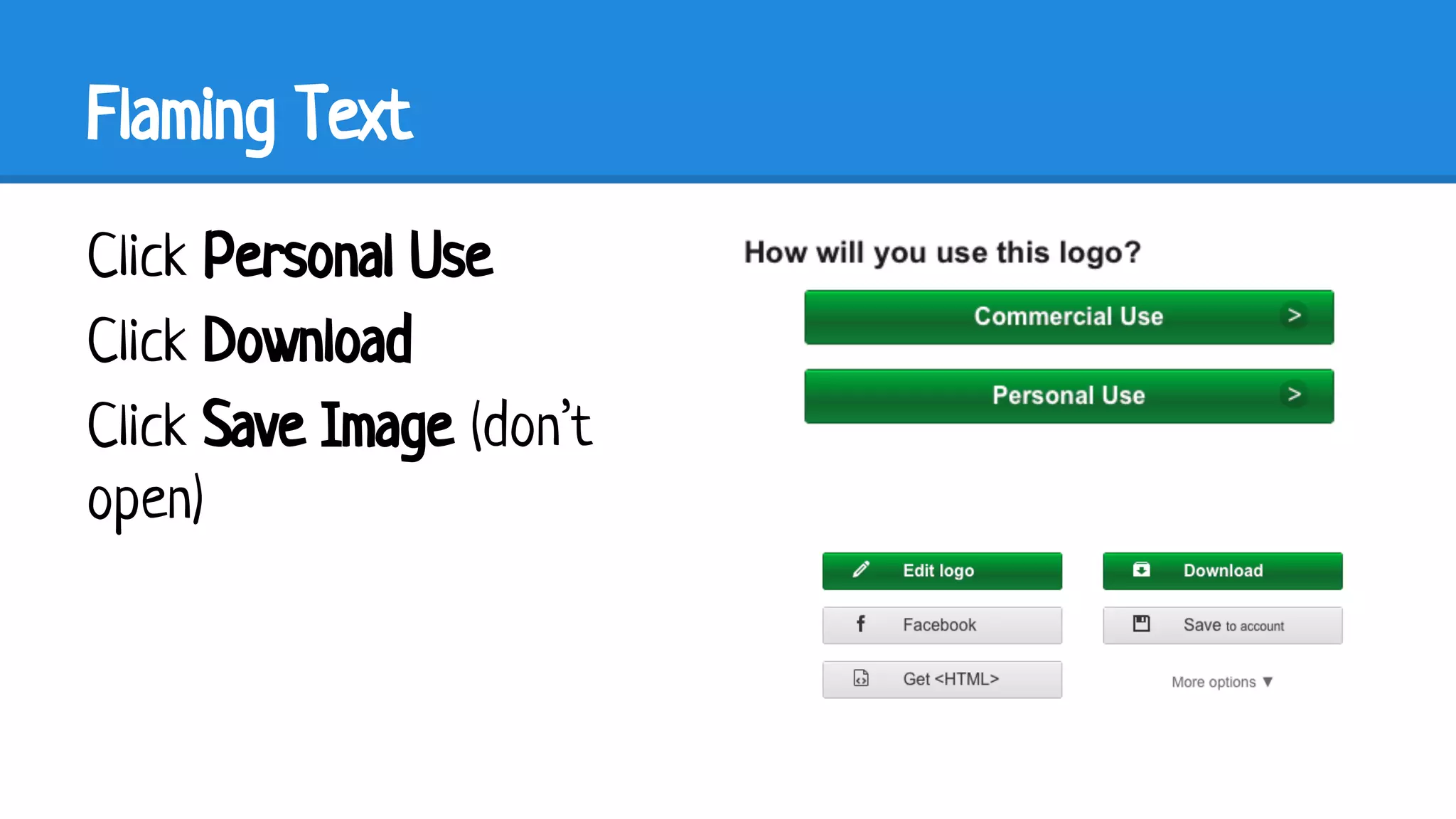
Click Personal Use
Click Download
Click Save Image (don’t
open)
Change your Logo on wiki
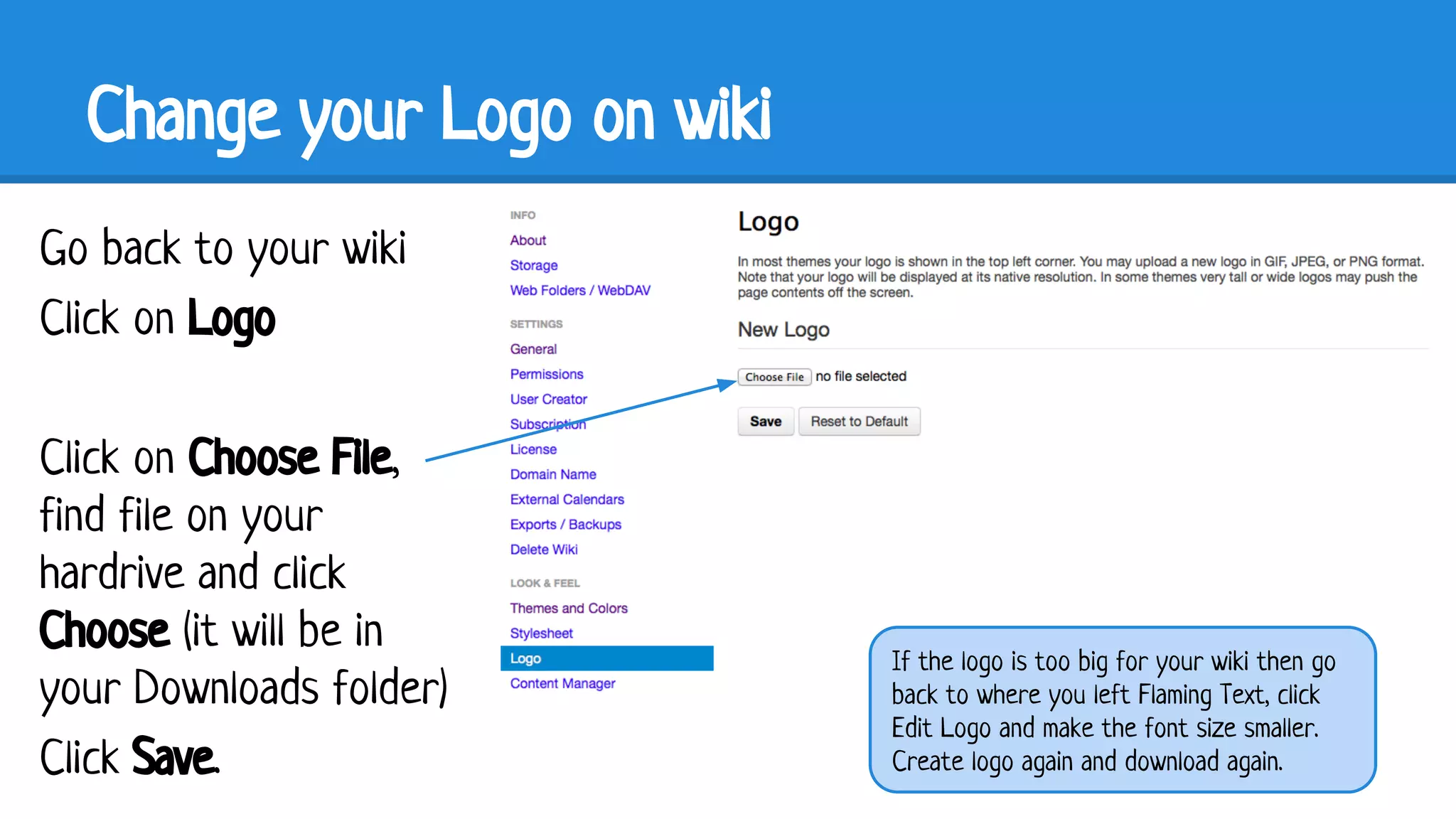
Go back to your wiki
Click on Logo
Click on Choose File,
find file on your
hardrive and click
Choose (it will be in
your Downloads folder)
Click Save.

If the logo is too big for your wiki then go
back to where you left Flaming Text, click
Edit Logo and make the font size smaller.
Create logo again and download again.
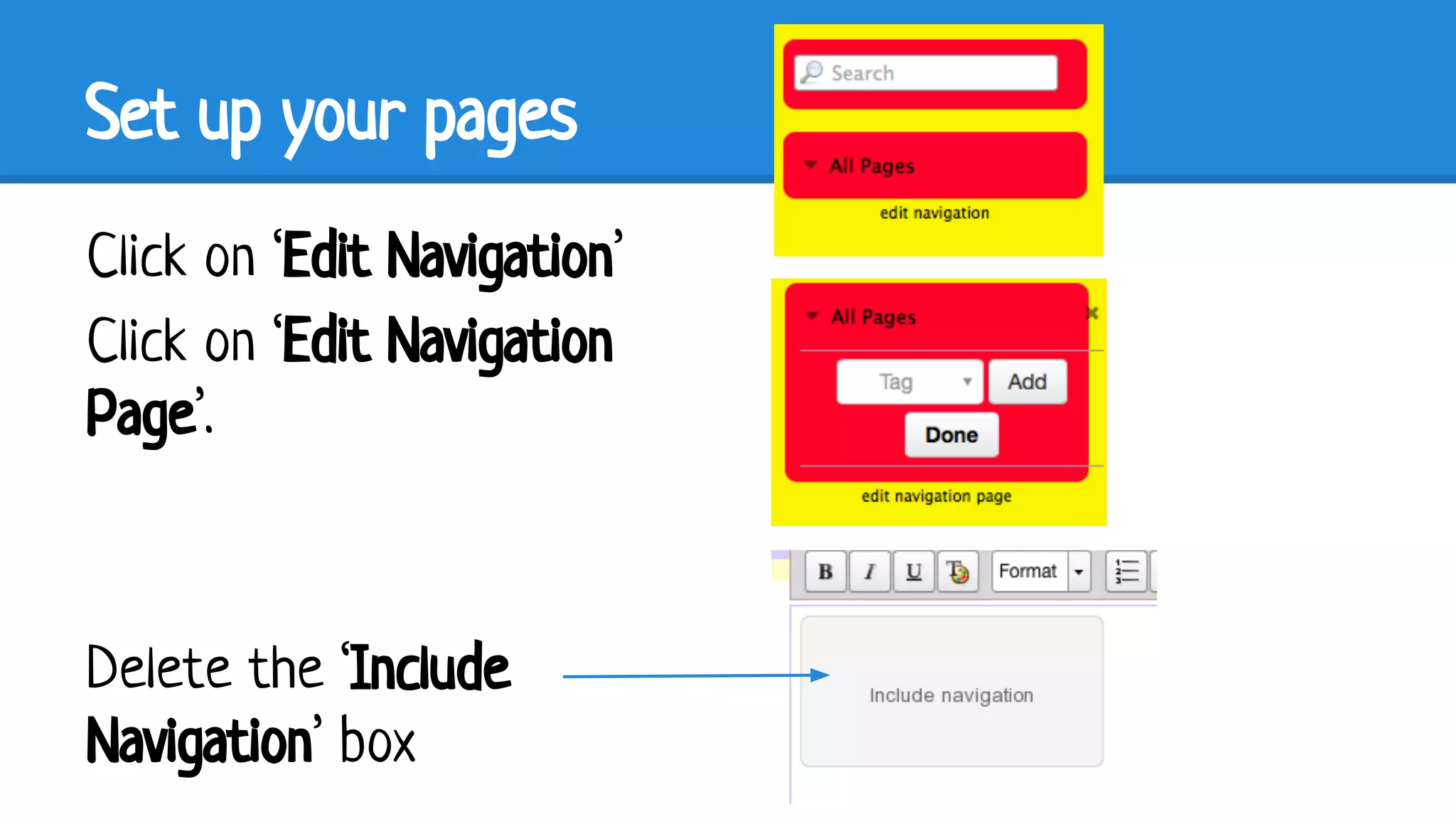
Set up your pages
Click on ‘Edit Navigation’
Click on ‘Edit Navigation
Page’.

Delete the ‘Include
Navigation’ box
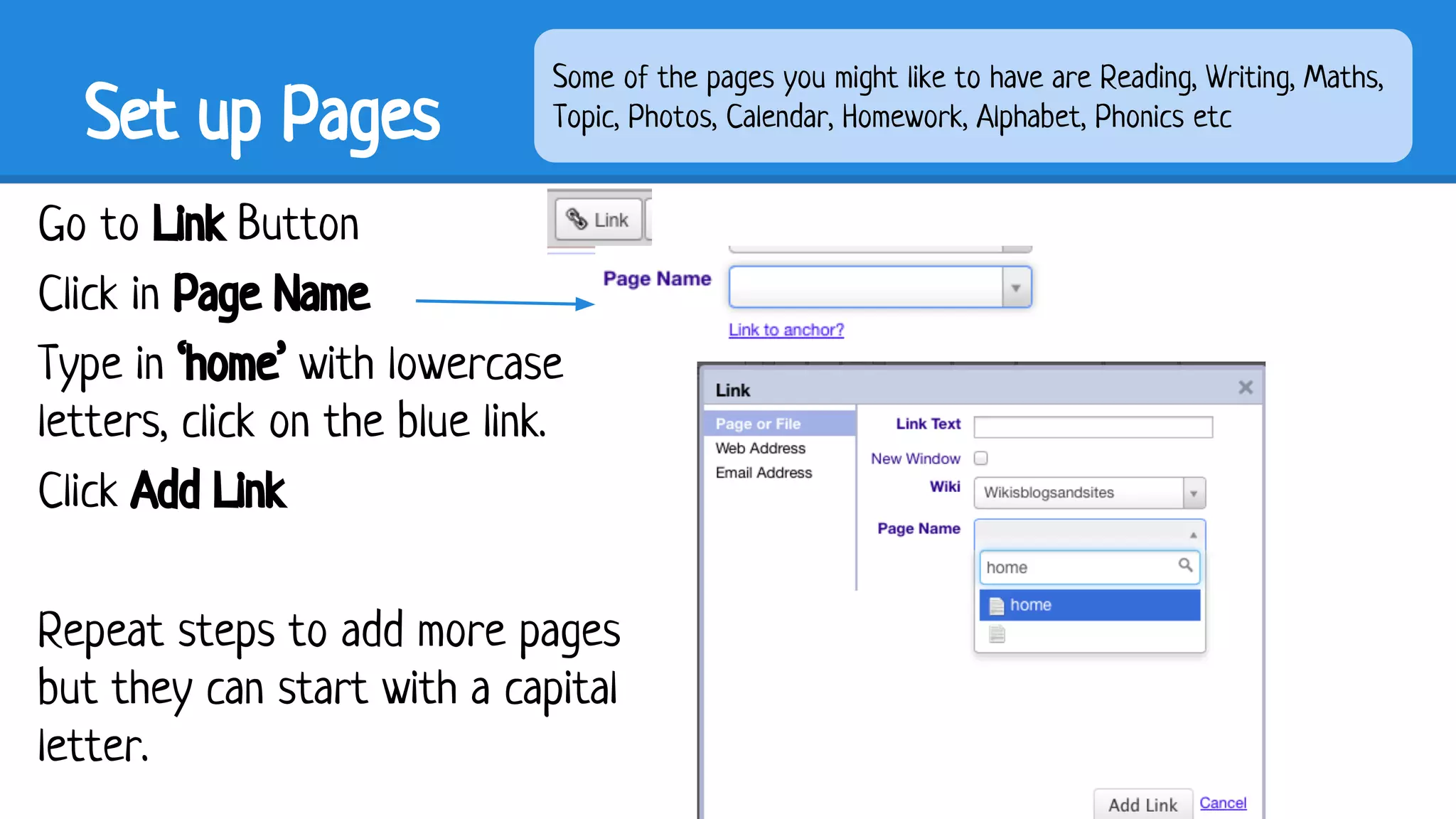
Set up Pages

Some of the pages you might like to have are Reading, Writing, Maths,
Topic, Photos, Calendar, Homework, Alphabet, Phonics etc

Go to Link Button
Click in Page Name
Type in ‘home’ with lowercase
letters, click on the blue link.
Click Add Link
Repeat steps to add more pages
but they can start with a capital
letter.
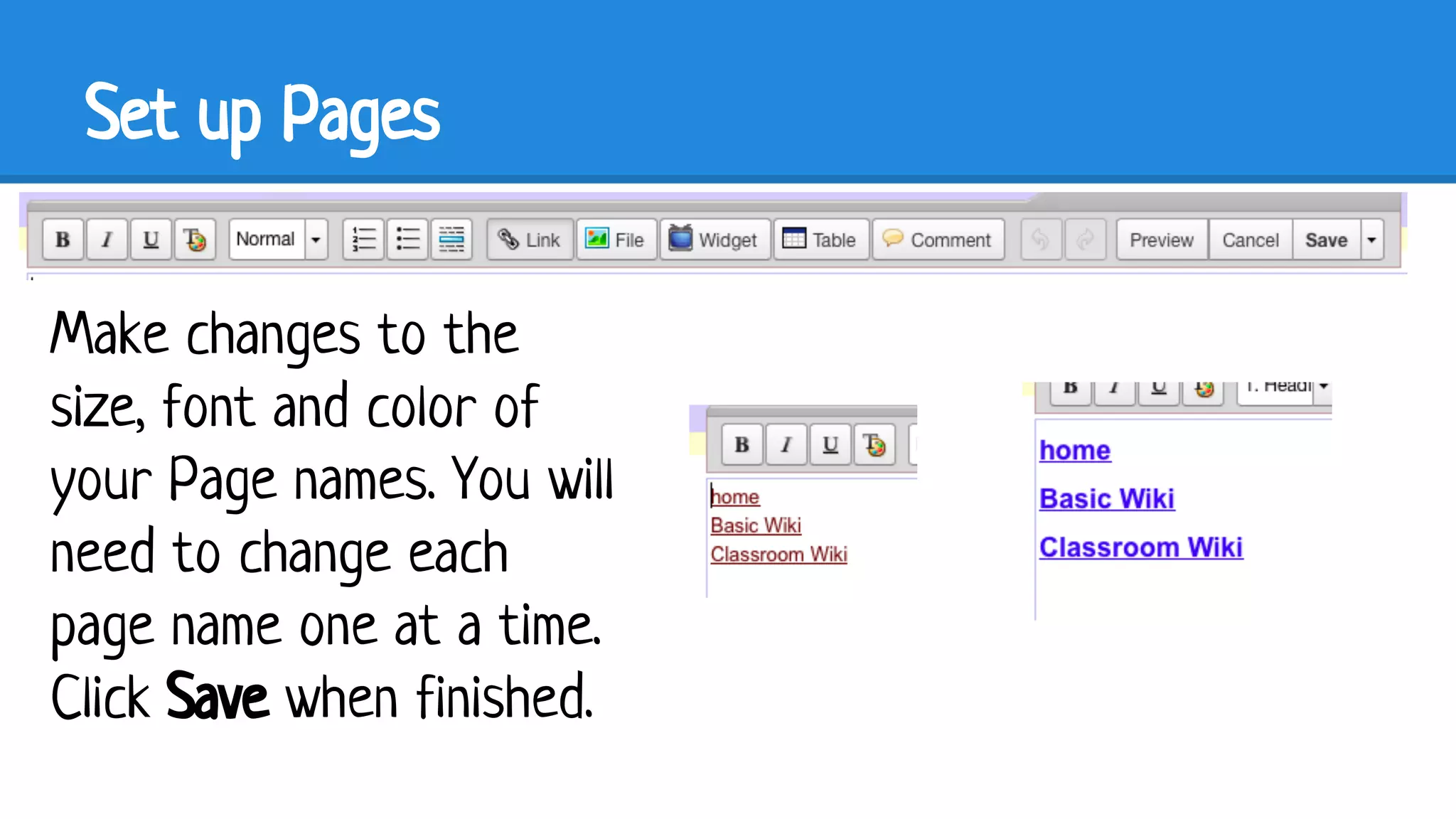
Set up Pages
Make changes to the
size, font and color of
your Page names. You will
need to change each
page name one at a time.
Click Save when finished.
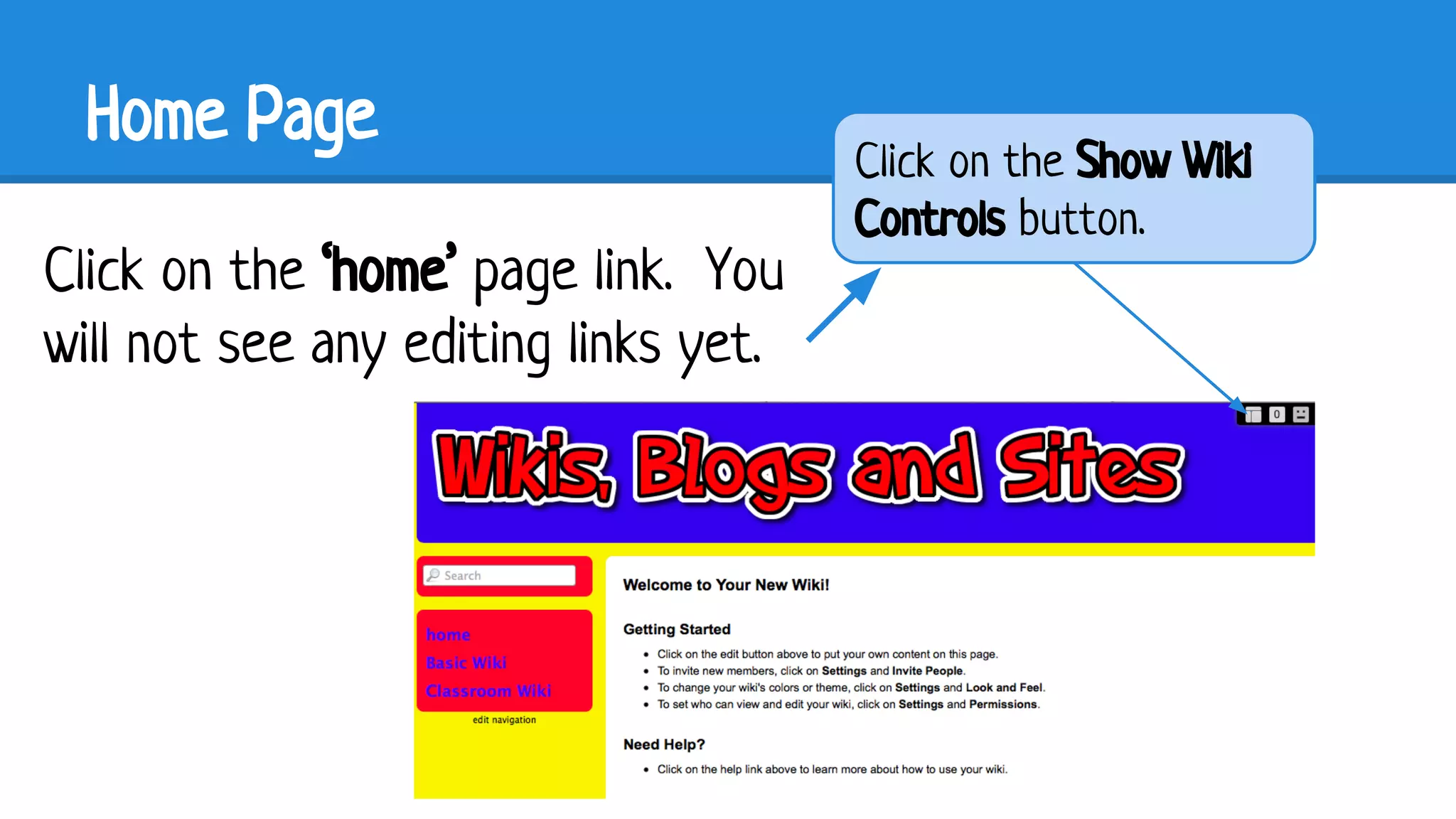
Home Page
Click on the ‘home’ page link. You
will not see any editing links yet.

Click on the Show Wiki
Controls button.
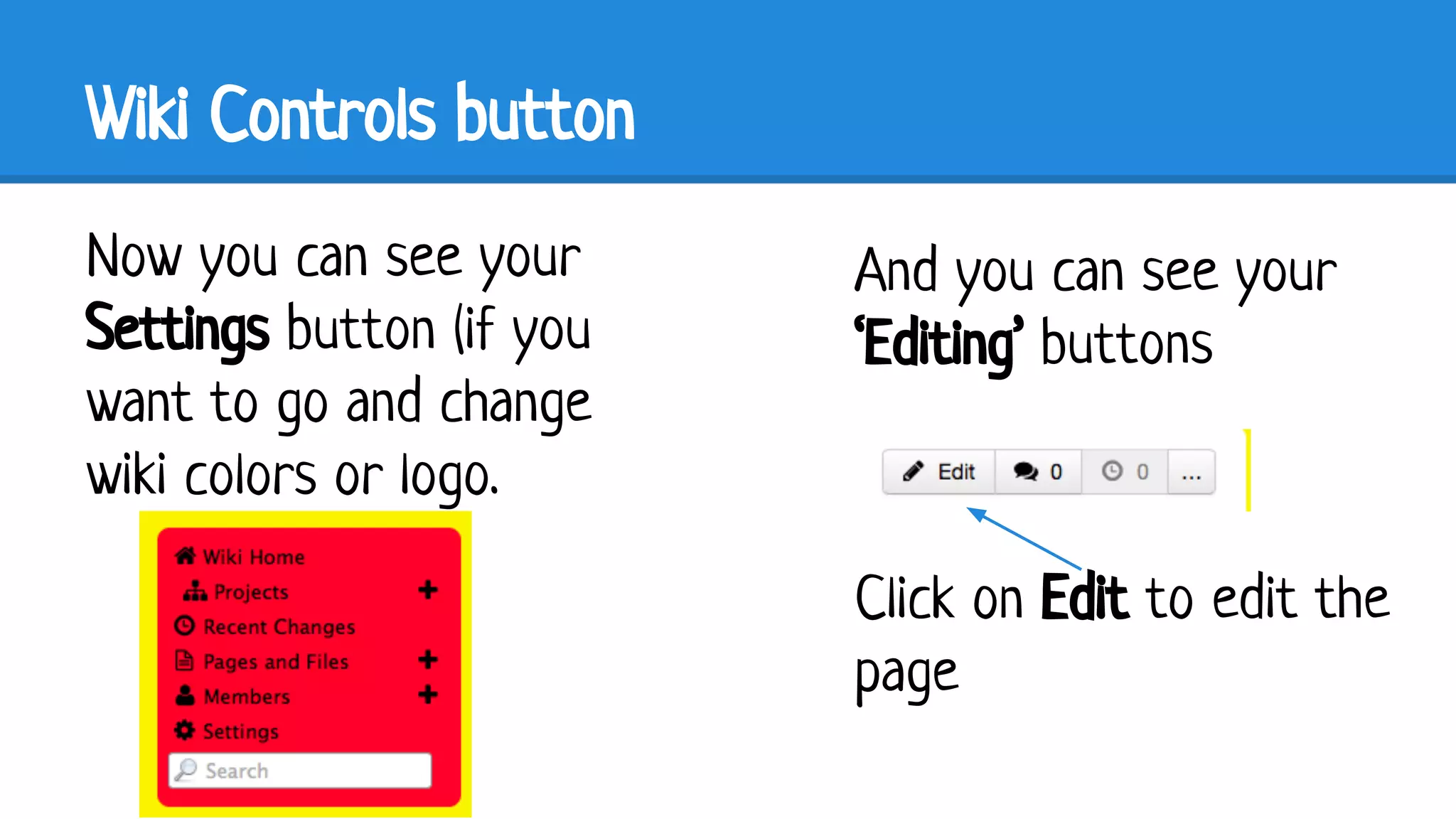
Wiki Controls button
Now you can see your
Settings button (if you
want to go and change
wiki colors or logo.

And you can see your
‘Editing’ buttons

Click on Edit to edit the
page
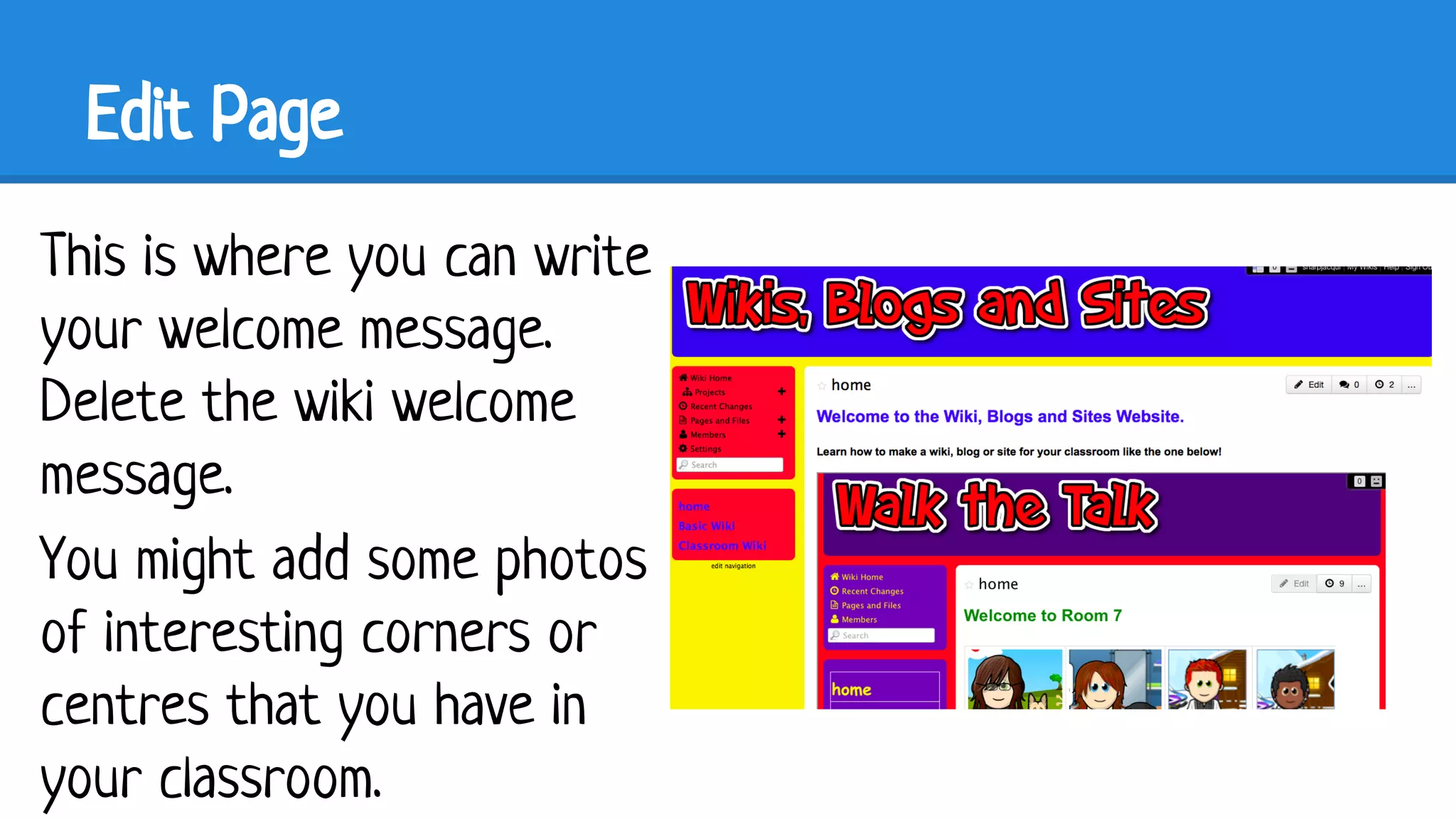
Edit Page
This is where you can write
your welcome message.
Delete the wiki welcome
message.
You might add some photos
of interesting corners or
centres that you have in
your classroom.
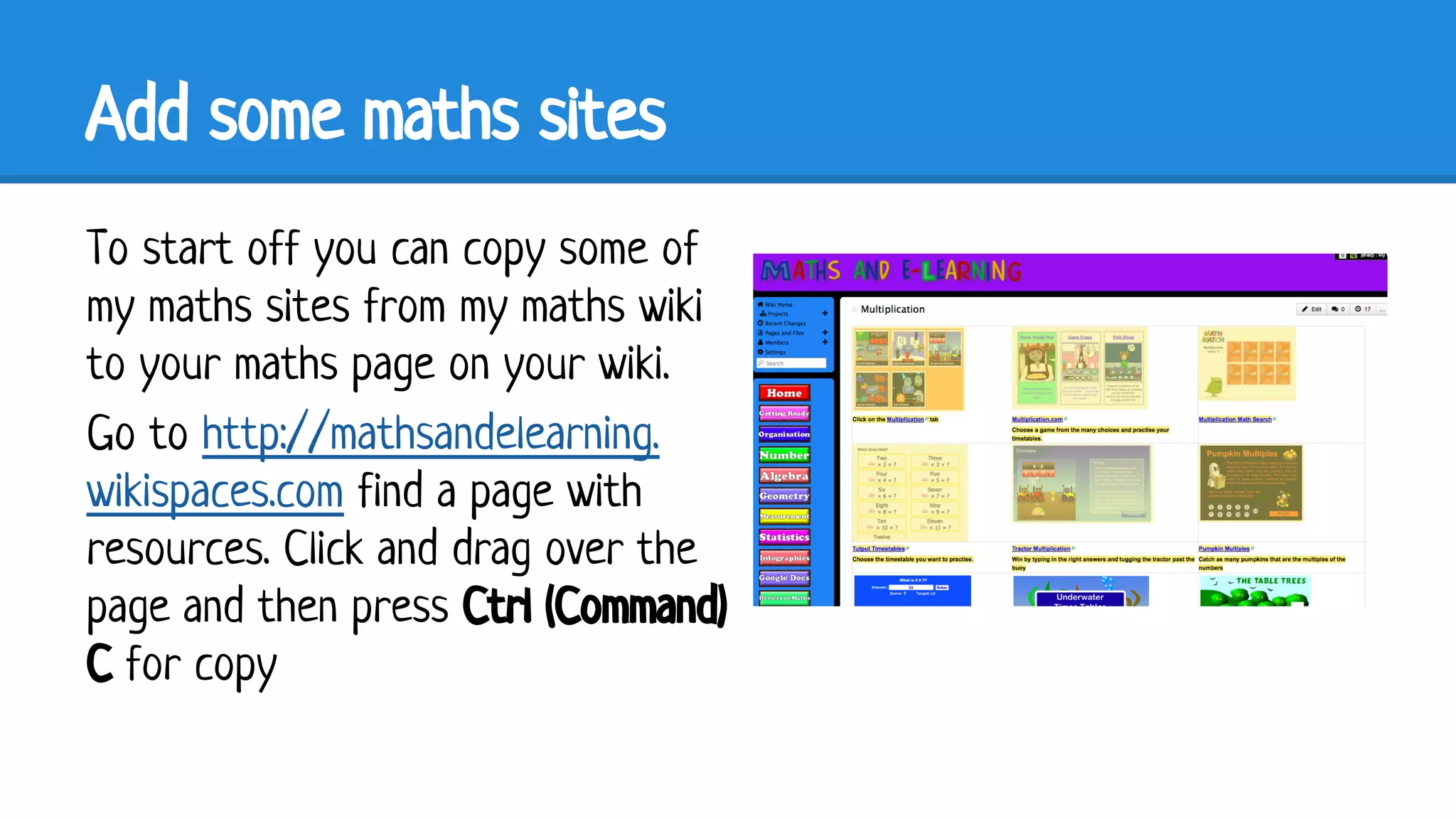
Add some maths sites
To start off you can copy some of
my maths sites from my maths wiki
to your maths page on your wiki.
Go to http://mathsandelearning.
wikispaces.com find a page with
resources. Click and drag over the
page and then press Ctrl (Command)
C for copy
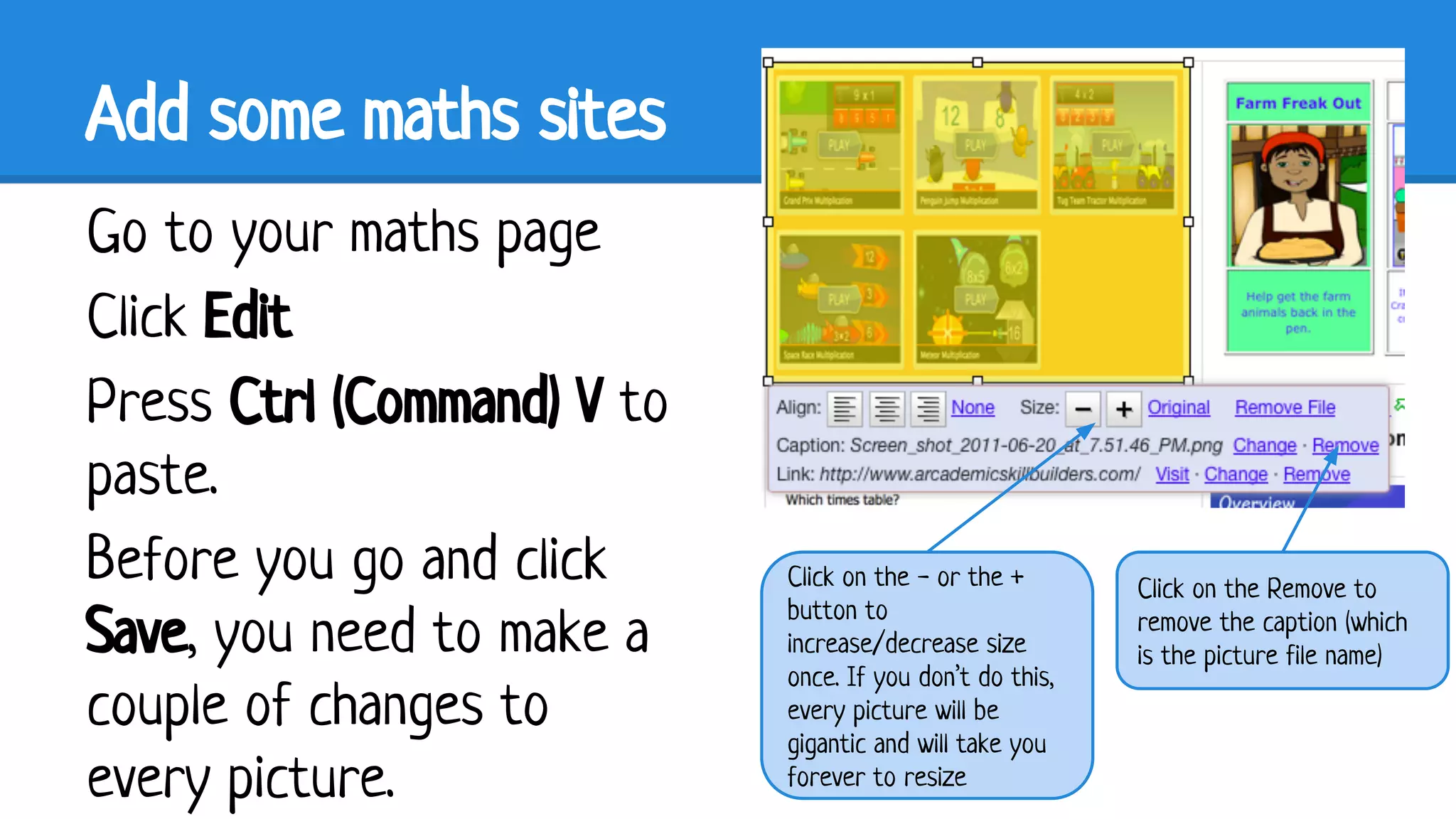
Add some maths sites
Go to your maths page
Click Edit
Press Ctrl (Command) V to
paste.
Before you go and click
Save, you need to make a
couple of changes to
every picture.

Click on the - or the +
button to
increase/decrease size
once. If you don’t do this,
every picture will be
gigantic and will take you
forever to resize

Click on the Remove to
remove the caption (which
is the picture file name)
Add a Picture Link
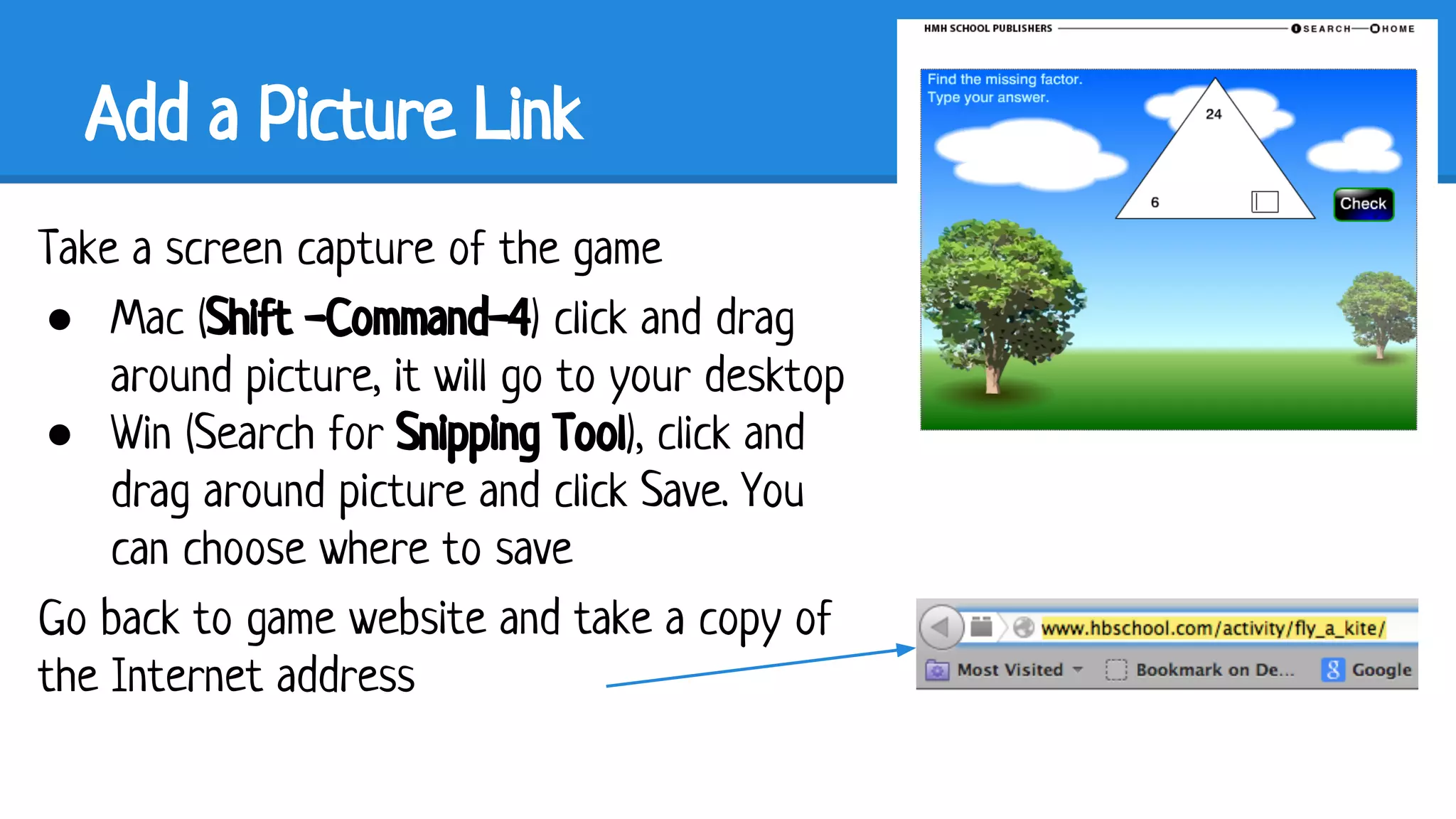
Take a screen capture of the game
● Mac (Shift -Command-4) click and drag
around picture, it will go to your desktop
● Win (Search for Snipping Tool), click and
drag around picture and click Save. You
can choose where to save
Go back to game website and take a copy of
the Internet address
Add a Picture Link
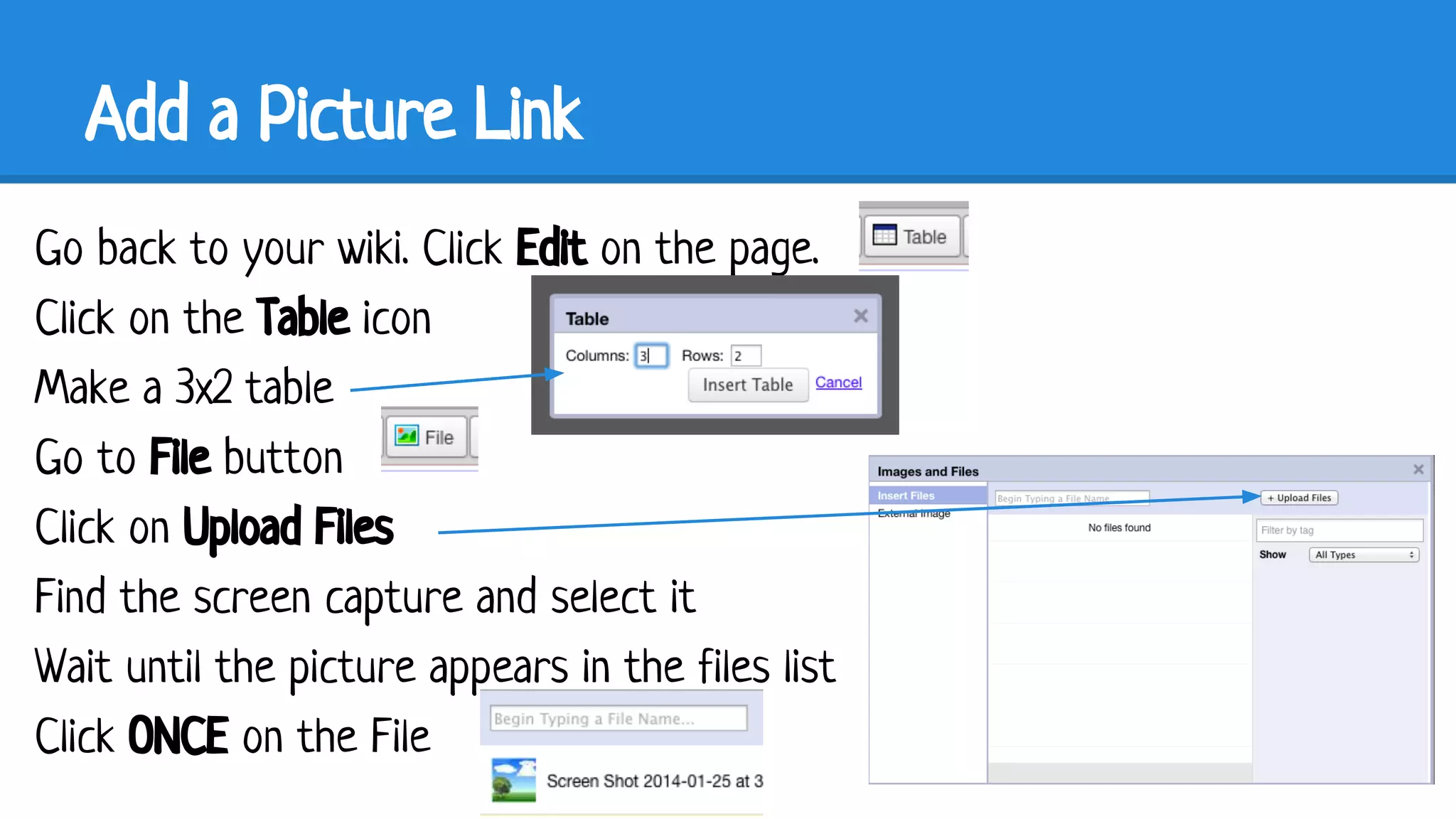
Go back to your wiki. Click Edit on the page.
Click on the Table icon
Make a 3x2 table
Go to File button
Click on Upload Files
Find the screen capture and select it
Wait until the picture appears in the files list
Click ONCE on the File
Add a Picture Link
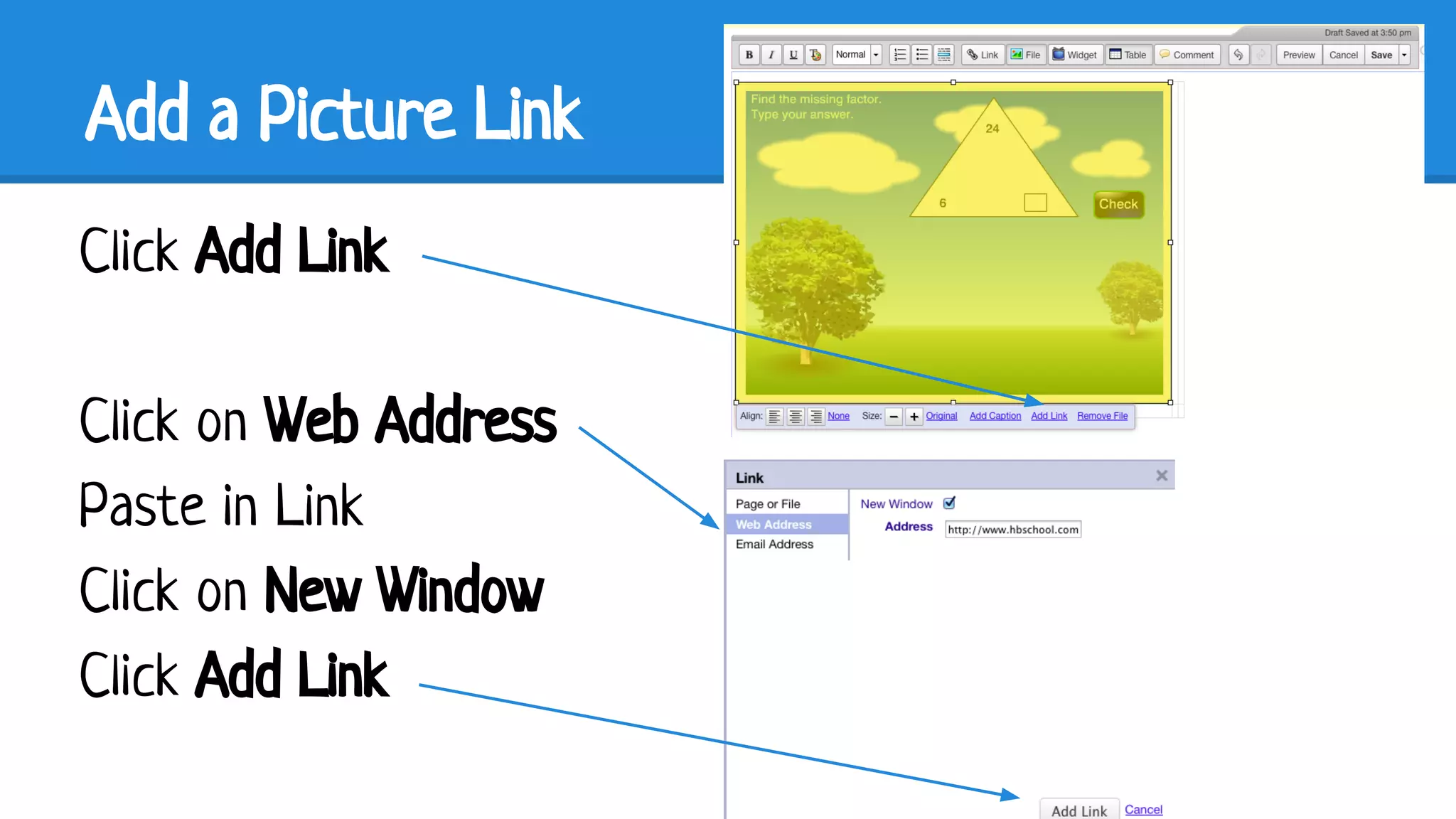
Click Add Link
Click on Web Address
Paste in Link
Click on New Window
Click Add Link
Add a Text Link
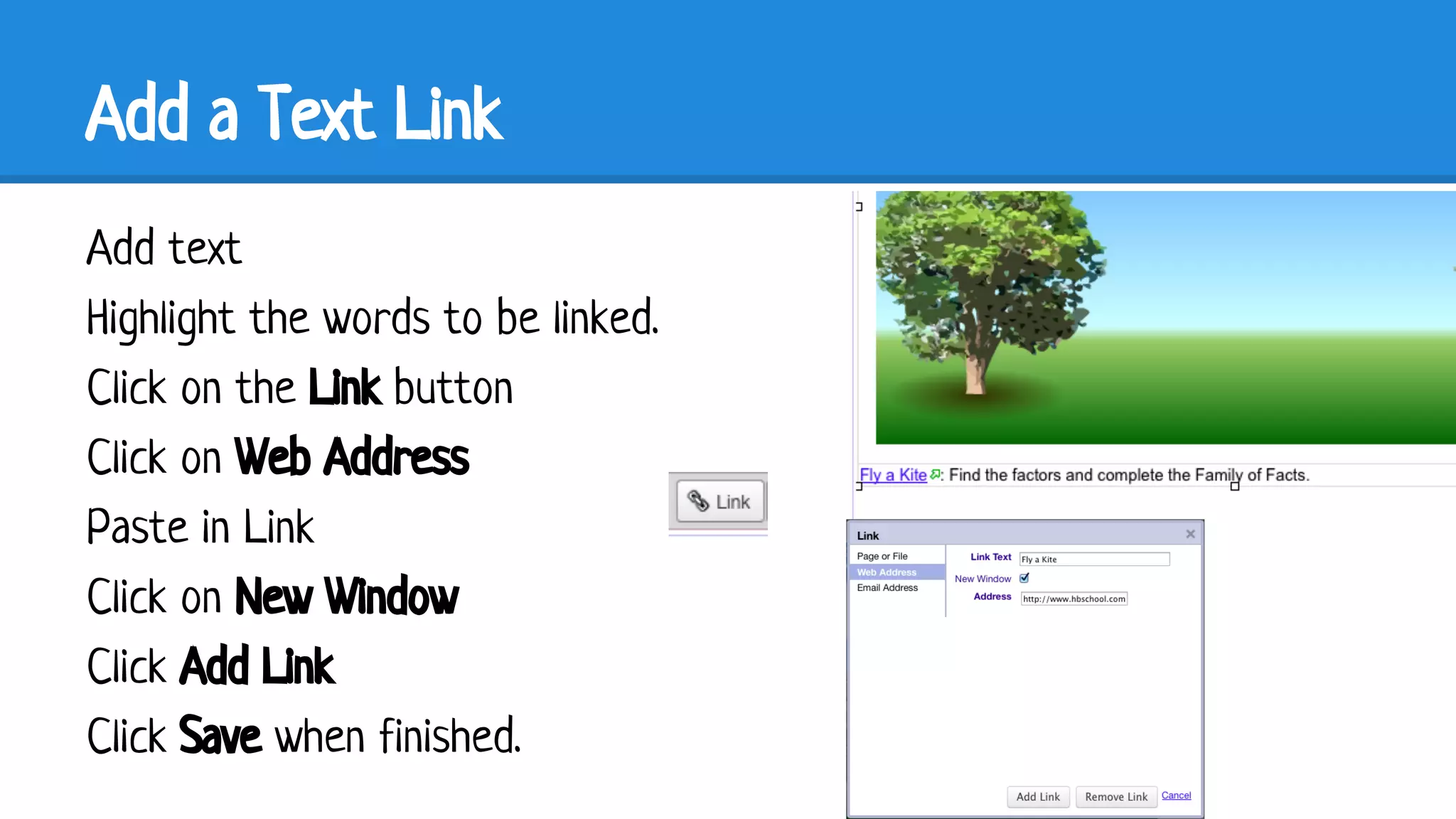
Add text
Highlight the words to be linked.
Click on the Link button
Click on Web Address
Paste in Link
Click on New Window
Click Add Link
Click Save when finished.
Make Wiki public
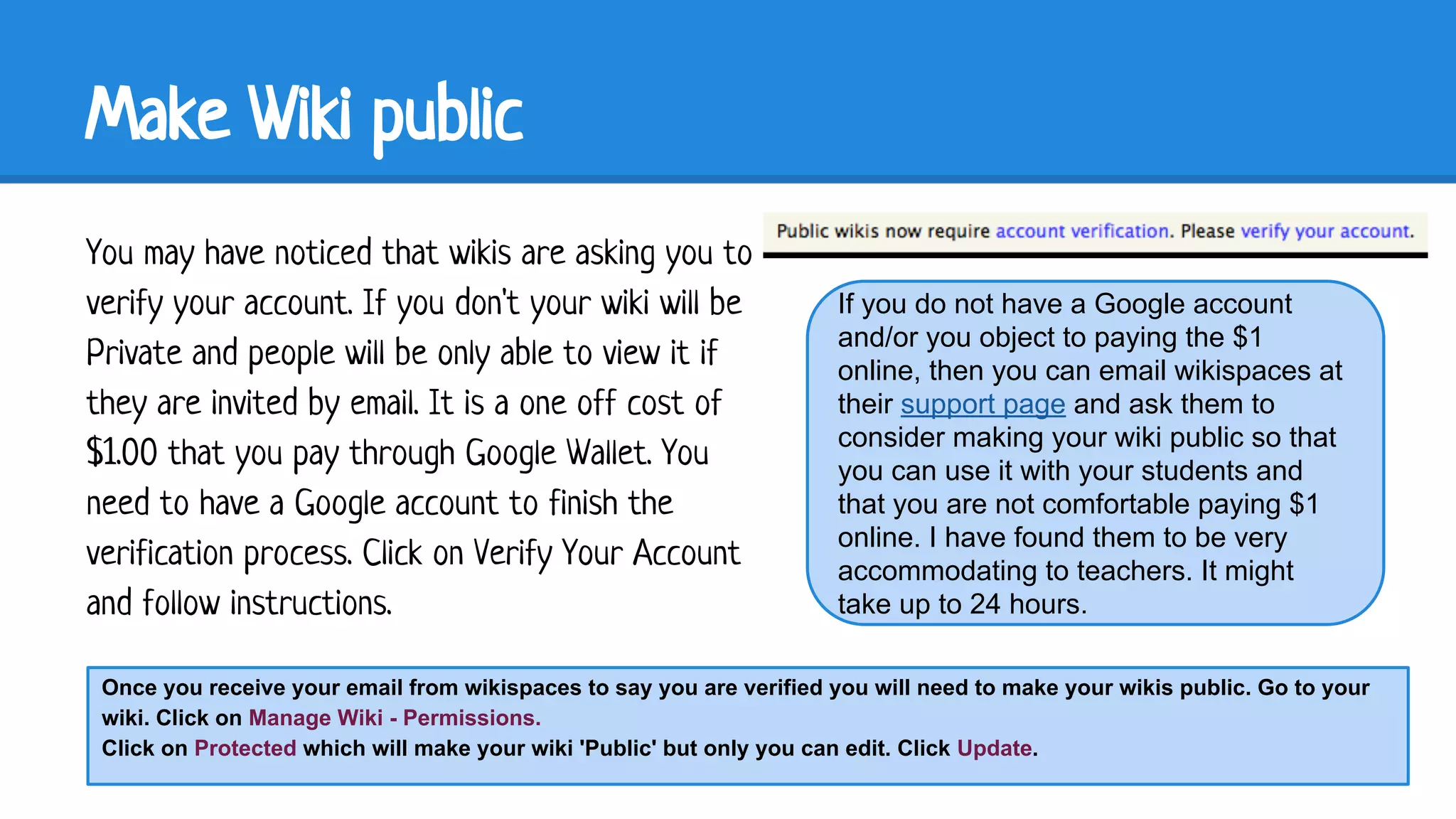
You may have noticed that wikis are asking you to
verify your account. If you don't your wiki will be
Private and people will be only able to view it if
they are invited by email. It is a one off cost of
$1.00 that you pay through Google Wallet. You
need to have a Google account to finish the
verification process. Click on Verify Your Account
and follow instructions.

If you do not have a Google account
and/or you object to paying the $1
online, then you can email wikispaces at
their support page and ask them to
consider making your wiki public so that
you can use it with your students and
that you are not comfortable paying $1
online. I have found them to be very
accommodating to teachers. It might
take up to 24 hours.

Once you receive your email from wikispaces to say you are verified you will need to make your wikis public. Go to your
wiki. Click on Manage Wiki - Permissions.
Click on Protected which will make your wiki 'Public' but only you can edit. Click Update.
How can you share your wiki with your students?
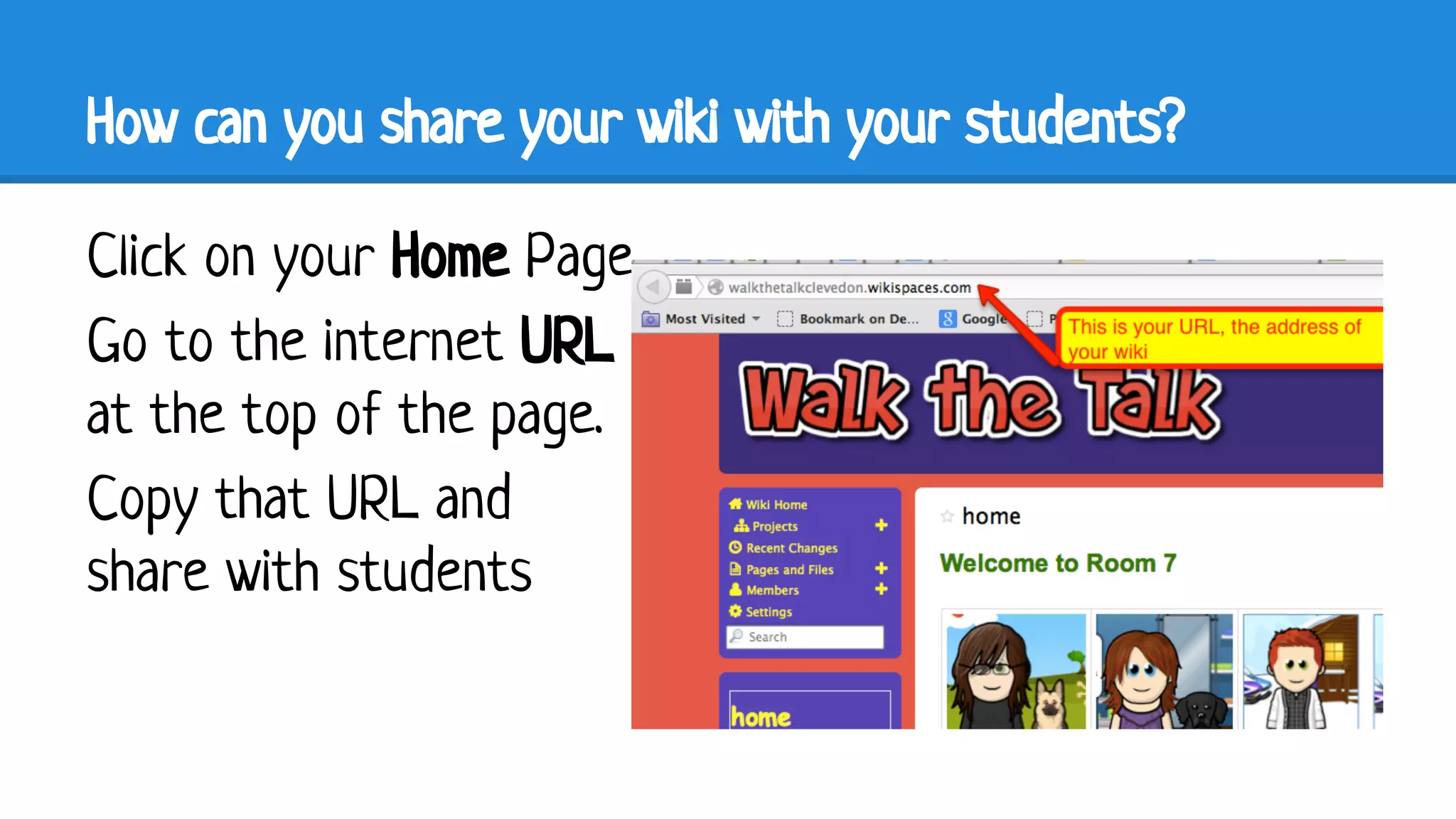
Click on your Home Page
Go to the internet URL
at the top of the page.
Copy that URL and
share with students

Basic wiki

  • 1.
  • 2.
    Join Wikispaces Go tohttp://www.wikispaces. com/ Click on ‘I’m a Teacher’ Choose a username Type in a Password Type in your email, click Join
  • 3.
    Confirm your email Goto your email and confirm your wikispace account me me@gmail.com
  • 4.
    Create a Newwiki Go back to your wiki Click on New Wiki Choose your industry (K12) Click Continue
  • 5.
    New Wiki Type ina wiki name with no spaces Fill in school, city, state and postal code Click Create Be creative with your name, don’t call it after your room number. This wiki is your resource that will move with you when you change schools.
  • 6.
    Change to aBasic Wiki Click on Settings Click on General Click on Basic Website Click on Save
  • 7.
    Themes and Colors Clickon Themes and Colors I recommend FlexFluid because you can customize up to 3 colours on the Page You can go back and change your theme at any time
  • 8.
    Customize the colors Choosea theme color and click Preview and Customize. Click in the Background box, then drag the circle around to a different color. Drag the circle in the square to the tone you want. Repeat with Header/Footer and Sidebar and Links if needed. Click Preview to see it, Apply when it is ready.
  • 9.
    Change your Logo Clickon Logo You can use any GIF, JPEG or PNG graphic. Click on Choose File, find file on your hardrive and click.
  • 10.
    Flaming Text http://flamingtext.com/ FlamingText has approximately 315 different graphic styles to choose from. Choose a style by Clicking on it
  • 11.
    Flaming Text Using properpunctuation type in the name of your site. You may need to slide the slider to change font size down. If you click on Logo tab, you can change colors. You must go to Background and make the Logo transparent or you could end up with a white box behind your logo. Click Create Logo
  • 12.
    Flaming Text Click PersonalUse Click Download Click Save Image (don’t open)
  • 13.
    Change your Logoon wiki Go back to your wiki Click on Logo Click on Choose File, find file on your hardrive and click Choose (it will be in your Downloads folder) Click Save. If the logo is too big for your wiki then go back to where you left Flaming Text, click Edit Logo and make the font size smaller. Create logo again and download again.
  • 14.
    Set up yourpages Click on ‘Edit Navigation’ Click on ‘Edit Navigation Page’. Delete the ‘Include Navigation’ box
  • 15.
    Set up Pages Someof the pages you might like to have are Reading, Writing, Maths, Topic, Photos, Calendar, Homework, Alphabet, Phonics etc Go to Link Button Click in Page Name Type in ‘home’ with lowercase letters, click on the blue link. Click Add Link Repeat steps to add more pages but they can start with a capital letter.
  • 16.
    Set up Pages Makechanges to the size, font and color of your Page names. You will need to change each page name one at a time. Click Save when finished.
  • 17.
    Home Page Click onthe ‘home’ page link. You will not see any editing links yet. Click on the Show Wiki Controls button.
  • 18.
    Wiki Controls button Nowyou can see your Settings button (if you want to go and change wiki colors or logo. And you can see your ‘Editing’ buttons Click on Edit to edit the page
  • 19.
    Edit Page This iswhere you can write your welcome message. Delete the wiki welcome message. You might add some photos of interesting corners or centres that you have in your classroom.
  • 20.
    Add some mathssites To start off you can copy some of my maths sites from my maths wiki to your maths page on your wiki. Go to http://mathsandelearning. wikispaces.com find a page with resources. Click and drag over the page and then press Ctrl (Command) C for copy
  • 21.
    Add some mathssites Go to your maths page Click Edit Press Ctrl (Command) V to paste. Before you go and click Save, you need to make a couple of changes to every picture. Click on the - or the + button to increase/decrease size once. If you don’t do this, every picture will be gigantic and will take you forever to resize Click on the Remove to remove the caption (which is the picture file name)
  • 22.
    Add a PictureLink Take a screen capture of the game ● Mac (Shift -Command-4) click and drag around picture, it will go to your desktop ● Win (Search for Snipping Tool), click and drag around picture and click Save. You can choose where to save Go back to game website and take a copy of the Internet address
  • 23.
    Add a PictureLink Go back to your wiki. Click Edit on the page. Click on the Table icon Make a 3x2 table Go to File button Click on Upload Files Find the screen capture and select it Wait until the picture appears in the files list Click ONCE on the File
  • 24.
    Add a PictureLink Click Add Link Click on Web Address Paste in Link Click on New Window Click Add Link
  • 25.
    Add a TextLink Add text Highlight the words to be linked. Click on the Link button Click on Web Address Paste in Link Click on New Window Click Add Link Click Save when finished.
  • 26.
    Make Wiki public Youmay have noticed that wikis are asking you to verify your account. If you don't your wiki will be Private and people will be only able to view it if they are invited by email. It is a one off cost of $1.00 that you pay through Google Wallet. You need to have a Google account to finish the verification process. Click on Verify Your Account and follow instructions. If you do not have a Google account and/or you object to paying the $1 online, then you can email wikispaces at their support page and ask them to consider making your wiki public so that you can use it with your students and that you are not comfortable paying $1 online. I have found them to be very accommodating to teachers. It might take up to 24 hours. Once you receive your email from wikispaces to say you are verified you will need to make your wikis public. Go to your wiki. Click on Manage Wiki - Permissions. Click on Protected which will make your wiki 'Public' but only you can edit. Click Update.
  • 27.
    How can youshare your wiki with your students? Click on your Home Page Go to the internet URL at the top of the page. Copy that URL and share with students