St. Mark’s Green Library  Creating LionLinks Wiki Pages Emily Cunningham April 2008
Intro This is a brief overview of the process of creating new LionLinks Wiki pages. This also gives some general guidelines on formatting, as well as tips and tricks.
Creating a new wiki page We will create a new page for “National Library Week 2008” It will include links to ALA materials, embedded files/handouts, and any media we can include Start from the  LionLinks Front Page . http://stmarksgreenlibrary.pbwiki.com/
 
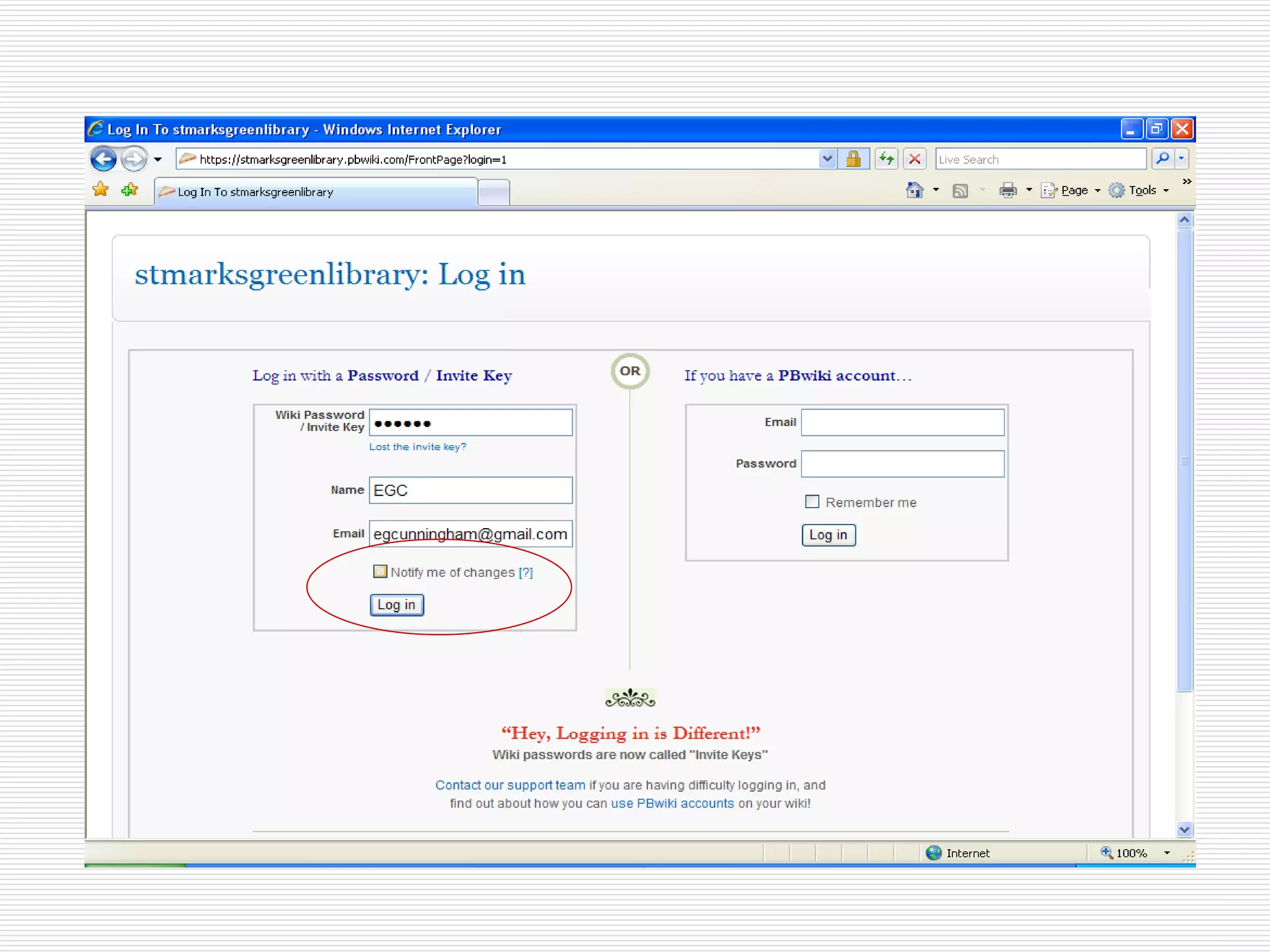
Creating a new wiki page Click “log in” in the upper right-hand corner Log in with “sarahb” as the password and your initials and email address.  Decide whether to select “notify me of changes”. Only one person at a time may be notified. If that person should be you, select the box.
 
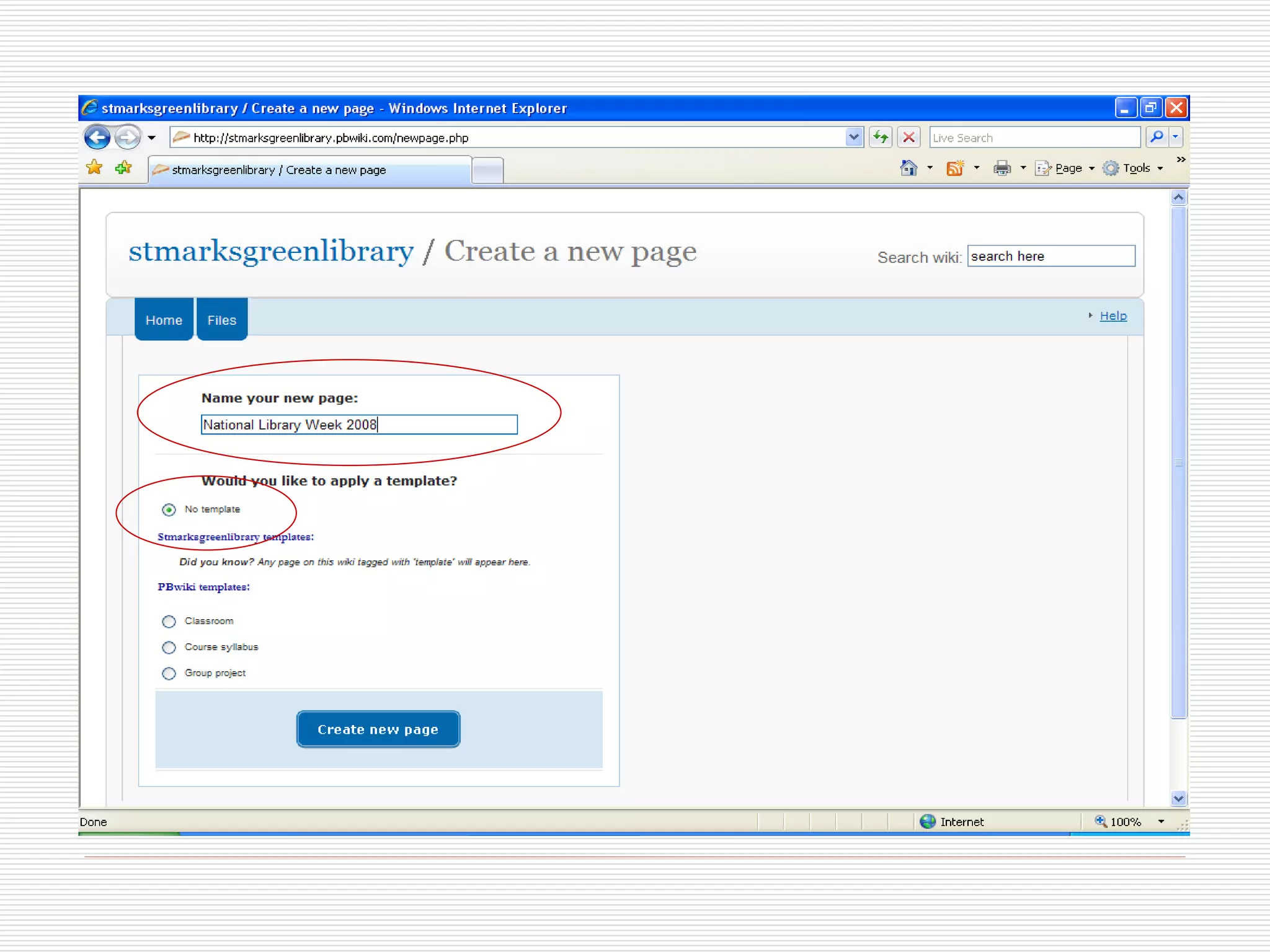
Creating a new wiki page The Front Page looks different once you are logged in. You may now click the tab that reads “New page” at the top of the page. You may name your page here. Remember that the page name becomes the URL and pick something simple. Select “No template”
 
 
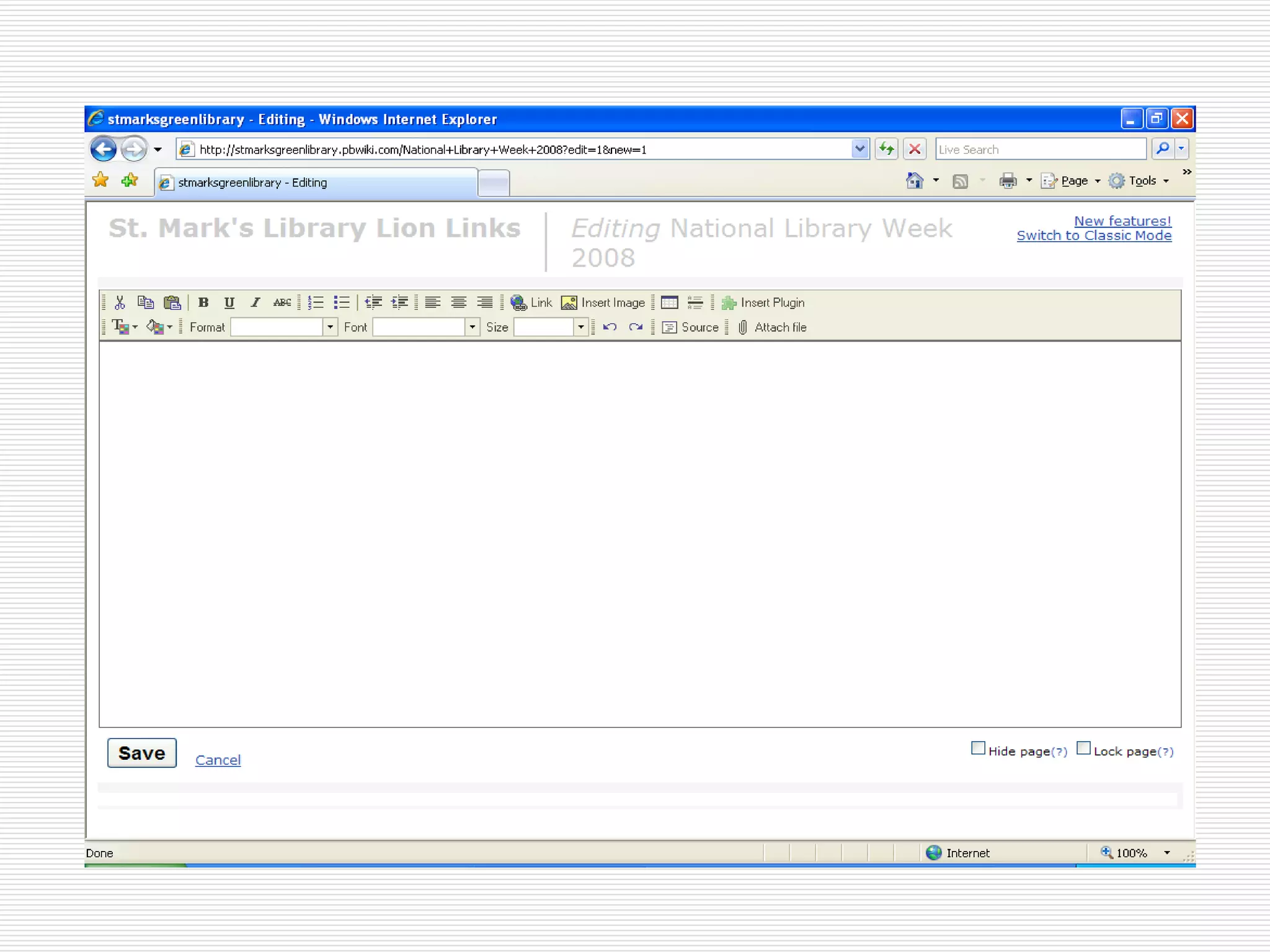
Creating a new wiki page You will then see a blank page that looks like a Word document. This is the page that you may edit. You may want to begin with a descriptor of the page and a graphic. I usually find a “FAQ” and paste that, along with the link into the top of the page.
 
 
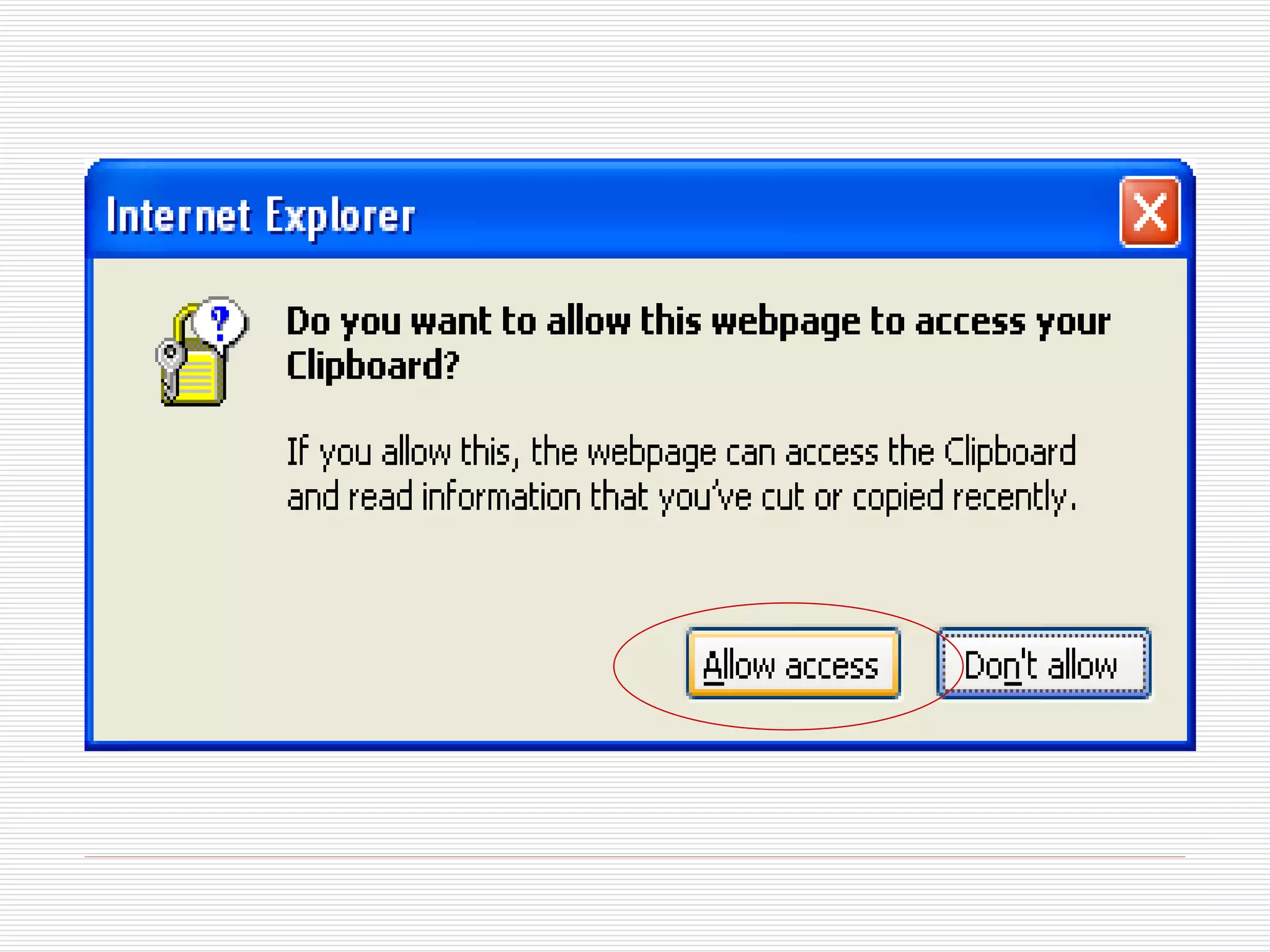
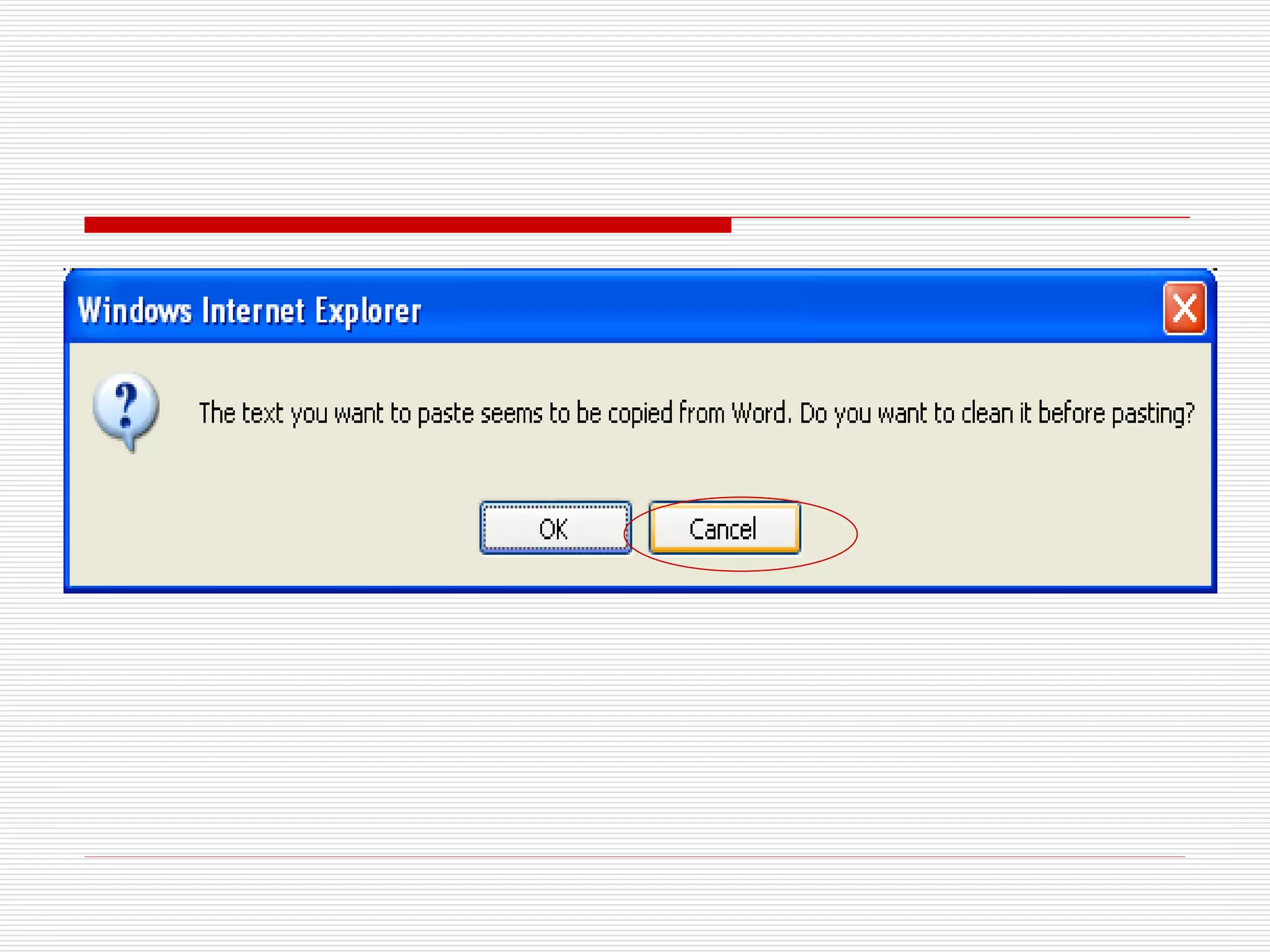
Creating a new wiki page Sometimes one or both of two errors will display when copying/pasting from a website or document into the wiki. When asked whether to allow access, click “Allow Access” When asked whether to clean up a paste from Word, select “Cancel”
 
 
Creating a new wiki page Pasted text often comes in one of several fonts and sizes. In order to get the page into a uniform font/font size, select all text and choose the drop down menus for font to change the type and size.
 
 
Creating a new wiki page The formatting function in pbwiki may not succeed in changing the font. In this case, you must use Word to edit the text. Copy/paste into a blank Word document, make the changes and copy/paste back into your pbwiki page. The reason for this is complex, but has to do with pbwiki’s WYSIWYG editor and limited text functions.
Creating a new wiki page Once your font looks nice, you may want to clean up the text you pasted, omitting any line breaks, or code that shows, or anything else you don’t want to display. You may also want to insert an image

Creating a new wiki page To insert an image, find the image you would like either on your hard drive or the internet and save/move it to an easy-to-find folder on your computer. Put your mouse on the wiki page where you would like the picture to go, then click “Insert Image”
 
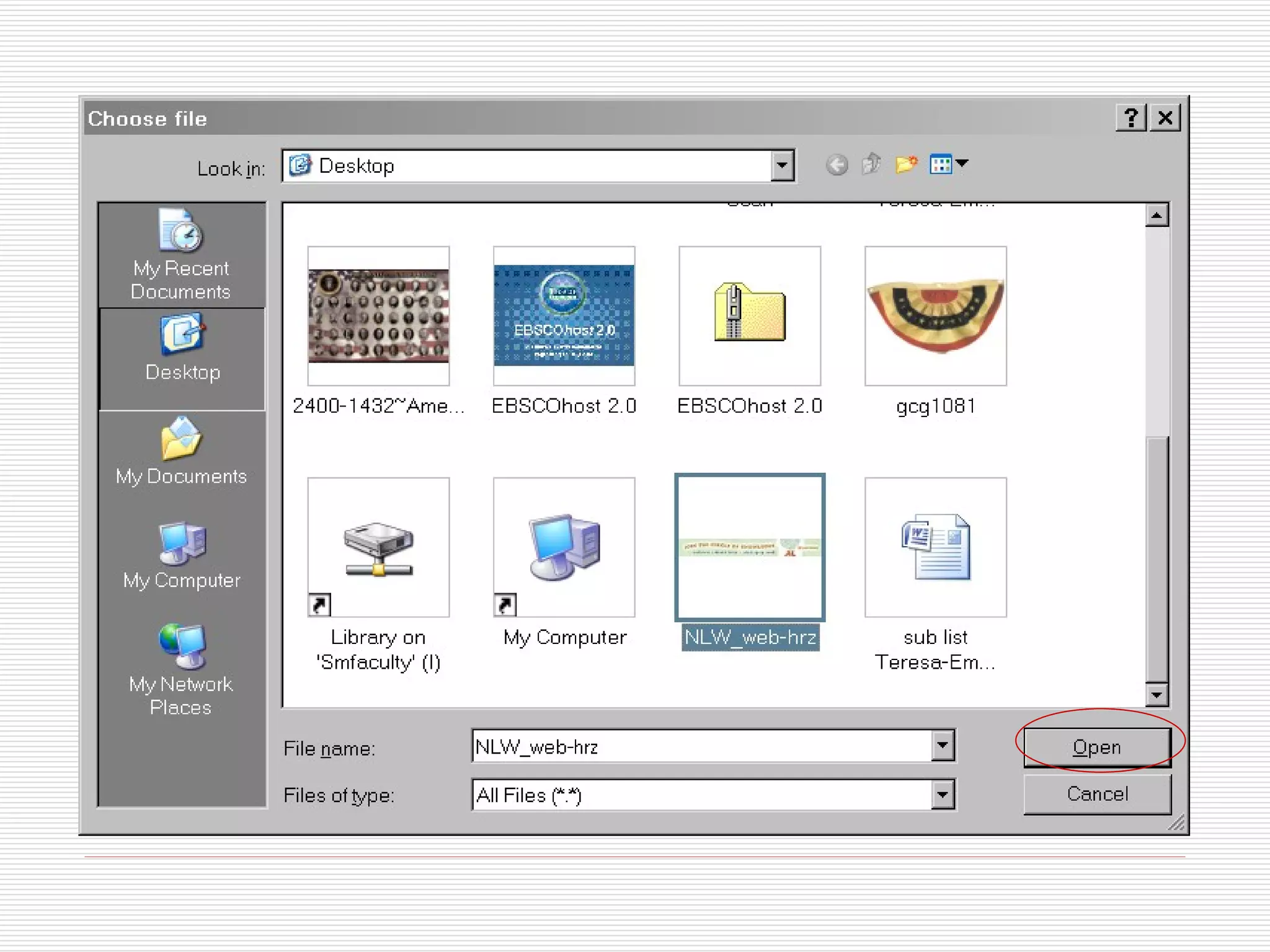
Creating a new wiki page Once prompted by the pop-up window, browse to the location of your image and upload the file. You may then insert the file into the page at the spot where you put your mouse cursor.


Creating a new wiki page If you would also like to embed other media, first get the embed code. We’ll use YouTube as an example Here is Julie Andrews’ PSA for Library Week 2008, found on YouTube.  The embed code is found on the right side of the page. Copy this then return to your wiki page.
 
Creating a new wiki page Once you have your embed code, return to your wiki page and click “Insert Plug-in”, then choose the appropriate type – in this case, YouTube Video. Paste the embed code into this screen when prompted, then click “Finish”, then save the whole page.


Creating a new wiki page Once you have created the page, you then must link to this page from the homepage and other locations. Click “Edit”, type the link name, edit to link to a wiki page. Select the page you want, save the link, then the page.  Do this for class projects, subject guides, events, and the Front Page.
Creating a new wiki page Here is an example of adding a link to the Event and Activities page.


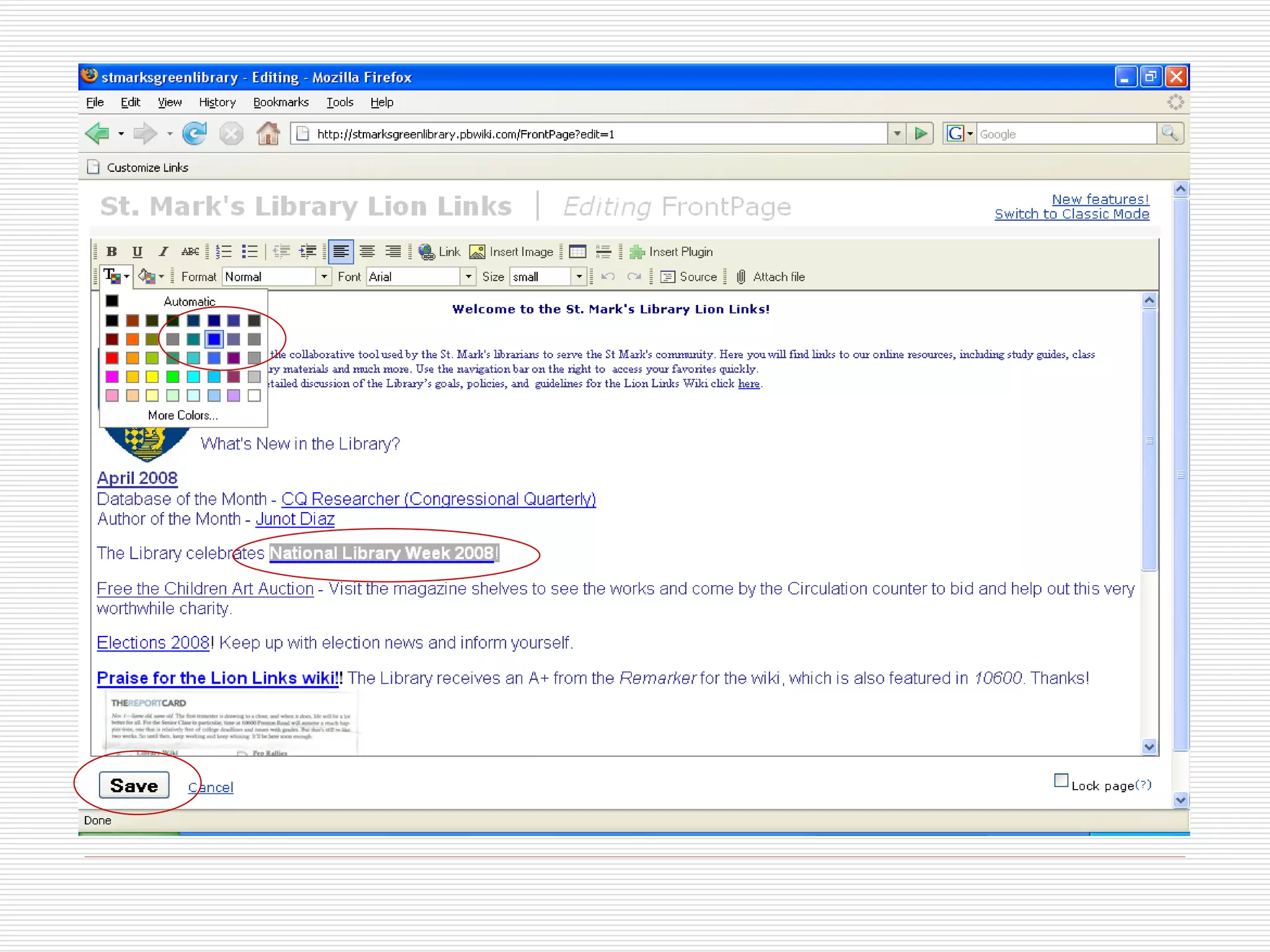
Creating a new wiki page Here is an example of adding a link to the Front Page.


Creating a new wiki page All done! For more help, see the pbwiki instructional videos http://pbwiki.com/videos/NewPage.swf http://pbwiki.com/videos/ Thanks! Emily Cunningham – egcunningham@gmail.com

Creating And Editing St. Marks Wiki Pages

  • 1.
    St. Mark’s GreenLibrary Creating LionLinks Wiki Pages Emily Cunningham April 2008
  • 2.
    Intro This isa brief overview of the process of creating new LionLinks Wiki pages. This also gives some general guidelines on formatting, as well as tips and tricks.
  • 3.
    Creating a newwiki page We will create a new page for “National Library Week 2008” It will include links to ALA materials, embedded files/handouts, and any media we can include Start from the LionLinks Front Page . http://stmarksgreenlibrary.pbwiki.com/
  • 4.
  • 5.
    Creating a newwiki page Click “log in” in the upper right-hand corner Log in with “sarahb” as the password and your initials and email address. Decide whether to select “notify me of changes”. Only one person at a time may be notified. If that person should be you, select the box.
  • 6.
  • 7.
    Creating a newwiki page The Front Page looks different once you are logged in. You may now click the tab that reads “New page” at the top of the page. You may name your page here. Remember that the page name becomes the URL and pick something simple. Select “No template”
  • 8.
  • 9.
  • 10.
    Creating a newwiki page You will then see a blank page that looks like a Word document. This is the page that you may edit. You may want to begin with a descriptor of the page and a graphic. I usually find a “FAQ” and paste that, along with the link into the top of the page.
  • 11.
  • 12.
  • 13.
    Creating a newwiki page Sometimes one or both of two errors will display when copying/pasting from a website or document into the wiki. When asked whether to allow access, click “Allow Access” When asked whether to clean up a paste from Word, select “Cancel”
  • 14.
  • 15.
  • 16.
    Creating a newwiki page Pasted text often comes in one of several fonts and sizes. In order to get the page into a uniform font/font size, select all text and choose the drop down menus for font to change the type and size.
  • 17.
  • 18.
  • 19.
    Creating a newwiki page The formatting function in pbwiki may not succeed in changing the font. In this case, you must use Word to edit the text. Copy/paste into a blank Word document, make the changes and copy/paste back into your pbwiki page. The reason for this is complex, but has to do with pbwiki’s WYSIWYG editor and limited text functions.
  • 20.
    Creating a newwiki page Once your font looks nice, you may want to clean up the text you pasted, omitting any line breaks, or code that shows, or anything else you don’t want to display. You may also want to insert an image

  • 21.
    Creating a newwiki page To insert an image, find the image you would like either on your hard drive or the internet and save/move it to an easy-to-find folder on your computer. Put your mouse on the wiki page where you would like the picture to go, then click “Insert Image”
  • 22.
  • 23.
    Creating a newwiki page Once prompted by the pop-up window, browse to the location of your image and upload the file. You may then insert the file into the page at the spot where you put your mouse cursor.
  • 24.
  • 25.
  • 26.
  • 27.
  • 28.
    Creating a newwiki page If you would also like to embed other media, first get the embed code. We’ll use YouTube as an example Here is Julie Andrews’ PSA for Library Week 2008, found on YouTube. The embed code is found on the right side of the page. Copy this then return to your wiki page.
  • 29.
  • 30.
    Creating a newwiki page Once you have your embed code, return to your wiki page and click “Insert Plug-in”, then choose the appropriate type – in this case, YouTube Video. Paste the embed code into this screen when prompted, then click “Finish”, then save the whole page.
  • 31.
  • 32.
  • 33.
  • 34.
  • 35.
  • 36.
  • 37.
  • 38.
    Creating a newwiki page Once you have created the page, you then must link to this page from the homepage and other locations. Click “Edit”, type the link name, edit to link to a wiki page. Select the page you want, save the link, then the page. Do this for class projects, subject guides, events, and the Front Page.
  • 39.
    Creating a newwiki page Here is an example of adding a link to the Event and Activities page.
  • 40.
  • 41.
  • 42.
  • 43.
  • 44.
    Creating a newwiki page Here is an example of adding a link to the Front Page.
  • 45.
  • 46.
  • 47.
  • 48.
  • 49.
    Creating a newwiki page All done! For more help, see the pbwiki instructional videos http://pbwiki.com/videos/NewPage.swf http://pbwiki.com/videos/ Thanks! Emily Cunningham – egcunningham@gmail.com