Wikispaces for Teachers A Guide to Using Them in Your Classroom
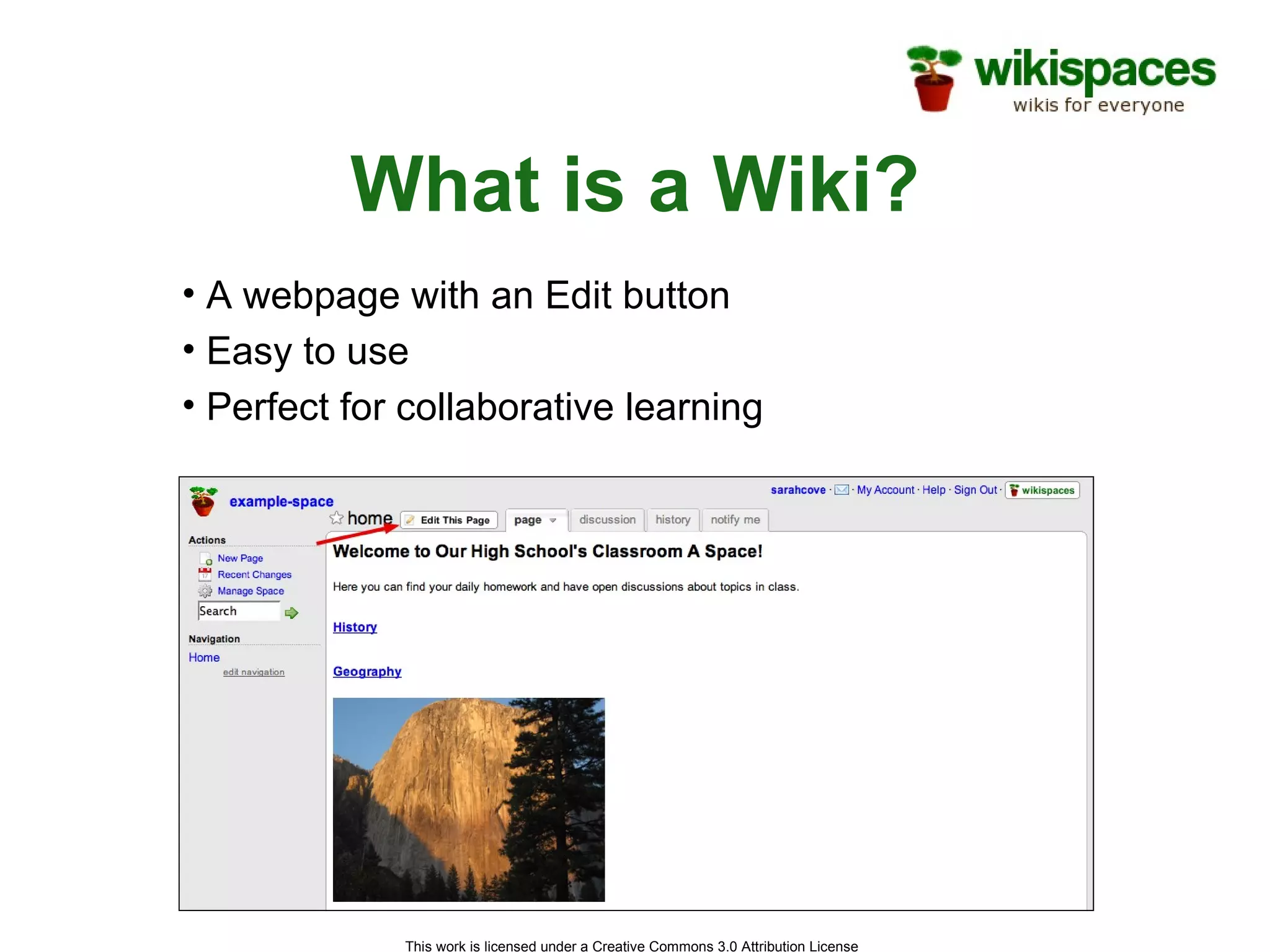
What is a Wiki? A webpage with an Edit button Easy to use Perfect for collaborative learning
Why Wikispaces? The world’s easiest to use wiki No experience necessary. You are up and running in minutes. Constantly bring you new and improved features Develop the product based on what you, our community, wants. Highly-praised customer service
Why Bring It To The Classroom? Great motivator for students Easy to monitor Allows for creativity and innovation Encourages participation of all students Promotes communication between students, teachers, and parents A new, interesting way to learn
How Can I Use it in a Classroom? Simple websites Peer-reviewed projects Group projects Manage school and classroom documents  Classroom discussion and debate Teacher collaboration Post classroom assignments Collaborate with an international classroom
Getting Started…
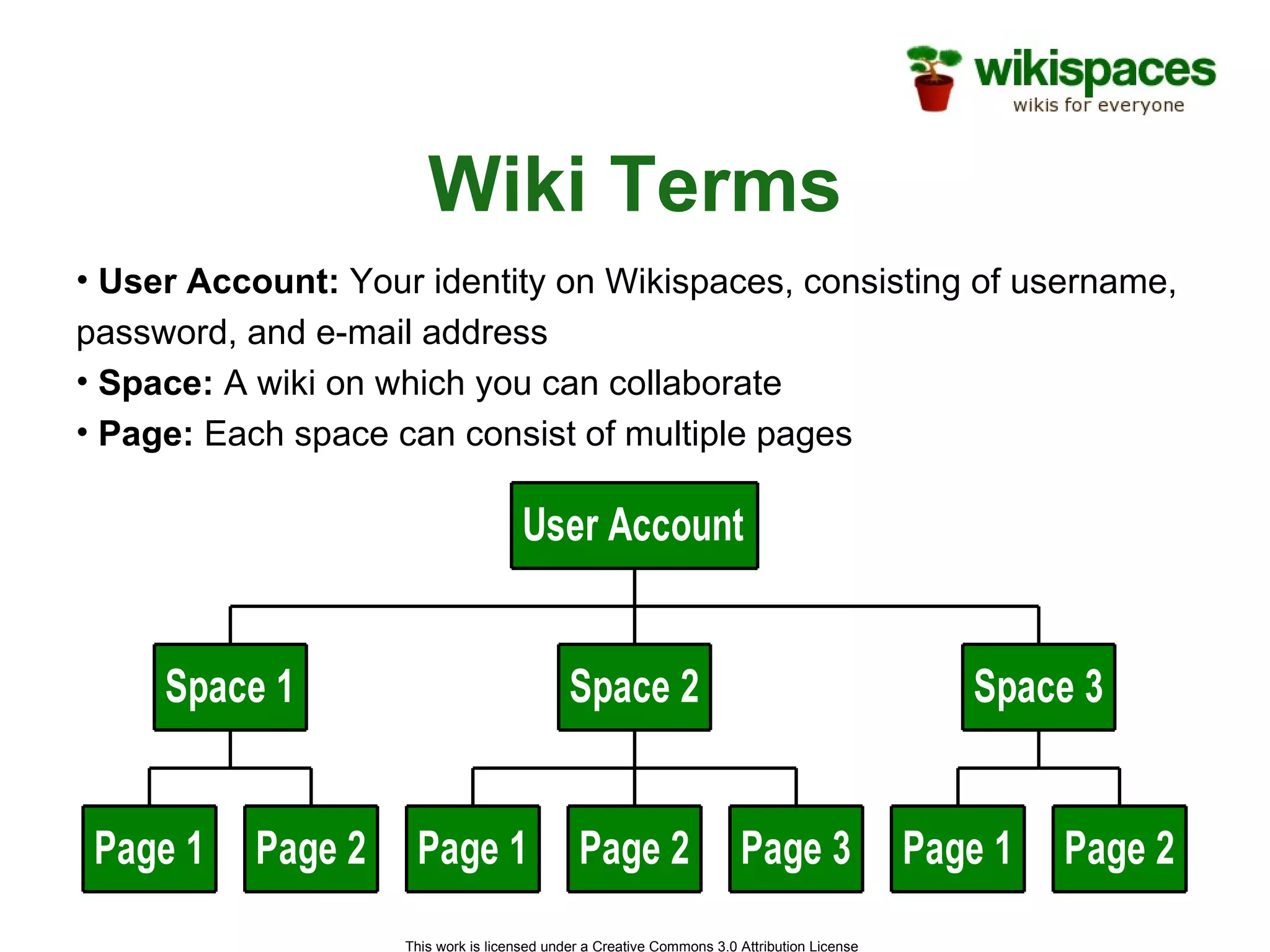
Wiki Terms User Account:  Your identity on Wikispaces, consisting of username, password, and e-mail address Space:  A wiki on which you can collaborate Page:  Each space can consist of multiple pages
Wiki Terms Continued Wikispaces has different permissions settings for your space Public : Anyone can view or edit your Wikispace Protected:  Anyone can view your space but only members can edit Private:  Only members can view or edit your space
Editing Your Wiki Click the  Edit This Page  button at the top of your wiki. Write the text you would like on your page. You can format it with bold, underline, italics, headings, and more. Once you are done editing, click  Save .
Adding Links on Your Wiki Click  Edit This Page . Highlight the text you would like to link and click on the earth icon in the toolbar. Another window will appear allowing you to create a link to another page in your space or another website. Click  Ok .
Adding Images to Your Wiki Click  Edit This Page . Click the icon that looks like a tree. Browse  your computer for the image you would like and click  Open . Upload  the chosen picture or file. Place your cursor where you would like the image on the page. Double click the image or file to place it on the page.
Adding Media to Your Wiki Click  Edit This Page . Go to the icon of the TV in the toolbar. Choose the type of object you’d like to embed. Follow the instructions for embedding each object. Click  Save .
Time for an Activity
Activity Let’s teach each other about various countries Take the next 15 minutes to edit your wiki’s text, add links, and add an image or a video clip.
Additional Resources for Teachers Wikispaces will create your student accounts for you! http://www.wikispaces.com/help+teachers Check out the K-12 Educational Community at: http://educationalwikis.wikispaces.com
Questions? Contact Information TJ McKeon [email_address]

Wikispacesfor Teachers

  • 1.
    Wikispaces for TeachersA Guide to Using Them in Your Classroom
  • 2.
    What is aWiki? A webpage with an Edit button Easy to use Perfect for collaborative learning
  • 3.
    Why Wikispaces? Theworld’s easiest to use wiki No experience necessary. You are up and running in minutes. Constantly bring you new and improved features Develop the product based on what you, our community, wants. Highly-praised customer service
  • 4.
    Why Bring ItTo The Classroom? Great motivator for students Easy to monitor Allows for creativity and innovation Encourages participation of all students Promotes communication between students, teachers, and parents A new, interesting way to learn
  • 5.
    How Can IUse it in a Classroom? Simple websites Peer-reviewed projects Group projects Manage school and classroom documents Classroom discussion and debate Teacher collaboration Post classroom assignments Collaborate with an international classroom
  • 6.
  • 7.
    Wiki Terms UserAccount: Your identity on Wikispaces, consisting of username, password, and e-mail address Space: A wiki on which you can collaborate Page: Each space can consist of multiple pages
  • 8.
    Wiki Terms ContinuedWikispaces has different permissions settings for your space Public : Anyone can view or edit your Wikispace Protected: Anyone can view your space but only members can edit Private: Only members can view or edit your space
  • 9.
    Editing Your WikiClick the Edit This Page button at the top of your wiki. Write the text you would like on your page. You can format it with bold, underline, italics, headings, and more. Once you are done editing, click Save .
  • 10.
    Adding Links onYour Wiki Click Edit This Page . Highlight the text you would like to link and click on the earth icon in the toolbar. Another window will appear allowing you to create a link to another page in your space or another website. Click Ok .
  • 11.
    Adding Images toYour Wiki Click Edit This Page . Click the icon that looks like a tree. Browse your computer for the image you would like and click Open . Upload the chosen picture or file. Place your cursor where you would like the image on the page. Double click the image or file to place it on the page.
  • 12.
    Adding Media toYour Wiki Click Edit This Page . Go to the icon of the TV in the toolbar. Choose the type of object you’d like to embed. Follow the instructions for embedding each object. Click Save .
  • 13.
    Time for anActivity
  • 14.
    Activity Let’s teacheach other about various countries Take the next 15 minutes to edit your wiki’s text, add links, and add an image or a video clip.
  • 15.
    Additional Resources forTeachers Wikispaces will create your student accounts for you! http://www.wikispaces.com/help+teachers Check out the K-12 Educational Community at: http://educationalwikis.wikispaces.com
  • 16.
    Questions? Contact InformationTJ McKeon [email_address]

Editor's Notes

  • #2 Overview: This presentation is a template we have prepared for you to use in your own presentations about using wikis in education. We encourage you to use the parts you like, change it around to suit your purposes, and send us the final presentations you use so that we can improve our materials. We hope this guide is helpful in making your presentation a success. This presentation covers what Wikispaces is, why it’s beneficial for teachers, how to begin using it, how to manage Wikispaces to suit the specific needs of teachers and their classrooms, and the features we have that they might find useful. Key points for this slide: Wikispaces is a tool that can help teachers teach, organize their classrooms, and in general foster classroom participation. Remember to introduce yourself and explain when and why you started using Wikispaces, how it has changed your teaching experience, and why you think they can benefit from it like you have. Your experiences will be the best example for your audience.