CREATING A WIKI
MARIA SIAMIDOU
• 1. Create a wiki
• 2. Create and edit the home page (and any other wiki
page)
• 3. Create and edit the navigation menu
• 4. Create an external link
• 5. Upload a file (e.g. Microsoft Word, PowerPoint)
• 6. Upload a multimedia file (e.g. a youtube video)
• 7. Request membership to the wiki
• 8. Invite a colleague to join your wiki
• 9. Post a comment and reply to each other
(discussion forum)
Workshop Objectives
You may choose from wiki websites, like:
• http://pbwiki.com
• http://www.wetpaint.com
• http://www.wikispaces.com
wikispaces has been chosen for this
workshop, so go to:
http://www.wikispaces.com/
Choose a wiki website
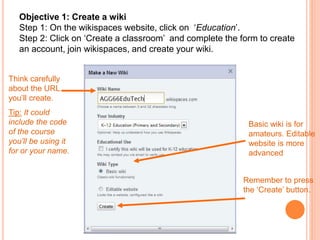
Objective 1: Create a wiki
Step 1: On the wikispaces website, click on ‘Education’.
Step 2: Click on ‘Create a classroom’ and complete the form to create
an account, join wikispaces, and create your wiki.
Think carefully
about the URL
you’ll create.
Tip: It could
include the code
of the course
you’ll be using it
for or your name.
Basic wiki is for
amateurs. Editable
website is more
advanced
Remember to press
the ‘Create’ button.
Objective 2: Create and edit the home page
Step 1: To start adding content, simply click on the arrow on the right
and then click on ‘Edit’
On the left corner,
the name of your
wiki appears!
Your username should
appear here!
To be allowed to edit
pages, you must
always be logged in.
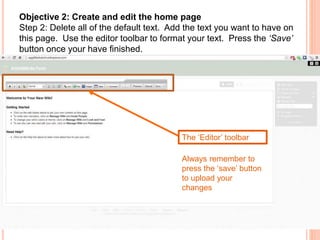
Objective 2: Create and edit the home page
Step 2: Delete all of the default text. Add the text you want to have on
this page. Use the editor toolbar to format your text. Press the ‘Save’
button once your have finished.
The ‘Editor’ toolbar
Always remember to
press the ‘save’ button
to upload your
changes
OBJECTIVE 2: CREATE AND EDIT THE HOME PAGE
HERE’S THE NEW VERSION OF YOUR FRONT PAGE. THE NEW
VERSION IS IMMEDIATELY AVAILABLE ONLINE (!)
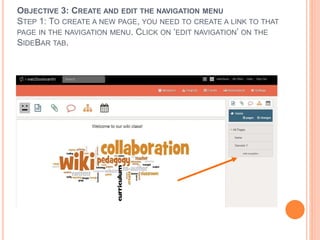
OBJECTIVE 3: CREATE AND EDIT THE NAVIGATION MENU
STEP 1: TO CREATE A NEW PAGE, YOU NEED TO CREATE A LINK TO THAT
PAGE IN THE NAVIGATION MENU. CLICK ON ‘EDIT NAVIGATION’ ON THE
SIDEBAR TAB.
OBJECTIVE 3: CREATE AND EDIT THE NAVIGATION MENU
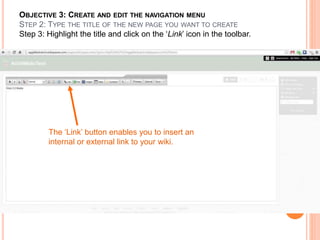
STEP 2: TYPE THE TITLE OF THE NEW PAGE YOU WANT TO CREATE
Step 3: Highlight the title and click on the ‘Link’ icon in the toolbar.
The ‘Link’ button enables you to insert an
internal or external link to your wiki.
Objective 3: Create and edit the navigation menu
Step 4: The ‘Insert Link’ window appears. Press the ‘
Add Link’ button to create a link within your wiki (internal link).
Objective 3: Create and edit the navigation menu
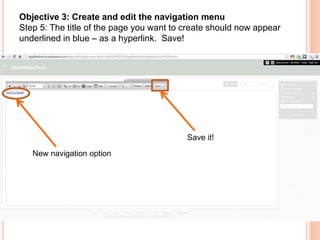
Step 5: The title of the page you want to create should now appear
underlined in blue – as a hyperlink. Save!
New navigation option
Save it!
OBJECTIVE 3: CREATE AND EDIT THE NAVIGATION MENU
 Step 6: The new version of your page should
include a link to the page you’ve just created. By
clicking on it, it should take you to a new blank
page!
 Step 7: This is the new page you’ve created.
Check its title. To add content to this page, go back
to Objective 2!
Objective 4 : Create an external link
Step 1: To create an external link, click on the edit icon, type the title of
the page you want to link to (e.g. Cambridge Online Dictionary),
highlight it and click on the ‘Link’ button. On the ‘Insert link’ window
that appears, select the ‘Web Address’ button.
Objective 4 : Create an external link
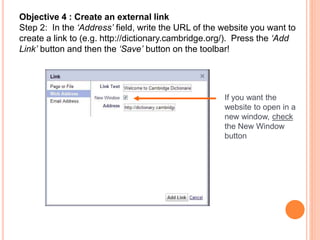
Step 2: In the ‘Address’ field, write the URL of the website you want to
create a link to (e.g. http://dictionary.cambridge.org/). Press the ‘Add
Link’ button and then the ‘Save’ button on the toolbar!
If you want the
website to open in a
new window, check
the New Window
button
Objective 4 : Create an external link
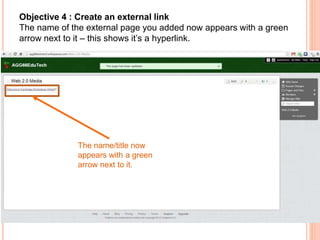
The name of the external page you added now appears with a green
arrow next to it – this shows it’s a hyperlink.
The name/title now
appears with a green
arrow next to it.
Objective 5: Upload a file
Step 1: Click the ‘Edit’ button and press the ‘File’ button on the ‘Editor’
toolbar. In the window ‘Images and files’ press the ‘Upload Files’
button, and select the file /image you want to upload by double clicking
it.
Objective 5: Upload a file
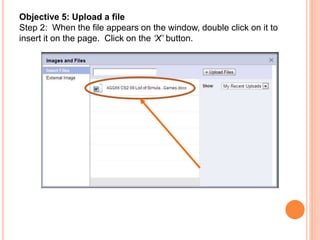
Step 2: When the file appears on the window, double click on it to
insert it on the page. Click on the ‘X’ button.
Objective 6: Upload a multimedia file
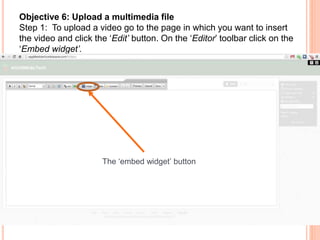
Step 1: To upload a video go to the page in which you want to insert
the video and click the ‘Edit’ button. On the ‘Editor’ toolbar click on the
‘Embed widget’.
The ‘embed widget’ button
Objective 6: Upload a multimedia file
Step 2: From the categories on the left menu, click on ‘Video’.
Objective 6: Upload a multimedia file
Step 3: Select the icon of the website from which you want to upload
the video.
Objective 6: Upload a multimedia file
Step 4: Once you click on the icon you want (e.g. ‘You Tube’), the
‘Widgets’ window appears. This provides a set of instructions
explaining how to embed the video.
Follow
instructions to
upload a video.
Objective 6: Upload a multimedia file
Step 5: In ‘You Tube’ webpage, below the selected video, click on
‘Share’ button.
Objective 6: Upload a multimedia file
Step 6: From ‘Embed’ section, copy the URL info given as code.
Select this
and copy!
Objective 6: Upload a multimedia file
Step 7: Now you can watch your embedded video directly from your
wiki!
Objective 7: Request membership to the we2tools wiki
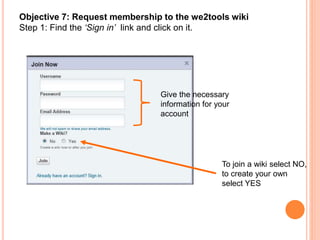
Step 1: Find the ‘Sign in’ link and click on it.
Give the necessary
information for your
account
To join a wiki select NO,
to create your own
select YES
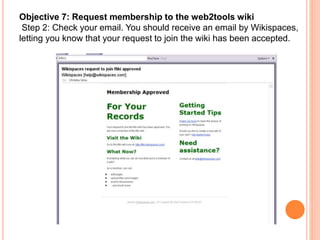
Objective 7: Request membership to the web2tools wiki
Step 2: Check your email. You should receive an email by Wikispaces,
letting you know that your request to join the wiki has been accepted.
OBJECTIVE 8: INVITE A COLLEAGUE TO JOIN YOUR WIKI
STEP 1: CLICK ON ‘MEMBERS’ IN YOUR WIKI.
OBJECTIVE 8: INVITE A COLLEAGUE TO JOIN YOUR WIKI
STEP 2: GO TO THE ‘INVITE PEOPLE’ ICON AND CLICK ON IT.
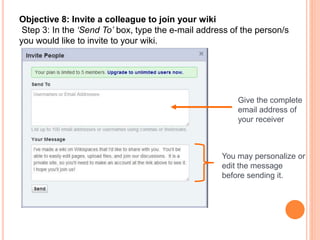
Objective 8: Invite a colleague to join your wiki
Step 3: In the ‘Send To’ box, type the e-mail address of the person/s
you would like to invite to your wiki.
Give the complete
email address of
your receiver
You may personalize or
edit the message
before sending it.
THANK YOU!
MARIA SIAMIDOU

Creating a wiki.

  • 1.
  • 2.
    • 1. Createa wiki • 2. Create and edit the home page (and any other wiki page) • 3. Create and edit the navigation menu • 4. Create an external link • 5. Upload a file (e.g. Microsoft Word, PowerPoint) • 6. Upload a multimedia file (e.g. a youtube video) • 7. Request membership to the wiki • 8. Invite a colleague to join your wiki • 9. Post a comment and reply to each other (discussion forum) Workshop Objectives
  • 3.
    You may choosefrom wiki websites, like: • http://pbwiki.com • http://www.wetpaint.com • http://www.wikispaces.com wikispaces has been chosen for this workshop, so go to: http://www.wikispaces.com/ Choose a wiki website
  • 4.
    Objective 1: Createa wiki Step 1: On the wikispaces website, click on ‘Education’. Step 2: Click on ‘Create a classroom’ and complete the form to create an account, join wikispaces, and create your wiki. Think carefully about the URL you’ll create. Tip: It could include the code of the course you’ll be using it for or your name. Basic wiki is for amateurs. Editable website is more advanced Remember to press the ‘Create’ button.
  • 5.
    Objective 2: Createand edit the home page Step 1: To start adding content, simply click on the arrow on the right and then click on ‘Edit’ On the left corner, the name of your wiki appears! Your username should appear here! To be allowed to edit pages, you must always be logged in.
  • 6.
    Objective 2: Createand edit the home page Step 2: Delete all of the default text. Add the text you want to have on this page. Use the editor toolbar to format your text. Press the ‘Save’ button once your have finished. The ‘Editor’ toolbar Always remember to press the ‘save’ button to upload your changes
  • 7.
    OBJECTIVE 2: CREATEAND EDIT THE HOME PAGE HERE’S THE NEW VERSION OF YOUR FRONT PAGE. THE NEW VERSION IS IMMEDIATELY AVAILABLE ONLINE (!)
  • 8.
    OBJECTIVE 3: CREATEAND EDIT THE NAVIGATION MENU STEP 1: TO CREATE A NEW PAGE, YOU NEED TO CREATE A LINK TO THAT PAGE IN THE NAVIGATION MENU. CLICK ON ‘EDIT NAVIGATION’ ON THE SIDEBAR TAB.
  • 9.
    OBJECTIVE 3: CREATEAND EDIT THE NAVIGATION MENU STEP 2: TYPE THE TITLE OF THE NEW PAGE YOU WANT TO CREATE Step 3: Highlight the title and click on the ‘Link’ icon in the toolbar. The ‘Link’ button enables you to insert an internal or external link to your wiki.
  • 10.
    Objective 3: Createand edit the navigation menu Step 4: The ‘Insert Link’ window appears. Press the ‘ Add Link’ button to create a link within your wiki (internal link).
  • 11.
    Objective 3: Createand edit the navigation menu Step 5: The title of the page you want to create should now appear underlined in blue – as a hyperlink. Save! New navigation option Save it!
  • 12.
    OBJECTIVE 3: CREATEAND EDIT THE NAVIGATION MENU  Step 6: The new version of your page should include a link to the page you’ve just created. By clicking on it, it should take you to a new blank page!  Step 7: This is the new page you’ve created. Check its title. To add content to this page, go back to Objective 2!
  • 13.
    Objective 4 :Create an external link Step 1: To create an external link, click on the edit icon, type the title of the page you want to link to (e.g. Cambridge Online Dictionary), highlight it and click on the ‘Link’ button. On the ‘Insert link’ window that appears, select the ‘Web Address’ button.
  • 14.
    Objective 4 :Create an external link Step 2: In the ‘Address’ field, write the URL of the website you want to create a link to (e.g. http://dictionary.cambridge.org/). Press the ‘Add Link’ button and then the ‘Save’ button on the toolbar! If you want the website to open in a new window, check the New Window button
  • 15.
    Objective 4 :Create an external link The name of the external page you added now appears with a green arrow next to it – this shows it’s a hyperlink. The name/title now appears with a green arrow next to it.
  • 16.
    Objective 5: Uploada file Step 1: Click the ‘Edit’ button and press the ‘File’ button on the ‘Editor’ toolbar. In the window ‘Images and files’ press the ‘Upload Files’ button, and select the file /image you want to upload by double clicking it.
  • 17.
    Objective 5: Uploada file Step 2: When the file appears on the window, double click on it to insert it on the page. Click on the ‘X’ button.
  • 18.
    Objective 6: Uploada multimedia file Step 1: To upload a video go to the page in which you want to insert the video and click the ‘Edit’ button. On the ‘Editor’ toolbar click on the ‘Embed widget’. The ‘embed widget’ button
  • 19.
    Objective 6: Uploada multimedia file Step 2: From the categories on the left menu, click on ‘Video’.
  • 20.
    Objective 6: Uploada multimedia file Step 3: Select the icon of the website from which you want to upload the video.
  • 21.
    Objective 6: Uploada multimedia file Step 4: Once you click on the icon you want (e.g. ‘You Tube’), the ‘Widgets’ window appears. This provides a set of instructions explaining how to embed the video. Follow instructions to upload a video.
  • 22.
    Objective 6: Uploada multimedia file Step 5: In ‘You Tube’ webpage, below the selected video, click on ‘Share’ button.
  • 23.
    Objective 6: Uploada multimedia file Step 6: From ‘Embed’ section, copy the URL info given as code. Select this and copy!
  • 24.
    Objective 6: Uploada multimedia file Step 7: Now you can watch your embedded video directly from your wiki!
  • 25.
    Objective 7: Requestmembership to the we2tools wiki Step 1: Find the ‘Sign in’ link and click on it. Give the necessary information for your account To join a wiki select NO, to create your own select YES
  • 26.
    Objective 7: Requestmembership to the web2tools wiki Step 2: Check your email. You should receive an email by Wikispaces, letting you know that your request to join the wiki has been accepted.
  • 27.
    OBJECTIVE 8: INVITEA COLLEAGUE TO JOIN YOUR WIKI STEP 1: CLICK ON ‘MEMBERS’ IN YOUR WIKI.
  • 28.
    OBJECTIVE 8: INVITEA COLLEAGUE TO JOIN YOUR WIKI STEP 2: GO TO THE ‘INVITE PEOPLE’ ICON AND CLICK ON IT.
  • 29.
    Objective 8: Invitea colleague to join your wiki Step 3: In the ‘Send To’ box, type the e-mail address of the person/s you would like to invite to your wiki. Give the complete email address of your receiver You may personalize or edit the message before sending it.
  • 30.