Wikis and World Languages


         Donna Shelton, PhD
     Northeastern State University
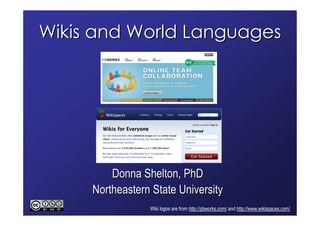
                 Wiki logos are from http://pbworks.com/ and http://www.wikispaces.com/.
Welcome to OFLTA’s Summer
   Technology Workshop

Wikis and World Languages
Introductions
 Donna Shelton, Associate Professor of Spanish at
 NSU and Web 2.0 geek
 Please introduce yourselves to those around you
 and discuss your goals for this workshop. How do
 you plan to use your wiki in your teaching?
 Be ready to introduce another participant to the rest
 of the group
Workshop overview
 We’re going to use PBWorks as our wiki hosting
 site for this demonstration
   You are also welcome to use Wikispaces
   You should consider privacy issues and your district’s or
   institution’s policies in setting up your wiki
 As a part of learning what can be incorporated into
 a wiki, we’ll also learn about other Web 2.0 tools
 We’ll start with the basics, but then we can
 individualize according to your needs
What’s a wiki?
 A website that multiple people can create and edit
 They can be private or public
 They can be simple or quite complex
   Text only
   One page or multiple pages
   Images, videos, maps, and more and more
 Let’s watch a short video that explains it
Wikis and world languages
 Wikis have a number of advantages for language
 instruction
 Teachers can use them to post resources and
 assignments
 Students can use them on collaborative projects
 Wikis are the perfect repository for multi-media
 learning objects
What do you want to do?
 Before we set up our wikis, let’s talk about what you
 want to do
   Who’s going to use your wiki?
   Will your wiki be text only?
   Do you want a wiki with just one page or multiple
   pages?
   What bells and whistles do you want?
 Your preferences will help me tailor the workshop to
 your needs
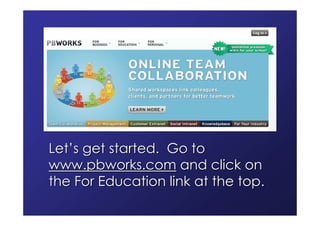
Let’s get started. Go to
www.pbworks.com and click on
the For Education link at the top.
There’s one thing to know before
     you set up your account:

  You’ll need to verify your email
  address. If you open your email
now, it will save time. If your school
  email won’t work, set up a free
        Gmail account first.
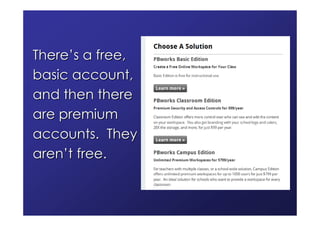
There’s a free,
basic account,
and then there
are premium
accounts. They
aren’t free.
This is the free, basic account.
    Check out the features.
Here’s a comparison with the
    premium accounts.
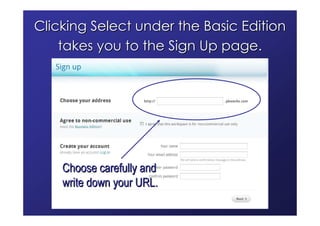
Clicking Select under the Basic Edition
    takes you to the Sign Up page.


    Choose carefully and
    write down your URL.
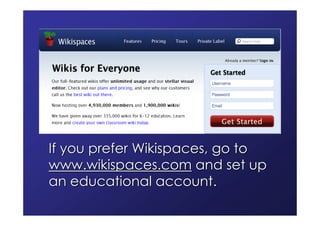
If you prefer Wikispaces, go to
www.wikispaces.com and set up
an educational account.
All wiki hosting services offer training
resources and examples of educational
        uses of wikis. Take a look.
This Commoncraft video is in our wiki.
Once you’ve set up your wiki, you will see
this page. It needs editing! Click EDIT.
Take a look at each of the circled areas
on the Edit page. Click on each to see
           what you can do.
Let’s take a closer look.
This is the most important thing you
 need to know. After you add or edit
the content of a page, you must SAVE.
The fun stuff is under Insert on the toolbar.
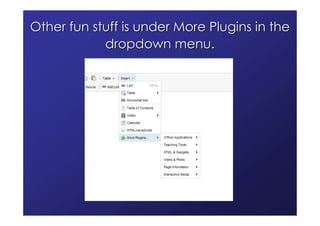
Other fun stuff is under More Plugins in the
            dropdown menu.
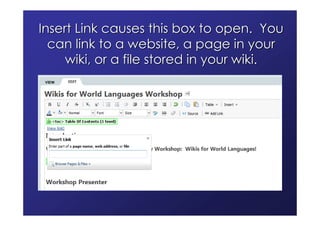
Insert Link causes this box to open. You
  can link to a website, a page in your
     wiki, or a file stored in your wiki.
If you want to link to a page or file in your
 wiki, this box will allow you to select one.
Once you’ve set up
 your wiki, how do
you get back into it
     later on?
If you go to www.pbworks.com and
 then log in, this screen will appear.
This page will then open. It lists all your wikis.
     Select the one you want to work on.
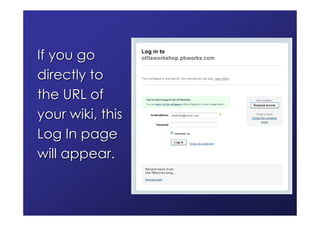
If you go
directly to
the URL of
your wiki, this
Log In page
will appear.
Now let’s explore
  other things we
need to know to set
up a functional wiki.
Take a look
at the
functions
available
on the right
side of the
page.
Under Account, you can change your
   email address and password.
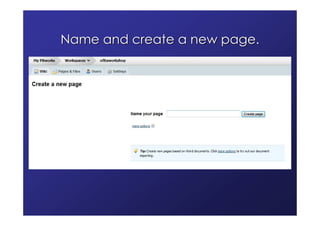
Name and create a new page.
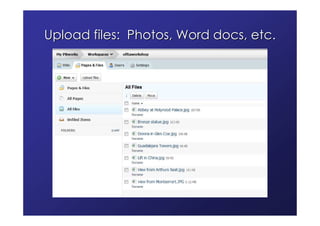
Upload files: Photos, Word docs, etc.
Invite people to your wikis.
To share a page if you’ve made
changes, use this message box.
To control access to your pages, you
 have to have a premium account.
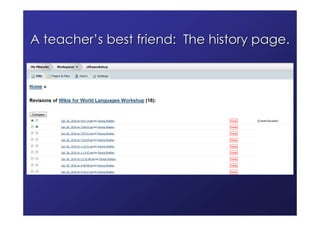
A teacher’s best friend: The history page.
Go to the Settings tab. You can change the colors
 of your wiki and handle user access from there.
In the Settings tab, select your
 Workspace Security settings.
Add more users here, also.
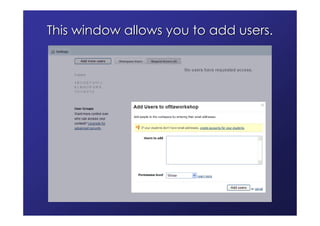
This window allows you to add users.
Go to the
 Pages & Files
tab. You can
    delete or
     rename
pages in your
    wiki here.
Once
you’ve
created all
the pages
for your wiki,
you can
create links
to them.
PBWorks has provided some preformatted
     pages targeted at educators.
Let’s take some time to
set up the pages of our
  wiki and enter some
text. Later we’ll look at
    the fancy things.
Thank you!

       Donna Shelton
Northeastern State University
    sheltods@nsuok.edu

Oflta Technology Workshop August 2010

  • 1.
    Wikis and WorldLanguages Donna Shelton, PhD Northeastern State University Wiki logos are from http://pbworks.com/ and http://www.wikispaces.com/.
  • 2.
    Welcome to OFLTA’sSummer Technology Workshop Wikis and World Languages
  • 3.
    Introductions Donna Shelton,Associate Professor of Spanish at NSU and Web 2.0 geek Please introduce yourselves to those around you and discuss your goals for this workshop. How do you plan to use your wiki in your teaching? Be ready to introduce another participant to the rest of the group
  • 4.
    Workshop overview We’regoing to use PBWorks as our wiki hosting site for this demonstration You are also welcome to use Wikispaces You should consider privacy issues and your district’s or institution’s policies in setting up your wiki As a part of learning what can be incorporated into a wiki, we’ll also learn about other Web 2.0 tools We’ll start with the basics, but then we can individualize according to your needs
  • 5.
    What’s a wiki? A website that multiple people can create and edit They can be private or public They can be simple or quite complex Text only One page or multiple pages Images, videos, maps, and more and more Let’s watch a short video that explains it
  • 6.
    Wikis and worldlanguages Wikis have a number of advantages for language instruction Teachers can use them to post resources and assignments Students can use them on collaborative projects Wikis are the perfect repository for multi-media learning objects
  • 7.
    What do youwant to do? Before we set up our wikis, let’s talk about what you want to do Who’s going to use your wiki? Will your wiki be text only? Do you want a wiki with just one page or multiple pages? What bells and whistles do you want? Your preferences will help me tailor the workshop to your needs
  • 8.
    Let’s get started.Go to www.pbworks.com and click on the For Education link at the top.
  • 9.
    There’s one thingto know before you set up your account: You’ll need to verify your email address. If you open your email now, it will save time. If your school email won’t work, set up a free Gmail account first.
  • 10.
    There’s a free, basicaccount, and then there are premium accounts. They aren’t free.
  • 11.
    This is thefree, basic account. Check out the features.
  • 12.
    Here’s a comparisonwith the premium accounts.
  • 13.
    Clicking Select underthe Basic Edition takes you to the Sign Up page. Choose carefully and write down your URL.
  • 14.
    If you preferWikispaces, go to www.wikispaces.com and set up an educational account.
  • 15.
    All wiki hostingservices offer training resources and examples of educational uses of wikis. Take a look.
  • 16.
    This Commoncraft videois in our wiki.
  • 17.
    Once you’ve setup your wiki, you will see this page. It needs editing! Click EDIT.
  • 18.
    Take a lookat each of the circled areas on the Edit page. Click on each to see what you can do.
  • 19.
    Let’s take acloser look.
  • 20.
    This is themost important thing you need to know. After you add or edit the content of a page, you must SAVE.
  • 21.
    The fun stuffis under Insert on the toolbar.
  • 22.
    Other fun stuffis under More Plugins in the dropdown menu.
  • 23.
    Insert Link causesthis box to open. You can link to a website, a page in your wiki, or a file stored in your wiki.
  • 24.
    If you wantto link to a page or file in your wiki, this box will allow you to select one.
  • 25.
    Once you’ve setup your wiki, how do you get back into it later on?
  • 26.
    If you goto www.pbworks.com and then log in, this screen will appear.
  • 27.
    This page willthen open. It lists all your wikis. Select the one you want to work on.
  • 28.
    If you go directlyto the URL of your wiki, this Log In page will appear.
  • 29.
    Now let’s explore other things we need to know to set up a functional wiki.
  • 30.
    Take a look atthe functions available on the right side of the page.
  • 31.
    Under Account, youcan change your email address and password.
  • 32.
    Name and createa new page.
  • 33.
    Upload files: Photos,Word docs, etc.
  • 34.
    Invite people toyour wikis.
  • 35.
    To share apage if you’ve made changes, use this message box.
  • 36.
    To control accessto your pages, you have to have a premium account.
  • 37.
    A teacher’s bestfriend: The history page.
  • 38.
    Go to theSettings tab. You can change the colors of your wiki and handle user access from there.
  • 39.
    In the Settingstab, select your Workspace Security settings.
  • 40.
    Add more usershere, also.
  • 41.
    This window allowsyou to add users.
  • 42.
    Go to the Pages & Files tab. You can delete or rename pages in your wiki here.
  • 43.
    Once you’ve created all the pages foryour wiki, you can create links to them.
  • 44.
    PBWorks has providedsome preformatted pages targeted at educators.
  • 45.
    Let’s take sometime to set up the pages of our wiki and enter some text. Later we’ll look at the fancy things.
  • 46.
    Thank you! Donna Shelton Northeastern State University sheltods@nsuok.edu