WetPaint.com Tutorial Jeremy Kendzierski Ci102 Spring 2009
Start Creating your Website
Fill in your information
Choose your Style
Click Continue
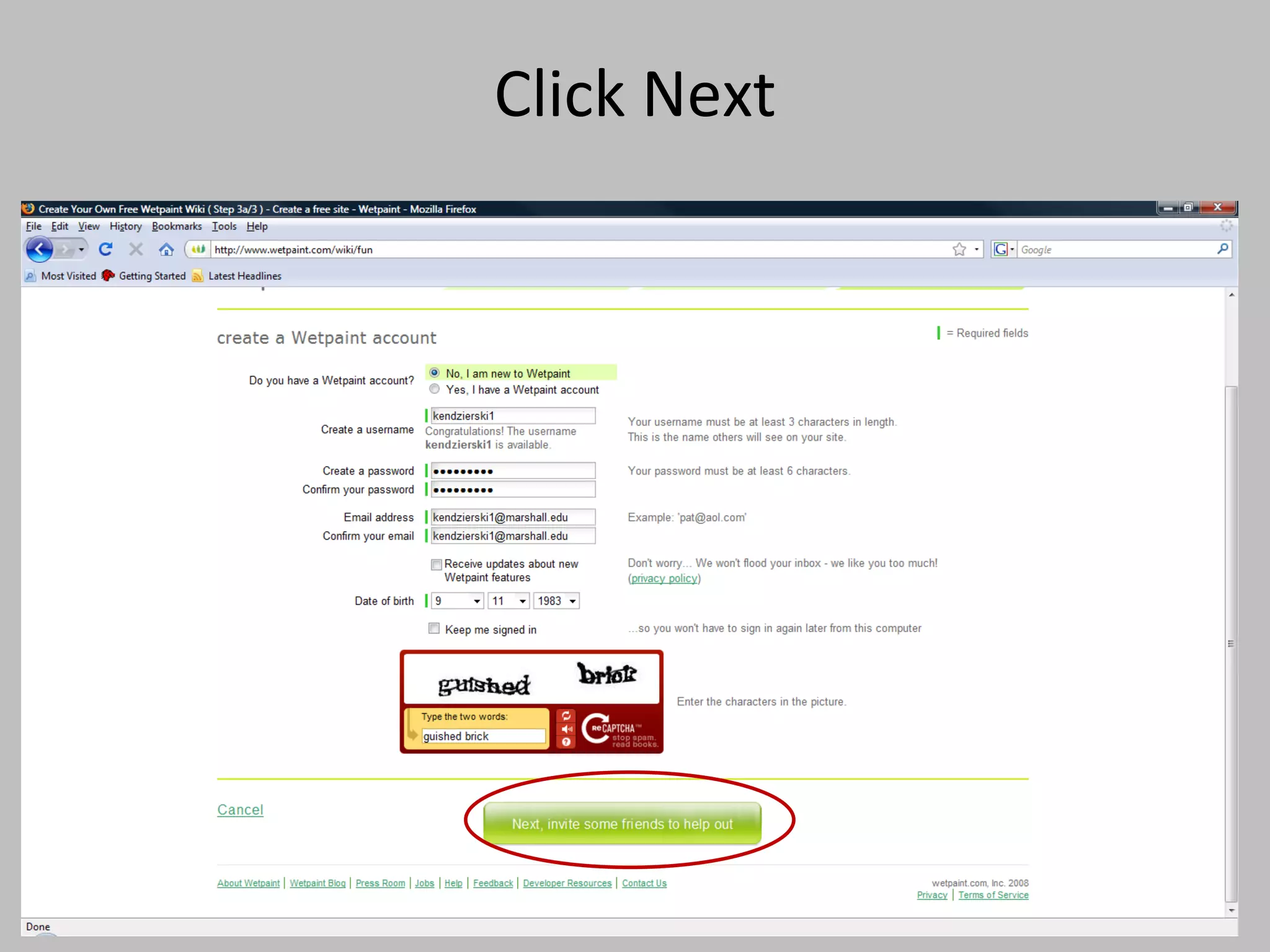
Fill out your information
Click Next
Just Create my site
Take me to my Site
Edit Home Page
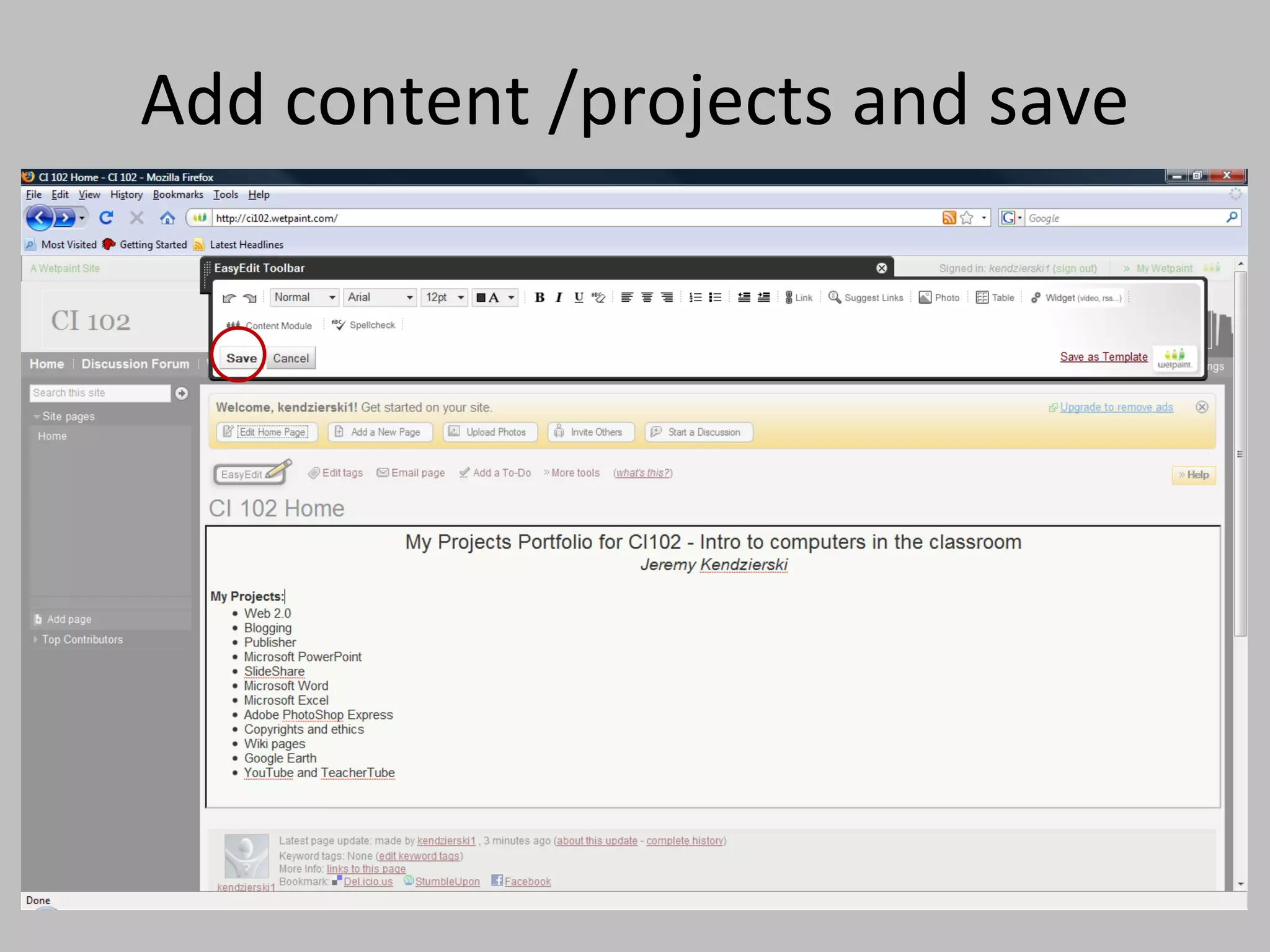
Add content /projects and save
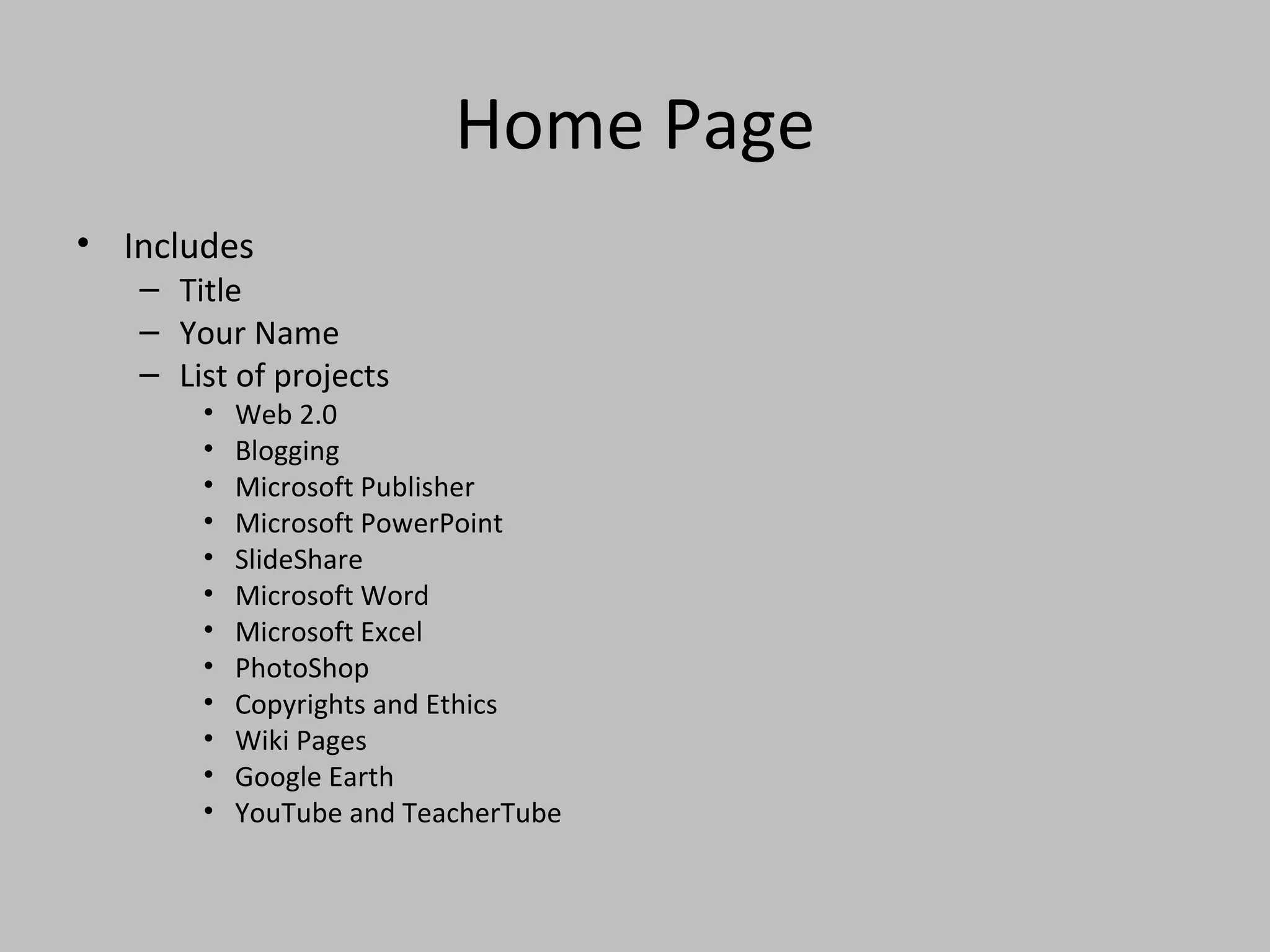
Home Page Includes Title Your Name List of projects Web 2.0 Blogging Microsoft Publisher Microsoft PowerPoint SlideShare Microsoft Word Microsoft Excel PhotoShop Copyrights and Ethics Wiki Pages Google Earth YouTube and TeacherTube
Add new page
Give the page a name
Adding New Pages Add a new page for each Project you’ve completed so far: Web 2.0 Blogging
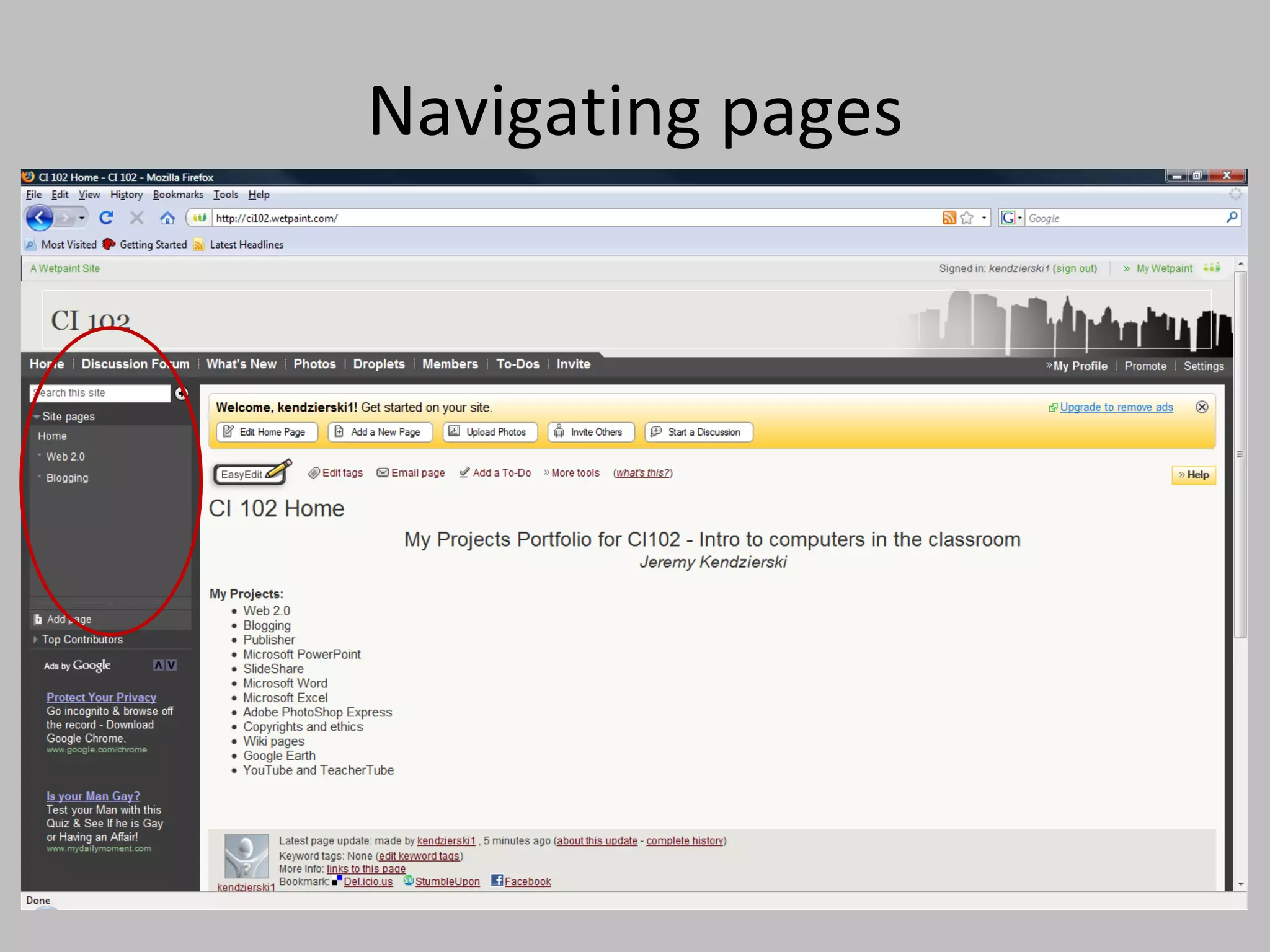
Navigating pages
Create a link
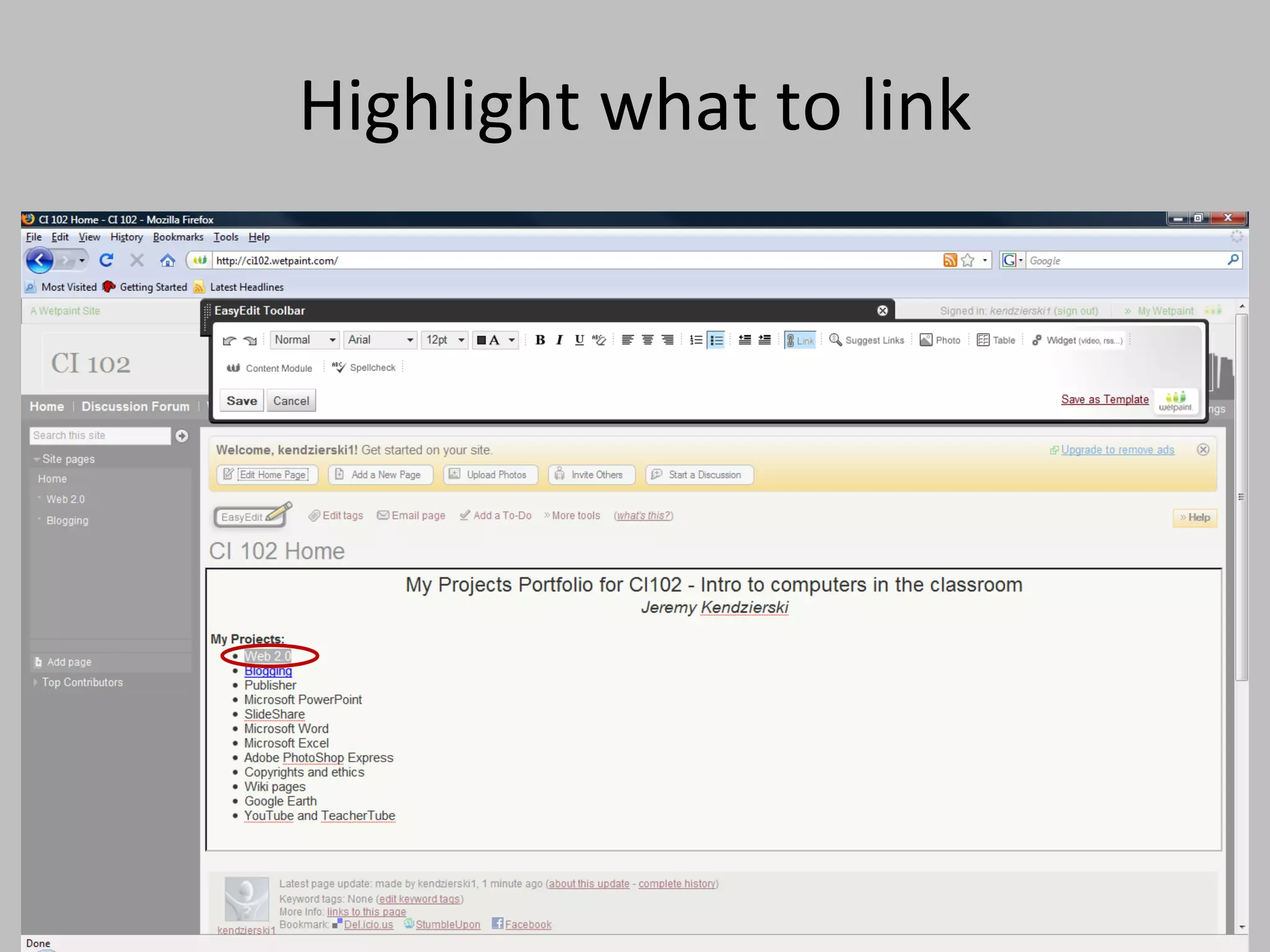
Highlight what to link
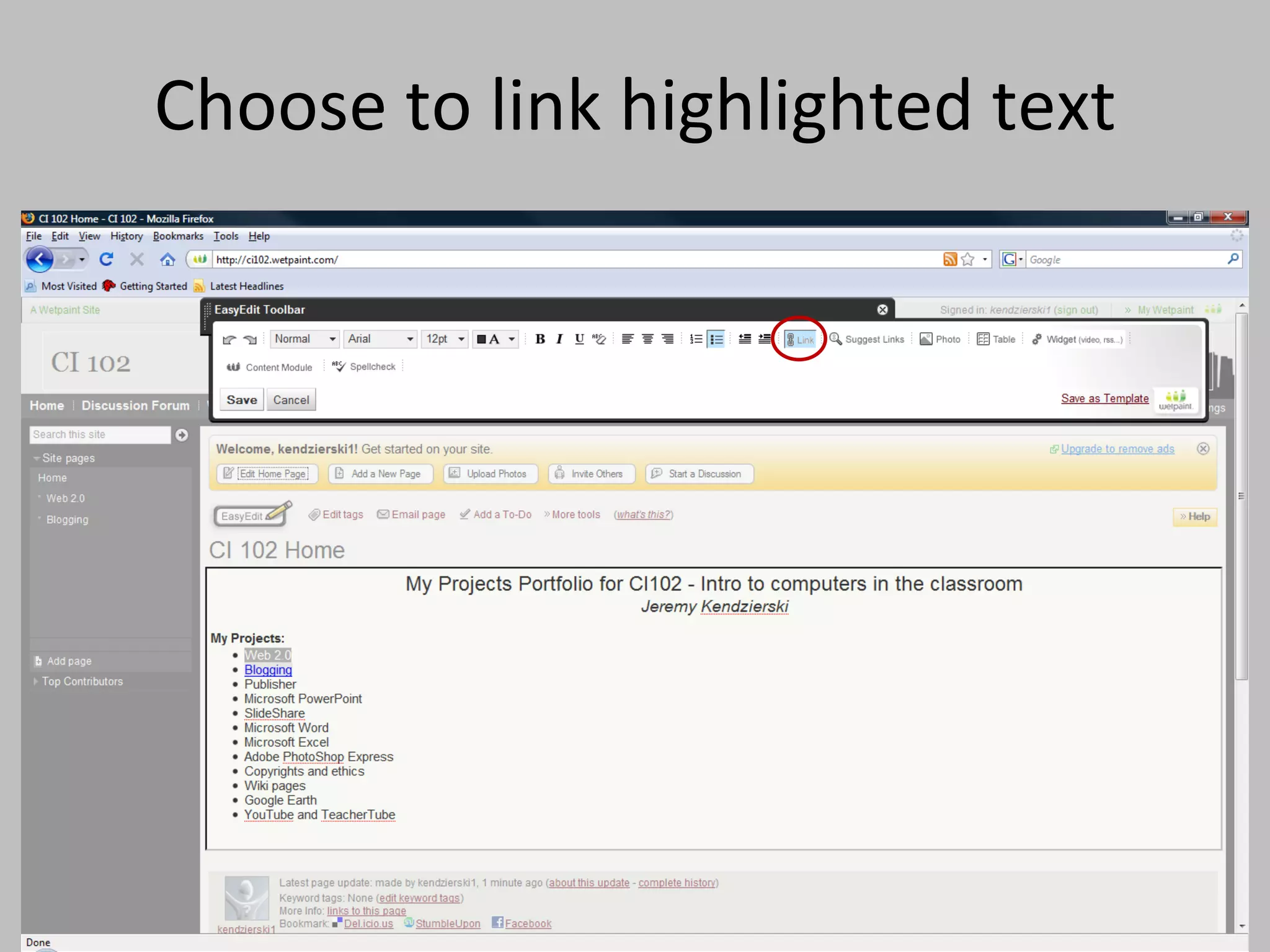
Choose to link highlighted text
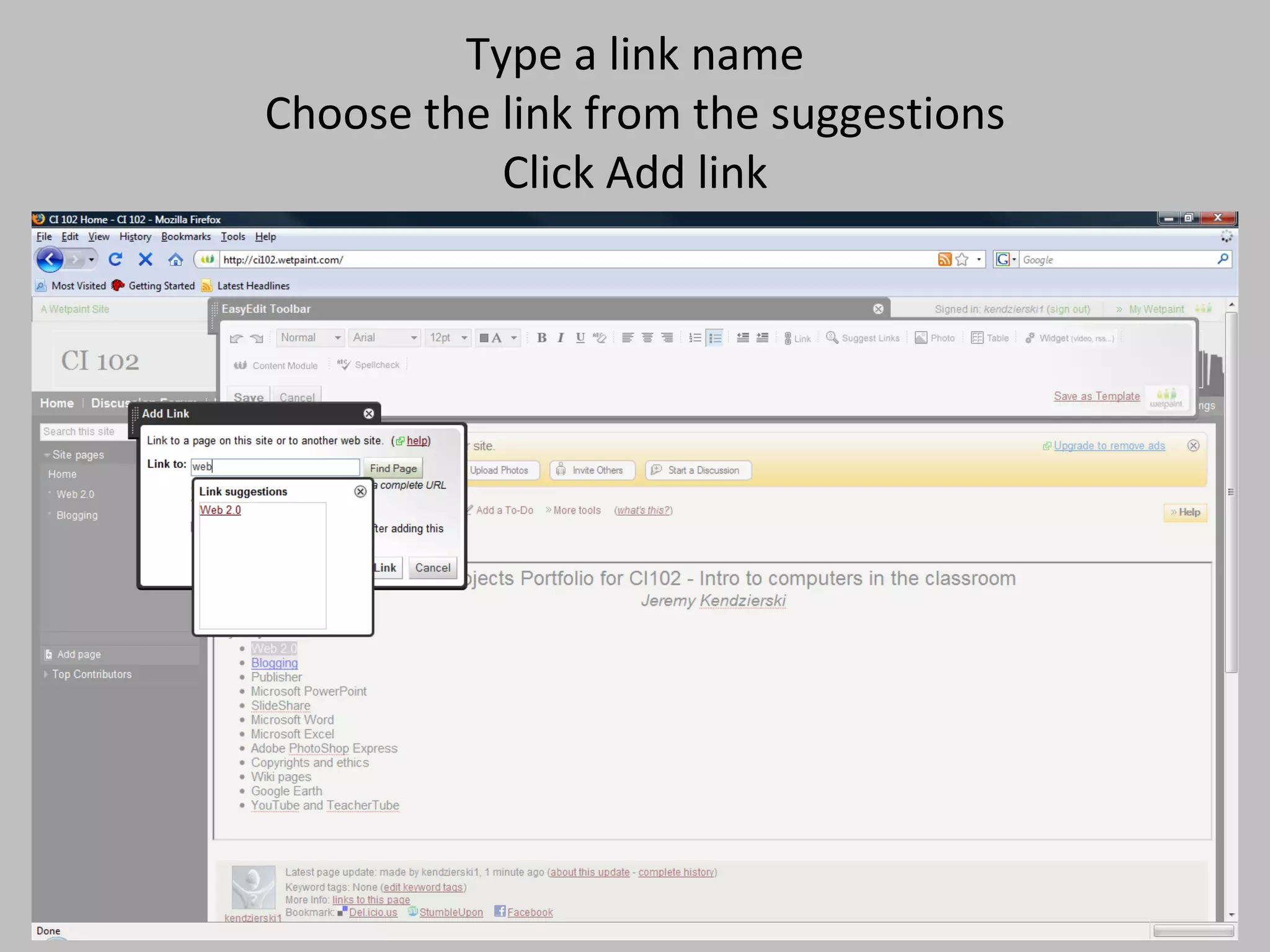
Type a link name Choose the link from the suggestions Click Add link
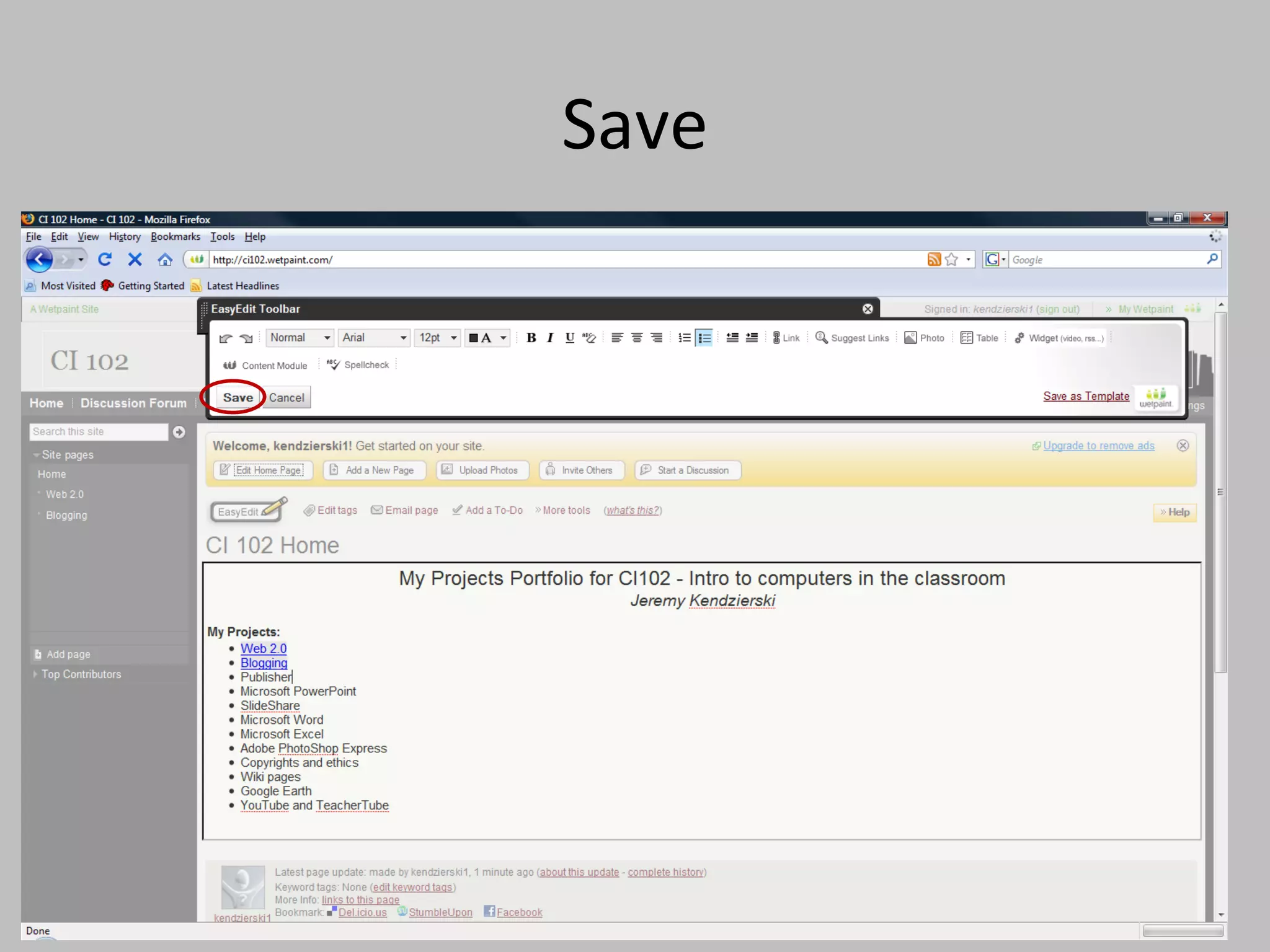
Save
Add content to your Pages
EasyEdit
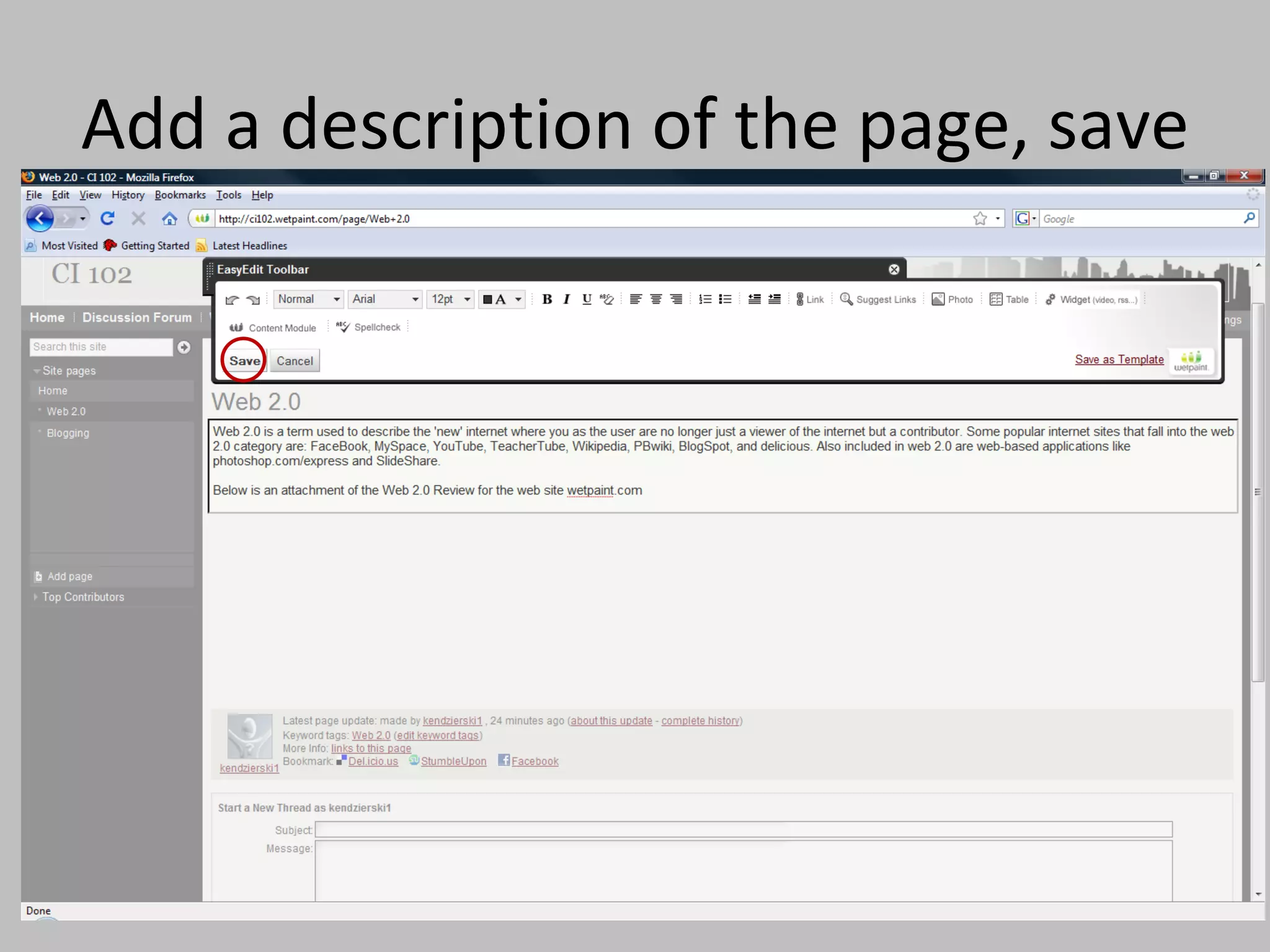
Add a description of the page, save
Add the attachment
Browse for your File
Choose your file, click open
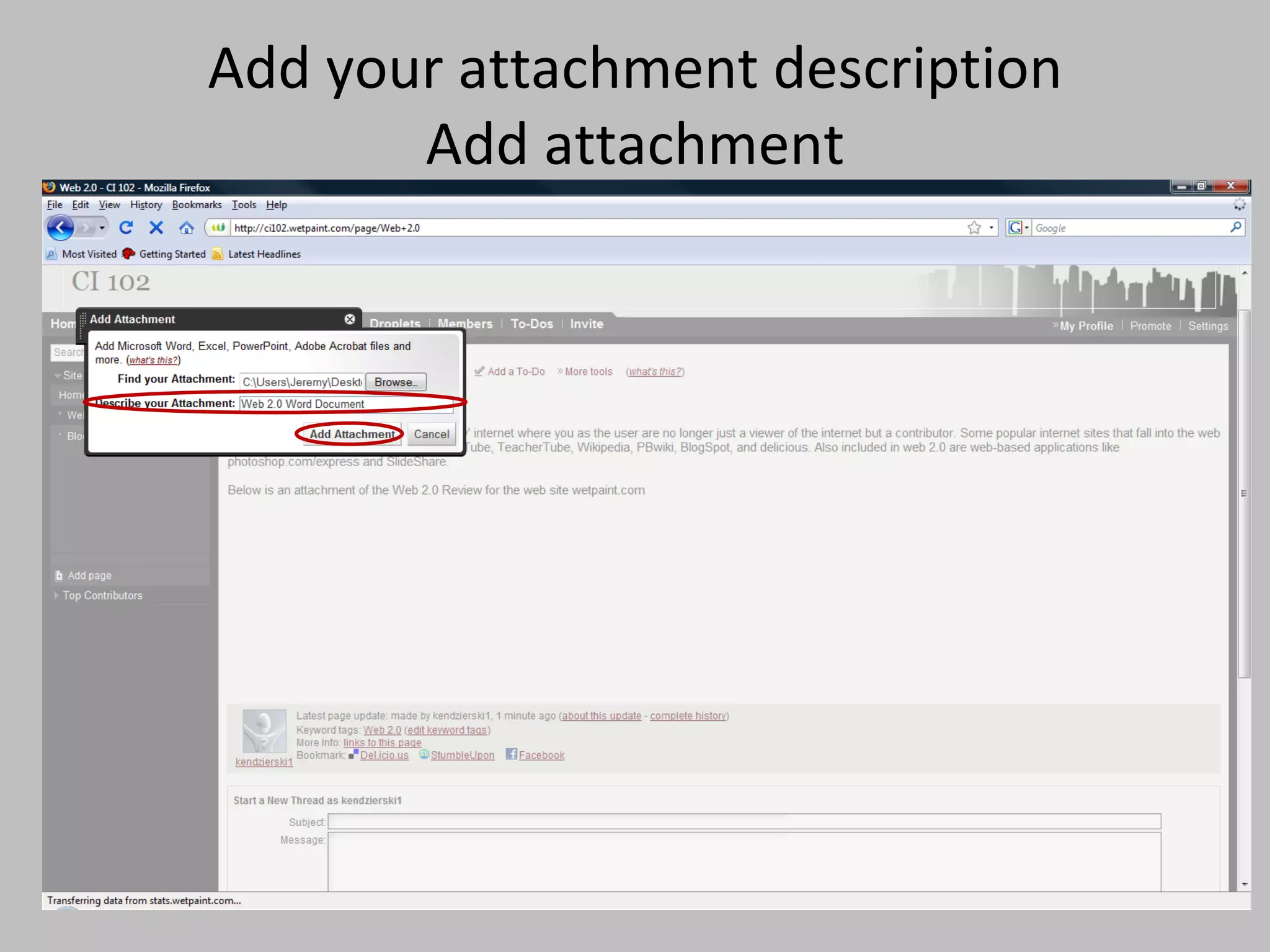
Add your attachment description Add attachment
The attachment is now on the bottom
Link blogging Choose the blogging page by clicking on it in the ‘site pages’ box Click ‘easyedit’ Type your description Link to your blog site Copy your blogs URL and paste it in the ‘Link to’ box:
Blogging

Wetpaint