Web of Science 1
Finding journal articles and basic
citation information
Citation indexes enable you to...
• Search for papers (journal articles, conference proceedings etc) by topic,
author, publication name etc.
However you can also:
• Find out how many times a paper has been cited i.e. Gauge the usefulness/quality
of a paper.
• Find which papers have cited an earlier paper i.e. When you find an paper, you
can then discover which papers have subsequently cited it.
• Find papers on a similar or related subject i.e. If an paper has cited another paper,
then they are probably on a similar/related subject.
In addition you can:
• Find the best journals in your field using Journal Citation Reports i.e. Citation
data is used to rank journals, so is a way of seeing how journals perform in relation to
others in the same subject area.
Web of Science is a citation index
• The world’s leading scholarly literature in the sciences, social
sciences, arts, and humanities and proceedings of international
conferences, symposia, seminars, colloquia, workshops, and
conventions
• Web of Science comprises of a number of journal databases
including:
• Science Citation Index Expanded (1970-present)
• Social Sciences Citation Index (1970-present)
• Arts & Humanities Citation Index (1975-present)
• Conference Proceedings Citation Index- Science (1990-present)
• Conference Proceedings Citation Index- Social Science & Humanities
(1990-present)
• Emerging Sources Citation Index (2015-present)
Web of Science (WoS) provides access to….
• This is an introductory guide to accessing and using Web of
Science. Discover how to search for information and find
basic citation information.
• For more detailed help finding citation information see Web of
Science: Finding Citation Information (Web of Science 2)
• For information on creating Journal Citation Reports see Web
of Science: Journal Citation Reports (Web of Science 3).
Web of Science help
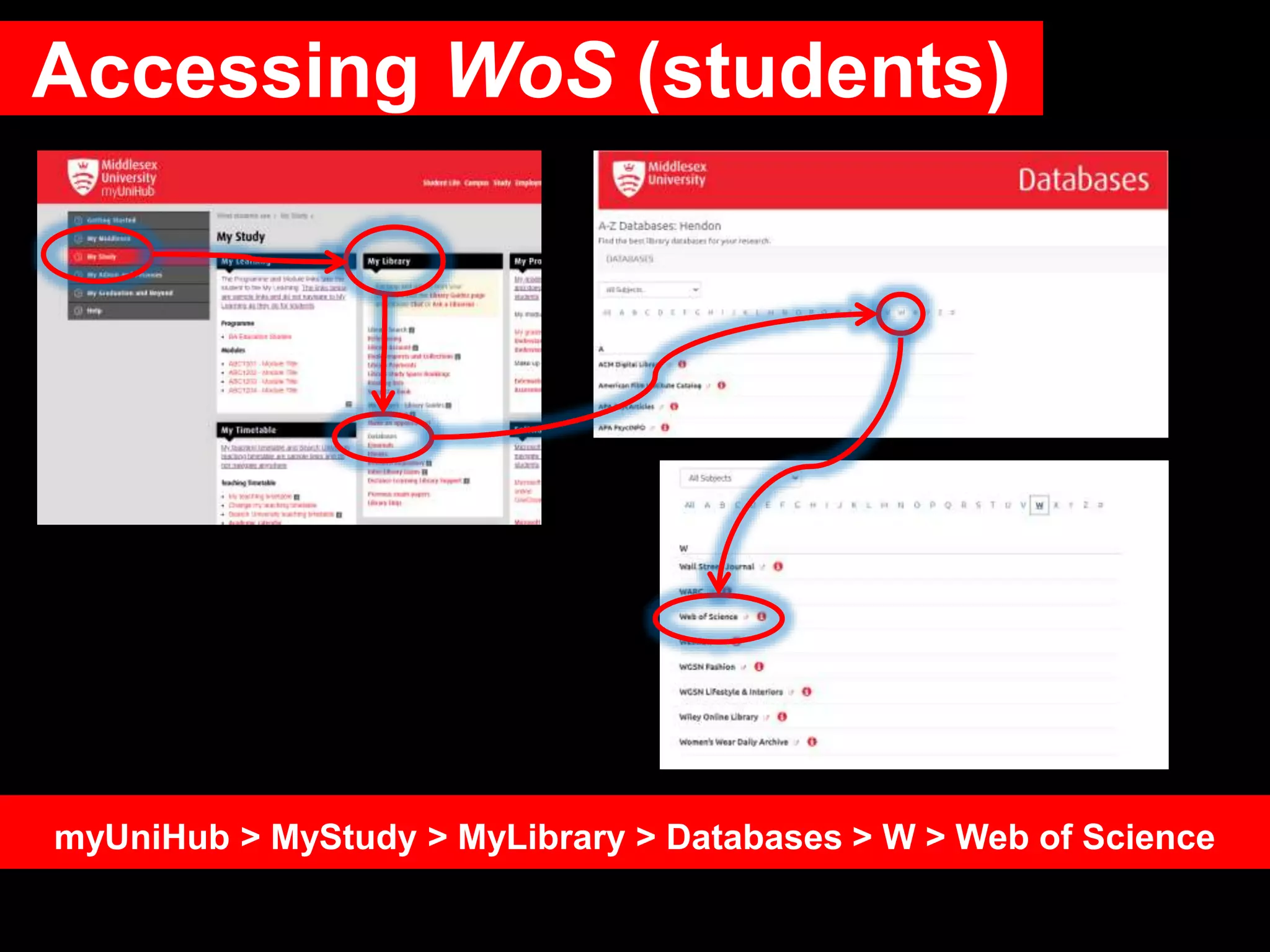
Accessing WoS (students)
myUniHub > MyStudy > MyLibrary > Databases > W > Web of Science
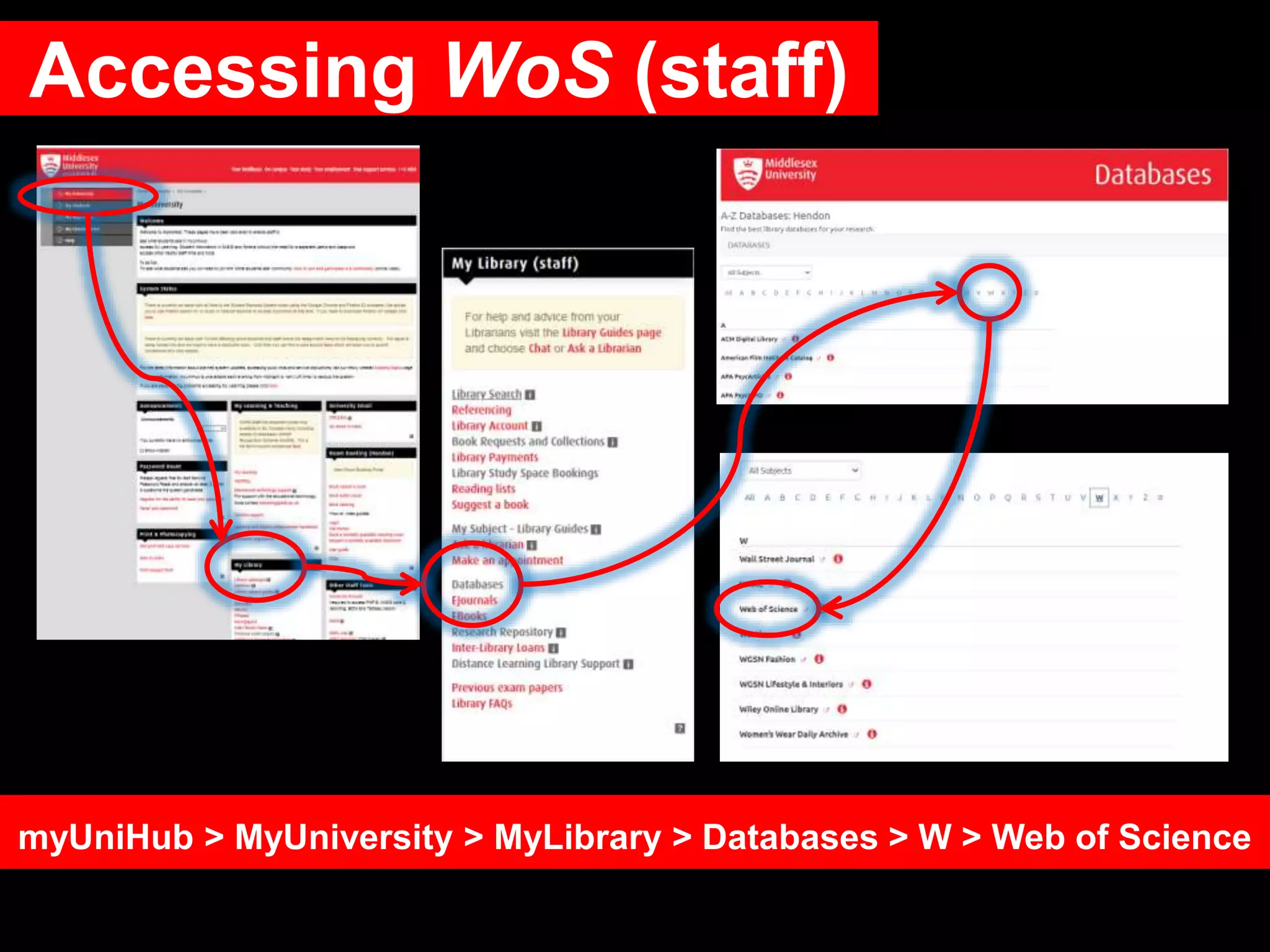
Accessing WoS (staff)
myUniHub > MyUniversity > MyLibrary > Databases > W > Web of Science
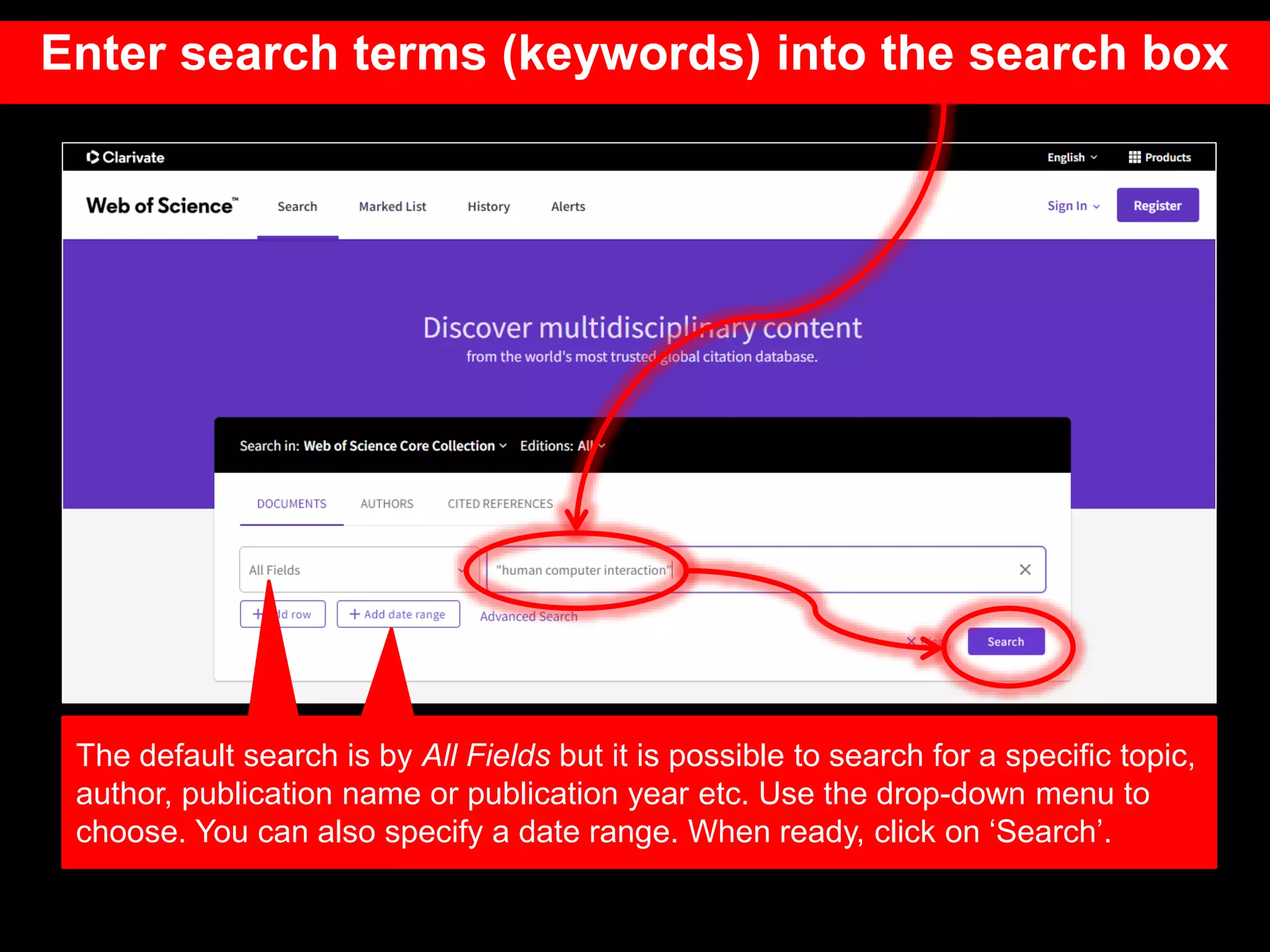
The default search is by All Fields but it is possible to search for a specific topic,
author, publication name or publication year etc. Use the drop-down menu to
choose. You can also specify a date range. When ready, click on ‘Search’.
Enter search terms (keywords) into the search box
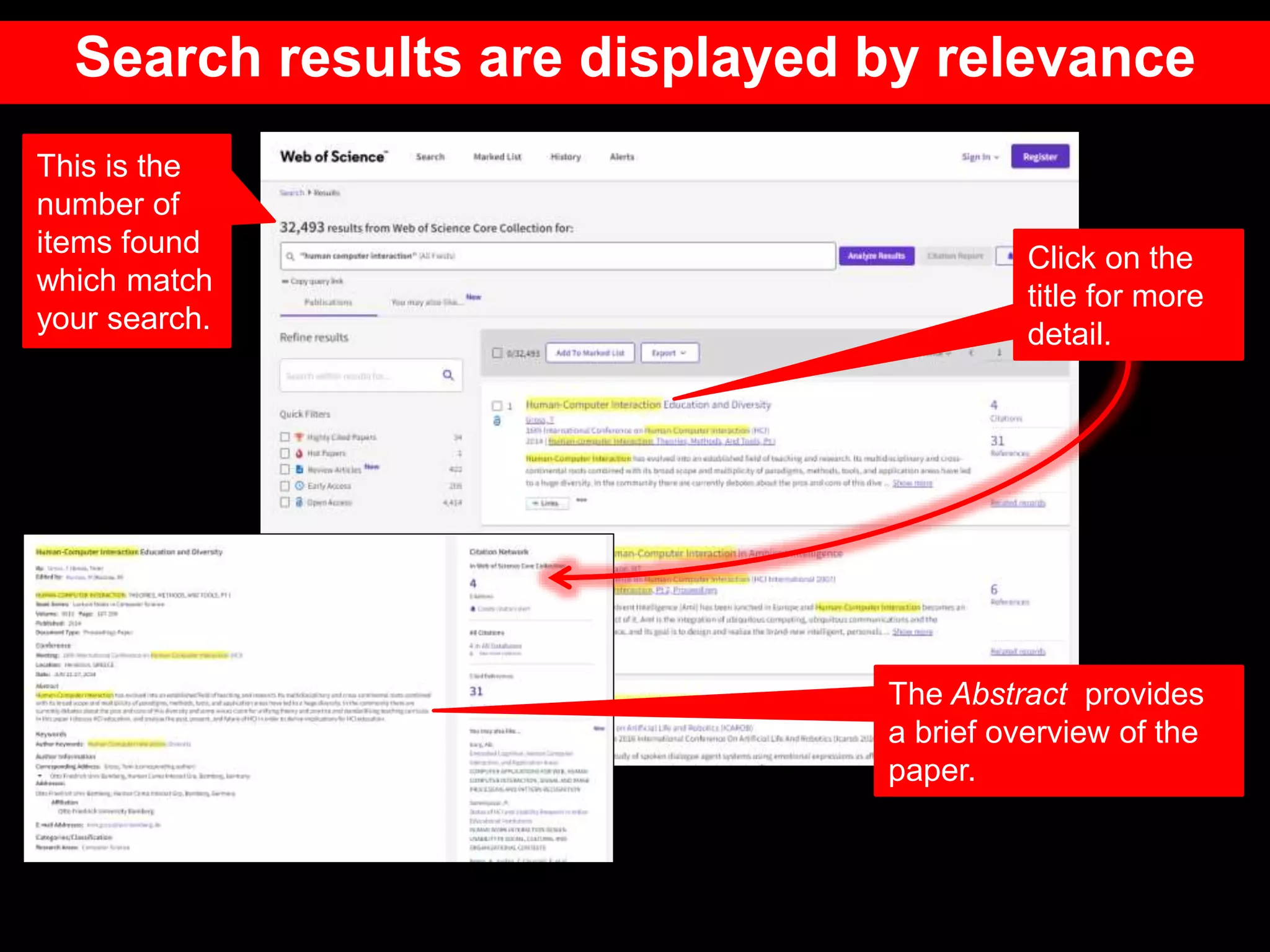
Click on the
title for more
detail.
This is the
number of
items found
which match
your search.
Search results are displayed by relevance
The Abstract provides
a brief overview of the
paper.
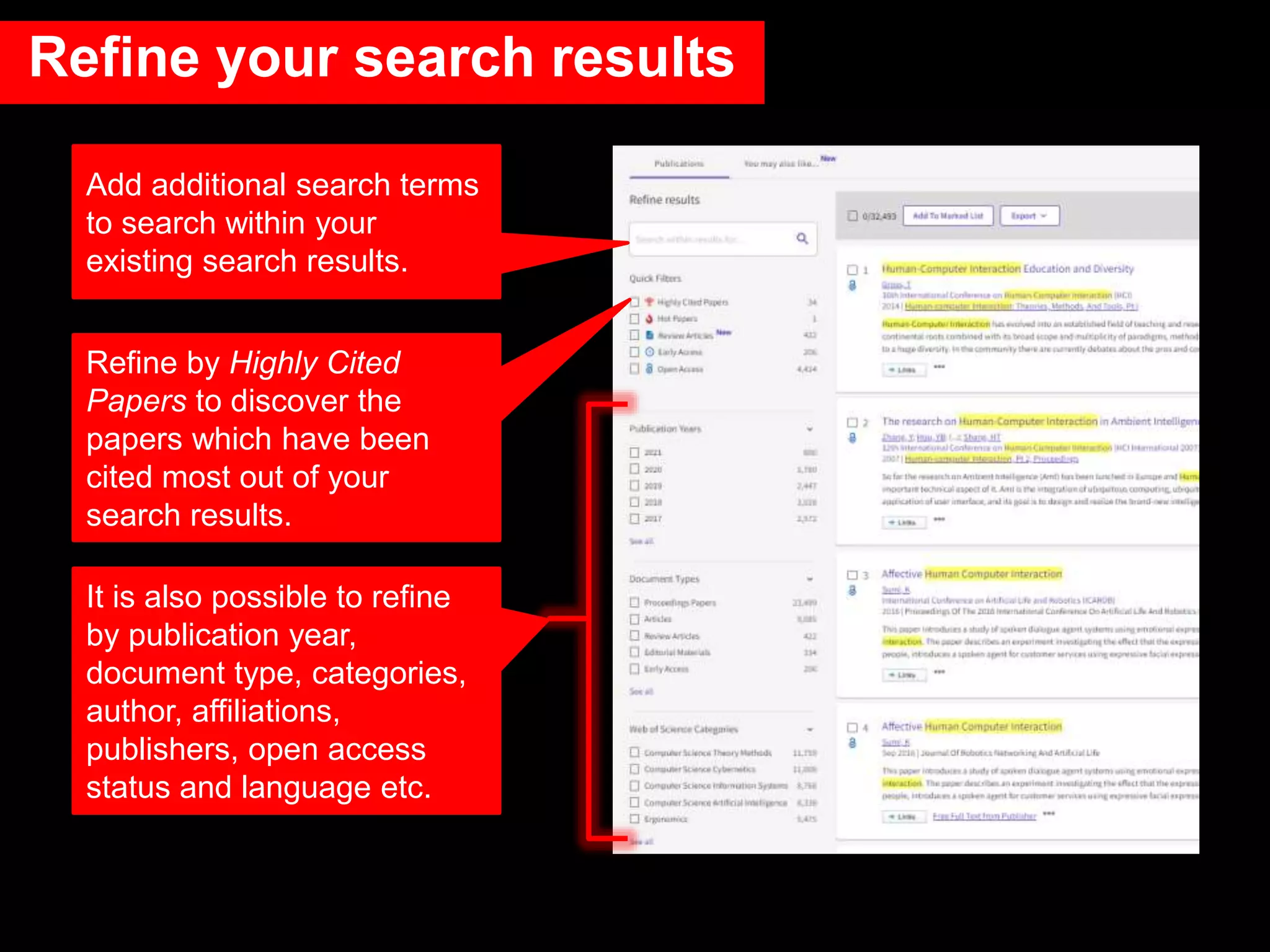
Add additional search terms
to search within your
existing search results.
It is also possible to refine
by publication year,
document type, categories,
author, affiliations,
publishers, open access
status and language etc.
Refine your search results
Refine by Highly Cited
Papers to discover the
papers which have been
cited most out of your
search results.
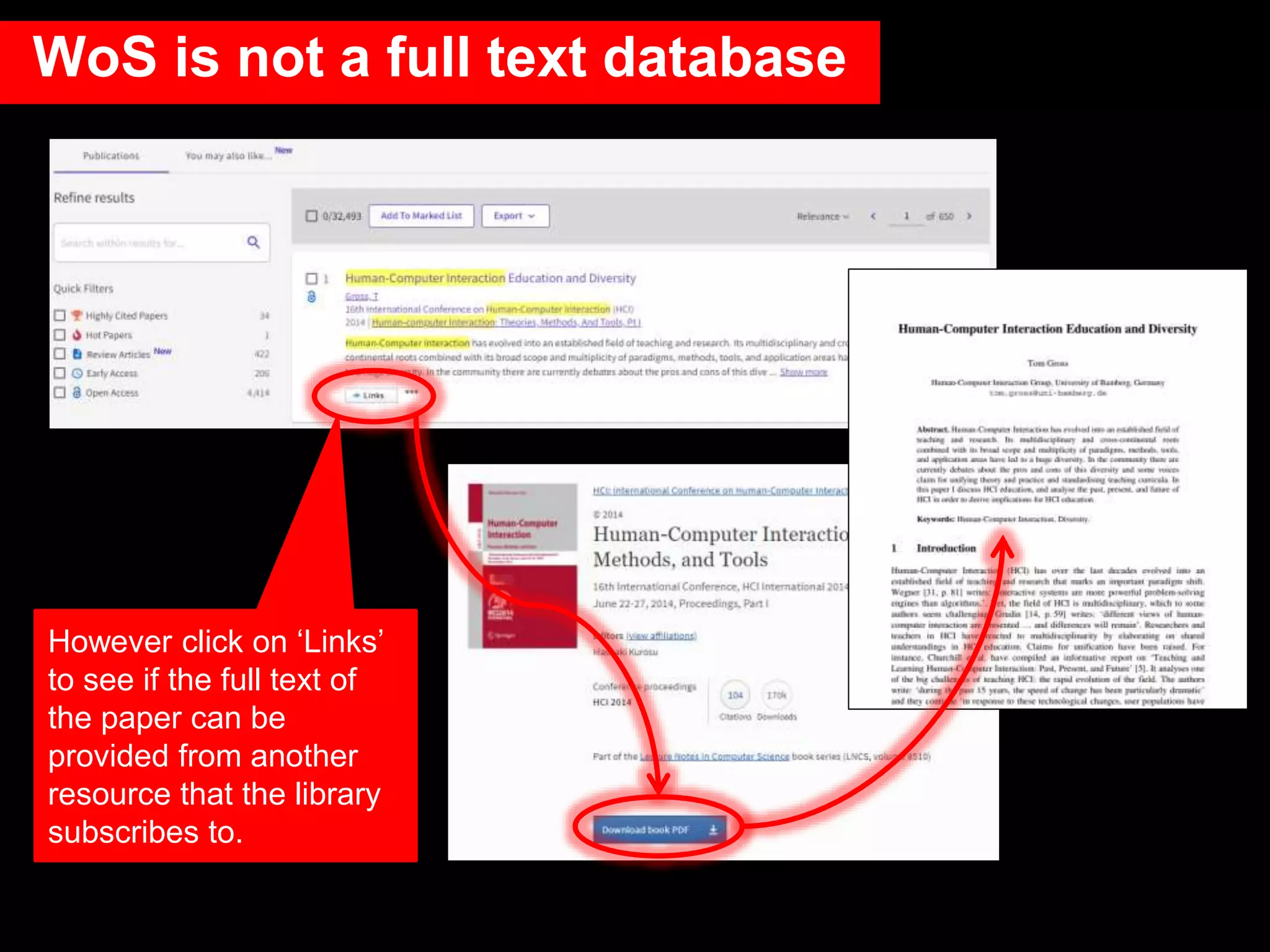
However click on ‘Links’
to see if the full text of
the paper can be
provided from another
resource that the library
subscribes to.
WoS is not a full text database
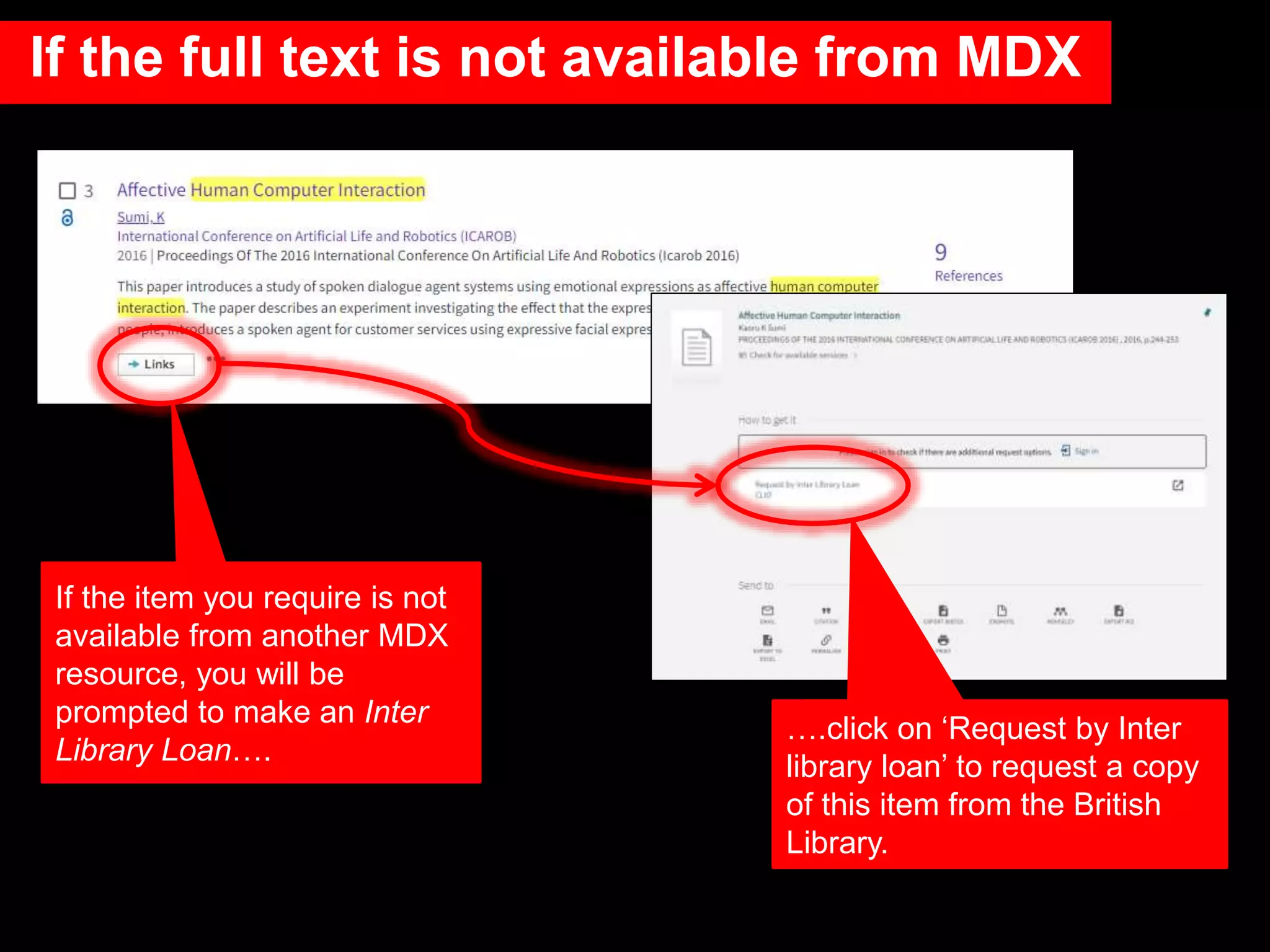
If the item you require is not
available from another MDX
resource, you will be
prompted to make an Inter
Library Loan….
If the full text is not available from MDX
….click on ‘Request by Inter
library loan’ to request a copy
of this item from the British
Library.
The number of times a paper
has been cited is an indication
of its usefulness, quality and
influence. More information on
next page.
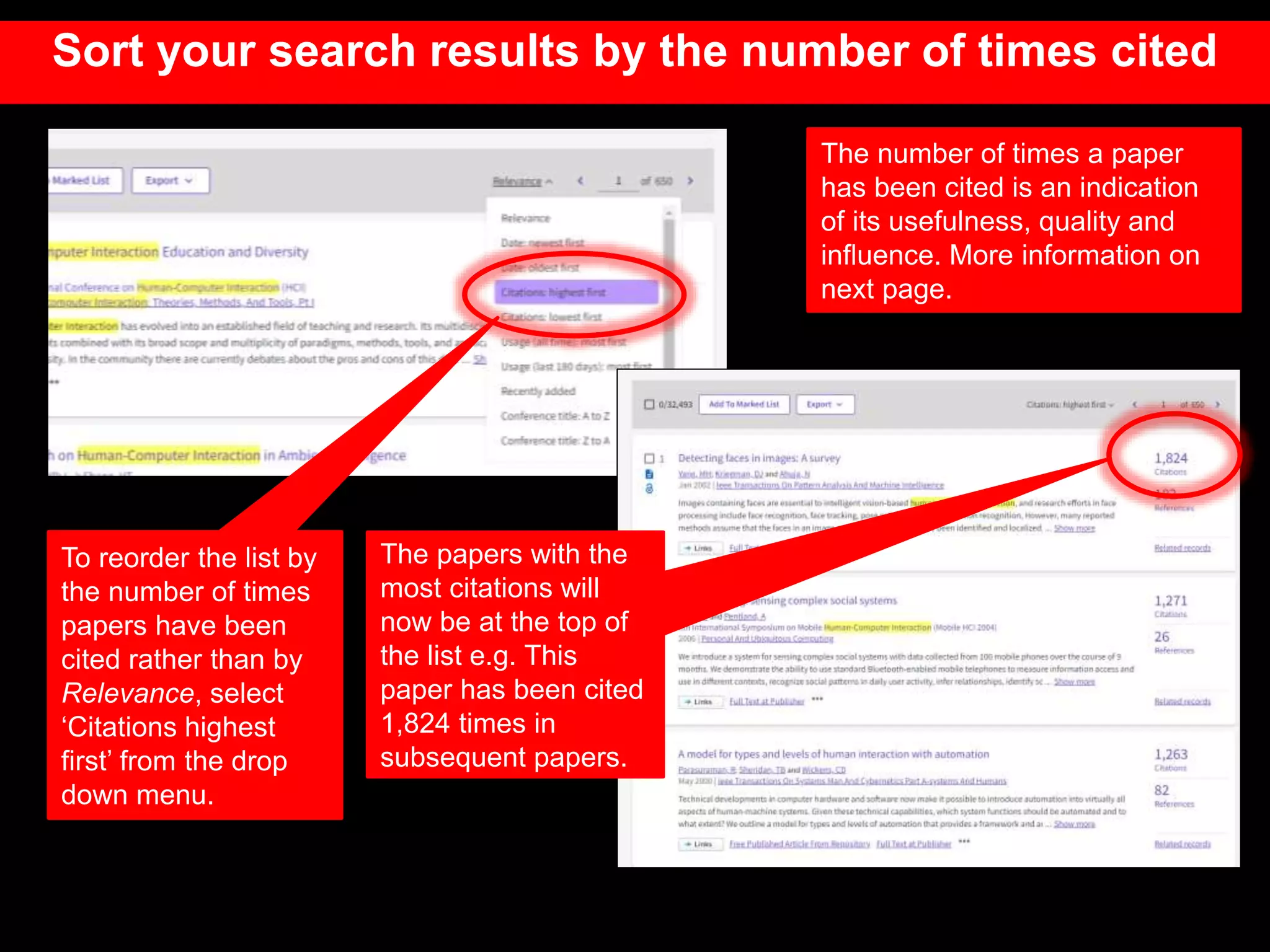
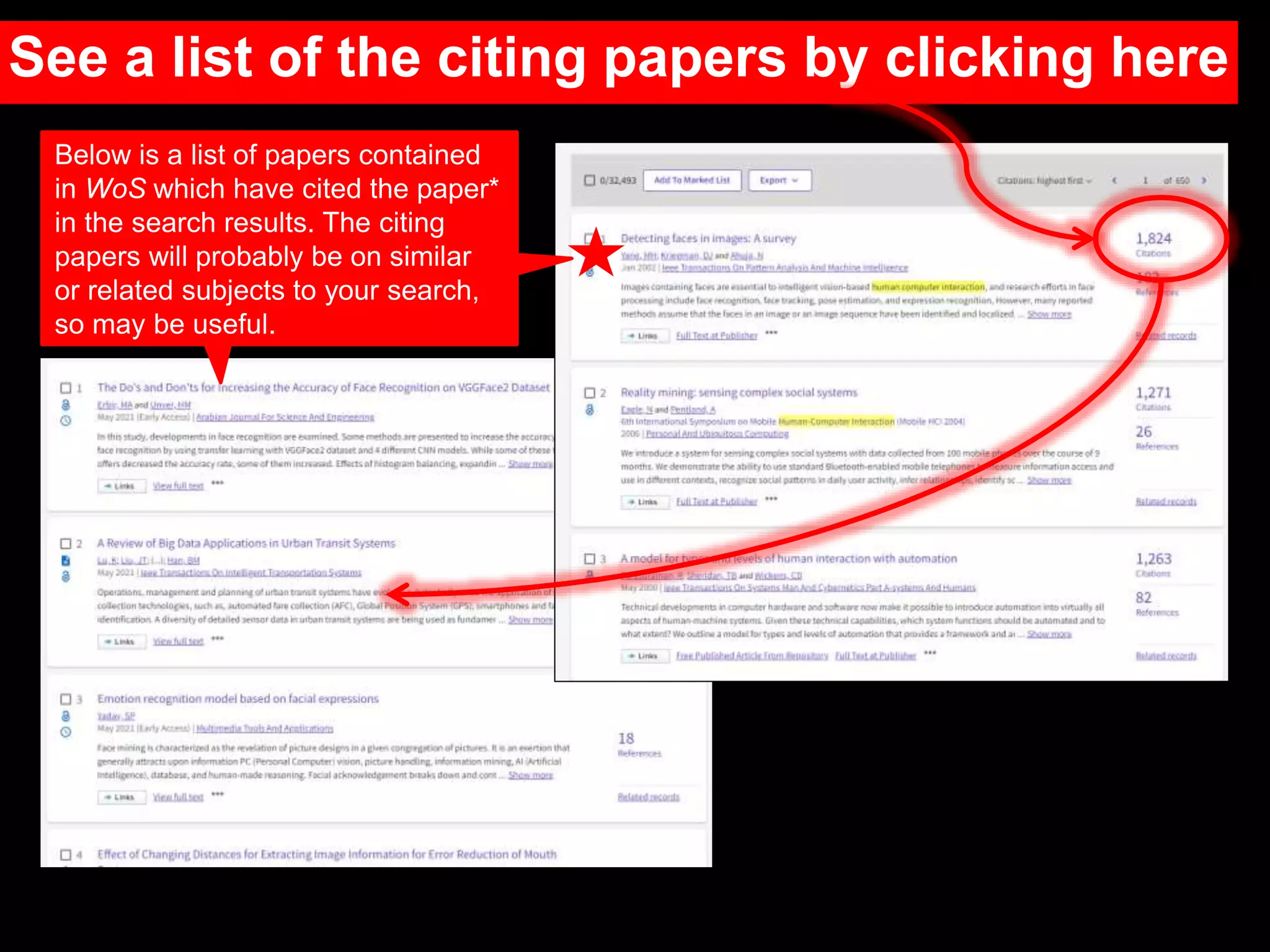
Sort your search results by the number of times cited
To reorder the list by
the number of times
papers have been
cited rather than by
Relevance, select
‘Citations highest
first’ from the drop
down menu.
The papers with the
most citations will
now be at the top of
the list e.g. This
paper has been cited
1,824 times in
subsequent papers.
See a list of the citing papers by clicking here
Below is a list of papers contained
in WoS which have cited the paper*
in the search results. The citing
papers will probably be on similar
or related subjects to your search,
so may be useful.
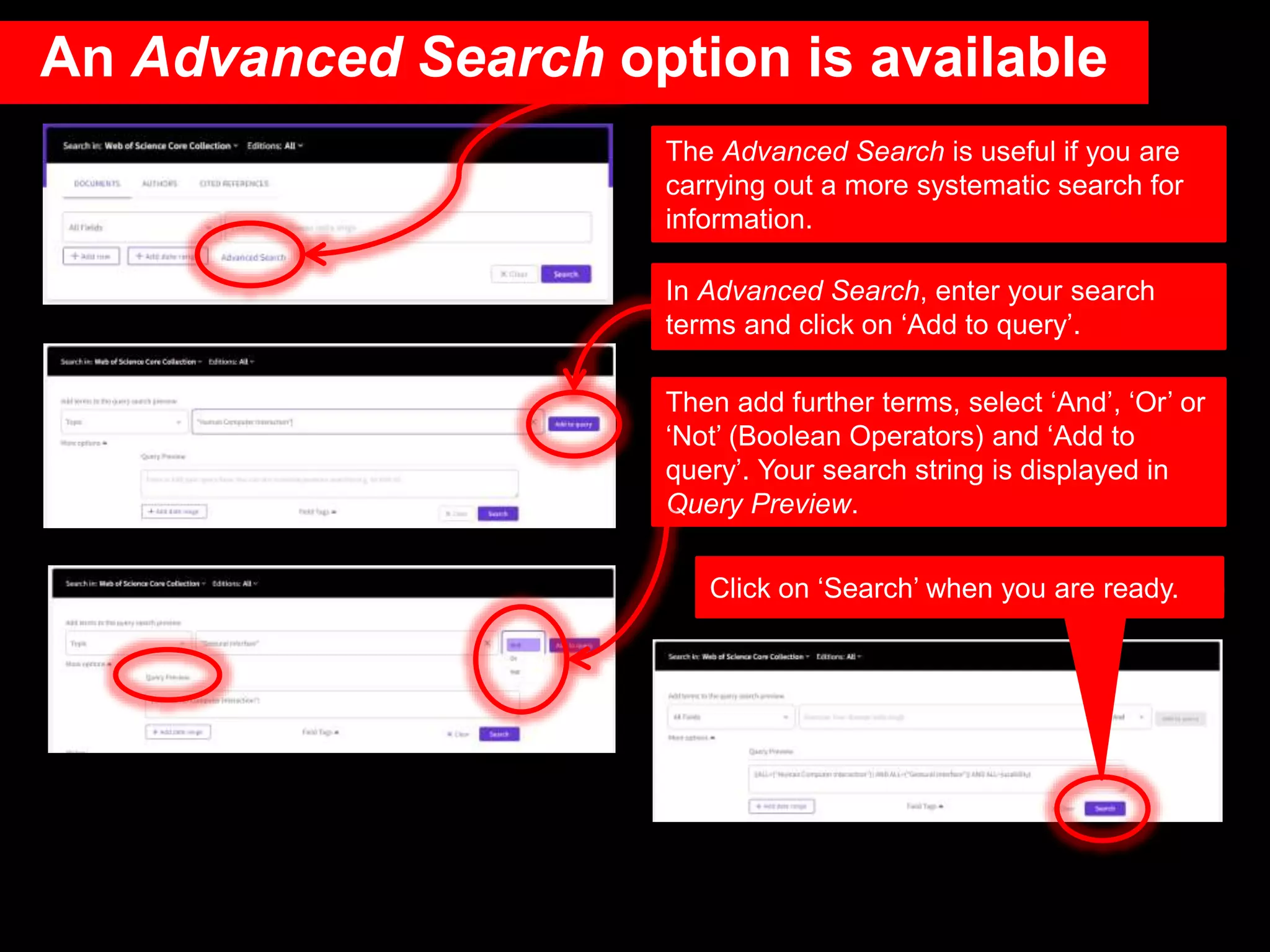
An Advanced Search option is available
In Advanced Search, enter your search
terms and click on ‘Add to query’.
Then add further terms, select ‘And’, ‘Or’ or
‘Not’ (Boolean Operators) and ‘Add to
query’. Your search string is displayed in
Query Preview.
The Advanced Search is useful if you are
carrying out a more systematic search for
information.
Click on ‘Search’ when you are ready.
Need further help?
Your Librarian is:
Vanessa Hill v.hill@mdx.ac.uk
https://libguides.mdx.ac.uk/VanessaHill
VH July 2021

Web of Science 1

  • 1.
    Web of Science1 Finding journal articles and basic citation information
  • 2.
    Citation indexes enableyou to... • Search for papers (journal articles, conference proceedings etc) by topic, author, publication name etc. However you can also: • Find out how many times a paper has been cited i.e. Gauge the usefulness/quality of a paper. • Find which papers have cited an earlier paper i.e. When you find an paper, you can then discover which papers have subsequently cited it. • Find papers on a similar or related subject i.e. If an paper has cited another paper, then they are probably on a similar/related subject. In addition you can: • Find the best journals in your field using Journal Citation Reports i.e. Citation data is used to rank journals, so is a way of seeing how journals perform in relation to others in the same subject area. Web of Science is a citation index
  • 3.
    • The world’sleading scholarly literature in the sciences, social sciences, arts, and humanities and proceedings of international conferences, symposia, seminars, colloquia, workshops, and conventions • Web of Science comprises of a number of journal databases including: • Science Citation Index Expanded (1970-present) • Social Sciences Citation Index (1970-present) • Arts & Humanities Citation Index (1975-present) • Conference Proceedings Citation Index- Science (1990-present) • Conference Proceedings Citation Index- Social Science & Humanities (1990-present) • Emerging Sources Citation Index (2015-present) Web of Science (WoS) provides access to….
  • 4.
    • This isan introductory guide to accessing and using Web of Science. Discover how to search for information and find basic citation information. • For more detailed help finding citation information see Web of Science: Finding Citation Information (Web of Science 2) • For information on creating Journal Citation Reports see Web of Science: Journal Citation Reports (Web of Science 3). Web of Science help
  • 5.
    Accessing WoS (students) myUniHub> MyStudy > MyLibrary > Databases > W > Web of Science
  • 6.
    Accessing WoS (staff) myUniHub> MyUniversity > MyLibrary > Databases > W > Web of Science
  • 7.
    The default searchis by All Fields but it is possible to search for a specific topic, author, publication name or publication year etc. Use the drop-down menu to choose. You can also specify a date range. When ready, click on ‘Search’. Enter search terms (keywords) into the search box
  • 8.
    Click on the titlefor more detail. This is the number of items found which match your search. Search results are displayed by relevance The Abstract provides a brief overview of the paper.
  • 9.
    Add additional searchterms to search within your existing search results. It is also possible to refine by publication year, document type, categories, author, affiliations, publishers, open access status and language etc. Refine your search results Refine by Highly Cited Papers to discover the papers which have been cited most out of your search results.
  • 10.
    However click on‘Links’ to see if the full text of the paper can be provided from another resource that the library subscribes to. WoS is not a full text database
  • 11.
    If the itemyou require is not available from another MDX resource, you will be prompted to make an Inter Library Loan…. If the full text is not available from MDX ….click on ‘Request by Inter library loan’ to request a copy of this item from the British Library.
  • 12.
    The number oftimes a paper has been cited is an indication of its usefulness, quality and influence. More information on next page. Sort your search results by the number of times cited To reorder the list by the number of times papers have been cited rather than by Relevance, select ‘Citations highest first’ from the drop down menu. The papers with the most citations will now be at the top of the list e.g. This paper has been cited 1,824 times in subsequent papers.
  • 13.
    See a listof the citing papers by clicking here Below is a list of papers contained in WoS which have cited the paper* in the search results. The citing papers will probably be on similar or related subjects to your search, so may be useful.
  • 14.
    An Advanced Searchoption is available In Advanced Search, enter your search terms and click on ‘Add to query’. Then add further terms, select ‘And’, ‘Or’ or ‘Not’ (Boolean Operators) and ‘Add to query’. Your search string is displayed in Query Preview. The Advanced Search is useful if you are carrying out a more systematic search for information. Click on ‘Search’ when you are ready.
  • 15.
    Need further help? YourLibrarian is: Vanessa Hill v.hill@mdx.ac.uk https://libguides.mdx.ac.uk/VanessaHill VH July 2021

Editor's Notes

  • #16 More help available at the link.