Exporting references from MathSciNet
RefWorks 9
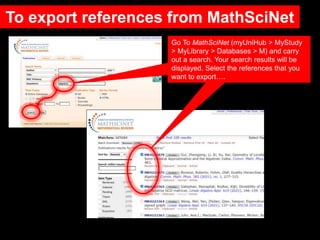
To export references from MathSciNet
Go To MathSciNet (myUniHub > MyStudy
> MyLibrary > Databases > M) and carry
out a search. Your search results will be
displayed. Select the references that you
want to export….
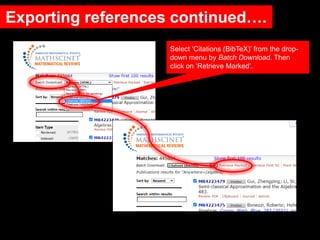
Exporting references continued….
Select ‘Citations (BibTeX)’ from the drop-
down menu by Batch Download. Then
click on ‘Retrieve Marked’.
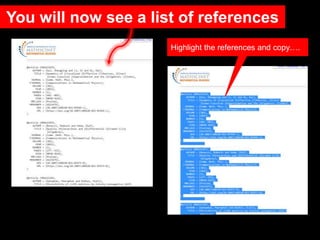
You will now see a list of references
Highlight the references and copy….
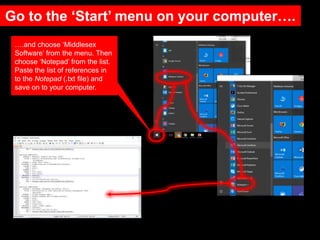
Go to the ‘Start’ menu on your computer….
….and choose ‘Middlesex
Software’ from the menu. Then
choose ‘Notepad’ from the list.
Paste the list of references in
to the Notepad (.txt file) and
save on to your computer.
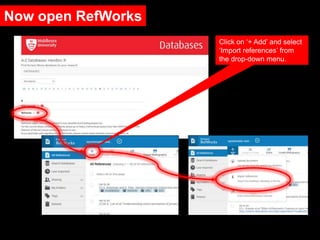
Now open RefWorks
Click on ‘+ Add’ and select
‘Import references’ from
the drop-down menu.
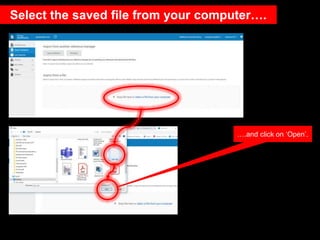
Select the saved file from your computer….
….and click on ‘Open’.
You will now see this
Type ‘MathSciNet’ in to the
search box, select
‘BibTeX[MathSciNet (AMS)
(BibTeX format)]’, and click
on ‘Import’.
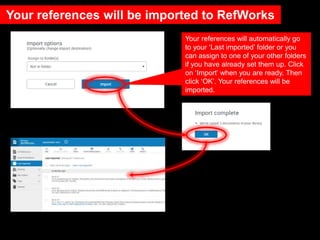
Your references will be imported to RefWorks
Your references will automatically go
to your ‘Last imported’ folder or you
can assign to one of your other folders
if you have already set them up. Click
on ‘Import’ when you are ready. Then
click ‘OK’. Your references will be
imported.
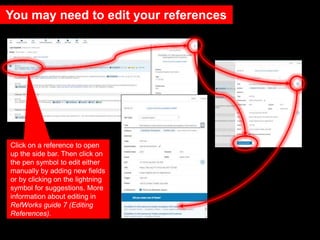
You may need to edit your references
Click on a reference to open
up the side bar. Then click on
the pen symbol to edit either
manually by adding new fields
or by clicking on the lightning
symbol for suggestions. More
information about editing in
RefWorks guide 7 (Editing
References).
Need further help?
Contact your Librarian:
https://libguides.mdx.ac.uk/liaisonlibrarians
Chat online with a Librarian:
https://libguides.mdx.ac.uk/chat

9 RefWorks Exporting from MathSciNet

  • 1.
    Exporting references fromMathSciNet RefWorks 9
  • 2.
    To export referencesfrom MathSciNet Go To MathSciNet (myUniHub > MyStudy > MyLibrary > Databases > M) and carry out a search. Your search results will be displayed. Select the references that you want to export….
  • 3.
    Exporting references continued…. Select‘Citations (BibTeX)’ from the drop- down menu by Batch Download. Then click on ‘Retrieve Marked’.
  • 4.
    You will nowsee a list of references Highlight the references and copy….
  • 5.
    Go to the‘Start’ menu on your computer…. ….and choose ‘Middlesex Software’ from the menu. Then choose ‘Notepad’ from the list. Paste the list of references in to the Notepad (.txt file) and save on to your computer.
  • 6.
    Now open RefWorks Clickon ‘+ Add’ and select ‘Import references’ from the drop-down menu.
  • 7.
    Select the savedfile from your computer…. ….and click on ‘Open’.
  • 8.
    You will nowsee this Type ‘MathSciNet’ in to the search box, select ‘BibTeX[MathSciNet (AMS) (BibTeX format)]’, and click on ‘Import’.
  • 9.
    Your references willbe imported to RefWorks Your references will automatically go to your ‘Last imported’ folder or you can assign to one of your other folders if you have already set them up. Click on ‘Import’ when you are ready. Then click ‘OK’. Your references will be imported.
  • 10.
    You may needto edit your references Click on a reference to open up the side bar. Then click on the pen symbol to edit either manually by adding new fields or by clicking on the lightning symbol for suggestions. More information about editing in RefWorks guide 7 (Editing References).
  • 11.
    Need further help? Contactyour Librarian: https://libguides.mdx.ac.uk/liaisonlibrarians Chat online with a Librarian: https://libguides.mdx.ac.uk/chat

Editor's Notes

  • #12 More help available at the link.