Exporting references: The Internet
RefWorks 4
Image: https://www.geograph.org.uk/photo/2962352
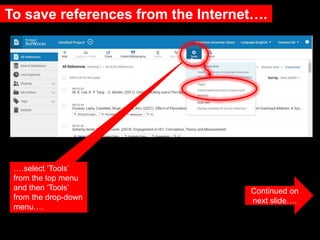
To save references from the Internet….
Continued on
next slide….
….select ‘Tools’
from the top menu
and then ‘Tools’
from the drop-down
menu….
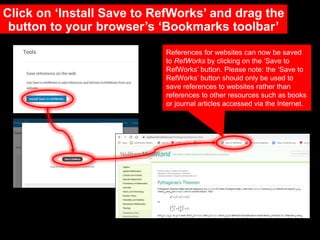
Click on ‘Install Save to RefWorks’ and drag the
button to your browser’s ‘Bookmarks toolbar’
References for websites can now be saved
to RefWorks by clicking on the ‘Save to
RefWorks’ button. Please note: the ‘Save to
RefWorks’ button should only be used to
save references to websites rather than
references to other resources such as books
or journal articles accessed via the Internet.
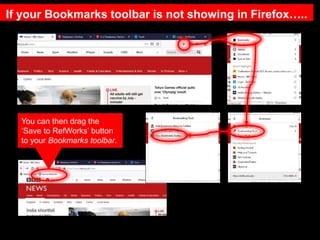
If your Bookmarks toolbar is not showing in Firefox…..
You can then drag the
‘Save to RefWorks’ button
to your Bookmarks toolbar.
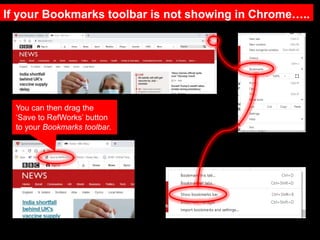
If your Bookmarks toolbar is not showing in Chrome…..
You can then drag the
‘Save to RefWorks’ button
to your Bookmarks toolbar.
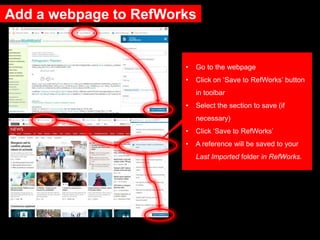
Add a webpage to RefWorks
• Go to the webpage
• Click on ‘Save to RefWorks’ button
in toolbar
• Select the section to save (if
necessary)
• Click ‘Save to RefWorks’
• A reference will be saved to your
Last Imported folder in RefWorks.
Need further help?
Contact your Librarian:
https://libguides.mdx.ac.uk/liaisonlibrarians
Chat online with a Librarian:
https://libguides.mdx.ac.uk/chat

4 RefWorks Exporting references from the Internet

  • 1.
    Exporting references: TheInternet RefWorks 4 Image: https://www.geograph.org.uk/photo/2962352
  • 2.
    To save referencesfrom the Internet…. Continued on next slide…. ….select ‘Tools’ from the top menu and then ‘Tools’ from the drop-down menu….
  • 3.
    Click on ‘InstallSave to RefWorks’ and drag the button to your browser’s ‘Bookmarks toolbar’ References for websites can now be saved to RefWorks by clicking on the ‘Save to RefWorks’ button. Please note: the ‘Save to RefWorks’ button should only be used to save references to websites rather than references to other resources such as books or journal articles accessed via the Internet.
  • 4.
    If your Bookmarkstoolbar is not showing in Firefox….. You can then drag the ‘Save to RefWorks’ button to your Bookmarks toolbar.
  • 5.
    If your Bookmarkstoolbar is not showing in Chrome….. You can then drag the ‘Save to RefWorks’ button to your Bookmarks toolbar.
  • 6.
    Add a webpageto RefWorks • Go to the webpage • Click on ‘Save to RefWorks’ button in toolbar • Select the section to save (if necessary) • Click ‘Save to RefWorks’ • A reference will be saved to your Last Imported folder in RefWorks.
  • 7.
    Need further help? Contactyour Librarian: https://libguides.mdx.ac.uk/liaisonlibrarians Chat online with a Librarian: https://libguides.mdx.ac.uk/chat

Editor's Notes

  • #8 More help available at the link.