Editing references
RefWorks 7
Editing your references
Continued on next slide….
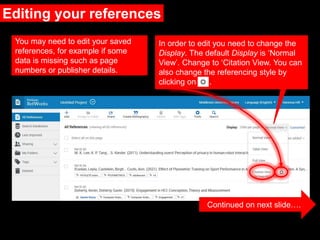
You may need to edit your saved
references, for example if some
data is missing such as page
numbers or publisher details.
In order to edit you need to change the
Display. The default Display is ‘Normal
View’. Change to ‘Citation View. You can
also change the referencing style by
clicking on .
Editing your references continued….
Continued on
next slide….
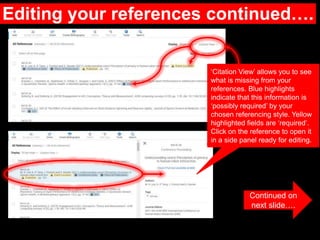
‘Citation View’ allows you to see
what is missing from your
references. Blue highlights
indicate that this information is
‘possibly required’ by your
chosen referencing style. Yellow
highlighted fields are ‘required’.
Click on the reference to open it
in a side panel ready for editing.
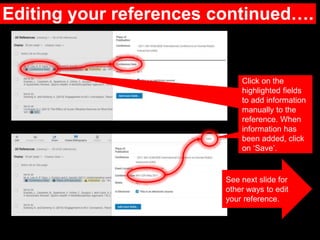
Editing your references continued….
Click on the
highlighted fields
to add information
manually to the
reference. When
information has
been added, click
on ‘Save’.
See next slide for
other ways to edit
your reference.
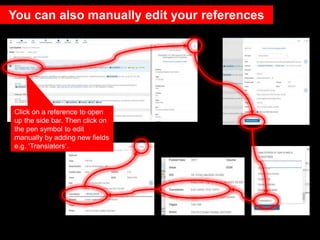
You can also manually edit your references
Click on a reference to open
up the side bar. Then click on
the pen symbol to edit
manually by adding new fields
e.g. ‘Translators’.
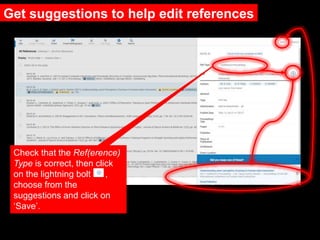
Get suggestions to help edit references
Check that the Ref(erence)
Type is correct, then click
on the lightning bolt ,
choose from the
suggestions and click on
‘Save’.
Need further help?
Contact your Librarian:
https://libguides.mdx.ac.uk/liaisonlibrarians
Chat online with a Librarian:
https://libguides.mdx.ac.uk/chat

7 RefWorks Editing references

  • 1.
  • 2.
    Editing your references Continuedon next slide…. You may need to edit your saved references, for example if some data is missing such as page numbers or publisher details. In order to edit you need to change the Display. The default Display is ‘Normal View’. Change to ‘Citation View. You can also change the referencing style by clicking on .
  • 3.
    Editing your referencescontinued…. Continued on next slide…. ‘Citation View’ allows you to see what is missing from your references. Blue highlights indicate that this information is ‘possibly required’ by your chosen referencing style. Yellow highlighted fields are ‘required’. Click on the reference to open it in a side panel ready for editing.
  • 4.
    Editing your referencescontinued…. Click on the highlighted fields to add information manually to the reference. When information has been added, click on ‘Save’. See next slide for other ways to edit your reference.
  • 5.
    You can alsomanually edit your references Click on a reference to open up the side bar. Then click on the pen symbol to edit manually by adding new fields e.g. ‘Translators’.
  • 6.
    Get suggestions tohelp edit references Check that the Ref(erence) Type is correct, then click on the lightning bolt , choose from the suggestions and click on ‘Save’.
  • 7.
    Need further help? Contactyour Librarian: https://libguides.mdx.ac.uk/liaisonlibrarians Chat online with a Librarian: https://libguides.mdx.ac.uk/chat

Editor's Notes

  • #8 More help available at the link.