VMWare Sandbox
A HOW-TO GUIDE FOR SETTING UP A SANDBOX
ENVIRONMENT USING VMWARE
What you will need
• VMWare installed on your machine.
• Enough disk space for the Operating System to run
*For this demo I usedWindows 10, as it was running
on my machine.This keeps things seamless.
Setting up your Virtual Machine
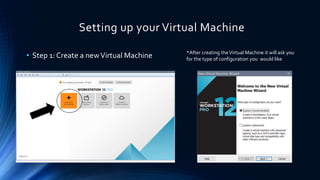
• Step 1: Create a newVirtual Machine *After creating theVirtual Machine it will ask you
for the type of configuration you would like
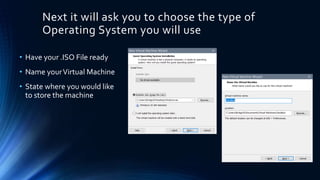
Next it will ask you to choose the type of
Operating System you will use
• Have your .ISO File ready
• Name yourVirtual Machine
• State where you would like
to store the machine
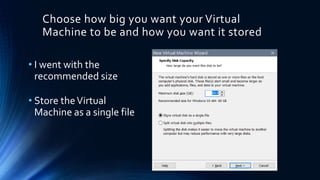
Choose how big you want your Virtual
Machine to be and how you want it stored
• I went with the
recommended size
• Store theVirtual
Machine as a single file
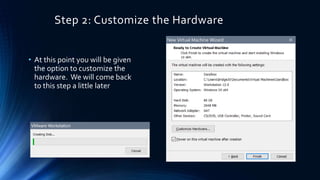
Step 2: Customize the Hardware
• At this point you will be given
the option to customize the
hardware. We will come back
to this step a little later
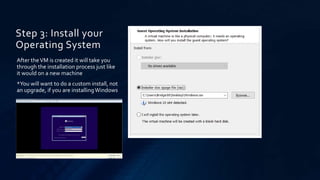
Step 3: Install your
Operating System
After theVM is created it will take you
through the installation process just like
it would on a new machine
*You will want to do a custom install, not
an upgrade, if you are installingWindows
Once you have installed your Operating System,
set up your system
• Download any programs or files you will need onto yourVirtual
Machine before going on to the next step
• One program that needs to be installed isVMWareTools (this
will allow Unity Mode to work)
• We will be setting up our Machine to forget everything upon
shutdown so we must write any changes to the disk at this
point
*Remember, Programs and Files…So if you don’t like Microsoft
Edge, make sure you download a different browser
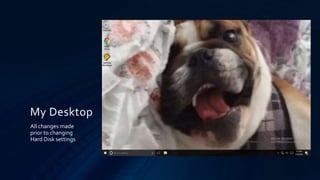
My Desktop
All changes made
prior to changing
Hard Disk settings
Now that you have set up your Virtual
Machine how you like it
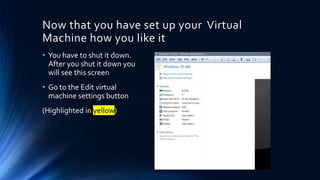
• You have to shut it down.
After you shut it down you
will see this screen
• Go to the Edit virtual
machine settings button
(Highlighted in yellow)
After accessing the settings you need to go
to the Hard Disk options
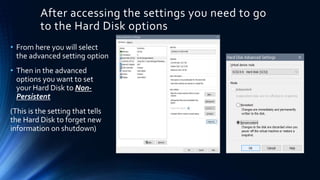
• From here you will select
the advanced setting option
• Then in the advanced
options you want to set
your Hard Disk to Non-
Persistent
(This is the setting that tells
the Hard Disk to forget new
information on shutdown)
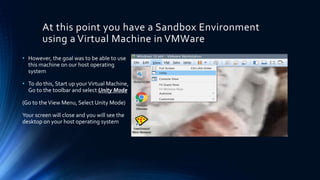
At this point you have a Sandbox Environment
using a Virtual Machine in VMWare
• However, the goal was to be able to use
this machine on our host operating
system
• To do this, Start up yourVirtual Machine,
Go to the toolbar and select Unity Mode
(Go to theView Menu, Select Unity Mode)
Your screen will close and you will see the
desktop on your host operating system
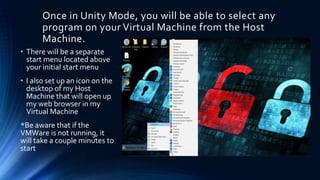
Once in Unity Mode, you will be able to select any
program on your Virtual Machine from the Host
Machine.
• There will be a separate
start menu located above
your initial start menu
• I also set up an icon on the
desktop of my Host
Machine that will open up
my web browser in my
Virtual Machine
*Be aware that if the
VMWare is not running, it
will take a couple minutes to
start
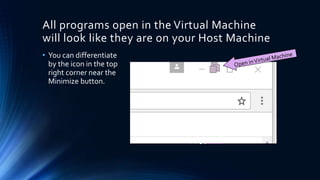
All programs open in the Virtual Machine
will look like they are on your Host Machine
• You can differentiate
by the icon in the top
right corner near the
Minimize button.
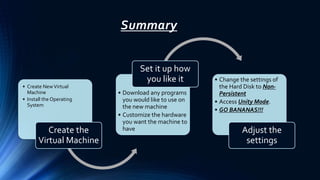
Summary
• Create NewVirtual
Machine
• Install the Operating
System
Create the
Virtual Machine
• Download any programs
you would like to use on
the new machine
• Customize the hardware
you want the machine to
have
Set it up how
you like it • Change the settings of
the Hard Disk to Non-
Persistent
• Access Unity Mode.
• GO BANANAS!!!
Adjust the
settings

VMWare Sandbox

  • 1.
    VMWare Sandbox A HOW-TOGUIDE FOR SETTING UP A SANDBOX ENVIRONMENT USING VMWARE
  • 2.
    What you willneed • VMWare installed on your machine. • Enough disk space for the Operating System to run *For this demo I usedWindows 10, as it was running on my machine.This keeps things seamless.
  • 3.
    Setting up yourVirtual Machine • Step 1: Create a newVirtual Machine *After creating theVirtual Machine it will ask you for the type of configuration you would like
  • 4.
    Next it willask you to choose the type of Operating System you will use • Have your .ISO File ready • Name yourVirtual Machine • State where you would like to store the machine
  • 5.
    Choose how bigyou want your Virtual Machine to be and how you want it stored • I went with the recommended size • Store theVirtual Machine as a single file
  • 6.
    Step 2: Customizethe Hardware • At this point you will be given the option to customize the hardware. We will come back to this step a little later
  • 7.
    Step 3: Installyour Operating System After theVM is created it will take you through the installation process just like it would on a new machine *You will want to do a custom install, not an upgrade, if you are installingWindows
  • 8.
    Once you haveinstalled your Operating System, set up your system • Download any programs or files you will need onto yourVirtual Machine before going on to the next step • One program that needs to be installed isVMWareTools (this will allow Unity Mode to work) • We will be setting up our Machine to forget everything upon shutdown so we must write any changes to the disk at this point *Remember, Programs and Files…So if you don’t like Microsoft Edge, make sure you download a different browser
  • 9.
    My Desktop All changesmade prior to changing Hard Disk settings
  • 10.
    Now that youhave set up your Virtual Machine how you like it • You have to shut it down. After you shut it down you will see this screen • Go to the Edit virtual machine settings button (Highlighted in yellow)
  • 11.
    After accessing thesettings you need to go to the Hard Disk options • From here you will select the advanced setting option • Then in the advanced options you want to set your Hard Disk to Non- Persistent (This is the setting that tells the Hard Disk to forget new information on shutdown)
  • 12.
    At this pointyou have a Sandbox Environment using a Virtual Machine in VMWare • However, the goal was to be able to use this machine on our host operating system • To do this, Start up yourVirtual Machine, Go to the toolbar and select Unity Mode (Go to theView Menu, Select Unity Mode) Your screen will close and you will see the desktop on your host operating system
  • 13.
    Once in UnityMode, you will be able to select any program on your Virtual Machine from the Host Machine. • There will be a separate start menu located above your initial start menu • I also set up an icon on the desktop of my Host Machine that will open up my web browser in my Virtual Machine *Be aware that if the VMWare is not running, it will take a couple minutes to start
  • 14.
    All programs openin the Virtual Machine will look like they are on your Host Machine • You can differentiate by the icon in the top right corner near the Minimize button.
  • 15.
    Summary • Create NewVirtual Machine •Install the Operating System Create the Virtual Machine • Download any programs you would like to use on the new machine • Customize the hardware you want the machine to have Set it up how you like it • Change the settings of the Hard Disk to Non- Persistent • Access Unity Mode. • GO BANANAS!!! Adjust the settings