Introduction to VirtualBox
content
1. Introduction.
2. How to install Virtual Box
3. Create Virtual Machine
4. Guest OS setting
5. Install Ubuntu 13.04
1. Introduction
What is VirtualBox ?
VirtualBox is a cross-platform virtualization application.
What does that mean? For one thing, it installs on your
existing Intel or AMD-based computers, whether they
are running Windows, Mac, Linux or Solaris operating
systems.
You can install and run as many virtual machines as
you like -- the only practical limits are disk space and
memory.
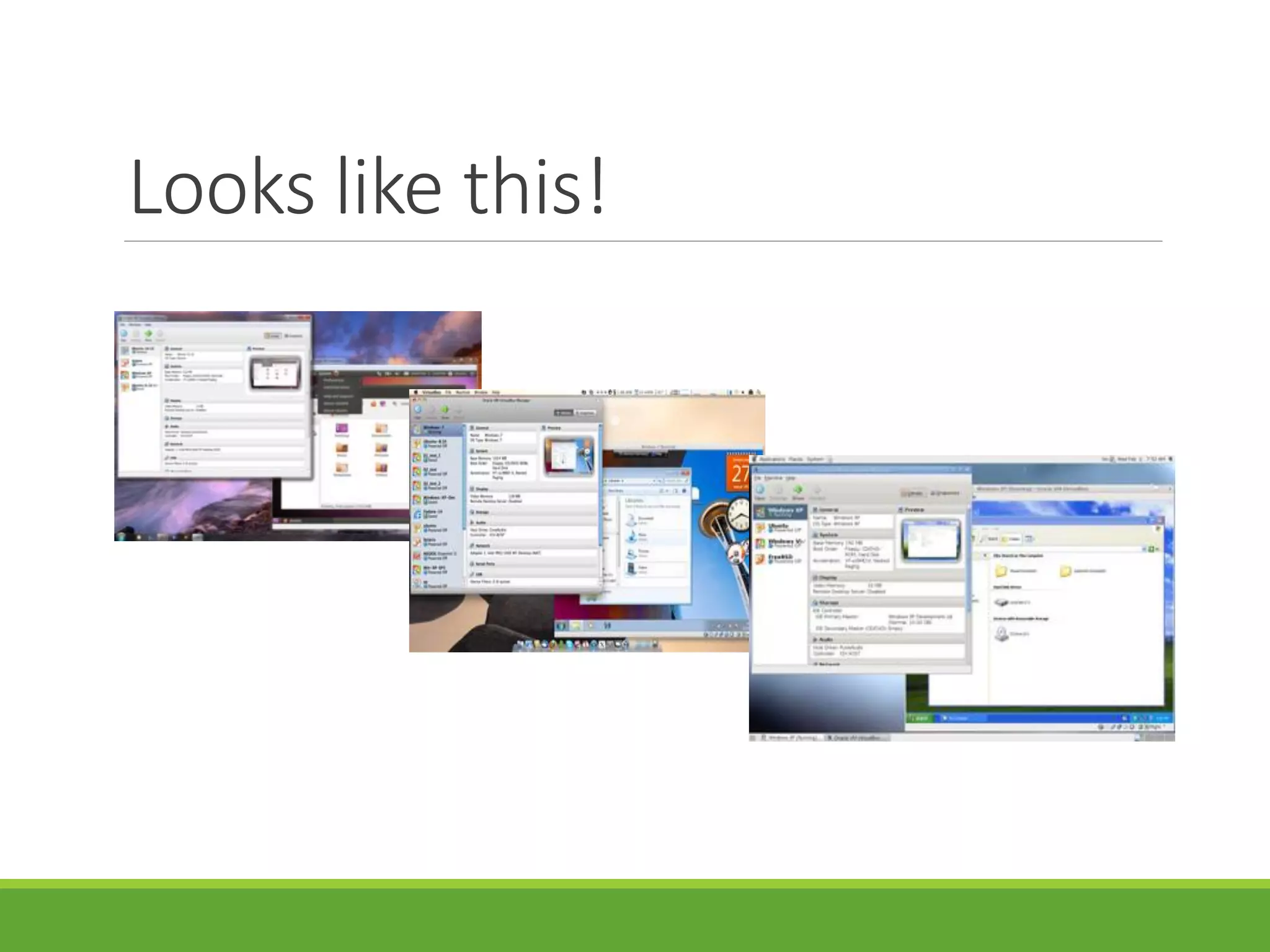
Looks like this!
Benefit of Virtualization
Running multiple operating systems simultaneously.
Easier software installations.
Testing and disaster recovery.
Infrastructure consolidation.
Quoted from Oracle VM manual
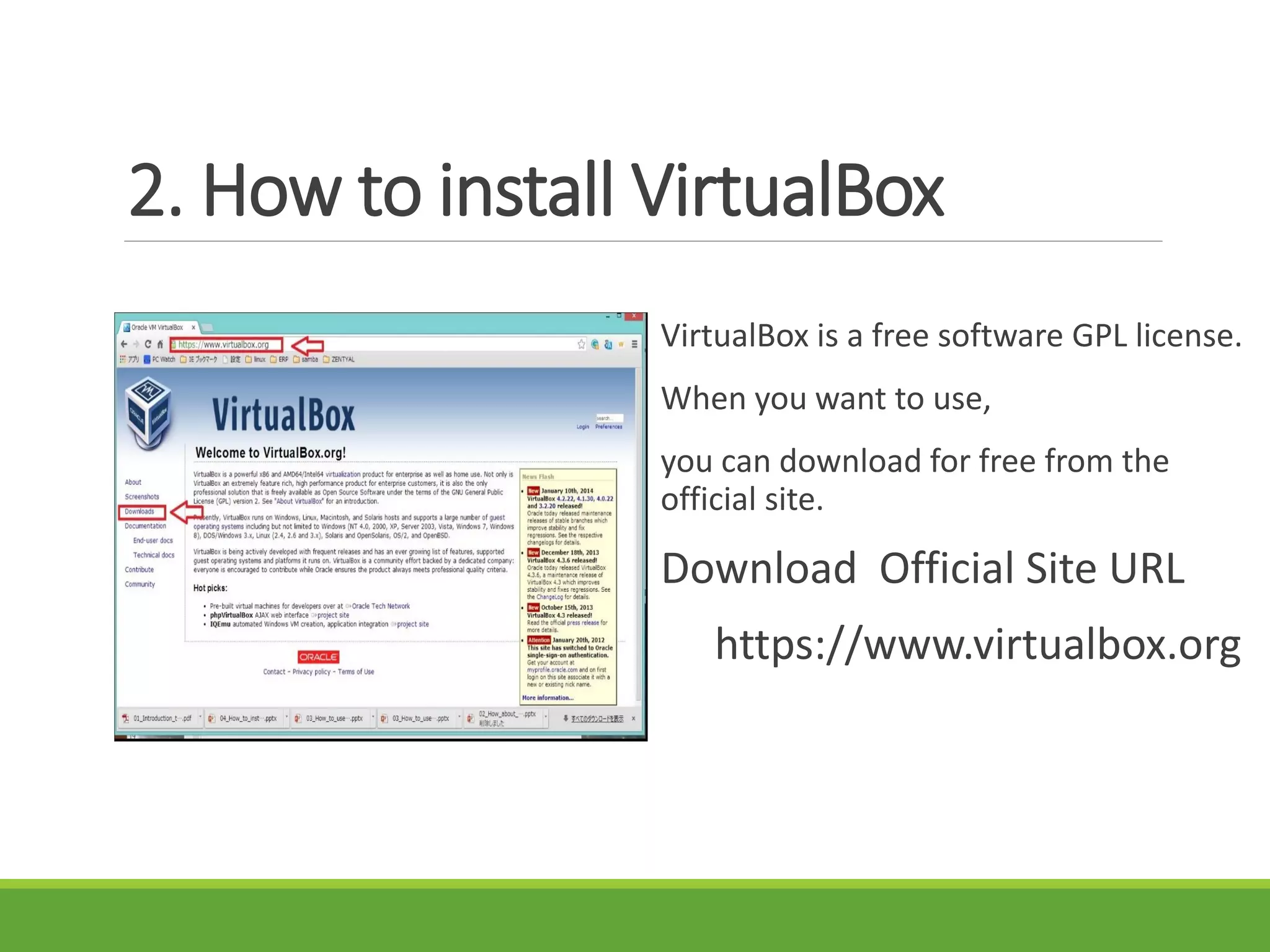
2. How to install VirtualBox
VirtualBox is a free software GPL license.
When you want to use,
you can download for free from the
official site.
Download Official Site URL
https://www.virtualbox.org
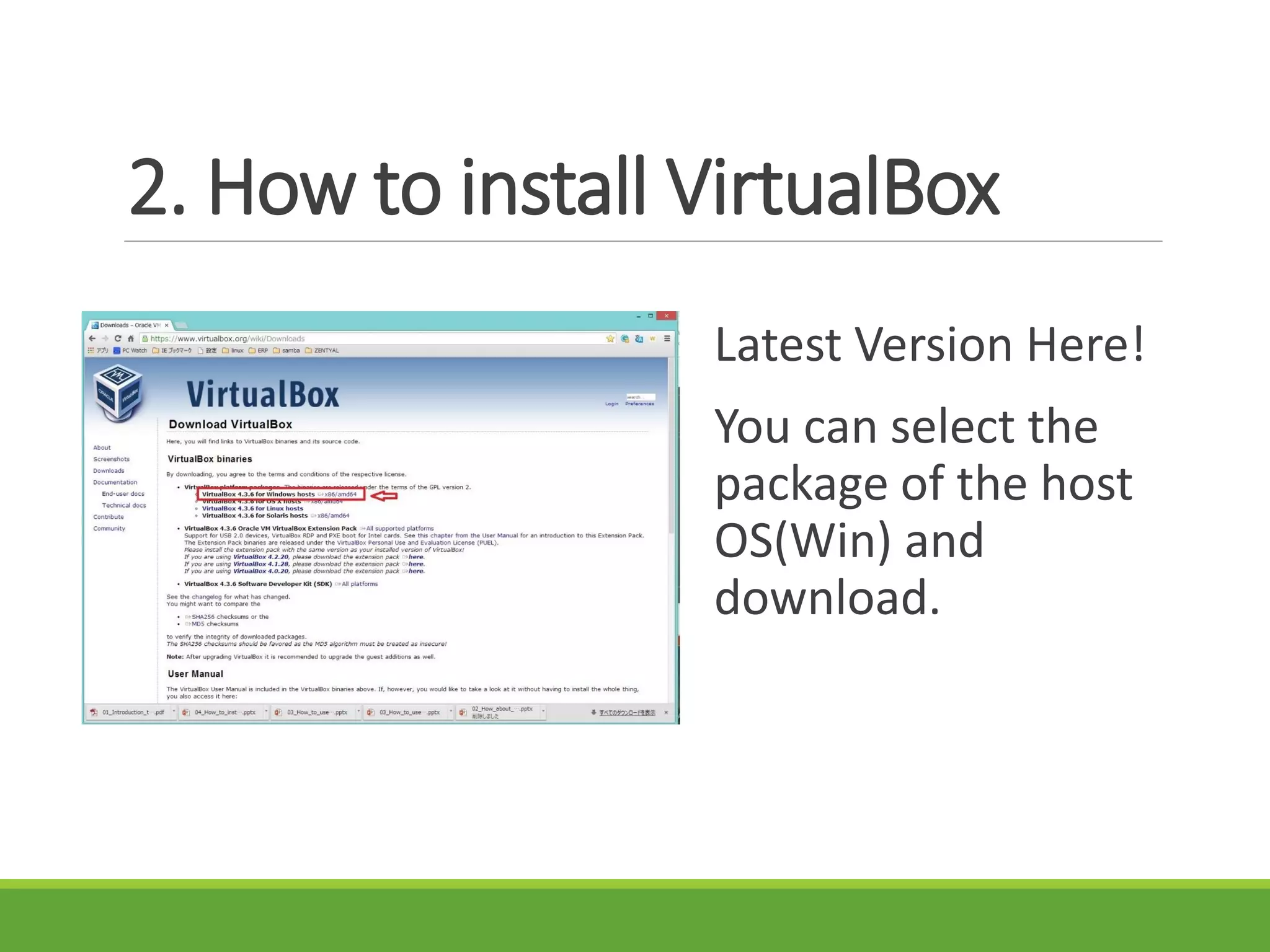
2. How to install VirtualBox
Latest Version Here!
You can select the
package of the host
OS(Win) and
download.
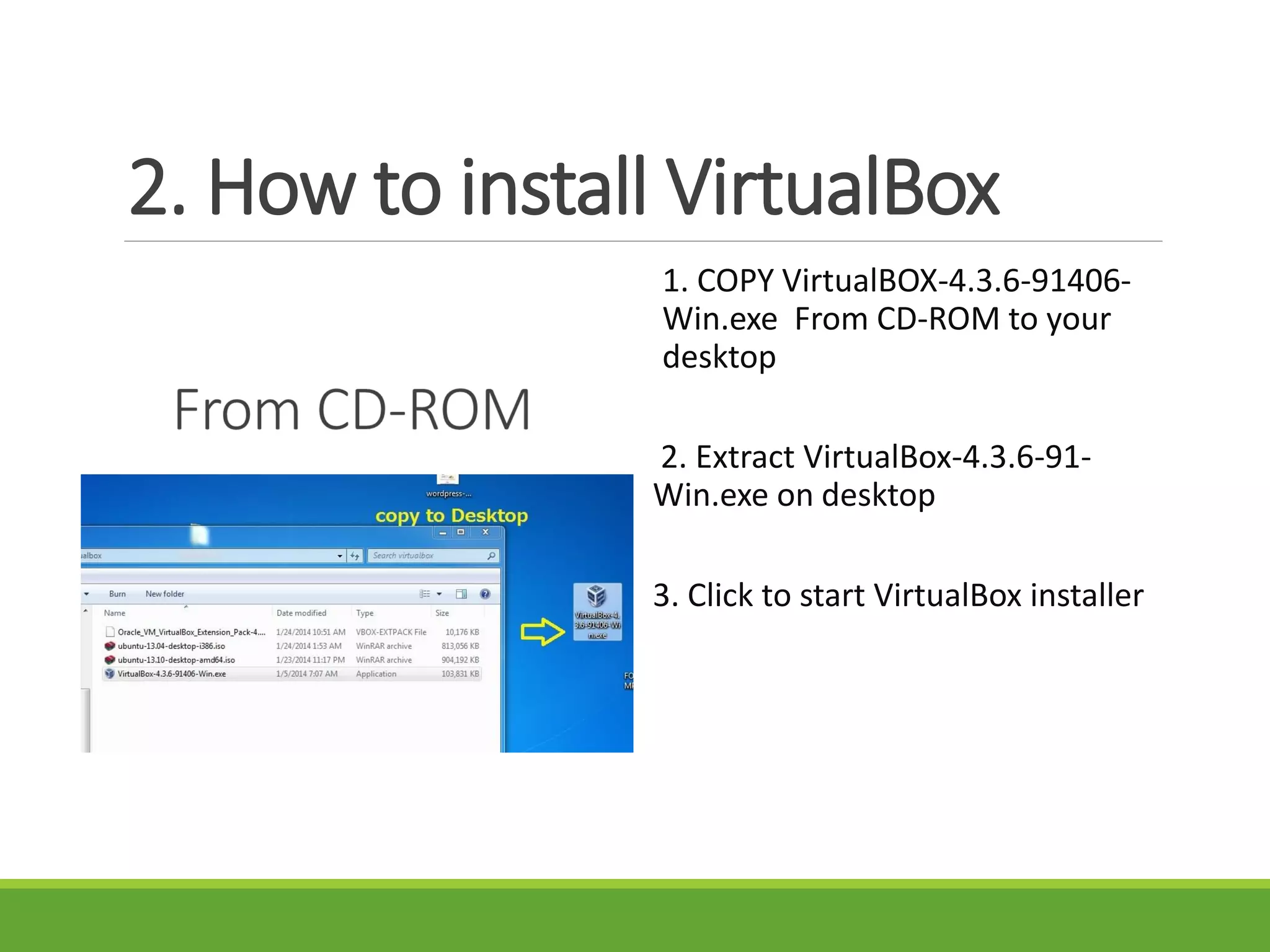
2. How to install VirtualBox
1. COPY VirtualBOX-4.3.6-91406-
Win.exe From CD-ROM to your
desktop
2. Extract VirtualBox-4.3.6-91-
Win.exe on desktop
3. Click to start VirtualBox installer
2. How to install VirtualBox
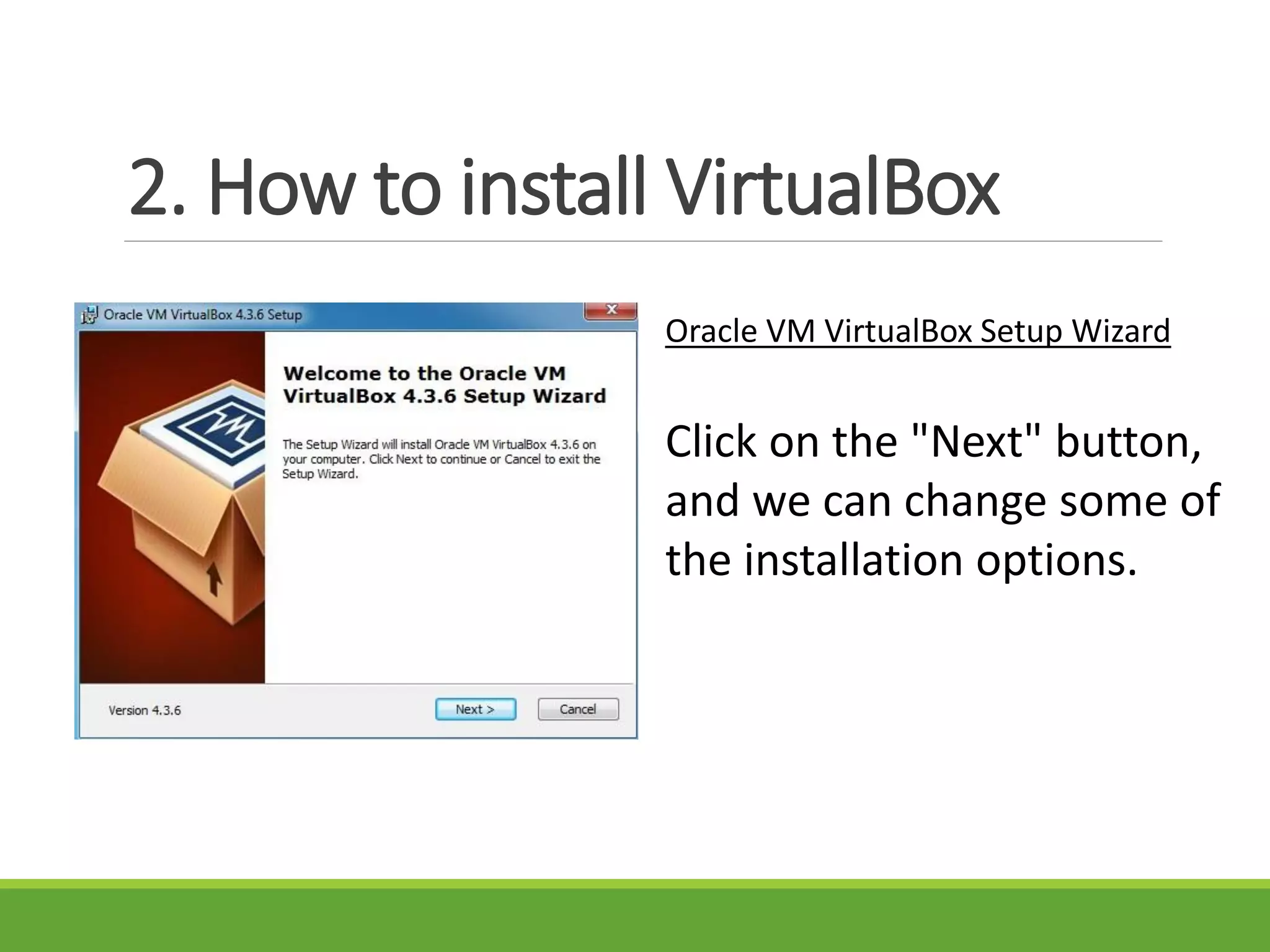
Oracle VM VirtualBox Setup Wizard
Click on the "Next" button,
and we can change some of
the installation options.
2. How to install VirtualBox
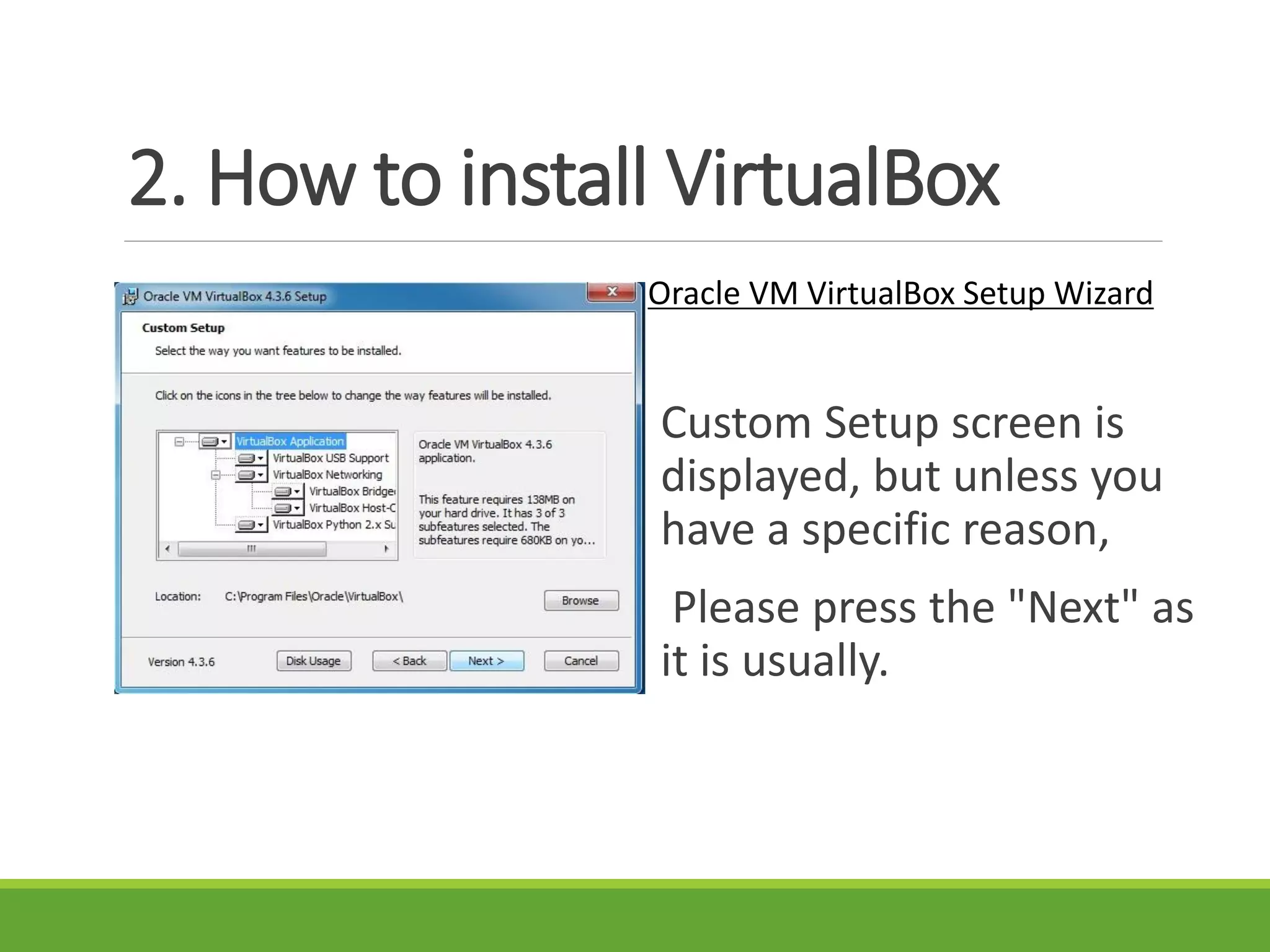
Oracle VM VirtualBox Setup Wizard
Custom Setup screen is
displayed, but unless you
have a specific reason,
Please press the "Next" as
it is usually.
2. How to install VirtualBox
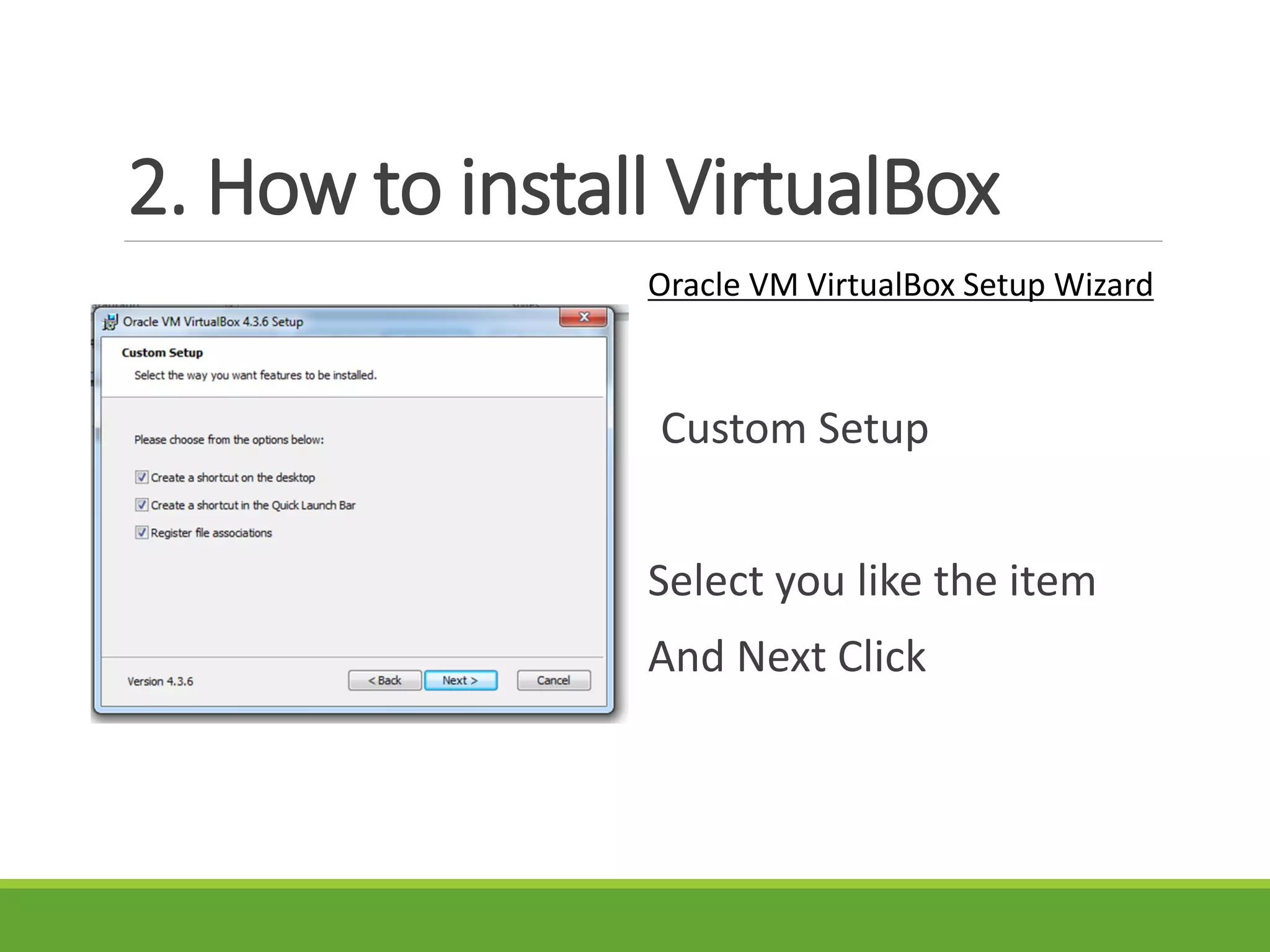
Oracle VM VirtualBox Setup Wizard
Custom Setup
Select you like the item
And Next Click
2. How to install VirtualBox
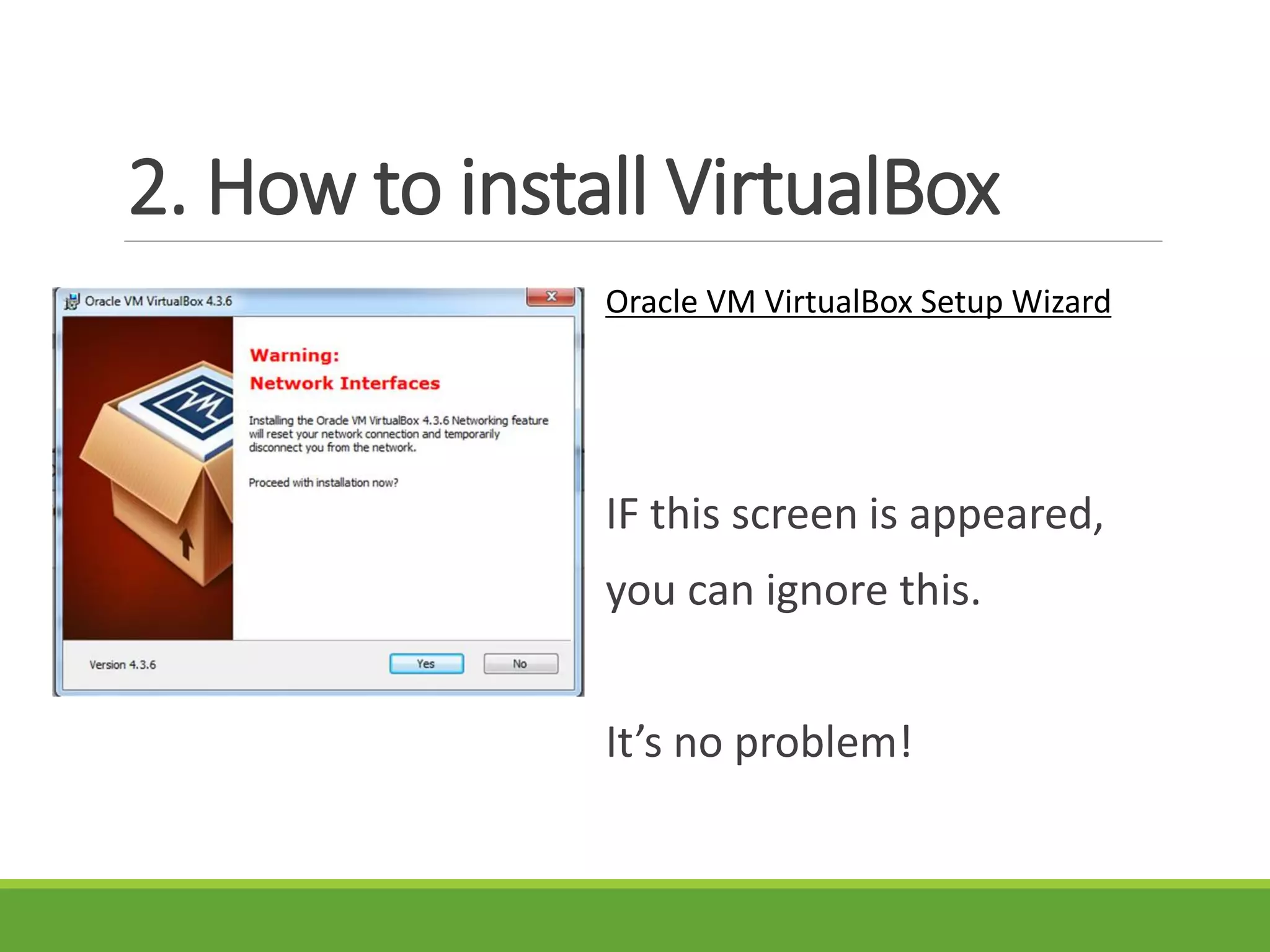
Oracle VM VirtualBox Setup Wizard
IF this screen is appeared,
you can ignore this.
It’s no problem!
2. How to install VirtualBox
Oracle VM VirtualBox Setup Wizard
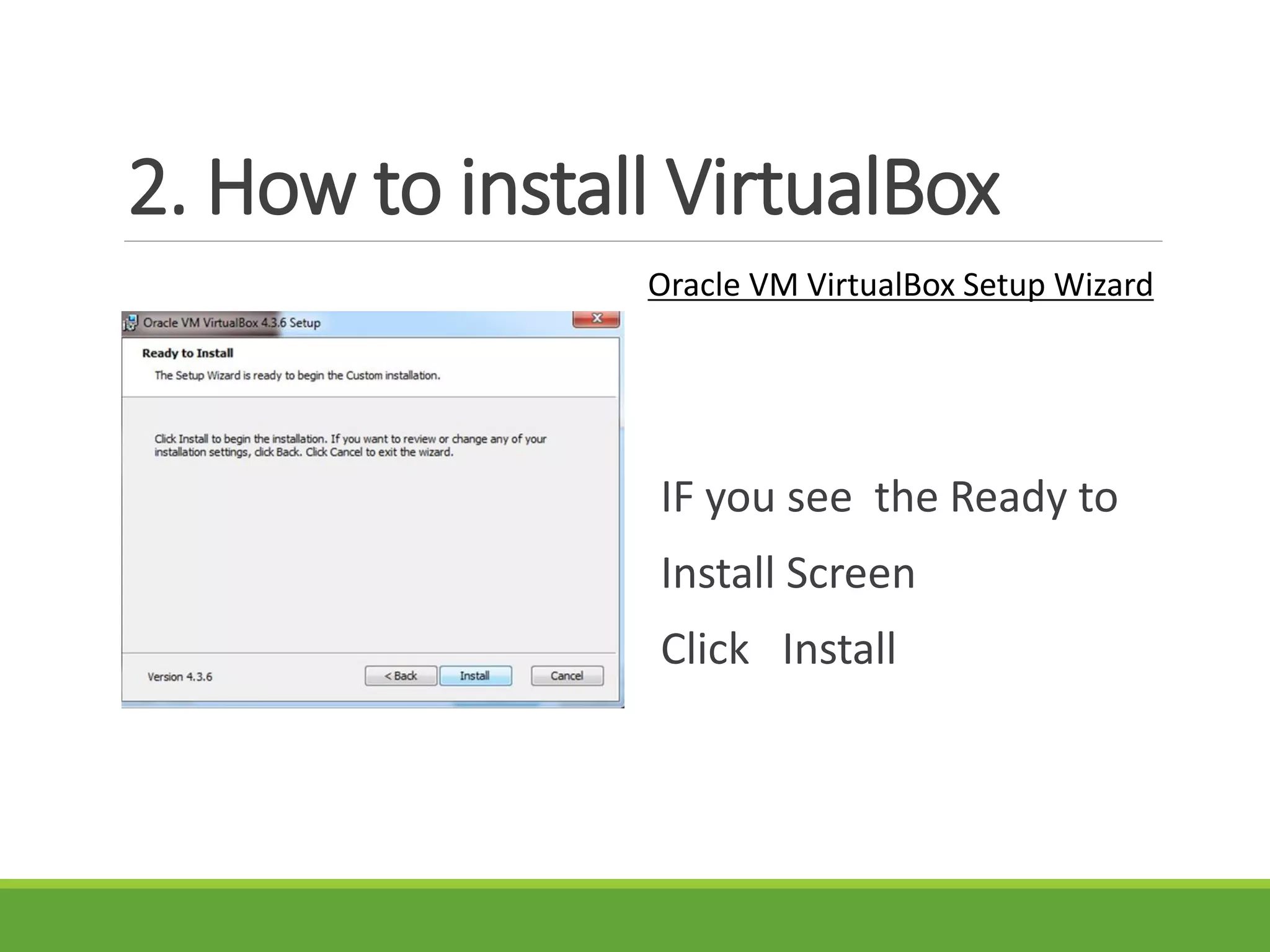
IF you see the Ready to
Install Screen
Click Install
2. How to install VirtualBox
Oracle VM VirtualBox Setup Wizard
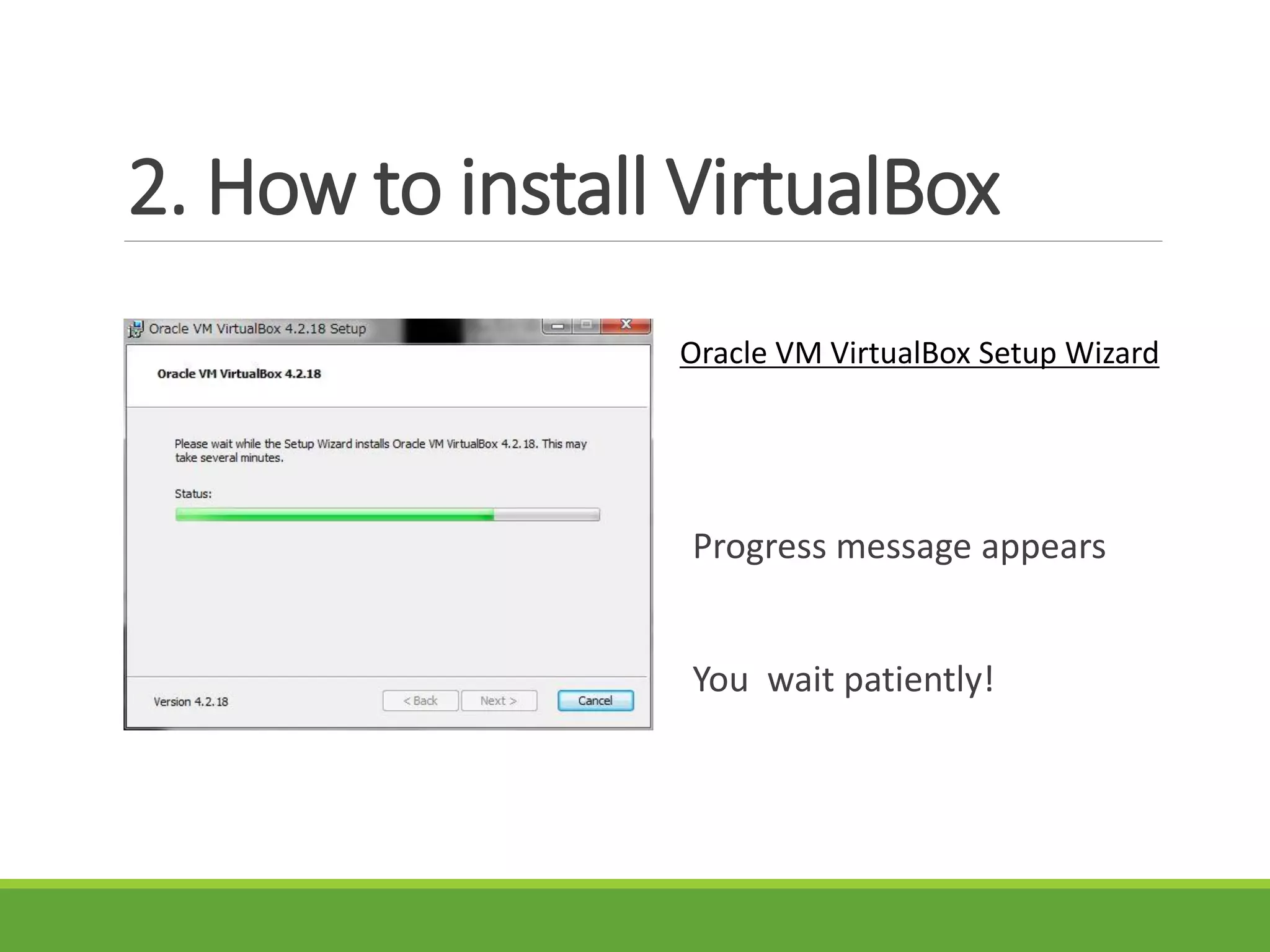
Progress message appears
You wait patiently!
2. How to install VirtualBox
Oracle VM VirtualBox Setup Wizard
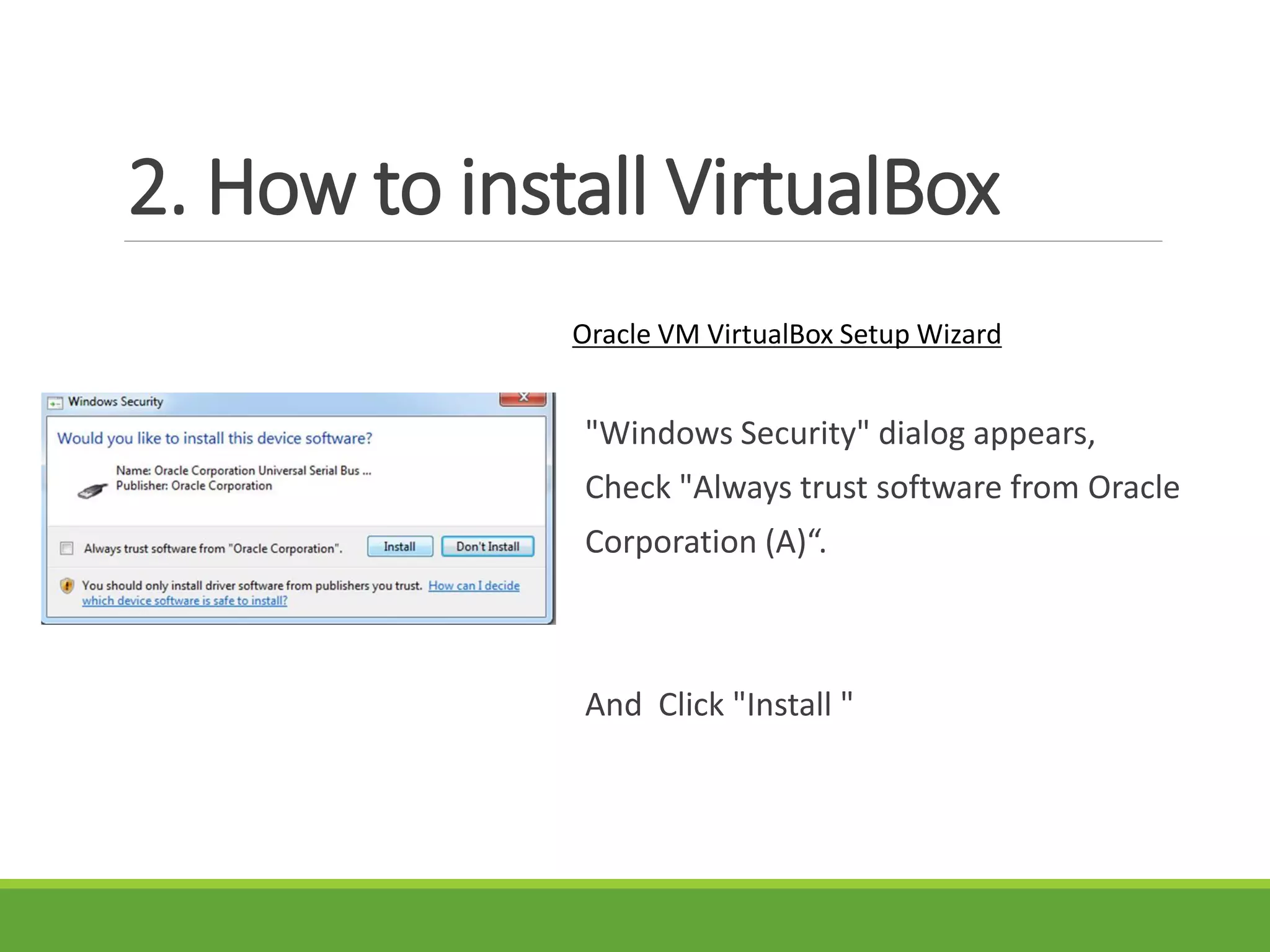
"Windows Security" dialog appears,
Check "Always trust software from Oracle
Corporation (A)“.
And Click "Install "
2. How to install VirtualBox
Oracle VM VirtualBox Setup Wizard
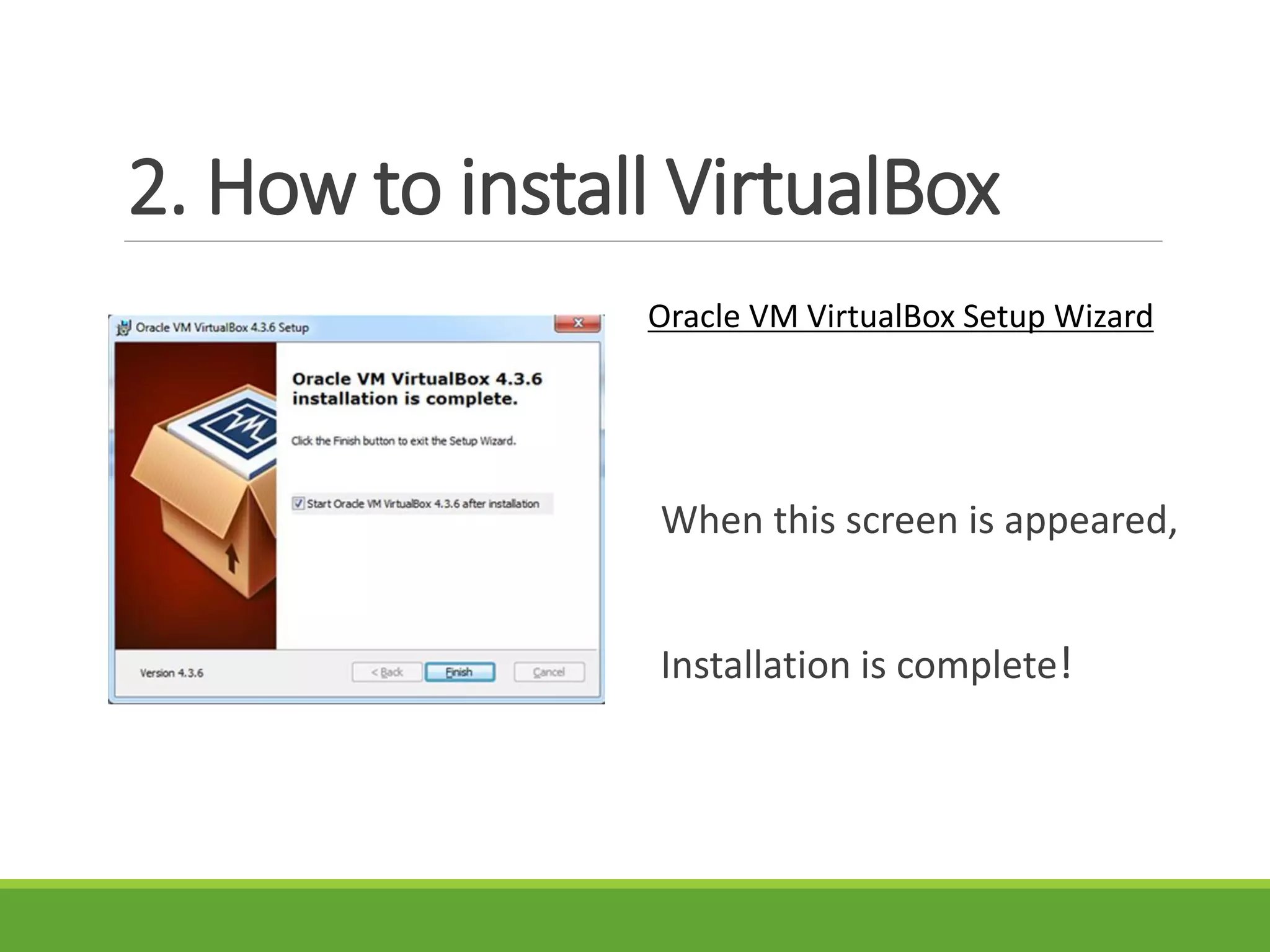
When this screen is appeared,
Installation is complete!
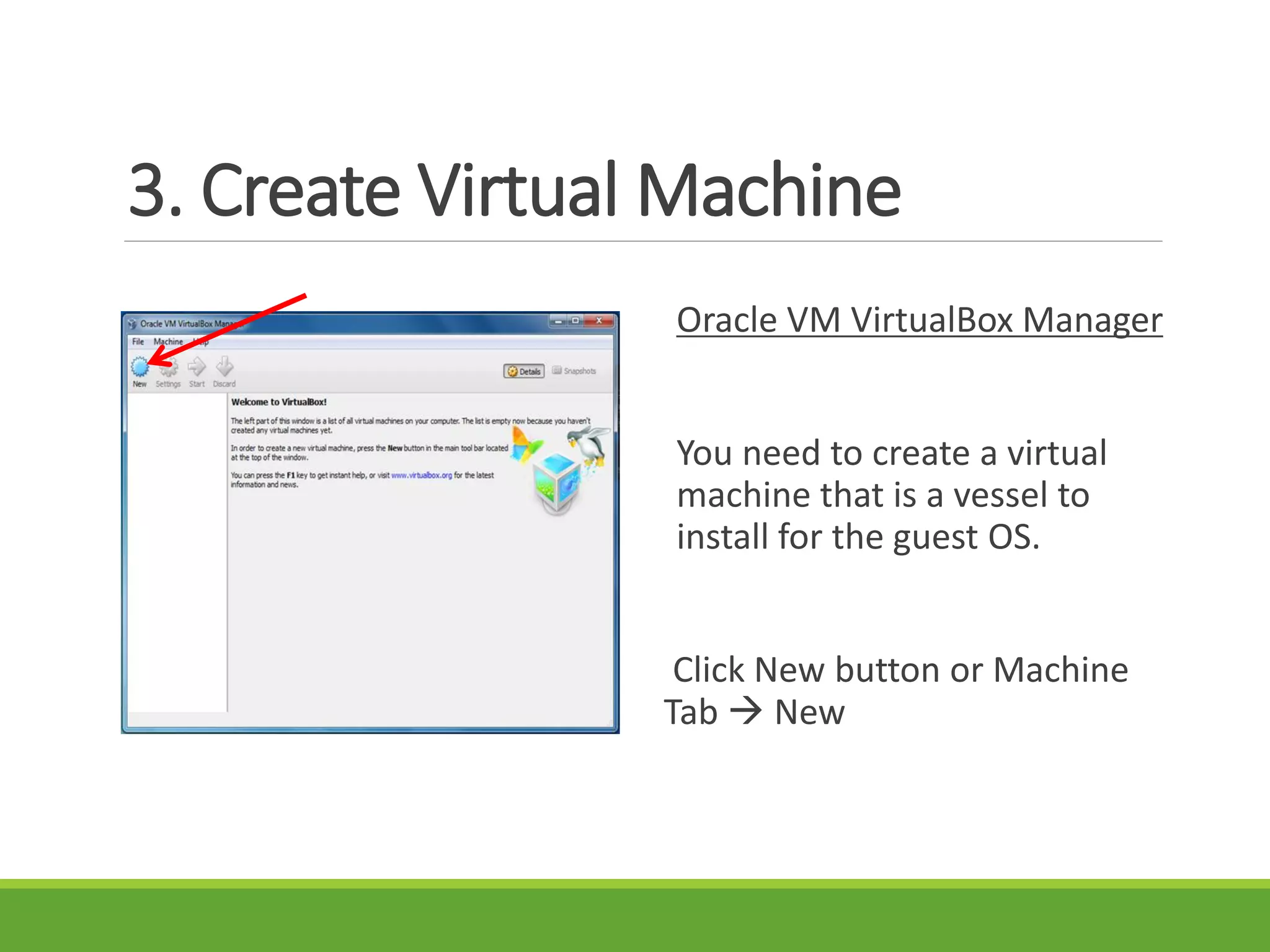
3. Create Virtual Machine
Oracle VM VirtualBox Manager
You need to create a virtual
machine that is a vessel to
install for the guest OS.
Click New button or Machine
Tab  New
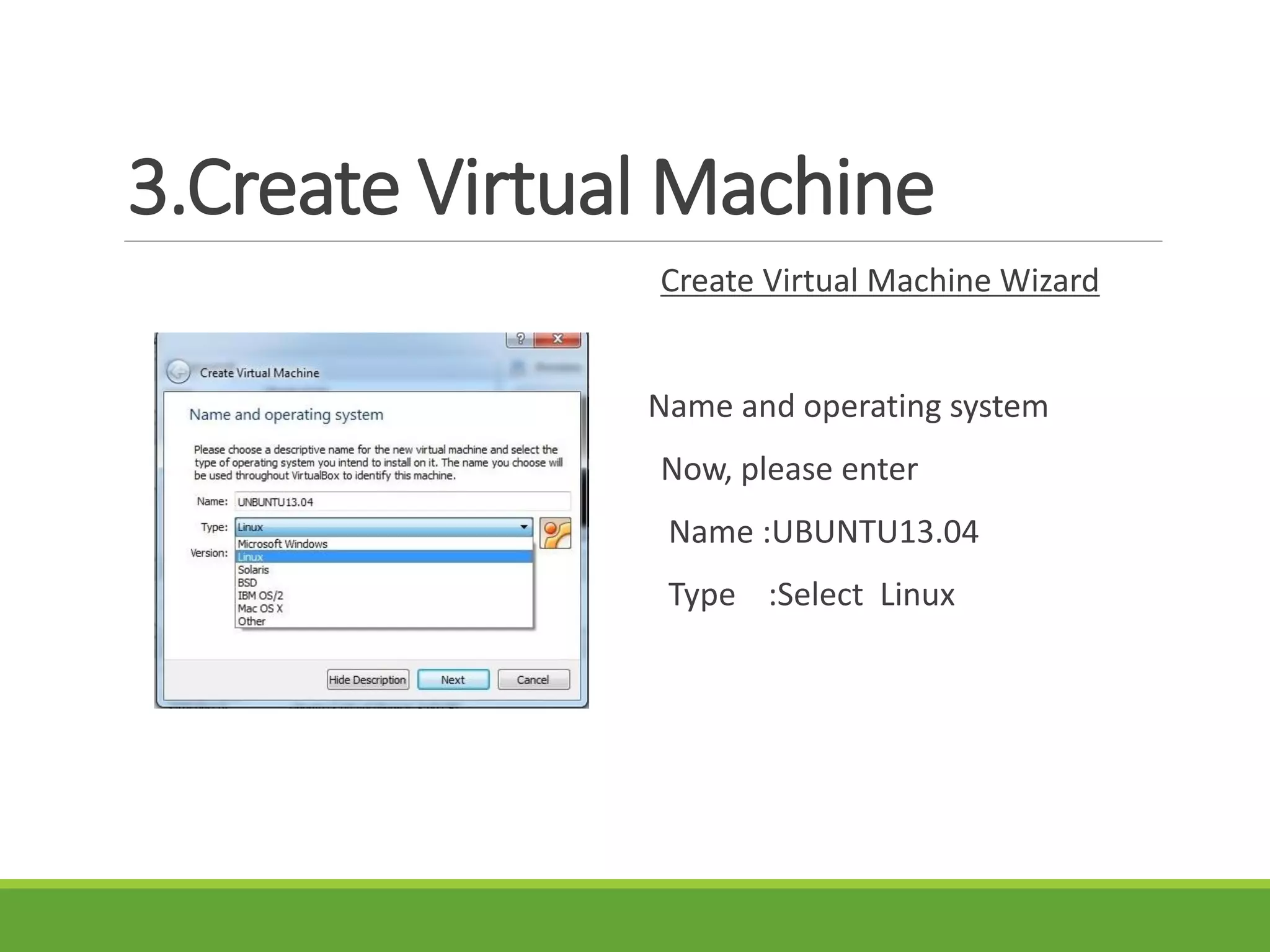
3.Create Virtual Machine
Create Virtual Machine Wizard
Name and operating system
Now, please enter
Name :UBUNTU13.04
Type :Select Linux
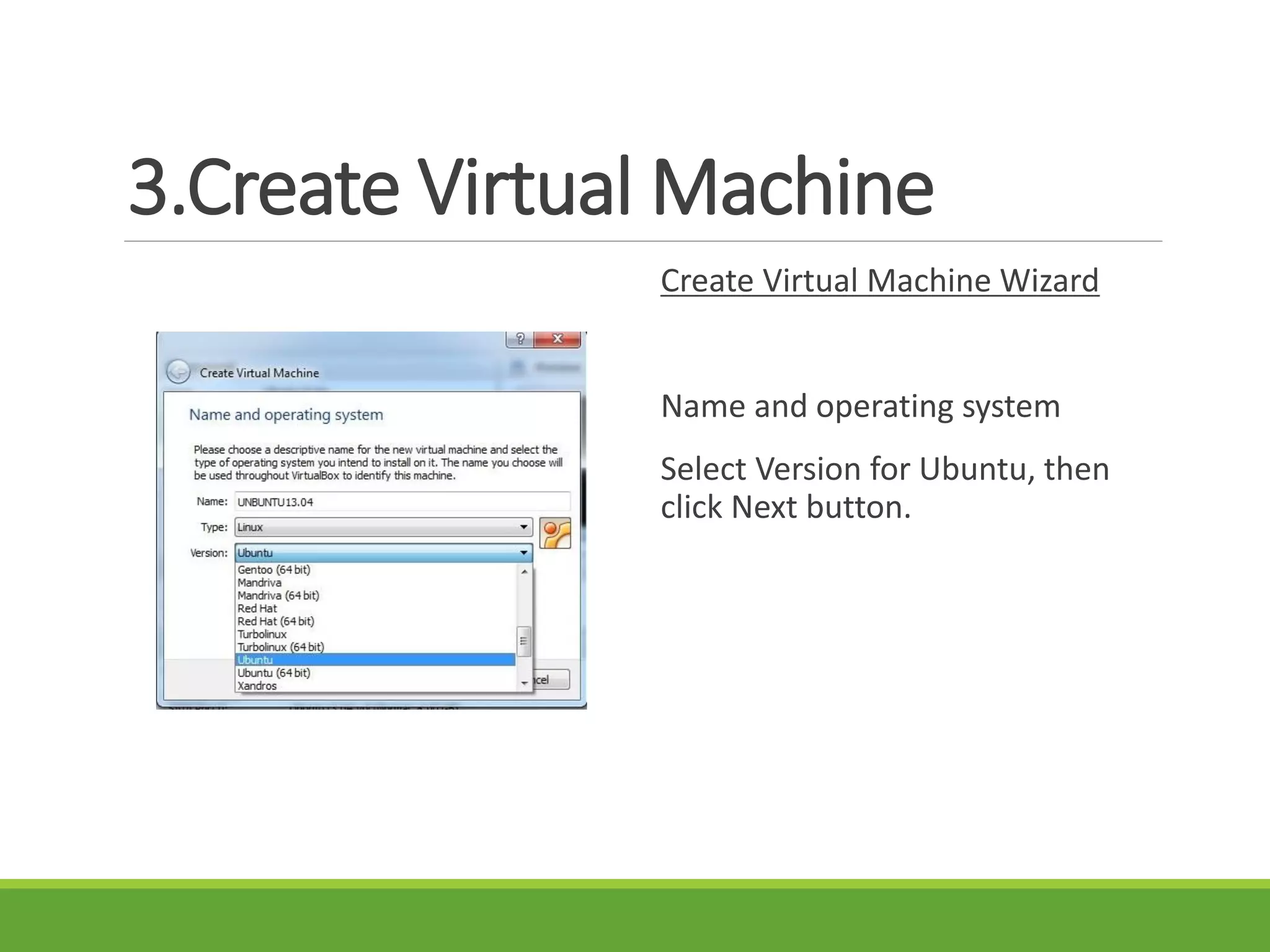
3.Create Virtual Machine
Create Virtual Machine Wizard
Name and operating system
Select Version for Ubuntu, then
click Next button.
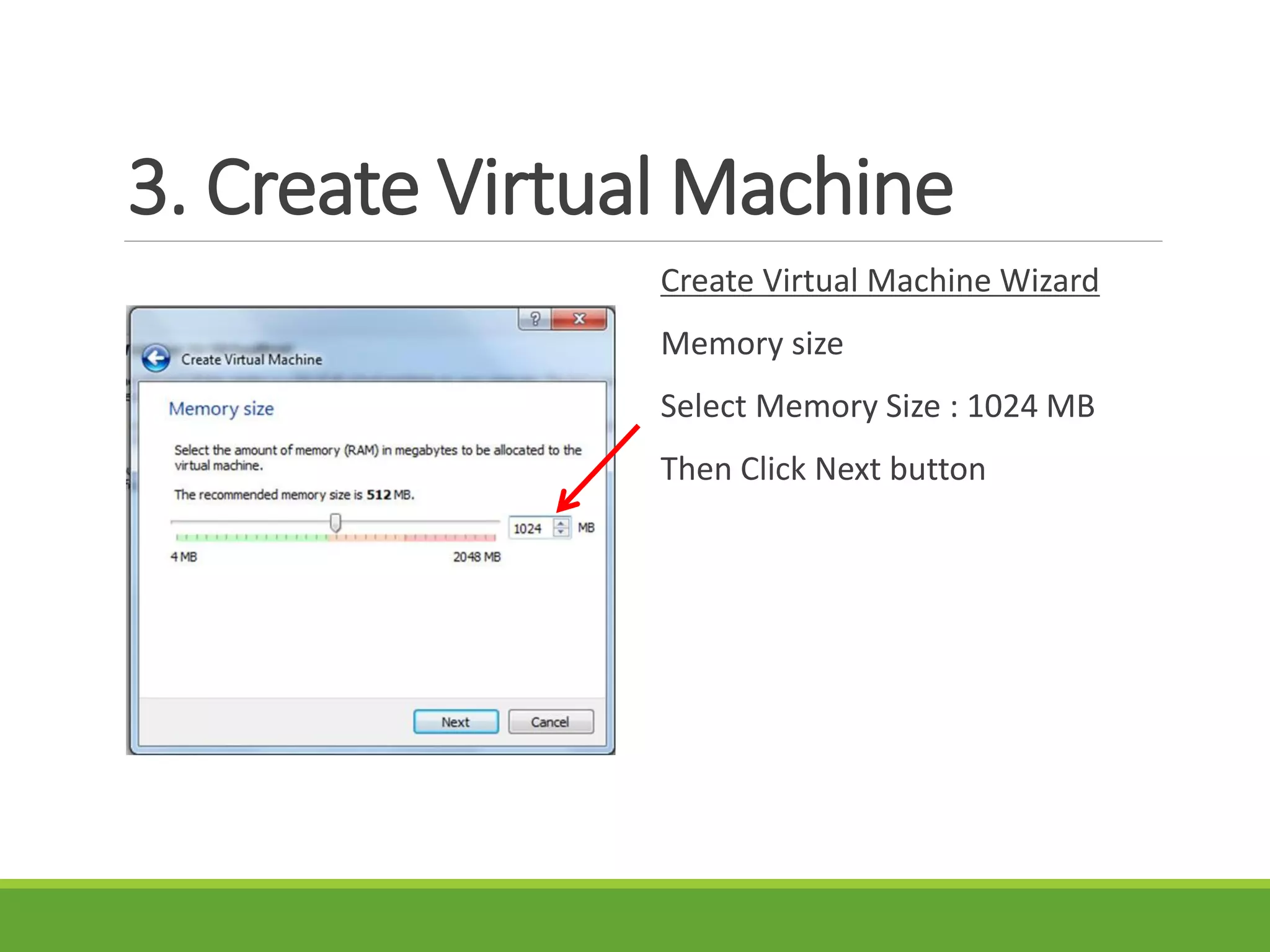
3. Create Virtual Machine
Create Virtual Machine Wizard
Memory size
Select Memory Size : 1024 MB
Then Click Next button
3. Create Virtual Machine
Create Virtual Machine Wizard
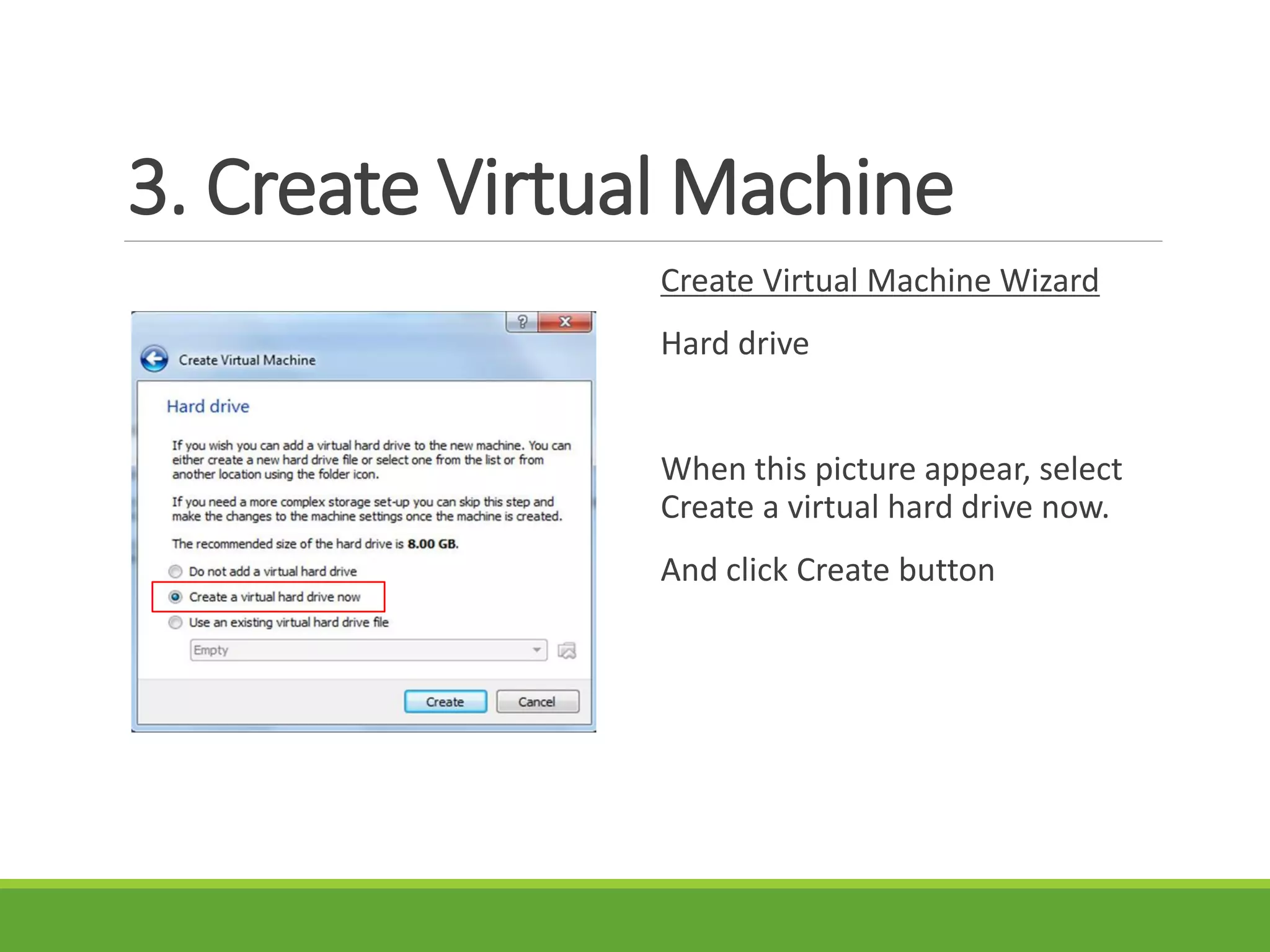
Hard drive
When this picture appear, select
Create a virtual hard drive now.
And click Create button
3. Create Virtual Machine
Create Virtual Machine Wizard
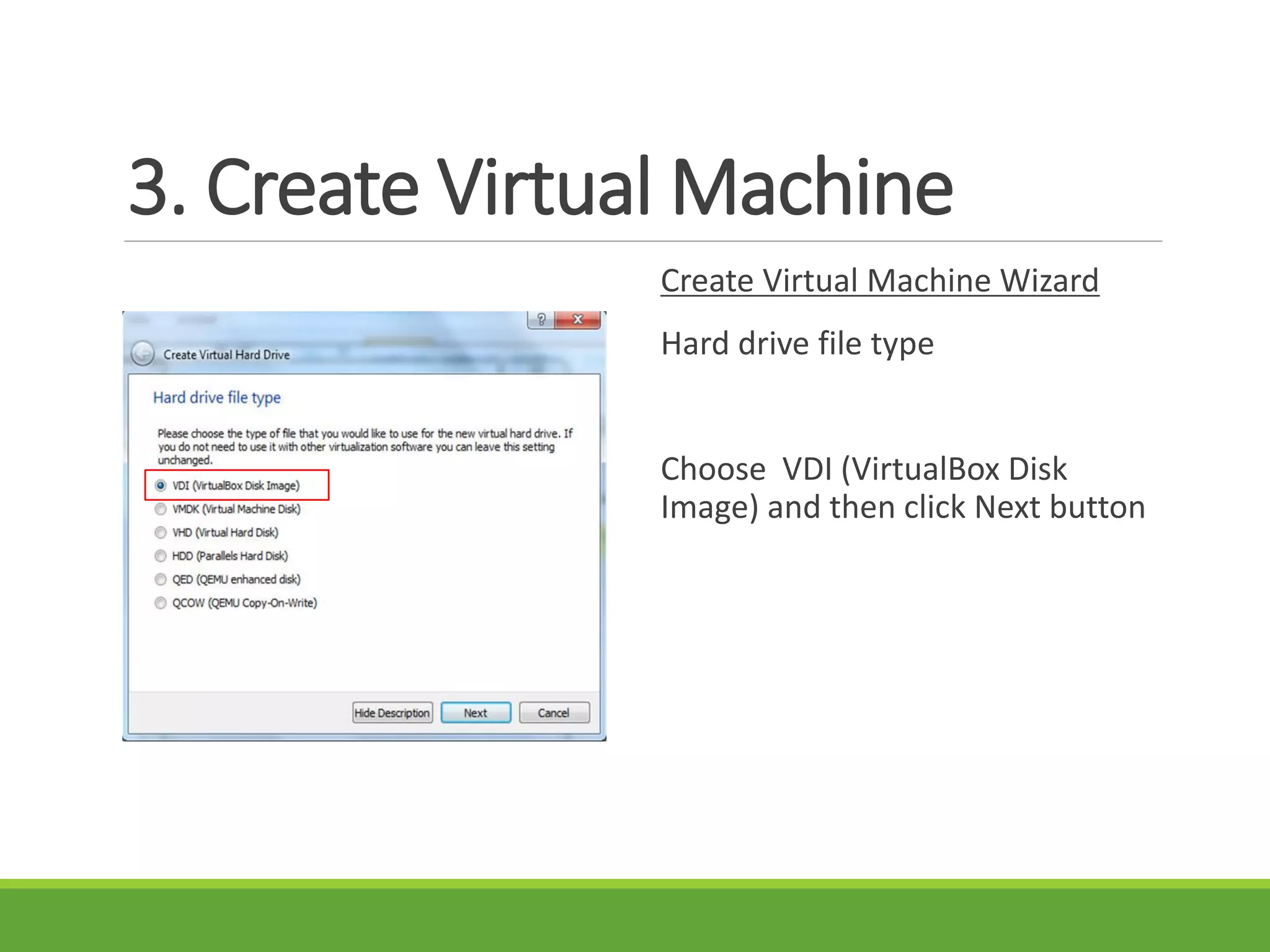
Hard drive file type
Choose VDI (VirtualBox Disk
Image) and then click Next button
3. Create Virtual Machine
Create Virtual Machine Wizard
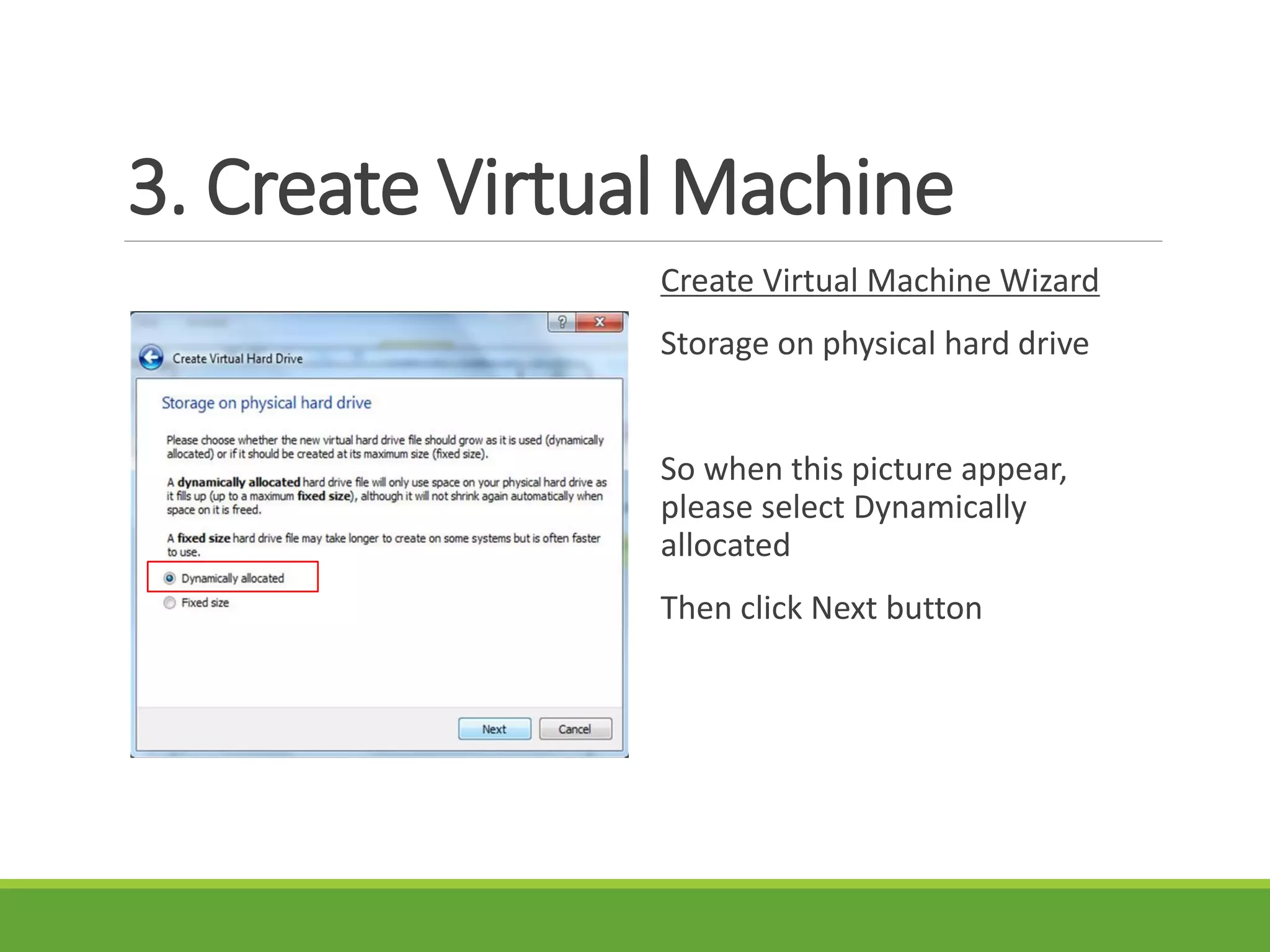
Storage on physical hard drive
So when this picture appear,
please select Dynamically
allocated
Then click Next button
3. Create Virtual Machine
Create Virtual Machine Wizard
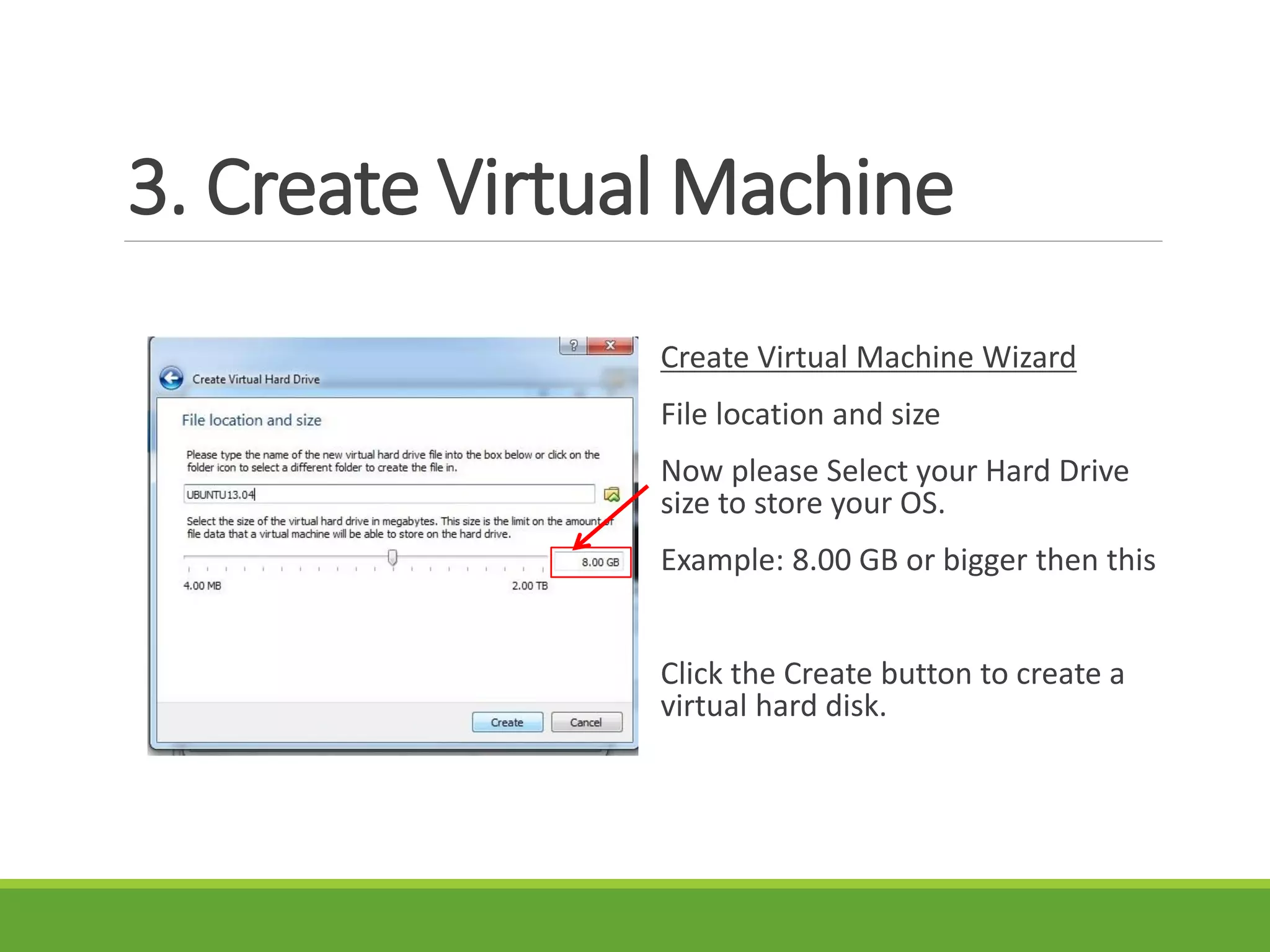
File location and size
Now please Select your Hard Drive
size to store your OS.
Example: 8.00 GB or bigger then this
Click the Create button to create a
virtual hard disk.
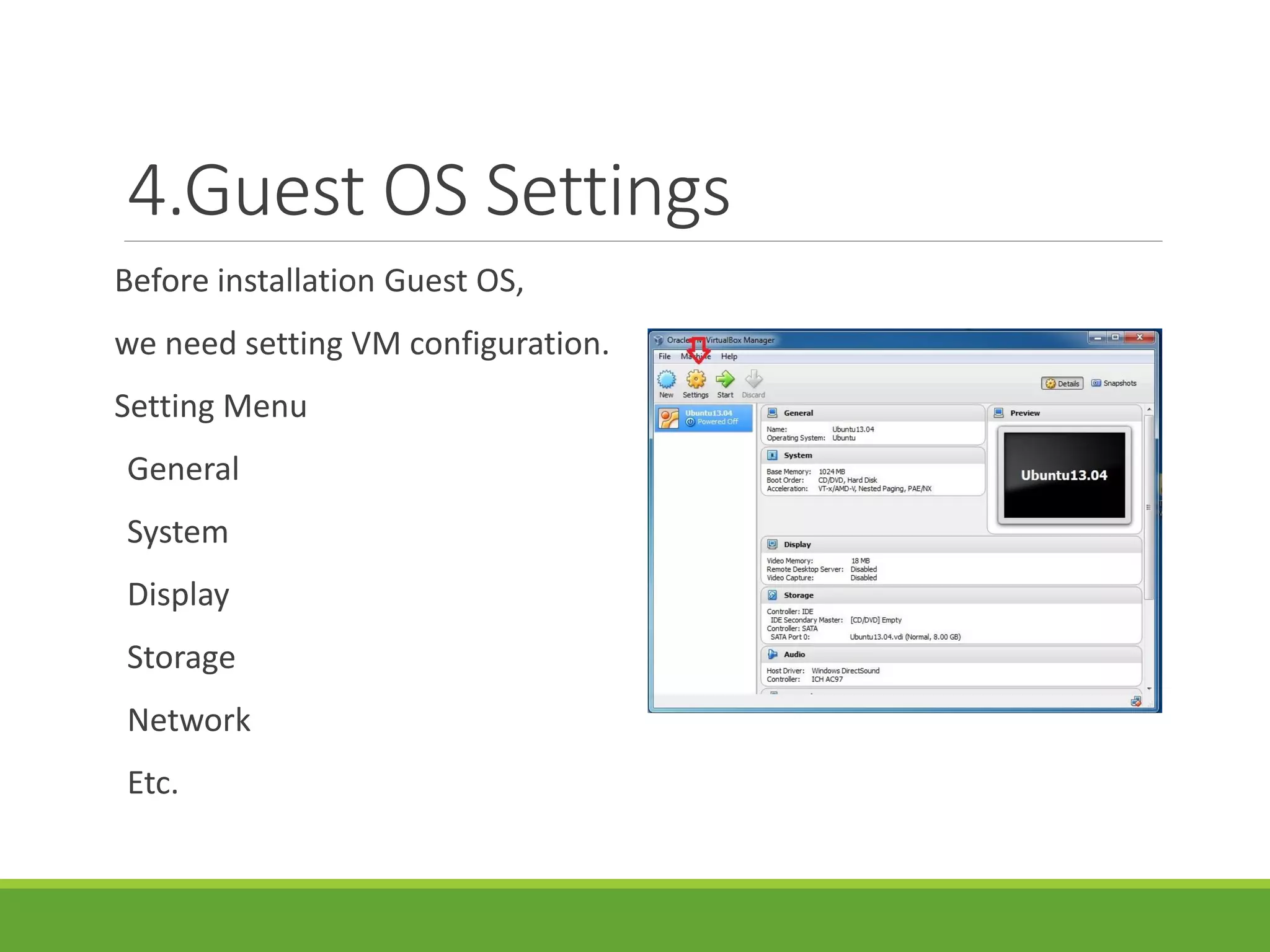
4.Guest OS Settings
Before installation Guest OS,
we need setting VM configuration.
Setting Menu
General
System
Display
Storage
Network
Etc.
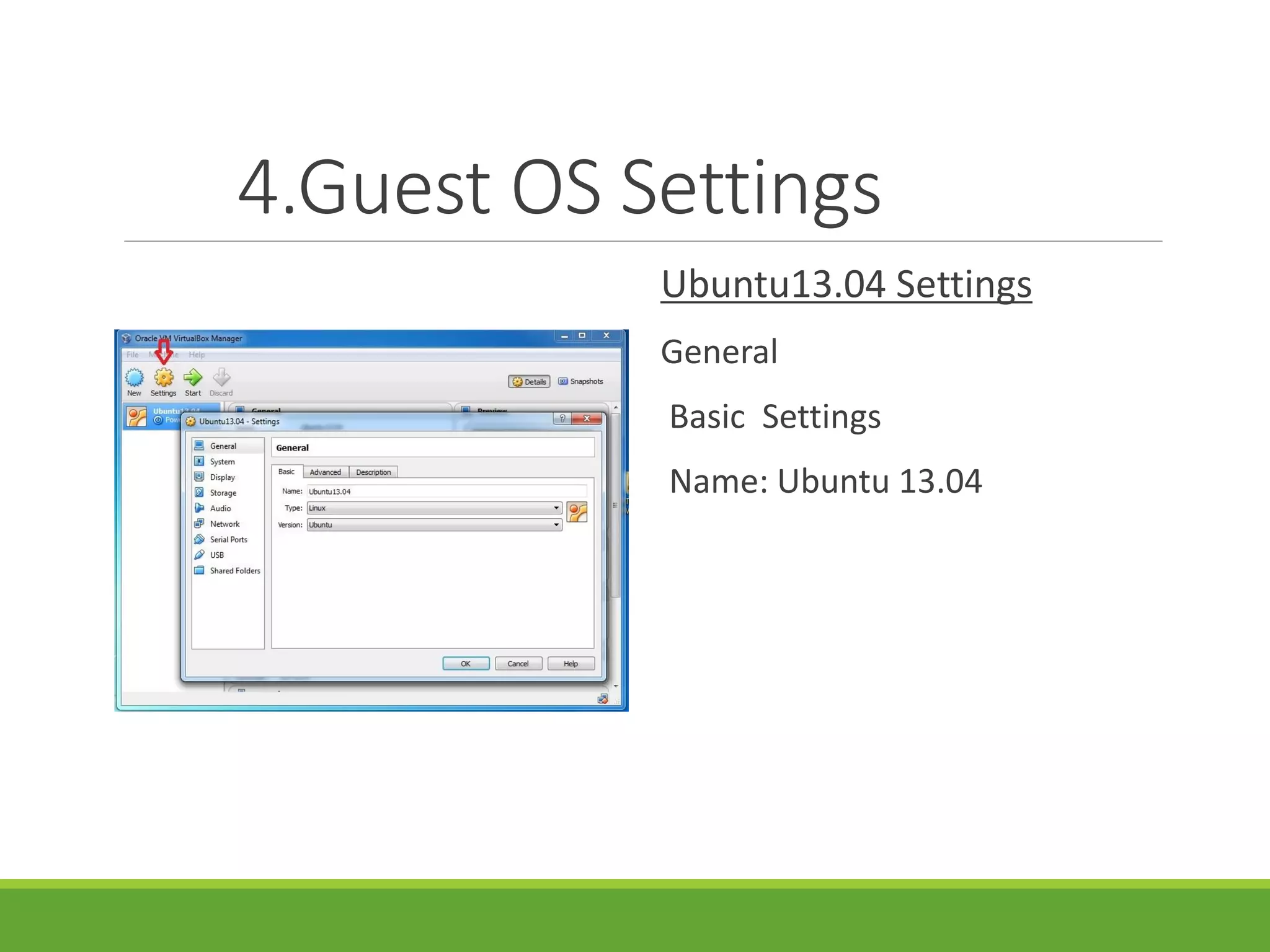
4.Guest OS Settings
Ubuntu13.04 Settings
General
Basic Settings
Name: Ubuntu 13.04
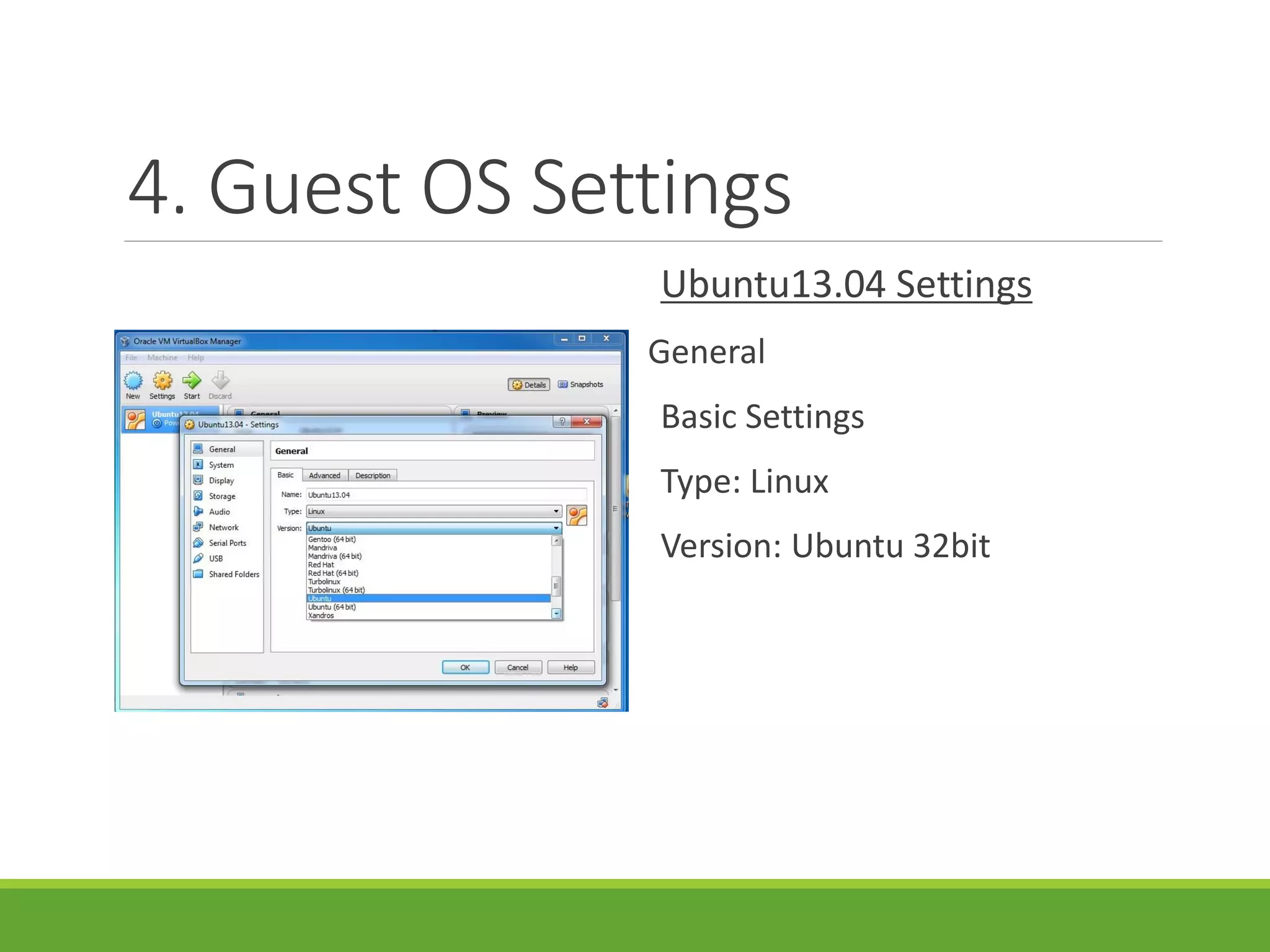
4. Guest OS Settings
Ubuntu13.04 Settings
General
Basic Settings
Type: Linux
Version: Ubuntu 32bit
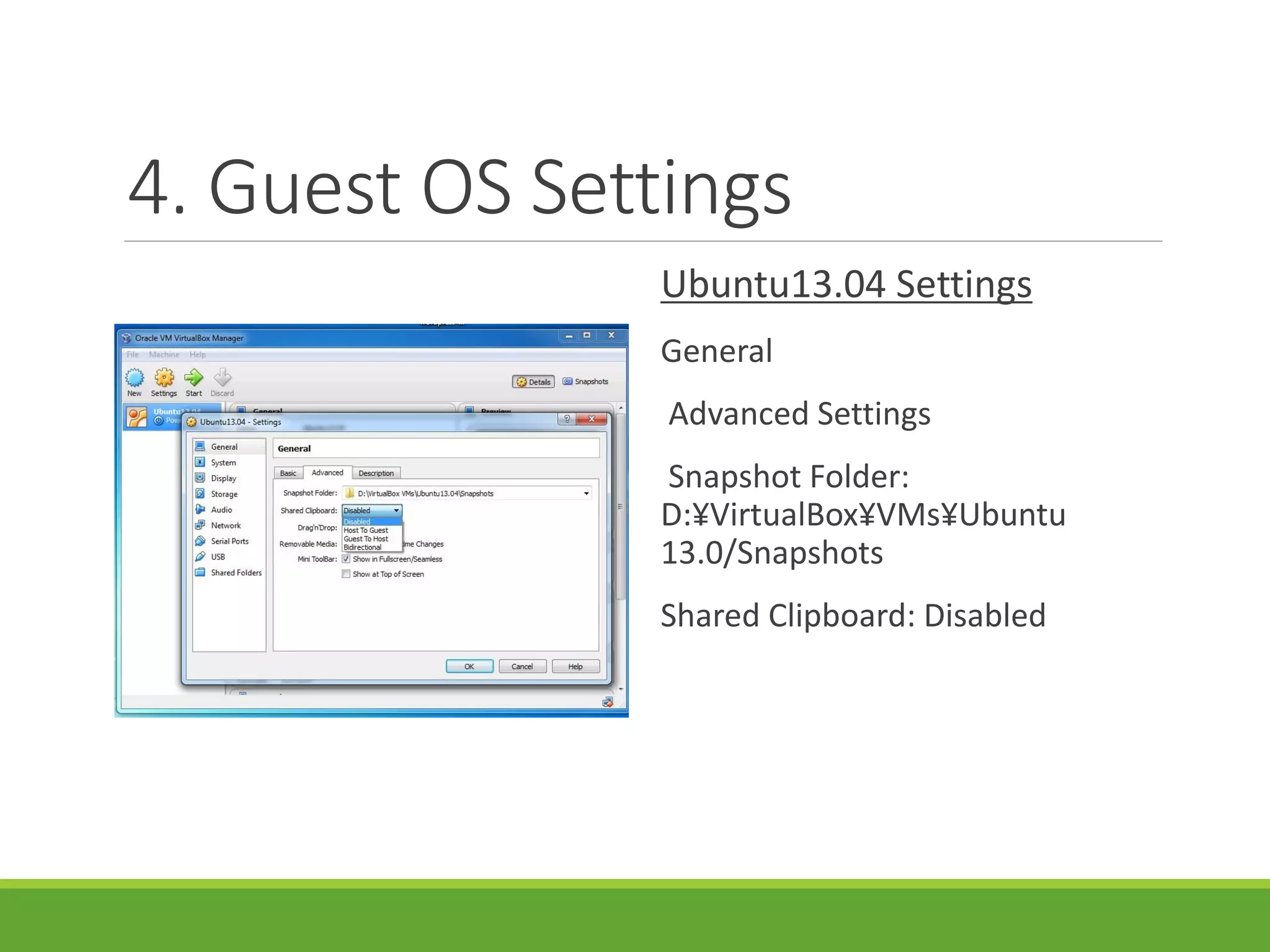
4. Guest OS Settings
Ubuntu13.04 Settings
General
Advanced Settings
Snapshot Folder:
D:¥VirtualBox¥VMs¥Ubuntu
13.0/Snapshots
Shared Clipboard: Disabled
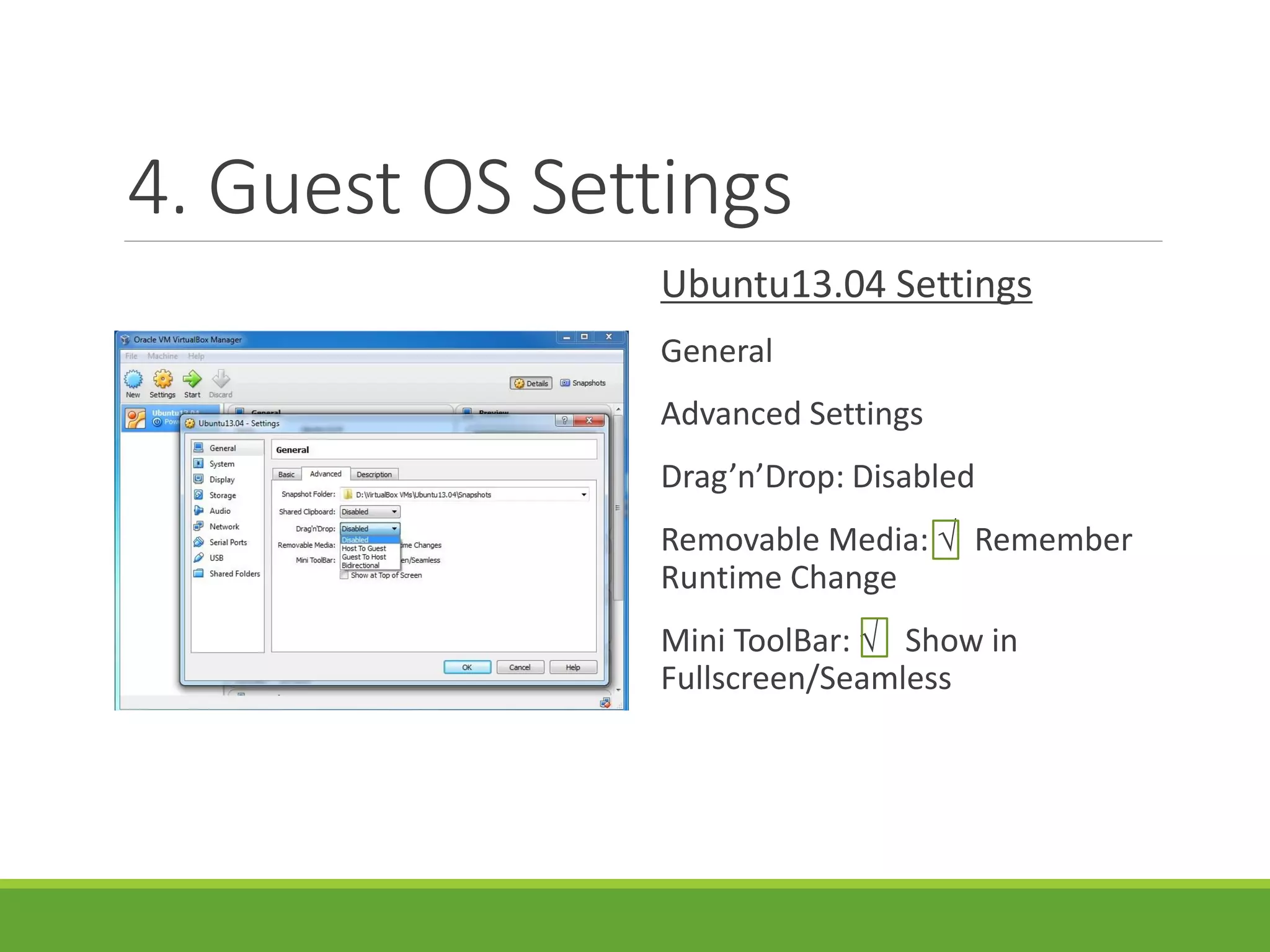
4. Guest OS Settings
Ubuntu13.04 Settings
General
Advanced Settings
Drag’n’Drop: Disabled
Removable Media: √ Remember
Runtime Change
Mini ToolBar: √ Show in
Fullscreen/Seamless
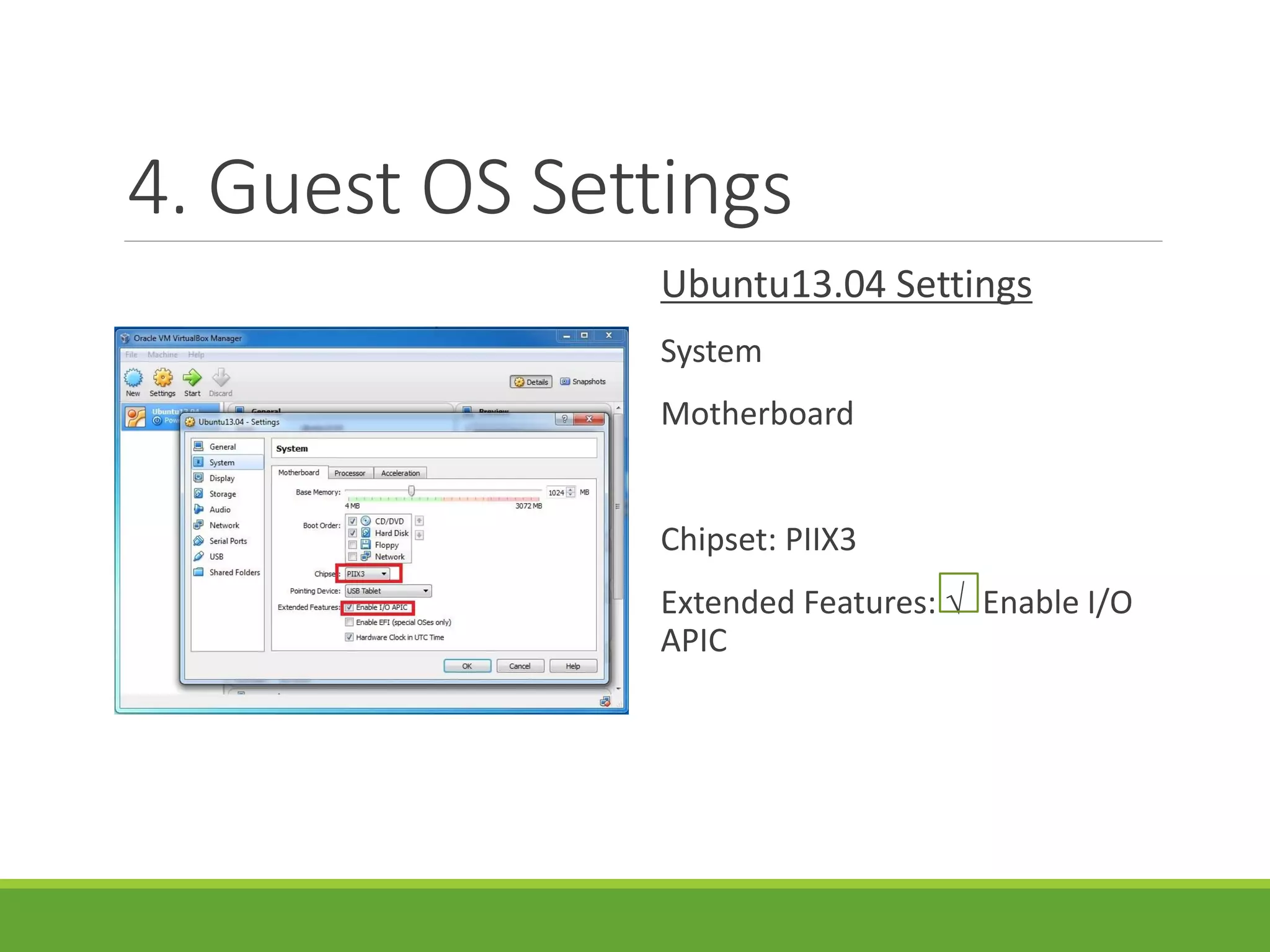
4. Guest OS Settings
Ubuntu13.04 Settings
System
Motherboard
Chipset: PIIX3
Extended Features: √ Enable I/O
APIC
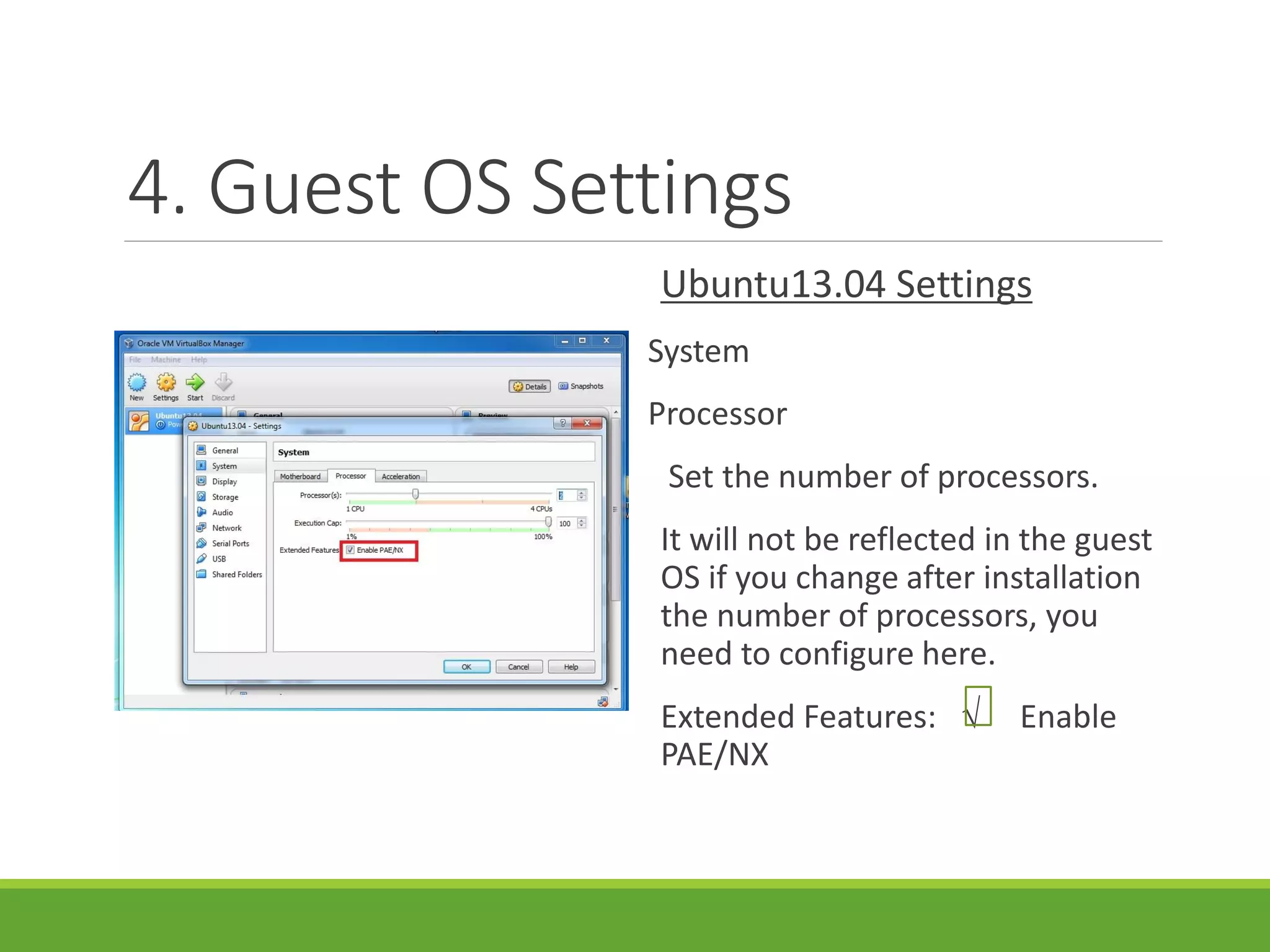
4. Guest OS Settings
Ubuntu13.04 Settings
System
Processor
Set the number of processors.
It will not be reflected in the guest
OS if you change after installation
the number of processors, you
need to configure here.
Extended Features: √ Enable
PAE/NX
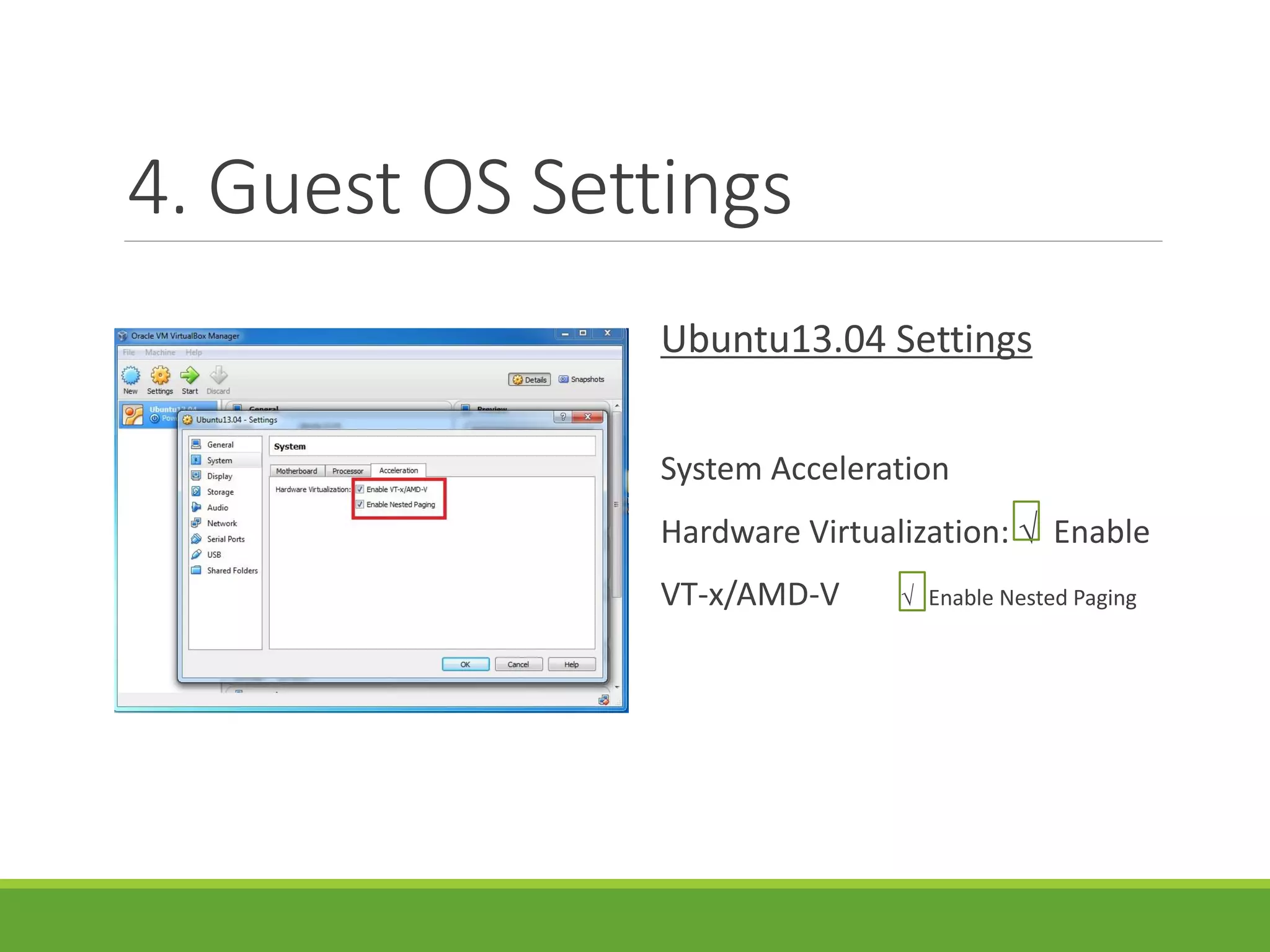
4. Guest OS Settings
Ubuntu13.04 Settings
System Acceleration
Hardware Virtualization: √ Enable
VT-x/AMD-V √ Enable Nested Paging
4. Guest OS Settings
Ubuntu13.04 Settings
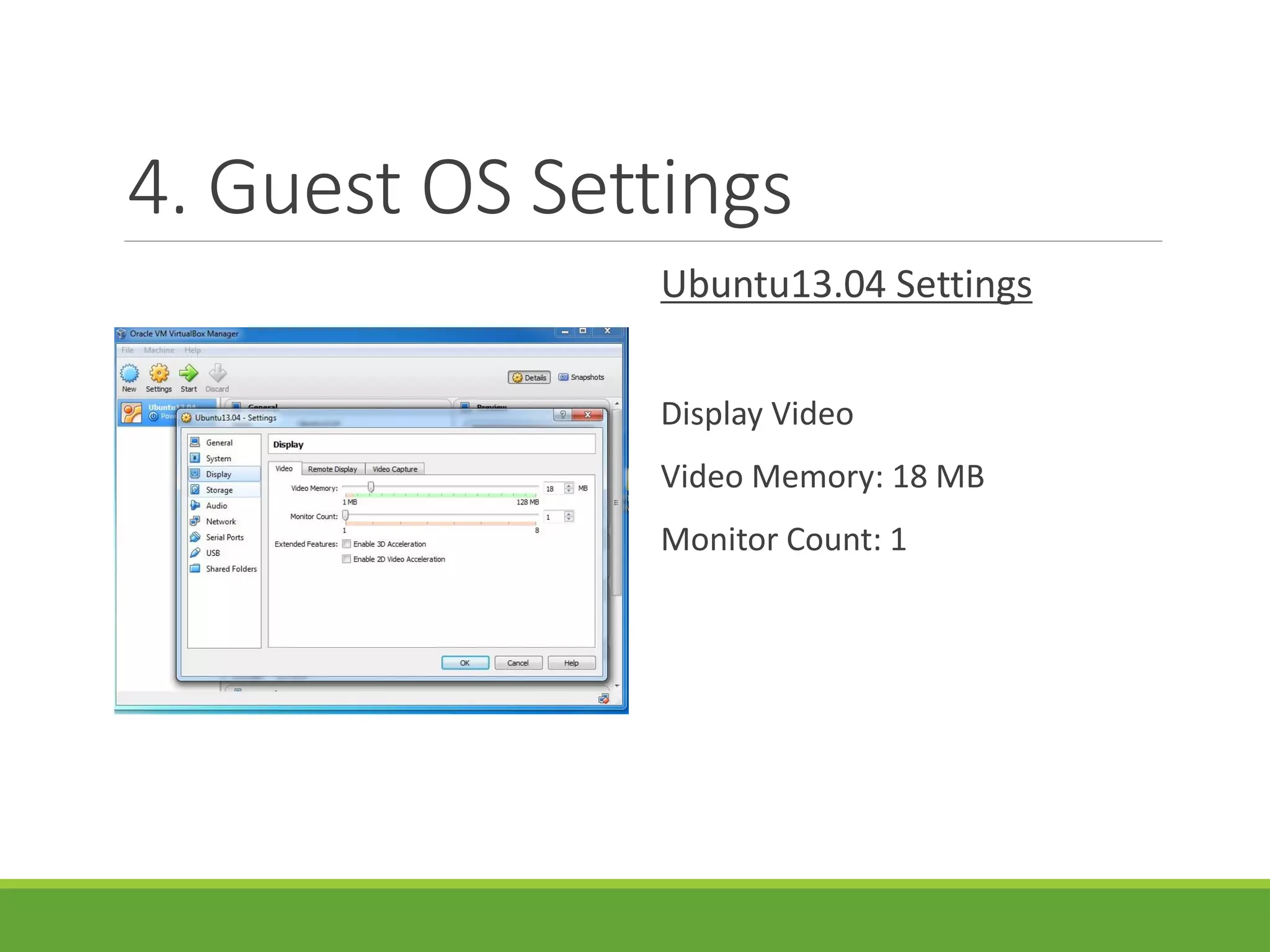
Display Video
Video Memory: 18 MB
Monitor Count: 1
4. Guest OS Settings
Ubuntu13.04 Settings
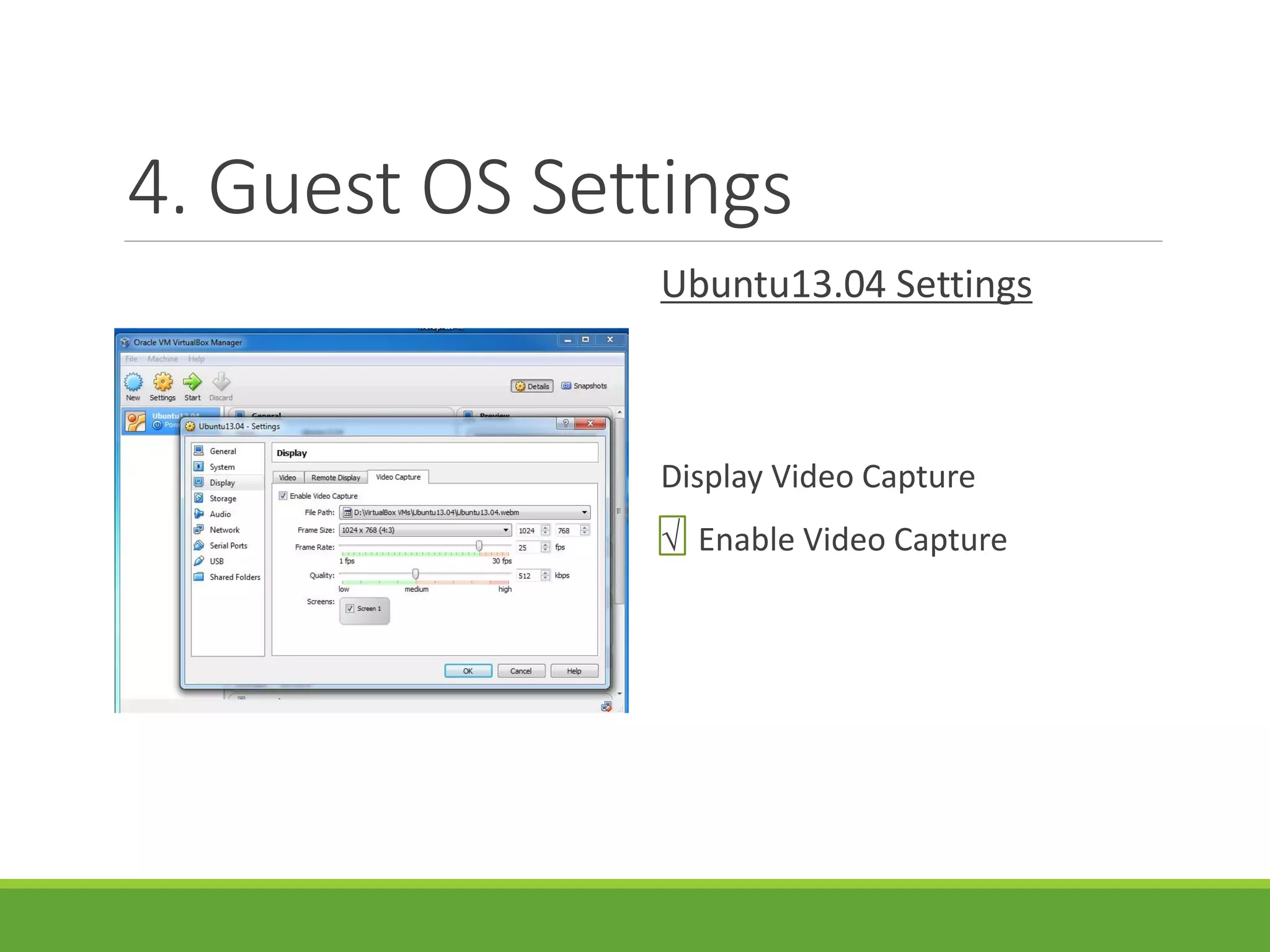
Display Video Capture
√ Enable Video Capture
4. Guest OS Settings
Ubuntu13.04 Settings
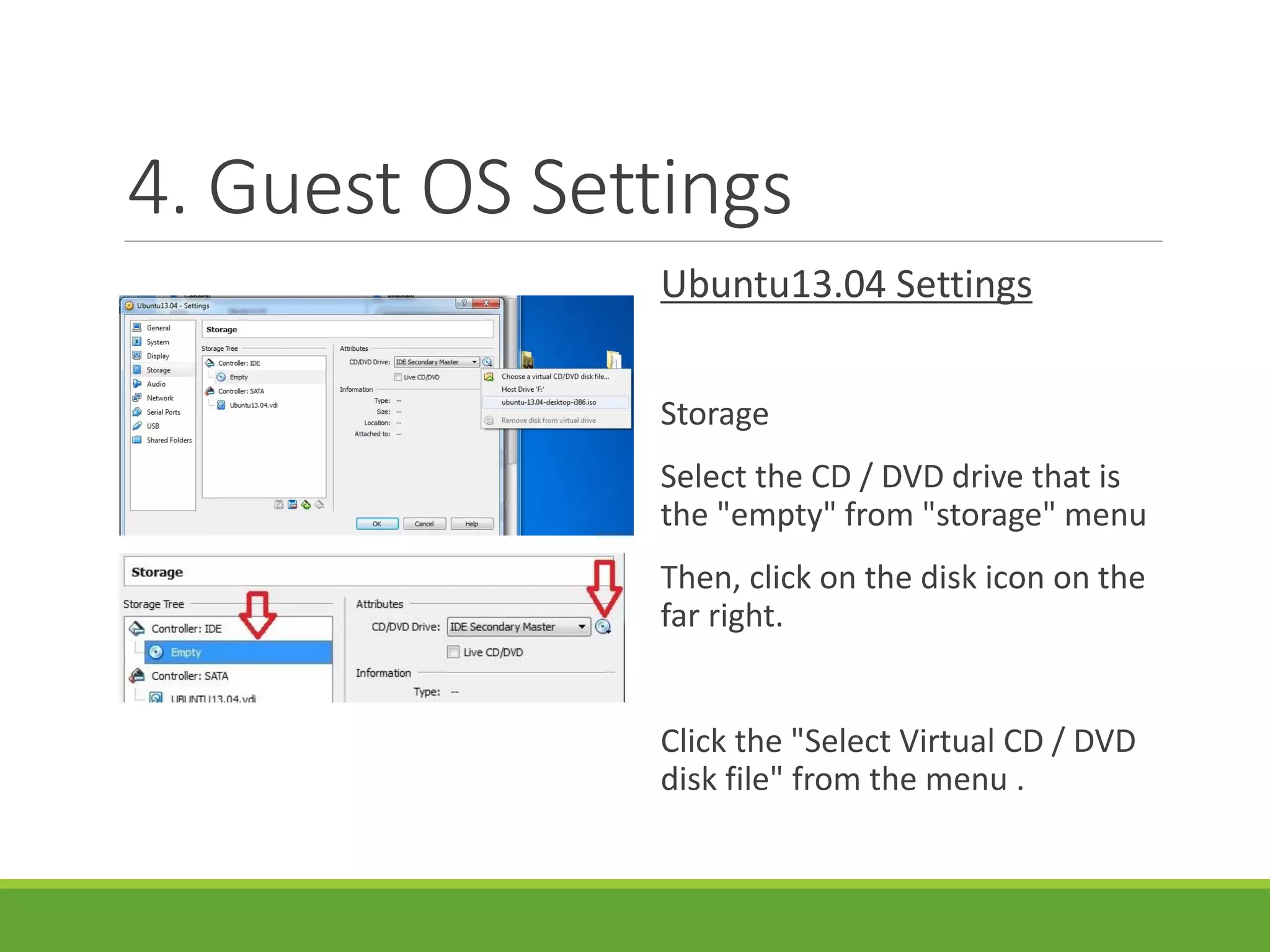
Storage
Select the CD / DVD drive that is
the "empty" from "storage" menu
Then, click on the disk icon on the
far right.
Click the "Select Virtual CD / DVD
disk file" from the menu .
4. Guest OS Settings
Ubuntu13.04 Settings
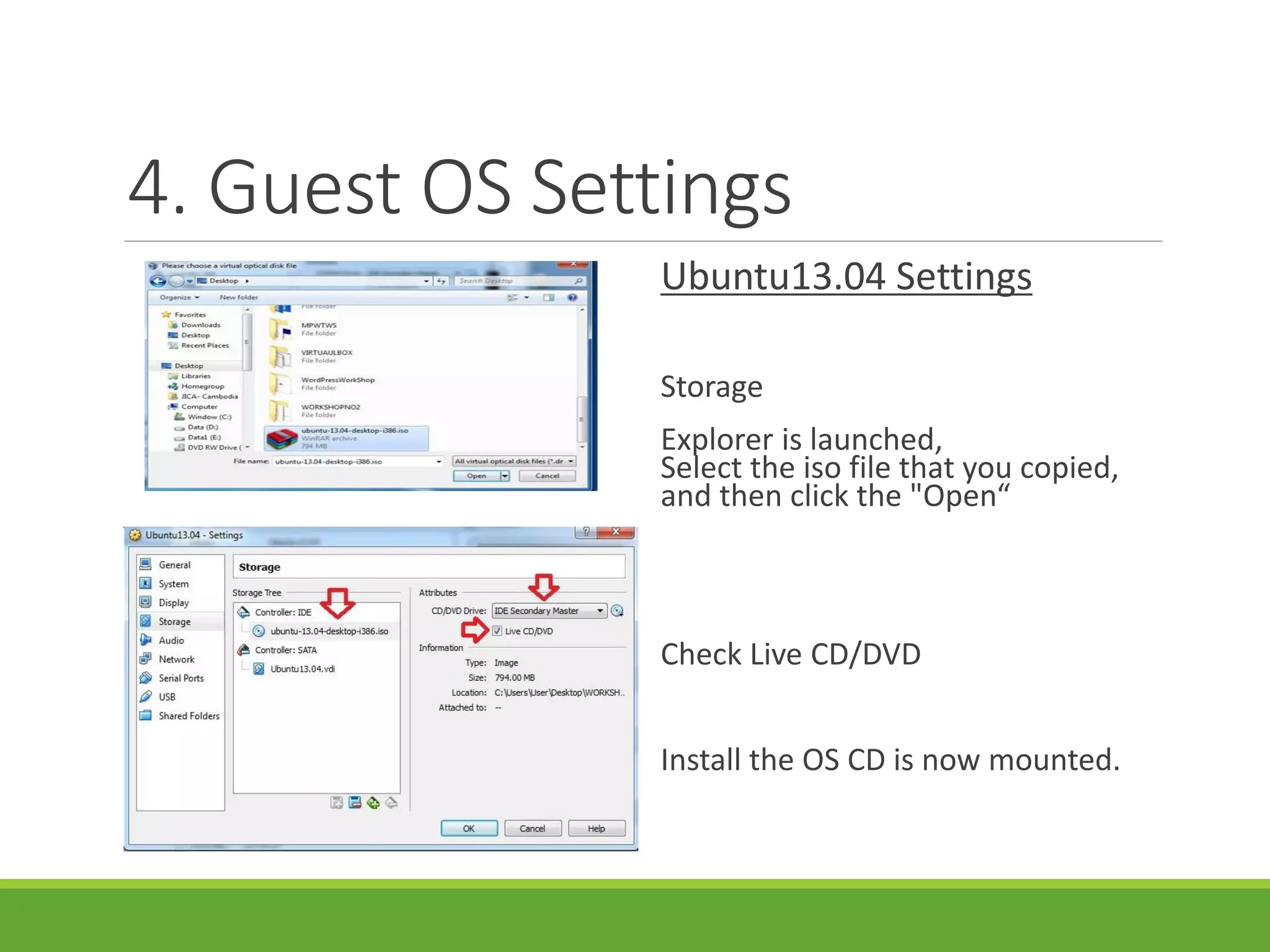
Storage
Explorer is launched,
Select the iso file that you copied,
and then click the "Open“
Check Live CD/DVD
Install the OS CD is now mounted.
4. Guest OS Settings
Ubuntu13.04 Settings
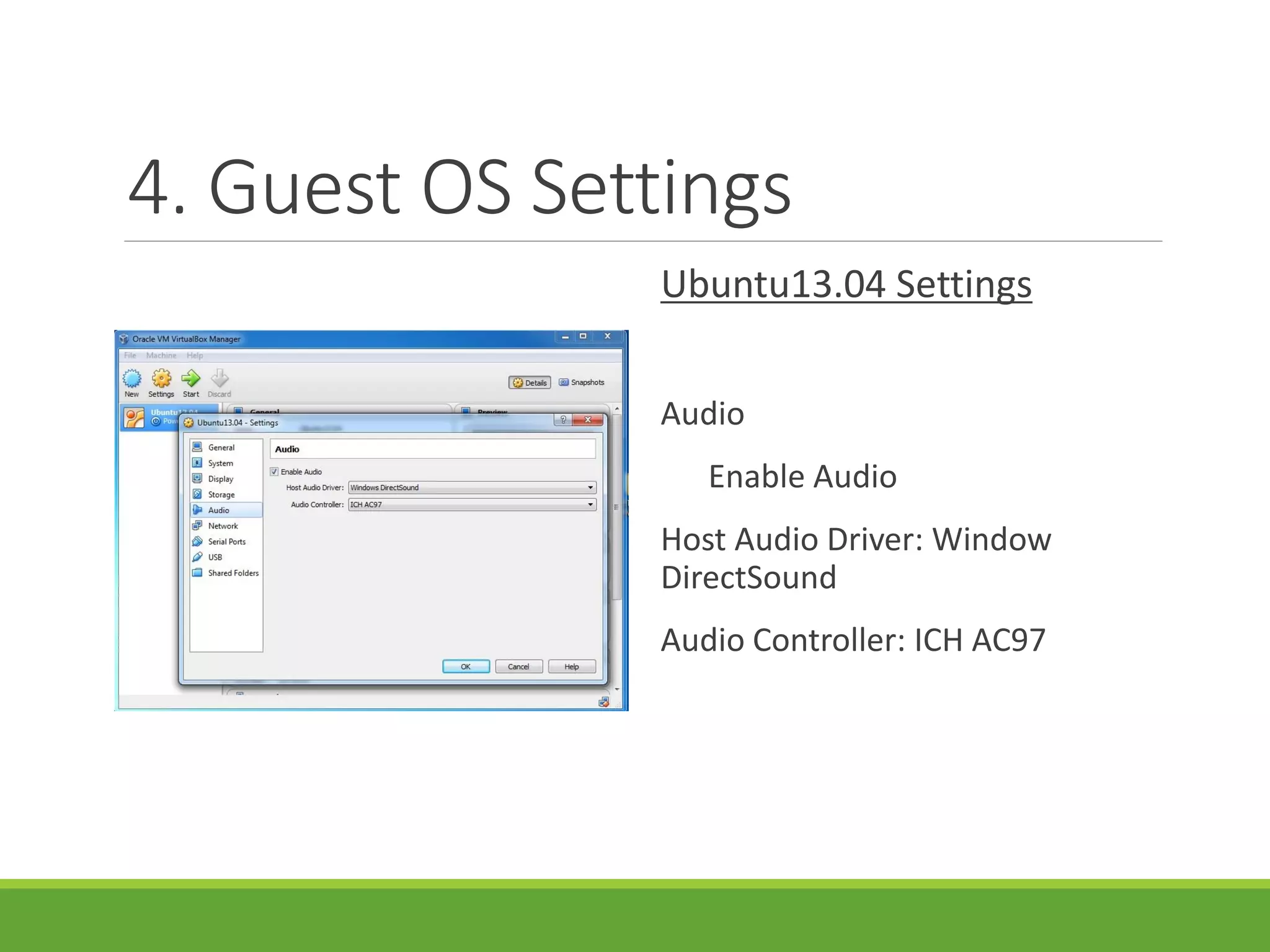
Audio
Enable Audio
Host Audio Driver: Window
DirectSound
Audio Controller: ICH AC97
4. Guest OS Settings
Ubuntu13.04 Settings
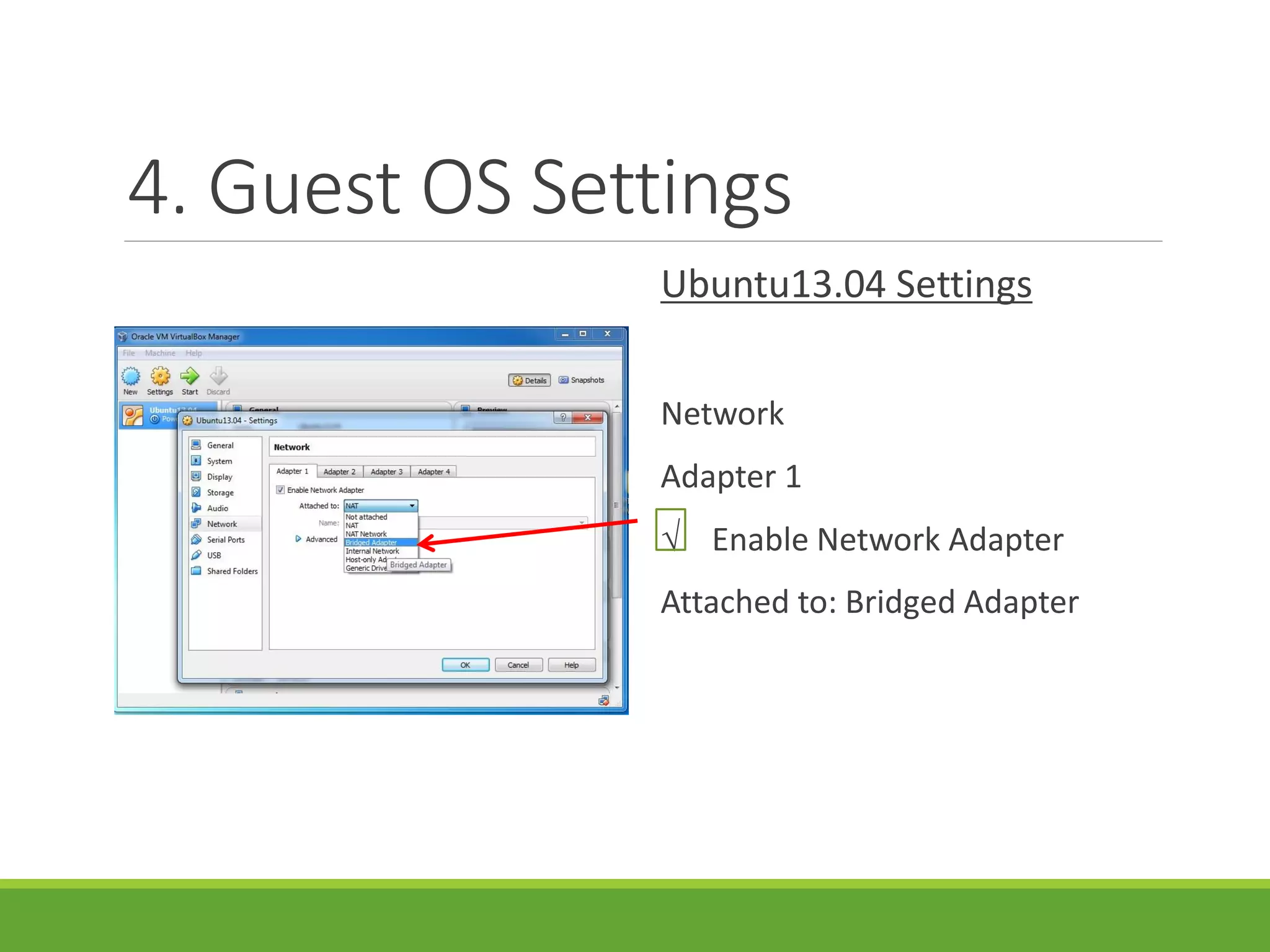
Network
Adapter 1
√ Enable Network Adapter
Attached to: Bridged Adapter
5. Install Ubuntu 13.04
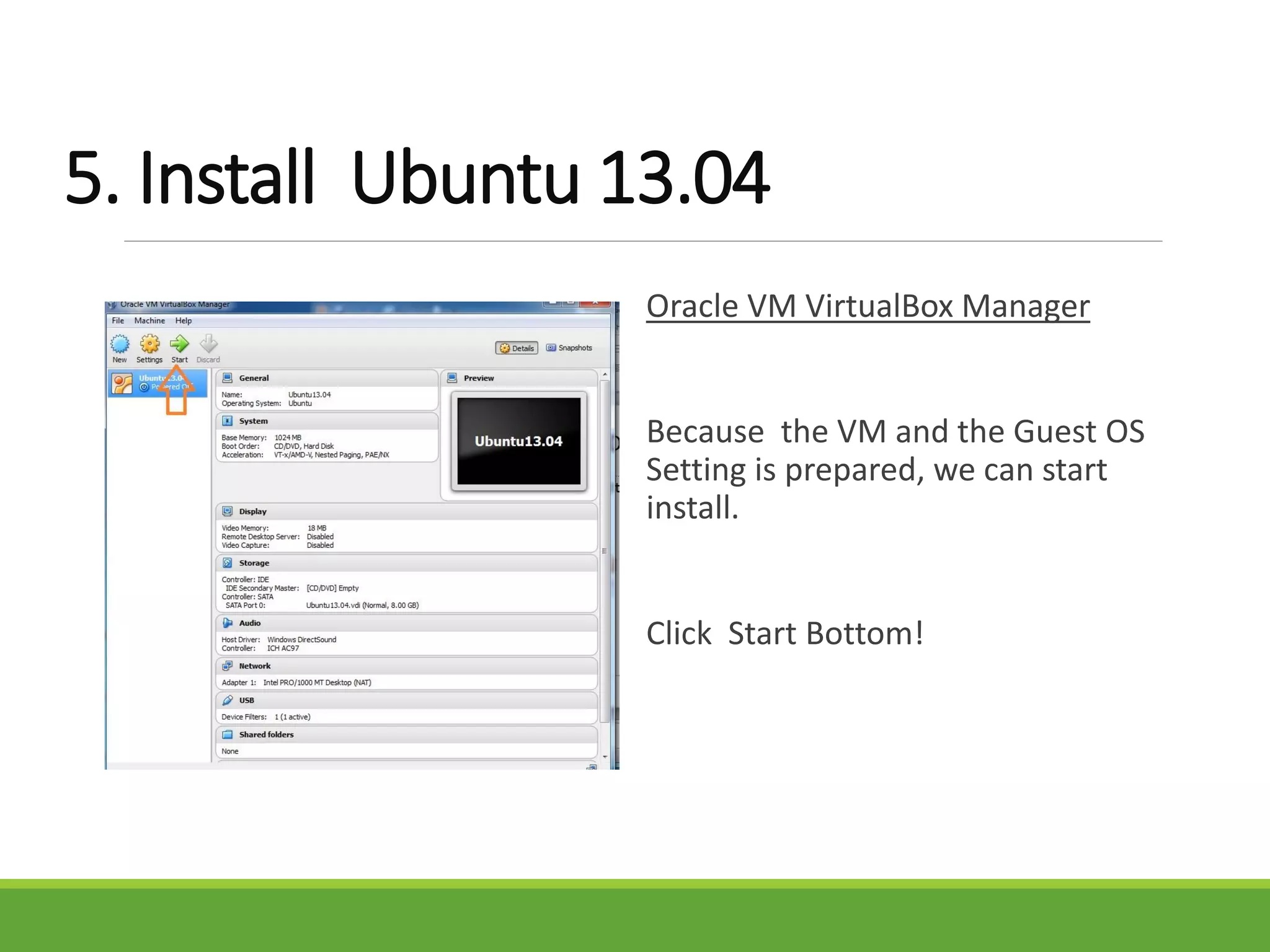
Oracle VM VirtualBox Manager
Because the VM and the Guest OS
Setting is prepared, we can start
install.
Click Start Bottom!
5. Install Ubuntu 13.04
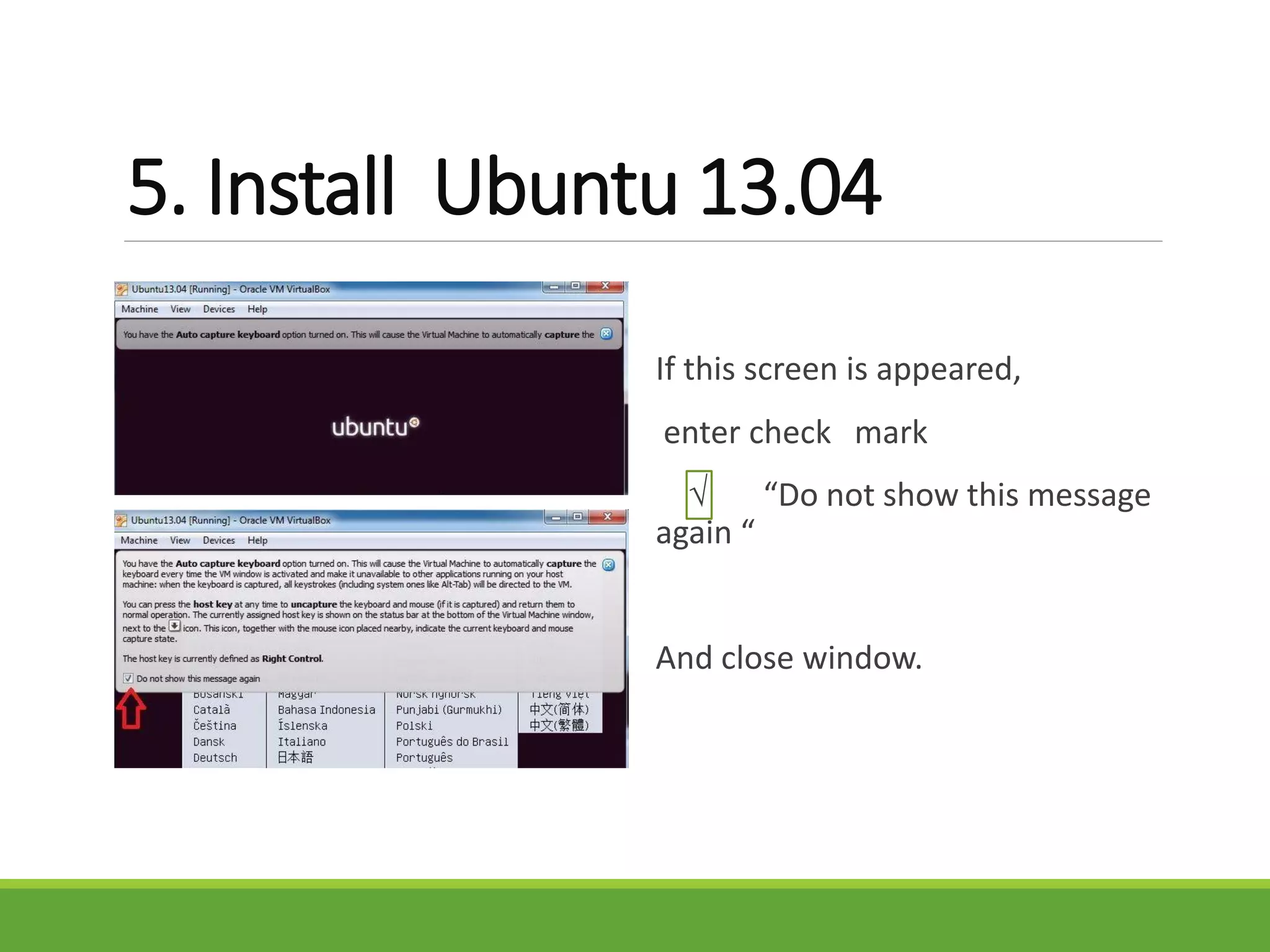
If this screen is appeared,
enter check mark
√ “Do not show this message
again “
And close window.
5. Install Ubuntu 13.04
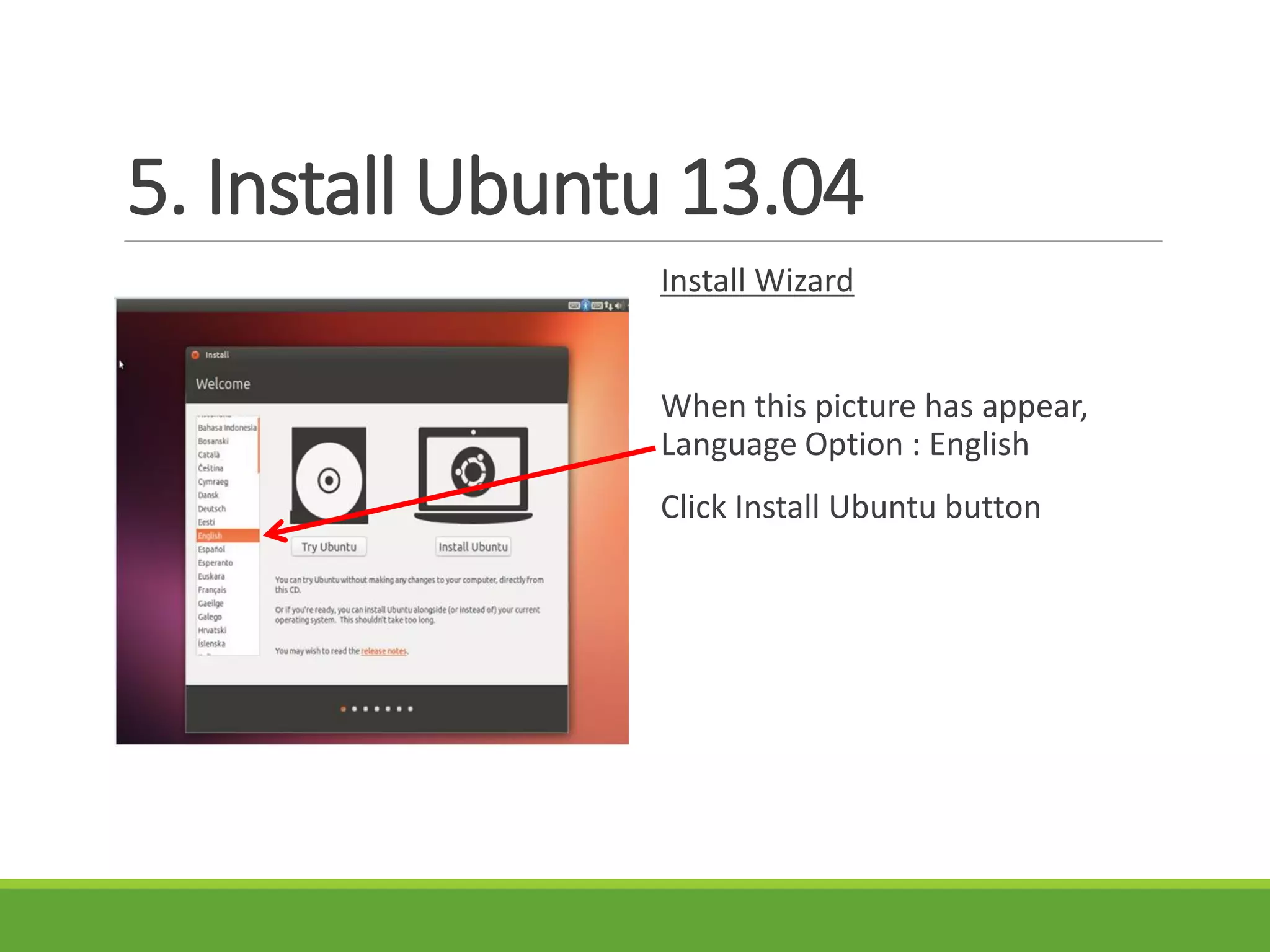
Install Wizard
When this picture has appear,
Language Option : English
Click Install Ubuntu button
5. Install Ubuntu 13.04
Install Wizard
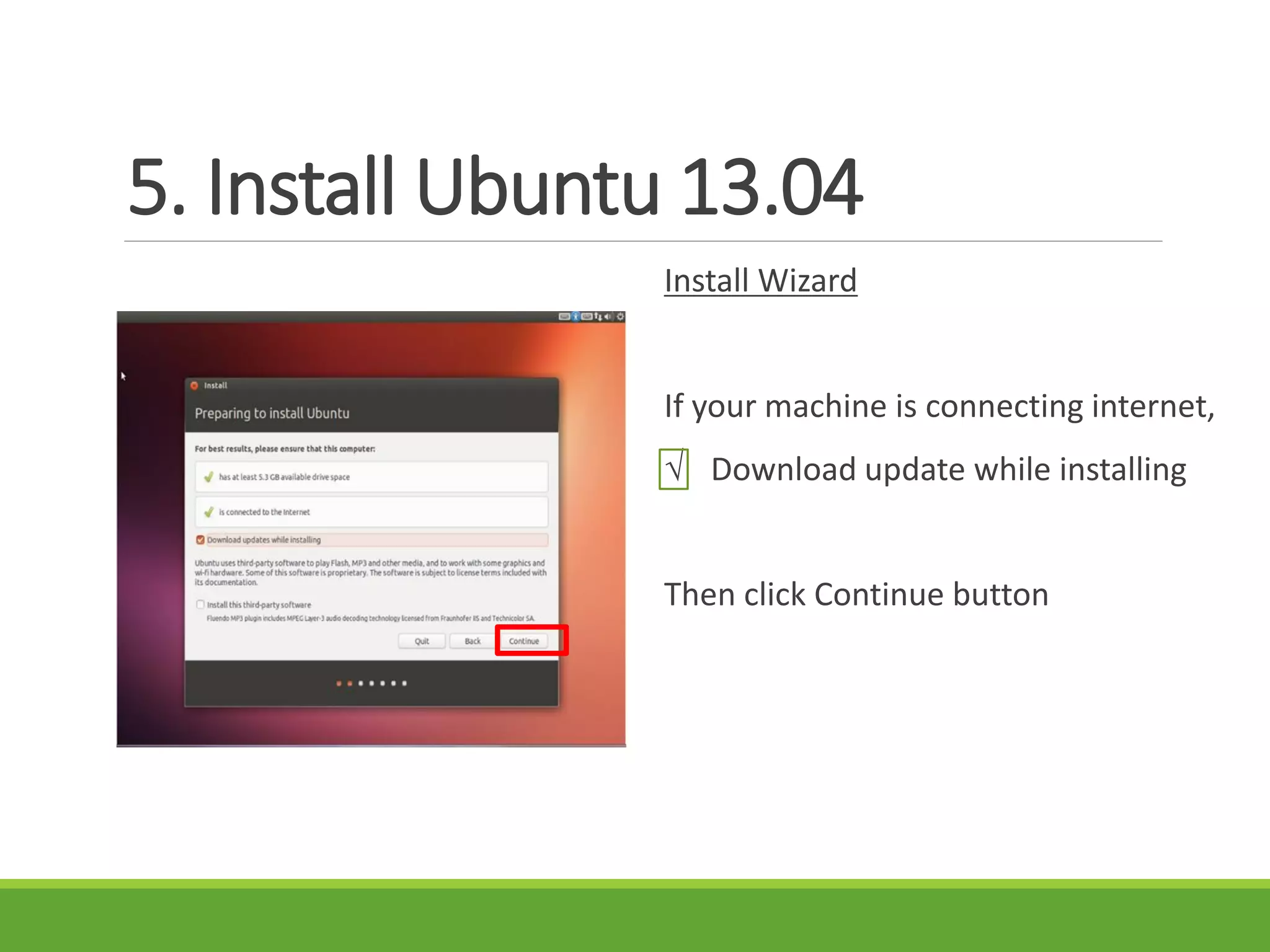
If your machine is connecting internet,
√ Download update while installing
Then click Continue button
5. Install Ubuntu 13.04
Install Wizard
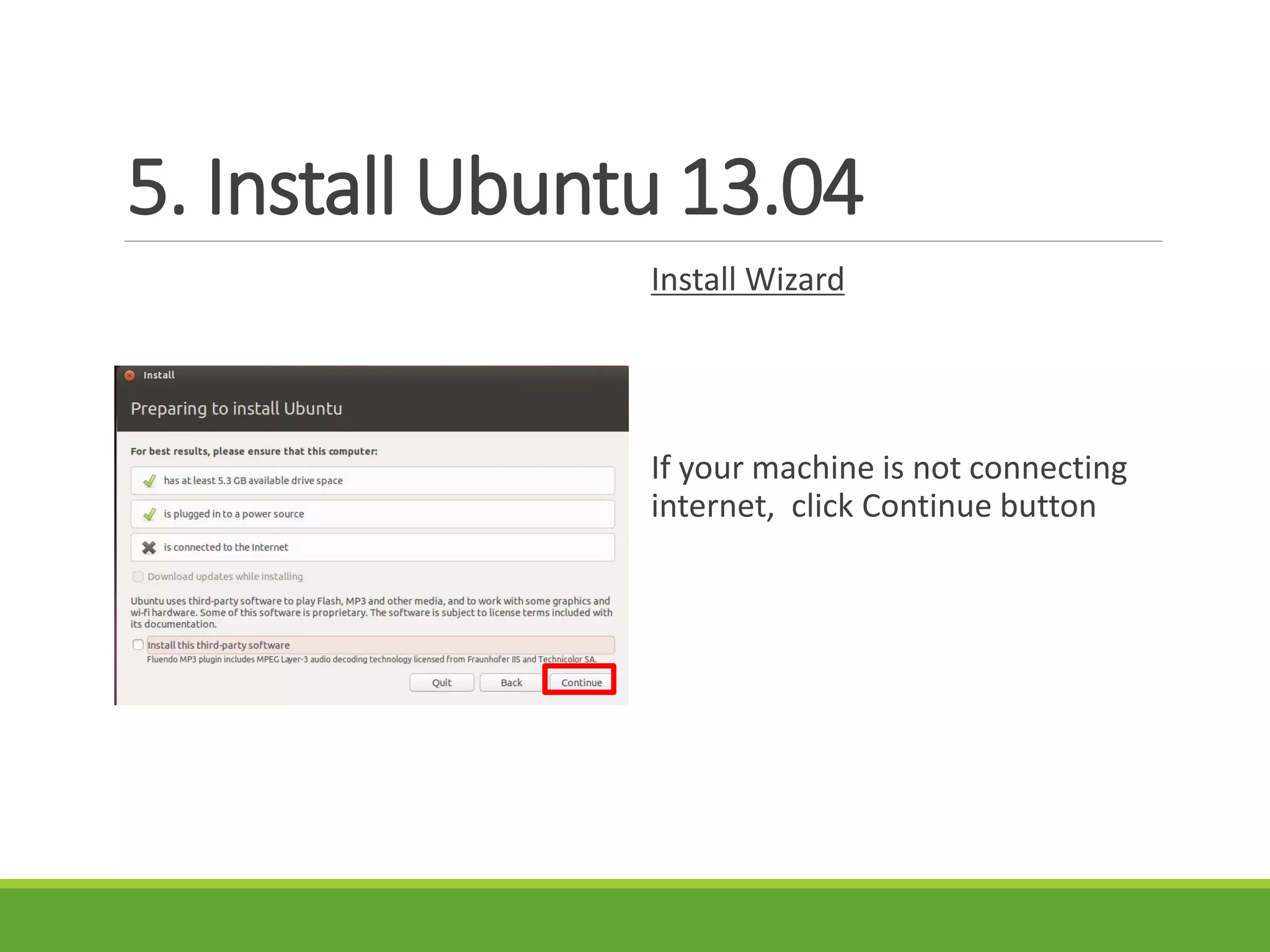
If your machine is not connecting
internet, click Continue button
5. Install Ubuntu 13.04
Install Wizard
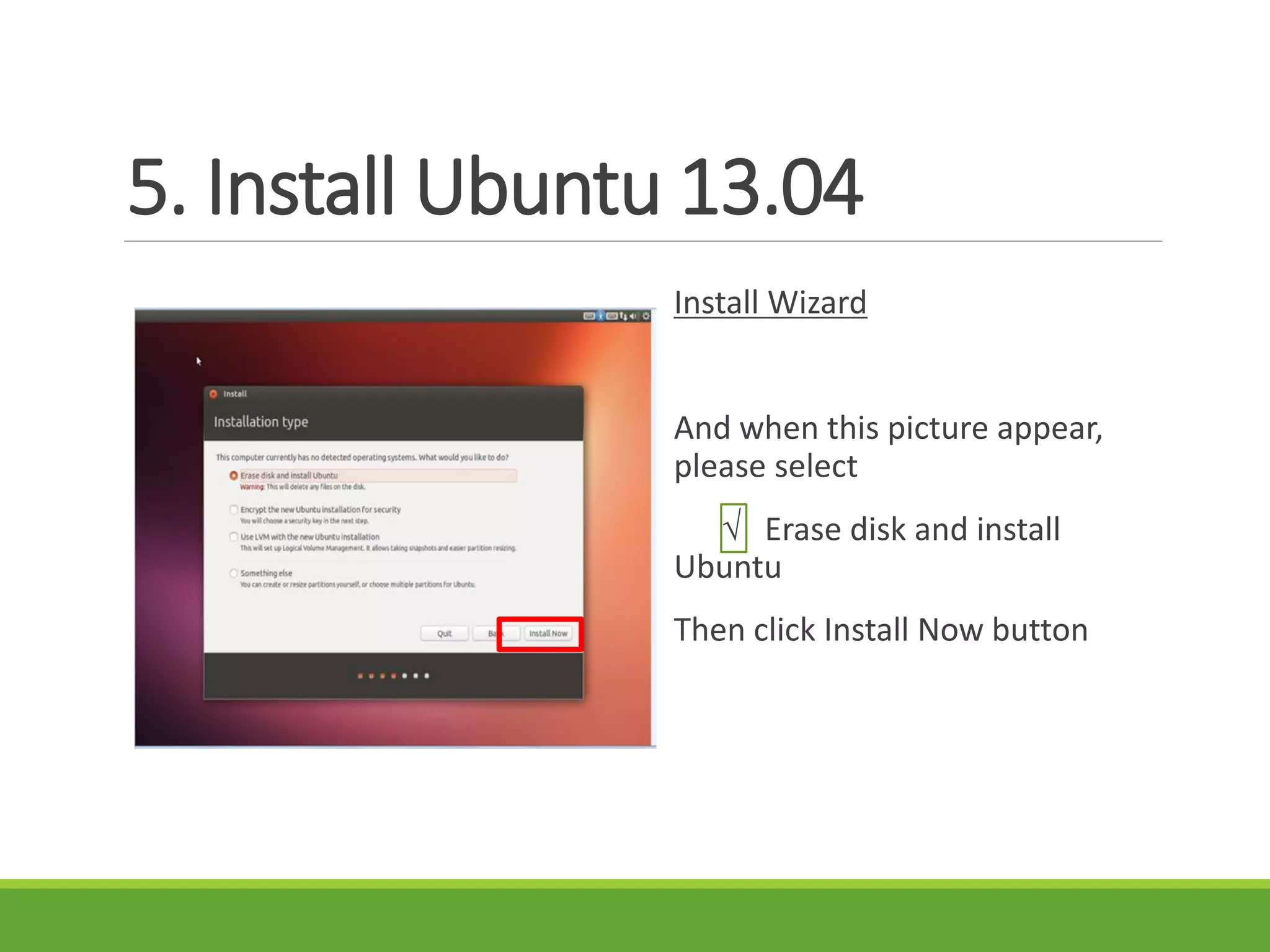
And when this picture appear,
please select
√ Erase disk and install
Ubuntu
Then click Install Now button
5. Install Ubuntu 13.04
Install Wizard
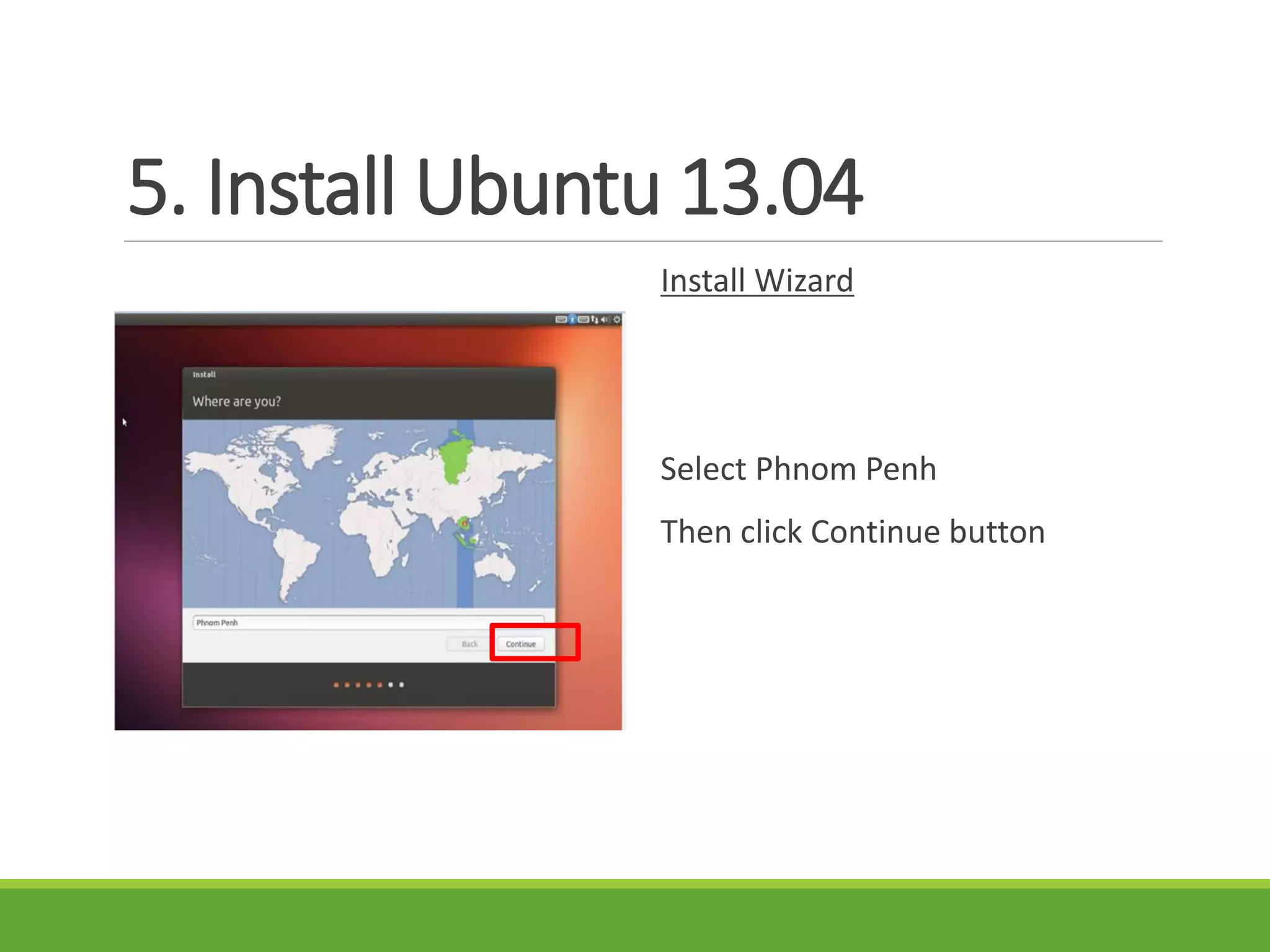
Select Phnom Penh
Then click Continue button
5. Install Ubuntu 13.04
Install Wizard
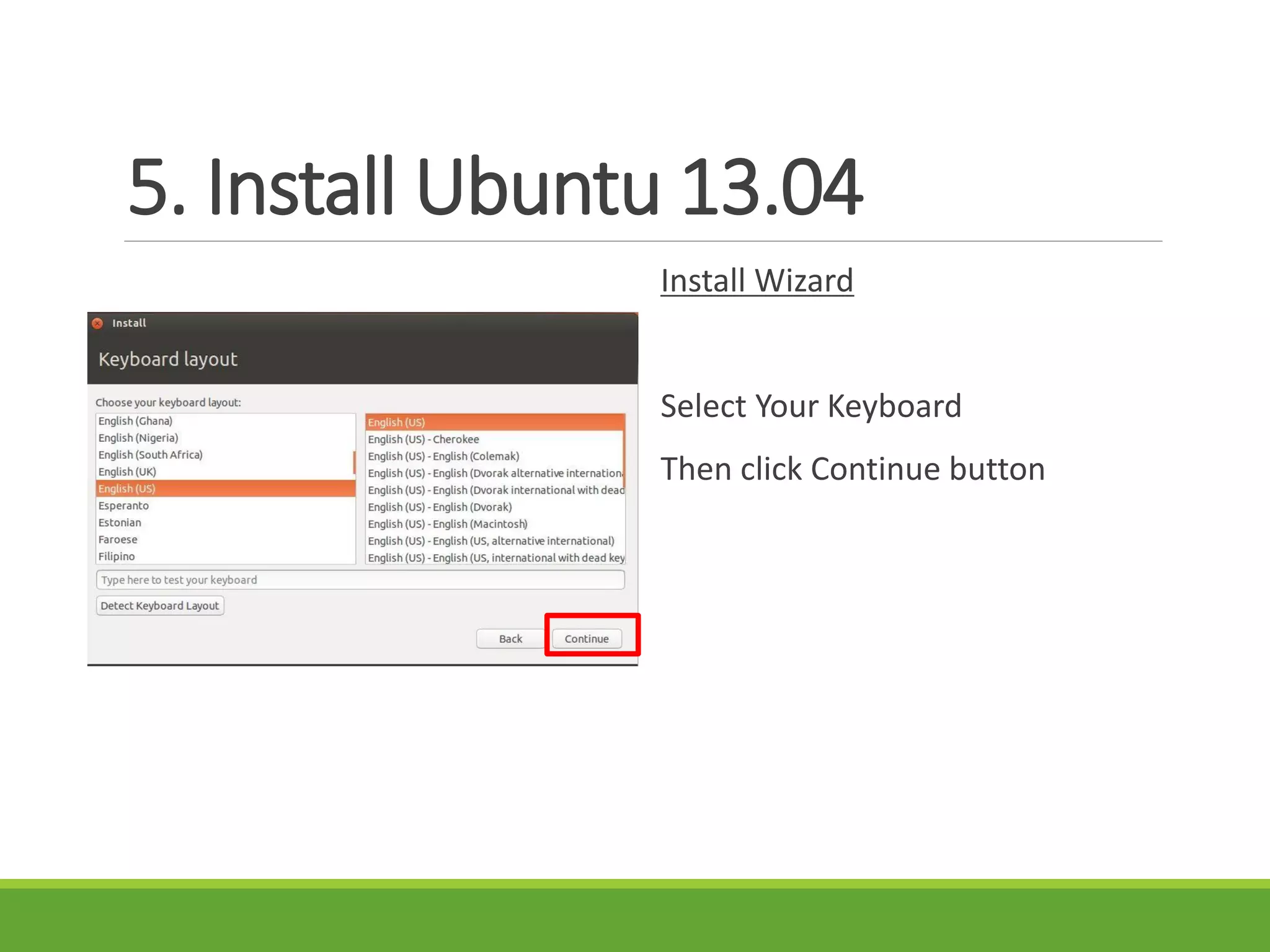
Select Your Keyboard
Then click Continue button
5. Install Ubuntu 13.04
Install Wizard
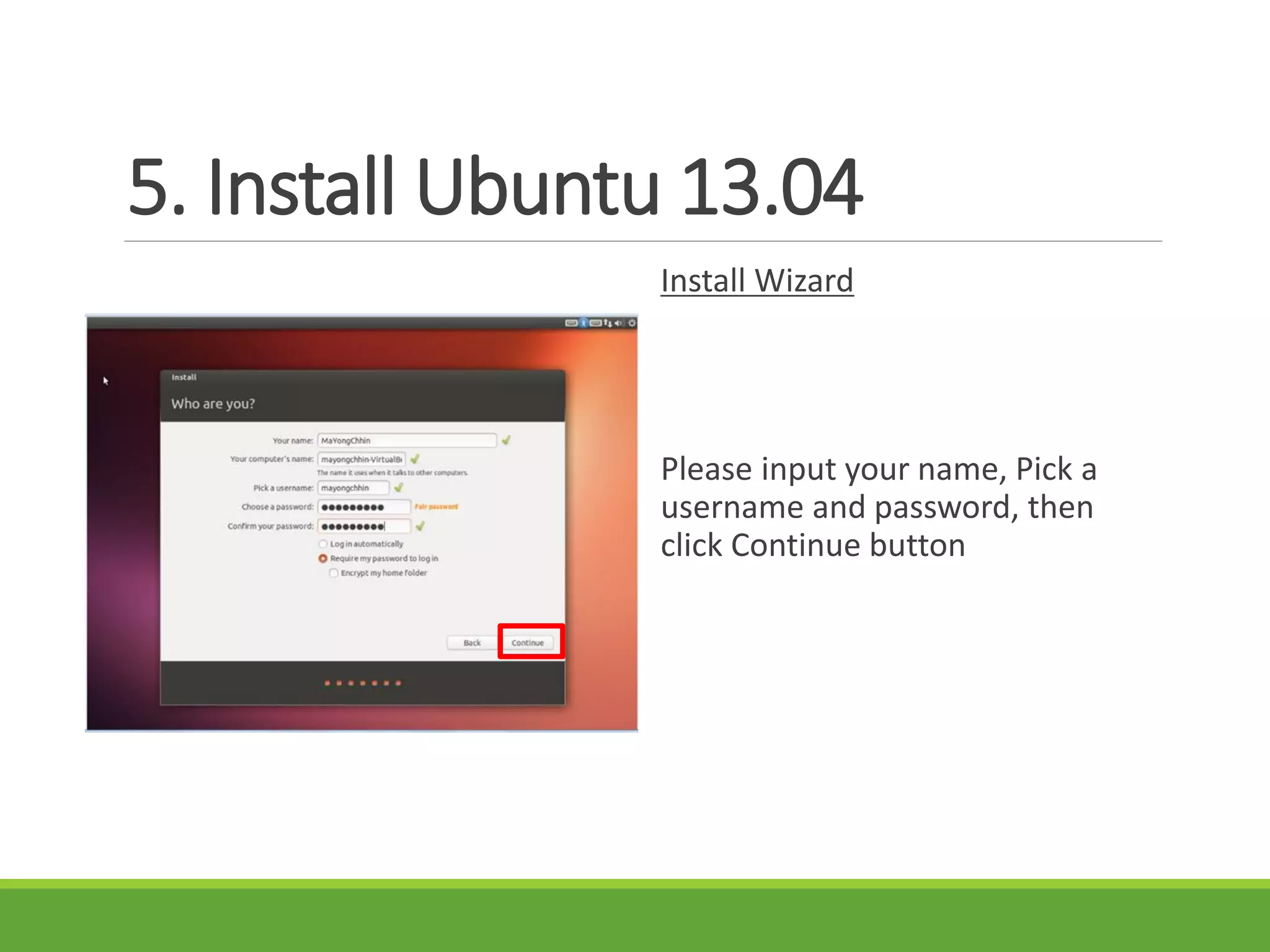
Please input your name, Pick a
username and password, then
click Continue button
5. Install Ubuntu 13.04
Install Wizard
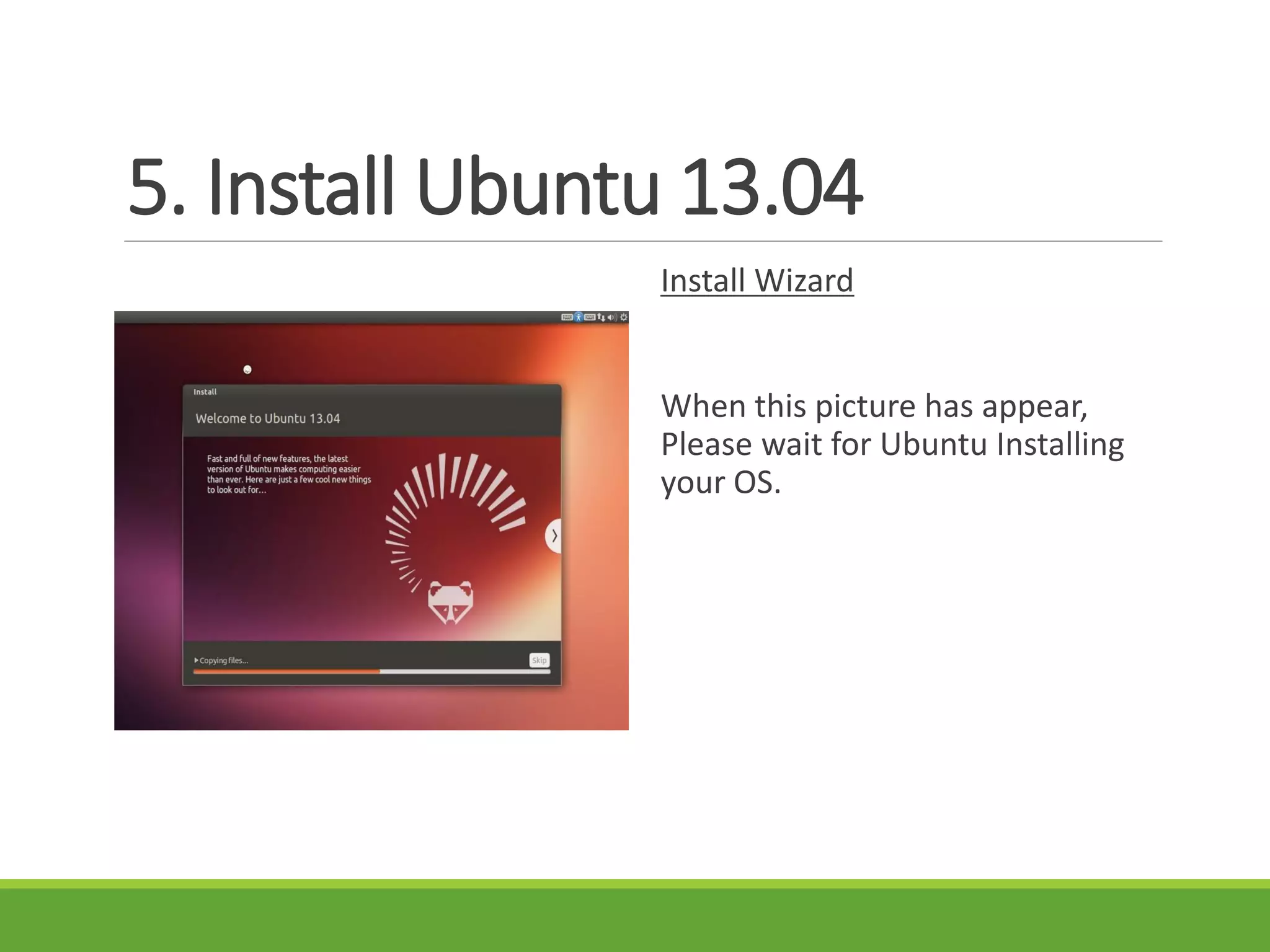
When this picture has appear,
Please wait for Ubuntu Installing
your OS.
5. Install Ubuntu 13.04
Installation Complete
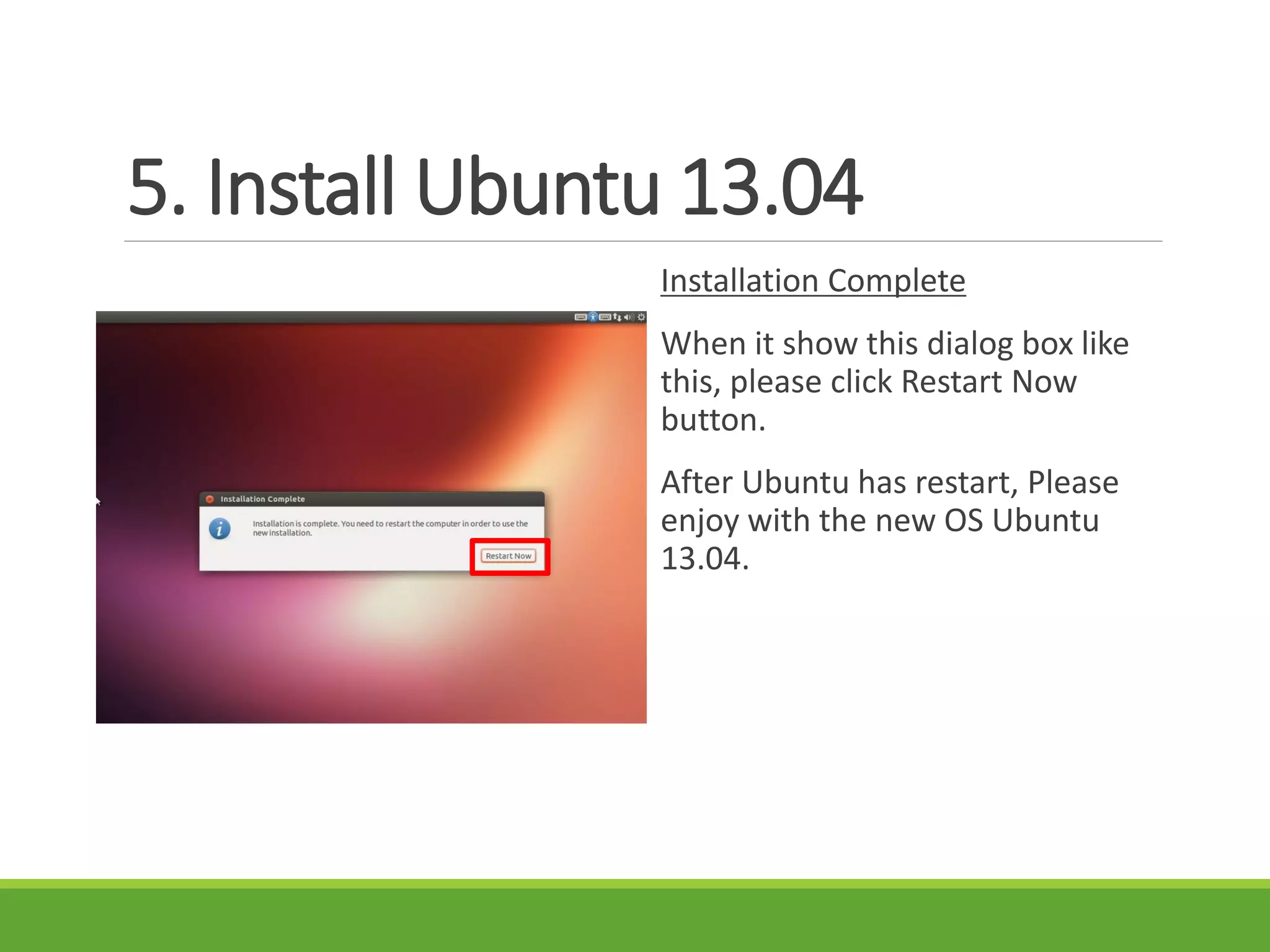
When it show this dialog box like
this, please click Restart Now
button.
After Ubuntu has restart, Please
enjoy with the new OS Ubuntu
13.04.
5. Install Ubuntu 13.04
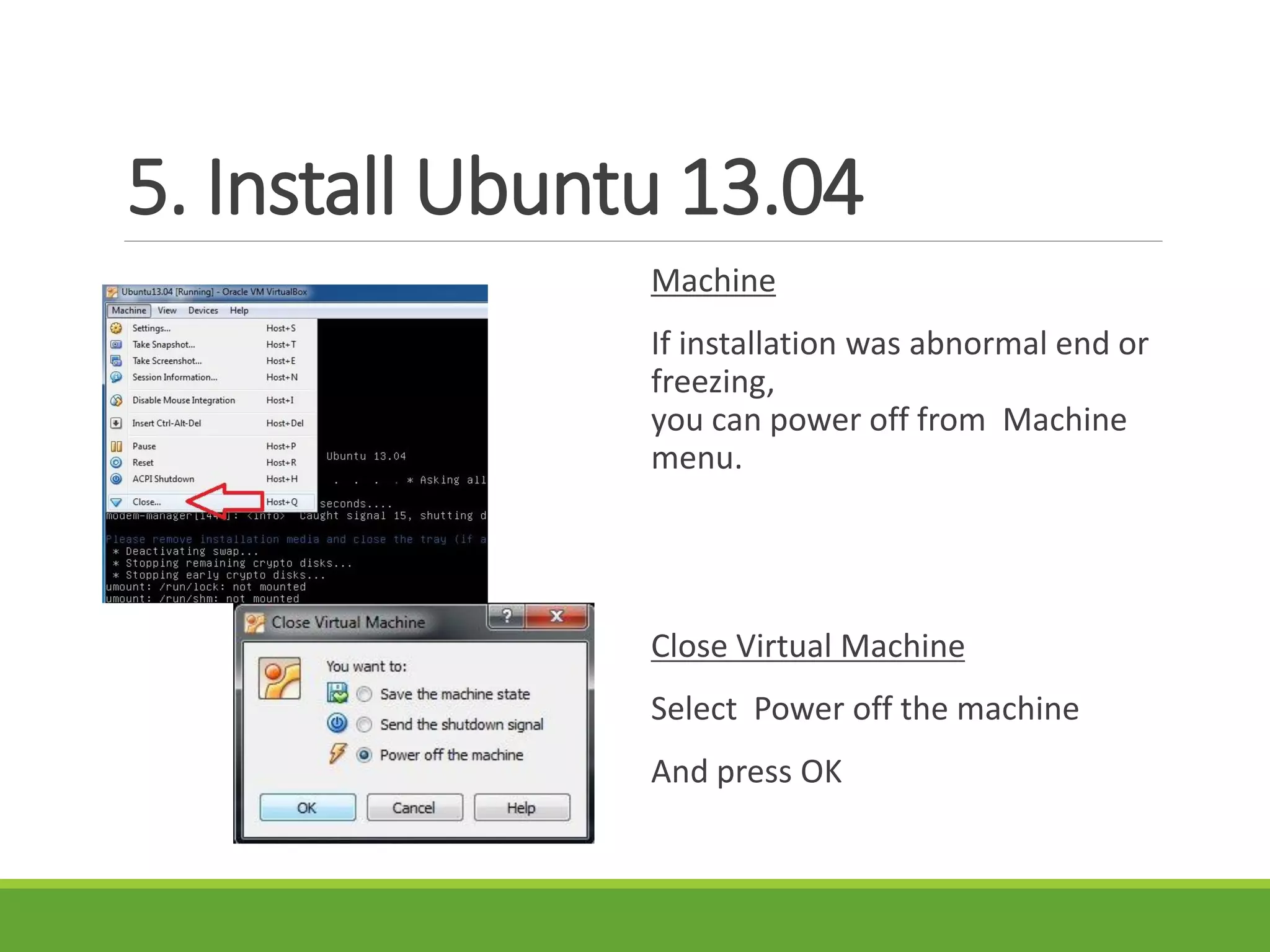
Machine
If installation was abnormal end or
freezing,
you can power off from Machine
menu.
Close Virtual Machine
Select Power off the machine
And press OK
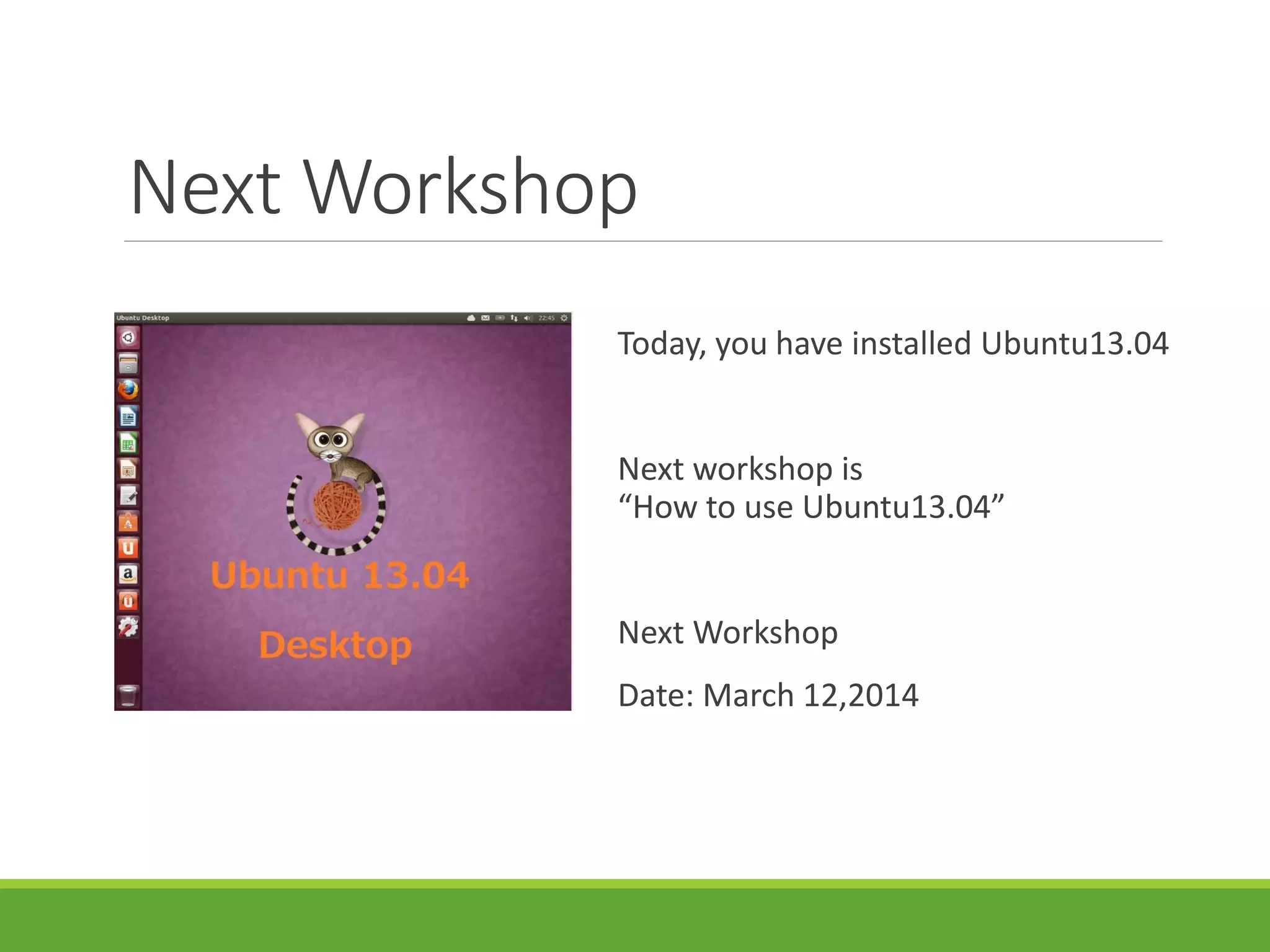
Next Workshop
Today, you have installed Ubuntu13.04
Next workshop is
“How to use Ubuntu13.04”
Next Workshop
Date: March 12,2014
Thank you!

Intoduction to VirtualBox English

  • 1.
  • 2.
    content 1. Introduction. 2. Howto install Virtual Box 3. Create Virtual Machine 4. Guest OS setting 5. Install Ubuntu 13.04
  • 3.
    1. Introduction What isVirtualBox ? VirtualBox is a cross-platform virtualization application. What does that mean? For one thing, it installs on your existing Intel or AMD-based computers, whether they are running Windows, Mac, Linux or Solaris operating systems. You can install and run as many virtual machines as you like -- the only practical limits are disk space and memory.
  • 4.
  • 5.
    Benefit of Virtualization Runningmultiple operating systems simultaneously. Easier software installations. Testing and disaster recovery. Infrastructure consolidation. Quoted from Oracle VM manual
  • 6.
    2. How toinstall VirtualBox VirtualBox is a free software GPL license. When you want to use, you can download for free from the official site. Download Official Site URL https://www.virtualbox.org
  • 7.
    2. How toinstall VirtualBox Latest Version Here! You can select the package of the host OS(Win) and download.
  • 8.
    2. How toinstall VirtualBox 1. COPY VirtualBOX-4.3.6-91406- Win.exe From CD-ROM to your desktop 2. Extract VirtualBox-4.3.6-91- Win.exe on desktop 3. Click to start VirtualBox installer
  • 9.
    2. How toinstall VirtualBox Oracle VM VirtualBox Setup Wizard Click on the "Next" button, and we can change some of the installation options.
  • 10.
    2. How toinstall VirtualBox Oracle VM VirtualBox Setup Wizard Custom Setup screen is displayed, but unless you have a specific reason, Please press the "Next" as it is usually.
  • 11.
    2. How toinstall VirtualBox Oracle VM VirtualBox Setup Wizard Custom Setup Select you like the item And Next Click
  • 12.
    2. How toinstall VirtualBox Oracle VM VirtualBox Setup Wizard IF this screen is appeared, you can ignore this. It’s no problem!
  • 13.
    2. How toinstall VirtualBox Oracle VM VirtualBox Setup Wizard IF you see the Ready to Install Screen Click Install
  • 14.
    2. How toinstall VirtualBox Oracle VM VirtualBox Setup Wizard Progress message appears You wait patiently!
  • 15.
    2. How toinstall VirtualBox Oracle VM VirtualBox Setup Wizard "Windows Security" dialog appears, Check "Always trust software from Oracle Corporation (A)“. And Click "Install "
  • 16.
    2. How toinstall VirtualBox Oracle VM VirtualBox Setup Wizard When this screen is appeared, Installation is complete!
  • 17.
    3. Create VirtualMachine Oracle VM VirtualBox Manager You need to create a virtual machine that is a vessel to install for the guest OS. Click New button or Machine Tab  New
  • 18.
    3.Create Virtual Machine CreateVirtual Machine Wizard Name and operating system Now, please enter Name :UBUNTU13.04 Type :Select Linux
  • 19.
    3.Create Virtual Machine CreateVirtual Machine Wizard Name and operating system Select Version for Ubuntu, then click Next button.
  • 20.
    3. Create VirtualMachine Create Virtual Machine Wizard Memory size Select Memory Size : 1024 MB Then Click Next button
  • 21.
    3. Create VirtualMachine Create Virtual Machine Wizard Hard drive When this picture appear, select Create a virtual hard drive now. And click Create button
  • 22.
    3. Create VirtualMachine Create Virtual Machine Wizard Hard drive file type Choose VDI (VirtualBox Disk Image) and then click Next button
  • 23.
    3. Create VirtualMachine Create Virtual Machine Wizard Storage on physical hard drive So when this picture appear, please select Dynamically allocated Then click Next button
  • 24.
    3. Create VirtualMachine Create Virtual Machine Wizard File location and size Now please Select your Hard Drive size to store your OS. Example: 8.00 GB or bigger then this Click the Create button to create a virtual hard disk.
  • 25.
    4.Guest OS Settings Beforeinstallation Guest OS, we need setting VM configuration. Setting Menu General System Display Storage Network Etc.
  • 26.
    4.Guest OS Settings Ubuntu13.04Settings General Basic Settings Name: Ubuntu 13.04
  • 27.
    4. Guest OSSettings Ubuntu13.04 Settings General Basic Settings Type: Linux Version: Ubuntu 32bit
  • 28.
    4. Guest OSSettings Ubuntu13.04 Settings General Advanced Settings Snapshot Folder: D:¥VirtualBox¥VMs¥Ubuntu 13.0/Snapshots Shared Clipboard: Disabled
  • 29.
    4. Guest OSSettings Ubuntu13.04 Settings General Advanced Settings Drag’n’Drop: Disabled Removable Media: √ Remember Runtime Change Mini ToolBar: √ Show in Fullscreen/Seamless
  • 30.
    4. Guest OSSettings Ubuntu13.04 Settings System Motherboard Chipset: PIIX3 Extended Features: √ Enable I/O APIC
  • 31.
    4. Guest OSSettings Ubuntu13.04 Settings System Processor Set the number of processors. It will not be reflected in the guest OS if you change after installation the number of processors, you need to configure here. Extended Features: √ Enable PAE/NX
  • 32.
    4. Guest OSSettings Ubuntu13.04 Settings System Acceleration Hardware Virtualization: √ Enable VT-x/AMD-V √ Enable Nested Paging
  • 33.
    4. Guest OSSettings Ubuntu13.04 Settings Display Video Video Memory: 18 MB Monitor Count: 1
  • 34.
    4. Guest OSSettings Ubuntu13.04 Settings Display Video Capture √ Enable Video Capture
  • 35.
    4. Guest OSSettings Ubuntu13.04 Settings Storage Select the CD / DVD drive that is the "empty" from "storage" menu Then, click on the disk icon on the far right. Click the "Select Virtual CD / DVD disk file" from the menu .
  • 36.
    4. Guest OSSettings Ubuntu13.04 Settings Storage Explorer is launched, Select the iso file that you copied, and then click the "Open“ Check Live CD/DVD Install the OS CD is now mounted.
  • 37.
    4. Guest OSSettings Ubuntu13.04 Settings Audio Enable Audio Host Audio Driver: Window DirectSound Audio Controller: ICH AC97
  • 38.
    4. Guest OSSettings Ubuntu13.04 Settings Network Adapter 1 √ Enable Network Adapter Attached to: Bridged Adapter
  • 39.
    5. Install Ubuntu13.04 Oracle VM VirtualBox Manager Because the VM and the Guest OS Setting is prepared, we can start install. Click Start Bottom!
  • 40.
    5. Install Ubuntu13.04 If this screen is appeared, enter check mark √ “Do not show this message again “ And close window.
  • 41.
    5. Install Ubuntu13.04 Install Wizard When this picture has appear, Language Option : English Click Install Ubuntu button
  • 42.
    5. Install Ubuntu13.04 Install Wizard If your machine is connecting internet, √ Download update while installing Then click Continue button
  • 43.
    5. Install Ubuntu13.04 Install Wizard If your machine is not connecting internet, click Continue button
  • 44.
    5. Install Ubuntu13.04 Install Wizard And when this picture appear, please select √ Erase disk and install Ubuntu Then click Install Now button
  • 45.
    5. Install Ubuntu13.04 Install Wizard Select Phnom Penh Then click Continue button
  • 46.
    5. Install Ubuntu13.04 Install Wizard Select Your Keyboard Then click Continue button
  • 47.
    5. Install Ubuntu13.04 Install Wizard Please input your name, Pick a username and password, then click Continue button
  • 48.
    5. Install Ubuntu13.04 Install Wizard When this picture has appear, Please wait for Ubuntu Installing your OS.
  • 49.
    5. Install Ubuntu13.04 Installation Complete When it show this dialog box like this, please click Restart Now button. After Ubuntu has restart, Please enjoy with the new OS Ubuntu 13.04.
  • 50.
    5. Install Ubuntu13.04 Machine If installation was abnormal end or freezing, you can power off from Machine menu. Close Virtual Machine Select Power off the machine And press OK
  • 51.
    Next Workshop Today, youhave installed Ubuntu13.04 Next workshop is “How to use Ubuntu13.04” Next Workshop Date: March 12,2014
  • 52.