Virtualization workshop
Davide Pelosi
Enterprise Software Advisor
davide.pelosi@dpstudio.eu
Agenda
Day 1
● Virtualization
○ Theory
○ VirtualBox
○ Hands-on Labs
Day 2
● Containers
○ Theory
○ Docker
○ Hands-on Labs
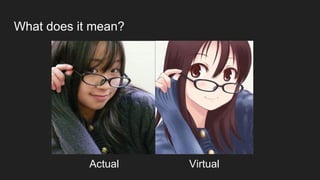
What does it mean?
VirtualActual
Virtualization Types
● Hardware virtualization:VM
● Operating-system-level virtualization:
docker
● Application virtualization: jvm
● Memory virtualization: TIBCO AS
● Virtual Memory
● Storage virtualization
● Distributed File System: HDFS
● Network Virtualization
● Virtual Private Network (VPN)
Virtual Machines
● Virtual machine acts like a real computer with an operating system
● Software executed on virtual machines is separated from the underlying
hardware resources
● What is virtualized:
○ Hardware platforms
○ Storage devices: virtual disk saved in flat files (one or more VMDK)
○ Network resources
Hardware Virtualization
Host Machine → actual machine on which the virtualization takes place
Guest Machine → virtual machine
Hypervisor → software that creates a virtual machine on the host hardware
Full virtualization → complete simulation of the actual hardware
Paravirtualization → the guest programs are executed in their own isolated
domains
Compatibility Layer → translates original API calls into system calls on-the-fly
(wine, playonlinux)
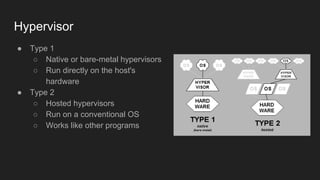
Hypervisor
● Type 1
○ Native or bare-metal hypervisors
○ Run directly on the host's
hardware
● Type 2
○ Hosted hypervisors
○ Run on a conventional OS
○ Works like other programs
Benefits
● Improves efficiency and availability of resources and applications
● Several operating systems can be run in parallel on a single CPU
● Reduce overhead costs
● Manage updates and rapid changes to the operating system and applications
without disrupting the user
● The old model of “one server, one application” leads to underutilized
resources
VM Products
● Oracle VirtualBox
● VMWare Player/Workstation/Fusion/ESXi
● Parallels
VirtualBox - Virtual Disks Features
● Expand an image file after creation, even if it has data already (VDI only)
● Supported Virtual Disk files:
○ VDI - Proprietary format
○ VMDK - VMWare format
○ VHD - Microsoft format
○ HDD - Parallels
● Virtual Disk file types:
○ fixed-size image: same size as the virtual disk’s capacity
○ dynamically allocated image: expand the image file consumes computing resources, write
operations may be slower
VirtualBox - Networking Modes
● Not attached
● Network Address Translation (NAT)
○ Default networking mode
○ Works like a real computer that connects to the Internet through a router
○ Networking engine maps traffic from and to the virtual machine transparently
○ Drawbacks: invisible and unreachable from the outside internet; cannot run a server this
way unless you set up port forwarding
● Bridged networking
○ Connects to one of your installed network cards and exchanges network packets directly
○ Used to: network simulations and running servers in a guest
○ Drawbacks: less secure
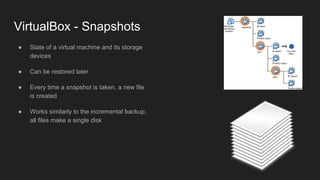
VirtualBox - Snapshots
● State of a virtual machine and its storage
devices
● Can be restored later
● Every time a snapshot is taken, a new file
is created
● Works similarly to the incremental backup,
all files make a single disk
VirtualBox - Other Features
● Guest multiprocessing
○ VirtualBox can present up to 32 virtual CPUs to each virtual machine, irrespective of how
many CPU cores are physically present on your host
● Cloning of PC images from real machines or third party virtual machines into
VirtualBox
● Cloning Virtual Machines
Lab
1. Create an Ubuntu virtual machine using VirtualBox
2. Install Guest Additions: shared folders, adjustment of video resolutions,
seamless windows, accelerated 3D graphics
3. Explore VM settings
4. Test shared folders
5. Test copy text
6. Test with network configuration: NAT, Bridge: ssh
7. Work with snapshots: create a snapshot
8. Work with disk configuration
○ create a virtual disk (format and create partition)
○ create a virtual disk fixed size
Tips
● Mount shared folder
$ sudo mount -t vboxsf -o uid=$UID,gid=$(id -g) shared ~/host
● Install ssh server
$ sudo apt-get install ssh
The end!
Davide Pelosi
davide.pelosi@dpstudio.eu

Virtualization workshop - part 1

  • 1.
    Virtualization workshop Davide Pelosi EnterpriseSoftware Advisor davide.pelosi@dpstudio.eu
  • 2.
    Agenda Day 1 ● Virtualization ○Theory ○ VirtualBox ○ Hands-on Labs Day 2 ● Containers ○ Theory ○ Docker ○ Hands-on Labs
  • 3.
    What does itmean? VirtualActual
  • 4.
    Virtualization Types ● Hardwarevirtualization:VM ● Operating-system-level virtualization: docker ● Application virtualization: jvm ● Memory virtualization: TIBCO AS ● Virtual Memory ● Storage virtualization ● Distributed File System: HDFS ● Network Virtualization ● Virtual Private Network (VPN)
  • 5.
    Virtual Machines ● Virtualmachine acts like a real computer with an operating system ● Software executed on virtual machines is separated from the underlying hardware resources ● What is virtualized: ○ Hardware platforms ○ Storage devices: virtual disk saved in flat files (one or more VMDK) ○ Network resources
  • 6.
    Hardware Virtualization Host Machine→ actual machine on which the virtualization takes place Guest Machine → virtual machine Hypervisor → software that creates a virtual machine on the host hardware Full virtualization → complete simulation of the actual hardware Paravirtualization → the guest programs are executed in their own isolated domains Compatibility Layer → translates original API calls into system calls on-the-fly (wine, playonlinux)
  • 7.
    Hypervisor ● Type 1 ○Native or bare-metal hypervisors ○ Run directly on the host's hardware ● Type 2 ○ Hosted hypervisors ○ Run on a conventional OS ○ Works like other programs
  • 8.
    Benefits ● Improves efficiencyand availability of resources and applications ● Several operating systems can be run in parallel on a single CPU ● Reduce overhead costs ● Manage updates and rapid changes to the operating system and applications without disrupting the user ● The old model of “one server, one application” leads to underutilized resources
  • 9.
    VM Products ● OracleVirtualBox ● VMWare Player/Workstation/Fusion/ESXi ● Parallels
  • 10.
    VirtualBox - VirtualDisks Features ● Expand an image file after creation, even if it has data already (VDI only) ● Supported Virtual Disk files: ○ VDI - Proprietary format ○ VMDK - VMWare format ○ VHD - Microsoft format ○ HDD - Parallels ● Virtual Disk file types: ○ fixed-size image: same size as the virtual disk’s capacity ○ dynamically allocated image: expand the image file consumes computing resources, write operations may be slower
  • 11.
    VirtualBox - NetworkingModes ● Not attached ● Network Address Translation (NAT) ○ Default networking mode ○ Works like a real computer that connects to the Internet through a router ○ Networking engine maps traffic from and to the virtual machine transparently ○ Drawbacks: invisible and unreachable from the outside internet; cannot run a server this way unless you set up port forwarding ● Bridged networking ○ Connects to one of your installed network cards and exchanges network packets directly ○ Used to: network simulations and running servers in a guest ○ Drawbacks: less secure
  • 12.
    VirtualBox - Snapshots ●State of a virtual machine and its storage devices ● Can be restored later ● Every time a snapshot is taken, a new file is created ● Works similarly to the incremental backup, all files make a single disk
  • 13.
    VirtualBox - OtherFeatures ● Guest multiprocessing ○ VirtualBox can present up to 32 virtual CPUs to each virtual machine, irrespective of how many CPU cores are physically present on your host ● Cloning of PC images from real machines or third party virtual machines into VirtualBox ● Cloning Virtual Machines
  • 14.
    Lab 1. Create anUbuntu virtual machine using VirtualBox 2. Install Guest Additions: shared folders, adjustment of video resolutions, seamless windows, accelerated 3D graphics 3. Explore VM settings 4. Test shared folders 5. Test copy text 6. Test with network configuration: NAT, Bridge: ssh 7. Work with snapshots: create a snapshot 8. Work with disk configuration ○ create a virtual disk (format and create partition) ○ create a virtual disk fixed size
  • 15.
    Tips ● Mount sharedfolder $ sudo mount -t vboxsf -o uid=$UID,gid=$(id -g) shared ~/host ● Install ssh server $ sudo apt-get install ssh
  • 16.