Viewing the Worksheet in
Different Ways
Normal View
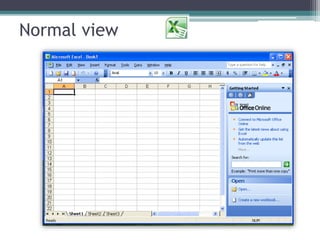
• This is the default worksheet view.
• It provides the easiest view of the text and other
elements on the screen.
• It simplifies the layout of the page such that it is
used for most typing, editing and formatting.
• To access, click on the View menu Normal
view.
Normal view
Print Preview
• This is a miniature display of all or any part of a
worksheet that shows how the worksheet will
look when you print it.
• It can display multiple pages of the worksheet.
• It allows you to edit and format just before
printing the document.
• To select, click on the File menu Print
Preview.
Print Preview
Page Break Preview
• This enables you to see the entire pages of a
worksheet at a reduced size.
• It allows you to check on page breaks and make
changes to them, to text and to apply formatting.
• To access, click on the View menu Page Break
Preview.
Page Break Preview
Full Screen View
• It shows as much of your worksheet as possible
on the screen and with only minimal screen
elements present, such as the Menu bar,
Standard & Formatting toolbar.
• To select/deselect, click on the View menu
Full screen, after w/c you may select Normal,
Page Break Preview or Print Preview.
Full Screen View
Zoom View
• It shows a close-up view of your worksheet
(zoom-in) or displays more of the page at a
reduced size (zoom-out).
• You can access the Zoom view whether you are
in Normal view, Page Break Preview, or Print
Preview.
• Click on the View menu Zoom to display the
Zoom dialog box, then choose the setting you
want.
Zoom View
• Changing the magnification does not affect
printing.
• Sheets are printed at 100 percent unless you
change the scaling through the File menu
Page Setup Page tab.
Zoom View
Custom View
• This view consist of sets of particular display and
print settings you defined and then saved as
views under a name.
• You can switch to any of these views whenever
you want to display or print your workbook in
this particular way.
• To select this view, click on the View menu
Custom Views.

Viewing the worksheet in different ways

  • 1.
    Viewing the Worksheetin Different Ways
  • 2.
    Normal View • Thisis the default worksheet view. • It provides the easiest view of the text and other elements on the screen. • It simplifies the layout of the page such that it is used for most typing, editing and formatting. • To access, click on the View menu Normal view.
  • 3.
  • 4.
    Print Preview • Thisis a miniature display of all or any part of a worksheet that shows how the worksheet will look when you print it. • It can display multiple pages of the worksheet. • It allows you to edit and format just before printing the document. • To select, click on the File menu Print Preview.
  • 5.
  • 6.
    Page Break Preview •This enables you to see the entire pages of a worksheet at a reduced size. • It allows you to check on page breaks and make changes to them, to text and to apply formatting. • To access, click on the View menu Page Break Preview.
  • 7.
  • 8.
    Full Screen View •It shows as much of your worksheet as possible on the screen and with only minimal screen elements present, such as the Menu bar, Standard & Formatting toolbar. • To select/deselect, click on the View menu Full screen, after w/c you may select Normal, Page Break Preview or Print Preview.
  • 9.
  • 10.
    Zoom View • Itshows a close-up view of your worksheet (zoom-in) or displays more of the page at a reduced size (zoom-out). • You can access the Zoom view whether you are in Normal view, Page Break Preview, or Print Preview. • Click on the View menu Zoom to display the Zoom dialog box, then choose the setting you want.
  • 11.
    Zoom View • Changingthe magnification does not affect printing. • Sheets are printed at 100 percent unless you change the scaling through the File menu Page Setup Page tab.
  • 12.
  • 13.
    Custom View • Thisview consist of sets of particular display and print settings you defined and then saved as views under a name. • You can switch to any of these views whenever you want to display or print your workbook in this particular way. • To select this view, click on the View menu Custom Views.