Printing a workbook and
       worksheets
By the end of the lesson pupils should
              be able to;
1. Outline the procedures of printing a
   document
2. Print the entire workbook/ worksheets they
   you have created
3. Select the number of copies, the printer
   name and the page ranges from the dialogue
   box
Print a partial or entire worksheet or
              workbook


 – To print a partial worksheet, click the worksheet,
   and then select the range of data that you want to
   print.
 – To print the entire worksheet, click the worksheet
   to activate it.
 – To print a workbook, click any of its worksheets.
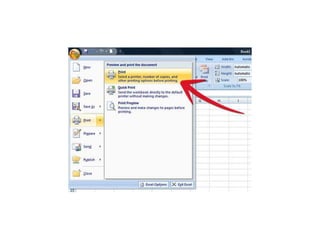
• Click Microsoft Office Button , and then
  click Print.
• Keyboard shortcut You can also press CTRL+P.
• Under Print what, select an option to print the
  selection, the active sheet or sheets, or the entire
  workbook.
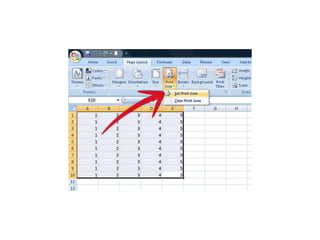
• NOTE If a worksheet has a defined print area,
  Excel will print only the print area. If you don't
  want to print a defined print area, select
  the Ignore print areas check box.
• Print several worksheets at once
1.Select the worksheets that you want to
  print.
• How to select multiple worksheets
2.Click Microsoft Office Button , and then
  click Print.
• Keyboard shortcut You can also press
  CTRL+P.
• Print several workbooks at once
• All workbook files that you want to print must be in the same
   folder.
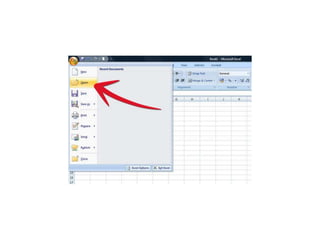
1. Click Microsoft Office Button , and then click Open.
• Keyboard shortcut You can also press CTRL+O.
2. Hold down CTRL and click the name of each workbook that
   you want to print.
3. On a computer that is running Windows Vista
   • Right-click the selection, and then click Print.
• On a computer that is running Microsoft Windows XP
• In the Open dialog box, click Tools, and then click Print.
• Print an Excel table
• Click a cell within the table to activate the
  table.
• Click Microsoft Office Button , and then
  click Print.
• Keyboard shortcut You can also press CTRL+P.
• Under Print what, select Table.
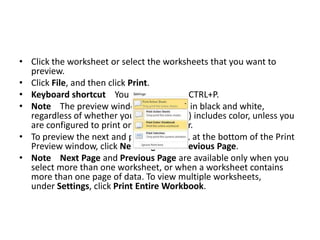
• Click the worksheet or select the worksheets that you want to
  preview.
• Click File, and then click Print.
• Keyboard shortcut You can also press CTRL+P.
• Note The preview window will display in black and white,
  regardless of whether your worksheet(s) includes color, unless you
  are configured to print on a color printer.
• To preview the next and previous pages, at the bottom of the Print
  Preview window, click Next Page and Previous Page.
• Note Next Page and Previous Page are available only when you
  select more than one worksheet, or when a worksheet contains
  more than one page of data. To view multiple worksheets,
  under Settings, click Print Entire Workbook.
• To change the printer, click the drop-down box
  under Printer, and select the printer that you
  want.
• To make page setup changes, including changing
  page orientation, paper size, and page margins,
  select the options that you want under Settings.
• To scale the entire worksheet to fit on a single
  printed page, under Settings, click the option that
  you want in the scale options drop-down box.
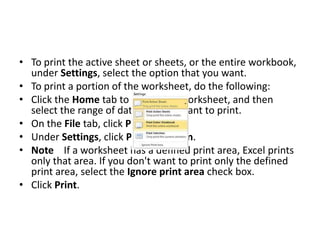
• To print the active sheet or sheets, or the entire workbook,
  under Settings, select the option that you want.
• To print a portion of the worksheet, do the following:
• Click the Home tab to return the worksheet, and then
  select the range of data that you want to print.
• On the File tab, click Print.
• Under Settings, click Print Selection.
• Note If a worksheet has a defined print area, Excel prints
  only that area. If you don't want to print only the defined
  print area, select the Ignore print area check box.
• Click Print.
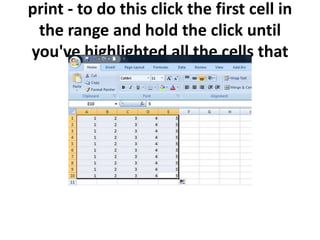
print - to do this click the first cell in
 the range and hold the click until
you've highlighted all the cells that
          you want to print.
Printing a workbook and worksheets

Printing a workbook and worksheets

  • 1.
    Printing a workbookand worksheets
  • 2.
    By the endof the lesson pupils should be able to; 1. Outline the procedures of printing a document 2. Print the entire workbook/ worksheets they you have created 3. Select the number of copies, the printer name and the page ranges from the dialogue box
  • 3.
    Print a partialor entire worksheet or workbook – To print a partial worksheet, click the worksheet, and then select the range of data that you want to print. – To print the entire worksheet, click the worksheet to activate it. – To print a workbook, click any of its worksheets.
  • 4.
    • Click MicrosoftOffice Button , and then click Print. • Keyboard shortcut You can also press CTRL+P. • Under Print what, select an option to print the selection, the active sheet or sheets, or the entire workbook. • NOTE If a worksheet has a defined print area, Excel will print only the print area. If you don't want to print a defined print area, select the Ignore print areas check box.
  • 5.
    • Print severalworksheets at once 1.Select the worksheets that you want to print. • How to select multiple worksheets 2.Click Microsoft Office Button , and then click Print. • Keyboard shortcut You can also press CTRL+P.
  • 6.
    • Print severalworkbooks at once • All workbook files that you want to print must be in the same folder. 1. Click Microsoft Office Button , and then click Open. • Keyboard shortcut You can also press CTRL+O. 2. Hold down CTRL and click the name of each workbook that you want to print. 3. On a computer that is running Windows Vista • Right-click the selection, and then click Print. • On a computer that is running Microsoft Windows XP • In the Open dialog box, click Tools, and then click Print.
  • 7.
    • Print anExcel table • Click a cell within the table to activate the table. • Click Microsoft Office Button , and then click Print. • Keyboard shortcut You can also press CTRL+P. • Under Print what, select Table.
  • 8.
    • Click theworksheet or select the worksheets that you want to preview. • Click File, and then click Print. • Keyboard shortcut You can also press CTRL+P. • Note The preview window will display in black and white, regardless of whether your worksheet(s) includes color, unless you are configured to print on a color printer. • To preview the next and previous pages, at the bottom of the Print Preview window, click Next Page and Previous Page. • Note Next Page and Previous Page are available only when you select more than one worksheet, or when a worksheet contains more than one page of data. To view multiple worksheets, under Settings, click Print Entire Workbook.
  • 9.
    • To changethe printer, click the drop-down box under Printer, and select the printer that you want. • To make page setup changes, including changing page orientation, paper size, and page margins, select the options that you want under Settings. • To scale the entire worksheet to fit on a single printed page, under Settings, click the option that you want in the scale options drop-down box.
  • 10.
    • To printthe active sheet or sheets, or the entire workbook, under Settings, select the option that you want. • To print a portion of the worksheet, do the following: • Click the Home tab to return the worksheet, and then select the range of data that you want to print. • On the File tab, click Print. • Under Settings, click Print Selection. • Note If a worksheet has a defined print area, Excel prints only that area. If you don't want to print only the defined print area, select the Ignore print area check box. • Click Print.
  • 12.
    print - todo this click the first cell in the range and hold the click until you've highlighted all the cells that you want to print.