Productivity Programs 
Microsoft Excel 2010 
Tech Lit
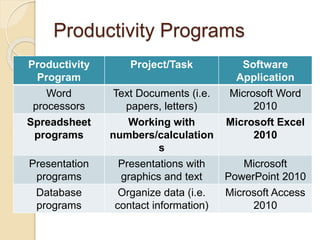
Productivity Programs 
Productivity 
Program 
Project/Task Software 
Application 
Word 
processors 
Text Documents (i.e. 
papers, letters) 
Microsoft Word 
2010 
Spreadsheet 
programs 
Working with 
numbers/calculation 
s 
Microsoft Excel 
2010 
Presentation 
programs 
Presentations with 
graphics and text 
Microsoft 
PowerPoint 2010 
Database 
programs 
Organize data (i.e. 
contact information) 
Microsoft Access 
2010
Microsoft Excel 
Store, organize, use and modify data 
Perform calculations 
Create charts and graphs
Microsoft Excel 2010 
Opening from 
Computer 
Desktop 
Click the Start Button, Click All Programs
Microsoft Excel 2010 
Opening from 
Computer 
Desktop 
Click Microsoft Office Folder to open, click Microsoft 
Office Excel 2010 to open
Microsoft Excel 2010 
A blank Excel spreadsheet will open
Microsoft Excel 2010 
Opening from 
Double Click Internet Explorer Shortcut on the 
desktop 
Citrix
Microsoft Excel 2010 
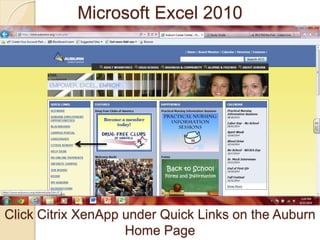
Click Citrix XenApp under Quick Links on the Auburn 
Home Page
Microsoft Excel 2010 
Enter User Name and Password, Click Log On
Microsoft Excel 2010 
Double Click Office 2010 Folder to open
Microsoft Excel 2010 
Double Click Excel 2010 to open
Microsoft Excel 2010 
Auburn Acceptable Use Notice, Click OK
Microsoft Excel 2010 
If this message appears, choose “Use 
Recommended Settings” and click OK
Microsoft Excel 2010 
A blank Excel spreadsheet will open
Microsoft Excel 2007 
The Excel Window 
http://www.swotster.com/swotster/English/Excel2010/images/images_les_001/les01_image002_en.jpg
Enter Company Name in cell A1 
Click Enter to confirm data you entered
Enter First Quarterly Sales in cell A2 
Click Enter
Click Enter again to make A4 active 
Type an item name in A4 and click Enter
Type another item name in A5 
Notice AutoComplete feature
Type in additional inventory items in cells A6 
and A7 
Type “Total” in cell A8; click Enter
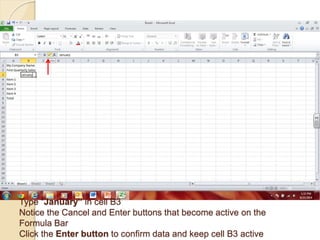
Type “January” in cell B3 
Notice the Cancel and Enter buttons that become active on the 
Formula Bar 
Click the Enter button to confirm data and keep cell B3 active
Hover over the small black square in the lower right corner of cell B3 
Black crosshairs will appear – the fill handle
Click on the fill handle and drag to cell D3 
Click the drop down arrow on the Auto Fill Options button to see 
options, Fill Series should be marked
Click CTRL + HOME to make cell A1 active
Notice that the text in cell A1 is longer than column A 
Point to the vertical line between columns A and B
Double click on the vertical line between columns A and B to Autofit or 
manually drag the pointer to adjust column A’s width
Click Undo to undo changing the width of column A
Click cell B3 and drag to highlight/select cells B3:D3 
Click the Center button to center the months text
Click cell B4 and enter a sales amount (564.23) 
Press TAB to confirm data and move active cell to the right
Continue entering the rest of your sales numbers as shown above 
Use ENTER, TAB or ARROW keys to move cells
Click in cell B8 and type =b4+b5+b6+b7
Click Enter 
Notice the Total
Click in Cell C8, click the Formulas Tab, click AutoSum, click Sum
Notice the SUM Formula and the range 
Click ENTER
Notice the Total
Click in cell D8, type =SUM( 
Select cells D4, D5, D6 and D7 
Type ) to close the formula; Click ENTER
Notice the TOTAL
Click in Cell E3, type TOTAL, click Enter
Click ALT = to enter the SUM function in cell E4 
Click ENTER
Notice the Total
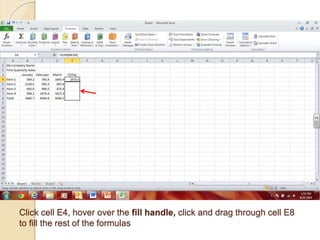
Click cell E4, hover over the fill handle, click and drag through cell E8 
to fill the rest of the formulas
Notice Sums and AutoFill Options
Select cells A1:E1 
Click Home Tab, click Merge and Center in Alignment Group
Notice how cells A1:E1 are merged into one cell and the text is 
centered in that cell
With cells A1:E1 still selected, click Cell Styles, Click Title style
Select cells A2:E2, click Merge & Center
With cells A2:E2 still selected, click Cell Styles, click Heading 1
Select cells B3:E3, hold down CTRL and select cells A4:A8
Click Cell Styles, click Heading 4 to apply this style to cells B3:E3 and 
cells A4:A8
Select cells B4:E4, click CTRL and select cells B8:E8
On the Home Tab, in the Number Group, click the Accounting 
Number Format button $ 
Notice the numbers in cells B4:E4 and B8:E8
Select cells B5:E7, click the Comma Style in the Number Group
Select cells B8:E8, click Cell Styles, click Total style
Click the Page Layout tab, click Themes, click a theme (your choice) 
to apply
Notice the Theme (font, colors, etc.) changes
Select cells A3:D7
With cells A3:D7 selected, click Insert Tab, click Columns in Charts 
Group, click Clustered Column (first 2D option) chart to insert
Point to the top of the chart, click and drag chart to line up with cell A10
On the Design Tab, in the Data Group, click Switch Rows/Columns
Notice the category labels changed
On the Design tab, in the Chart Layouts group, click the More button
Click Layout 1, notice chart changes
Click to select the Chart Title, type 1st Quarter Sales, click off Chart 
Title to deselect
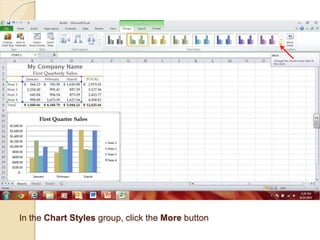
In the Chart Styles group, click the More button
Click a style (your choice) to apply, notice changes
Click off of the Chart to deselect it 
Click the Insert Tab, in the Text group, click Header & Footer
In the Navigation group, click Go to Footer
Click in the Left Footer Pane, in the Header & Footer Elements group, 
click File Name, click cell above Footer area to exit Header & Footer
Click the Page Layout tab, in the Page Setup group, click Margins, 
click Custom Margins
In the Page Setup dialog Box, under Center on page, select 
Horizontally, click Print Preview
Notice how the data and chart are centered on the page horizontally
Click the Home tab to close print preview
Click File, click Save As
In the left navigation pane, scroll down, click Computer
Scroll down to and click your student number (H: drive under Network 
Location)
Scroll down to and double click your Tech Lit folder
Scroll down to and double click your Excel Assignments folder
Name the excel worksheet, YourName_Excel_1, click Save
Notice the file name changed, click X to close Excel

Excel 2010