Material Variants
PDF download from SAP Help Portal:
http://help.sap.com/saphelp_46c/helpdata/en/92/58c907417011d189ec0000e81ddfac/frameset.htm
Created on January 31, 2015
The documentation may have changed since you downloaded the PDF. You can always find the latest information on SAP Help Portal.
Note
This PDF document contains the selected topic and its subtopics (max. 150) in the selected structure. Subtopics from other structures are not included.
© 2015 SAP SE or an SAP affiliate company. All rights reserved. No part of this publication may be reproduced or transmitted in any form or for any purpose
without the express permission of SAP SE. The information contained herein may be changed without prior notice. Some software products marketed by SAP SE
and its distributors contain proprietary software components of other software vendors. National product specifications may vary. These materials are provided by
SAP SE and its affiliated companies ("SAP Group") for informational purposes only, without representation or warranty of any kind, and SAP Group shall not be
liable for errors or omissions with respect to the materials. The only warranties for SAP Group products and services are those that are set forth in the express
warranty statements accompanying such products and services, if any. Nothing herein should be construed as constituting an additional warranty. SAP and other
SAP products and services mentioned herein as well as their respective logos are trademarks or registered trademarks of SAP SE in Germany and other
countries. Please see www.sap.com/corporate-en/legal/copyright/index.epx#trademark for additional trademark information and notices.
Table of content
PUBLIC
© 2014 SAP SE or an SAP affiliate company. All rights reserved.
Page 1 of 5
Table of content
1 Material Variants
1.1 Maintaining Material Master Records for Variants
1.2 Bill of Material (BOM)
1.3 Task List
1.4 Creating Cross-Plant Material Variants
PUBLIC
© 2014 SAP SE or an SAP affiliate company. All rights reserved.
Page 2 of 5
1 Material Variants
Definition
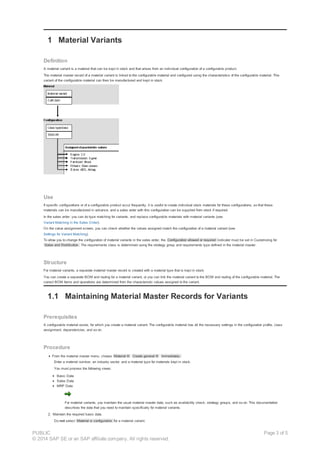
A material variant is a material that can be kept in stock and that arises from an individual configuration of a configurable product.
The material master record of a material variant is linked to the configurable material and configured using the characteristics of the configurable material. This
variant of the configurable material can then be manufactured and kept in stock.
Use
If specific configurations or of a configurable product occur frequently, it is useful to create individual stock materials for these configurations, so that these
materials can be manufactured in advance, and a sales order with this configuration can be supplied from stock if required.
In the sales order, you can do type matching for variants, and replace configurable materials with material variants (see
Variant Matching in the Sales Order).
On the value assignment screen, you can check whether the values assigned match the configuration of a material variant (see
Settings for Variant Matching).
To allow you to change the configuration of material variants in the sales order, the Configuration allowed or required indicator must be set in Customizing for
Sales and Distribution. The requirements class is determined using the strategy group and requirements type defined in the material master.
Structure
For material variants, a separate material master record is created with a material type that is kept in stock.
You can create a separate BOM and routing for a material variant, or you can link the material variant to the BOM and routing of the configurable material. The
correct BOM items and operations are determined from the characteristic values assigned to the variant.
1.1 Maintaining Material Master Records for Variants
Prerequisites
A configurable material exists, for which you create a material variant. The configurable material has all the necessary settings in the configuration profile, class
assignment, dependencies, and so on.
Procedure
From the material master menu, choose Material ® Create general ® Immediately.
Enter a material number, an industry sector, and a material type for materials kept in stock.
You must process the following views:
Basic Data
Sales Data
MRP Data
For material variants, you maintain the usual material master data, such as availability check, strategy groups, and so on. This documentation
describes the data that you need to maintain specifically for material variants.
2. Maintain the required basic data.
Do not select Material is configurable for a material variant.
PUBLIC
© 2014 SAP SE or an SAP affiliate company. All rights reserved.
Page 3 of 5
In the basic data, you can link the material variant to a configurable material. This configuration applies to all plants. To manufacture the material variant in-
house, you must maintain the variant at plant level, so that BOMs, routings, and so on can be determined. Cross-plant variants can be used in
Purchasing, but are not supported in Sales.
3. Maintain the sales data.
You can only use the variant in sales orders if you maintain sales data for the variant.
4. In the MRP data, enter a configurable material for configuring the variant at plant level.
5. Choose Configure variant.
You see the value assignment screen with the characteristics of the configurable material.
Configure the variant.
6. Once you have maintained all the data, save your material variant.
See also:
SAP Library PP Demand Management
Strategies for Variants
1.2 Bill of Material (BOM)
To do a requirements explosion for a configured material, you must maintain the data in the material master record and link a BOM to the configured material.
If the material of the material variant is the same as the configurable material, the link is already there.
You can either create a BOM especially for the configured material (perhaps using the copy from function) or allocate the configured material to the BOM for the
configurable product. The second option is the more common solution.
If you allocate the configured material to the BOM for the configurable product, the BOM for the configurable product is interpreted and exploded according to the
characteristic values assigned. The interpretation includes the processing of selection conditions and the setting of field values in BOM items according to the
relevant actions.
Allocating a Configured Material to a BOM
To allocate the configured material to the BOM of the configurable product, proceed as follows:
1. From the bills of material menu, choose Bills of material
® Material BOM ® Alloc. config. mat. ® Create.
Enter the name of your configured material in the Material field.
You see a screen on which your configured material is shown as the first allocation. Select the allocation and choose the All allocs for BOM function to see all the
materials allocated to this BOM.
Save your allocation.
1.3 Task List
To produce a configured material, you need to allocate a task list to the configurable material once you have created the material master.
If the material of the material variant is the same as the configurable material, the link is already there.
You can either create a task list especially for the configured material (perhaps using the copy from function) or allocate the configured material to the task list for
the configurable product in the task list maintenance function. The second option is the more common solution. If you allocate the configured material to the task list
for the configurable product, the task list for the configurable product is interpreted and exploded in the production order according to the characteristic values
assigned. The interpretation includes the processing of selection conditions in the operations or activities, sub-operations, sequences of operations, and production
resources/tools (PRTs).
Allocating a Task List to a Configured Material
To allocate the configured material to the task list of the configurable material, proceed as follows:
1. From the routings menu, choose Routings
® Routing ® Change.
Enter the number of the configurable material.
Choose Goto ® Overview.
Choose Routing ® Material allocation ® New entries and enter the number of the configured material you want to allocate to the task list.
Save your allocation.
1.4 Creating Cross-Plant Material Variants
PUBLIC
© 2014 SAP SE or an SAP affiliate company. All rights reserved.
Page 4 of 5
Use
For material variants that are procured externally, you can define the assignment to a configurable material in the basic data of the material master, because no
plant-specific data needs to be determined for these variants.
Procedure
In the material master menu, choose Material ® Create (General) ® Immediately.
Enter a material number, an industry sector, and a material type for materials kept in stock.
Select the views that you want to process.
Maintain the required basic data.
Do not select Material is configurable for a material variant.
Under Client-specific configuration, enter the configurable material of which you are creating a variant.
Choose Configure variant.
You see the value assignment screen with the characteristics of the configurable material.
Configure the variant.
Once you have maintained all the data, save your material variant.
Result
The variant can be entered in a purchase order. The configuration of the variant is copied from the material master.
Cross-plant material variants can be used in Purchasing. However, they are not supported in Sales.
PUBLIC
© 2014 SAP SE or an SAP affiliate company. All rights reserved.
Page 5 of 5

Variant material

  • 1.
    Material Variants PDF downloadfrom SAP Help Portal: http://help.sap.com/saphelp_46c/helpdata/en/92/58c907417011d189ec0000e81ddfac/frameset.htm Created on January 31, 2015 The documentation may have changed since you downloaded the PDF. You can always find the latest information on SAP Help Portal. Note This PDF document contains the selected topic and its subtopics (max. 150) in the selected structure. Subtopics from other structures are not included. © 2015 SAP SE or an SAP affiliate company. All rights reserved. No part of this publication may be reproduced or transmitted in any form or for any purpose without the express permission of SAP SE. The information contained herein may be changed without prior notice. Some software products marketed by SAP SE and its distributors contain proprietary software components of other software vendors. National product specifications may vary. These materials are provided by SAP SE and its affiliated companies ("SAP Group") for informational purposes only, without representation or warranty of any kind, and SAP Group shall not be liable for errors or omissions with respect to the materials. The only warranties for SAP Group products and services are those that are set forth in the express warranty statements accompanying such products and services, if any. Nothing herein should be construed as constituting an additional warranty. SAP and other SAP products and services mentioned herein as well as their respective logos are trademarks or registered trademarks of SAP SE in Germany and other countries. Please see www.sap.com/corporate-en/legal/copyright/index.epx#trademark for additional trademark information and notices. Table of content PUBLIC © 2014 SAP SE or an SAP affiliate company. All rights reserved. Page 1 of 5
  • 2.
    Table of content 1Material Variants 1.1 Maintaining Material Master Records for Variants 1.2 Bill of Material (BOM) 1.3 Task List 1.4 Creating Cross-Plant Material Variants PUBLIC © 2014 SAP SE or an SAP affiliate company. All rights reserved. Page 2 of 5
  • 3.
    1 Material Variants Definition Amaterial variant is a material that can be kept in stock and that arises from an individual configuration of a configurable product. The material master record of a material variant is linked to the configurable material and configured using the characteristics of the configurable material. This variant of the configurable material can then be manufactured and kept in stock. Use If specific configurations or of a configurable product occur frequently, it is useful to create individual stock materials for these configurations, so that these materials can be manufactured in advance, and a sales order with this configuration can be supplied from stock if required. In the sales order, you can do type matching for variants, and replace configurable materials with material variants (see Variant Matching in the Sales Order). On the value assignment screen, you can check whether the values assigned match the configuration of a material variant (see Settings for Variant Matching). To allow you to change the configuration of material variants in the sales order, the Configuration allowed or required indicator must be set in Customizing for Sales and Distribution. The requirements class is determined using the strategy group and requirements type defined in the material master. Structure For material variants, a separate material master record is created with a material type that is kept in stock. You can create a separate BOM and routing for a material variant, or you can link the material variant to the BOM and routing of the configurable material. The correct BOM items and operations are determined from the characteristic values assigned to the variant. 1.1 Maintaining Material Master Records for Variants Prerequisites A configurable material exists, for which you create a material variant. The configurable material has all the necessary settings in the configuration profile, class assignment, dependencies, and so on. Procedure From the material master menu, choose Material ® Create general ® Immediately. Enter a material number, an industry sector, and a material type for materials kept in stock. You must process the following views: Basic Data Sales Data MRP Data For material variants, you maintain the usual material master data, such as availability check, strategy groups, and so on. This documentation describes the data that you need to maintain specifically for material variants. 2. Maintain the required basic data. Do not select Material is configurable for a material variant. PUBLIC © 2014 SAP SE or an SAP affiliate company. All rights reserved. Page 3 of 5
  • 4.
    In the basicdata, you can link the material variant to a configurable material. This configuration applies to all plants. To manufacture the material variant in- house, you must maintain the variant at plant level, so that BOMs, routings, and so on can be determined. Cross-plant variants can be used in Purchasing, but are not supported in Sales. 3. Maintain the sales data. You can only use the variant in sales orders if you maintain sales data for the variant. 4. In the MRP data, enter a configurable material for configuring the variant at plant level. 5. Choose Configure variant. You see the value assignment screen with the characteristics of the configurable material. Configure the variant. 6. Once you have maintained all the data, save your material variant. See also: SAP Library PP Demand Management Strategies for Variants 1.2 Bill of Material (BOM) To do a requirements explosion for a configured material, you must maintain the data in the material master record and link a BOM to the configured material. If the material of the material variant is the same as the configurable material, the link is already there. You can either create a BOM especially for the configured material (perhaps using the copy from function) or allocate the configured material to the BOM for the configurable product. The second option is the more common solution. If you allocate the configured material to the BOM for the configurable product, the BOM for the configurable product is interpreted and exploded according to the characteristic values assigned. The interpretation includes the processing of selection conditions and the setting of field values in BOM items according to the relevant actions. Allocating a Configured Material to a BOM To allocate the configured material to the BOM of the configurable product, proceed as follows: 1. From the bills of material menu, choose Bills of material ® Material BOM ® Alloc. config. mat. ® Create. Enter the name of your configured material in the Material field. You see a screen on which your configured material is shown as the first allocation. Select the allocation and choose the All allocs for BOM function to see all the materials allocated to this BOM. Save your allocation. 1.3 Task List To produce a configured material, you need to allocate a task list to the configurable material once you have created the material master. If the material of the material variant is the same as the configurable material, the link is already there. You can either create a task list especially for the configured material (perhaps using the copy from function) or allocate the configured material to the task list for the configurable product in the task list maintenance function. The second option is the more common solution. If you allocate the configured material to the task list for the configurable product, the task list for the configurable product is interpreted and exploded in the production order according to the characteristic values assigned. The interpretation includes the processing of selection conditions in the operations or activities, sub-operations, sequences of operations, and production resources/tools (PRTs). Allocating a Task List to a Configured Material To allocate the configured material to the task list of the configurable material, proceed as follows: 1. From the routings menu, choose Routings ® Routing ® Change. Enter the number of the configurable material. Choose Goto ® Overview. Choose Routing ® Material allocation ® New entries and enter the number of the configured material you want to allocate to the task list. Save your allocation. 1.4 Creating Cross-Plant Material Variants PUBLIC © 2014 SAP SE or an SAP affiliate company. All rights reserved. Page 4 of 5
  • 5.
    Use For material variantsthat are procured externally, you can define the assignment to a configurable material in the basic data of the material master, because no plant-specific data needs to be determined for these variants. Procedure In the material master menu, choose Material ® Create (General) ® Immediately. Enter a material number, an industry sector, and a material type for materials kept in stock. Select the views that you want to process. Maintain the required basic data. Do not select Material is configurable for a material variant. Under Client-specific configuration, enter the configurable material of which you are creating a variant. Choose Configure variant. You see the value assignment screen with the characteristics of the configurable material. Configure the variant. Once you have maintained all the data, save your material variant. Result The variant can be entered in a purchase order. The configuration of the variant is copied from the material master. Cross-plant material variants can be used in Purchasing. However, they are not supported in Sales. PUBLIC © 2014 SAP SE or an SAP affiliate company. All rights reserved. Page 5 of 5