Blanket Purchase Agreement and Blanket Release in Oracle R12
Blanket purchase agreements and releases allow you to negotiate stable, long-term contracts while maintaining flexible
delivery schedules and order quantity commitments. You create blanket purchase agreements when you know the details of
the goods or services you plan to buy from a specific supplier, but you do not yet know delivery schedule details. You can us e
blanket purchase agreements to specify negotiated prices for your items before actually purchasing them.
A blanket purchase agreement is a type of purchase order you issue before you request actual delivery of goods or services.
You normally create a blanket purchase agreement to document a long-term supplier agreement.
A blanket release is an actual order of goods or services you issue against a blanket purchase agreement. The blanket
purchase agreement determines the characteristics and the prices of the items. The release can be created manually or
automatically.
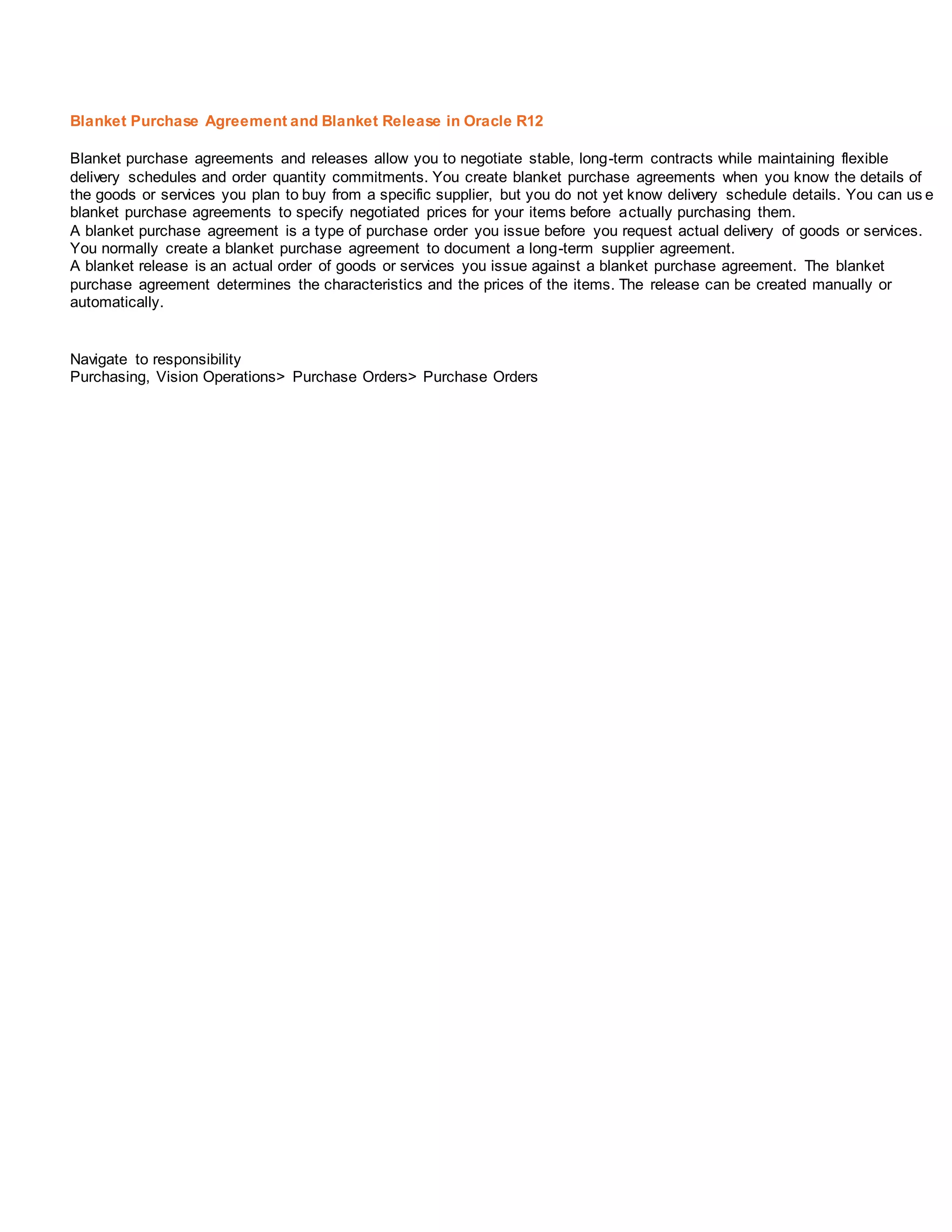
Navigate to responsibility
Purchasing, Vision Operations> Purchase Orders> Purchase Orders
Amount Agreed: amount of the agreement to buy goods or services.
Released: Value of all releases issued against the blanket purchase agreement.
Global: Select the Global checkbox only if you are creating a global agreement.
Click Terms button
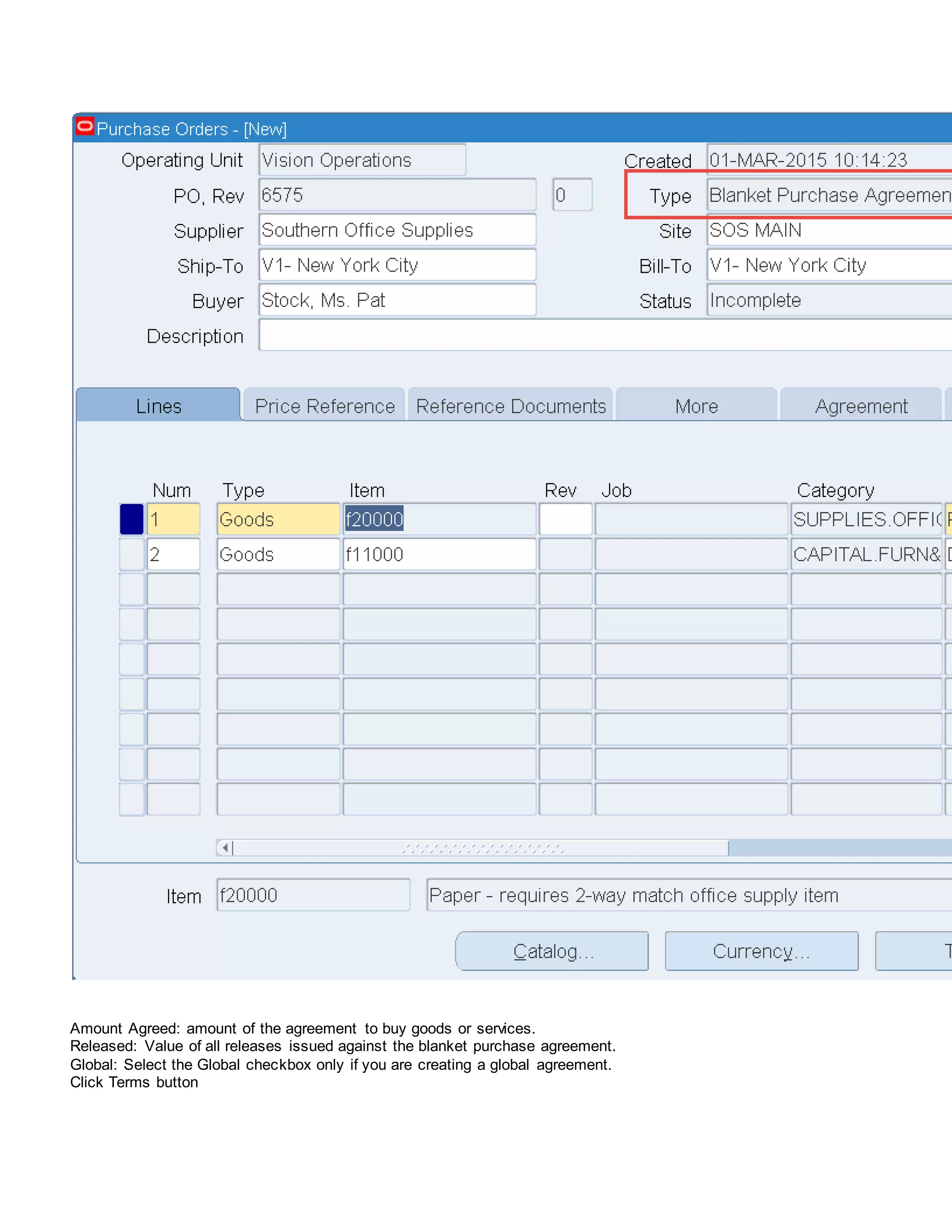
You can access the Agreement Controls area of the Terms button. The effective start and stop dates for the agreement can
be entered. Releases can only be created during these dates when the blanket is effective.
Amount Limit: You can optionally change the defaulted value for the Amount Limit. You can exceed amount agreed. If the total
amount released exceeds the Amount Limit, the release cannot be approved.
Minimum Release: You can also specify a Minimum Release amount to restrict the processing individual releases.
Click Price Breaks button
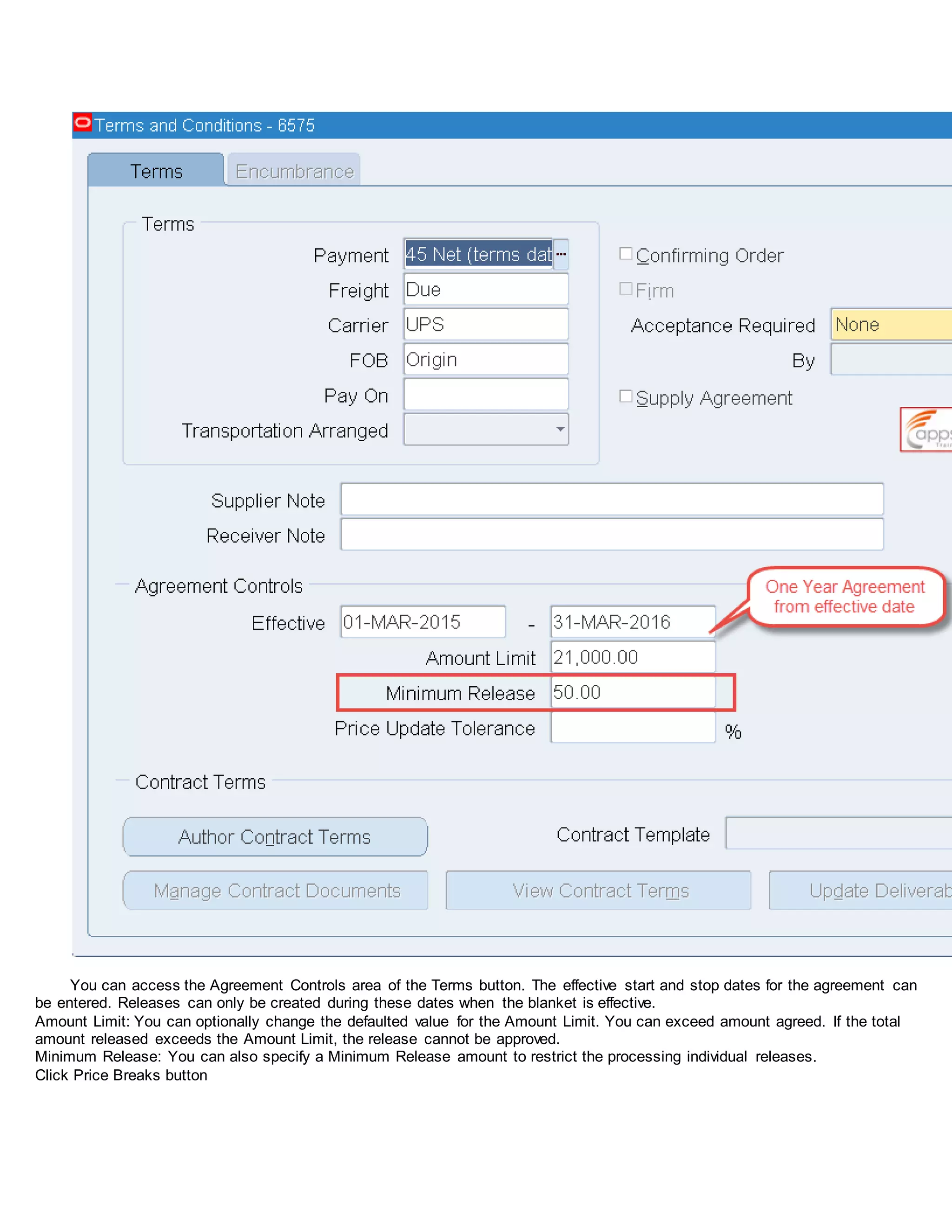
. This form adjustment is necessary to support reduced pricing agreements for volume purchases.
Quantity: This quantity is not an ordered quantity, but simply a quantity that if purchased would result in reduced pricing.
Effective Dates: Enter the date range that this price remains in effect.
Break Price: You will enter the reduced price that will be paid for each quantity listed.
Discount (%): If a Break Price is entered, the Discount (%) field will display the percentage that this price is off the price listed
on the Items tabbed region for the purchase of an implied quantity of one.
Navigate to Tools> Notification Control
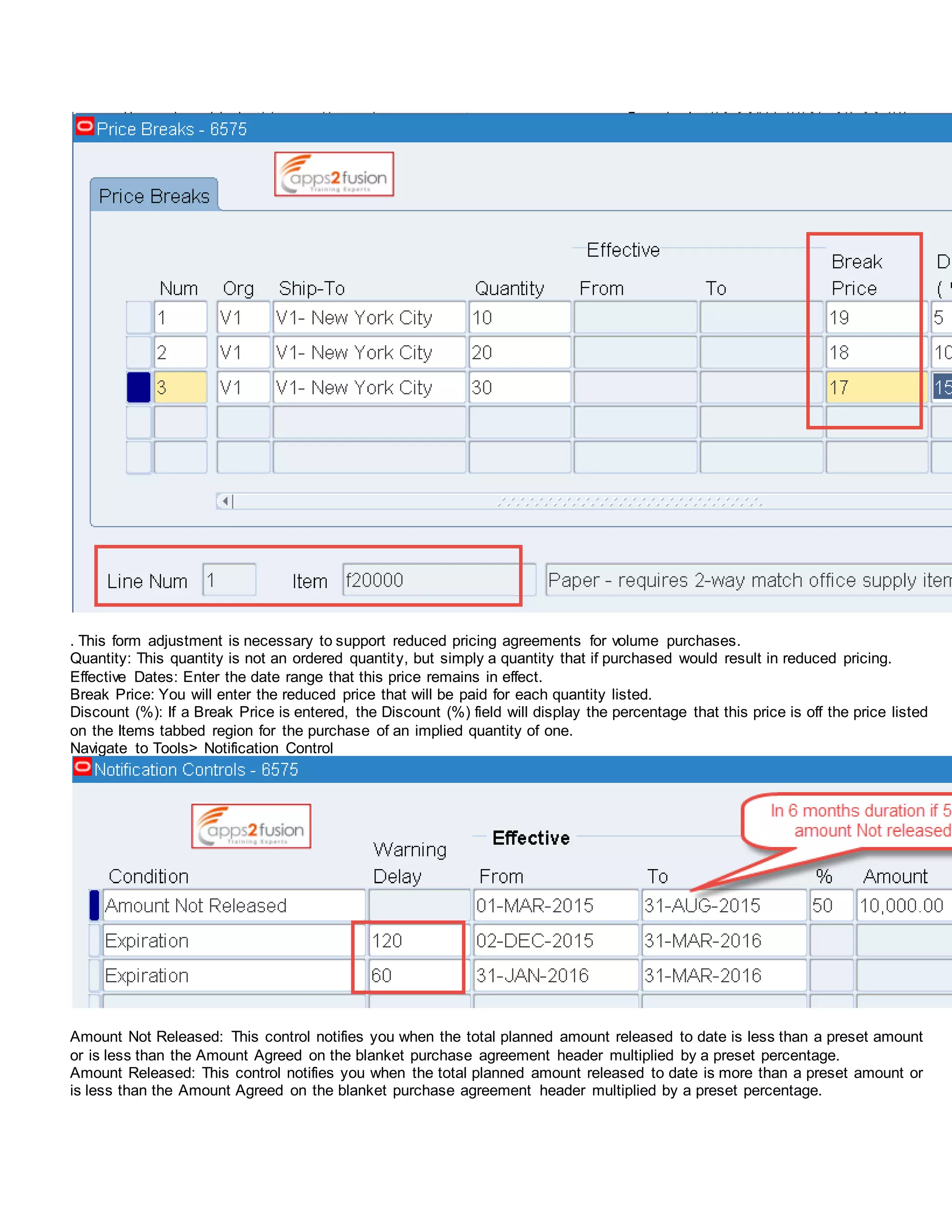
Amount Not Released: This control notifies you when the total planned amount released to date is less than a preset amount
or is less than the Amount Agreed on the blanket purchase agreement header multiplied by a preset percentage.
Amount Released: This control notifies you when the total planned amount released to date is more than a preset amount or
is less than the Amount Agreed on the blanket purchase agreement header multiplied by a preset percentage.
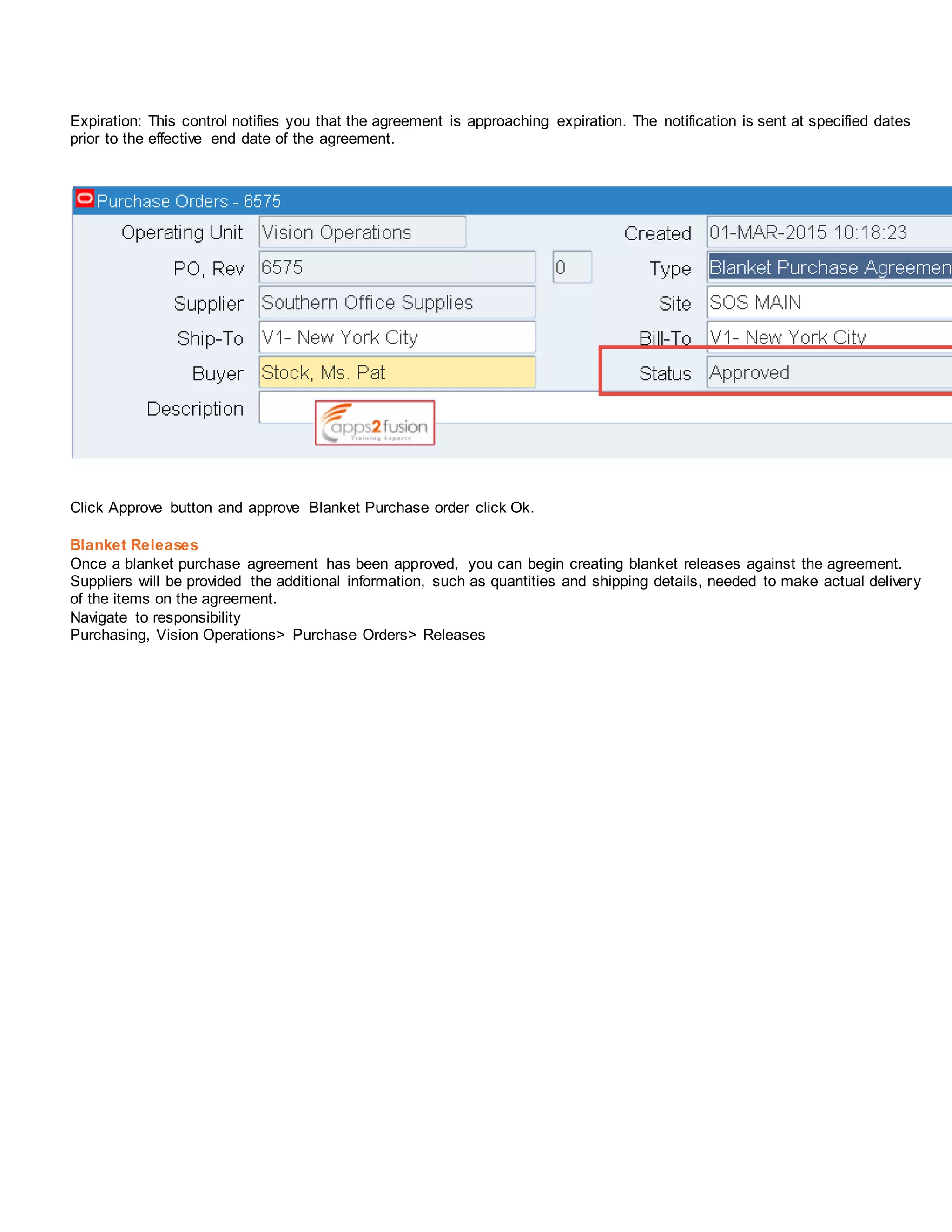
Expiration: This control notifies you that the agreement is approaching expiration. The notification is sent at specified dates
prior to the effective end date of the agreement.
Click Approve button and approve Blanket Purchase order click Ok.
Blanket Releases
Once a blanket purchase agreement has been approved, you can begin creating blanket releases against the agreement.
Suppliers will be provided the additional information, such as quantities and shipping details, needed to make actual delivery
of the items on the agreement.
Navigate to responsibility
Purchasing, Vision Operations> Purchase Orders> Releases
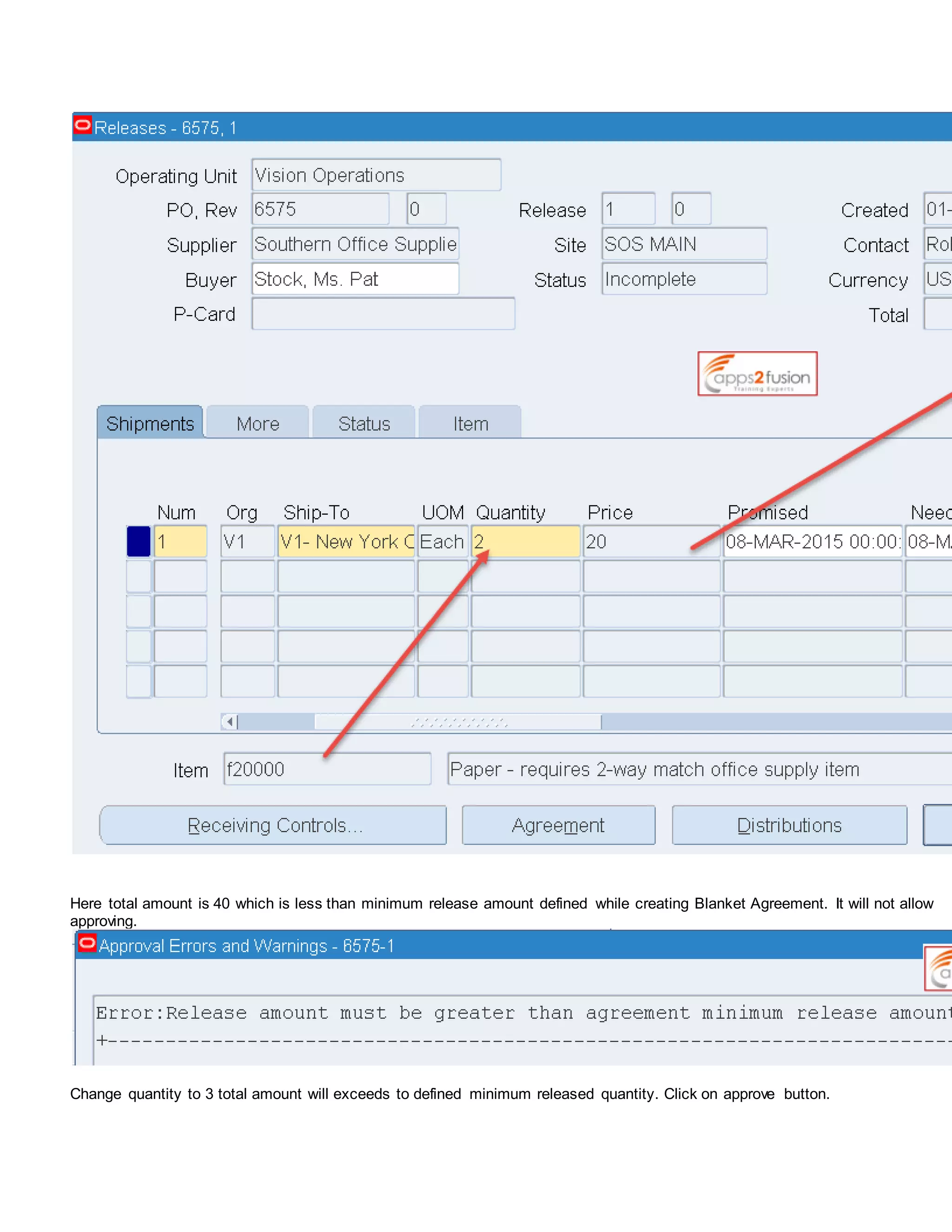
Here total amount is 40 which is less than minimum release amount defined while creating Blanket Agreement. It will not allow
approving.
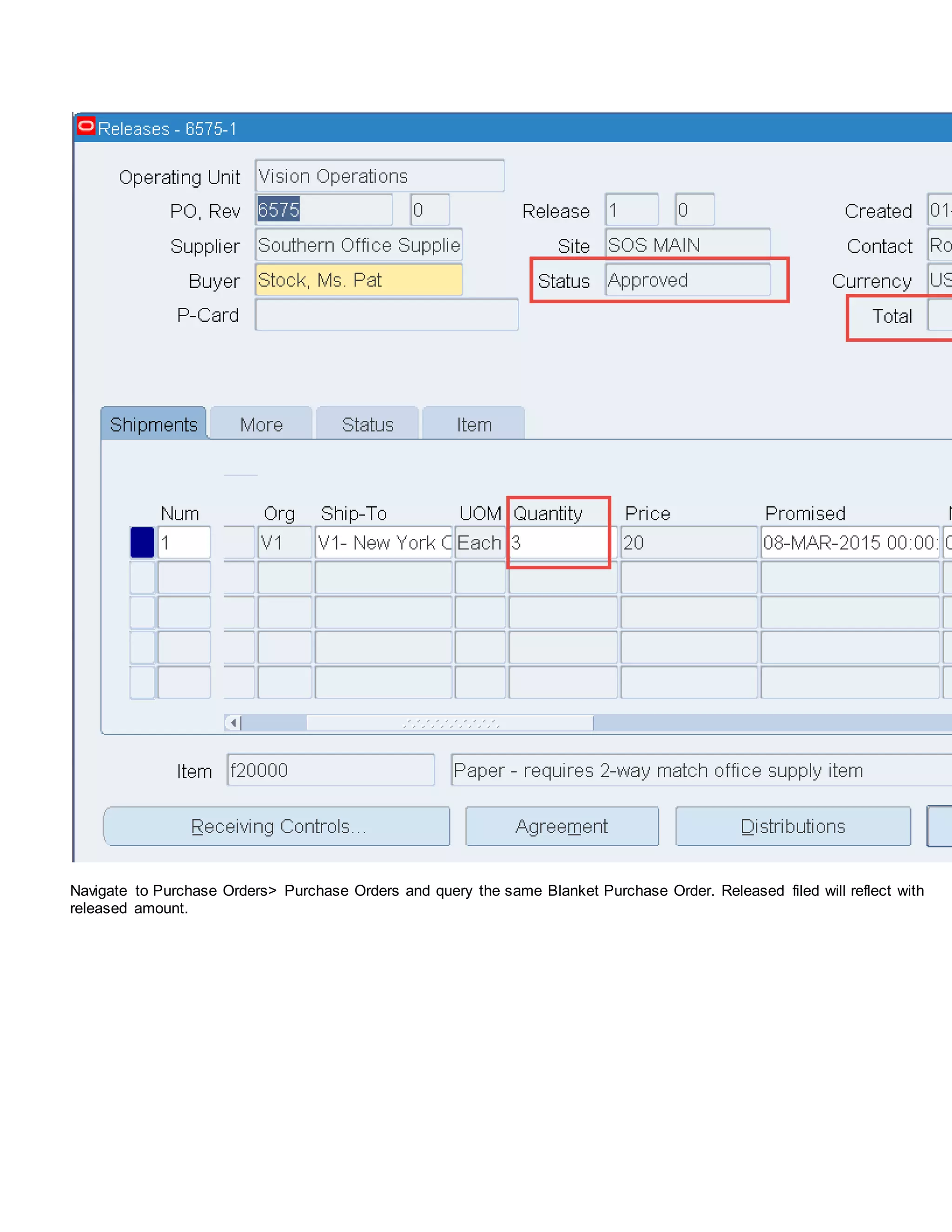
Change quantity to 3 total amount will exceeds to defined minimum released quantity. Click on approve button.
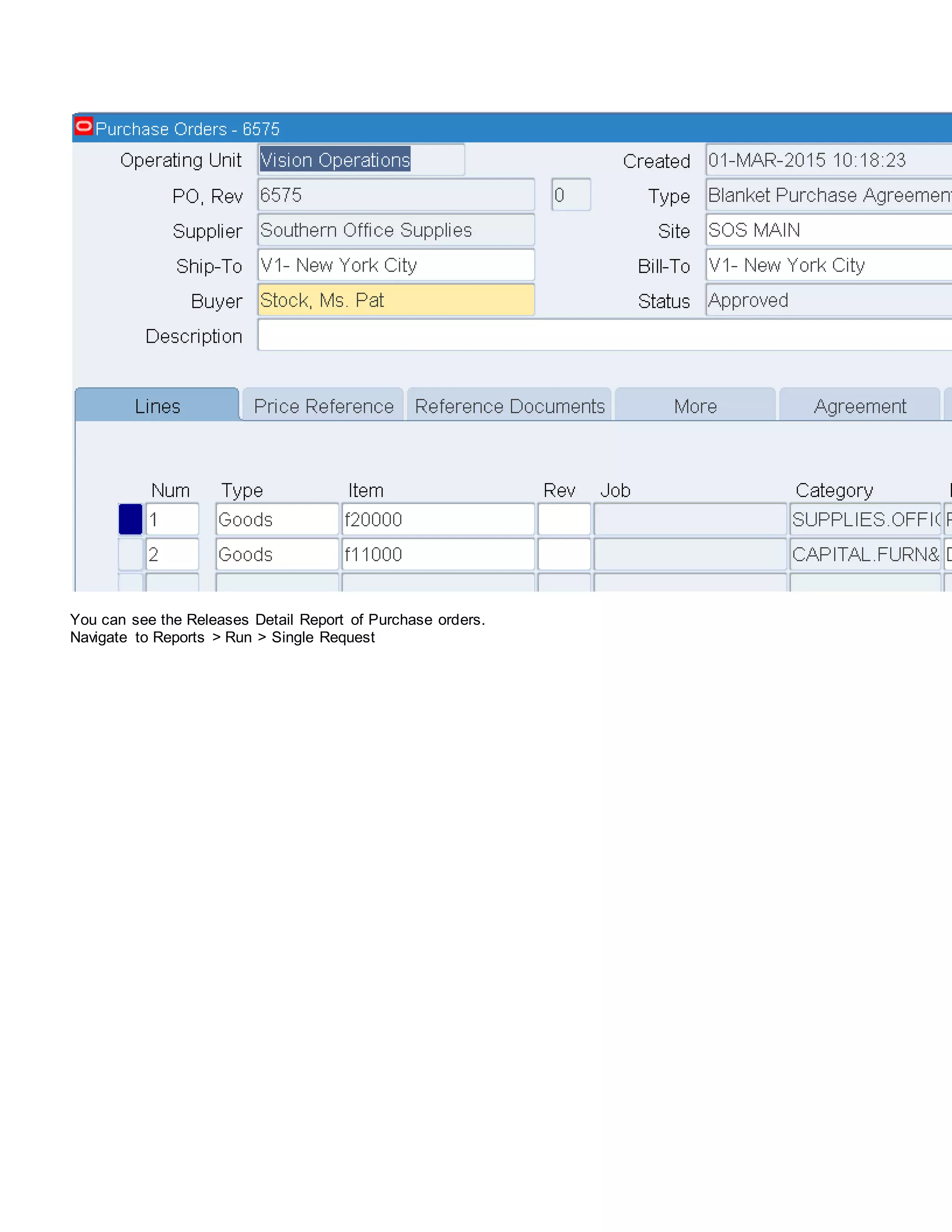
Navigate to Purchase Orders> Purchase Orders and query the same Blanket Purchase Order. Released filed will reflect with
released amount.
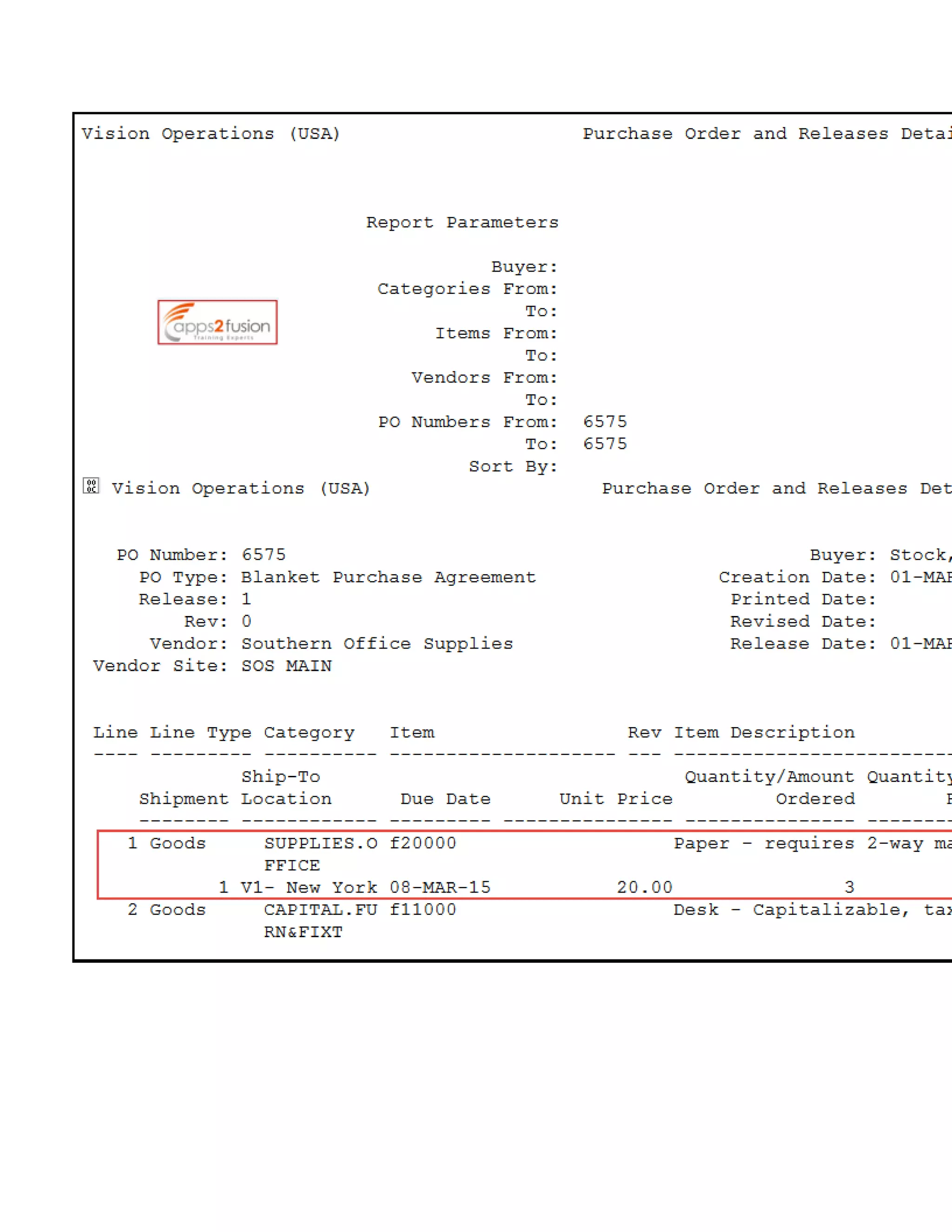
You can see the Releases Detail Report of Purchase orders.
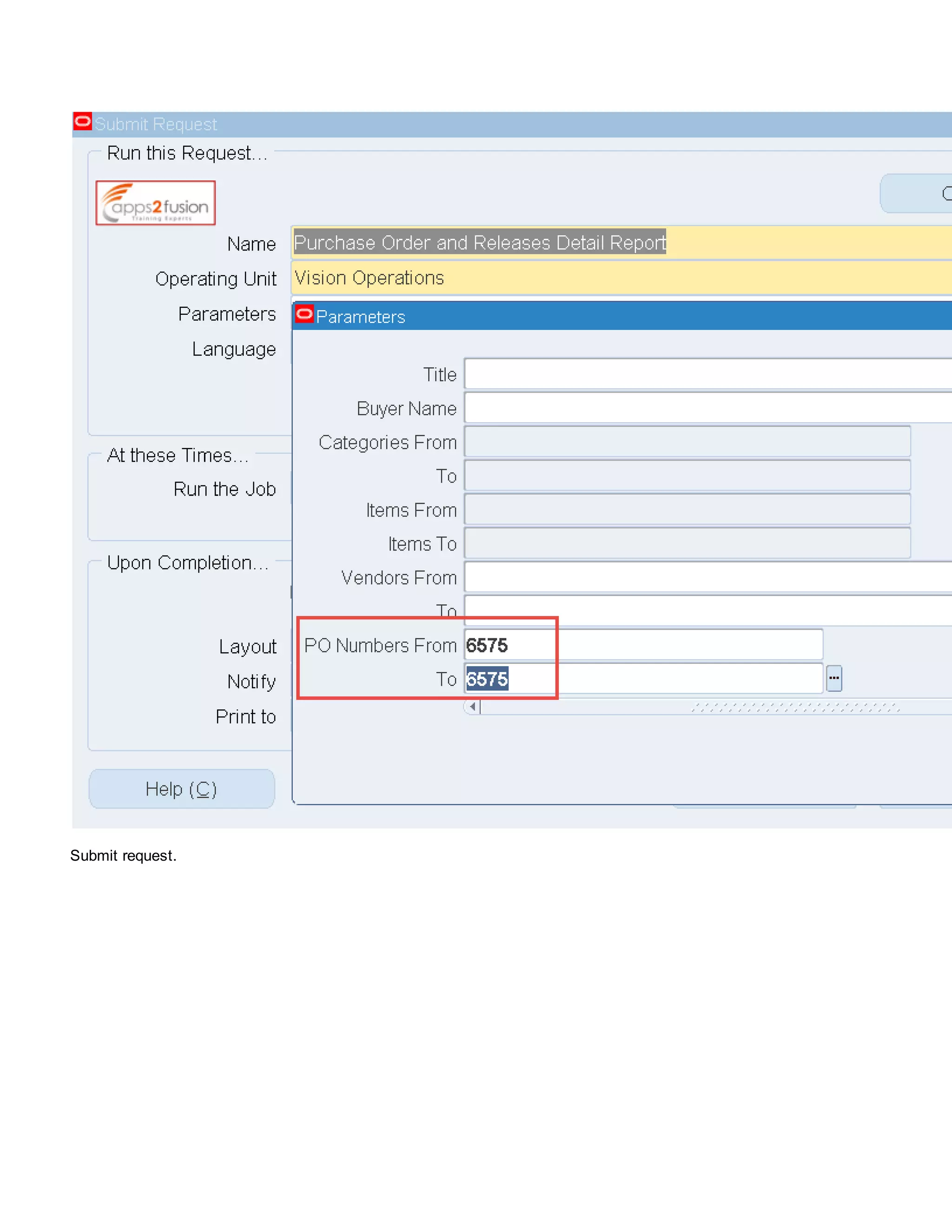
Navigate to Reports > Run > Single Request
Submit request.
Blanket purchase agreement and blanket release in oracle r12

Blanket purchase agreement and blanket release in oracle r12

  • 1.
    Blanket Purchase Agreementand Blanket Release in Oracle R12 Blanket purchase agreements and releases allow you to negotiate stable, long-term contracts while maintaining flexible delivery schedules and order quantity commitments. You create blanket purchase agreements when you know the details of the goods or services you plan to buy from a specific supplier, but you do not yet know delivery schedule details. You can us e blanket purchase agreements to specify negotiated prices for your items before actually purchasing them. A blanket purchase agreement is a type of purchase order you issue before you request actual delivery of goods or services. You normally create a blanket purchase agreement to document a long-term supplier agreement. A blanket release is an actual order of goods or services you issue against a blanket purchase agreement. The blanket purchase agreement determines the characteristics and the prices of the items. The release can be created manually or automatically. Navigate to responsibility Purchasing, Vision Operations> Purchase Orders> Purchase Orders
  • 2.
    Amount Agreed: amountof the agreement to buy goods or services. Released: Value of all releases issued against the blanket purchase agreement. Global: Select the Global checkbox only if you are creating a global agreement. Click Terms button
  • 3.
    You can accessthe Agreement Controls area of the Terms button. The effective start and stop dates for the agreement can be entered. Releases can only be created during these dates when the blanket is effective. Amount Limit: You can optionally change the defaulted value for the Amount Limit. You can exceed amount agreed. If the total amount released exceeds the Amount Limit, the release cannot be approved. Minimum Release: You can also specify a Minimum Release amount to restrict the processing individual releases. Click Price Breaks button
  • 4.
    . This formadjustment is necessary to support reduced pricing agreements for volume purchases. Quantity: This quantity is not an ordered quantity, but simply a quantity that if purchased would result in reduced pricing. Effective Dates: Enter the date range that this price remains in effect. Break Price: You will enter the reduced price that will be paid for each quantity listed. Discount (%): If a Break Price is entered, the Discount (%) field will display the percentage that this price is off the price listed on the Items tabbed region for the purchase of an implied quantity of one. Navigate to Tools> Notification Control Amount Not Released: This control notifies you when the total planned amount released to date is less than a preset amount or is less than the Amount Agreed on the blanket purchase agreement header multiplied by a preset percentage. Amount Released: This control notifies you when the total planned amount released to date is more than a preset amount or is less than the Amount Agreed on the blanket purchase agreement header multiplied by a preset percentage.
  • 5.
    Expiration: This controlnotifies you that the agreement is approaching expiration. The notification is sent at specified dates prior to the effective end date of the agreement. Click Approve button and approve Blanket Purchase order click Ok. Blanket Releases Once a blanket purchase agreement has been approved, you can begin creating blanket releases against the agreement. Suppliers will be provided the additional information, such as quantities and shipping details, needed to make actual delivery of the items on the agreement. Navigate to responsibility Purchasing, Vision Operations> Purchase Orders> Releases
  • 6.
    Here total amountis 40 which is less than minimum release amount defined while creating Blanket Agreement. It will not allow approving. Change quantity to 3 total amount will exceeds to defined minimum released quantity. Click on approve button.
  • 7.
    Navigate to PurchaseOrders> Purchase Orders and query the same Blanket Purchase Order. Released filed will reflect with released amount.
  • 8.
    You can seethe Releases Detail Report of Purchase orders. Navigate to Reports > Run > Single Request
  • 9.