cougar_kev@hotmail.com
Using Microsoft Draw • • • • • •  Kevin Hoult, MBA • • • www.kevinhoult.com • Page 1
Using MS Draw
Draw is available in Word, Excel and Powerpoint.
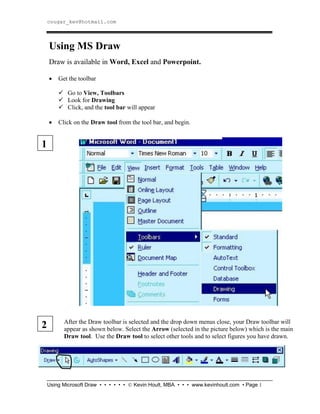
 Get the toolbar
 Go to View, Toolbars
 Look for Drawing
 Click, and the tool bar will appear
 Click on the Draw tool from the tool bar, and begin.
1
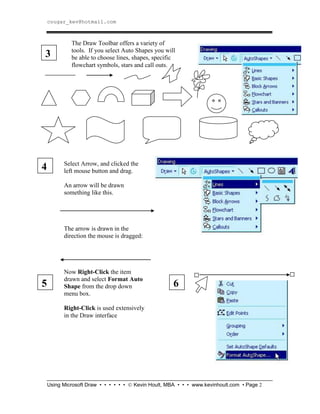
2 After the Draw toolbar is selected and the drop down menus close, your Draw toolbar will
appear as shown below. Select the Arrow (selected in the picture below) which is the main
Draw tool. Use the Draw tool to select other tools and to select figures you have drawn.
cougar_kev@hotmail.com
Using Microsoft Draw • • • • • •  Kevin Hoult, MBA • • • www.kevinhoult.com • Page 2
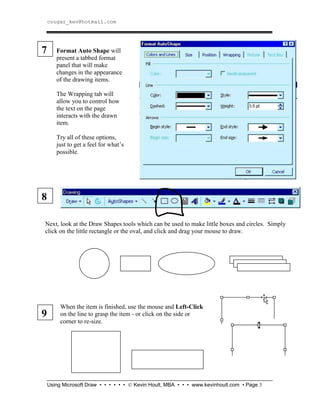
Select Arrow, and clicked the
left mouse button and drag.
An arrow will be drawn
something like this.
The arrow is drawn in the
direction the mouse is dragged:
Now Right-Click the item
drawn and select Format Auto
Shape from the drop down
menu box.
Right-Click is used extensively
in the Draw interface
The Draw Toolbar offers a variety of
tools. If you select Auto Shapes you will
be able to choose lines, shapes, specific
flowchart symbols, stars and call outs.
3
4
5 6
cougar_kev@hotmail.com
Using Microsoft Draw • • • • • •  Kevin Hoult, MBA • • • www.kevinhoult.com • Page 3
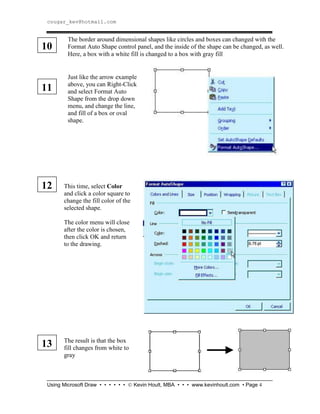
7 Format Auto Shape will
present a tabbed format
panel that will make
changes in the appearance
of the drawing items.
The Wrapping tab will
allow you to control how
the text on the page
interacts with the drawn
item.
Try all of these options,
just to get a feel for what’s
possible.
8
When the item is finished, use the mouse and Left-Click
on the line to grasp the item - or click on the side or
corner to re-size.
9
Next, look at the Draw Shapes tools which can be used to make little boxes and circles. Simply
click on the little rectangle or the oval, and click and drag your mouse to draw.
cougar_kev@hotmail.com
Using Microsoft Draw • • • • • •  Kevin Hoult, MBA • • • www.kevinhoult.com • Page 4
The border around dimensional shapes like circles and boxes can changed with the
Format Auto Shape control panel, and the inside of the shape can be changed, as well.
Here, a box with a white fill is changed to a box with gray fill
10
Just like the arrow example
above, you can Right-Click
and select Format Auto
Shape from the drop down
menu, and change the line,
and fill of a box or oval
shape.
11
12
13
This time, select Color
and click a color square to
change the fill color of the
selected shape.
The color menu will close
after the color is chosen,
then click OK and return
to the drawing.
The result is that the box
fill changes from white to
gray
cougar_kev@hotmail.com
Using Microsoft Draw • • • • • •  Kevin Hoult, MBA • • • www.kevinhoult.com • Page 5
14
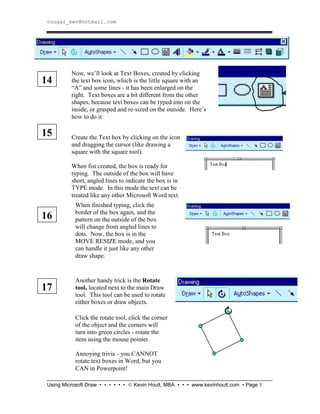
Now, we’ll look at Text Boxes, created by clicking
the text box icon, which is the little square with an
“A” and some lines - it has been enlarged on the
right. Text boxes are a bit different from the other
shapes, because text boxes can be typed into on the
inside, or grasped and re-sized on the outside. Here’s
how to do it:
15 Create the Text box by clicking on the icon
and dragging the cursor (like drawing a
square with the square tool).
When fist created, the box is ready for
typing. The outside of the box will have
short, angled lines to indicate the box is in
TYPE mode. In this mode the text can be
treated like any other Microsoft Word text.
16
When finished typing, click the
border of the box again, and the
pattern on the outside of the box
will change from angled lines to
dots. Now, the box is in the
MOVE RESIZE mode, and you
can handle it just like any other
draw shape.
Another handy trick is the Rotate
tool, located next to the main Draw
tool. This tool can be used to rotate
either boxes or draw objects.
Click the rotate tool, click the corner
of the object and the corners will
turn into green circles - rotate the
item using the mouse pointer.
Annoying trivia - you CANNOT
rotate text boxes in Word, but you
CAN in Powerpoint!
17
cougar_kev@hotmail.com
Using Microsoft Draw • • • • • •  Kevin Hoult, MBA • • • www.kevinhoult.com • Page 6
18
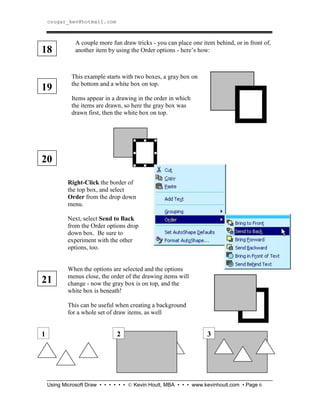
A couple more fun draw tricks - you can place one item behind, or in front of,
another item by using the Order options - here’s how:
19
This example starts with two boxes, a gray box on
the bottom and a white box on top.
Items appear in a drawing in the order in which
the items are drawn, so here the gray box was
drawn first, then the white box on top.
20
21
When the options are selected and the options
menus close, the order of the drawing items will
change - now the gray box is on top, and the
white box is beneath!
This can be useful when creating a background
for a whole set of draw items, as well
Right-Click the border of
the top box, and select
Order from the drop down
menu.
Next, select Send to Back
from the Order options drop
down box. Be sure to
experiment with the other
options, too.
1 2 3
cougar_kev@hotmail.com
Using Microsoft Draw • • • • • •  Kevin Hoult, MBA • • • www.kevinhoult.com • Page 7
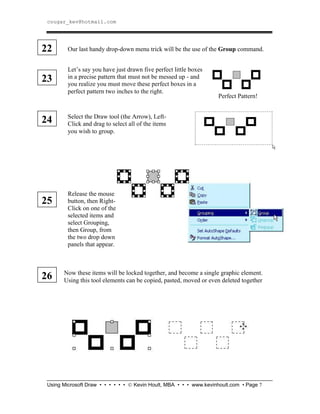
Let’s say you have just drawn five perfect little boxes
in a precise pattern that must not be messed up - and
you realize you must move these perfect boxes in a
perfect pattern two inches to the right.
Our last handy drop-down menu trick will be the use of the Group command.22
23
Perfect Pattern!
Select the Draw tool (the Arrow), Left-
Click and drag to select all of the items
you wish to group.
24
Now these items will be locked together, and become a single graphic element.
Using this tool elements can be copied, pasted, moved or even deleted together
Release the mouse
button, then Right-
Click on one of the
selected items and
select Grouping,
then Group, from
the two drop down
panels that appear.
25
26
cougar_kev@hotmail.com
Using Microsoft Draw • • • • • •  Kevin Hoult, MBA • • • www.kevinhoult.com • Page 8
27 Our last task will be to draw those curved arrows - why do tech people always wait to
answer your question until the very end?
28
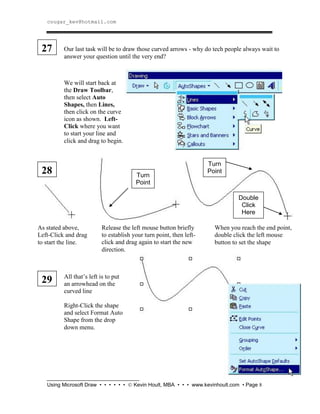
We will start back at
the Draw Toolbar,
then select Auto
Shapes, then Lines,
then click on the curve
icon as shown. Left-
Click where you want
to start your line and
click and drag to begin.
As stated above,
Left-Click and drag
to start the line.
Turn
Point
Release the left mouse button briefly
to establish your turn point, then left-
click and drag again to start the new
direction.
When you reach the end point,
double click the left mouse
button to set the shape
Turn
Point
Double
Click
Here
All that’s left is to put
an arrowhead on the
curved line
Right-Click the shape
and select Format Auto
Shape from the drop
down menu.
29
cougar_kev@hotmail.com
Using Microsoft Draw • • • • • •  Kevin Hoult, MBA • • • www.kevinhoult.com • Page 9
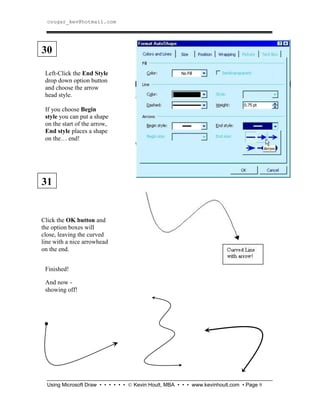
Left-Click the End Style
drop down option button
and choose the arrow
head style.
If you choose Begin
style you can put a shape
on the start of the arrow,
End style places a shape
on the… end!
Finished!
And now -
showing off!
30
31
Click the OK button and
the option boxes will
close, leaving the curved
line with a nice arrowhead
on the end.
cougar_kev@hotmail.com
Using Microsoft Draw • • • • • •  Kevin Hoult, MBA • • • www.kevinhoult.com • Page 10
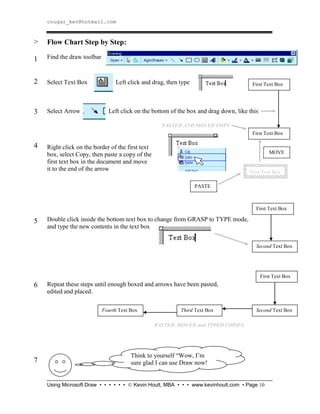
Flow Chart Step by Step:
Find the draw toolbar
Select Text Box Left click and drag, then type
Select Arrow Left click on the bottom of the box and drag down, like this
Right click on the border of the first text
box, select Copy, then paste a copy of the
first text box in the document and move
it to the end of the arrow
Double click inside the bottom text box to change from GRASP to TYPE mode,
and type the new contents in the text box
Repeat these steps until enough boxed and arrows have been pasted,
edited and placed.
First Text Box
First Text Box
1
2
3
4
First Text Box
Second Text Box
5
First Text Box
PASTE
MOVE
First Text Box
Second Text Box
>
Third Text BoxFourth Text Box
6
7
Think to yourself “Wow, I’m
sure glad I can use Draw now!
PASTED AND MOVED COPY
PASTED, MOVED and TYPED COPIES
cougar_kev@hotmail.com
Using Microsoft Draw • • • • • •  Kevin Hoult, MBA • • • www.kevinhoult.com • Page 11
Old Formal Organization:
 'Cult of Personality'
 Regional/non-scalable
 Immediate outcomes over
long term plans
 Rewards for 'Being like
Upton'
Old Critical Tasks:
 Product innovation
 Process innovation
 Strong customer
orientation
Old Informal
Organization:
 Product oriented
 'Operational' over
'strategic'
 Customer service
delivered by staff
New People:
 Team oriented
 Communicative
 Inter-
departmental
 Personal loyalty
to the firm
OPPORTUNITY GAP - Efficiency through
Structure
OPPORTUNITY GAP - Global Sales
New Formal Organization:
 Structured to gain
efficiency
 Scaleable globally
 Traditional departments
like H/R & Mktng.
 Relevant rewards
New Informal
Organization:
 Process oriented
 'Strategic' over
'operational'
 Customer service
delivered by firm
New Critical Tasks:
 Strategic leadership
 Strategic efficiency
 Maintain identity &
momentum during
changes
Old People:
 Individualistic
 No info sharing
 Self directed
 Departmental
 Personal loyalty
to management
Old Inter-
relationship
s
New Inter-
relationship
s
Old Strategy: Innovative, Reputable, Customer Oriented
Change
Change
Change
Change
Change
New Strategy: Structured, Efficient, Scalable, Global
A STRATEGIC VISION FOR ORGANIZATIONAL CONGRUENCE

using_ms_draw

  • 1.
    cougar_kev@hotmail.com Using Microsoft Draw• • • • • •  Kevin Hoult, MBA • • • www.kevinhoult.com • Page 1 Using MS Draw Draw is available in Word, Excel and Powerpoint.  Get the toolbar  Go to View, Toolbars  Look for Drawing  Click, and the tool bar will appear  Click on the Draw tool from the tool bar, and begin. 1 2 After the Draw toolbar is selected and the drop down menus close, your Draw toolbar will appear as shown below. Select the Arrow (selected in the picture below) which is the main Draw tool. Use the Draw tool to select other tools and to select figures you have drawn.
  • 2.
    cougar_kev@hotmail.com Using Microsoft Draw• • • • • •  Kevin Hoult, MBA • • • www.kevinhoult.com • Page 2 Select Arrow, and clicked the left mouse button and drag. An arrow will be drawn something like this. The arrow is drawn in the direction the mouse is dragged: Now Right-Click the item drawn and select Format Auto Shape from the drop down menu box. Right-Click is used extensively in the Draw interface The Draw Toolbar offers a variety of tools. If you select Auto Shapes you will be able to choose lines, shapes, specific flowchart symbols, stars and call outs. 3 4 5 6
  • 3.
    cougar_kev@hotmail.com Using Microsoft Draw• • • • • •  Kevin Hoult, MBA • • • www.kevinhoult.com • Page 3 7 Format Auto Shape will present a tabbed format panel that will make changes in the appearance of the drawing items. The Wrapping tab will allow you to control how the text on the page interacts with the drawn item. Try all of these options, just to get a feel for what’s possible. 8 When the item is finished, use the mouse and Left-Click on the line to grasp the item - or click on the side or corner to re-size. 9 Next, look at the Draw Shapes tools which can be used to make little boxes and circles. Simply click on the little rectangle or the oval, and click and drag your mouse to draw.
  • 4.
    cougar_kev@hotmail.com Using Microsoft Draw• • • • • •  Kevin Hoult, MBA • • • www.kevinhoult.com • Page 4 The border around dimensional shapes like circles and boxes can changed with the Format Auto Shape control panel, and the inside of the shape can be changed, as well. Here, a box with a white fill is changed to a box with gray fill 10 Just like the arrow example above, you can Right-Click and select Format Auto Shape from the drop down menu, and change the line, and fill of a box or oval shape. 11 12 13 This time, select Color and click a color square to change the fill color of the selected shape. The color menu will close after the color is chosen, then click OK and return to the drawing. The result is that the box fill changes from white to gray
  • 5.
    cougar_kev@hotmail.com Using Microsoft Draw• • • • • •  Kevin Hoult, MBA • • • www.kevinhoult.com • Page 5 14 Now, we’ll look at Text Boxes, created by clicking the text box icon, which is the little square with an “A” and some lines - it has been enlarged on the right. Text boxes are a bit different from the other shapes, because text boxes can be typed into on the inside, or grasped and re-sized on the outside. Here’s how to do it: 15 Create the Text box by clicking on the icon and dragging the cursor (like drawing a square with the square tool). When fist created, the box is ready for typing. The outside of the box will have short, angled lines to indicate the box is in TYPE mode. In this mode the text can be treated like any other Microsoft Word text. 16 When finished typing, click the border of the box again, and the pattern on the outside of the box will change from angled lines to dots. Now, the box is in the MOVE RESIZE mode, and you can handle it just like any other draw shape. Another handy trick is the Rotate tool, located next to the main Draw tool. This tool can be used to rotate either boxes or draw objects. Click the rotate tool, click the corner of the object and the corners will turn into green circles - rotate the item using the mouse pointer. Annoying trivia - you CANNOT rotate text boxes in Word, but you CAN in Powerpoint! 17
  • 6.
    cougar_kev@hotmail.com Using Microsoft Draw• • • • • •  Kevin Hoult, MBA • • • www.kevinhoult.com • Page 6 18 A couple more fun draw tricks - you can place one item behind, or in front of, another item by using the Order options - here’s how: 19 This example starts with two boxes, a gray box on the bottom and a white box on top. Items appear in a drawing in the order in which the items are drawn, so here the gray box was drawn first, then the white box on top. 20 21 When the options are selected and the options menus close, the order of the drawing items will change - now the gray box is on top, and the white box is beneath! This can be useful when creating a background for a whole set of draw items, as well Right-Click the border of the top box, and select Order from the drop down menu. Next, select Send to Back from the Order options drop down box. Be sure to experiment with the other options, too. 1 2 3
  • 7.
    cougar_kev@hotmail.com Using Microsoft Draw• • • • • •  Kevin Hoult, MBA • • • www.kevinhoult.com • Page 7 Let’s say you have just drawn five perfect little boxes in a precise pattern that must not be messed up - and you realize you must move these perfect boxes in a perfect pattern two inches to the right. Our last handy drop-down menu trick will be the use of the Group command.22 23 Perfect Pattern! Select the Draw tool (the Arrow), Left- Click and drag to select all of the items you wish to group. 24 Now these items will be locked together, and become a single graphic element. Using this tool elements can be copied, pasted, moved or even deleted together Release the mouse button, then Right- Click on one of the selected items and select Grouping, then Group, from the two drop down panels that appear. 25 26
  • 8.
    cougar_kev@hotmail.com Using Microsoft Draw• • • • • •  Kevin Hoult, MBA • • • www.kevinhoult.com • Page 8 27 Our last task will be to draw those curved arrows - why do tech people always wait to answer your question until the very end? 28 We will start back at the Draw Toolbar, then select Auto Shapes, then Lines, then click on the curve icon as shown. Left- Click where you want to start your line and click and drag to begin. As stated above, Left-Click and drag to start the line. Turn Point Release the left mouse button briefly to establish your turn point, then left- click and drag again to start the new direction. When you reach the end point, double click the left mouse button to set the shape Turn Point Double Click Here All that’s left is to put an arrowhead on the curved line Right-Click the shape and select Format Auto Shape from the drop down menu. 29
  • 9.
    cougar_kev@hotmail.com Using Microsoft Draw• • • • • •  Kevin Hoult, MBA • • • www.kevinhoult.com • Page 9 Left-Click the End Style drop down option button and choose the arrow head style. If you choose Begin style you can put a shape on the start of the arrow, End style places a shape on the… end! Finished! And now - showing off! 30 31 Click the OK button and the option boxes will close, leaving the curved line with a nice arrowhead on the end.
  • 10.
    cougar_kev@hotmail.com Using Microsoft Draw• • • • • •  Kevin Hoult, MBA • • • www.kevinhoult.com • Page 10 Flow Chart Step by Step: Find the draw toolbar Select Text Box Left click and drag, then type Select Arrow Left click on the bottom of the box and drag down, like this Right click on the border of the first text box, select Copy, then paste a copy of the first text box in the document and move it to the end of the arrow Double click inside the bottom text box to change from GRASP to TYPE mode, and type the new contents in the text box Repeat these steps until enough boxed and arrows have been pasted, edited and placed. First Text Box First Text Box 1 2 3 4 First Text Box Second Text Box 5 First Text Box PASTE MOVE First Text Box Second Text Box > Third Text BoxFourth Text Box 6 7 Think to yourself “Wow, I’m sure glad I can use Draw now! PASTED AND MOVED COPY PASTED, MOVED and TYPED COPIES
  • 11.
    cougar_kev@hotmail.com Using Microsoft Draw• • • • • •  Kevin Hoult, MBA • • • www.kevinhoult.com • Page 11 Old Formal Organization:  'Cult of Personality'  Regional/non-scalable  Immediate outcomes over long term plans  Rewards for 'Being like Upton' Old Critical Tasks:  Product innovation  Process innovation  Strong customer orientation Old Informal Organization:  Product oriented  'Operational' over 'strategic'  Customer service delivered by staff New People:  Team oriented  Communicative  Inter- departmental  Personal loyalty to the firm OPPORTUNITY GAP - Efficiency through Structure OPPORTUNITY GAP - Global Sales New Formal Organization:  Structured to gain efficiency  Scaleable globally  Traditional departments like H/R & Mktng.  Relevant rewards New Informal Organization:  Process oriented  'Strategic' over 'operational'  Customer service delivered by firm New Critical Tasks:  Strategic leadership  Strategic efficiency  Maintain identity & momentum during changes Old People:  Individualistic  No info sharing  Self directed  Departmental  Personal loyalty to management Old Inter- relationship s New Inter- relationship s Old Strategy: Innovative, Reputable, Customer Oriented Change Change Change Change Change New Strategy: Structured, Efficient, Scalable, Global A STRATEGIC VISION FOR ORGANIZATIONAL CONGRUENCE