Adjusting, Inserting, Moving, and
Deleting Cells
Engr. Esmeraldo T. Guimbarda Jr.
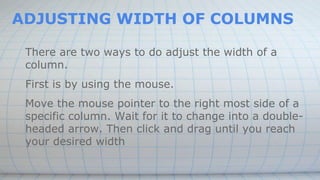
ADJUSTING WIDTH OF COLUMNS
There are two ways to do adjust the width of a
column.
First is by using the mouse.
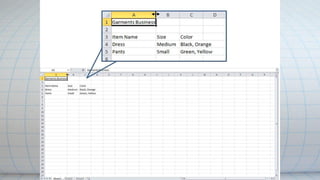
Move the mouse pointer to the right most side of a
specific column. Wait for it to change into a double-
headed arrow. Then click and drag until you reach
your desired width
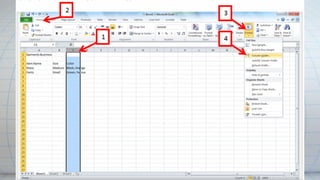
Second is by using the tool bar.
Click on the column letter that you want to change [1],
then go to Home [2] > Format [3] > Column Width
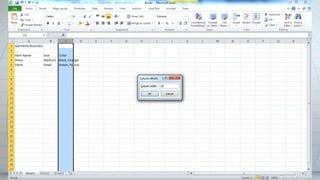
[4]. A pop up window will appear then type in the
exact width that you want. Then click OK.
There are two types where you can simultaneously
adjust the width of columns.
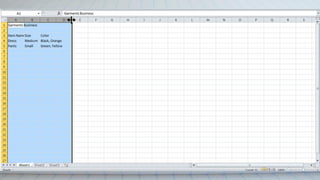
Contiguous Selecting and Adjusting:
Click on the first column letter where you want to
start. Then click and drag until your desired columns
are selected. Release when done. Then adjust the
width by following the steps above.
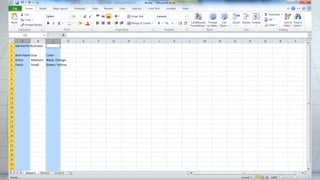
Discontinuous Selecting and Adjusting:
Click on the column letter where you want to start.
Then press and hold CTRL key. Click on the columns
that you want to adjust. Release CTRL key when done.
Then adjust the width by following the steps above.
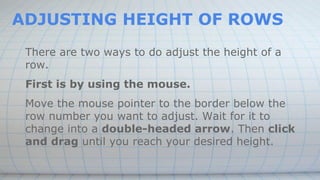
ADJUSTING HEIGHT OF ROWS
There are two ways to do adjust the height of a
row.
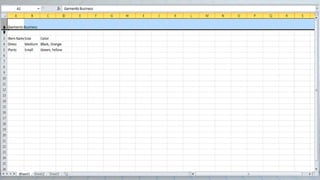
First is by using the mouse.
Move the mouse pointer to the border below the
row number you want to adjust. Wait for it to
change into a double-headed arrow. Then click
and drag until you reach your desired height.
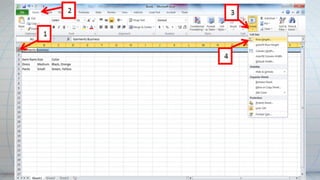
Second is by using the tool bar.
Click on the row number that you want to change [1],
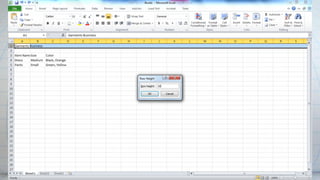
then go to Home [2] > Format [3] > Row Height [4].
A pop up window will appear then type in the exact
height that you want. Then click OK.
There are two types where you can simultaneously
adjust the height of rows.
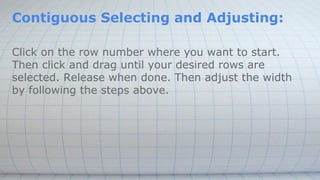
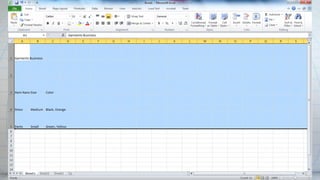
Contiguous Selecting and Adjusting:
Click on the row number where you want to start.
Then click and drag until your desired rows are
selected. Release when done. Then adjust the width
by following the steps above.
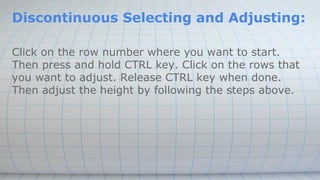
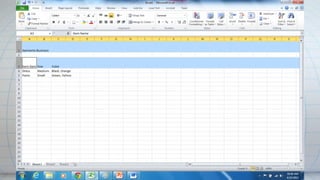
Discontinuous Selecting and Adjusting:
Click on the row number where you want to start.
Then press and hold CTRL key. Click on the rows that
you want to adjust. Release CTRL key when done.
Then adjust the height by following the steps above.
INSERTING CELLS
By inserting cells you can move your contents
without the need to retype. There are two ways to
insert cells. First, is to use the mouse and second is
to use the tool bar.
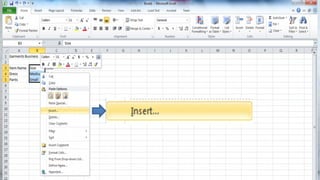
When using the mouse, you can just right click on
the cell/s where you want to insert then click Insert.
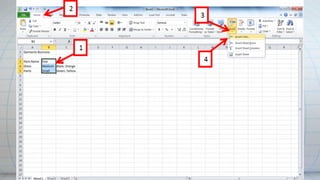
When using the tool bar, click first where you want to
insert new cell/s [1], then, go to Home [2] > Insert
[3] > Insert Cells [4].
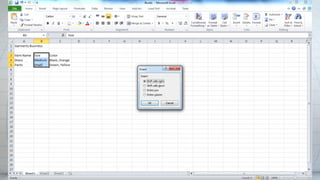
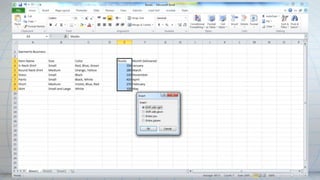
After clicking the Insert/Insert Cells, there will be a
pop-up menu that will appear. It has 4 options – Shift
cells right, Shift cells down, Entire row, and Entire
column. Select which one do you wish to use, then
click OK.
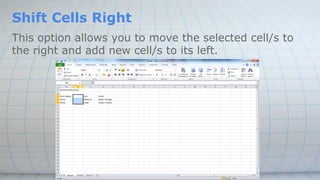
Shift Cells Right
This option allows you to move the selected cell/s to
the right and add new cell/s to its left.
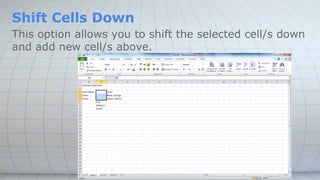
Shift Cells Down
This option allows you to shift the selected cell/s down
and add new cell/s above.
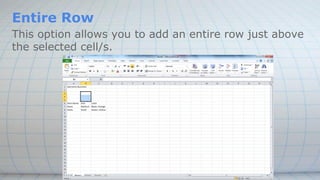
Entire Row
This option allows you to add an entire row just above
the selected cell/s.
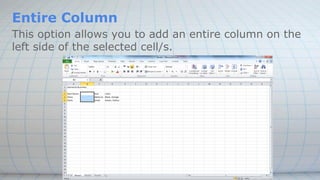
Entire Column
This option allows you to add an entire column on the
left side of the selected cell/s.
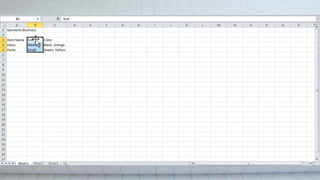
MOVING CELLS
You can move the selected cell/s by moving the
mouse pointer to the above border of the cell/s. Wait
for it to become a move pointer , then drag the cell/s
to your desired new location.
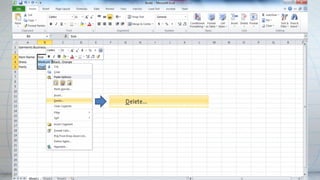
DELETING CELLS
To delete the contents click on the cell/s that you want
to delete then right-click on the mouse. There will be
options to choose from. Select the Delete. There will
be another option in the form of a Radio Button to
choose from. Choose which one do you wish to use
and left-click using the mouse.
Shift Cells Left
This option allows you to delete the selected cell/s and move the
cells from the right to the left.
Shift Cells Up
This option allows you to delete the selected cell/s and move the
cells from the bottom to top.
Entire Row
This option allows you to delete the entire row where the selected
cell/s lies on and the entire row from below will move up.
Entire Column
This option allows you to delete the entire column where the
selected cell/s lies on and the entire column from the right will
move to the left.
Activity:
1. Open Microsoft Excel.
Click on Start ►All Programs ► Microsoft Office ►
Microsoft Excel or double-click on the Microsoft
Excel shortcut on the desktop. This will open a blank
workbook in Microsoft Excel.
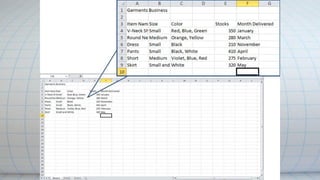
2. Input Contents on Sheet 1.
Click on the first cell, which is A1, and type in “Garments Business”.
Then click on cells A3, B3, C3, E3, and F3. Type in “Item Name”, “Size”,
“Color”, “Stocks”, and “Month Delivered”, respectively.
Under Item Name, type in “V-Neck Shirt”, “Round Neck Shirt”, “Dress”,
“Pants”, “Short”, “Skirt”, respectively. One word per cell only.
Under Size, type in “Small”, “Medium”, “Small”, “Small”, “Medium”, and
“Small and Large”, respectively. One word per cell only.
Under Color, type in “Red, Blue, Green”, “Orange, Yellow”, “Black”,
“Black, White”, “Violet, Blue, Red", and “White”, respectively. One word
per cell only.
Under Stocks, type in “350”, “280”, “210”, “410”, “275”, and “320”,
respectively. One word per cell only.
Under Month Delivered, type in “January”, “March”, “November”, “April”,
“February”, and “May”, respectively. One word per cell only.
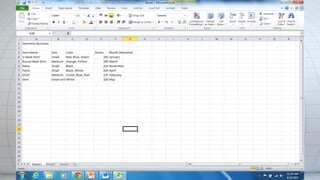
3. Adjusting Column Width.
In this case, we can start with column A. Move the
mouse pointer to the right boundary of the cell that
you will adjust, Click and drag until you reach your
desired width. Repeat this with columns B, C, and F.
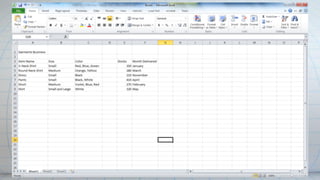
4. Adjusting Row Height.
Move the mouse pointer to the bottom part of Row 1,
wait until it becomes a double-headed arrow, then
click and drag until you reach your desired height.
Repeat this with Row 3.
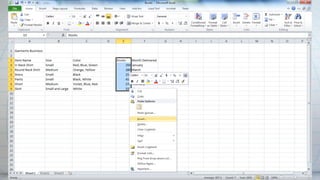
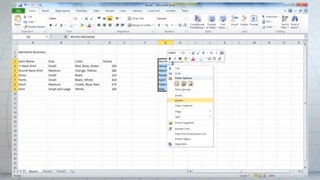
5. Inserting Cells.
Select cells from E3 to E9. Do this by clicking on cell
E3 and dragging it up to cell E9. Release when done.
Right Click then choose Insert > Shift Cells Right.
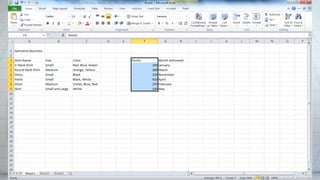
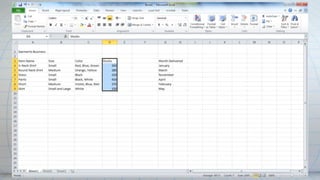
6. Moving Cells.
Select cells from E3 to E9. Do this by clicking on cell
E3 and dragging it up to cell E9. Release when done.
Then move the mouse pointer to the top boundary of
the selected cells, wait for it to become a move
pointer, then click and drag to column D (D3 to D9).
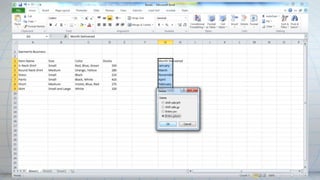
7. Deleting Cells.
Select cells from G3 to G9. Do this by clicking on cell
G3 and dragging it up to cell G9. Release when done.
Then right click and choose Delete > Entire column.
Click OK.
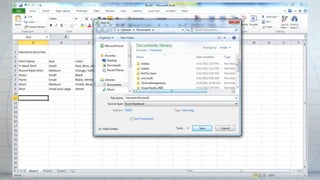
8. Save the document.
To do this, go to File then click Save As
Upon clicking Save, the Save As window will show.
Locate where you want to save your file then type the
name of file in the File Name box. Click Save. Your
file is now saved.
1st quarter   4th meeting- spreadsheet

1st quarter 4th meeting- spreadsheet

  • 1.
    Adjusting, Inserting, Moving,and Deleting Cells Engr. Esmeraldo T. Guimbarda Jr.
  • 2.
    ADJUSTING WIDTH OFCOLUMNS There are two ways to do adjust the width of a column. First is by using the mouse. Move the mouse pointer to the right most side of a specific column. Wait for it to change into a double- headed arrow. Then click and drag until you reach your desired width
  • 4.
    Second is byusing the tool bar. Click on the column letter that you want to change [1], then go to Home [2] > Format [3] > Column Width [4]. A pop up window will appear then type in the exact width that you want. Then click OK.
  • 7.
    There are twotypes where you can simultaneously adjust the width of columns.
  • 8.
    Contiguous Selecting andAdjusting: Click on the first column letter where you want to start. Then click and drag until your desired columns are selected. Release when done. Then adjust the width by following the steps above.
  • 10.
    Discontinuous Selecting andAdjusting: Click on the column letter where you want to start. Then press and hold CTRL key. Click on the columns that you want to adjust. Release CTRL key when done. Then adjust the width by following the steps above.
  • 12.
    ADJUSTING HEIGHT OFROWS There are two ways to do adjust the height of a row. First is by using the mouse. Move the mouse pointer to the border below the row number you want to adjust. Wait for it to change into a double-headed arrow. Then click and drag until you reach your desired height.
  • 14.
    Second is byusing the tool bar. Click on the row number that you want to change [1], then go to Home [2] > Format [3] > Row Height [4]. A pop up window will appear then type in the exact height that you want. Then click OK.
  • 17.
    There are twotypes where you can simultaneously adjust the height of rows.
  • 18.
    Contiguous Selecting andAdjusting: Click on the row number where you want to start. Then click and drag until your desired rows are selected. Release when done. Then adjust the width by following the steps above.
  • 20.
    Discontinuous Selecting andAdjusting: Click on the row number where you want to start. Then press and hold CTRL key. Click on the rows that you want to adjust. Release CTRL key when done. Then adjust the height by following the steps above.
  • 22.
    INSERTING CELLS By insertingcells you can move your contents without the need to retype. There are two ways to insert cells. First, is to use the mouse and second is to use the tool bar. When using the mouse, you can just right click on the cell/s where you want to insert then click Insert.
  • 24.
    When using thetool bar, click first where you want to insert new cell/s [1], then, go to Home [2] > Insert [3] > Insert Cells [4].
  • 26.
    After clicking theInsert/Insert Cells, there will be a pop-up menu that will appear. It has 4 options – Shift cells right, Shift cells down, Entire row, and Entire column. Select which one do you wish to use, then click OK.
  • 28.
    Shift Cells Right Thisoption allows you to move the selected cell/s to the right and add new cell/s to its left.
  • 29.
    Shift Cells Down Thisoption allows you to shift the selected cell/s down and add new cell/s above.
  • 30.
    Entire Row This optionallows you to add an entire row just above the selected cell/s.
  • 31.
    Entire Column This optionallows you to add an entire column on the left side of the selected cell/s.
  • 32.
    MOVING CELLS You canmove the selected cell/s by moving the mouse pointer to the above border of the cell/s. Wait for it to become a move pointer , then drag the cell/s to your desired new location.
  • 34.
    DELETING CELLS To deletethe contents click on the cell/s that you want to delete then right-click on the mouse. There will be options to choose from. Select the Delete. There will be another option in the form of a Radio Button to choose from. Choose which one do you wish to use and left-click using the mouse.
  • 36.
    Shift Cells Left Thisoption allows you to delete the selected cell/s and move the cells from the right to the left. Shift Cells Up This option allows you to delete the selected cell/s and move the cells from the bottom to top. Entire Row This option allows you to delete the entire row where the selected cell/s lies on and the entire row from below will move up. Entire Column This option allows you to delete the entire column where the selected cell/s lies on and the entire column from the right will move to the left.
  • 37.
    Activity: 1. Open MicrosoftExcel. Click on Start ►All Programs ► Microsoft Office ► Microsoft Excel or double-click on the Microsoft Excel shortcut on the desktop. This will open a blank workbook in Microsoft Excel.
  • 38.
    2. Input Contentson Sheet 1. Click on the first cell, which is A1, and type in “Garments Business”. Then click on cells A3, B3, C3, E3, and F3. Type in “Item Name”, “Size”, “Color”, “Stocks”, and “Month Delivered”, respectively. Under Item Name, type in “V-Neck Shirt”, “Round Neck Shirt”, “Dress”, “Pants”, “Short”, “Skirt”, respectively. One word per cell only. Under Size, type in “Small”, “Medium”, “Small”, “Small”, “Medium”, and “Small and Large”, respectively. One word per cell only. Under Color, type in “Red, Blue, Green”, “Orange, Yellow”, “Black”, “Black, White”, “Violet, Blue, Red", and “White”, respectively. One word per cell only. Under Stocks, type in “350”, “280”, “210”, “410”, “275”, and “320”, respectively. One word per cell only. Under Month Delivered, type in “January”, “March”, “November”, “April”, “February”, and “May”, respectively. One word per cell only.
  • 40.
    3. Adjusting ColumnWidth. In this case, we can start with column A. Move the mouse pointer to the right boundary of the cell that you will adjust, Click and drag until you reach your desired width. Repeat this with columns B, C, and F.
  • 42.
    4. Adjusting RowHeight. Move the mouse pointer to the bottom part of Row 1, wait until it becomes a double-headed arrow, then click and drag until you reach your desired height. Repeat this with Row 3.
  • 44.
    5. Inserting Cells. Selectcells from E3 to E9. Do this by clicking on cell E3 and dragging it up to cell E9. Release when done. Right Click then choose Insert > Shift Cells Right.
  • 47.
    6. Moving Cells. Selectcells from E3 to E9. Do this by clicking on cell E3 and dragging it up to cell E9. Release when done. Then move the mouse pointer to the top boundary of the selected cells, wait for it to become a move pointer, then click and drag to column D (D3 to D9).
  • 50.
    7. Deleting Cells. Selectcells from G3 to G9. Do this by clicking on cell G3 and dragging it up to cell G9. Release when done. Then right click and choose Delete > Entire column. Click OK.
  • 53.
    8. Save thedocument. To do this, go to File then click Save As Upon clicking Save, the Save As window will show. Locate where you want to save your file then type the name of file in the File Name box. Click Save. Your file is now saved.