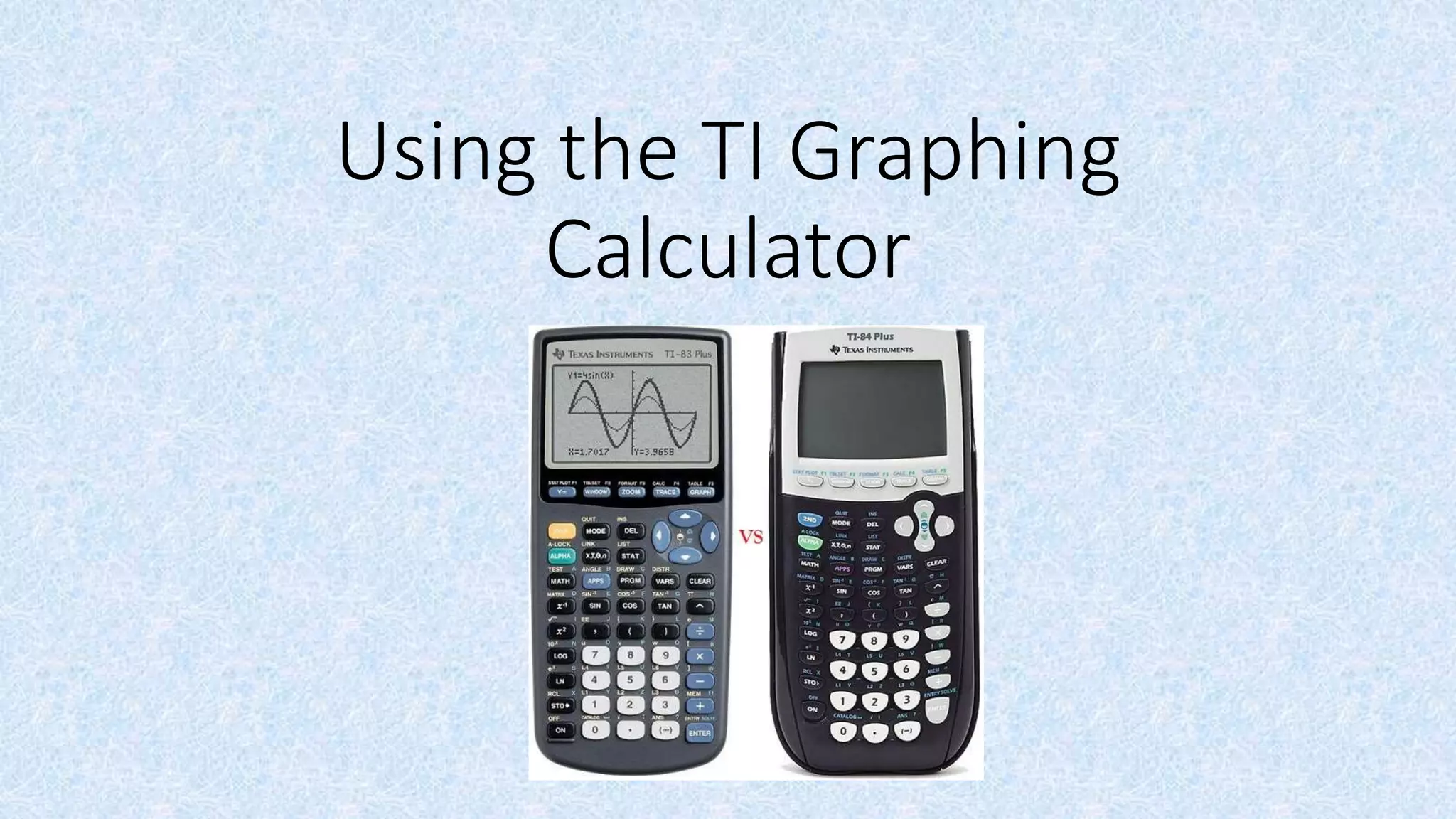
Using the TI Graphing
Calculator
“Using the TI 83 84 Graphing Calculator”
About 55,200 results
Contents
• Graphing an Equation
• Graphing Systems of Linear Equations
• Graphing Linear Inequalities
• Calculating Correlation Coefficient
• Finding a Regression Equation
Graphing Equations Using a TI-83/84:
Step 1: Press [Y=] and key in the equation using
[X, T, Θ, n] for x.
Step 2: Press [WINDOW] to change the viewing
window, if necessary.
Step 3: Enter in appropriate values for Xmin, Xmax,
Xscl, Ymin, Ymax, and Yscl, using the arrow
keys to navigate.
Step 4: Press [GRAPH].
• 1.3.1: Creating and Graphing Linear Equations in Two Variables
5
Example 1
A Boeing 747 starts out a long flight with about 57,260
gallons of fuel in its tank. The airplane uses an
average of 5 gallons of fuel per mile. Write an
equation that models the amount of fuel in the tank
and then graph the equation using a graphing
calculator.
6
Example 1, continued
Substitute the slope and y-intercept into the equation
y = mx + b, where m is the slope and b is the y-
intercept.
m = 5
b = 57,260
y = –5x + 57,260
7
Example 1, continued
Graph the equation on your calculator.
On a TI-83/84:
Step 1: Press [Y=].
Step 2: At Y1, type in [(–)][5][X, T, Θ,
n][+][57260].
Step 3: Press [WINDOW] to change the viewing
window.
Step 4: At Xmin, enter [0] and arrow down 1
level to Xmax.
Step 5: At Xmax, enter [3000] and arrow down 1
level to Xscl.
Example 1, continued
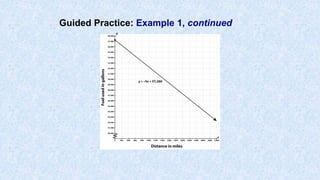
Redraw the graph on graph paper.
On the TI-83/84, the scale was entered in [WINDOW]
settings. The X scale was 100 and the Y scale was
1,000.
Set up the graph paper using these scales. Label the
y-axis “Fuel used in gallons.” Show a break in the
graph from 0 to 40,000 using a zigzag line. Label the
x-axis “Distance in miles.”
To show the table on the calculator so you can plot
points, press [2nd][GRAPH]. The table shows two
columns with values; the first column holds the x-
values, and the second column holds the y-values.
Example 1, continued
Pick a pair to plot, and then connect the line. To
return to the graph, press [GRAPH]. Remember to
label the line with the equation.
(Note: It may take you a few tries to get the window
settings the way you want. The graph that follows
shows an X scale of 200 so that you can easily see
the full extent of the graphed line.)
Guided Practice: Example 1, continued
Example 2
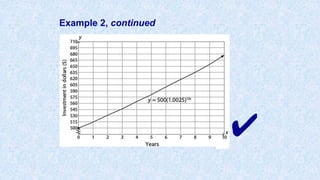
An investment of $500 is compounded monthly at a rate
of 3%. What is the equation that models this situation?
Graph the equation.
Example 2, continued
Read the problem statement and then reread
the scenario, identifying the known quantities.
Initial investment = $500
r = 3%
Compounded monthly = 12 times a year
Example 2, continued
Substitute the known quantities into the
general form of the compound interest
formula.
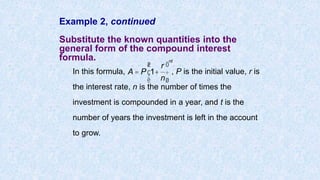
In this formula, , P is the initial value, r is
the interest rate, n is the number of times the
investment is compounded in a year, and t is the
number of years the investment is left in the account
to grow.
A = P 1+
r
n
æ
è
ç
ö
ø
÷
nt
Example 2, continued
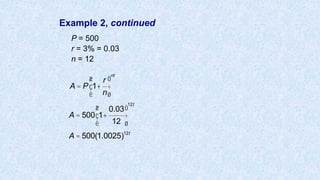
P = 500
r = 3% = 0.03
n = 12
A = P 1+
r
n
æ
è
ç
ö
ø
÷
nt
A = 500 1+
0.03
12
æ
è
ç
ö
ø
÷
12t
A = 500(1.0025)12t
Example 2, continued
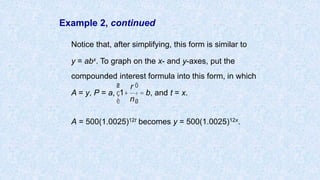
Notice that, after simplifying, this form is similar to
y = abx. To graph on the x- and y-axes, put the
compounded interest formula into this form, in which
A = y, P = a, , and t = x.
A = 500(1.0025)12t becomes y = 500(1.0025)12x.
1+
r
n
æ
è
ç
ö
ø
÷ = b
Example 2, continued
Graph the equation using a graphing calculator.
On a TI-83/84:
Step 1: Press [Y=].
Step 2: Type in the equation as follows:
[500][×][1.0025][^][12][X, T, Θ, n]
Step 3: Press [WINDOW] to change the
viewing window.
Step 4: At Xmin, enter [0] and arrow down
1 level to Xmax.
Step 5: At Xmax, enter [10] and arrow
down 1 level to Xscl.
Example 2, continued
Step 6: At Xscl, enter [1] and arrow down 1 level to
Ymin.
Step 7: At Ymin, enter [500] and arrow down 1
level to Ymax.
Step 8: At Ymax, enter [700] and arrow down 1
level to Yscl.
Step 9: At Yscl, enter [15].
Step 10: Press [GRAPH].
Example 2, continued
Transfer your graph from the screen to
graph paper.
Use the same scales that you set for your viewing
window.
The x-axis scale goes from 0 to 10 years in
increments of 1 year.
The y-axis scale goes from $500 to $700 in
increments of $15. You’ll need to show a break in
the graph from 0 to 500 with a zigzag line, as
shown in the graph that follows.
Example 2, continued
✔
Example 3
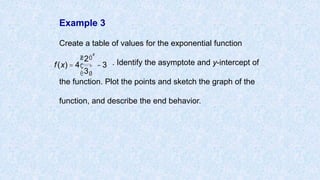
Create a table of values for the exponential function
. Identify the asymptote and y-intercept of
the function. Plot the points and sketch the graph of the
function, and describe the end behavior.
f(x) = 4
2
3
æ
è
ç
ö
ø
÷
x
-3
Example 3, continued
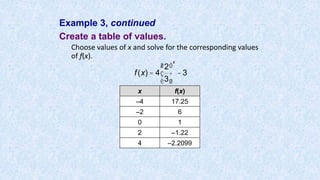
Create a table of values.
Choose values of x and solve for the corresponding values
of f(x).
x f(x)
–4 17.25
–2 6
0 1
2 –1.22
4 –2.2099
f(x) = 4
2
3
æ
è
ç
ö
ø
÷
x
-3
Example 3, continued
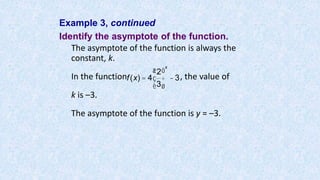
Identify the asymptote of the function.
The asymptote of the function is always the
constant, k.
In the function , the value of
k is –3.
The asymptote of the function is y = –3.
f(x) = 4
2
3
æ
è
ç
ö
ø
÷
x
-3
Example 3, continued
Determine the y-intercept of the function.
The y-intercept of the function is the value of f(x) when x is equal to 0.
It can be seen in the table that when x = 0, f(x) = 1.
The y-intercept is (0, 1).
Example 3, continued
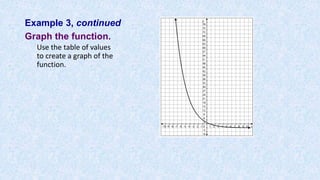
Graph the function.
Use the table of values
to create a graph of the
function.
Example 3, continued
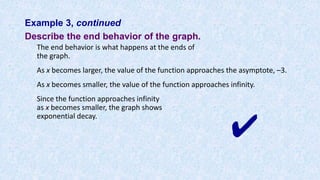
Describe the end behavior of the graph.
The end behavior is what happens at the ends of
the graph.
As x becomes larger, the value of the function approaches the asymptote, –3.
As x becomes smaller, the value of the function approaches infinity.
Since the function approaches infinity
as x becomes smaller, the graph shows
exponential decay.
✔
Example 4
You deposit $100 into a long-term certificate of deposit
(CD) in which your money will double every 7 years.
1. Write a function to show how much money you will
have in total in 7, 14, 21, 28, and 35 years.
2. Use the function to create a table
3. Graph the function.
4. What do the parameters represent in the context of
this problem?
Example 4, continued
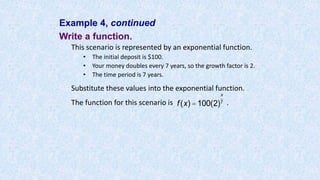
Write a function.
This scenario is represented by an exponential function.
• The initial deposit is $100.
• Your money doubles every 7 years, so the growth factor is 2.
• The time period is 7 years.
Substitute these values into the exponential function.
The function for this scenario is .f(x) =100(2)
x
7
Example 4, continued
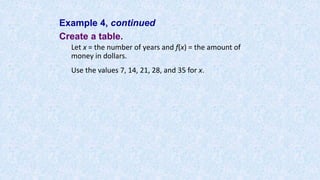
Create a table.
Let x = the number of years and f(x) = the amount of
money in dollars.
Use the values 7, 14, 21, 28, and 35 for x.
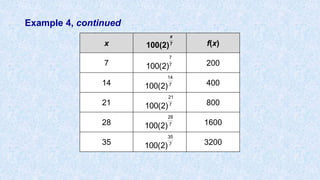
Example 4, continued
x f(x)
7 200
14 400
21 800
28 1600
35 3200
100(2)
x
7
100(2)
7
7
100(2)
14
7
100(2)
21
7
100(2)
28
7
100(2)
35
7
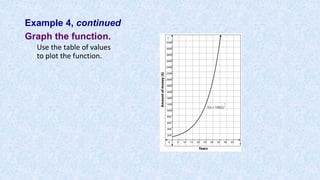
Example 4, continued
Graph the function.
Use the table of values
to plot the function.
Example 4, continued
Identify the parameters.
The parameters in this problem are the starting amount of $100 and the
growth rate of 2.
✔
Graphing Systems of Equations Using a TI-83/84:
Step 1: Press [Y=] and key in the equation using
[X, T, Θ, n] for x.
Step 2: Press [ENTER] and key in the second equation.
Step 3: Press [WINDOW] to change the viewing window, if
necessary.
Step 4: Enter in appropriate values for Xmin, Xmax, Xscl,
Ymin, Ymax, and Yscl, using the arrow keys to
navigate.
Step 5: Press [GRAPH].
Step 6: Press [2ND] and [TRACE] to access the Calculate
Menu.
Step 7: Choose 5: intersect.
Step 8: Press [ENTER] 3 times for the point of intersection.
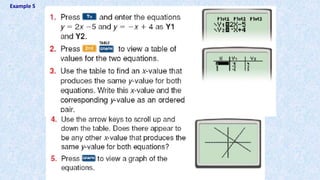
Example 5
Solve the system: y = -2x + 9 and y = 3x - 4
1. Enter the first equation into Y1.
2. Enter the second equation into Y2.
3. Hit GRAPH.
4. Use the INTERSECT option to find where the
two graphs intersect (the answer).
2nd TRACE (CALC) #5 intersect
Move spider close to the intersection.
Hit ENTER 3 times.
5. Answer: x = 2.6 and y = 3.8
Let’s do another one.
Example 6
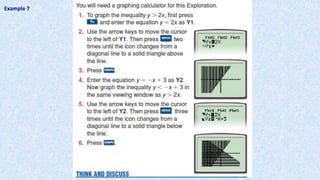
Graphing Linear Inequalities Using a TI-83/84:
Step 1: Press [Y=] and arrow over to the left two times so that
the cursor is blinking on the “”.
Step 2: Press [ENTER] two times for the greater than icon “ ”
and three times for the less than icon “ ”.
Step 3: Arrow over to the right two times so that the cursor is
blinking after the equal sign.
Step 4: Key in the equation using [X, T, Θ, n] for x.
Step 5: Press [WINDOW] to change the viewing window, if
necessary.
Step 6: Enter in appropriate values for Xmin, Xmax, Xscl, Ymin,
Ymax, and Yscl, using the arrow keys to navigate.
Step 7: Press [GRAPH].
Example
Example 7
Calculating and Interpreting the Correlation Coefficient
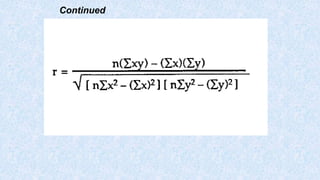
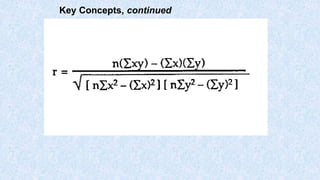
The correlation coefficient, r, is a quantity that allows us to
determine how strong this relationship is between two events.
It is a value that ranges from –1 to 1; a correlation coefficient of –1
indicates a strong negative correlation, a correlation coefficient of 1
indicates a strong positive correlation, and a correlation coefficient
of 0 indicates a very weak or no linear correlation.
Note that a correlation between two events does not imply that
changing one event causes a change in the other event—only that
a change might have taken place in the other event. This will be
explored more later.
Continued
Continued
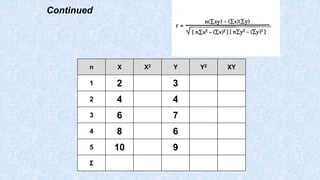
n X X2 Y Y2 XY
1 2 3
2 4 4
3 6 7
4 8 6
5 10 9
Σ
Key Concepts, continued
On a TI-83/84:
You can use a calculator to calculate the correlation coefficient.
Step 1: Set up the calculator to find correlations. Press
[2nd], then [CATALOG] (the “0” key). Scroll down and
select DiagnosticOn, then press [ENTER]. (This step
only needs to be completed once; the calculator will
stay in this mode until changed in this menu.)
Step 2: To calculate the correlation coefficient, first enter the
data into a list. Press [2nd], then L1 (the “1” key).
Scroll to enter data sets. Press [2nd], then L2 (the “2”
key). Enter the second event in L2.
Step 3: Calculate the correlation coefficient. Press [STAT],
then select CALC at the top of the screen. Scroll
down to 8:LinReg(a+bx), and press [ENTER].
The r value (the correlation coefficient) is displayed along
with the equation.
X Y
2 3
4 4
6 7
8 6
10 9
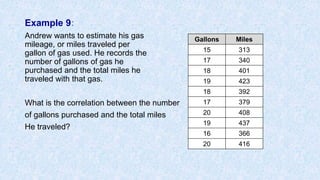
Example 9:
Andrew wants to estimate his gas
mileage, or miles traveled per
gallon of gas used. He records the
number of gallons of gas he
purchased and the total miles he
traveled with that gas.
What is the correlation between the number
of gallons purchased and the total miles
He traveled?
Gallons Miles
15 313
17 340
18 401
19 423
18 392
17 379
20 408
19 437
16 366
20 416
Example 9, continued
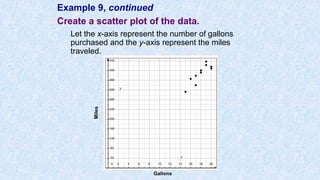
Create a scatter plot of the data.
Let the x-axis represent the number of gallons
purchased and the y-axis represent the miles
traveled.
Miles
Gallons
Example 9, continued
Analyze the scatter plot, and describe any
relationship between the two events.
As the number of gallons increases, the miles also
increase. The shape of the graph is approximately a
line, and it appears there is a positive linear
correlation between gallons and miles.
Example 9, continued
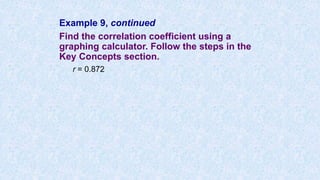
Find the correlation coefficient using a
graphing calculator. Follow the steps in the
Key Concepts section.
r = 0.872
Example 9, continued
Describe the correlation between the two
events.
0.872 is close to 1. There is a strong positive linear
correlation between the gallons purchased and the
miles traveled.
Find a Regression Equation
• A graphing calculator can graph a scatter plot of given data and find a
regression equation that models the given data.
• Begin by entering the data into lists on your calculator, as outlined in the
following steps.
• Decide whether the data would best be modeled with a quadratic
regression, linear regression, or exponential regression. (In this lesson,
we focus on quadratic regressions, but you can choose the type of
regression that is most appropriate for the situation.)
• To decide which regression model is best, look at the scatter plot of the
data you entered.
• After you find the appropriate model using your calculator, you can graph
this equation on top of the scatter plot to verify that it is a reasonable
model.
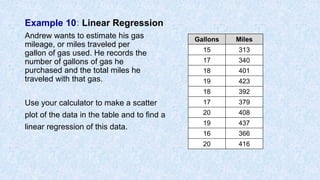
Example 10: Linear Regression
Andrew wants to estimate his gas
mileage, or miles traveled per
gallon of gas used. He records the
number of gallons of gas he
purchased and the total miles he
traveled with that gas.
Use your calculator to make a scatter
plot of the data in the table and to find a
linear regression of this data.
Gallons Miles
15 313
17 340
18 401
19 423
18 392
17 379
20 408
19 437
16 366
20 416
Example 10 continued
Create a scatter plot showing the relationship
between gallons of gas and miles driven.
Gallons Miles
15 313
17 340
18 401
19 423
18 392
17 379
20 408
19 437
16 366
20 416
Step 1: Press [STAT].
Step 2: Press [ENTER] to select Edit.
Step 3: Enter x-values into L1.
Step 4: Enter y-values into L2.
Step 5: Press [2nd][Y=].
Step 6: Press [ENTER] to turn on Stat Plot,
Step 7: For Plot 1, press [ENTER] to turn on; scroll down to TYPE select type
scatter plot. (optional: select lists and MARK).
Step 7: Press [ZOOM][9] to select ZoomStat and show the scatter plot.
Example 10, continued
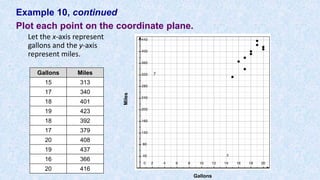
Plot each point on the coordinate plane.
Let the x-axis represent
gallons and the y-axis
represent miles.
Miles
Gallons
Gallons Miles
15 313
17 340
18 401
19 423
18 392
17 379
20 408
19 437
16 366
20 416
Example 10, continued
• Your graphing calculator can help you to find a linear regression model
after you input the data.
Entering Lists Using a TI-83/84:
Step 1: Press [STAT].
Step 2: Arrow to the right to select Calc.
Step 3: Press [5] to select LinReg.
Step 4: At the LinReg (a + bx) screen, Press [ENTER]
y = a + bx
a = 24.10843373
b = 20. 30120482
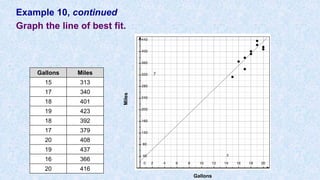
Step 5: Press [y=] and enter regression equation y = 20.3x + 24.1
Step 6: Press [GRAPH]
Example 10, continued
Graph the line of best fit.
Miles
Gallons
Gallons Miles
15 313
17 340
18 401
19 423
18 392
17 379
20 408
19 437
16 366
20 416
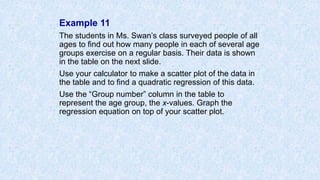
Example 11
The students in Ms. Swan’s class surveyed people of all
ages to find out how many people in each of several age
groups exercise on a regular basis. Their data is shown
in the table on the next slide.
Use your calculator to make a scatter plot of the data in
the table and to find a quadratic regression of this data.
Use the “Group number” column in the table to
represent the age group, the x-values. Graph the
regression equation on top of your scatter plot.
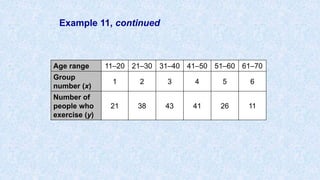
Example 11, continued
Age range 11–20 21–30 31–40 41–50 51–60 61–70
Group
number (x)
1 2 3 4 5 6
Number of
people who
exercise (y)
21 38 43 41 26 11
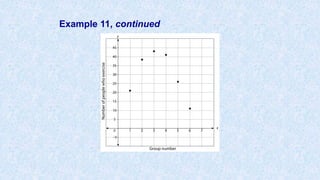
Example 11, continued
Make a scatter plot of the data.
On a TI-83/84:
Step 1: Press [STAT].
Step 2: Press [ENTER] to select Edit.
Step 3: Enter x-values into L1.
Step 4: Enter y-values into L2.
Step 5: Press [2nd][Y=].
Step 6: Press [ENTER] twice to turn on the Stat Plot.
Step 7: Press [ZOOM][9] to select ZoomStat and
show the scatter plot.
Example 11, continued
Find the quadratic regression model that best fits this
data.
On a TI-83/84:
Step 1: Press [STAT].
Step 2: Arrow to the right to select Calc.
Step 3: Press [5] to select QuadReg.
Step 4: At the QuadReg screen, enter the parameters for the
function (Xlist: L1, Ylist: L2, Store RegEQ: Y1). To enter Y1,
press [VARS] and arrow over to the right to “Y-VARS.”
Select 1: Function. Select 1: Y1.
Step 5: Press [ENTER] twice to see the quadratic regression
equation.
Step 6: Press [ZOOM][9] to view the graph of the scatter plot and
the regression equation.
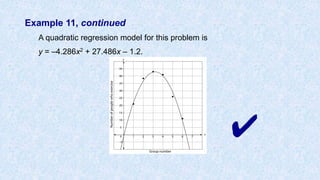
Example 11, continued
A quadratic regression model for this problem is
y = –4.286x2 + 27.486x – 1.2.
✔
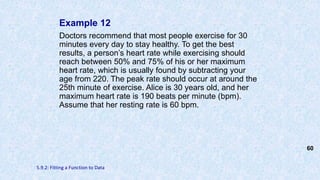
Example 12
Doctors recommend that most people exercise for 30
minutes every day to stay healthy. To get the best
results, a person’s heart rate while exercising should
reach between 50% and 75% of his or her maximum
heart rate, which is usually found by subtracting your
age from 220. The peak rate should occur at around the
25th minute of exercise. Alice is 30 years old, and her
maximum heart rate is 190 beats per minute (bpm).
Assume that her resting rate is 60 bpm.
60
5.9.2: Fitting a Function to Data
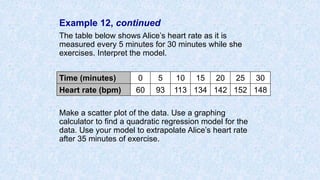
Example 12, continued
The table below shows Alice’s heart rate as it is
measured every 5 minutes for 30 minutes while she
exercises. Interpret the model.
Make a scatter plot of the data. Use a graphing
calculator to find a quadratic regression model for the
data. Use your model to extrapolate Alice’s heart rate
after 35 minutes of exercise.
Time (minutes) 0 5 10 15 20 25 30
Heart rate (bpm) 60 93 113 134 142 152 148
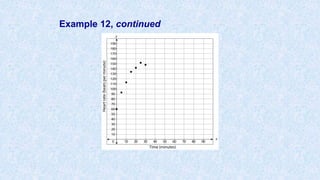
Example 12, continued
Make a scatter plot of the data.
On a TI-83/84:
Step 1: Press [STAT].
Step 2: Press [ENTER] to select Edit.
Step 3: Enter x-values into L1.
Step 4: Enter y-values into L2.
Step 5: Press [2nd][Y=].
Step 6: Press [ENTER] twice to turn on the Stat Plot.
Step 7: Press [ZOOM][9] to select ZoomStat and
show the scatter plot.
Example 12, continued
Find a quadratic regression model using your
graphing calculator.
On a TI-83/84:
Step 1: Press [STAT].
Step 2: Arrow to the right to select Calc.
Step 3: Press [5] to select QuadReg.
Step 4: At the QuadReg screen, enter the
parameters for the function (Xlist: L1, Ylist:
L2, Store RegEQ: Y1). To enter Y1, press
[VARS] and arrow over to the right to “Y-
VARS.” Select 1: Function. Select 1: Y1.
Step 5: Press [ENTER] twice to see the quadratic
regression equation.
Step 6: Press [ZOOM][9] to view the graph of the
scatter plot and the regression equation
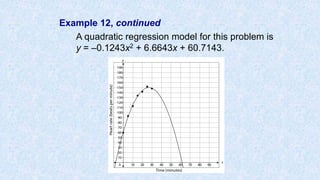
Example 12, continued
A quadratic regression model for this problem is
y = –0.1243x2 + 6.6643x + 60.7143.
Example 12, continued
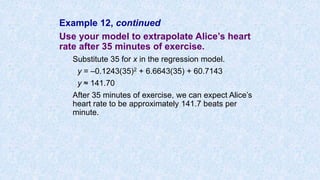
Use your model to extrapolate Alice’s heart
rate after 35 minutes of exercise.
Substitute 35 for x in the regression model.
y = –0.1243(35)2 + 6.6643(35) + 60.7143
y ≈ 141.70
After 35 minutes of exercise, we can expect Alice’s
heart rate to be approximately 141.7 beats per
minute.
Example 12, continued
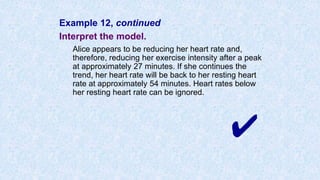
Interpret the model.
Alice appears to be reducing her heart rate and,
therefore, reducing her exercise intensity after a peak
at approximately 27 minutes. If she continues the
trend, her heart rate will be back to her resting heart
rate at approximately 54 minutes. Heart rates below
her resting heart rate can be ignored.
✔

Using the ti 83 84

  • 1.
    Using the TIGraphing Calculator
  • 2.
    “Using the TI83 84 Graphing Calculator” About 55,200 results
  • 4.
    Contents • Graphing anEquation • Graphing Systems of Linear Equations • Graphing Linear Inequalities • Calculating Correlation Coefficient • Finding a Regression Equation
  • 5.
    Graphing Equations Usinga TI-83/84: Step 1: Press [Y=] and key in the equation using [X, T, Θ, n] for x. Step 2: Press [WINDOW] to change the viewing window, if necessary. Step 3: Enter in appropriate values for Xmin, Xmax, Xscl, Ymin, Ymax, and Yscl, using the arrow keys to navigate. Step 4: Press [GRAPH]. • 1.3.1: Creating and Graphing Linear Equations in Two Variables 5
  • 6.
    Example 1 A Boeing747 starts out a long flight with about 57,260 gallons of fuel in its tank. The airplane uses an average of 5 gallons of fuel per mile. Write an equation that models the amount of fuel in the tank and then graph the equation using a graphing calculator. 6
  • 7.
    Example 1, continued Substitutethe slope and y-intercept into the equation y = mx + b, where m is the slope and b is the y- intercept. m = 5 b = 57,260 y = –5x + 57,260 7
  • 8.
    Example 1, continued Graphthe equation on your calculator. On a TI-83/84: Step 1: Press [Y=]. Step 2: At Y1, type in [(–)][5][X, T, Θ, n][+][57260]. Step 3: Press [WINDOW] to change the viewing window. Step 4: At Xmin, enter [0] and arrow down 1 level to Xmax. Step 5: At Xmax, enter [3000] and arrow down 1 level to Xscl.
  • 9.
    Example 1, continued Redrawthe graph on graph paper. On the TI-83/84, the scale was entered in [WINDOW] settings. The X scale was 100 and the Y scale was 1,000. Set up the graph paper using these scales. Label the y-axis “Fuel used in gallons.” Show a break in the graph from 0 to 40,000 using a zigzag line. Label the x-axis “Distance in miles.” To show the table on the calculator so you can plot points, press [2nd][GRAPH]. The table shows two columns with values; the first column holds the x- values, and the second column holds the y-values.
  • 10.
    Example 1, continued Picka pair to plot, and then connect the line. To return to the graph, press [GRAPH]. Remember to label the line with the equation. (Note: It may take you a few tries to get the window settings the way you want. The graph that follows shows an X scale of 200 so that you can easily see the full extent of the graphed line.)
  • 11.
  • 12.
    Example 2 An investmentof $500 is compounded monthly at a rate of 3%. What is the equation that models this situation? Graph the equation.
  • 13.
    Example 2, continued Readthe problem statement and then reread the scenario, identifying the known quantities. Initial investment = $500 r = 3% Compounded monthly = 12 times a year
  • 14.
    Example 2, continued Substitutethe known quantities into the general form of the compound interest formula. In this formula, , P is the initial value, r is the interest rate, n is the number of times the investment is compounded in a year, and t is the number of years the investment is left in the account to grow. A = P 1+ r n æ è ç ö ø ÷ nt
  • 15.
    Example 2, continued P= 500 r = 3% = 0.03 n = 12 A = P 1+ r n æ è ç ö ø ÷ nt A = 500 1+ 0.03 12 æ è ç ö ø ÷ 12t A = 500(1.0025)12t
  • 16.
    Example 2, continued Noticethat, after simplifying, this form is similar to y = abx. To graph on the x- and y-axes, put the compounded interest formula into this form, in which A = y, P = a, , and t = x. A = 500(1.0025)12t becomes y = 500(1.0025)12x. 1+ r n æ è ç ö ø ÷ = b
  • 17.
    Example 2, continued Graphthe equation using a graphing calculator. On a TI-83/84: Step 1: Press [Y=]. Step 2: Type in the equation as follows: [500][×][1.0025][^][12][X, T, Θ, n] Step 3: Press [WINDOW] to change the viewing window. Step 4: At Xmin, enter [0] and arrow down 1 level to Xmax. Step 5: At Xmax, enter [10] and arrow down 1 level to Xscl.
  • 18.
    Example 2, continued Step6: At Xscl, enter [1] and arrow down 1 level to Ymin. Step 7: At Ymin, enter [500] and arrow down 1 level to Ymax. Step 8: At Ymax, enter [700] and arrow down 1 level to Yscl. Step 9: At Yscl, enter [15]. Step 10: Press [GRAPH].
  • 19.
    Example 2, continued Transferyour graph from the screen to graph paper. Use the same scales that you set for your viewing window. The x-axis scale goes from 0 to 10 years in increments of 1 year. The y-axis scale goes from $500 to $700 in increments of $15. You’ll need to show a break in the graph from 0 to 500 with a zigzag line, as shown in the graph that follows.
  • 20.
  • 21.
    Example 3 Create atable of values for the exponential function . Identify the asymptote and y-intercept of the function. Plot the points and sketch the graph of the function, and describe the end behavior. f(x) = 4 2 3 æ è ç ö ø ÷ x -3
  • 22.
    Example 3, continued Createa table of values. Choose values of x and solve for the corresponding values of f(x). x f(x) –4 17.25 –2 6 0 1 2 –1.22 4 –2.2099 f(x) = 4 2 3 æ è ç ö ø ÷ x -3
  • 23.
    Example 3, continued Identifythe asymptote of the function. The asymptote of the function is always the constant, k. In the function , the value of k is –3. The asymptote of the function is y = –3. f(x) = 4 2 3 æ è ç ö ø ÷ x -3
  • 24.
    Example 3, continued Determinethe y-intercept of the function. The y-intercept of the function is the value of f(x) when x is equal to 0. It can be seen in the table that when x = 0, f(x) = 1. The y-intercept is (0, 1).
  • 25.
    Example 3, continued Graphthe function. Use the table of values to create a graph of the function.
  • 26.
    Example 3, continued Describethe end behavior of the graph. The end behavior is what happens at the ends of the graph. As x becomes larger, the value of the function approaches the asymptote, –3. As x becomes smaller, the value of the function approaches infinity. Since the function approaches infinity as x becomes smaller, the graph shows exponential decay. ✔
  • 27.
    Example 4 You deposit$100 into a long-term certificate of deposit (CD) in which your money will double every 7 years. 1. Write a function to show how much money you will have in total in 7, 14, 21, 28, and 35 years. 2. Use the function to create a table 3. Graph the function. 4. What do the parameters represent in the context of this problem?
  • 28.
    Example 4, continued Writea function. This scenario is represented by an exponential function. • The initial deposit is $100. • Your money doubles every 7 years, so the growth factor is 2. • The time period is 7 years. Substitute these values into the exponential function. The function for this scenario is .f(x) =100(2) x 7
  • 29.
    Example 4, continued Createa table. Let x = the number of years and f(x) = the amount of money in dollars. Use the values 7, 14, 21, 28, and 35 for x.
  • 30.
    Example 4, continued xf(x) 7 200 14 400 21 800 28 1600 35 3200 100(2) x 7 100(2) 7 7 100(2) 14 7 100(2) 21 7 100(2) 28 7 100(2) 35 7
  • 31.
    Example 4, continued Graphthe function. Use the table of values to plot the function.
  • 32.
    Example 4, continued Identifythe parameters. The parameters in this problem are the starting amount of $100 and the growth rate of 2. ✔
  • 33.
    Graphing Systems ofEquations Using a TI-83/84: Step 1: Press [Y=] and key in the equation using [X, T, Θ, n] for x. Step 2: Press [ENTER] and key in the second equation. Step 3: Press [WINDOW] to change the viewing window, if necessary. Step 4: Enter in appropriate values for Xmin, Xmax, Xscl, Ymin, Ymax, and Yscl, using the arrow keys to navigate. Step 5: Press [GRAPH]. Step 6: Press [2ND] and [TRACE] to access the Calculate Menu. Step 7: Choose 5: intersect. Step 8: Press [ENTER] 3 times for the point of intersection.
  • 34.
  • 35.
    Solve the system:y = -2x + 9 and y = 3x - 4 1. Enter the first equation into Y1. 2. Enter the second equation into Y2. 3. Hit GRAPH. 4. Use the INTERSECT option to find where the two graphs intersect (the answer). 2nd TRACE (CALC) #5 intersect Move spider close to the intersection. Hit ENTER 3 times. 5. Answer: x = 2.6 and y = 3.8 Let’s do another one. Example 6
  • 36.
    Graphing Linear InequalitiesUsing a TI-83/84: Step 1: Press [Y=] and arrow over to the left two times so that the cursor is blinking on the “”. Step 2: Press [ENTER] two times for the greater than icon “ ” and three times for the less than icon “ ”. Step 3: Arrow over to the right two times so that the cursor is blinking after the equal sign. Step 4: Key in the equation using [X, T, Θ, n] for x. Step 5: Press [WINDOW] to change the viewing window, if necessary. Step 6: Enter in appropriate values for Xmin, Xmax, Xscl, Ymin, Ymax, and Yscl, using the arrow keys to navigate. Step 7: Press [GRAPH].
  • 37.
  • 38.
    Calculating and Interpretingthe Correlation Coefficient The correlation coefficient, r, is a quantity that allows us to determine how strong this relationship is between two events. It is a value that ranges from –1 to 1; a correlation coefficient of –1 indicates a strong negative correlation, a correlation coefficient of 1 indicates a strong positive correlation, and a correlation coefficient of 0 indicates a very weak or no linear correlation. Note that a correlation between two events does not imply that changing one event causes a change in the other event—only that a change might have taken place in the other event. This will be explored more later.
  • 39.
  • 40.
    Continued n X X2Y Y2 XY 1 2 3 2 4 4 3 6 7 4 8 6 5 10 9 Σ
  • 41.
  • 42.
    On a TI-83/84: Youcan use a calculator to calculate the correlation coefficient. Step 1: Set up the calculator to find correlations. Press [2nd], then [CATALOG] (the “0” key). Scroll down and select DiagnosticOn, then press [ENTER]. (This step only needs to be completed once; the calculator will stay in this mode until changed in this menu.) Step 2: To calculate the correlation coefficient, first enter the data into a list. Press [2nd], then L1 (the “1” key). Scroll to enter data sets. Press [2nd], then L2 (the “2” key). Enter the second event in L2. Step 3: Calculate the correlation coefficient. Press [STAT], then select CALC at the top of the screen. Scroll down to 8:LinReg(a+bx), and press [ENTER]. The r value (the correlation coefficient) is displayed along with the equation. X Y 2 3 4 4 6 7 8 6 10 9
  • 43.
    Example 9: Andrew wantsto estimate his gas mileage, or miles traveled per gallon of gas used. He records the number of gallons of gas he purchased and the total miles he traveled with that gas. What is the correlation between the number of gallons purchased and the total miles He traveled? Gallons Miles 15 313 17 340 18 401 19 423 18 392 17 379 20 408 19 437 16 366 20 416
  • 44.
    Example 9, continued Createa scatter plot of the data. Let the x-axis represent the number of gallons purchased and the y-axis represent the miles traveled. Miles Gallons
  • 45.
    Example 9, continued Analyzethe scatter plot, and describe any relationship between the two events. As the number of gallons increases, the miles also increase. The shape of the graph is approximately a line, and it appears there is a positive linear correlation between gallons and miles.
  • 46.
    Example 9, continued Findthe correlation coefficient using a graphing calculator. Follow the steps in the Key Concepts section. r = 0.872
  • 47.
    Example 9, continued Describethe correlation between the two events. 0.872 is close to 1. There is a strong positive linear correlation between the gallons purchased and the miles traveled.
  • 48.
    Find a RegressionEquation • A graphing calculator can graph a scatter plot of given data and find a regression equation that models the given data. • Begin by entering the data into lists on your calculator, as outlined in the following steps. • Decide whether the data would best be modeled with a quadratic regression, linear regression, or exponential regression. (In this lesson, we focus on quadratic regressions, but you can choose the type of regression that is most appropriate for the situation.) • To decide which regression model is best, look at the scatter plot of the data you entered. • After you find the appropriate model using your calculator, you can graph this equation on top of the scatter plot to verify that it is a reasonable model.
  • 49.
    Example 10: LinearRegression Andrew wants to estimate his gas mileage, or miles traveled per gallon of gas used. He records the number of gallons of gas he purchased and the total miles he traveled with that gas. Use your calculator to make a scatter plot of the data in the table and to find a linear regression of this data. Gallons Miles 15 313 17 340 18 401 19 423 18 392 17 379 20 408 19 437 16 366 20 416
  • 50.
    Example 10 continued Createa scatter plot showing the relationship between gallons of gas and miles driven. Gallons Miles 15 313 17 340 18 401 19 423 18 392 17 379 20 408 19 437 16 366 20 416 Step 1: Press [STAT]. Step 2: Press [ENTER] to select Edit. Step 3: Enter x-values into L1. Step 4: Enter y-values into L2. Step 5: Press [2nd][Y=]. Step 6: Press [ENTER] to turn on Stat Plot, Step 7: For Plot 1, press [ENTER] to turn on; scroll down to TYPE select type scatter plot. (optional: select lists and MARK). Step 7: Press [ZOOM][9] to select ZoomStat and show the scatter plot.
  • 51.
    Example 10, continued Ploteach point on the coordinate plane. Let the x-axis represent gallons and the y-axis represent miles. Miles Gallons Gallons Miles 15 313 17 340 18 401 19 423 18 392 17 379 20 408 19 437 16 366 20 416
  • 52.
    Example 10, continued •Your graphing calculator can help you to find a linear regression model after you input the data. Entering Lists Using a TI-83/84: Step 1: Press [STAT]. Step 2: Arrow to the right to select Calc. Step 3: Press [5] to select LinReg. Step 4: At the LinReg (a + bx) screen, Press [ENTER] y = a + bx a = 24.10843373 b = 20. 30120482 Step 5: Press [y=] and enter regression equation y = 20.3x + 24.1 Step 6: Press [GRAPH]
  • 53.
    Example 10, continued Graphthe line of best fit. Miles Gallons Gallons Miles 15 313 17 340 18 401 19 423 18 392 17 379 20 408 19 437 16 366 20 416
  • 54.
    Example 11 The studentsin Ms. Swan’s class surveyed people of all ages to find out how many people in each of several age groups exercise on a regular basis. Their data is shown in the table on the next slide. Use your calculator to make a scatter plot of the data in the table and to find a quadratic regression of this data. Use the “Group number” column in the table to represent the age group, the x-values. Graph the regression equation on top of your scatter plot.
  • 55.
    Example 11, continued Agerange 11–20 21–30 31–40 41–50 51–60 61–70 Group number (x) 1 2 3 4 5 6 Number of people who exercise (y) 21 38 43 41 26 11
  • 56.
    Example 11, continued Makea scatter plot of the data. On a TI-83/84: Step 1: Press [STAT]. Step 2: Press [ENTER] to select Edit. Step 3: Enter x-values into L1. Step 4: Enter y-values into L2. Step 5: Press [2nd][Y=]. Step 6: Press [ENTER] twice to turn on the Stat Plot. Step 7: Press [ZOOM][9] to select ZoomStat and show the scatter plot.
  • 57.
  • 58.
    Example 11, continued Findthe quadratic regression model that best fits this data. On a TI-83/84: Step 1: Press [STAT]. Step 2: Arrow to the right to select Calc. Step 3: Press [5] to select QuadReg. Step 4: At the QuadReg screen, enter the parameters for the function (Xlist: L1, Ylist: L2, Store RegEQ: Y1). To enter Y1, press [VARS] and arrow over to the right to “Y-VARS.” Select 1: Function. Select 1: Y1. Step 5: Press [ENTER] twice to see the quadratic regression equation. Step 6: Press [ZOOM][9] to view the graph of the scatter plot and the regression equation.
  • 59.
    Example 11, continued Aquadratic regression model for this problem is y = –4.286x2 + 27.486x – 1.2. ✔
  • 60.
    Example 12 Doctors recommendthat most people exercise for 30 minutes every day to stay healthy. To get the best results, a person’s heart rate while exercising should reach between 50% and 75% of his or her maximum heart rate, which is usually found by subtracting your age from 220. The peak rate should occur at around the 25th minute of exercise. Alice is 30 years old, and her maximum heart rate is 190 beats per minute (bpm). Assume that her resting rate is 60 bpm. 60 5.9.2: Fitting a Function to Data
  • 61.
    Example 12, continued Thetable below shows Alice’s heart rate as it is measured every 5 minutes for 30 minutes while she exercises. Interpret the model. Make a scatter plot of the data. Use a graphing calculator to find a quadratic regression model for the data. Use your model to extrapolate Alice’s heart rate after 35 minutes of exercise. Time (minutes) 0 5 10 15 20 25 30 Heart rate (bpm) 60 93 113 134 142 152 148
  • 62.
    Example 12, continued Makea scatter plot of the data. On a TI-83/84: Step 1: Press [STAT]. Step 2: Press [ENTER] to select Edit. Step 3: Enter x-values into L1. Step 4: Enter y-values into L2. Step 5: Press [2nd][Y=]. Step 6: Press [ENTER] twice to turn on the Stat Plot. Step 7: Press [ZOOM][9] to select ZoomStat and show the scatter plot.
  • 63.
  • 64.
    Example 12, continued Finda quadratic regression model using your graphing calculator. On a TI-83/84: Step 1: Press [STAT]. Step 2: Arrow to the right to select Calc. Step 3: Press [5] to select QuadReg. Step 4: At the QuadReg screen, enter the parameters for the function (Xlist: L1, Ylist: L2, Store RegEQ: Y1). To enter Y1, press [VARS] and arrow over to the right to “Y- VARS.” Select 1: Function. Select 1: Y1. Step 5: Press [ENTER] twice to see the quadratic regression equation. Step 6: Press [ZOOM][9] to view the graph of the scatter plot and the regression equation
  • 65.
    Example 12, continued Aquadratic regression model for this problem is y = –0.1243x2 + 6.6643x + 60.7143.
  • 66.
    Example 12, continued Useyour model to extrapolate Alice’s heart rate after 35 minutes of exercise. Substitute 35 for x in the regression model. y = –0.1243(35)2 + 6.6643(35) + 60.7143 y ≈ 141.70 After 35 minutes of exercise, we can expect Alice’s heart rate to be approximately 141.7 beats per minute.
  • 67.
    Example 12, continued Interpretthe model. Alice appears to be reducing her heart rate and, therefore, reducing her exercise intensity after a peak at approximately 27 minutes. If she continues the trend, her heart rate will be back to her resting heart rate at approximately 54 minutes. Heart rates below her resting heart rate can be ignored. ✔