LINUX FUNDAMENTALS
PRESENTED BY DIANA WHITNEY – AUTOMATICPOODLE
TO CYBER AEGIS
SEPTEMBER 4, 2021
WHOAMI
Diana Whitney
@automaticpoodle
Cyber Security Specialist for six years
Payment Card Industry device
compliance
Threat Intelligence Research
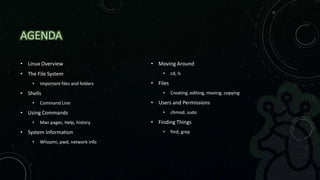
AGENDA
• Linux Overview
• The File System
• Important files and folders
• Shells
• Command Line
• Using Commands
• Man pages, Help, history
• System Information
• Whoami, pwd, network info
• Moving Around
• cd, ls
• Files
• Creating, editing, moving, copying
• Users and Permissions
• chmod, sudo
• Finding Things
• find, grep
LINUX OVERVIEW
• The Linux kernel was developed by Linus Torvalds as a free, open-source operating system kernel
• v0.01 was released in 1991 and was used in the GNU OS, a free alternative to UNIX
• The developer community comprises 5000-6000 members
• v5.13.11 is the current kernel version as of August 15, 2021
• Over 600 distributions – Ubuntu, Debian, Fedora, RedHat, Linux Mint, Kali, etc
• One of the most popular in the world – Android devices, smart cars, home appliances, enterprise
servers
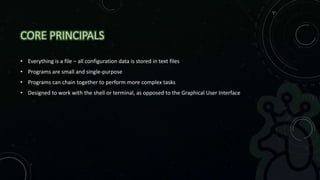
CORE PRINCIPALS
• Everything is a file – all configuration data is stored in text files
• Programs are small and single-purpose
• Programs can chain together to perform more complex tasks
• Designed to work with the shell or terminal, as opposed to the Graphical User Interface
root
root
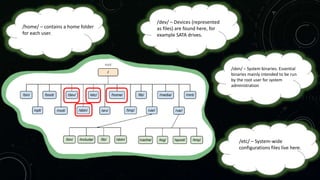
THE FILESYSTEM
Root – the top-level directory.
All files required to boot the OS
live here.
/bin – essential command binaries (or
programs) are here. These binaries are
essential to Linux’s functionality.
Example – bash, chmod
root
/opt – optional files, including
third party tools and software
go here
root
/root/ – The home directory
for the root user.
root
root
/dev/ – Devices (represented
as files) are found here, for
example SATA drives.
/sbin/ – System binaries. Essential
binaries mainly intended to be run
by the root user for system
administration
root
/etc/ – System-wide
configurations files live here.
root
/home/ – contains a home folder
for each user.
root
root
/tmp/ – Stores temporary
application files. Generally
cleared upon a system
restart.
/usr/ – Non-essential
applications and files
used by users.
root
/var/ – Many log files are
found here.
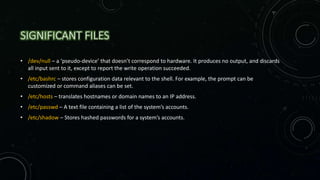
SIGNIFICANT FILES
• /dev/null – a ‘pseudo-device’ that doesn’t correspond to hardware. It produces no output, and discards
all input sent to it, except to report the write operation succeeded.
• /etc/bashrc – stores configuration data relevant to the shell. For example, the prompt can be
customized or command aliases can be set.
• /etc/hosts – translates hostnames or domain names to an IP address.
• /etc/passwd – A text file containing a list of the system’s accounts.
• /etc/shadow – Stores hashed passwords for a system’s accounts.
THE SHELL (OR COMMAND LINE)
• Text-based input/output (I/O) interface
• Most commonly used shell is the Bourne-Again Shell – BASH
• Others include Tcsh/Csh, Ksh, Zsh, Fish
• Everything that can be done through a Graphical User Interface (GUI) can be done through the shell
• Programs and processes can be accessed more quickly
• Scripts can be used to automate tasks
• Can be used to access remote systems through network protocols like SSH
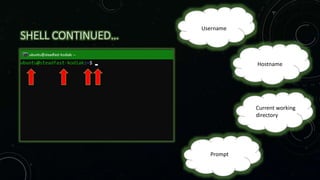
SHELL CONTINUED…
root
root
root
root
Username
Hostname
Current working
directory
Prompt
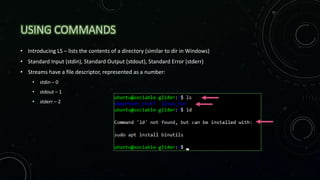
USING COMMANDS
• Introducing LS – lists the contents of a directory (similar to dir in Windows)
• Standard Input (stdin), Standard Output (stdout), Standard Error (stderr)
• Streams have a file descriptor, represented as a number:
• stdin – 0
• stdout – 1
• stderr – 2
But w
THE MAN PAGE
Ok that’s kind of cool but…
What else can we do?
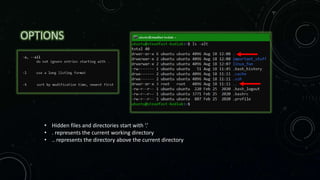
OPTIONS EXERCISE…
• What if I want to…
Show all files, including hidden files
starting with ‘.’ ?
Show the files in a long list
Place the most recently modified files
at the top of the list
OPTIONS
• Hidden files and directories start with ‘.’
• . represents the current working directory
• .. represents the directory above the current directory
CLEAR AND BASH HISTORY
There’s too much
stuff on my screen
now omg 
OH NO MY STUFF
>:[
CLEAR AND BASH HISTORY
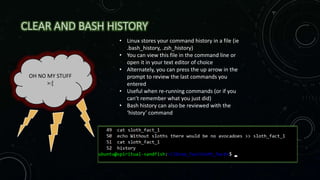
• Linux stores your command history in a file (ie
.bash_history, .zsh_history)
• You can view this file in the command line or
open it in your text editor of choice
• Alternately, you can press the up arrow in the
prompt to review the last commands you
entered
• Useful when re-running commands (or if you
can’t remember what you just did)
• Bash history can also be reviewed with the
‘history’ command
APROPOS
• Can’t remember the name of the command
• Remember roughly what it does…
• The apropos command can be used to search man pages using key words or phrases as
options to try and find what you’re looking for
GATHERING SYSTEM INFORMATION
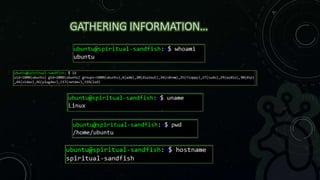
whoami
id
hostname uname
ifconfig
or
ip
pwd
Displays the current user’s name
Show the user and group IDs
(numeric values)
Shows the DNS name of the
current host system
Print system information
Returns information about the
network interface(s)
Prints the current working
directory
GATHERING INFORMATION…
IFCONFIG AND IP
SYSTEM INFORMATION TREASURE HUNT!
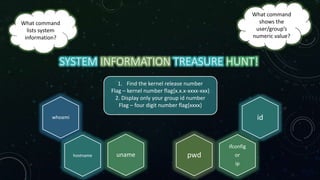
1. Find the kernel release number
Flag – kernel number flag{x.x.x-xxxx-xxx}
2. Display only your group id number
Flag – four digit number flag{xxxx}
What command
lists system
information?
What command
shows the
user/group’s
numeric value?
whoami id
hostname uname
ifconfig
or
ip
pwd
MOVING AROUND
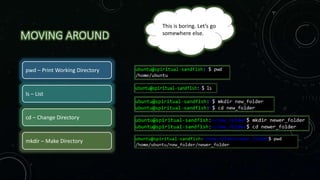
pwd – Print Working Directory
ls – List
cd – Change Directory
mkdir – Make Directory
This is boring. Let’s go
somewhere else.
CAN WE DO THIS IN ONE COMMAND?
• Yes!
• Use the –p option (for ‘parent’) with mkdir to create any parent directories
• mkdir –p dogs/dalmatians
• ‘dogs’ is the parent directory, and will be created as well as ‘dalmatians’
• Change directories to ‘dalmatians’ using a single command
/
home
important_stuff
test
linux_fun
new_folder
sloth_facts coffee
newer_folder
user
(ubuntu)
RELATIVE PATH
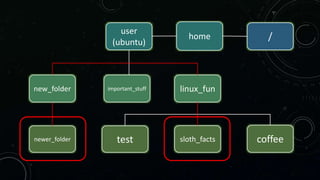
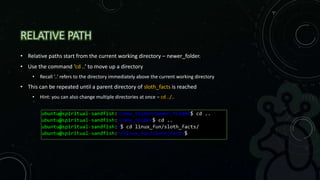
• Relative paths start from the current working directory – newer_folder.
• Use the command ‘cd ..’ to move up a directory
• Recall ‘..’ refers to the directory immediately above the current working directory
• This can be repeated until a parent directory of sloth_facts is reached
• Hint: you can also change multiple directories at once – cd ../..
ABSOLUTE PATH
• Another, less repetitive way to access a file or folder is to use its absolute path
• Absolute Path contains a complete list of all elements (ie folders) starting at the root
directory / and ending at the destination
• To move from sloth_facts to coffee using the absolute path, use the command:
cd /home/[username]/linux_fun/coffee
/
home
important_stuff
test
linux_fun
new_folder
sloth_facts coffee
newer_folder
user
(ubuntu)
cd /home/[username]/linux_fun/coffee
FUN WITH FILES
touch – creates an empty file
Syntax:
touch [filename]
Make a file called sloth_fact_1 in the current directory
(~/linux_fun/coffee)
FUN WITH FILES
touch – creates an empty file
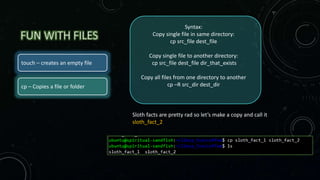
cp – Copies a file or folder
Syntax:
Copy single file in same directory:
cp src_file dest_file
Copy single file to another directory:
cp src_file dest_file dir_that_exists
Copy all files from one directory to another
cp –R src_dir dest_dir
Sloth facts are pretty rad so let’s make a copy and call it
sloth_fact_2
FUN WITH FILES
touch – creates an empty file
cp – Copies a file or folder
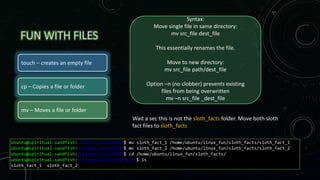
mv – Moves a file or folder
Syntax:
Move single file in same directory:
mv src_file dest_file
This essentially renames the file.
Move to new directory:
mv src_file path/dest_file
Option –n (no clobber) prevents existing
files from being overwritten
mv –n src_file _dest_file
Wait a sec this is not the sloth_facts folder. Move both sloth
fact files to sloth_facts
FUN WITH FILES
touch – creates an empty file
cp – Copies a file or folder
mv – Moves a file or folder
rm – Remove a file or folder
Syntax:
Remove single file in same directory:
rm file
Remove a directory:
rm –d directory
Remove a directory and all its contents
rm –r directory
Remove the directory ‘test’ and all its contents. It looked at you
funny
EVEN MORE FUN WITH FILES
• cat – short for ‘concatenate’, outputs the file’s contents
• Syntax – cat [filename]
• Change directories to sloth_facts and try it on one of the files
• Nothing is there… yet
• echo – displays a line of text or string passed to it as an argument
• Syntax - echo [stuff]
• Try it out!  echo hello
REDIRECTING INPUT
• | – Pipe lets you chain two or more commands. The output (stdout) of one command
will be used as the input (stdin) for the next command.
• > - An output redirector that takes the output from a command and sends it
somewhere else. If output is redirected to a file, the contents of the file are
overwritten.
• >> - Similar to the previous output redirector, but the redirected output will be
appended to the end of a file – it will not overwrite the file contents.
| > >>
SLOTH FACTS
• Using echo, put your favourite sloth fact into sloth_fact_1
• Did it work? Try reading the file using the ‘cat’ command
• Super sweet. Add on another fact without overwriting the first
echo [text] >
[filename]
SLOTH FACTS 2
• The Nano text editor can be used in the command line to edit the file contents in a more friendly
manner
• Edit sloth_fact_2 using nano:
• nano sloth_fact_2
• To leave nano, press CTRL + X
• Save, Don’t Save, or Cancel
FINDING THINGS
• Use commands to search the filesystem
the user has access to
• Find – if the filename is known, use find
[starting_point] –name [filename]
• A starting point ‘.’ means current working
directory.
• ‘/’ will search the whole filesystem
starting with the root directory
• Wildcards ‘*’ can also be used, ie to find
all files ending with a .txt extension using
the current working directory as a
starting point, use find . –name *.txt
MAKE STDERR GO AWAY
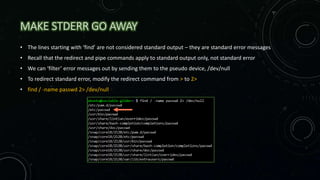
• The lines starting with ‘find’ are not considered standard output – they are standard error messages
• Recall that the redirect and pipe commands apply to standard output only, not standard error
• We can ‘filter’ error messages out by sending them to the pseudo device, /dev/null
• To redirect standard error, modify the redirect command from > to 2>
• find / -name passwd 2> /dev/null
GREP
• Grep – used to search the contents of a file for a specific string
• Good to use when ‘cat’ outputs way more than we could manually search
• grep [string] [filename] – will return the line containing the term
• Case insensitive – grep –i [string] [filename]
• Can be chained with other commands using pipe [command] | grep -i
[string]
GREP…
• cat /etc/passwd
• cat /etc/passwd | grep [username]
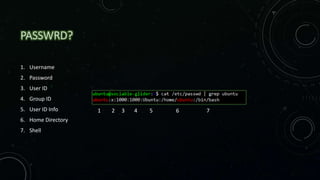
PASSWRD?
1. Username
2. Password
3. User ID
4. Group ID
5. User ID Info
6. Home Directory
7. Shell
1 2 3 4 5 6 7
SHADOW FILE
• shadow
• Can you find it?
• find / -name shadow 2> /dev/null
• cat /etc/shadow
WUT?!
>:[
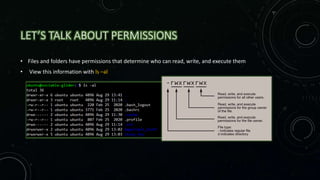
LET’S TALK ABOUT PERMISSIONS
• Files and folders have permissions that determine who can read, write, and execute them
• View this information with ls –al
SHADOW FILE PERMISSIONS
• ls –l /etc/shadow
1. Permissions
• - - shadow is a file (as opposed to a directory, denoted by d)
• rw- - The user root can read and write to this file
• r-- - Members of the group shadow may read this file
• --- - Other users may not read, write, or execute this file
2. Indicates the user owning the file is root,
3. Indicates the group owning the file is shadow
4. Process ID
5. Date
6. File/Directory name
1 2 3 4 5 6
SUPER USER DO
• Prefixing a command with ‘sudo’ allows you to run commands with elevated privileges
• (As the root user)
• Not all users are permitted to do this – fortunately we are on the sudoers list
• sudo cat /etc/shadow | grep ubuntu
• This will require the system’s password – P@ssw0rd!
• Username
• $6$ - Hash algorithm used (SHA-512)
• Password Hash
• Information about date password was changed, expiry date, and other information
PERMISSIONS EXERCISE
• Move to the important_stuff directory
• If you’re not in the home directory, cd ~
• cd important_stuff
• touch super_secret_file_1
• touch super_secret_file_2
• ls –l
• What are the permissions for the User? Group? Everyone else?
• We need to lock these things down so only the user can read, write, and execute it, and your group can only read it
User –
Read/Write
Group –
Read/Write
Others - Read
CHANGE OWNERSHIP
• chown: change ownership of a file or directory
• Syntax: chown [options] [user]:[group] [file/directory]
• chown root super_secret_file_1
• Use sudo!
• sudo !! will rerun your previous command as root
CHANGE PERMISSIONS
• chmod: Change permissions for a file or directory
• Using Symbolic Notation
• Syntax: chmod [options] [who] [+/-/=] [permissions]
[file/directory]
• For example, to add read and write file permissions to a
user:
• chmod u+rw [filename]
• To give a user execute permissions AND remove a
group’s execute permissions for a directory and all its
contents recursively:
• chmod –R u+x,g-x [directory]
Who
• User
• Group
• Others
• All
Symbol
• u
• g
• o
• a
Operator
• +
• -
• =
Meaning
• Add
• Remove
• Equals
CHANGE THOSE PERMISSIONS
• We want the user (root) to be able to read, write, and execute it
• Your group can only read it
• Set the permissions of super_secret_file_1 using symbolic notation
• Syntax: chmod [options] [who – u,g,o] [+/-/=] [permissions - rwx] [file/directory]
chmod
u+x,g-w,o-r
super_secret_file_1
sudo
CHANGE PERMISSIONS 2
• Using Octal Notation
• Syntax: chmod [permissions – user-group-
others] [file/directory]
• Permissions represented by a single number
for each type
• None = 0, Execute = 1, Write = 2, Read =4.
Everything else is simply adding these
together.
• Give the User Read and Write permissions
and Read only for Group and Others:
• chmod 644 [file]
Permission
• None
• Execute
• Write
• Execute +
Write
• Read
• Read +
Execute
• Read +
Write
• All
Symbol
• ---
• --x
• -w-
• -wx
• r--
• r-x
• rw-
• rwx
Number
• 0
• 1
• 2
• 3
• 4
• 5
• 6
• 7
CHANGE THOSE PERMISSIONS
• The user (ubuntu) can read, write, and execute it
• Your group can only read it
• Set the permissions of super_secret_file_2 using octal notation
• Syntax: chmod [permissions] [file/directory]
• None = 0, Execute = 1, Write = 2, Read = 4
chmod
740
super_secret_file_2
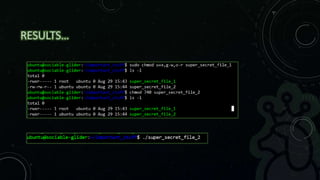
RESULTS…
CAPTURE THE FLAG!
• Start from the home directory - cd ~
• Flags contain the word ‘flag’, but be aware of case sensitivity
• Flag 1 – Find the file ‘BuriedFile.txt’. Read the contents to find the flag
• Hints: find, cat, autocomplete using tab
• Flag 2 – Find the bigFile.txt. Read the contents to find the flag, but beware – that file is GIANT
• Hints – find, cat, grep, pipe |, case sensitivity
• Flag 3 – Find exeFile. Change it so it can be executed by the user, then run it to get the flag
• Hints - chmod, ./
Good luck!
You can do it!
THANK YOU!

Linux Fundamentals

  • 1.
    LINUX FUNDAMENTALS PRESENTED BYDIANA WHITNEY – AUTOMATICPOODLE TO CYBER AEGIS SEPTEMBER 4, 2021
  • 2.
    WHOAMI Diana Whitney @automaticpoodle Cyber SecuritySpecialist for six years Payment Card Industry device compliance Threat Intelligence Research
  • 3.
    AGENDA • Linux Overview •The File System • Important files and folders • Shells • Command Line • Using Commands • Man pages, Help, history • System Information • Whoami, pwd, network info • Moving Around • cd, ls • Files • Creating, editing, moving, copying • Users and Permissions • chmod, sudo • Finding Things • find, grep
  • 4.
    LINUX OVERVIEW • TheLinux kernel was developed by Linus Torvalds as a free, open-source operating system kernel • v0.01 was released in 1991 and was used in the GNU OS, a free alternative to UNIX • The developer community comprises 5000-6000 members • v5.13.11 is the current kernel version as of August 15, 2021 • Over 600 distributions – Ubuntu, Debian, Fedora, RedHat, Linux Mint, Kali, etc • One of the most popular in the world – Android devices, smart cars, home appliances, enterprise servers
  • 5.
    CORE PRINCIPALS • Everythingis a file – all configuration data is stored in text files • Programs are small and single-purpose • Programs can chain together to perform more complex tasks • Designed to work with the shell or terminal, as opposed to the Graphical User Interface
  • 6.
    root root THE FILESYSTEM Root –the top-level directory. All files required to boot the OS live here. /bin – essential command binaries (or programs) are here. These binaries are essential to Linux’s functionality. Example – bash, chmod root /opt – optional files, including third party tools and software go here root /root/ – The home directory for the root user.
  • 7.
    root root /dev/ – Devices(represented as files) are found here, for example SATA drives. /sbin/ – System binaries. Essential binaries mainly intended to be run by the root user for system administration root /etc/ – System-wide configurations files live here. root /home/ – contains a home folder for each user.
  • 8.
    root root /tmp/ – Storestemporary application files. Generally cleared upon a system restart. /usr/ – Non-essential applications and files used by users. root /var/ – Many log files are found here.
  • 9.
    SIGNIFICANT FILES • /dev/null– a ‘pseudo-device’ that doesn’t correspond to hardware. It produces no output, and discards all input sent to it, except to report the write operation succeeded. • /etc/bashrc – stores configuration data relevant to the shell. For example, the prompt can be customized or command aliases can be set. • /etc/hosts – translates hostnames or domain names to an IP address. • /etc/passwd – A text file containing a list of the system’s accounts. • /etc/shadow – Stores hashed passwords for a system’s accounts.
  • 10.
    THE SHELL (ORCOMMAND LINE) • Text-based input/output (I/O) interface • Most commonly used shell is the Bourne-Again Shell – BASH • Others include Tcsh/Csh, Ksh, Zsh, Fish • Everything that can be done through a Graphical User Interface (GUI) can be done through the shell • Programs and processes can be accessed more quickly • Scripts can be used to automate tasks • Can be used to access remote systems through network protocols like SSH
  • 11.
  • 12.
    USING COMMANDS • IntroducingLS – lists the contents of a directory (similar to dir in Windows) • Standard Input (stdin), Standard Output (stdout), Standard Error (stderr) • Streams have a file descriptor, represented as a number: • stdin – 0 • stdout – 1 • stderr – 2
  • 13.
    But w THE MANPAGE Ok that’s kind of cool but… What else can we do?
  • 14.
    OPTIONS EXERCISE… • Whatif I want to… Show all files, including hidden files starting with ‘.’ ? Show the files in a long list Place the most recently modified files at the top of the list
  • 15.
    OPTIONS • Hidden filesand directories start with ‘.’ • . represents the current working directory • .. represents the directory above the current directory
  • 16.
    CLEAR AND BASHHISTORY There’s too much stuff on my screen now omg 
  • 17.
    OH NO MYSTUFF >:[ CLEAR AND BASH HISTORY • Linux stores your command history in a file (ie .bash_history, .zsh_history) • You can view this file in the command line or open it in your text editor of choice • Alternately, you can press the up arrow in the prompt to review the last commands you entered • Useful when re-running commands (or if you can’t remember what you just did) • Bash history can also be reviewed with the ‘history’ command
  • 18.
    APROPOS • Can’t rememberthe name of the command • Remember roughly what it does… • The apropos command can be used to search man pages using key words or phrases as options to try and find what you’re looking for
  • 19.
    GATHERING SYSTEM INFORMATION whoami id hostnameuname ifconfig or ip pwd Displays the current user’s name Show the user and group IDs (numeric values) Shows the DNS name of the current host system Print system information Returns information about the network interface(s) Prints the current working directory
  • 20.
  • 21.
  • 22.
    SYSTEM INFORMATION TREASUREHUNT! 1. Find the kernel release number Flag – kernel number flag{x.x.x-xxxx-xxx} 2. Display only your group id number Flag – four digit number flag{xxxx} What command lists system information? What command shows the user/group’s numeric value? whoami id hostname uname ifconfig or ip pwd
  • 23.
    MOVING AROUND pwd –Print Working Directory ls – List cd – Change Directory mkdir – Make Directory This is boring. Let’s go somewhere else.
  • 24.
    CAN WE DOTHIS IN ONE COMMAND? • Yes! • Use the –p option (for ‘parent’) with mkdir to create any parent directories • mkdir –p dogs/dalmatians • ‘dogs’ is the parent directory, and will be created as well as ‘dalmatians’ • Change directories to ‘dalmatians’ using a single command
  • 25.
  • 26.
    RELATIVE PATH • Relativepaths start from the current working directory – newer_folder. • Use the command ‘cd ..’ to move up a directory • Recall ‘..’ refers to the directory immediately above the current working directory • This can be repeated until a parent directory of sloth_facts is reached • Hint: you can also change multiple directories at once – cd ../..
  • 27.
    ABSOLUTE PATH • Another,less repetitive way to access a file or folder is to use its absolute path • Absolute Path contains a complete list of all elements (ie folders) starting at the root directory / and ending at the destination • To move from sloth_facts to coffee using the absolute path, use the command: cd /home/[username]/linux_fun/coffee
  • 28.
  • 29.
    FUN WITH FILES touch– creates an empty file Syntax: touch [filename] Make a file called sloth_fact_1 in the current directory (~/linux_fun/coffee)
  • 30.
    FUN WITH FILES touch– creates an empty file cp – Copies a file or folder Syntax: Copy single file in same directory: cp src_file dest_file Copy single file to another directory: cp src_file dest_file dir_that_exists Copy all files from one directory to another cp –R src_dir dest_dir Sloth facts are pretty rad so let’s make a copy and call it sloth_fact_2
  • 31.
    FUN WITH FILES touch– creates an empty file cp – Copies a file or folder mv – Moves a file or folder Syntax: Move single file in same directory: mv src_file dest_file This essentially renames the file. Move to new directory: mv src_file path/dest_file Option –n (no clobber) prevents existing files from being overwritten mv –n src_file _dest_file Wait a sec this is not the sloth_facts folder. Move both sloth fact files to sloth_facts
  • 32.
    FUN WITH FILES touch– creates an empty file cp – Copies a file or folder mv – Moves a file or folder rm – Remove a file or folder Syntax: Remove single file in same directory: rm file Remove a directory: rm –d directory Remove a directory and all its contents rm –r directory Remove the directory ‘test’ and all its contents. It looked at you funny
  • 33.
    EVEN MORE FUNWITH FILES • cat – short for ‘concatenate’, outputs the file’s contents • Syntax – cat [filename] • Change directories to sloth_facts and try it on one of the files • Nothing is there… yet • echo – displays a line of text or string passed to it as an argument • Syntax - echo [stuff] • Try it out!  echo hello
  • 34.
    REDIRECTING INPUT • |– Pipe lets you chain two or more commands. The output (stdout) of one command will be used as the input (stdin) for the next command. • > - An output redirector that takes the output from a command and sends it somewhere else. If output is redirected to a file, the contents of the file are overwritten. • >> - Similar to the previous output redirector, but the redirected output will be appended to the end of a file – it will not overwrite the file contents. | > >>
  • 35.
    SLOTH FACTS • Usingecho, put your favourite sloth fact into sloth_fact_1 • Did it work? Try reading the file using the ‘cat’ command • Super sweet. Add on another fact without overwriting the first echo [text] > [filename]
  • 36.
    SLOTH FACTS 2 •The Nano text editor can be used in the command line to edit the file contents in a more friendly manner • Edit sloth_fact_2 using nano: • nano sloth_fact_2 • To leave nano, press CTRL + X • Save, Don’t Save, or Cancel
  • 37.
    FINDING THINGS • Usecommands to search the filesystem the user has access to • Find – if the filename is known, use find [starting_point] –name [filename] • A starting point ‘.’ means current working directory. • ‘/’ will search the whole filesystem starting with the root directory • Wildcards ‘*’ can also be used, ie to find all files ending with a .txt extension using the current working directory as a starting point, use find . –name *.txt
  • 38.
    MAKE STDERR GOAWAY • The lines starting with ‘find’ are not considered standard output – they are standard error messages • Recall that the redirect and pipe commands apply to standard output only, not standard error • We can ‘filter’ error messages out by sending them to the pseudo device, /dev/null • To redirect standard error, modify the redirect command from > to 2> • find / -name passwd 2> /dev/null
  • 39.
    GREP • Grep –used to search the contents of a file for a specific string • Good to use when ‘cat’ outputs way more than we could manually search • grep [string] [filename] – will return the line containing the term • Case insensitive – grep –i [string] [filename] • Can be chained with other commands using pipe [command] | grep -i [string]
  • 40.
    GREP… • cat /etc/passwd •cat /etc/passwd | grep [username]
  • 41.
    PASSWRD? 1. Username 2. Password 3.User ID 4. Group ID 5. User ID Info 6. Home Directory 7. Shell 1 2 3 4 5 6 7
  • 42.
    SHADOW FILE • shadow •Can you find it? • find / -name shadow 2> /dev/null • cat /etc/shadow WUT?! >:[
  • 43.
    LET’S TALK ABOUTPERMISSIONS • Files and folders have permissions that determine who can read, write, and execute them • View this information with ls –al
  • 44.
    SHADOW FILE PERMISSIONS •ls –l /etc/shadow 1. Permissions • - - shadow is a file (as opposed to a directory, denoted by d) • rw- - The user root can read and write to this file • r-- - Members of the group shadow may read this file • --- - Other users may not read, write, or execute this file 2. Indicates the user owning the file is root, 3. Indicates the group owning the file is shadow 4. Process ID 5. Date 6. File/Directory name 1 2 3 4 5 6
  • 45.
    SUPER USER DO •Prefixing a command with ‘sudo’ allows you to run commands with elevated privileges • (As the root user) • Not all users are permitted to do this – fortunately we are on the sudoers list • sudo cat /etc/shadow | grep ubuntu • This will require the system’s password – P@ssw0rd! • Username • $6$ - Hash algorithm used (SHA-512) • Password Hash • Information about date password was changed, expiry date, and other information
  • 46.
    PERMISSIONS EXERCISE • Moveto the important_stuff directory • If you’re not in the home directory, cd ~ • cd important_stuff • touch super_secret_file_1 • touch super_secret_file_2 • ls –l • What are the permissions for the User? Group? Everyone else? • We need to lock these things down so only the user can read, write, and execute it, and your group can only read it User – Read/Write Group – Read/Write Others - Read
  • 47.
    CHANGE OWNERSHIP • chown:change ownership of a file or directory • Syntax: chown [options] [user]:[group] [file/directory] • chown root super_secret_file_1 • Use sudo! • sudo !! will rerun your previous command as root
  • 48.
    CHANGE PERMISSIONS • chmod:Change permissions for a file or directory • Using Symbolic Notation • Syntax: chmod [options] [who] [+/-/=] [permissions] [file/directory] • For example, to add read and write file permissions to a user: • chmod u+rw [filename] • To give a user execute permissions AND remove a group’s execute permissions for a directory and all its contents recursively: • chmod –R u+x,g-x [directory] Who • User • Group • Others • All Symbol • u • g • o • a Operator • + • - • = Meaning • Add • Remove • Equals
  • 49.
    CHANGE THOSE PERMISSIONS •We want the user (root) to be able to read, write, and execute it • Your group can only read it • Set the permissions of super_secret_file_1 using symbolic notation • Syntax: chmod [options] [who – u,g,o] [+/-/=] [permissions - rwx] [file/directory] chmod u+x,g-w,o-r super_secret_file_1 sudo
  • 50.
    CHANGE PERMISSIONS 2 •Using Octal Notation • Syntax: chmod [permissions – user-group- others] [file/directory] • Permissions represented by a single number for each type • None = 0, Execute = 1, Write = 2, Read =4. Everything else is simply adding these together. • Give the User Read and Write permissions and Read only for Group and Others: • chmod 644 [file] Permission • None • Execute • Write • Execute + Write • Read • Read + Execute • Read + Write • All Symbol • --- • --x • -w- • -wx • r-- • r-x • rw- • rwx Number • 0 • 1 • 2 • 3 • 4 • 5 • 6 • 7
  • 51.
    CHANGE THOSE PERMISSIONS •The user (ubuntu) can read, write, and execute it • Your group can only read it • Set the permissions of super_secret_file_2 using octal notation • Syntax: chmod [permissions] [file/directory] • None = 0, Execute = 1, Write = 2, Read = 4 chmod 740 super_secret_file_2
  • 52.
  • 53.
  • 54.
    • Start fromthe home directory - cd ~ • Flags contain the word ‘flag’, but be aware of case sensitivity • Flag 1 – Find the file ‘BuriedFile.txt’. Read the contents to find the flag • Hints: find, cat, autocomplete using tab • Flag 2 – Find the bigFile.txt. Read the contents to find the flag, but beware – that file is GIANT • Hints – find, cat, grep, pipe |, case sensitivity • Flag 3 – Find exeFile. Change it so it can be executed by the user, then run it to get the flag • Hints - chmod, ./ Good luck! You can do it!
  • 55.