Tutorial of Unix/Linux


        Cédric Notredame
     (Adapted from NOMURA)
Outline
1.   Overview of Unix System
2.   Basic Commands
3.   Relative & Absolute Path
4.   Redirect, Append and Pipe
5.   Permission
6.   Process Management
7.   Install Software
8.   Text Editor
9.   Foreground and Background Jobs
Overview of Unix System
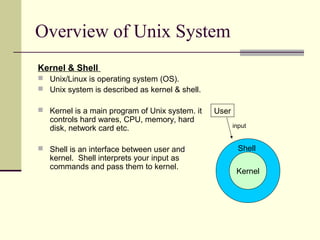
Kernel & Shell
 Unix/Linux is operating system (OS).
 Unix system is described as kernel & shell.

 Kernel is a main program of Unix system. it   User
   controls hard wares, CPU, memory, hard
   disk, network card etc.                             input


 Shell is an interface between user and                 Shell
   kernel. Shell interprets your input as
   commands and pass them to kernel.
                                                        Kernel
Unix Overview (cont.)
  Multi-user & Multi-process
   Many people can use one machine at the same time.


  File & Process
   Data, directory, process, hard disk etc (almost everything)
     are expressed as a file.
   Process is an running program identified by a unique id
     (PID).
Unix Overview (cont.)
Directory Structure
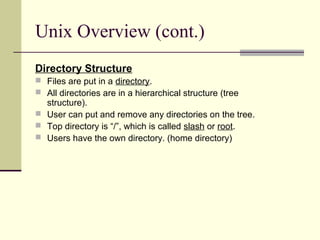
 Files are put in a directory.
 All directories are in a hierarchical structure (tree
  structure).
 User can put and remove any directories on the tree.
 Top directory is “/”, which is called slash or root.
 Users have the own directory. (home directory)
Unix Overview (cont.)
Directory Structure
Unix Overview (cont.)
  Important Directories
   /bin    This contains files that are essential for correct
     operation of the system. These are available for use by all
     users.

   /home This is where user home directories are stored.


   /var   This directory is used to store files which change
     frequently, and must be available to be written to.

   /etc   Various system configuration files are stored here.
Unix Overview (cont.)
  Important Directories
   /dev This contains various devices as files, e.g. hard
                   disk, CD-ROM drive, etc.

   /sbin   Binaries which are only expected to be used by
            the super user.

   /tmp    Temporary files.
Unix Overview (cont.)
Normal user and Super user
 In Unix system, there is one special user for administrator, which can
  do anything.
 This special user is called root or superuser.


Case Sensitivity
 Unix is case-sensitive.
 MYFILE.doc, Myfile.doc, mYfiLe.Doc are different.


Online Manual
 Unix has well-written online manuals.
Basic Commands
 How to run commands
    Finder => Application => Utilitaires => Terminal
  When you log on Unix machine, you will see,


 [someone]$

  One command consists of three parts, i.e. command name,
     options, arguments.

 Example)
 [someone~]$ command-name optionA optionB argument1 argument2
Basic Commands
 How to run commands
  Between command name, options and arguments, space is
    necessary.

  Opitions always start with “-”


  Example:
    cd ..
    ls –l .bashrc
    mv fileA fileB
Basic Commands
 Commands
    ls                show files in current position
    cd                change directory
    cp                copy file or directory
    mv                move file or directory
    rm                remove file or directory
    pwd               show current position
    mkdir             create directory
    rmdir             remove directory
    less, more, cat   display file contents
    man               display online manual
Basic Commands
 Commands
    su         switch user
    passwd     change password
    useradd    create new user account
    userdel    delete user account
    mount      mount file system
    umount     unmount file system
    df         show disk space usage
    shutdown   reboot or turn off machine
Basic Commands

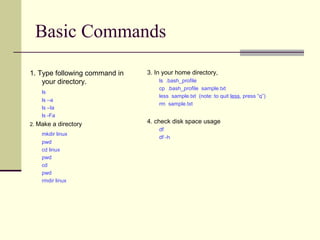
1. Type following command in   3. In your home directory,
    your directory.                ls .bash_profile
                                   cp .bash_profile sample.txt
    ls
                                   less sample.txt (note: to quit less, press “q”)
    ls –a
                                   rm sample.txt
    ls –la
    ls -Fa
2. Make a directory
                               4. check disk space usage
                                   df
    mkdir linux
                                   df -h
    pwd
    cd linux
    pwd
    cd
    pwd
    rmdir linux
Relative & Absolute Path
  Path means a position in the directory tree.
  To express a path, you can use relative path or
   absolute path.
  In relative path expression, the path is not defined
   uniquely, depends on your current path.
  In absolute path expression, the path is defined
   uniquely, does not depend on your current path.
Absolute Path
 Address from the root
        /home/linux/
        ~/linux
        ~: ~: Alt+N

 Similar to:
        Lausanne University/Lausanne/Canton de Vaud/
   Switzerland/Europe/Earth/Solar System/
Relative Path
 Relative to your current location
        . : your current location
        .. : one directory above your current location
        pwd: gives you your current location

 Example
     ls ./linux : lists the content of the dir linux
     ls ../../ : lists everything that is two dir higer

 Similar to:
        Go Left/turn right/take the TSOL/go
Relative & Absolute Path
                   Ablsoute Path
 Relative Path
                    cd
  pwd               mkdir mydir
                    pwd
  cd .              cd /Users/invite
  pwd               pwd
                    cd /Users
  cd ..             pwd
  pwd               cd /
                    pwd
  cd ..             cd /Users/invite
                    cd ~/mydir
  pwd
  cd
Redirect, Append and Pipe
Redirect and append
 Output of command is displayed on screen.
 Using “>”, you can redirect the output from screen to a file.
 Using “>>” you can append the output to the bottom of the file.


Pipe
 Some commands require input from a file or other commands.
 Using “|”, you can use output from other command as input to the command.
 On MacOSX, The Pipe sign: (Shift+Alt+N: franc, Alt+7)
Redirect, Append and Pipe
  Commands
   head           show first several lines and omit other lines.

   tail           show last several lines and omit      other lines.

   grep XXX File show lines matching pattern XXX in File
Redirect, Append and Pipe
   In home directory, type                 Use pipe.
    ls -1 > sample.txt                        less redirect.txt
    less sample.txt                           grep Desk redirect.txt
   Use redirect.                             grep –n Desk redirect.txt
                                              man grep
    head -3 sample.txt
                                              tail redirect.txt | grep Desk
    head -3 sample.txt > redirect.txt
                                              rm sample.txt
   Use append.                               rm redirect.txt
    tail -3 sample.txt
    tail -3 sample.txt >> redirect.txt
    less redirect.txt
Sorting
  Commands
   sort     Sorts using the first field of each line.

   -n       Sorts considering the numeric value of the strings
   -k3      Sorts using the third field of each line
   -rnk3    Sorts in reverse order, using the numeric value of
             the third field
Redirect, Append and Pipe
   Identify the largest file in a directory:

                         ls –la /bin/ | sort –nk5 | tail -1
Permission
 All of files and directories have owner and permission.
 There are three types of permission, readable, writeable and
  executable.
 Permissions are given to three kinds of group. owner, group
  member and others.

Example:
 ls -l .bash_profile
   -rw-r--r--   1 cnotred   cnotred   191 Jan 4 13:11 .bash_profile

 r:readable, w:writable, x: executable
Permission
 Command
  chmod                   change file mode, add or remove
                                  permission
  chown                   change owner of the file

 Example)
    chmod a+w filename
                 add writable permission to all users
    chmod o-x filename
                 remove executable permission from others
    chmod a+x
                 Gives permission to the usser to execute a file

  u: user (owner),        g: group,         o: others         a: all
Permission
   Check permission
    ls –l .bash_profile
    cp .bash_profile sample.txt
    ls –l sample.txt

   Remove readable permission from all.
    chmod a-r sample.txt
    ls –l sample.txt
    less sample.txt

   Add readable & writable premissions to file owner.
    chmod u+rw sample.txt
    ls –l sample.txt
    less sample.txt
    rm sample.txt
Process Management
   Process is a unit of running program.

   Each process has some information, like process ID, owner,
     priority, etc.


Example) Output of “top” command
Process Management
Commands
 kill      Stop a program. The program is
            specified by process ID.
 killall   Stop a program. The program is
            specified by command name.
 ps        Show process status
 top       Show system usage statistics
Process Management

 Check your process.
  ps
  ps –u

 Check process of all
   users.
   top (To quit top, press
   “q”)
   ps –e
   ps –ef

 Find your process.

   ps –ef | grep cnotred
Install Software
   Unix system has a “de facto standard” way to install a software.
           configure, make & make install

    Typical software installation procedure as following.
    1.  Download source code. Usually, it’s archived with tar
        command and compressed with gzip command.
    2.  configure command creates Makefile automatically which is
        used to compile the source.
    3.  Program compilation is written in Makefile.
Install Software
 Commands
    gzip        compress a file
    gunzip             uncompress a file
    tar                archive or expand files
    configure          create Makefile
    make               compile & install software
Install Software
 Example: parallel programming library installation

        gunzip software.tar.gz
        tar –xvf software.tar
        cd software
        ./install OR make all OR …
Text Editor
pico
 Programs & configuration files are text file.
 There are two popular text editors, vi and Emacs.
 Although they are very powerful and useful, it is also true that
  they are complicated for beginners and difficult to learn.
 pico is an easy and simple alternative.
Text Editor

Commands
   Arrow-keys Move cursor
   CTRL+a Move to the beginning of the current line.
   CTRL+e Move to the end of the current line.
   CTRL+v Move forward one page.
   CTRL+y Move backward one page.
   CTRL+w Search for text.
   CTRL+d Delete the current character.
   CTRL+k Remove (cut) current line or selected text.
   CTRL+u Paste (uncut) last cut text at the cursor position.
   CTRL+o Save (output) the file.
   CTRL+x Exit Pico, saving the file.

 Autre: xemacs, emacs
Text Editor

 Create the file Hello
   pico hello.pl

 Write hello.pl as follows.


   #!/usr/bin/perl
   print “Hello Worldn”;


 Make il executable
   chmod u+x hello.pl

 Run it!
   ./hello.pl
Foreground and Background
  Running job has two modes, “foreground” and “background”

  If program is running as “background”,
    the program keeps running even after your session was
    closed

  If program is running as “foreground”,
       Ctrl-C    stop program
       Ctrl-Z    let program background
Foreground and Background
    To run programs in background mode, use “&”
     [nomura@ssc-1]$ command &


  To get background job back into foreground mode, use “fg”
     command.
     [nomura@ssc-1]$ fg
Remote Login & File Transfer
   • rshd, telnetd, ftpd, sshd are server program
   and provide similar services, remote login & file
   transfer.
   • The major difference is security level.
           rshd < telnetd + ftpd < sshd

Commands
Client                   Server
 rsh & rcp
                          rshd
 telnet & ftp
                          telnetd & ftpd
 ssh & scp
                          sshd
Remote Login & File Transfer

Remote login & file transfer system are based on
server and client model. client program on your
machine ask sever program certain service remote
machine.

For example, telnet server provides remote login
service. ftp server provides file transfer service.

Sample client programs;
       WS FTP               FTP client
       Internet Exploror    HTTP client
       Eudora               POP, SMTP client
Tutorial of Unix/Linux


  END

8.1.intro unix

  • 1.
    Tutorial of Unix/Linux Cédric Notredame (Adapted from NOMURA)
  • 2.
    Outline 1. Overview of Unix System 2. Basic Commands 3. Relative & Absolute Path 4. Redirect, Append and Pipe 5. Permission 6. Process Management 7. Install Software 8. Text Editor 9. Foreground and Background Jobs
  • 3.
    Overview of UnixSystem Kernel & Shell  Unix/Linux is operating system (OS).  Unix system is described as kernel & shell.  Kernel is a main program of Unix system. it User controls hard wares, CPU, memory, hard disk, network card etc. input  Shell is an interface between user and Shell kernel. Shell interprets your input as commands and pass them to kernel. Kernel
  • 4.
    Unix Overview (cont.) Multi-user & Multi-process  Many people can use one machine at the same time. File & Process  Data, directory, process, hard disk etc (almost everything) are expressed as a file.  Process is an running program identified by a unique id (PID).
  • 5.
    Unix Overview (cont.) DirectoryStructure  Files are put in a directory.  All directories are in a hierarchical structure (tree structure).  User can put and remove any directories on the tree.  Top directory is “/”, which is called slash or root.  Users have the own directory. (home directory)
  • 6.
  • 7.
    Unix Overview (cont.) Important Directories  /bin This contains files that are essential for correct operation of the system. These are available for use by all users.  /home This is where user home directories are stored.  /var This directory is used to store files which change frequently, and must be available to be written to.  /etc Various system configuration files are stored here.
  • 8.
    Unix Overview (cont.) Important Directories  /dev This contains various devices as files, e.g. hard disk, CD-ROM drive, etc.  /sbin Binaries which are only expected to be used by the super user.  /tmp Temporary files.
  • 9.
    Unix Overview (cont.) Normaluser and Super user  In Unix system, there is one special user for administrator, which can do anything.  This special user is called root or superuser. Case Sensitivity  Unix is case-sensitive.  MYFILE.doc, Myfile.doc, mYfiLe.Doc are different. Online Manual  Unix has well-written online manuals.
  • 10.
    Basic Commands Howto run commands  Finder => Application => Utilitaires => Terminal  When you log on Unix machine, you will see, [someone]$  One command consists of three parts, i.e. command name, options, arguments. Example) [someone~]$ command-name optionA optionB argument1 argument2
  • 11.
    Basic Commands Howto run commands  Between command name, options and arguments, space is necessary.  Opitions always start with “-”  Example: cd .. ls –l .bashrc mv fileA fileB
  • 12.
    Basic Commands Commands  ls show files in current position  cd change directory  cp copy file or directory  mv move file or directory  rm remove file or directory  pwd show current position  mkdir create directory  rmdir remove directory  less, more, cat display file contents  man display online manual
  • 13.
    Basic Commands Commands  su switch user  passwd change password  useradd create new user account  userdel delete user account  mount mount file system  umount unmount file system  df show disk space usage  shutdown reboot or turn off machine
  • 14.
    Basic Commands 1. Typefollowing command in 3. In your home directory, your directory. ls .bash_profile cp .bash_profile sample.txt ls less sample.txt (note: to quit less, press “q”) ls –a rm sample.txt ls –la ls -Fa 2. Make a directory 4. check disk space usage df mkdir linux df -h pwd cd linux pwd cd pwd rmdir linux
  • 15.
    Relative & AbsolutePath  Path means a position in the directory tree.  To express a path, you can use relative path or absolute path.  In relative path expression, the path is not defined uniquely, depends on your current path.  In absolute path expression, the path is defined uniquely, does not depend on your current path.
  • 16.
    Absolute Path  Addressfrom the root /home/linux/ ~/linux ~: ~: Alt+N  Similar to: Lausanne University/Lausanne/Canton de Vaud/ Switzerland/Europe/Earth/Solar System/
  • 17.
    Relative Path  Relativeto your current location . : your current location .. : one directory above your current location pwd: gives you your current location  Example ls ./linux : lists the content of the dir linux ls ../../ : lists everything that is two dir higer  Similar to: Go Left/turn right/take the TSOL/go
  • 18.
    Relative & AbsolutePath  Ablsoute Path  Relative Path cd pwd mkdir mydir pwd cd . cd /Users/invite pwd pwd cd /Users cd .. pwd pwd cd / pwd cd .. cd /Users/invite cd ~/mydir pwd cd
  • 19.
    Redirect, Append andPipe Redirect and append  Output of command is displayed on screen.  Using “>”, you can redirect the output from screen to a file.  Using “>>” you can append the output to the bottom of the file. Pipe  Some commands require input from a file or other commands.  Using “|”, you can use output from other command as input to the command.  On MacOSX, The Pipe sign: (Shift+Alt+N: franc, Alt+7)
  • 20.
    Redirect, Append andPipe Commands  head show first several lines and omit other lines.  tail show last several lines and omit other lines.  grep XXX File show lines matching pattern XXX in File
  • 21.
    Redirect, Append andPipe  In home directory, type  Use pipe. ls -1 > sample.txt less redirect.txt less sample.txt grep Desk redirect.txt  Use redirect. grep –n Desk redirect.txt man grep head -3 sample.txt tail redirect.txt | grep Desk head -3 sample.txt > redirect.txt rm sample.txt  Use append. rm redirect.txt tail -3 sample.txt tail -3 sample.txt >> redirect.txt less redirect.txt
  • 22.
    Sorting Commands  sort Sorts using the first field of each line.  -n Sorts considering the numeric value of the strings  -k3 Sorts using the third field of each line  -rnk3 Sorts in reverse order, using the numeric value of the third field
  • 23.
    Redirect, Append andPipe  Identify the largest file in a directory: ls –la /bin/ | sort –nk5 | tail -1
  • 24.
    Permission  All offiles and directories have owner and permission.  There are three types of permission, readable, writeable and executable.  Permissions are given to three kinds of group. owner, group member and others. Example: ls -l .bash_profile -rw-r--r-- 1 cnotred cnotred 191 Jan 4 13:11 .bash_profile  r:readable, w:writable, x: executable
  • 25.
    Permission Command chmod change file mode, add or remove permission  chown change owner of the file Example) chmod a+w filename add writable permission to all users chmod o-x filename remove executable permission from others chmod a+x Gives permission to the usser to execute a file  u: user (owner), g: group, o: others a: all
  • 26.
    Permission  Check permission ls –l .bash_profile cp .bash_profile sample.txt ls –l sample.txt  Remove readable permission from all. chmod a-r sample.txt ls –l sample.txt less sample.txt  Add readable & writable premissions to file owner. chmod u+rw sample.txt ls –l sample.txt less sample.txt rm sample.txt
  • 27.
    Process Management  Process is a unit of running program.  Each process has some information, like process ID, owner, priority, etc. Example) Output of “top” command
  • 28.
    Process Management Commands  kill Stop a program. The program is specified by process ID.  killall Stop a program. The program is specified by command name.  ps Show process status  top Show system usage statistics
  • 29.
    Process Management  Checkyour process. ps ps –u  Check process of all users. top (To quit top, press “q”) ps –e ps –ef  Find your process. ps –ef | grep cnotred
  • 30.
    Install Software  Unix system has a “de facto standard” way to install a software. configure, make & make install  Typical software installation procedure as following. 1. Download source code. Usually, it’s archived with tar command and compressed with gzip command. 2. configure command creates Makefile automatically which is used to compile the source. 3. Program compilation is written in Makefile.
  • 31.
    Install Software Commands  gzip compress a file  gunzip uncompress a file  tar archive or expand files  configure create Makefile  make compile & install software
  • 32.
    Install Software Example:parallel programming library installation gunzip software.tar.gz tar –xvf software.tar cd software ./install OR make all OR …
  • 33.
    Text Editor pico  Programs& configuration files are text file.  There are two popular text editors, vi and Emacs.  Although they are very powerful and useful, it is also true that they are complicated for beginners and difficult to learn.  pico is an easy and simple alternative.
  • 34.
    Text Editor Commands  Arrow-keys Move cursor  CTRL+a Move to the beginning of the current line.  CTRL+e Move to the end of the current line.  CTRL+v Move forward one page.  CTRL+y Move backward one page.  CTRL+w Search for text.  CTRL+d Delete the current character.  CTRL+k Remove (cut) current line or selected text.  CTRL+u Paste (uncut) last cut text at the cursor position.  CTRL+o Save (output) the file.  CTRL+x Exit Pico, saving the file.  Autre: xemacs, emacs
  • 35.
    Text Editor  Createthe file Hello pico hello.pl  Write hello.pl as follows. #!/usr/bin/perl print “Hello Worldn”;  Make il executable chmod u+x hello.pl  Run it! ./hello.pl
  • 36.
    Foreground and Background  Running job has two modes, “foreground” and “background”  If program is running as “background”, the program keeps running even after your session was closed  If program is running as “foreground”, Ctrl-C stop program Ctrl-Z let program background
  • 37.
    Foreground and Background  To run programs in background mode, use “&” [nomura@ssc-1]$ command &  To get background job back into foreground mode, use “fg” command. [nomura@ssc-1]$ fg
  • 38.
    Remote Login &File Transfer • rshd, telnetd, ftpd, sshd are server program and provide similar services, remote login & file transfer. • The major difference is security level. rshd < telnetd + ftpd < sshd Commands Client Server  rsh & rcp  rshd  telnet & ftp  telnetd & ftpd  ssh & scp  sshd
  • 39.
    Remote Login &File Transfer Remote login & file transfer system are based on server and client model. client program on your machine ask sever program certain service remote machine. For example, telnet server provides remote login service. ftp server provides file transfer service. Sample client programs; WS FTP FTP client Internet Exploror HTTP client Eudora POP, SMTP client
  • 40.

Editor's Notes

  • #3 First, I’m gonna go through Unix System.
  • #8 Inside /bin arch cut gawk ls red tar ash date gettext mail rm tcsh ash.static dd grep mkdir rmdir touch aumix-minimal df gtar mknod rpm true awk dmesg gunzip mktemp rvi umount basename dnsdomainname gzip more rview uname bash doexec hostname mount sed unicode_start bash2 domainname igawk mt setfont unicode_stop bsh dumpkeys ipcalc mv setserial unlink cat echo kbd_mode netstat sfxload usleep chgrp ed kill nice sh vi chmod egrep ksh nisdomainname sleep view chown env link pgawk sort ypdomainname cp ex ln ping stty zcat cpio false loadkeys ps su zsh csh fgrep login pwd sync zsh-4.0.4
  • #9 Inside /sbin Mkfs, insmod, halt shutdown ifconfig …
  • #13 “ ls” stands for list. Pwd stands for present working directory
  • #14 “ su” means switch user. When you have several user account on one machine.
  • #15 “ ls” stands for list.
  • #29 These are commands related with process management. Kill is used to stop your program.
  • #30 These are commands related with process management. Kill is used to stop your program.
  • #32 tar stands for “tape archive”. “ gzip” stands for zip is compression algorithm. G stands for that this software is made by GNU project. I don’t explain What GNU is here, but you might have heard about “open source project”. GNU is an open source project to create totally free UNIX.
  • #34 Since our objective is to run parallel program on PC cluster. “ pico” stands for Pine Composer. Pine is a mail software. Pico comes out from pine edit mail part.
  • #35 Explain + is not + key.