Command Line Basics
Section Overview
 X Windows
 Consoles and Terminals
 UNIX Commands
 UNIX Filesystem
 vi Editor
X Windows
 Familiar GUI interface
 Virtual screens
 Remote applications
 X-Terminal Windows
     Multiple concurrent session
     Scroll bars
     Cut, Copy & Paste
X Managers &
Environments
 X Window Managers
     Very configurable
     A lot of variety
     GUI login mode
 X Window Environment
     Fully integrated environment
     Window manager runs within the
      environment
Why use the command
line?
 Always available
     GUI not installed/working
     Remote sessions
 More efficient
 More powerful
 Better understanding of what is
 happening
UNIX Terminals
 Old Days
     Hardwired – serial connections
     Modems – remote connections
 Network – telnet
 Console
     Monitor/keyboard/mouse on system
     Boot/error messages display
     Headless servers
Virtual Consoles in Linux
  Multiple sessions on one console
  Special Consoles
     Console 1 – default console
     Console 7 – X Windows
  Toggling between consoles
     Text mode - <Alt><Fn>
     X Windows - <Ctrl><Alt><Fn>
     <Fn>: Function Key (n = 1 .. 7)
Basic Philosophy
 10% of work solves 90% of
 problems
 Smaller is better
 Portability
 Solve at right level

   Be Creative!!!
Command Anatomy 101

command [-switches] [arg1] [arg2]…

 Command: Name of the program
 Switches: Modify command’s behaviour
 Arg#: Arguments passed to command
Getting Help
 Online manual available
 Searchable
     Command/File name
     Type/Section
     Keyword
 Not always easy to understand
Man Page Sections
  Solaris   Linux            Contents
    1         1     User commands
    2        2      System calls
    3        3      Library calls
    4        5      File formats
    5        7      Misc. files and documents
    6        6      Games and demos
    7        4      Devices/Network protocols
   1m        8      Administration commands
    9        9      Kernel specs/interfaces (?)
Using man
 man command
     Look up command
 man n intro
     Contents of section n
 man –k string
     Search short descriptions (apropos)
 man –K string
     Search all man pages for string
Account Related
Commands
 login
     Start session
 passwd
     Change Password
 logout / exit
     Close session
File/Directory Commands
 Files                   Directories
     cp – Copy             ls – List contents
     mv –                  mv – Move/Rename
      Move/Rename           cd – Change Dir
     rm – Remove           pwd – Current Dir
     cat – View all        mkdir – Create
     more – View page      rm/rmdir – Remove
     less – View page
Copies, moves, and
renaming
  cp file1 file2|dir1
     Copy file1 to file2 or into directory dir1
  cp –r[p] dir1 dir2
     Copy directory dir1 to dir2
  mv file1 file2|dir2
     Moves file1 to file2 or into directory
      dir1
     Renames file1 to file2 if both in same
      directory
Viewing files
  cat file1
      Display the contents of file1 to the
       screen
  more file1
      Display the contents of file1 one
       screen at a time
  less file1
      Same as more but more powerful
Removing files and
directories
  rm file1 file2 ...
      Removes list of files
  rmdir dir1
      Removes dir1 only (if it is empty)
  rm -r dir1
      Removes dir1 and all
       subdirectories/files
      VERY Dangerous!!!
Other directory commands
  ls [-la] [file/dir list]
     Lists files in a directory
  mkdir dir1
     Creates directory dir1
  cd dir1
     Makes dir1 the current directory
  pwd
     Displays the current directory path
UNIX Filesystem Hierarchy
                                / (root)


 bin    sbin   home    etc     boot    root       usr         var         dev   lib


       scott   alice    bob      bin       sbin     local           lib         tmp


n321   mail        public_ht     bin       man          lib         share       src
                      ml
So many bins…
                               / (root)


             bin        sbin                usr


 bin directories: User programs       bin   sbin         local
 sbin directories: System
 programs
 /bin & /sbin – Needed at boot
 time
 /usr/bin & /usr/sbin – available                  bin           sbin
 when system fully operating
Windows Files/Directories
 UNIX/Linux              Windows
/usr          %SystemRoot% (C:Windows)
/bin &        %SystemRoot%System32
/usr/bin
/dev          %SystemRoot%System32Drivers
/etc          %SystemRoot%System32Config
/tmp          C:Temp
/var/spool    %SystemRoot%System32Spool

                        Source: Principles of Network and System
                                  Administration by Mark Burgess
Relative & Absolute Paths
 Absolute Path
     Given from “root” directory
     Example: /usr/local/bin
 Relative Path
     ‘.’ – Current Directory
     ‘..’ – Parent Directory
     ‘~’ – Home Directory
     Example: ~/.. = /home
Filter Commands
 cat – View all      sort – Sort by
 more – View page    field
 less – View page    uniq – Remove
                     dup
 head – View first
                     cut – Get fields
 tail – View last
 wc – word count     paste – Merge
                     Files
                     grep – Search
                     text
                     tr – Replace text
Heads or Tails
  head -# file
      Displays the first # lines of file1
  tail -# file
      Displays the last # lines of file1
  wc [-cwl] file
      Counts number of characters, words,
       or lines in file
Sorting
  Lists the contents of a file based on
  order
  sort file
      Sorts file alphabetically by line
  sort -r file
      Sorts file in reverse order by line
  sort –t: -n +2 file
      Sorts file based on the 3rd field (+2)
      in numeric order (-n)
      with fields separated by ‘:’ (-t:)
Extracting info
  cut –f# [-d%] file
      Displays # fields separated by %in
       file
  grep search-string file
      Displays all lines with search-
       string in file
      Can create very sophisticated search
       conditions
Changing file contents
  paste file1 file2
      Merge contents of file1 and file2
       line by line
  tr c1 c2 < file
      Changes all occurrences of
       character c1 to c2 in file
Misc. Commands
 date
     Set system time/date
     View (formatted) system time/date
 cal
     Displays calendar
 echo
     Display strings & shell variables
Visual Editor (vi)
  Very Powerful
  3 modes
     Command
     Insert
     ex
  Can be frustrating to learn initially
  Important to have cheat sheet
  handy 
emacs versus vi
Georgy says…

Slashdot (Asked by markhb):
   vi or emacs?
Georgy:
I'm so glad you asked!! Both. vi for quick
editing, emacs (NOT xemacs) for coding
projects. :q!:q!:q!

                           Source: Slashdot.com, 8/20/2003
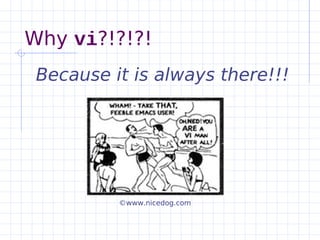
Why vi?!?!?!
 Because it is always there!!!


          ©www.nicedog.com
Installing Applications
  Source Code
     Typically requires a C compiler (gcc)
     GNU Configure – Builds Makefile
     Read README file first!!!
  Precompiled Packages
     Solaris: pkgadd
     RedHat Linux: rpm
RedHat Package Manager
 Command line: rpm
     Install/Upgrade/Remove software
     Distribution verification
     Powerful package/file queries
 Network Installations
     yum
     up2date
     apt-get

Lecture1 2 intro-unix

  • 1.
  • 2.
    Section Overview XWindows Consoles and Terminals UNIX Commands UNIX Filesystem vi Editor
  • 3.
    X Windows FamiliarGUI interface Virtual screens Remote applications X-Terminal Windows  Multiple concurrent session  Scroll bars  Cut, Copy & Paste
  • 4.
    X Managers & Environments X Window Managers  Very configurable  A lot of variety  GUI login mode X Window Environment  Fully integrated environment  Window manager runs within the environment
  • 5.
    Why use thecommand line? Always available  GUI not installed/working  Remote sessions More efficient More powerful Better understanding of what is happening
  • 6.
    UNIX Terminals OldDays  Hardwired – serial connections  Modems – remote connections Network – telnet Console  Monitor/keyboard/mouse on system  Boot/error messages display  Headless servers
  • 7.
    Virtual Consoles inLinux Multiple sessions on one console Special Consoles  Console 1 – default console  Console 7 – X Windows Toggling between consoles  Text mode - <Alt><Fn>  X Windows - <Ctrl><Alt><Fn>  <Fn>: Function Key (n = 1 .. 7)
  • 8.
    Basic Philosophy 10%of work solves 90% of problems Smaller is better Portability Solve at right level Be Creative!!!
  • 9.
    Command Anatomy 101 command[-switches] [arg1] [arg2]… Command: Name of the program Switches: Modify command’s behaviour Arg#: Arguments passed to command
  • 10.
    Getting Help Onlinemanual available Searchable  Command/File name  Type/Section  Keyword Not always easy to understand
  • 11.
    Man Page Sections Solaris Linux Contents 1 1 User commands 2 2 System calls 3 3 Library calls 4 5 File formats 5 7 Misc. files and documents 6 6 Games and demos 7 4 Devices/Network protocols 1m 8 Administration commands 9 9 Kernel specs/interfaces (?)
  • 12.
    Using man mancommand  Look up command man n intro  Contents of section n man –k string  Search short descriptions (apropos) man –K string  Search all man pages for string
  • 13.
    Account Related Commands login  Start session passwd  Change Password logout / exit  Close session
  • 14.
    File/Directory Commands Files Directories  cp – Copy  ls – List contents  mv –  mv – Move/Rename Move/Rename  cd – Change Dir  rm – Remove  pwd – Current Dir  cat – View all  mkdir – Create  more – View page  rm/rmdir – Remove  less – View page
  • 15.
    Copies, moves, and renaming cp file1 file2|dir1  Copy file1 to file2 or into directory dir1 cp –r[p] dir1 dir2  Copy directory dir1 to dir2 mv file1 file2|dir2  Moves file1 to file2 or into directory dir1  Renames file1 to file2 if both in same directory
  • 16.
    Viewing files cat file1  Display the contents of file1 to the screen more file1  Display the contents of file1 one screen at a time less file1  Same as more but more powerful
  • 17.
    Removing files and directories rm file1 file2 ...  Removes list of files rmdir dir1  Removes dir1 only (if it is empty) rm -r dir1  Removes dir1 and all subdirectories/files  VERY Dangerous!!!
  • 18.
    Other directory commands ls [-la] [file/dir list]  Lists files in a directory mkdir dir1  Creates directory dir1 cd dir1  Makes dir1 the current directory pwd  Displays the current directory path
  • 19.
    UNIX Filesystem Hierarchy / (root) bin sbin home etc boot root usr var dev lib scott alice bob bin sbin local lib tmp n321 mail public_ht bin man lib share src ml
  • 20.
    So many bins… / (root) bin sbin usr bin directories: User programs bin sbin local sbin directories: System programs /bin & /sbin – Needed at boot time /usr/bin & /usr/sbin – available bin sbin when system fully operating
  • 21.
    Windows Files/Directories UNIX/Linux Windows /usr %SystemRoot% (C:Windows) /bin & %SystemRoot%System32 /usr/bin /dev %SystemRoot%System32Drivers /etc %SystemRoot%System32Config /tmp C:Temp /var/spool %SystemRoot%System32Spool Source: Principles of Network and System Administration by Mark Burgess
  • 22.
    Relative & AbsolutePaths Absolute Path  Given from “root” directory  Example: /usr/local/bin Relative Path  ‘.’ – Current Directory  ‘..’ – Parent Directory  ‘~’ – Home Directory  Example: ~/.. = /home
  • 23.
    Filter Commands cat– View all sort – Sort by more – View page field less – View page uniq – Remove dup head – View first cut – Get fields tail – View last wc – word count paste – Merge Files grep – Search text tr – Replace text
  • 24.
    Heads or Tails head -# file  Displays the first # lines of file1 tail -# file  Displays the last # lines of file1 wc [-cwl] file  Counts number of characters, words, or lines in file
  • 25.
    Sorting Liststhe contents of a file based on order sort file  Sorts file alphabetically by line sort -r file  Sorts file in reverse order by line sort –t: -n +2 file  Sorts file based on the 3rd field (+2)  in numeric order (-n)  with fields separated by ‘:’ (-t:)
  • 26.
    Extracting info cut –f# [-d%] file  Displays # fields separated by %in file grep search-string file  Displays all lines with search- string in file  Can create very sophisticated search conditions
  • 27.
    Changing file contents paste file1 file2  Merge contents of file1 and file2 line by line tr c1 c2 < file  Changes all occurrences of character c1 to c2 in file
  • 28.
    Misc. Commands date  Set system time/date  View (formatted) system time/date cal  Displays calendar echo  Display strings & shell variables
  • 29.
    Visual Editor (vi) Very Powerful 3 modes  Command  Insert  ex Can be frustrating to learn initially Important to have cheat sheet handy 
  • 30.
    emacs versus vi Georgysays… Slashdot (Asked by markhb): vi or emacs? Georgy: I'm so glad you asked!! Both. vi for quick editing, emacs (NOT xemacs) for coding projects. :q!:q!:q! Source: Slashdot.com, 8/20/2003
  • 31.
    Why vi?!?!?! Becauseit is always there!!! ©www.nicedog.com
  • 32.
    Installing Applications Source Code  Typically requires a C compiler (gcc)  GNU Configure – Builds Makefile  Read README file first!!! Precompiled Packages  Solaris: pkgadd  RedHat Linux: rpm
  • 33.
    RedHat Package Manager Command line: rpm  Install/Upgrade/Remove software  Distribution verification  Powerful package/file queries Network Installations  yum  up2date  apt-get